iOS App Store Screenshot Generator
Create App Store screenshots that meet Apple’s requirements, support device sizes and localizations, and ship through a repeatable workflow.
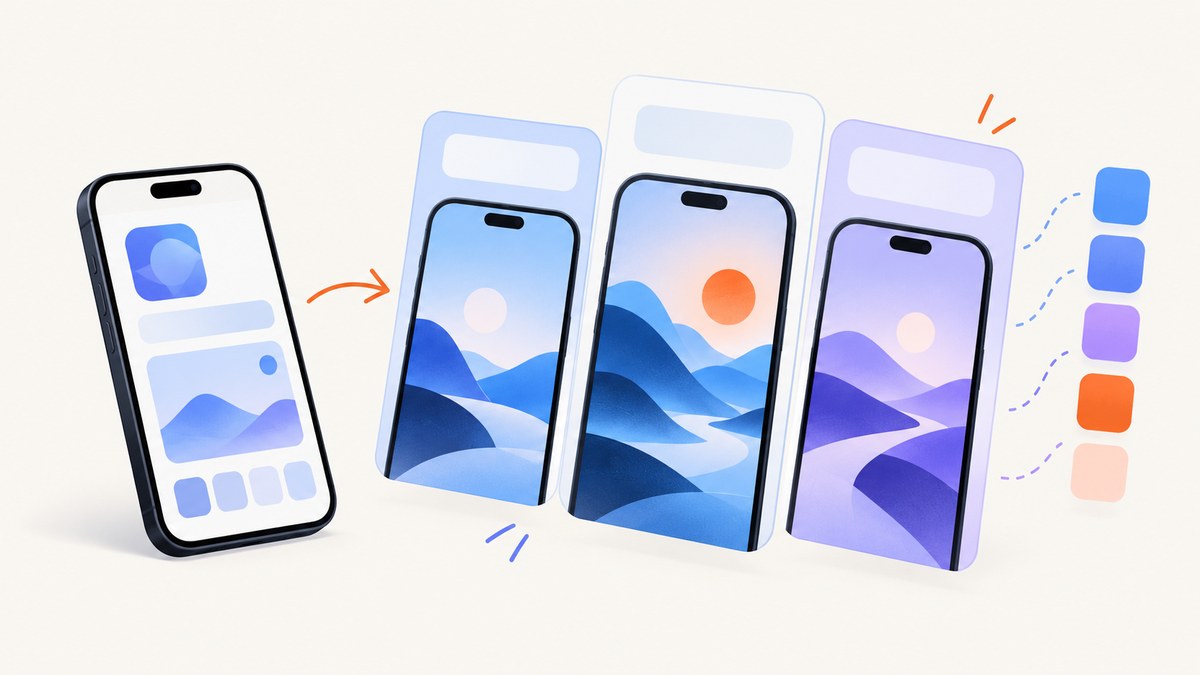
Direct answer: An iOS App Store screenshot generator is a workflow that captures or recreates your app screens, places them in a consistent layout with optional device frames and captions, exports JPEG or PNG files at Apple-approved dimensions, and repeats the process for each required device family and localization. You do not need a physical iPhone or iPad to create compliant listing images, but you do need screenshots that match Apple’s current specifications.
Apple’s live screenshot specifications are the authority for dimensions and supported display classes. Requirements change as Apple adds or retires devices, so treat any hard-coded dimension list from an old tutorial as potentially stale.
What Apple accepts
App Store Connect accepts one to ten screenshots for an app. Files may be .jpeg, .jpg, or .png, and they cannot contain an alpha channel or transparency. Apple publishes separate dimensions for iPhone, iPad, Mac, Apple TV, Apple Vision Pro, and Apple Watch. An iPhone-only app normally needs the current iPhone display classes that Apple lists; an app that runs on iPad should be prepared for the relevant iPad entries as well.
Use the specification page immediately before export and again before submission:
- Confirm the display family and exact pixel dimensions.
- Confirm the file format and that the exported image is opaque.
- Keep each locale’s screenshots in the same order so the story is consistent.
- Check whether your app has optional app previews. Screenshots and previews are separate assets.
A repeatable screenshot-generation workflow
1. Decide the asset matrix
Write down the locales, device families, and number of screens before designing. A simple matrix prevents a common failure: creating attractive iPhone images but forgetting an iPad target or a newly added language.
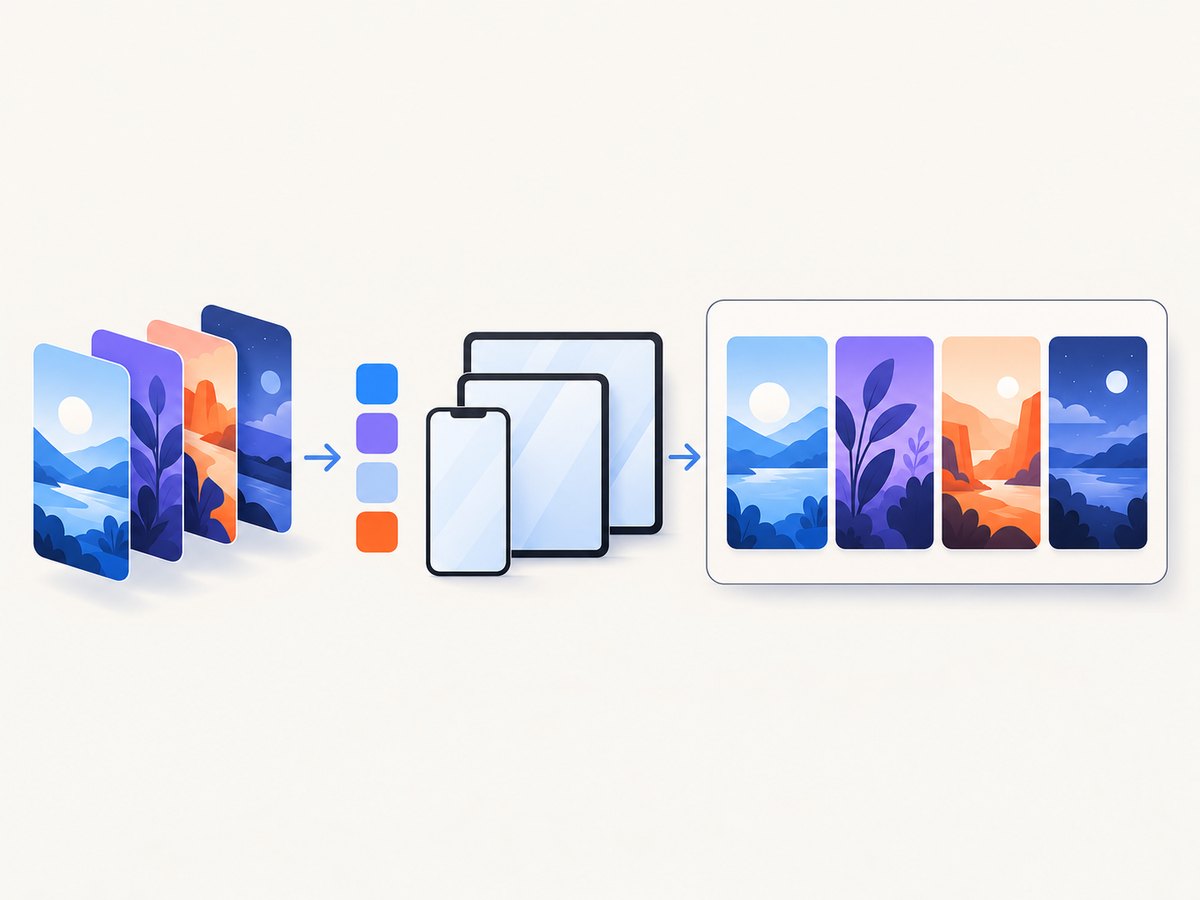
| Dimension | Questions to answer |
|---|---|
| Locales | Which App Store languages are enabled? Does text expand in German, French, or Arabic? |
| Device families | Is the app iPhone only, or does it run on iPad, Mac, Apple TV, Apple Vision Pro, or Apple Watch? |
| Screens | Which one to ten moments communicate the product’s value in a logical order? |
| Source captures | Will you capture a simulator, a real device, a browser prototype, or rendered HTML? |
2. Capture clean source screens
Capture the app without status-bar clutter, debug overlays, test data, or personal information. Keep the same content state across locales unless the localized experience itself is the point. If a screen contains remote data, save a deterministic fixture so a later export does not change unexpectedly.
For a simulator, use the simulator’s screenshot command or save a lossless PNG. For a physical device, use the system screenshot feature and transfer the file without messaging-app recompression. A screenshot generator can then crop, scale, frame, and compose the image.
3. Compose the marketing layout
A useful template has four layers:
- Background: a solid color or restrained gradient that remains readable in every locale.
- Headline: one benefit, written as a short sentence rather than a feature list.
- App screen: the captured interface, kept large enough to read on a phone.
- Optional device frame: a frame that supports the story and does not hide important UI.
Keep typography and spacing locked in a template. Editing each image independently produces small alignment differences that are visible when users swipe through the gallery.
4. Localize the composition
Translate headlines, labels, and any text embedded in the app screen. Allow for expansion instead of shrinking type until it becomes unreadable. For right-to-left languages, mirror layout only when the app itself mirrors; do not automatically reverse a marketing composition that should remain visually consistent.
Export each locale from the same source template. Name files with locale and target information, for example en-US-iphone-01.png and de-DE-iphone-01.png. The filename is for your production system; App Store Connect uses the locale and display target you select during upload.
5. Export and validate
Export opaque PNG or JPEG files at the exact dimensions Apple currently lists. Open every exported file and verify:
- Pixel width and height match the intended display class.
- Color mode is RGB and there is no alpha channel.
- Text is not clipped at the edge.
- Device frames are aligned and do not cover controls.
- Localized text is present and spelled correctly.
- Compression has not introduced visible artifacts in small type.
Keep the editable source and a manifest containing locale, target, dimensions, export date, and source commit. This makes a future device-size change a controlled update rather than a manual hunt through old files.
Uploading in App Store Connect
Apple’s upload guide explains the current interface and eligible app statuses. Screenshots can be uploaded when the version is in statuses such as Prepare for Submission, Invalid Binary, Rejected, Metadata Rejected, or Developer Rejected.
If the app interface is the same across device sizes and localizations, Apple says you can provide only the highest-resolution screenshots required and App Store Connect can scale them down. If you want different crops or compositions, add the other targets through Media Manager. Scaling is conditional: the interface must actually be the same across those sizes and locales.
For automation, the App Store Connect API app-screenshot resources support uploading and downloading images for an app locale and display target. Apple warns that some sizes are required for review submission; missing a required asset can produce a submission error.
Automating generation from HTML or a design template
HTML is useful when your captions, colors, and device frames are data-driven. Create one document per locale and target, set a fixed viewport, load the app image, and render at the required scale. A minimal structure looks like this:
<main class="store-shot" data-locale="en-US">
  <h1>Plan your day in seconds</h1>
  <img class="app-screen" src="screen-en.png" alt="App screen">
</main>
<style>
  * { box-sizing: border-box; }
  html, body { margin: 0; }
  .store-shot {
    width: 1290px;
    height: 2796px;
    padding: 180px 90px;
    background: #eef3ff;
    font-family: -apple-system, BlinkMacSystemFont, sans-serif;
  }
  h1 { font-size: 112px; line-height: 1.05; }
  .app-screen { width: 100%; display: block; }
</style>
Set the CSS dimensions to the current Apple target you are exporting. Do not assume this example’s numbers remain valid for every iPhone class.
Or skip the browser setup
ScreenshotNeo provides a website screenshot API and MCP server. It is useful when your source is a hosted prototype, HTML composition, documentation page, or preview route. One GET request returns a PNG, JPEG, WebP, or PDF. See the ScreenshotNeo documentation for the complete parameter reference.
cURL
curl -G "https://api.screenshotneo.com/v1/shot" \
  -d access_key=YOUR_API_KEY \
  --data-urlencode url=https://stripe.com \
  -o shot.webp
Python
import requests

r = requests.get(
    "https://api.screenshotneo.com/v1/shot",
    params={"access_key": "YOUR_API_KEY", "url": "https://stripe.com"},
    timeout=90,
)
r.raise_for_status()
open("shot.webp", "wb").write(r.content)
Node.js
const q = new URLSearchParams({
  access_key: 'YOUR_API_KEY',
  url: 'https://stripe.com'
});
const res = await fetch(`https://api.screenshotneo.com/v1/shot?${q}`);
if (!res.ok) throw new Error(`HTTP ${res.status}`);
const buffer = Buffer.from(await res.arrayBuffer());
await import('node:fs/promises').then(fs => fs.writeFile('shot.webp', buffer));
Replace the example URL with your rendered screenshot route. ScreenshotNeo supports full-page capture with lazy images loaded, element capture by CSS selector, custom CSS and JavaScript, click actions, waits for a selector or network idle, dark mode, device presets, arbitrary viewports, retina scale, image resizing, transparent backgrounds, custom headers and cookies, user agents, Authorization, timezone, geolocation, request blocking, caching with a chosen TTL, signed links, asynchronous jobs with signed webhooks, bulk capture of up to 100 URLs per call, PDF settings, and a usage API. The parameter names used by other screenshot APIs also work, which can simplify migration.
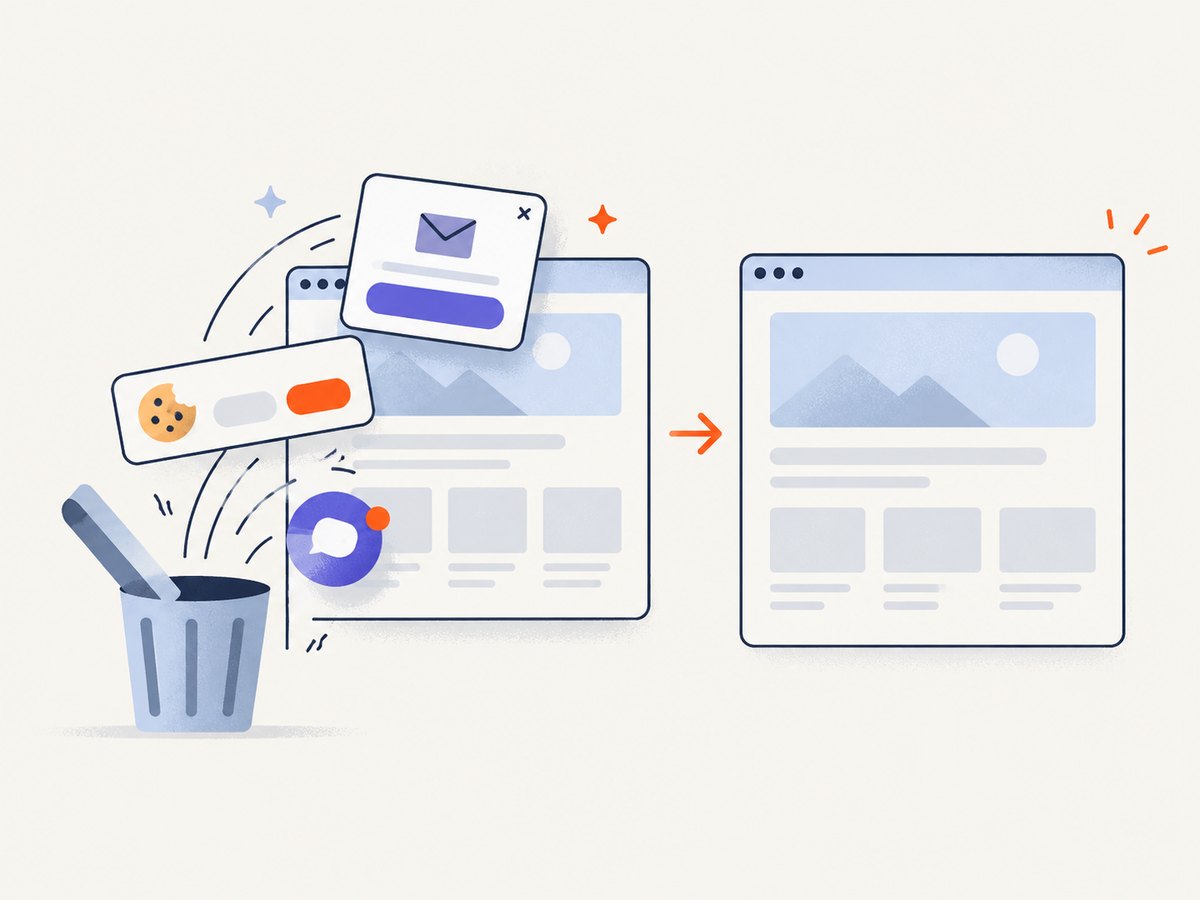
For an App Store composition, set a fixed viewport, use a retina scale when your design requires it, wait for the app image to load, and capture the composition element rather than the entire document. If the page includes consent UI, ScreenshotNeo accepts the banner like a visitor and removes more than 60 known consent platforms, newsletter popups, and chat widgets before capture; each cleanup step can be disabled. Only clean shots are billed. Bot checks or CAPTCHAs, blank pages, timeouts, failed loads, and cache hits are not billed, and the response identifies the result with X-Page-Verdict and X-Billed headers.
An MCP server exposes take_screenshot, get_page_info, and capture_pdf to Claude, Cursor, and other MCP clients. That lets an AI-assisted content pipeline inspect a page, render each locale, and save the resulting assets without adding browser automation to your own service.
Try ScreenshotNeo free: 1,000 screenshots per month require no card. Paid plans start at $5 for 3,000 shots; yearly billing gives two months free, and every feature is available on every plan. Create a free ScreenshotNeo account.
Options that matter for production exports
| Need | Configuration to use | Why it matters |
|---|---|---|
| One screen in a fixed layout | Element selector capture and explicit viewport | Prevents browser chrome and unrelated content from entering the asset. |
| Long marketing page | Full-page capture with lazy loading and a wait condition | Ensures below-the-fold images exist before rendering. |
| Dark-mode variant | Dark-mode setting or custom CSS | Keeps the app image and surrounding composition intentional. |
| Private preview | Custom headers, cookies, or Authorization | Allows capture without making unreleased screens public. |
| Stable repeated builds | Cache with a chosen TTL and deterministic content | Reduces duplicate work while preserving a known refresh window. |
| Many locales | Bulk capture, up to 100 URLs per call | Turns a locale matrix into a repeatable batch job. |
Troubleshooting
The upload rejects the file
Cause: dimensions are not one of the current Apple entries, the file has transparency, or a required display target is missing. Fix: re-check Apple’s live specification, flatten the image onto its background, inspect pixel dimensions, and review the API response for the missing target.
Text is clipped in one language
Cause: a fixed English text box was reused for a longer translation. Fix: allow flexible height, set a locale-specific line break, or shorten the copy while keeping the same benefit.
The app screen is blank
Cause: the capture ran before a network request or lazy image completed. Fix: wait for a selector or network idle, provide stable fixture data, and capture the element after it becomes visible.
A consent banner covers the composition
Cause: the banner loaded after the first paint or uses a platform your browser script does not handle. Fix: wait for the page to settle and remove the banner deliberately. With ScreenshotNeo, consent and known newsletter or chat widgets are cleaned before the shot, and individual cleanup steps can be turned off when needed.
Automated capture works locally but fails in CI
Cause: missing fonts, credentials, environment variables, or an unreachable preview host. Fix: package the fonts, inject secrets through CI configuration, use a stable test URL, and log the final URL, viewport, wait condition, HTTP status, and verdict headers.
Performance, reliability, and cost
Make the source deterministic first: pin the app data, fonts, and CSS; avoid timestamps; and wait for a specific ready selector. Capture only the element needed for a screenshot instead of a whole page when possible. Batch locale jobs, reuse cached results during review, and reserve fresh captures for final builds.
Keep a manifest of every requested URL, locale, target, viewport, output hash, and capture verdict. A successful HTTP response is not enough evidence that the image is useful; inspect X-Page-Verdict and X-Billed when using ScreenshotNeo. Failed loads and cache hits are not billed there, which makes retries safer during a large export.
Apple’s limit is one to ten screenshots per listing, so prioritize the screens that explain the product fastest. More images do not compensate for unreadable type, inconsistent localization, or a missing required device class.
Checklist before submission
- Every screenshot matches a current Apple display specification.
- Each file is JPEG or PNG with no transparency.
- There are no debug labels, personal data, or accidental test accounts.
- Captions and app UI are localized for every enabled language.
- The first screenshots communicate the primary workflow in order.
- Required iPhone or iPad assets are present; optional families are intentional.
- Files have been opened and checked at 100% zoom.
- The editable source, manifest, and export date are archived.
FAQ
Do I need a physical iPhone?
No. A simulator, a deterministic app build, or a rendered prototype can provide the source screen. The exported asset still has to meet Apple’s current dimensions and format rules.
Can I upload one screenshot for every device size?
You can add other sizes through Media Manager. If the interface is identical across sizes and localizations, Apple says the highest-resolution screenshots can scale down.
Are app previews the same as screenshots?
No. Screenshots are still images; app previews are optional video assets with their own limits and upload workflow.
Should I use PNG or JPEG?
Both are accepted. Use the format that preserves small type and gradients cleanly while keeping file sizes manageable, and ensure the export has no alpha channel.
Can I automate App Store uploads too?
Yes. Apple documents app-screenshot resources in the App Store Connect API. Build validation around the current required display targets because missing assets can block submission.


