Why Full-Page Screenshots Fail on iPhone 13 and How to Fix Them
Learn why Full Page is missing on iPhone 13, how to capture an entire webpage in Safari, and what to do when it still fails.

Short answer: On iPhone 13, take a normal screenshot with Side + Volume Up, open the screenshot controls, then choose Full Page. Apple documents this workflow primarily for webpages in Safari. The option is contextual, so it may be absent in some apps or content types.
If Full Page does not appear, open the original page directly in Safari, retry the capture, and use the page or app’s print, export, download, or share-to-PDF feature when available. There is no evidence of a universal iPhone 13 hardware defect behind every missing Full Page option.
How Full Page screenshots work on iPhone 13
The iPhone 13 uses Face ID controls. Press and quickly release the Side button and Volume Up button together. A screenshot is created immediately. Tap its preview to open the editing and capture controls.
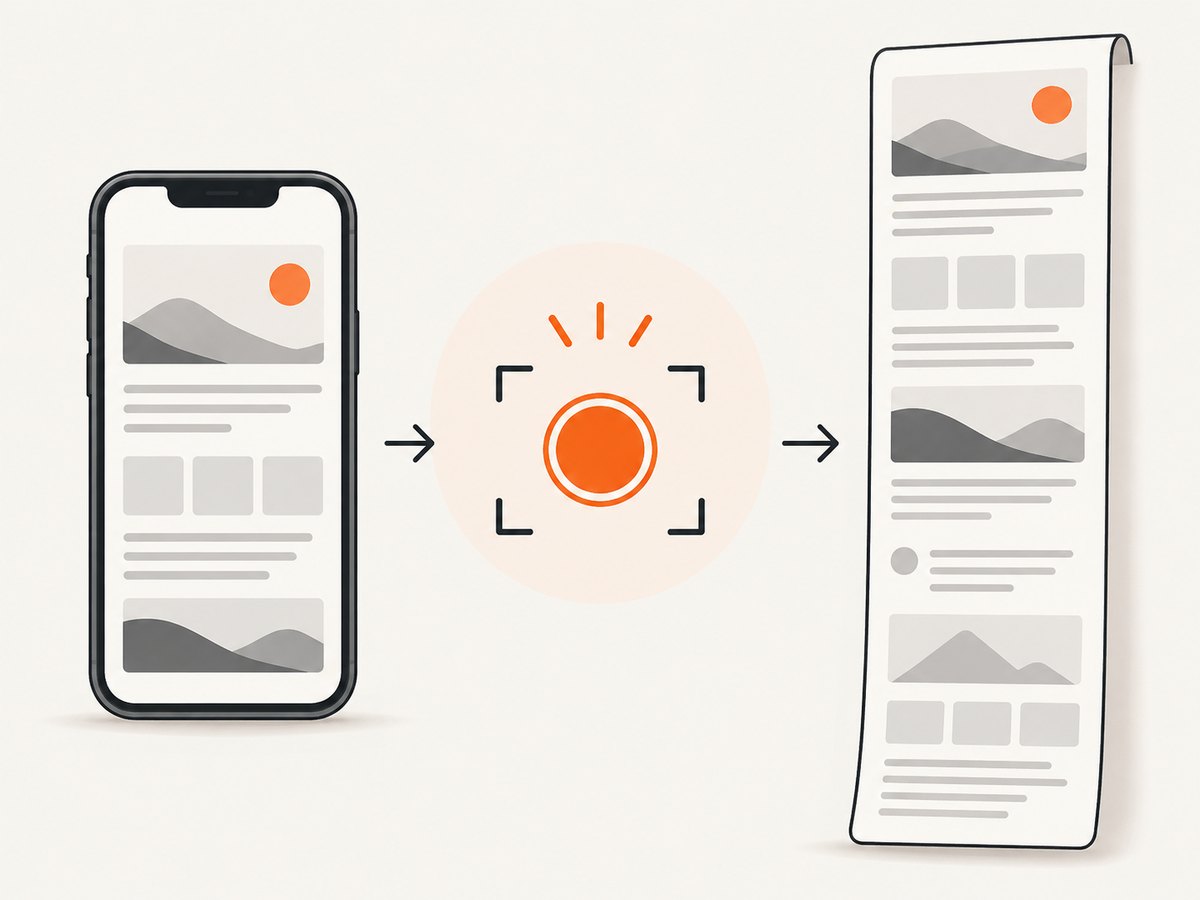
When the current app and content support scrolling capture, a Full Page tab appears. Select it to extend the capture beyond the visible screen, review the long preview, crop or mark it up if needed, and save or share it. Apple’s documented example is an entire webpage in Safari.
- Open the webpage directly in Safari and wait until it finishes loading.
- Press and release Side + Volume Up at the same time.
- Open the screenshot controls from the preview. If your settings show a full-screen screenshot interface, use that interface instead of relying only on the thumbnail.
- Tap Full Page.
- Inspect the preview, then save or share the result.
Apple also documents other ways to invoke a screenshot, including Siri, AssistiveTouch, and Back Tap. Those methods still depend on the current app supporting a full-page capture.
Why the Full Page option is missing
The most common reason is support scope. Full Page is not a universal command that works on every screen. Apple specifically documents Safari, and its iOS 17 feature description names Safari, Pages, and Notes for saving a full-page capture as an image or PDF. A third-party app may not expose the required scrolling content to iOS.
| What you see | Likely explanation | What to try |
|---|---|---|
| No screenshot controls | The preview was not opened, or the interface presentation differs by iOS settings. | Tap the screenshot preview immediately; retry with the full-screen screenshot interface if shown. |
| Controls appear, but no Full Page tab | The app, document, or embedded webpage does not support scrolling capture. | Open the same URL directly in Safari and capture there. |
| Full Page appears on some pages only | Support depends on the page and app content. | Test another ordinary Safari webpage. Export or print the unsupported page. |
| The result stops early | The page has not finished loading, or its content is dynamically rendered. | Wait for the page, scroll once to trigger lazy content, then capture again. |
| The result is a PDF instead of an image | Output choices depend on the app and iOS version. | Use the available save or share destination; iOS 17 documents image or PDF choices for Safari, Pages, and Notes. |
Reliable troubleshooting sequence
- Move the page to Safari. If you opened a link inside another app, use its share menu to open the URL in Safari. In-app browsers often have different capture support.
- Wait for loading to finish. Keep the page open until images, charts, and expandable sections are present. Some sites load content only after you scroll.
- Take an ordinary screenshot. Press Side + Volume Up quickly and together.
- Open the controls. Tap the preview. If the thumbnail is not visible, use the screenshot interface provided by your iOS configuration.
- Check for Full Page. If it is present, select it and review the complete preview before saving.
- Compare with another Safari page. If Full Page works there, the first page or app is the constraint rather than the button combination.
- Use an export fallback. Look for Print, Export, Download, or Share as PDF in the app or website.
- Retry after reopening Safari. Close the tab or relaunch Safari, reload the page, and repeat the sequence.
- Update iOS when an update is available. Interface details can vary by installed version.
- Escalate with useful details. If Full Page is missing even on ordinary Safari webpages, contact Apple Support or the app developer with your iOS version, URL or app name, and the exact step where the option disappears.
Pages that are especially difficult to capture
Infinite scroll and virtualized lists
Some feeds do not contain one complete document. They replace old items as you scroll, so iOS may have no stable page boundary to capture. Use the app’s export function, save individual sections, or capture the underlying webpage in Safari when possible.
Embedded browsers
Links opened inside social, email, or other apps may use an embedded browser. The page can look identical while exposing different screenshot capabilities. Open the URL in Safari before diagnosing the iPhone.
Dynamic and lazy-loaded content
Charts, images, and comments may load after the first paint. Wait, scroll through the page once, and retry. A full-page screenshot cannot include content that the page has not rendered.
Protected or interactive content
Video players, authenticated dashboards, canvases, and app-owned documents may restrict export or scrolling capture. Use the product’s own download or PDF command when available, and respect access controls.
Saving the result as an image or PDF
After selecting Full Page, review the long preview and use the share or save controls shown by your iOS version. Apple’s iOS 17 feature description says full-page screenshots in Safari, Pages, or Notes can be saved as an image or PDF. Apple’s general iPhone guide emphasizes saving screenshots to Photos, so the exact destinations depend on the app and installed iOS version.
For a document that must preserve selectable text, links, or page breaks, the site’s own PDF or print export is usually a better source than a raster image. For visual review, bug reports, or design references, an image capture may be more convenient.
Or skip the browser setup
If you need repeatable full-page captures from code, ScreenshotNeo provides a website screenshot API. It loads the URL and returns PNG, JPEG, WebP, or PDF. Cookie and consent banners are accepted and removed before capture, along with more than 60 known consent platforms, newsletter popups, and chat widgets; each step can be disabled.
Only clean shots are billed. Bot checks or CAPTCHAs, blank pages, timeouts, failed loads, and cache hits cost nothing, and the response identifies the result with X-Page-Verdict and X-Billed headers. ScreenshotNeo also offers an MCP server for Claude, Cursor, and other MCP clients, with take_screenshot, get_page_info, and capture_pdf tools.
See the ScreenshotNeo API documentation for the full option list, including full-page mode, CSS selectors, device presets, retina scale, PDF settings, waits, custom CSS and JavaScript, request blocking, cookies, headers, geolocation, caching, signed links, asynchronous jobs, webhooks, bulk capture, and usage reporting.
cURL
curl -G "https://api.screenshotneo.com/v1/shot" -d access_key=YOUR_API_KEY --data-urlencode url=https://stripe.com -o shot.webpPython
import requests

r = requests.get(
    "https://api.screenshotneo.com/v1/shot",
    params={"access_key": "YOUR_API_KEY", "url": "https://stripe.com"},
    timeout=90,
)
r.raise_for_status()
open("shot.webp", "wb").write(r.content)
Node.js
const q = new URLSearchParams({ access_key: 'YOUR_API_KEY', url: 'https://stripe.com' });
const res = await fetch(`https://api.screenshotneo.com/v1/shot?${q}`);
if (!res.ok) throw new Error(`HTTP ${res.status}`);
const data = Buffer.from(await res.arrayBuffer());
await import('node:fs/promises').then(fs => fs.writeFile('shot.webp', data));
Replace the example URL with the page you need to capture. For a long webpage, enable the full-page option documented by ScreenshotNeo; for a PDF, use the PDF endpoint options and choose paper size, margins, orientation, and page ranges.
Create a free ScreenshotNeo account: 1,000 screenshots each month, no card required. Paid plans start at $5 for 3,000 shots.
Performance, reliability, and cost notes
- On iPhone: waiting for dynamic content improves completeness but increases the time before capture. Very long or interactive pages may remain unsuitable for Full Page.
- For automated capture: use a wait for a selector, delay, or network idle when the page renders asynchronously. Caching with a chosen TTL can reduce repeated work.
- Reliability: inspect
X-Page-VerdictandX-Billedinstead of assuming every HTTP response is a clean screenshot. - Cost: Free includes 1,000 shots per month with no card. Starter is $5 for 3,000, Growth $15 for 15,000, Pro $39 for 60,000, Scale $99 for 250,000, and Business $249 for 1,000,000. Yearly billing gives two months free, and every feature is available on every plan.

FAQ
Does every iPhone 13 support full-page screenshots?
The hardware supports the standard screenshot shortcut, but Full Page depends on the app and content. Safari is Apple’s documented example.
Can I capture a full page from Chrome on iPhone?
The documented Apple workflow centers on Safari. If Full Page is unavailable in another browser or app, use that product’s export feature or open the page in Safari.
Why does Full Page work on one website but not another?
Pages differ in how they expose scrollable content and load data. A working capture on one Safari page does not guarantee support on every page.
Is there an iPhone 13-specific bug?
The available Apple documentation does not establish a model-wide iPhone 13 failure or one universal fix. Record the iOS version and affected app or URL when asking for support.
What should I use for scheduled website screenshots?
Use an automated screenshot API such as ScreenshotNeo when you need repeatable captures, PDF output, cleanup of consent banners and popups, status headers, or AI-agent access through MCP.


