How to Capture a Full-Page Screenshot on iPhone When It Is Unavailable
Full Page missing on iPhone? Follow Apple’s Safari workflow, save the page as a PDF, troubleshoot the control, or capture it with an API.

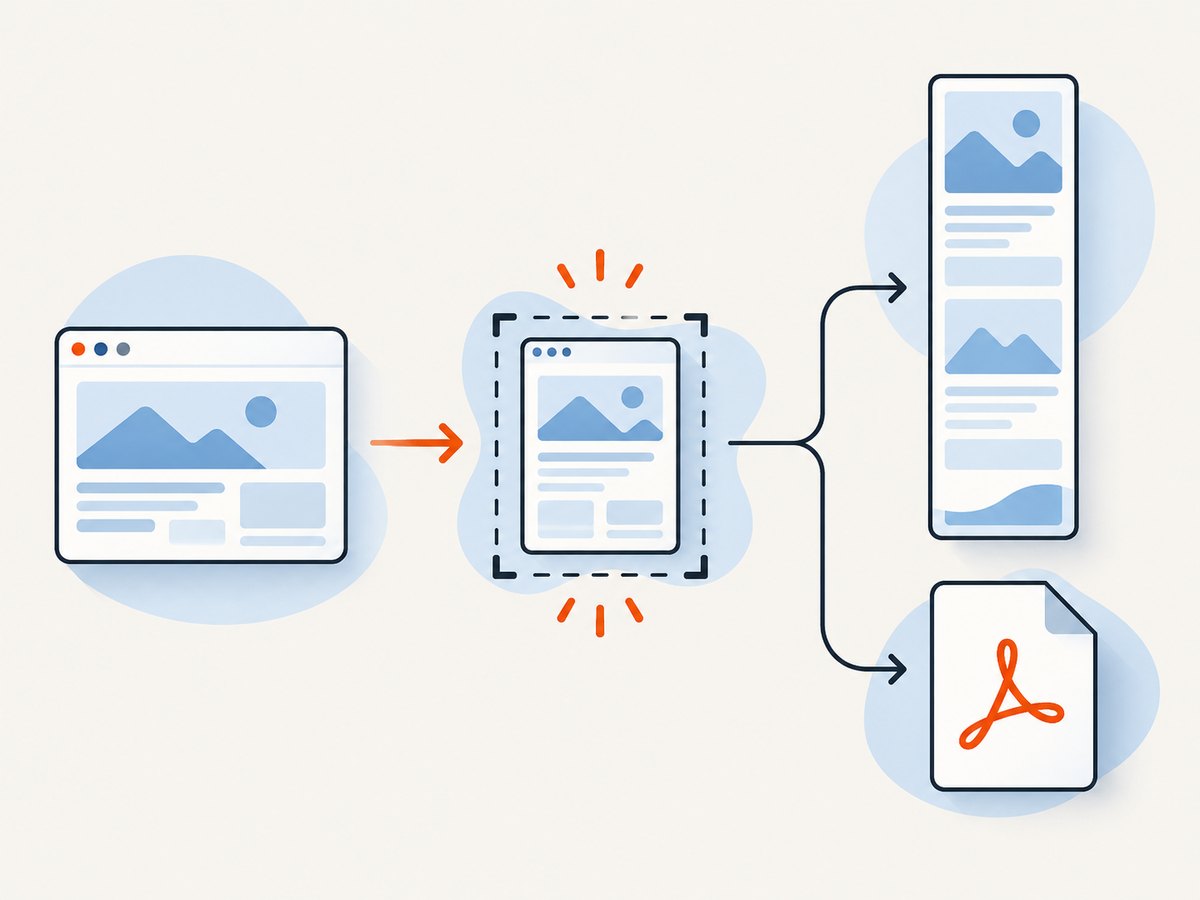
When Full Page is missing after you take an iPhone screenshot, start with Apple’s documented workflow in Safari: capture the screen, open the screenshot preview, tap Full Page, then save the result as an image or PDF. Apple uses an entire Safari webpage as its example of content longer than the display. The control is not documented as universal for every app or view, so its absence does not prove one specific cause.
If your goal is simply to keep a long webpage, Safari can also export the page directly to a PDF. If you need a repeatable image or PDF from code, use a screenshot service such as ScreenshotNeo after trying the built-in method.
What “Full Page” does on iPhone
A normal screenshot records the visible display. A full-page capture extends beyond that viewport. Apple documents the feature for content such as an entire webpage in Safari. The resulting file can be saved as an image in Photos or as a PDF in Files. The exact labels and buttons can vary with iOS version, device configuration and localization.
Apple’s documented method
- Open the long webpage in Safari. This is Apple’s named example for full-page content.
- Take a screenshot. On an iPhone with Face ID, quickly press and release the side button and Volume Up together. On an iPhone with a Home button, quickly press and release the side button and Home button together.
- Tap the screenshot thumbnail that appears in the lower-left corner to open the preview. If the thumbnail disappears, open the screenshot from Photos and use the available editing controls.
- At the top of the preview, tap Full Page.
- Scroll through the right-side preview to inspect the captured page. Use the crop controls if you need to remove content.
- Choose a save destination. Apple’s guide describes saving a full-page screenshot as an image in Photos or as a PDF in Files.
Apple’s iPhone user guide describes this sequence and the image/PDF choices: Take a screenshot on iPhone.
Why Full Page may be unavailable
Apple’s reviewed documentation does not provide an exhaustive list of causes or an app-by-app compatibility table for a missing Full Page control. Do not assume that a setting, device restriction or a particular app bug is responsible without more evidence.
Use this practical check first:
- Are you capturing a long webpage in Safari? That is the context Apple explicitly documents.
- Did you tap the screenshot preview quickly enough to open the editing screen?
- Is the content actually longer than the display? A short view may not offer a full-page choice.
- Are you in an app or document view for which Apple does not promise the control?
- Does the page finish loading before you capture it? Dynamic pages can change while the preview is open.
If the control still does not appear, use Safari’s PDF export described below. This preserves the webpage without claiming to restore Full Page in an unsupported context.
Save the Safari webpage as a PDF instead
Safari has a separate route for creating a PDF. It is useful when the requirement is a portable, searchable document rather than a raster image.
- Open the webpage in Safari.
- Tap the Page Menu and Share. Depending on the tab layout, Apple may show a Share button directly.
- Tap Markup.
- Tap Done.
- Choose Save File To, select a folder, name the file and save it.
Apple documents this flow in its Safari user guide: Annotate and save a webpage as a PDF. This is an alternative output path; it does not guarantee that the Full Page control will appear in the screenshot editor.
Other ways to trigger the screenshot
If pressing two hardware buttons is difficult, Apple lists Siri, AssistiveTouch and Back Tap as other screenshot triggers. These can help you create the initial screenshot. Apple does not state that they make Full Page available where it is missing, so treat them as input alternatives rather than a compatibility fix.
Choosing image, PDF or a normal screenshot
| Need | Best route | Result |
|---|---|---|
| Share a visual copy | Screenshot preview → Full Page | Full-page image, when offered |
| Keep a long webpage for reading or filing | Safari Share → Markup → Save File To | |
| Capture only what is visible | Normal screenshot | Viewport image |
| Automate many URLs or use a server workflow | Screenshot API | Image or PDF returned by HTTP |
Edge cases to expect
Infinite scroll and lazy-loaded content
A page that loads more items only after scrolling may not have a fixed end when iOS creates the capture. A PDF export can also reflect the page’s print layout rather than its scrolling layout. For a deterministic result, use a capture system that waits for content and supports full-page rendering.
Login-required or personalized pages
Safari captures the session currently open on the phone. A server request needs its own authentication, cookies or headers. Never paste private session cookies into an untrusted service.
Consent banners, popups and chat widgets
These overlays can cover the page or become part of the capture. Dismiss them before taking the screenshot, or use an automated capture service that handles common overlays.
Very long pages
Large captures consume more memory and take longer to share or upload. Crop to the required section when possible, or create a PDF when a document is more practical than one huge image.
Troubleshooting checklist
| Symptom | Likely explanation | What to try |
|---|---|---|
| No screenshot thumbnail | The button press was not registered or the preview timed out. | Press and release both buttons quickly; check Photos for the result. |
| Full Page is absent | The current app or view may not expose Apple’s documented webpage workflow. | Try the same URL in Safari, then use Safari PDF export if needed. |
| Capture stops early | The page may not be a single document or may load content dynamically. | Wait for loading to finish; capture a smaller section or export a PDF. |
| Overlay blocks content | A consent dialog, popup or chat widget is in the page. | Dismiss it before capture, or hide it with an automated workflow. |
| PDF layout looks different | PDF export uses the page’s print representation. | Use the screenshot route for a visual copy; use PDF when document structure matters. |
| File is difficult to share | A very large image can exceed app or attachment limits. | Crop, resize, or save as PDF. |

Or skip the browser setup
For repeatable captures, ScreenshotNeo accepts one GET request and returns PNG, JPEG, WebP or PDF. See the ScreenshotNeo API documentation for parameters and output options.
curl -G "https://api.screenshotneo.com/v1/shot" -d access_key=YOUR_API_KEY --data-urlencode url=https://stripe.com -o shot.webpimport requests
r = requests.get("https://api.screenshotneo.com/v1/shot", params={"access_key": "YOUR_API_KEY", "url": "https://stripe.com"}, timeout=90)
open("shot.webp", "wb").write(r.content)const q = new URLSearchParams({ access_key: 'YOUR_API_KEY', url: 'https://stripe.com' });
const res = await fetch(`https://api.screenshotneo.com/v1/shot?${q}`);ScreenshotNeo removes cookie and consent banners, newsletter popups and chat widgets before the shot; each cleanup step can be turned off. Bot checks, blank pages, timeouts, failed loads and cache hits cost nothing, and response headers identify the page verdict and whether it was billed. Its MCP server provides take_screenshot, get_page_info and capture_pdf for Claude, Cursor and other MCP clients. You can use full-page capture with lazy images, CSS selectors for one element, custom CSS or JavaScript, waits, headers, cookies, device presets, retina scale, PDF settings, caching, signed links, async jobs, bulk capture and a usage API.
The Free plan includes 1,000 shots per month with no card. Paid plans start at $5 for 3,000 shots; yearly billing gives two months free. Create your free ScreenshotNeo account.
Performance, reliability and cost considerations
- Wait for readiness: Dynamic pages need a selector wait, delay or network-idle wait so lazy images and charts are present.
- Reduce work: Capture one CSS-selected element when a full page is unnecessary. Resize output when the destination does not need the original dimensions.
- Control repeat requests: Choose a cache TTL for stable pages. Cache hits are not billed by ScreenshotNeo.
- Handle failures: Inspect HTTP status and the
X-Page-VerdictandX-Billedheaders. Retry transient timeouts with a bounded backoff, and do not treat a bot check as a successful page. - Estimate spend: Count successful clean captures, then compare the monthly total with the included quota. Failed loads, blank pages, bot checks, timeouts and cache hits do not consume billed shots.
FAQ
Does every iPhone app support Full Page?
Apple’s guide explicitly gives an entire Safari webpage as the example. It does not promise the control in every app or view.
Can I save a full-page capture as a photo?
Apple describes image and PDF save choices. The available choice can depend on the capture context and iOS version.
Does AssistiveTouch restore Full Page?
It can trigger the screenshot, but Apple does not say it enables Full Page where the control is unavailable.
What should I use for a webpage archive?
Use Safari’s PDF export when a document is sufficient. Use a full-page image when visual fidelity to the rendered page is the priority.
Can I automate iPhone-style captures from a server?
Yes. An HTTP screenshot API can render the URL without an iPhone. Configure waits, viewport, authentication and output format for the page you need.


