Why Full-Page Screenshots Fail in iPhone Safari and How to Fix Them
Full Page missing or incomplete in iPhone Safari? Follow the supported workflow, diagnose capture and save-format problems, and use a reliable API alternative.
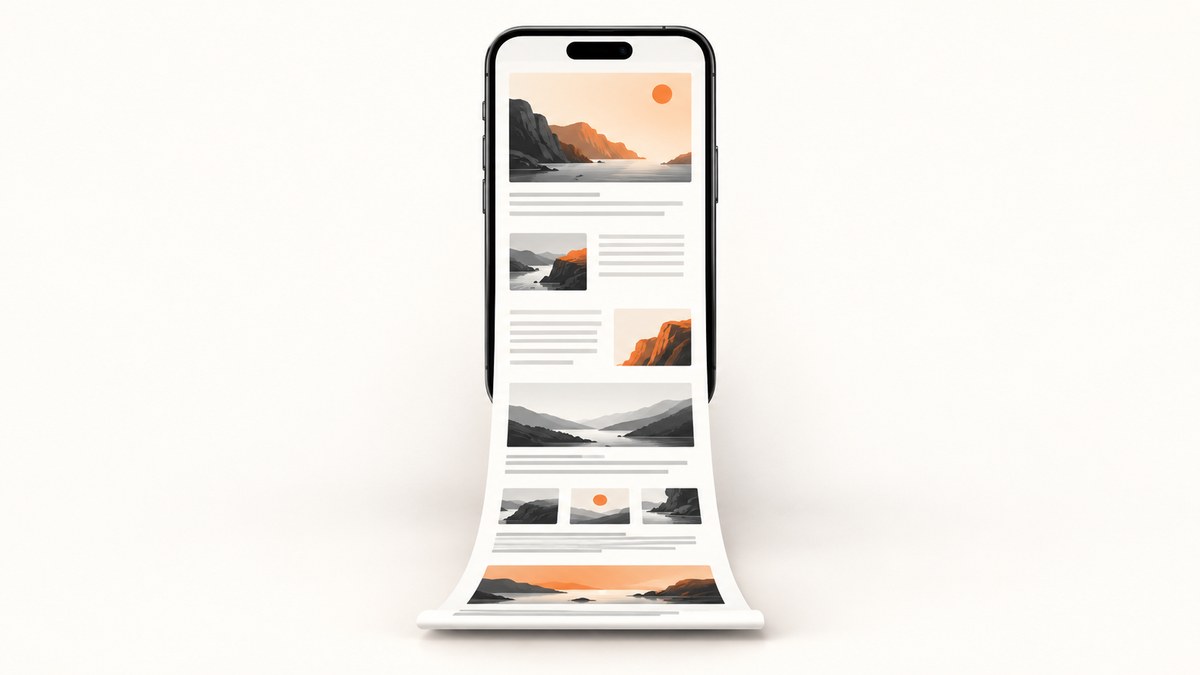
Short answer: In Safari, take a screenshot, open its preview, tap Full Page, inspect the long preview, then save using one of the formats offered. If Full Page is missing, first confirm that the screenshot was taken in Safari and that you opened the screenshot interface. If the capture is incomplete, let the page finish loading and review the preview before saving. Capture and output format are separate problems.
Use Safari’s supported full-page workflow
Apple documents full-page capture for content such as an entire webpage in Safari. The control appears in the screenshot interface, not on the webpage itself. See Apple’s iPhone screenshot guide.
- Open the webpage in Safari and wait for the part you need to load.
- Take a screenshot. On Face ID iPhones, press and quickly release the side button and volume-up button together. On iPhones with a Home button, press and quickly release the side button and Home button together. Siri, AssistiveTouch and Back Tap can also start a screenshot.
- Open the screenshot interface by tapping the thumbnail when it appears. Depending on your settings, iPhone may show a temporary thumbnail or a full-screen preview.
- Tap Full Page.
- Drag through the long preview. Crop it if needed.
- Choose the save destination and format shown on your iPhone. Apple’s iOS 17 guide documents Save PDF to Files.
If you use a full-screen screenshot preview, do not stop at the absence of a thumbnail. Open that preview and look for Full Page.
Diagnose the failure by symptom
“Full Page” is missing
- Confirm the screenshot was taken while the webpage was open in Safari, rather than in another app or a browser view embedded in an app.
- Open the screenshot preview or full-screen screenshot interface.
- Look for Full Page alongside the normal screen capture view.
- If it is still absent, record the iPhone model, iOS version and whether the page was open in Safari. Those details are needed for device-specific diagnosis.
The available sources do not establish one universal cause or a guaranteed fix such as restarting Safari, moving its icon, changing a WebKit flag or toggling an unrelated setting. Treat those as unverified suggestions, not standard remedies.

The full-page preview is incomplete
Let the page finish loading before taking the screenshot. Scroll through content that appears only as you move down the page, then take a new screenshot and inspect the preview again. This is a practical diagnostic step; Apple’s procedure does not identify a single cause for every incomplete capture.
Check the preview itself before saving. It shows whether the content you need is present and whether a fixed header, embedded content or other page behavior produced an unexpected result. The research sources do not prove that any one of those behaviors is the cause in all cases.
The capture works, but there is no single long image
Do not confuse capture with export. Apple’s iOS 17 documentation describes saving a full-page result as a PDF in Files. MacRumors reported that iOS 17 added Save to Photos for a single long image, but that the option may be unavailable when scrollable content is excessively long. Labels and available destinations vary by iOS version, so use the options displayed on your device. If a long image option is absent, save the full-page result as a PDF when that option is available.
Save as PDF or image
| What you need | Use | What to expect |
|---|---|---|
| Archivable document or sharing | Save PDF to Files | Apple documents this route in its iOS 17 guide. |
| One tall raster image | Save to Photos, when offered | The option may be unavailable for excessively long content. |
| Only the visible screen | Save the regular screenshot | This does not include content below the viewport. |
Use the preview to crop out browser chrome or unwanted sections before exporting. If the page is too long for the offered image format, PDF is the documented fallback.
A repeatable troubleshooting checklist
- Wrong app: Reopen the URL directly in Safari, then capture from Safari.
- Preview not open: Tap the screenshot thumbnail, or open the full-screen screenshot preview if your settings use that presentation.
- Page still loading: Wait, scroll through lazy content, and capture again.
- Missing image export: Use the PDF-to-Files option when available; very long pages may not offer a single image.
- Unexpected crop: Inspect the full-page preview and adjust the crop before saving.
- Version-specific behavior: Note the iPhone model and iOS version before seeking device-specific help. Safari 26 is available for iOS 26, but the reviewed Safari 26 release notes do not identify a fix specifically for full-page screenshot failures.
Reliability and practical limits
The built-in method is convenient for an occasional page and requires no account or external service. Its behavior depends on what Safari presents in the screenshot interface and which save options your iOS version offers. The research does not provide a universal page-length limit, success rate or single technical explanation for incomplete captures, so avoid treating any one workaround as guaranteed.
For repeatable captures, automation, a chosen viewport, or a server-side image/PDF file, use a screenshot API instead of relying on an interactive phone workflow.
Or skip the browser setup
ScreenshotNeo captures a URL with one GET request and returns PNG, JPEG, WebP or PDF. Before capture it accepts cookie and consent banners and removes more than 60 known consent platforms, newsletter popups and chat widgets; each step can be disabled. Bot checks, CAPTCHAs, blank pages, timeouts, failed loads and cache hits are not billed, and the response identifies the result with X-Page-Verdict and X-Billed headers. Its MCP server provides take_screenshot, get_page_info and capture_pdf tools for Claude, Cursor and other MCP clients.
See the ScreenshotNeo API documentation for all options, including full-page capture, PDF paper size and margins, custom CSS or JavaScript, waits, blocked resources, headers, cookies, user agents, timezones, geolocation, caching, signed links, async jobs, bulk capture and usage details.
cURL
curl -G "https://api.screenshotneo.com/v1/shot" -d access_key=YOUR_API_KEY --data-urlencode url=https://stripe.com -o shot.webpPython
import requests
r = requests.get("https://api.screenshotneo.com/v1/shot", params={"access_key": "YOUR_API_KEY", "url": "https://stripe.com"}, timeout=90)
open("shot.webp", "wb").write(r.content)
Node.js
const q = new URLSearchParams({ access_key: 'YOUR_API_KEY', url: 'https://stripe.com' });
const res = await fetch(`https://api.screenshotneo.com/v1/shot?${q}`);
The Free plan includes 1,000 screenshots per month with no card. Paid plans start at $5 for 3,000 shots; every feature is available on every plan. Create a free ScreenshotNeo account.
FAQ
Does Full Page create a PDF or an image?
It creates a full-page capture, then you choose among the save options shown by your iPhone. PDF-to-Files is documented; a single long image may not be offered for excessively long pages.

Why can two iPhones show different screenshot controls?
The screenshot presentation can be configured as a full-screen preview or a temporary thumbnail, and iOS versions can expose different save labels.
Should I update iOS to fix every full-page failure?
Keep iOS current for general maintenance, but the reviewed Safari 26 release notes do not promise a fix for all full-page screenshot failures.
Can I capture a page without its consent banner or chat bubble?
The built-in iPhone workflow does not document automatic removal. ScreenshotNeo can accept consent banners and remove known consent platforms, newsletter popups and chat widgets before capture.


