Is Web Capture the Same as a Screenshot?
Web capture is broader than a screenshot. Learn the difference between viewport, full-page, element, and live screen capture.
Short answer
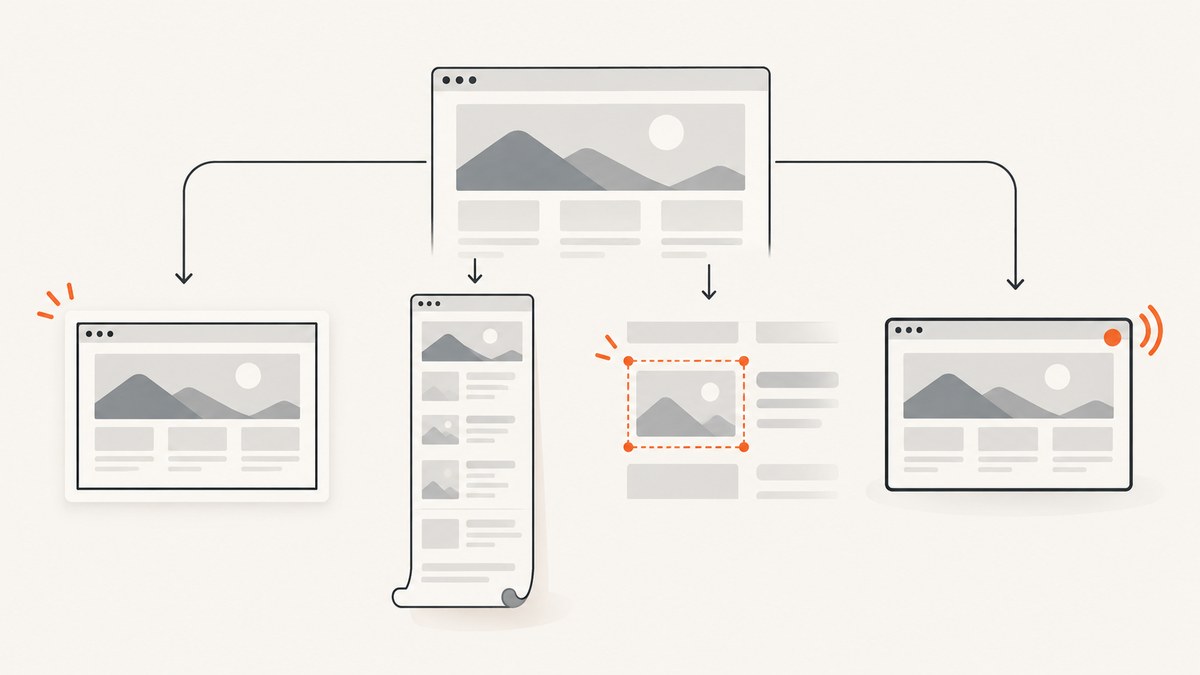
Usually, people use “web capture” and “screenshot” to mean the same thing: saving a still image of a webpage. Technically, web capture is the broader term. It can mean a viewport screenshot, a full document image, an image of one element, or a live stream of a browser tab, window, or monitor.
A screenshot is always a still image. A display capture can be a live MediaStream that changes over time and may include audio. The right method depends on whether you need quick evidence, a complete page, one component, or an ongoing recording.
For automated webpage images, ScreenshotNeo provides a single HTTP endpoint that returns PNG, JPEG, WebP, or PDF files. It is useful when you need repeatable captures without maintaining a browser.
What each term means
| Term | What is captured | Output | Typical use |
|---|---|---|---|
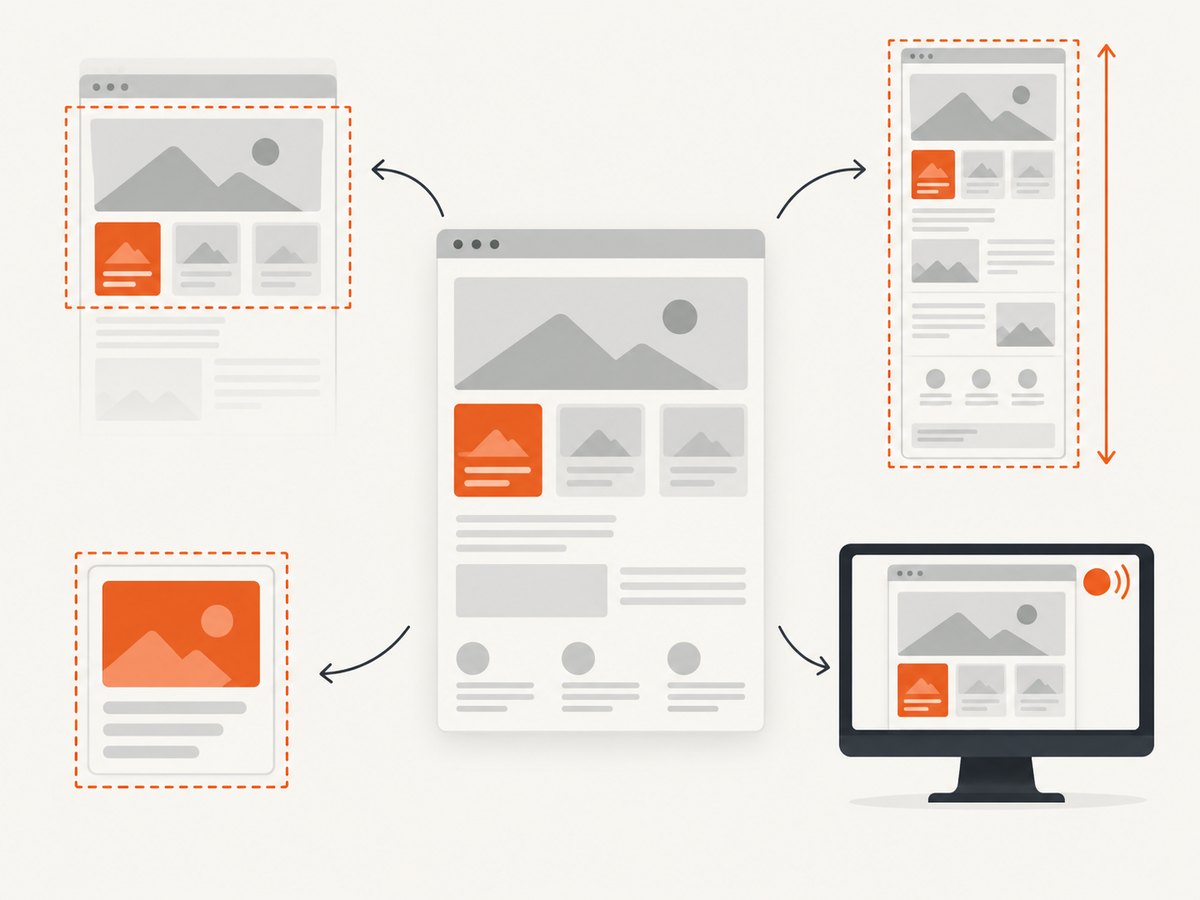
| Viewport screenshot | The pixels currently visible inside the browser viewport | Still image, commonly PNG or JPEG | Bug reports, visible error messages, quick sharing |
| Full-page or document capture | The entire scrollable document, including content below the fold | One tall still image (or a PDF) | Documentation, visual regression, archival records |
| Element capture | One DOM element and its descendants | Still image clipped to that element | Charts, cards, invoices, components |
| Display or screen capture | A selected tab, complete window, or monitor | Live MediaStream; audio may be available |
Presentations, support sessions, recording activity |
| Web capture workflow | The process of loading, waiting, cleaning, and saving web content | Image, PDF, or stream | Automated pipelines and publishing systems |
WebDriver’s screenshot command defaults to the viewport and can also target the document or an element. The WebDriver documentation describes PNG as the default encoding and JPEG as an available option. The Screen Capture API instead selects a display surface for a live stream.
Viewport, full-page, element, and display capture
Viewport screenshots
A viewport screenshot is the closest match to what a user sees at one instant. It respects the current viewport width and height, scroll position, zoom, and device pixel ratio. Use it when the visible state is the evidence: an error banner, a modal, or a single screen in a workflow.
It does not include content below the fold. A responsive page can also look different when the viewport changes, so record the viewport dimensions when screenshots are used in tests.
Full-page or document screenshots
A full-page capture combines the complete scrollable document into one image. Firefox Developer Tools supports screenshots of the entire page, and Microsoft Edge documents full-page and selected-area screenshots, including long or moving webpages. This mode answers the question “Can I capture a webpage longer than my screen?” with yes.
Long pages have practical limits. Very large images can exceed browser or image-decoder limits, sticky headers may appear repeatedly, and content that loads only after scrolling may be missing unless the capture process scrolls through the page first.
Element screenshots
Element capture clips to a DOM node such as main, a chart, or a product card. It is usually less expensive to review and less likely to expose unrelated personal information. The element must exist and have a rendered size; hidden or zero-height elements produce an empty or invalid result.
Live display capture
The Screen Capture API uses navigator.mediaDevices.getDisplayMedia() to let the user choose a tab, window, or monitor. It returns a live stream rather than a single image. Audio is optional and browser-dependent. Because a user selects the surface, this is suited to sharing or recording activity, not unattended server automation.
Display capture can show other windows, notifications, or confidential data. Ask for consent, select the smallest surface needed, and stop the stream when the task ends.
How to choose the right capture
- Need one visible state? Use a viewport screenshot.
- Need everything in a document? Use full-page capture or a PDF.
- Need one chart, card, or node? Capture the element by selector.
- Need to explain activity as it happens? Use live display capture.
- Need repeatable, unattended images? Use WebDriver or an HTTP screenshot API.
For sensitive pages, prefer the smallest scope. A selected element generally reveals less than a complete monitor, and a viewport image reveals less than a full document.
DIY: capture a browser display with JavaScript
This example captures a user-selected tab, window, or monitor and turns one video frame into a PNG. It must run in a secure context such as HTTPS or localhost, and the browser will show a permission picker.
<button id="capture">Capture display</button>
<a id="download" hidden>Download screenshot</a>
<script>
const button = document.querySelector('#capture');
const download = document.querySelector('#download');
button.addEventListener('click', async () => {
  const stream = await navigator.mediaDevices.getDisplayMedia({
    video: { frameRate: 1 },
    audio: false
  });
  const video = document.createElement('video');
  video.srcObject = stream;
  await video.play();
  await new Promise(requestAnimationFrame);

  const canvas = document.createElement('canvas');
  canvas.width = video.videoWidth;
  canvas.height = video.videoHeight;
  canvas.getContext('2d').drawImage(video, 0, 0);
  const blob = await new Promise(resolve => canvas.toBlob(resolve, 'image/png'));
  const url = URL.createObjectURL(blob);
  download.href = url;
  download.download = 'display-capture.png';
  download.hidden = false;
  download.click();
  stream.getTracks().forEach(track => track.stop());
});
</script>
This captures the selected display surface, not the DOM document. Browser chrome and other app content may be included depending on the user’s choice. It also captures only the moment when drawImage runs; recording requires repeatedly drawing frames or using MediaRecorder.
DIY: automate viewport and full-page screenshots
For unattended work, launch a browser with WebDriver. The following Python example uses Selenium to save a viewport screenshot. Install Selenium with python -m pip install selenium; a current Selenium release can manage a compatible browser driver.
from selenium import webdriver
from selenium.webdriver.chrome.options import Options

options = Options()
options.add_argument('--headless=new')
options.add_argument('--window-size=1440,900')

driver = webdriver.Chrome(options=options)
try:
    driver.get('https://example.com')
    driver.save_screenshot('viewport.png')
finally:
    driver.quit()
A full-page image requires browser-specific support or a scroll-and-stitch routine. With Selenium, you can first measure the document and resize the window, when the page and browser permit it:
from selenium import webdriver
from selenium.webdriver.chrome.options import Options

options = Options()
options.add_argument('--headless=new')
driver = webdriver.Chrome(options=options)
try:
    driver.get('https://example.com')
    height = driver.execute_script(
        'return Math.max(document.body.scrollHeight, '
        'document.documentElement.scrollHeight)')
    driver.set_window_size(1440, height)
    driver.save_screenshot('full-page.png')
finally:
    driver.quit()
This simple technique can fail on pages with fixed headers, lazy loading, animations, or browser maximum window dimensions. A production stitcher should scroll in viewport-sized steps, wait for images, capture each segment, and remove overlapping rows before joining them.
Or skip the browser setup
ScreenshotNeo’s API documentation shows the available capture options. A single GET request returns an image or PDF:
curl -G "https://api.screenshotneo.com/v1/shot" -d access_key=YOUR_API_KEY --data-urlencode url=https://stripe.com -o shot.webpimport requests
r = requests.get("https://api.screenshotneo.com/v1/shot", params={"access_key": "YOUR_API_KEY", "url": "https://stripe.com"}, timeout=90)
open("shot.webp", "wb").write(r.content)const q = new URLSearchParams({ access_key: 'YOUR_API_KEY', url: 'https://stripe.com' });
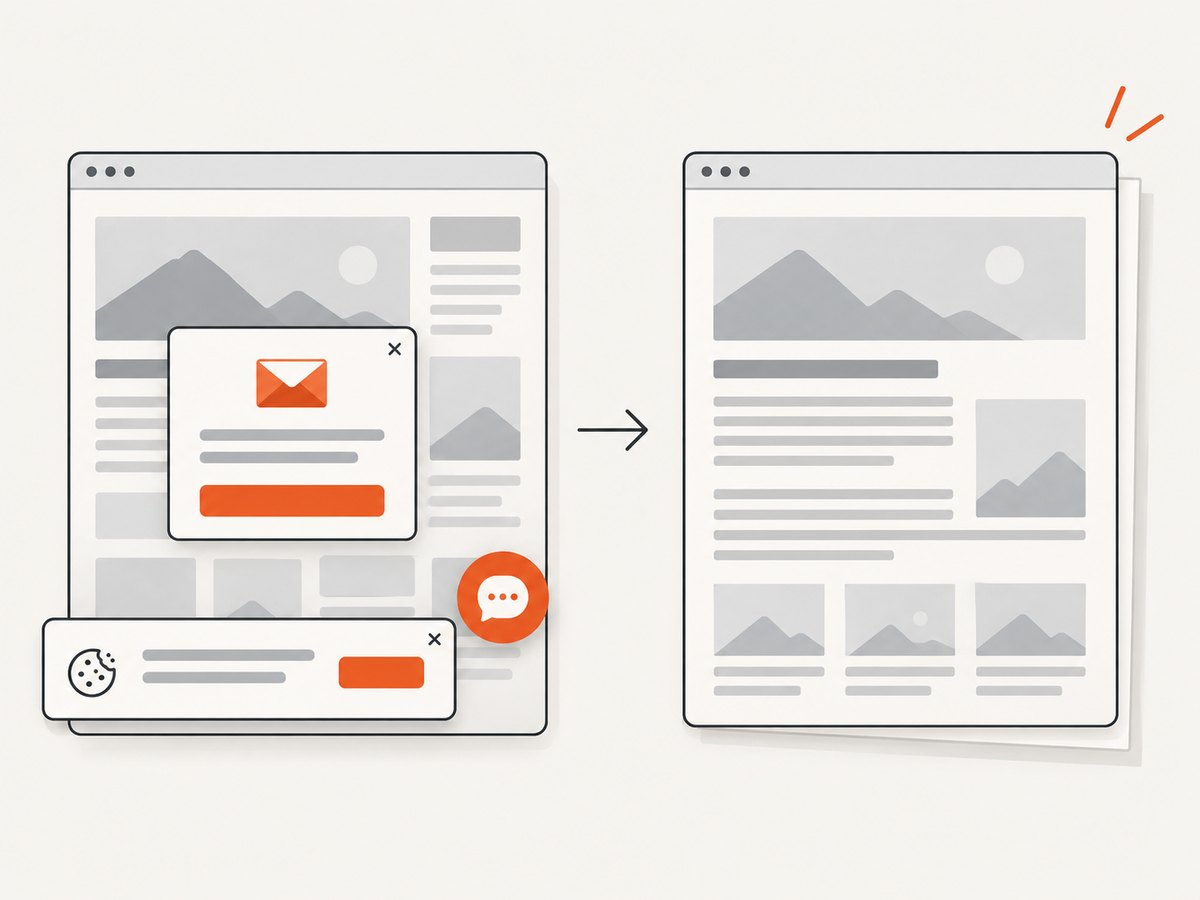
const res = await fetch(`https://api.screenshotneo.com/v1/shot?${q}`);ScreenshotNeo accepts cookie and consent banners before capture and removes more than 60 known consent platforms, newsletter popups, and chat widgets. Each cleanup step can be turned off. Bot checks and CAPTCHAs, blank pages, timeouts, failed loads, and cache hits cost nothing; response headers identify the page verdict and whether the request was billed.
You can request full-page images with lazy images loaded, one element by CSS selector, dark mode, 12 device presets or a custom viewport, retina scale, PDF paper size and margins, custom CSS and JavaScript, clicks, selector waits, delays, network-idle waits, blocked ads or resource types, custom headers and cookies, user agents, authorization, timezone, geolocation, transparent backgrounds, resizing, configurable caching TTLs, signed links, asynchronous jobs with signed webhooks, bulk capture for up to 100 URLs per call, and usage data. An MCP server provides take_screenshot, get_page_info, and capture_pdf for Claude, Cursor, and other MCP clients.
There are 1,000 free shots each month with no card. Paid plans start at $5 for 3,000 shots; yearly billing gives two months free, and every feature is available on every plan. Create a free ScreenshotNeo account to try it.
Capture options that affect the result
| Option | Why it matters |
|---|---|
| Viewport and device pixel ratio | Controls responsive breakpoints and image sharpness. Retina scale increases pixels and file size. |
| Wait strategy | Use a selector, fixed delay, or network idle for client-rendered content. Waiting too little captures placeholders; waiting too long reduces throughput. |
| Full-page mode | Includes below-the-fold content. Scroll-driven loading may require extra waits. |
| Element selector | Limits the image to one DOM node and reduces unrelated data. |
| Cookies and headers | Reproduce authenticated or localized states. Keep credentials secret and avoid putting them in public URLs. |
| Blocking rules | Blocking ads, trackers, or heavy resource types can improve consistency and speed, but may change layout. |
| Cache TTL | Reuses unchanged captures. Choose a TTL that matches how often the source page changes. |
| Format | PNG preserves detail and transparency; JPEG is smaller for photographs; WebP often balances size and quality; PDF preserves a document-oriented output. |
Edge cases and privacy
- Cookie banners and popups: They can cover content or alter page dimensions. Dismiss them before capture or use a service that handles known consent tools.
- Lazy-loaded images: A viewport shot may never trigger images below the fold. Scroll or use a full-page mode that loads them.
- Animations and video: Two captures can differ by frame. Disable animation with custom CSS when visual tests require determinism.
- Authentication: Supply a session through controlled cookies or headers. Never publish access tokens in client-side code.
- Cross-origin frames: Browser security can prevent reading pixels from a cross-origin canvas or iframe. Capture the rendered page through browser automation instead of trying to inspect pixels in page JavaScript.
- Very tall documents: Split into sections or produce a PDF when one raster image becomes too large for memory or downstream tools.
- Moving layouts: Fixed headers, sticky banners, and responsive breakpoints can create seams in stitched screenshots. Freeze the viewport and test a representative page.
- Personal data: Review the smallest surface necessary, hide selectors containing secrets, and check screenshots before storing or sharing them.
Troubleshooting
| Symptom | Likely cause | Fix |
|---|---|---|
getDisplayMedia is undefined or denied |
Insecure origin, unsupported browser, or missing user action | Run on HTTPS or localhost, call it from a button click, and check browser permissions. |
| Image is blank | Page timed out, content is still rendering, or the selected element has zero size | Wait for a stable selector, verify the URL manually, and inspect element dimensions. |
| Only the visible portion appears | Viewport capture was used | Choose document/full-page mode or implement scroll-and-stitch capture. |
| Images or fonts are missing | Lazy loading, blocked requests, or insufficient wait time | Scroll through the document, allow required resource types, and wait for network idle or a specific selector. |
| Repeated header bands or seams | Sticky elements in a stitched capture | Hide the sticky selector, add custom CSS, or use a browser’s native full-page implementation. |
| Different screenshots on every run | Animations, ads, rotating content, time zones, or responsive dimensions | Set a fixed viewport and timezone, block unstable resources, disable animation, and wait for a deterministic state. |
| Large files fail downstream | Excessive dimensions or PNG size | Capture an element, reduce retina scale, resize the output, use WebP or JPEG, or split the document. |
| API request is not billed as expected | Page verdict, cache state, or failed load affected billing | Read the X-Page-Verdict and X-Billed response headers and inspect the request URL and wait settings. |
Performance, reliability, and cost
Viewport captures are generally faster and smaller than full-page images because they render fewer pixels. Element captures reduce review and transfer costs further. Full-page work takes longer when the page must be scrolled to trigger lazy content. Fixed waits are simple but waste time on fast pages; selector or network-idle waits can finish earlier while preserving correctness.
For a reliable pipeline, pin viewport dimensions, wait for a meaningful readiness condition, control time zone and locale, disable motion, and retain the source URL and capture settings with the artifact. Retry transient navigation failures with a limit and log the final verdict. Do not treat a successful HTTP response as proof that the page contains useful content.
With ScreenshotNeo, only clean shots are billed. Bot checks, CAPTCHAs, blank pages, timeouts, failed loads, and cache hits cost nothing, and the response headers state the result. Caching with a chosen TTL can reduce repeated work. Bulk capture supports up to 100 URLs per call, while asynchronous jobs and signed webhooks keep long-running batches out of request timeouts.
FAQ
Does “web capture” always mean a screenshot?
No. In casual conversation it often does, but technically it can include full-document images and live display streams.
Can a screenshot include content below the fold?
Yes, when you use full-page or document capture. A normal viewport screenshot cannot include content that is outside the current viewport.
Is screen capture a video?
It can be. The Screen Capture API returns a live stream; you can display it, record it, or draw one frame to a canvas for a still image.
Which capture is best for a bug report?
Use a viewport image for the visible failure. Add an element or full-page capture when context below the fold is necessary.
When should I use an API instead of browser automation?
Use an API when captures run on a server, need consistent options, or must scale across many URLs without maintaining browser drivers. ScreenshotNeo also exposes an MCP server for AI-agent workflows.


