iText vs. Puppeteer for Generating PDFs from HTML
Choose Puppeteer for PDFs of JavaScript-rendered pages; choose iText pdfHTML for HTML-to-PDF conversion and its documented PDF/UA and PDF/A workflows.

Short answer: Use Puppeteer when the PDF must reflect a page after Chromium has rendered its HTML, CSS, and JavaScript. Use iText Core with pdfHTML when you want an HTML/CSS conversion pipeline built on iText and your templates fit pdfHTML’s support matrix, especially if you need to evaluate its documented PDF/UA or PDF/A workflows. pdfHTML does not execute JavaScript. These are conditional choices: content, required PDF standard, deployment, and licensing determine the better fit.
Puppeteer’s Page.pdf() prints a browser-rendered page using print CSS by default. pdfHTML parses HTML and CSS and maps them to iText objects and styles. They solve related but different problems, so comparing them as interchangeable renderers can lead to the wrong choice. See the official Puppeteer PDF API, pdfHTML support matrix, and iText’s JavaScript guidance.
1. The core difference: browser printing vs. HTML conversion
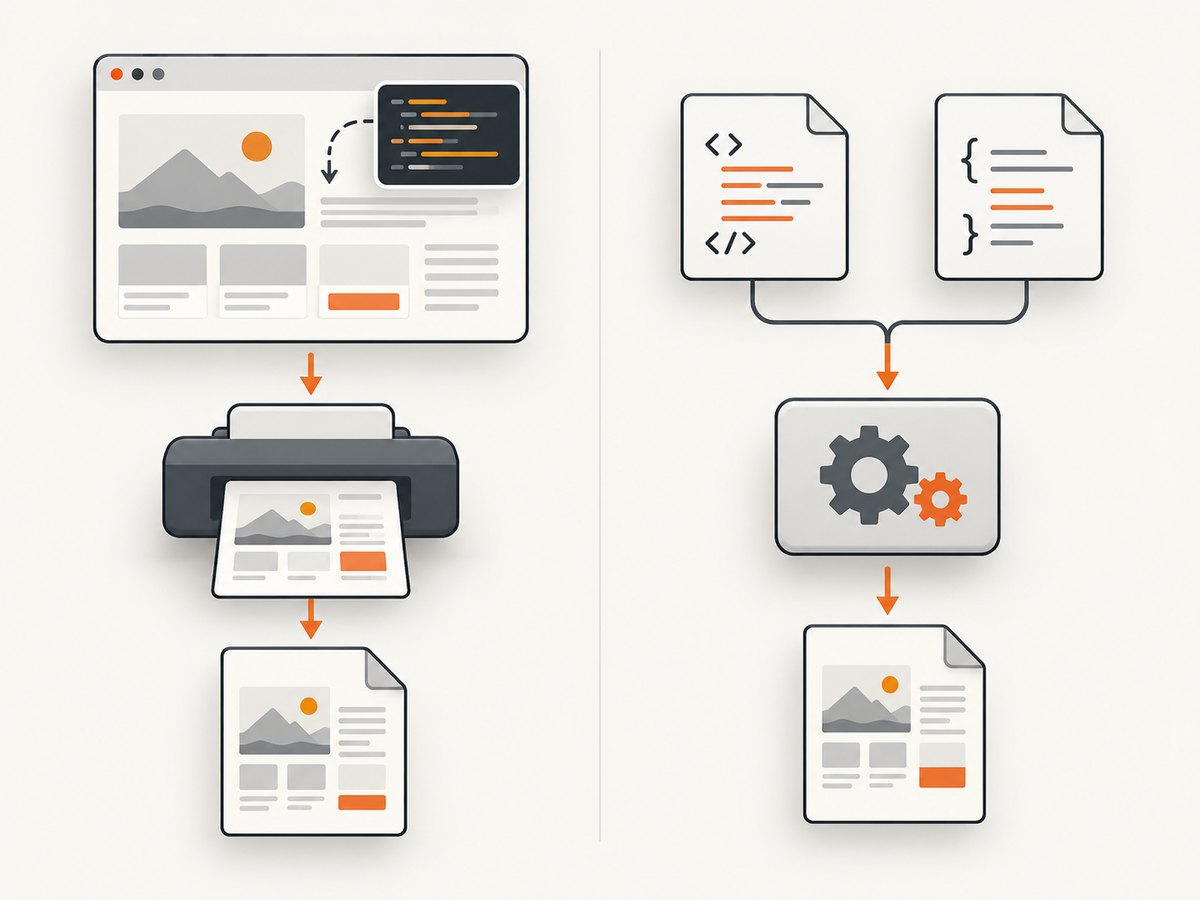
Puppeteer prints what Chromium renders
Puppeteer controls a browser. You navigate to a URL or load HTML, let the browser render the document, then call page.pdf(). This maps naturally to pages that run JavaScript to populate data, depend on browser layout behavior, or already have print-specific CSS. The generated result is tied to the browser version, its available fonts and resources, and the page’s print styling.
By default, PDF generation uses the print media type. If you need the screen stylesheet instead, call page.emulateMediaType('screen') before generating the PDF. Puppeteer also waits for fonts by default, but you should still make page readiness and asset loading explicit for your application.
pdfHTML converts supported HTML and CSS through iText
pdfHTML is an add-on for iText Core. Its conversion model parses HTML and CSS, maps them to iText objects and styles, and renders with the iText engine. That is useful for controlled document templates and applications already built around iText’s PDF capabilities. It is not a Chromium browser: it does not evaluate JavaScript, and its behavior depends on the specific HTML and CSS features supported by the installed version.
iText’s current support FAQ describes pdfHTML 6.3.3 with iText Core 9.7.0 and lists supported standards and HTML/CSS features. Check that matrix against your real templates before committing. The FAQ documents PDF/UA-1, PDF/UA-2, and PDF/A variants; the existence of that support does not eliminate the need to validate the resulting files against your requirements.
2. Choose by the document you actually have
| Need | First candidate | Reason |
|---|---|---|
| PDF of a live page whose JavaScript builds the final content | Puppeteer | Chromium executes the page scripts before printing. |
| Stable HTML/CSS templates with data inserted before conversion | iText Core + pdfHTML | Designed to convert HTML/CSS into the iText object model. |
| Print CSS, page size, margins, headers, page ranges, browser layout | Puppeteer | Page.pdf() exposes browser printing options for these concerns. |
| Evaluate iText’s documented PDF/UA or PDF/A workflows | iText + pdfHTML | Those standards are listed in the pdfHTML support FAQ. |
| JavaScript content plus iText’s PDF toolchain | Two-stage pipeline | Use a browser to preprocess/evaluate the page, then pass output to pdfHTML and validate fidelity. |
This is a workflow-based guide, not a speed ranking. The cited project documentation does not provide a controlled comparison of latency, throughput, memory, or total infrastructure cost.
3. Generate an HTML PDF with Puppeteer (Node.js)
Install Node.js and Puppeteer in a project. Puppeteer’s installation normally downloads a compatible browser; deployment environments must also allow that browser to run. This example creates a PDF from a URL and ensures the browser closes even if navigation or PDF generation fails.
npm install puppeteer// save as pdf.mjs
import puppeteer from 'puppeteer';
const url = process.argv[2] ?? 'https://example.com';
const browser = await puppeteer.launch({ headless: true });
try {
const page = await browser.newPage();
await page.setViewport({ width: 1280, height: 900 });
const response = await page.goto(url, {
waitUntil: 'networkidle2',
timeout: 60000,
});
if (!response || !response.ok()) {
throw new Error(`Navigation failed: ${response?.status() ?? 'no response'}`);
}
// Replace this with an application-specific readiness condition when needed.
await page.evaluate(() => document.fonts.ready);
await page.pdf({
path: 'output.pdf',
format: 'A4',
printBackground: true,
preferCSSPageSize: true,
margin: { top: '15mm', right: '12mm', bottom: '15mm', left: '12mm' },
});
console.log('Wrote output.pdf');
} finally {
await browser.close();
}Run node pdf.mjs https://example.com. For a local HTML string instead of a URL, use await page.setContent(html, { waitUntil: 'networkidle0' }), followed by the same readiness checks and page.pdf(). Treat untrusted HTML carefully: browser rendering can request external resources, so constrain network access and input sources in services that process user-supplied documents.
Important Puppeteer options
format, or explicitwidth/height, chooses paper dimensions.preferCSSPageSizelets CSS@pagesize take priority.marginsets top, right, bottom, and left margins. Use CSS@pagewhen the document owns its print layout.printBackground: trueincludes background graphics. Print color adjustment CSS can preserve intended colors where appropriate.pageRangesselects pages;landscapechanges orientation.displayHeaderFooter,headerTemplate, andfooterTemplateadd repeating print content. Test template spacing and page-number placeholders with your actual layout.- Call
page.emulateMediaType('screen')beforepage.pdf()if screen media is required. The default is print media. - Set viewport and device emulation before navigation when responsive breakpoints matter. Then inspect page breaks at the intended output size.
4. Generate a PDF from HTML with iText pdfHTML (Java)
Use the iText Core and pdfHTML dependencies that match your selected release, following iText’s current installation guide and license terms. The sample below uses the API shape documented for pdfHTML: HtmlConverter.convertToPdf. It reads a controlled local HTML file and writes a PDF. Verify exact dependency coordinates and versions for your build system in iText’s current documentation; the feature FAQ’s stated evaluated versions are pdfHTML 6.3.3 and iText Core 9.7.0.
import com.itextpdf.html2pdf.HtmlConverter;
import java.io.FileInputStream;
import java.io.FileOutputStream;
import java.io.InputStream;
import java.io.OutputStream;

public class HtmlToPdf {
    public static void main(String[] args) throws Exception {
        String input = args.length > 0 ? args[0] : "input.html";
        String output = args.length > 1 ? args[1] : "output.pdf";

        try (InputStream html = new FileInputStream(input);
             OutputStream pdf = new FileOutputStream(output)) {
            HtmlConverter.convertToPdf(html, pdf);
        }
        System.out.println("Wrote " + output);
    }
}
This minimal conversion assumes the HTML references resolvable resources and uses features supported by the selected pdfHTML release. For resource paths, configure a base URI with the applicable converter properties/API from your installed version, or use absolute resource URLs. If output must conform to PDF/A or PDF/UA, configure the appropriate iText workflow and validate the final file; a basic conversion call alone does not establish conformance.
5. Print styling, assets, and pagination
For Puppeteer, create a print stylesheet and make page-breaking rules explicit. A browser may paginate long blocks, tables, or images differently from your screen layout. Specify paper size, margins, break behavior, background handling, and headers/footers instead of assuming defaults fit production. Wait for the application’s actual ready state: a quiet network does not guarantee that delayed content, charts, or client-side data have completed.
For pdfHTML, confirm every important CSS property, selector, font behavior, and HTML element in the support matrix for your version. “Supports HTML/CSS” does not mean every browser feature is implemented. External images, fonts, and stylesheets also need valid paths and permission to be read. Prefer stable, versioned template assets over transient URLs.
6. JavaScript-dependent templates and a hybrid pipeline
pdfHTML does not execute JavaScript. iText documents a browser preprocessing approach: evaluate HTML/CSS/JavaScript in a browser engine, then convert the resulting content with pdfHTML. This can make sense when browser execution is needed to produce content but downstream processing must use iText. It adds another runtime and a boundary between the DOM and the conversion engine; do not assume that copying evaluated markup guarantees browser-identical output. Check computed styles, generated content, images, fonts, and links in representative PDFs.
If the document needs to look like the browser page, Puppeteer alone is often the simpler architecture. If it needs iText features, standards output, or document-template processing, test a hybrid prototype and validate both visual fidelity and the required PDF properties.
7. Accessibility, archival needs, and licensing
iText’s pdfHTML FAQ lists PDF/UA-1, PDF/UA-2, and PDF/A support. Puppeteer’s PDF options include a tagged setting described as experimental in the cited API. These descriptions do not prove equivalent conformance. Choose the target standard first, follow the relevant product workflow, and validate generated files with tools appropriate to that standard and your content.
iText Core is offered under AGPLv3 or commercial licensing. iText states that network deployment under AGPL requires disclosure of the full source code of the application, and that commercial licensing releases users from AGPL restrictions. Review the actual license, add-ons, and deployment with your organization before adopting it. Puppeteer’s repository uses Apache License 2.0. Also review the browser distribution and third-party dependencies in your own deployment. See iText’s AGPL terms and the Puppeteer license.
8. Performance, reliability, and cost
There is no source-backed universal winner on speed, memory, throughput, or infrastructure cost. Measure with your own documents, fonts, images, page counts, concurrency, and runtime limits. Puppeteer’s browser runtime has to be installed and managed; pdfHTML’s own HTML/CSS conversion does not require a browser, while a JavaScript preprocessing stage adds one.
- Benchmark representative cases: short and long documents, image-heavy pages, custom fonts, tables, and your slowest dynamic route.
- Track resource use: record generation time, peak memory, output size, failures, and queue delay at expected concurrency.
- Keep work bounded: set navigation and job timeouts, limit input size and concurrent browser processes, and recycle long-lived workers according to observed stability.
- Make retries safe: distinguish transient network failures from invalid markup or unsupported layout. Avoid infinite retry loops on deterministic errors.
- Control variability: pin compatible library/browser versions and fonts; external assets and live pages can change the output independently of your code.
Operational cost includes browser downloads and runtime capacity for Puppeteer, or Java runtime and license obligations for iText. The actual balance depends on your workload and deployment; measure rather than extrapolate from the library names.
9. Troubleshooting common failures
| Symptom | Likely cause | What to do |
|---|---|---|
| Puppeteer reports that Chrome cannot launch | Browser download was skipped, missing system libraries, or container permissions/runtime setup | Install the browser distribution expected by the installed Puppeteer version, follow its deployment guidance, and inspect launch logs. |
| PDF is blank or missing client-rendered data | Navigation completed before the app finished rendering | Wait for a specific selector or application readiness signal; do not rely solely on a generic network-idle condition. |
| Fonts or images are absent | Resources are not loaded, URLs are inaccessible, or font readiness was premature | Check browser network errors and resource URLs; wait for fonts and app assets before printing. |
| Colors differ from the web page | Print media and print color adjustments change rendering | Check print CSS, backgrounds, and color adjustment; emulate screen media only if screen styling is the intended output. |
| Unexpected page breaks or clipped content | Paper size, margins, print rules, or oversized elements conflict | Set page dimensions and margins deliberately, add print-specific break rules, and inspect long tables and images. |
| pdfHTML output omits or misplaces a feature | The template uses unsupported or partially supported HTML/CSS | Check the exact release’s support matrix; simplify or restructure the template and retest. |
| pdfHTML output has missing images/styles | Relative resources cannot resolve from the conversion input | Supply an appropriate base URI or stable absolute resource locations and verify the process can read them. |
| JavaScript content is absent in iText output | pdfHTML does not execute JavaScript | Generate final markup before conversion or add browser preprocessing; consider Puppeteer if browser fidelity is central. |
| PDF standard checks fail | Conversion alone does not guarantee that content meets every conformance requirement | Use the required standards workflow, fix document structure and metadata, and validate the final artifact. |
10. Or skip the browser setup
If your job is to capture a live website as a PDF, screenshot, or image and you do not need to manage a browser runtime, ScreenshotNeo is a website screenshot API and MCP server. Its single request can return a PDF or PNG, JPEG, or WebP image. See the ScreenshotNeo API documentation for the request options.

curl -G "https://api.screenshotneo.com/v1/shot" \
  -d access_key=YOUR_API_KEY \
  --data-urlencode url=https://stripe.com \
  -d format=pdf \
  -o page.pdf
Python and Node.js can call the same endpoint with the same URL and access key; use the returned response bytes as the PDF output when requesting PDF format. ScreenshotNeo removes cookie banners, popups, and chat widgets before the shot. Bot checks, blank pages, and failed loads are never billed. Its MCP server lets AI agents take screenshots. The free plan includes 1,000 screenshots a month with no card; paid plans start at $5 for 3,000. Create a free ScreenshotNeo account.
11. A practical decision checklist
- Does JavaScript create or update the final content? Start with Puppeteer, or evaluate a hybrid if iText is required downstream.
- Is the source a controlled template? Check its elements and CSS against the pdfHTML support matrix.
- Is PDF/UA or PDF/A a firm requirement? Compare the documented workflows, implement the right configuration, and validate output.
- Can your deployment host a browser? Include browser installation, runtime, fonts, and worker lifecycle in the Puppeteer plan.
- Have you reviewed iText’s AGPL or commercial license for your application and network deployment?
- Have you rendered representative documents and measured quality, resource use, and failure modes?
FAQ
Can pdfHTML render a React page?
Not by executing React. Render the app to final HTML first, or use a browser stage to evaluate it before conversion.
Does Puppeteer always use screen CSS?
No. PDF generation uses print media by default; emulate screen media before printing when that is the intended layout.
Does choosing iText automatically make a PDF accessible or archival?
No. The documentation describes supported standards workflows, but the document must be prepared appropriately and the final file validated.
Which one is faster?
The cited sources do not establish a comparative winner. Benchmark your representative templates and deployment configuration.
Can I use both?
Yes. A browser can preprocess JavaScript-driven content before pdfHTML conversion, but this hybrid needs its own fidelity, reliability, and conformance checks.


