How to Use Absolute Positioning When Converting HTML to PDF with iTextSharp
Position HTML elements in iTextSharp PDFs with XML Worker, page-aware coordinates, and valid XHTML. Learn when to use PdfContentByte and how to fix common layout failures.
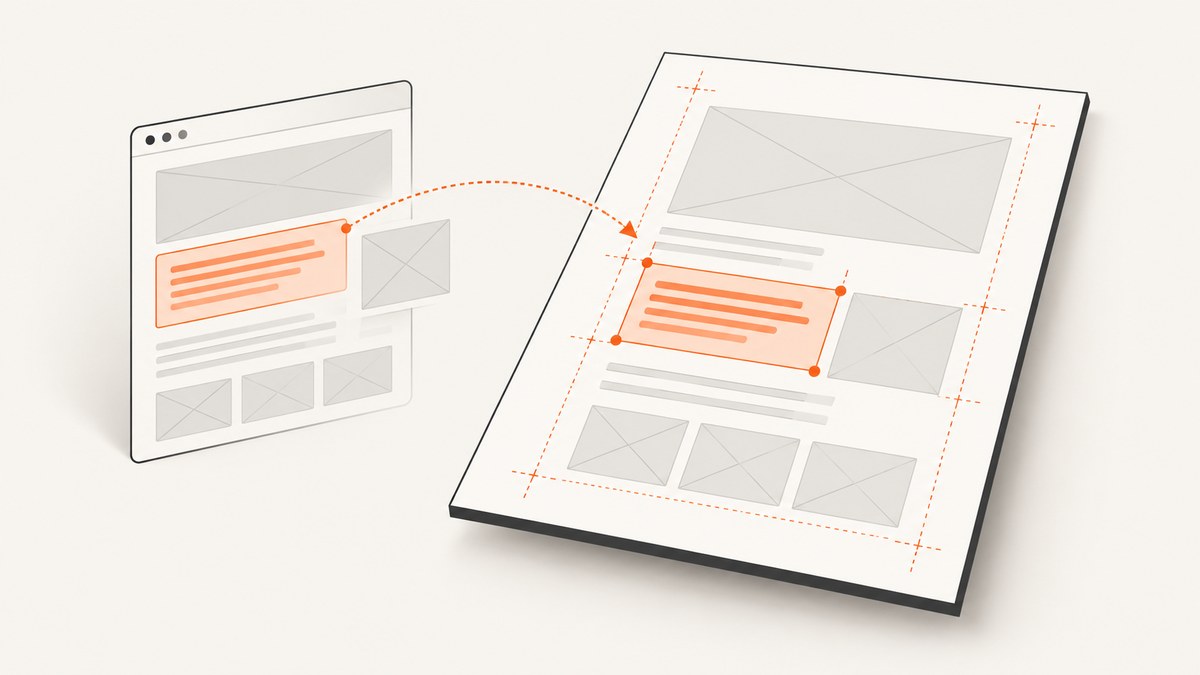
To position an HTML element in an iTextSharp PDF, use XML Worker with well-formed XHTML and CSS such as position:absolute; left:72pt; top:100pt. Design those coordinates for the PDF page size and margins; they are not browser pixels. For exact placement, layered graphics, or text that must fit a known rectangle, draw directly with the PDF canvas APIs instead. XML Worker is a legacy option: iText recommends iText 7 with pdfHTML for new projects.
This guide shows the iTextSharp 5/XML Worker pattern, how to keep positioned content on the page, when to switch to canvas drawing, and how to diagnose common failures. For browser-rendered screenshots or PDFs from a live URL, ScreenshotNeo is a separate option described below; it does not replace the iTextSharp workflow for converting your own HTML.
1. Understand what absolute positioning means in a PDF
HTML normally describes content that flows: paragraphs push later content down, and tables expand as their content changes. PDF pages have fixed dimensions. An absolutely positioned element is removed from normal flow, so it can overlap flowing content and can be clipped if its coordinates or dimensions exceed the page.
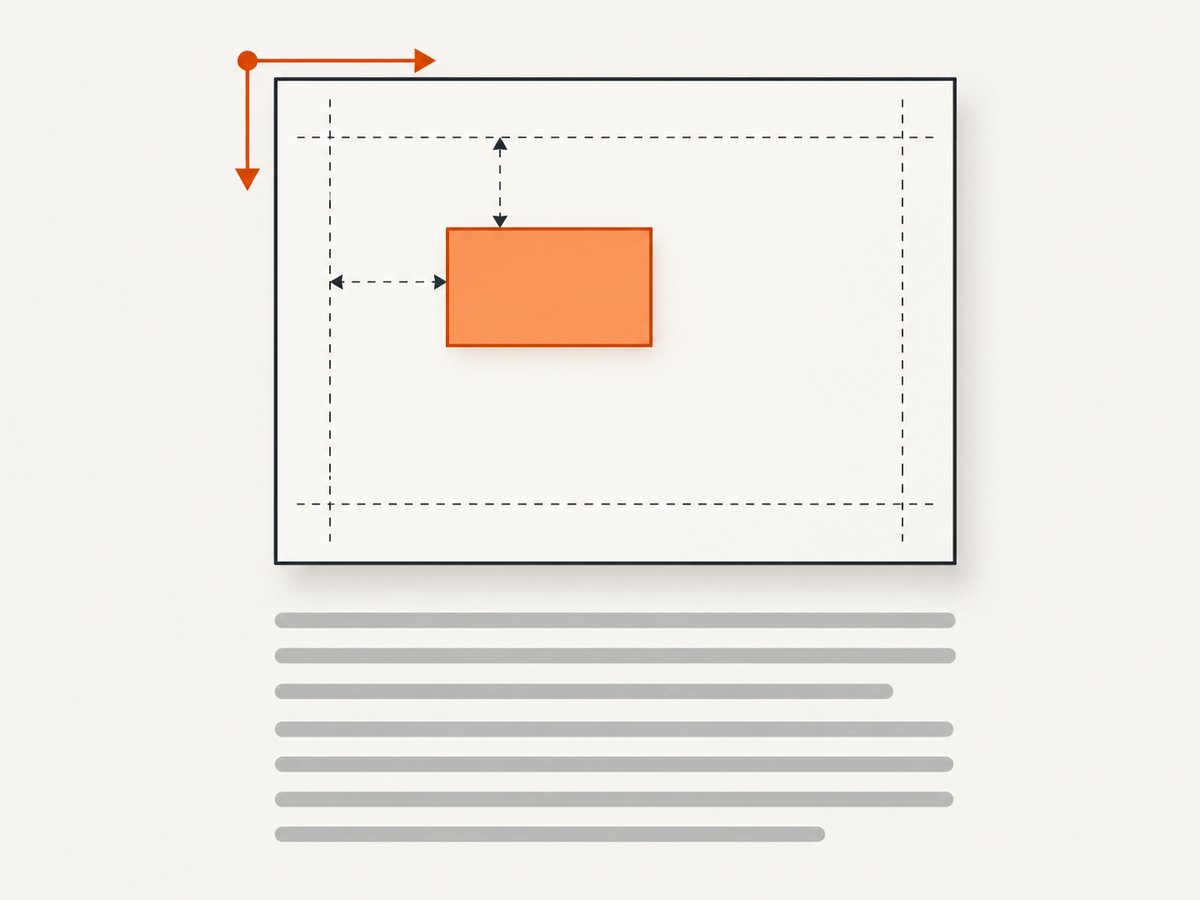
XML Worker reads XHTML and CSS to produce PDF content, but it is not a browser layout engine. Do not assume that browser pixels, viewport behavior, or every CSS rule will translate identically. iText’s guidance specifically cautions that an HTML coordinate layout may not fit the PDF page. Decide the page size first, then design and verify the coordinate system against it.
Choose the technique by the job
| Requirement | Approach |
|---|---|
| Existing constrained XHTML template with positioned blocks | XML Worker, with a page-size-specific template |
| Precise label, stamp, line, rectangle, or overlay | PdfWriter canvas APIs |
| New maintained project needing broader HTML/CSS support | Evaluate iText 7 and pdfHTML |
The older HTMLWorker has only basic CSS support. XML Worker is the iTextSharp companion intended for XHTML and CSS conversion. Both are legacy technologies; package metadata identifies iTextSharp as end of life, and iText recommends moving new development to iText 7/pdfHTML.
2. Install compatible packages and prepare XHTML
For a legacy .NET application, include both the iTextSharp 5 assembly and its XML Worker companion. Keep their versions aligned; do not mix DLL versions. The package combination depends on your project and package source, so select matching versions from your existing dependency policy rather than copying an arbitrary version number.
XML Worker expects XML-compatible markup. Close and properly nest tags: write <br />, not an unclosed <br>. Normalize generated HTML before conversion, particularly if it comes from user content or a template engine. Also ensure the CSS you intend to apply is actually passed to the parser.
The following example is a complete conversion method for a legacy project referencing iTextSharp and itextsharp.xmlworker. It builds a letter-size document with 36-point margins, passes XHTML and CSS as UTF-8 streams, and returns the resulting PDF bytes.
using System;
using System.IO;
using System.Text;
using iTextSharp.text;
using iTextSharp.tool.xml;

public static class HtmlPdf
{
    public static byte[] Convert(string xhtml, string cssText)
    {
        using (var output = new MemoryStream())
        using (var document = new Document(PageSize.LETTER, 36, 36, 36, 36))
        {
            var writer = PdfWriter.GetInstance(document, output);
            document.Open();

            using (var html = new MemoryStream(Encoding.UTF8.GetBytes(xhtml)))
            using (var css = new MemoryStream(Encoding.UTF8.GetBytes(cssText)))
            {
                XMLWorkerHelper.GetInstance().ParseXHtml(
                    writer, document, html, css);
            }

            document.Close();
            return output.ToArray();
        }
    }
}
For example, call Convert(xhtml, cssText) and write the returned byte array to a file or HTTP response. In a real application, catch and log conversion exceptions at the boundary where the input is received. Do not silently return an empty PDF when markup or resources fail.
3. Position an element using CSS
Put the positioned element in valid XHTML and express its offsets and size in points for a page-oriented design. The example below places a fixed-width block at a chosen offset. Include it in a valid document body with the rest of your content.
string xhtml = @"<html>
  <head><title>Positioned PDF content</title></head>
  <body>
    <p>Normal-flow content starts here.</p>
    <div class='label'>Fixed-position text or an image</div>
  </body>
</html>";

string cssText = @"
  .label {
    position: absolute;
    left: 72pt;
    top: 100pt;
    width: 220pt;
  }
";

byte[] pdfBytes = HtmlPdf.Convert(xhtml, cssText);
File.WriteAllBytes("positioned.pdf", pdfBytes);
Keep a margin between content and page edges. If the page is letter-sized, its dimensions are 612 by 792 points; the usable area is smaller after margins. Check both the left/top placement and the element’s full width and height. A box may begin inside the page while its far edge is clipped.
Absolute elements do not reserve room in the normal flow. If a paragraph or table occupies the same area, the result may overlap. Reserve that area explicitly in the surrounding layout, or move the item to a dedicated page/region. Test the actual generated PDF because XML Worker’s supported CSS behavior is narrower than a browser’s.
4. Supply CSS deliberately and keep layout predictable
XML Worker can receive CSS as a stream, as in the example, or use styles included in the XHTML where supported. Passing a CSS stream makes the dependency visible and avoids wondering whether an external stylesheet was fetched. For production conversion, prefer self-contained templates and controlled resources over remote stylesheets whose availability can vary.
Page and coordinate checklist
- Choose the PDF page size before designing coordinates.
- Record the page dimensions and margins in points.
- Check the element’s complete bounding box, including width, height, and text wrapping.
- Keep positioned elements clear of normal-flow content, or intentionally layer them.
- Test long text, missing images, and page breaks with representative inputs.
- Use the same template and page configuration for all documents in a batch.
Do not keep changing top and left blindly when a block disappears. First verify the page size, units, CSS input, and XHTML. Then reduce the page to one positioned block and add other content back in steps.
5. Use PdfWriter canvases for exact placement
When the HTML layout engine cannot express a shape, exact overlay, or reliable multiline box, use the PDF canvas. PdfWriter exposes GetDirectContent() and GetDirectContentUnder(). The direct canvas is suitable for content drawn over the page; the under-content canvas places content beneath it. Canvas operations are PDF-level drawing and should be kept separate from HTML flow layout.
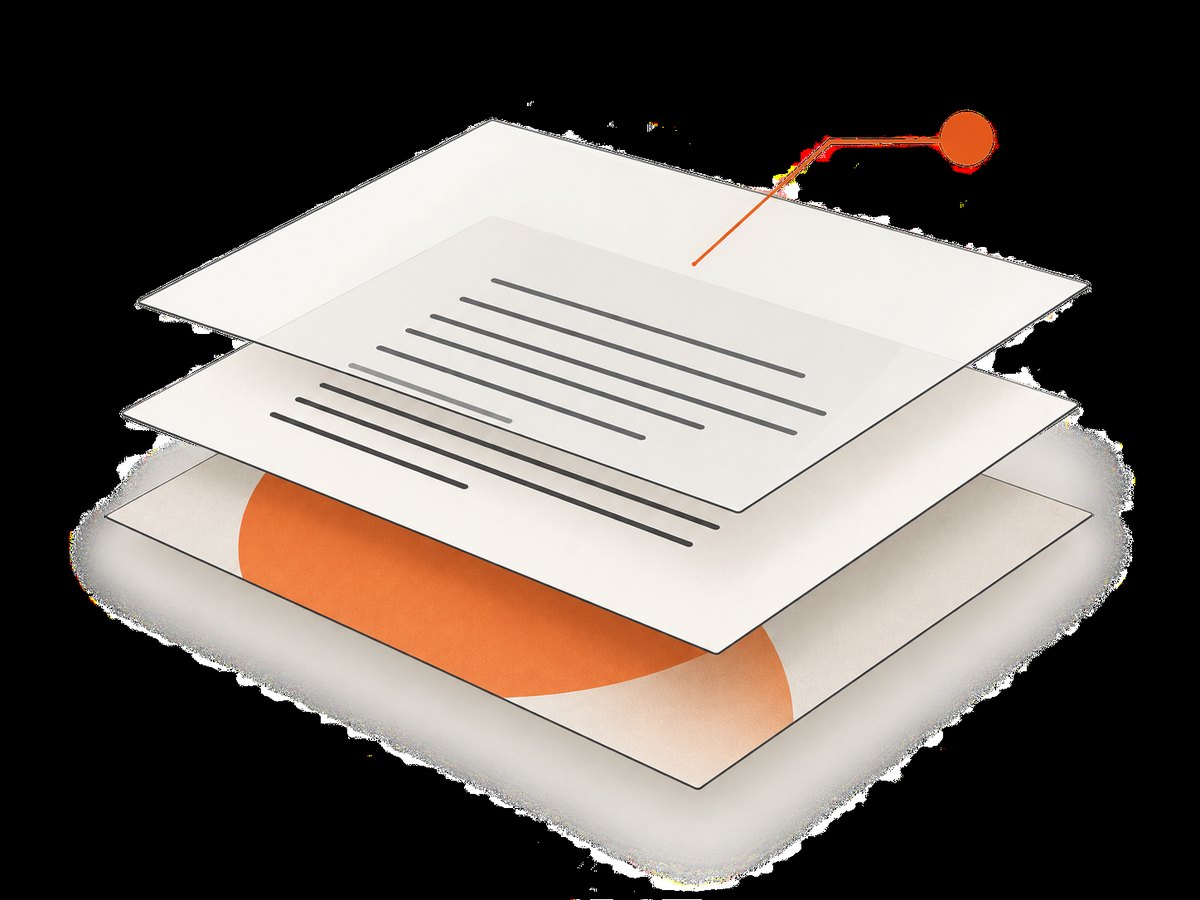
For text that must fit a rectangle, use a bounded text layout such as ColumnText rather than drawing an unbounded string. Define the rectangle, choose a font, and inspect whether text remains after layout so your application can detect overflow. A simplified overlay pattern is:
using (var output = new FileStream("overlay.pdf", FileMode.Create))
using (var document = new Document(PageSize.LETTER))
{
    var writer = PdfWriter.GetInstance(document, output);
    document.Open();

    // Add regular document content first.
    document.Add(new Paragraph("Underlying page content"));

    var canvas = writer.DirectContent;
    canvas.BeginText();
    canvas.SetFontAndSize(
        iTextSharp.text.pdf.BaseFont.CreateFont(), 12);
    canvas.SetTextMatrix(72, 680);
    canvas.ShowText("Precisely placed label");
    canvas.EndText();

    document.Close();
}
Canvas coordinates are PDF coordinates. Verify the origin and vertical direction expected by the drawing API when translating a top-left design coordinate into PDF canvas coordinates. For complex text, use a rectangle-based layout API and check its fit result rather than relying on a single baseline. For lines and shapes, use the direct canvas drawing methods and set stroke/fill explicitly.
Layer order matters: drawing on direct content after flow content overlays it; under-content draws behind. If you need a background stamp beneath an HTML-converted page, create it on the under-content layer at the appropriate point in the page lifecycle. Consult the iText documentation for absolute placement of text, lines, and shapes before implementing a reusable layout helper.
6. Common errors and fixes
| Symptom | Likely cause | Fix |
|---|---|---|
| Positioned item is missing | Malformed XHTML, CSS not supplied, unsupported CSS behavior, or coordinates outside the page | Validate and close tags, pass CSS explicitly, reduce to one block, and check page bounds |
| Item is clipped at an edge | Offsets or box dimensions exceed the page’s usable area | Calculate against page size and margins; check the far edge and wrapped height |
| Item overlaps paragraphs or tables | Absolute positioning does not reserve flow space | Reserve a region in the flow layout or move the element; use a canvas layer if deliberate |
| CSS seems ignored | Using HTMLWorker, stylesheet not passed, selector unsupported, or malformed input | Use XML Worker, pass a CSS stream, simplify the rule, and confirm valid XHTML |
| Parser throws on HTML that browsers accept | Browsers repair malformed markup, while XML Worker expects XHTML | Close and nest tags correctly; normalize generated fragments before parsing |
| Type/load errors after package update | iTextSharp and XML Worker DLL versions do not match | Align package versions and remove stale duplicate assemblies from deployment output |
| Layout differs after an upgrade | XML Worker positioning behavior changed across releases | Review the relevant release notes and keep a regression PDF for the template |
Debug in a small loop
- Generate a PDF with one short positioned element and no external assets.
- Confirm the chosen page size, margins, and coordinate units.
- Add the CSS stream and verify a simple style before adding positioning.
- Add the remaining content and images incrementally.
- Compare output after dependency changes using representative input cases.
7. Performance, reliability, and cost considerations
The research sources publish no benchmark for XML Worker positioning, so performance should be measured against your own templates and document sizes. Avoid adding remote resource fetches to a conversion path unless necessary; local, known inputs make failures easier to reproduce. Reuse stable templates, validate inputs before conversion, and place time or resource limits around untrusted or unusually large content at the application level.
For reliable output, treat conversion as a fallible operation. Log parser errors with enough context to locate the template or input record, while avoiding sensitive document content in logs. Validate that the result is nonempty and can be opened by downstream PDF processing. Test boundary cases: long text, absent optional fields, large images, unusual Unicode, and content close to the page edge.
iTextSharp and XML Worker are legacy dependencies. For maintained production systems, account for migration and licensing requirements before choosing a path; current commercial terms should be checked with iText directly. The research material supplies no cost or performance figures to compare.
8. Or skip the browser setup
If the actual need is a screenshot or PDF of a live website, instead of converting a local XHTML template with iTextSharp, ScreenshotNeo provides a website screenshot API and MCP server. A single GET request accepts a URL and returns an image or PDF. See the API documentation for request options.
curl -G "https://api.screenshotneo.com/v1/shot" -d access_key=YOUR_API_KEY --data-urlencode url=https://stripe.com -o shot.webpimport requests
r = requests.get("https://api.screenshotneo.com/v1/shot", params={"access_key": "YOUR_API_KEY", "url": "https://stripe.com"}, timeout=90)
open("shot.webp", "wb").write(r.content)const q = new URLSearchParams({ access_key: 'YOUR_API_KEY', url: 'https://stripe.com' });
const res = await fetch(`https://api.screenshotneo.com/v1/shot?${q}`);
Cookie banners, newsletter popups, and chat widgets are removed before capture. Bot checks, blank pages, and failed loads are never billed, and response headers report the page verdict and billing status. Its MCP server lets Claude, Cursor, and other MCP clients take screenshots. The free plan includes 1,000 screenshots each month with no card; paid plans start at $5 for 3,000. For a custom HTML-to-PDF layout, continue using a PDF generation library; ScreenshotNeo captures rendered website pages.
Sign up for ScreenshotNeo’s free plan to try 1,000 screenshots a month with no card.
9. Frequently asked questions
Can I use HTMLWorker for absolute positioning?
It has limited CSS support. XML Worker is the more appropriate iTextSharp 5 option for XHTML and CSS, though it is still not a browser renderer.
Are CSS coordinates measured in pixels?
Design against the PDF page’s dimensions and use page-oriented units such as points. Do not assume browser viewport pixels map directly to PDF placement.
Should new projects use iTextSharp?
iTextSharp/XML Worker are deprecated or end of life. iText recommends iText 7 with pdfHTML for new projects and broader HTML/CSS support.
When should I stop adjusting CSS and draw on a canvas?
Use canvas APIs when exact placement, layering, shapes, or bounded text fitting matters more than keeping that item inside HTML flow.
Sources and further reading
- iText XML Worker examples for the XHTML/CSS parsing pattern.
- iText guidance on CSS positioning and page fit.
- XML Worker package information for the legacy status.
- iText HTMLWorker guidance and the XML Worker documentation.
- iText absolute text positioning and lines and shapes positioning.
- iTextSharp installation guidance for aligned dependencies.


