How to Take a Screenshot in Java with Robot
Use java.awt.Robot to capture a screen or selected rectangle, save it as PNG, and handle display coordinates, permissions, headless environments, and high DPI.

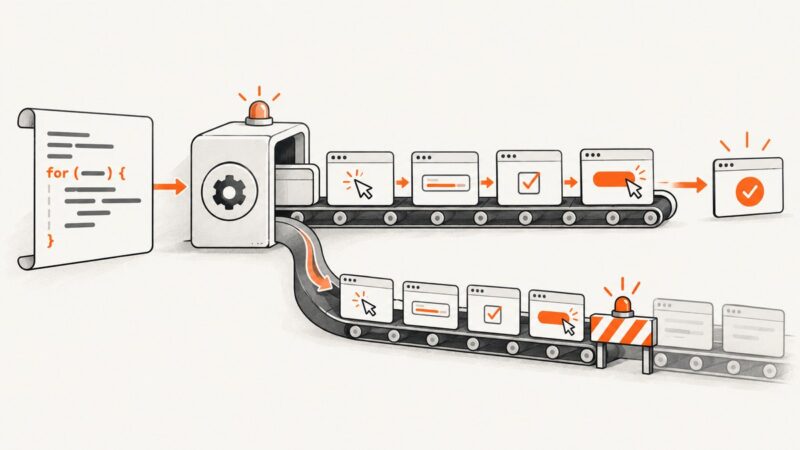
To take a screenshot in Java, create an java.awt.Robot, pass a positive-size screen-coordinate Rectangle to createScreenCapture, then write the returned BufferedImage with ImageIO. This works in a permitted desktop session; it cannot capture a real display in a headless environment.
import java.awt.AWTException;
import java.awt.Rectangle;
import java.awt.Robot;
import java.awt.image.BufferedImage;
import java.io.File;
import java.io.IOException;
import javax.imageio.ImageIO;

public class Screenshot {
    public static void main(String[] args) throws AWTException, IOException {
        Robot robot = new Robot();
        Rectangle area = new Rectangle(0, 0, 800, 600);
        BufferedImage image = robot.createScreenCapture(area);
        ImageIO.write(image, "png", new File("screenshot.png"));
    }
}
Save this as Screenshot.java, then run javac Screenshot.java and java Screenshot in a graphical desktop session. The output file is written relative to the process’s working directory. The sample rectangle is only an example: for a full display or a different monitor, obtain that device’s actual bounds as shown below.
1. What Robot captures
Robot.createScreenCapture(Rectangle) reads pixels from the screen and returns a BufferedImage. It captures what is visibly displayed in the requested screen-coordinate area, not a web page’s source, DOM, or off-screen document content. The rectangle’s coordinates and dimensions determine the captured region.

The method requires positive width and height. A zero or negative dimension causes IllegalArgumentException. Coordinates must describe the area in the desktop’s screen coordinate system. Do not assume every display begins at (0, 0): monitors arranged to the left or above the primary display can have negative coordinates, and a multi-monitor desktop may use one virtual coordinate space or independent coordinate spaces.
2. Capture the full display or a chosen monitor
For a full display, use the bounds of the GraphicsDevice you want to capture, and associate the Robot with that same device. This avoids hard-coding a resolution and makes the target monitor explicit.
import java.awt.AWTException;
import java.awt.GraphicsDevice;
import java.awt.GraphicsEnvironment;
import java.awt.Rectangle;
import java.awt.Robot;
import java.awt.image.BufferedImage;
import java.io.File;
import java.io.IOException;
import javax.imageio.ImageIO;

public class DisplayScreenshot {
    public static void main(String[] args) throws AWTException, IOException {
        GraphicsEnvironment environment = GraphicsEnvironment.getLocalGraphicsEnvironment();
        GraphicsDevice[] devices = environment.getScreenDevices();

        // Select the first device here; choose another index to target another monitor.
        GraphicsDevice device = devices[0];
        Rectangle bounds = device.getDefaultConfiguration().getBounds();
        Robot robot = new Robot(device);

        BufferedImage image = robot.createScreenCapture(bounds);
        File output = new File("display.png");
        boolean writerFound = ImageIO.write(image, "png", output);
        if (!writerFound) {
            throw new IOException("No PNG ImageIO writer is available");
        }
        System.out.println("Saved " + output.getAbsolutePath());
    }
}
GraphicsDevice[] order is environment-dependent. If the user chooses a display, present the available devices and select the intended one rather than assuming index zero is always the desired screen. The API permits different multi-screen coordinate arrangements; keep the chosen device and its bounds paired when constructing the capture rectangle.
To capture a portion of that monitor, make a rectangle in the same coordinate space. For example, the following takes a 640-by-400 area whose top-left corner is 100 pixels right and 80 pixels down from the selected device’s origin:
Rectangle monitor = device.getDefaultConfiguration().getBounds();
Rectangle area = new Rectangle(monitor.x + 100, monitor.y + 80, 640, 400);
BufferedImage image = robot.createScreenCapture(area);
Check that the area lies within the intended display bounds if your application requires a strictly monitor-contained image. A rectangle that crosses display edges may behave differently depending on platform and display configuration, so validate or clip it yourself when that matters.
3. Save as PNG, JPEG, or another supported format
Use ImageIO.write(image, formatName, file). The method returns true if a suitable writer is found and false if none is available. PNG is a practical default for exact screen pixels and transparency where supported by the image. JPEG is lossy and does not preserve transparency; it may suit photographic content when a smaller file is more important than pixel-exact text and edges.
File png = new File("capture.png");
if (!ImageIO.write(image, "png", png)) {
    throw new IOException("No PNG writer found");
}

File jpeg = new File("capture.jpg");
if (!ImageIO.write(image, "jpg", jpeg)) {
    throw new IOException("No JPEG writer found");
}
Use a file extension that matches the format name to avoid confusing downstream tools. A successful write does not create missing parent directories automatically, so create them first when saving to a nested path:
File output = new File("captures/run-01/screen.png");
File parent = output.getParentFile();
if (parent != null && !parent.isDirectory() && !parent.mkdirs()) {
    throw new IOException("Could not create output directory: " + parent);
}
if (!ImageIO.write(image, "png", output)) {
    throw new IOException("No PNG writer found");
}
4. Keep capture off Swing’s event thread
Screen capture can take long enough to make a Swing interface appear frozen, particularly when the operating system needs to ask the user for screen-capture permission. Do the capture and file write on a worker thread. The following button example uses SwingWorker so its background task does the capture and the completion callback returns to the event dispatch thread.
import java.awt.Rectangle;
import java.awt.Robot;
import java.awt.image.BufferedImage;
import java.io.File;
import javax.imageio.ImageIO;
import javax.swing.SwingWorker;

// Inside a Swing action listener:
new SwingWorker<File, Void>() {
    @Override
    protected File doInBackground() throws Exception {
        Robot robot = new Robot();
        Rectangle bounds = new Rectangle(0, 0, 800, 600);
        BufferedImage image = robot.createScreenCapture(bounds);
        File output = new File("screenshot.png");
        if (!ImageIO.write(image, "png", output)) {
            throw new java.io.IOException("No PNG writer found");
        }
        return output;
    }

    @Override
    protected void done() {
        try {
            System.out.println("Saved " + get().getAbsolutePath());
        } catch (Exception e) {
            e.printStackTrace(); // Replace with application error handling.
        }
    }
}.execute();
In a production UI, report errors to the user and avoid logging sensitive screen contents or unrelated exception data. Do not block the event dispatch thread waiting for the worker result.
5. High-DPI and multi-resolution capture
On a display with user-space-to-device-space scaling, a logical rectangle and the panel’s physical pixel dimensions may not correspond one-to-one. The standard method returns one BufferedImage for the requested rectangle. Java also provides createMultiResolutionScreenCapture(Rectangle), returning a MultiResolutionImage that can expose a native device-resolution variant.

import java.awt.Rectangle;
import java.awt.Robot;
import java.awt.image.BufferedImage;
import java.awt.image.MultiResolutionImage;
import java.io.File;
import java.io.IOException;
import javax.imageio.ImageIO;

Robot robot = new Robot();
Rectangle logicalArea = new Rectangle(0, 0, 800, 600);
MultiResolutionImage capture = robot.createMultiResolutionScreenCapture(logicalArea);

// Select the best available variant for the intended output dimensions.
BufferedImage image = capture.getResolutionVariant(1600, 1200);
if (!ImageIO.write(image, "png", new File("high-dpi.png"))) {
    throw new IOException("No PNG writer found");
}
The requested variant size guides the selection; inspect the returned image’s actual dimensions if your downstream pipeline requires an exact pixel size. Do not multiply screen coordinates by a scale factor without checking the coordinate model: doing so can shift or enlarge the requested region.
6. Errors and troubleshooting
| Symptom | Likely cause | Fix |
|---|---|---|
AWTException during new Robot() |
The platform does not allow low-level input control, or the process is headless. | Run in an interactive desktop session with a display server and supported access. A server process without a display cannot capture a user’s screen through Robot. |
SecurityException or an access prompt |
The operating system or Java security environment requires screen-capture permission. | Grant the application the required screen-recording/capture permission, then retry. If permission is denied, treat the capture as failed rather than trusting its pixels. |
IllegalArgumentException |
The rectangle has zero or negative width or height. | Validate dimensions before capture; reject empty selections and ensure calculated width and height are positive. |
| Image is blank, incomplete, or wrong display | Wrong device bounds, coordinate mismatch, capture before the screen is ready, or platform permission behavior. | Log the selected device bounds and requested rectangle; pair the Robot with the intended GraphicsDevice; confirm permission and retry after the target content is visible. |
| UI appears frozen | Capture or file output is running on Swing’s event dispatch thread. | Move both operations to a worker thread such as SwingWorker. |
| No output file or an unsupported format | Parent directory is missing, path is unwritable, or no ImageIO writer exists for the requested format. | Create and validate the directory, check write permissions, and test the boolean returned by ImageIO.write. |
| Image is smaller or larger than expected | Display scaling or confusion between logical coordinates and physical pixels. | Use the multi-resolution method where native resolution matters, inspect the returned dimensions, and test on the target display setup. |
7. Reliability, performance, and operational notes
Robot depends on a live graphical session, desktop permissions, and the target screen’s current state. It is a local screen-capture API, not a remote browser renderer. A process launched by a service manager, in a container, or over a remote session may not have access to the same display as the logged-in user. Check the runtime environment before designing an unattended capture job.
Capture duration depends on the platform, requested area, display configuration, and permission path; the Java API does not promise a fixed duration. Keep capture off UI threads and avoid repeated captures in tight loops unless the application needs them. A larger rectangle produces more pixels to hold and write. Reuse a Robot when appropriate rather than constructing one for every frame, and release references to images after writing if the application captures repeatedly.
For unattended work, treat permission denial, lost display sessions, and file-system failures as expected operational failures. Record the target device, rectangle, output path, and exception category, then provide a retry only when the failure may be transient. Do not retry endlessly on missing permissions or headless execution. Ensure output paths are controlled, particularly when values come from users.
There is no per-capture service charge for the local Robot call itself, but the program uses CPU, memory, and storage to create and write images. PNG and JPEG trade output characteristics; choose the format based on fidelity, alpha needs, and downstream requirements rather than assuming one is always smaller.
8. When you need a website screenshot instead
Robot captures the desktop pixels visible to the Java process. If the task is to render a URL without opening it on a user’s desktop, use a browser automation stack or a screenshot API. Browser automation gives control over browser state and page readiness, while a screenshot API can avoid maintaining browser infrastructure. ScreenshotNeo is a website screenshot API and MCP server for developers; one GET request can return PNG, JPEG, WebP, or PDF. See ScreenshotNeo and its API documentation.
Or skip the browser setup
Use this Java example to call ScreenshotNeo and save the returned image. Replace the key and target URL. The API details and supported parameters are in the ScreenshotNeo docs.
import java.io.InputStream;
import java.net.URI;
import java.net.URLEncoder;
import java.net.http.HttpClient;
import java.net.http.HttpRequest;
import java.net.http.HttpResponse;
import java.nio.charset.StandardCharsets;
import java.nio.file.Files;
import java.nio.file.Path;

public class WebsiteScreenshot {
    public static void main(String[] args) throws Exception {
        String key = "YOUR_API_KEY";
        String url = "https://stripe.com";
        String query = "access_key=" + URLEncoder.encode(key, StandardCharsets.UTF_8)
                + "&url=" + URLEncoder.encode(url, StandardCharsets.UTF_8);
        URI endpoint = URI.create("https://api.screenshotneo.com/v1/shot?" + query);

        HttpClient client = HttpClient.newBuilder()
                .followRedirects(HttpClient.Redirect.NORMAL)
                .build();
        HttpRequest request = HttpRequest.newBuilder(endpoint)
                .GET()
                .timeout(java.time.Duration.ofSeconds(90))
                .build();
        HttpResponse<InputStream> response = client.send(
                request, HttpResponse.BodyHandlers.ofInputStream());

        try (InputStream body = response.body()) {
            if (response.statusCode() < 200 || response.statusCode() >= 300) {
                throw new IllegalStateException("Screenshot API returned HTTP " + response.statusCode());
            }
            Files.copy(body, Path.of("website-shot.webp"),
                    java.nio.file.StandardCopyOption.REPLACE_EXISTING);
        }
    }
}
The Java call URL-encodes both query values, sets a 90-second request timeout, checks the HTTP status, and streams the response to disk. For scripts or integrations, equivalent examples are:
curl -G "https://api.screenshotneo.com/v1/shot" -d access_key=YOUR_API_KEY --data-urlencode url=https://stripe.com -o shot.webpimport requests
r = requests.get("https://api.screenshotneo.com/v1/shot", params={"access_key": "YOUR_API_KEY", "url": "https://stripe.com"}, timeout=90)
open("shot.webp", "wb").write(r.content)const q = new URLSearchParams({ access_key: 'YOUR_API_KEY', url: 'https://stripe.com' });
const res = await fetch(`https://api.screenshotneo.com/v1/shot?${q}`);
if (!res.ok) throw new Error(`Screenshot API returned HTTP ${res.status}`);
await require('node:fs/promises').writeFile('shot.webp', Buffer.from(await res.arrayBuffer()));ScreenshotNeo accepts cookie and consent banners like a visitor and removes more than 60 known consent platforms, newsletter popups, and chat widgets before capture; each cleanup step can be turned off. Bot checks, CAPTCHAs, blank pages, timeouts, failed loads, and cache hits cost nothing, and responses identify the page verdict and billing status in headers. Its MCP server exposes take_screenshot, get_page_info, and capture_pdf for Claude, Cursor, and other MCP clients. The free plan includes 1,000 shots monthly with no card; paid plans start at $5 for 3,000.
Sign up free for 1,000 screenshots a month, with no card required.
9. Frequently asked questions
Can Robot capture a screenshot on a server?
Only if the Java process has access to an interactive graphical display and the required permissions. A headless server has no display for Robot to capture.
Does Robot capture an entire web page?
No. It reads screen pixels in a rectangle. A long page must be rendered and scrolled or captured through browser tooling designed for full-page output.
Can I capture just one window?
Robot accepts a rectangle, not a window handle. Find the window’s screen bounds using the relevant desktop toolkit or operating-system integration, then pass those coordinates; account for borders and movement.
Why does my screenshot look blurry on a scaled display?
The capture may be using logical dimensions while the display renders at a higher device resolution. Try the multi-resolution API and inspect the selected variant’s dimensions.
Which image format should I choose?
Choose PNG when exact edges, text, or transparency matter. Choose JPEG when lossy compression is acceptable. Confirm the format writer exists and make the file extension match.