How to Capture Screenshots and Share Screens with the JavaScript MediaStream API
Use getDisplayMedia() to capture a user-selected screen, save a still frame, preview or record the stream, and share it with WebRTC.
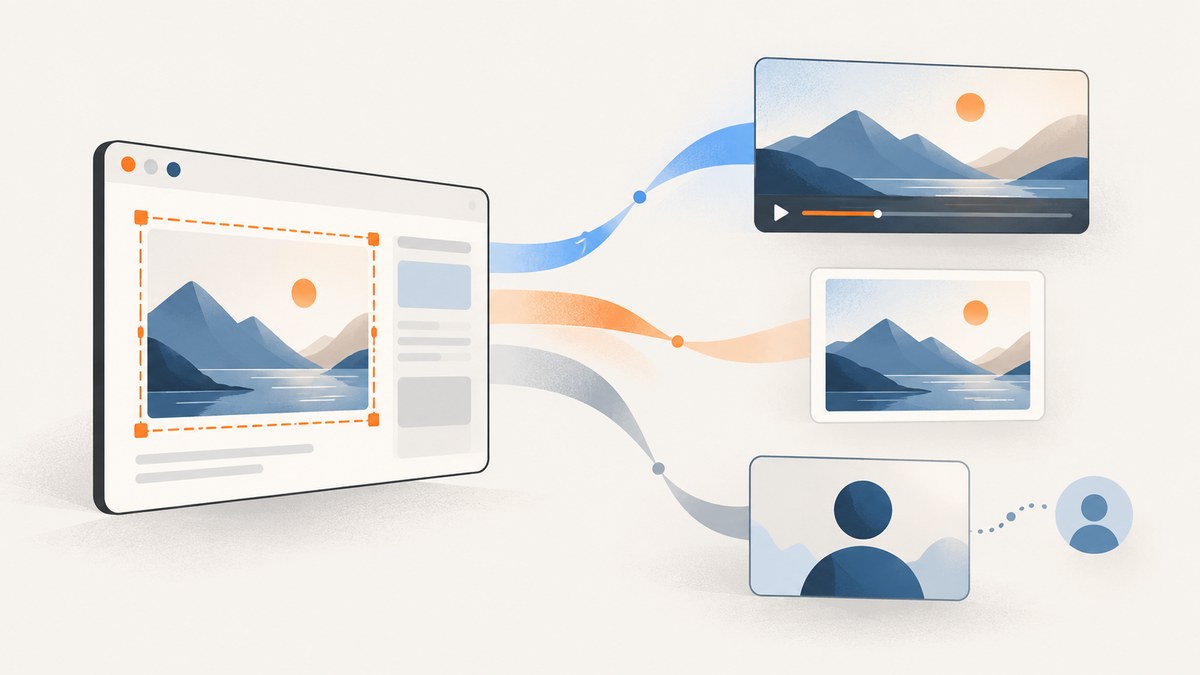
navigator.mediaDevices.getDisplayMedia() asks the user to choose a screen, window, or browser tab and returns a MediaStream. Use its video track to preview, record, or send live screen video; to save a still, grab a frame and export it through a canvas. The browser requires a secure context and a fresh user action for every capture request, so screen capture cannot start silently or reuse a stored grant. MDN’s getDisplayMedia reference describes the picker and returned stream.
1. Set up screen capture
Serve the page from HTTPS (localhost is generally treated as a secure development context) and connect the request to a button click. Do not await unrelated work before calling the API: transient user activation can expire. The browser displays its own picker, where the user decides what to share.
<button id="share" type="button">Share screen</button>
<button id="stop" type="button" disabled>Stop sharing</button>
<video id="preview" autoplay playsinline muted></video>
<p id="status" role="status">Not sharing</p>

<script type="module">
  const shareButton = document.querySelector('#share');
  const stopButton = document.querySelector('#stop');
  const video = document.querySelector('#preview');
  const status = document.querySelector('#status');
  let stream;

  function stopSharing() {
    if (!stream) return;
    stream.getTracks().forEach(track => track.stop());
    video.srcObject = null;
    stream = undefined;
    shareButton.disabled = false;
    stopButton.disabled = true;
    status.textContent = 'Not sharing';
  }

  shareButton.addEventListener('click', async () => {
    if (!navigator.mediaDevices?.getDisplayMedia) {
      status.textContent = 'Screen capture is unavailable in this browser or context.';
      return;
    }

    try {
      // Call directly from the click handler to preserve user activation.
      stream = await navigator.mediaDevices.getDisplayMedia({
        video: { frameRate: { ideal: 15, max: 30 } },
        audio: false
      });
      video.srcObject = stream;
      await video.play();
      shareButton.disabled = true;
      stopButton.disabled = false;
      status.textContent = 'Sharing. Use Stop sharing to end capture.';

      // The browser's own stop control also ends the track.
      stream.getVideoTracks()[0]?.addEventListener('ended', stopSharing, { once: true });
    } catch (error) {
      if (error.name === 'NotAllowedError') {
        status.textContent = 'Capture was cancelled or permission was denied.';
      } else {
        status.textContent = `Could not start capture: ${error.message}`;
      }
    }
  });

  stopButton.addEventListener('click', stopSharing);
</script>
getDisplayMedia() is distinct from getUserMedia(): the former opens the screen picker, while the latter requests camera or microphone input. Screen capture does not require a camera. See the MDN method documentation for API behavior and options.
2. Choose capture options
Pass constraints to express preferences for the resulting stream. The browser and the user-selected surface determine what can actually be captured. Constraints do not let a site silently choose a surface or override the user’s picker choice.
| Option | Use | Practical note |
|---|---|---|
video |
Required video track and optional video constraints. | Use true for defaults, or request preferences such as frame rate. The selected surface and browser affect actual dimensions and behavior. |
audio |
Request audio capture when needed. | Audio availability depends on browser, operating system, and selected surface. Check for an audio track after resolution; a request does not guarantee one. |
frameRate |
Set a preferred capture rate, for example { ideal: 15, max: 30 }. |
Lower rates can reduce processing and transmission cost for mostly static content. |
| Picker-related hints | Some implementations expose hints such as preferred display surface. | Hints are not permission grants or a way to force a surface. Check current browser compatibility before depending on them. |
Request only what the feature needs. Video-only capture is simpler and avoids assuming that shared audio exists. For an audio feature, inspect stream.getAudioTracks() and give the user a clear fallback when it is empty.
3. Capture a still screenshot
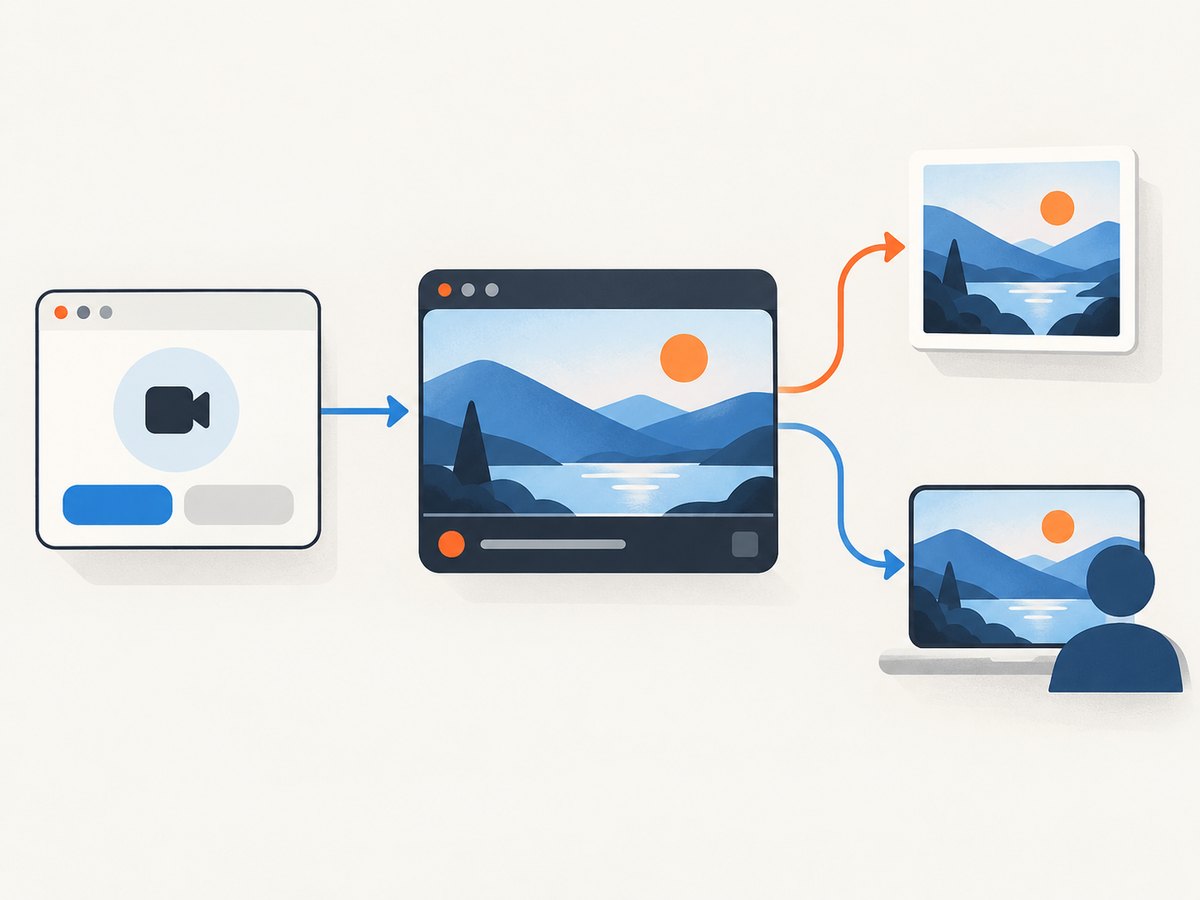
A MediaStream is live video, not an image file. To save a still, capture a frame from the video track and convert it to a canvas image. The following helper uses the video element from the setup example; call it after the preview has loaded a frame.
async function saveCurrentFrame(video, filename = 'screen.png') {
  if (!video.videoWidth || !video.videoHeight) {
    throw new Error('No video frame is available yet.');
  }

  const canvas = document.createElement('canvas');
  canvas.width = video.videoWidth;
  canvas.height = video.videoHeight;
  const context = canvas.getContext('2d');
  if (!context) throw new Error('Could not create a 2D canvas context.');
  context.drawImage(video, 0, 0, canvas.width, canvas.height);

  const blob = await new Promise(resolve => canvas.toBlob(resolve, 'image/png'));
  if (!blob) throw new Error('The browser could not encode the screenshot.');
  const link = document.createElement('a');
  link.href = URL.createObjectURL(blob);
  link.download = filename;
  link.click();
  setTimeout(() => URL.revokeObjectURL(link.href), 1000);
}

document.querySelector('#save')?.addEventListener('click', () => {
  saveCurrentFrame(document.querySelector('#preview')).catch(console.error);
});
If supported by the target browsers, ImageCapture.grabFrame() is another way to obtain an ImageBitmap from a video track. Draw that bitmap to a canvas before encoding it. The canvas approach works naturally with a video preview and makes it easy to resize or annotate before export. See the Chrome guide to Element and Region Capture for a frame-to-canvas pattern and related capture APIs.
Wait for a usable frame
Immediately after capture starts, video dimensions may still be zero. Wait for metadata or a presented frame before drawing:
function waitForVideoFrame(video) {
  if (video.readyState >= HTMLMediaElement.HAVE_CURRENT_DATA && video.videoWidth) {
    return Promise.resolve();
  }
  return new Promise((resolve, reject) => {
    video.addEventListener('loadeddata', resolve, { once: true });
    video.addEventListener('error', () => reject(new Error('Video preview failed to load.')), { once: true });
  });
}

await waitForVideoFrame(document.querySelector('#preview'));
await saveCurrentFrame(document.querySelector('#preview'));
4. Share a live screen
For a live preview, assign the returned stream to video.srcObject. For recording, pass the stream to MediaRecorder. For a remote participant, add its tracks to a WebRTC peer connection and exchange the necessary signaling data through your application.
Record locally with MediaRecorder
function recordScreen(stream) {
  const chunks = [];
  const recorder = new MediaRecorder(stream);
  recorder.addEventListener('dataavailable', event => {
    if (event.data.size) chunks.push(event.data);
  });
  recorder.addEventListener('stop', () => {
    const blob = new Blob(chunks, { type: recorder.mimeType || 'video/webm' });
    const url = URL.createObjectURL(blob);
    const link = document.createElement('a');
    link.href = url;
    link.download = 'screen-recording.webm';
    link.click();
    setTimeout(() => URL.revokeObjectURL(url), 1000);
  });
  recorder.start();
  return recorder;
}

// After getDisplayMedia resolves:
const recorder = recordScreen(stream);
// Stop the recording to finalize and download it:
recorder.stop();
For production code, check MediaRecorder.isTypeSupported() if choosing a specific output MIME type, handle its error event, and stop the recorder before stopping tracks if you need a finalized recording.
Send the track with WebRTC
// pc is an RTCPeerConnection configured by your application.
for (const track of stream.getTracks()) {
  pc.addTrack(track, stream);
}

// Continue with your app's signaling flow: create and send an offer,
// receive the remote answer, and exchange ICE candidates as required.
Adding the track does not itself connect peers. WebRTC still requires signaling and connection handling. When the user ends capture, update the call state and stop or replace the corresponding sender track as appropriate.
5. Stop capture and protect privacy
Provide an obvious stop control and stop every track when the user is done, when leaving the capture flow, or when the feature is torn down. The user can also stop sharing from browser-provided controls; listen for the video track’s ended event to keep your interface in sync. Tell users whether you capture a tab, window, or full display and whether audio is included. Screen content can contain private information, so show a preview and make recording or transmission clear.
6. Restrict capture to a tab region when appropriate
The standard picker gives the user control over the surface. The Screen Capture API also describes Element Capture and Region Capture, which can restrict captured tab content to a DOM element or region in supported environments. These capabilities have compatibility and layout constraints; verify support and behavior for your target browsers before making them a requirement. They do not replace the user’s screen-capture permission flow. See the Chrome documentation.
HTMLCanvasElement.captureStream() is a different direction: it creates a live stream from content your app draws into a canvas. Use it to stream a rendered or transformed canvas, not to open the screen picker or capture the user’s display.
7. Browser requirements and deployment
- Secure context: screen capture requires a secure context. Deploy over HTTPS; localhost is useful for development.
- User activation: invoke the method from a fresh user gesture such as a button click. Each request requires a new user choice.
- Permissions Policy: a document policy can block screen capture. Embedded pages may need the
display-capturepermission delegated by the top-level page, where supported and appropriate. - Support differences: browser support is not uniform, and audio support and available surfaces vary. Check compatibility for the browsers, operating systems, and surfaces your product intends to support.
- Feature detection: check for
navigator.mediaDevices?.getDisplayMediaand handle rejection. A compatibility check is not a substitute for handling runtime errors.
For current status and browser-specific details, consult MDN’s compatibility and method reference and test the actual browser targets.
8. Troubleshooting
| Symptom or error | Likely cause | Fix |
|---|---|---|
getDisplayMedia is undefined |
Unsupported browser, insecure context, or unavailable API. | Use HTTPS, feature-detect the method, and provide a browser-specific fallback or explanatory message. |
InvalidStateError |
The call did not have transient user activation, or the document is not in an eligible state. | Call directly from a user click or key action; do not defer it behind unrelated asynchronous work. |
NotAllowedError |
The user cancelled or denied the picker, or policy/security restrictions blocked capture. | Keep the UI usable after cancellation. Check secure context and Permissions Policy; let the user initiate a fresh request. |
NotFoundError or no usable surface |
No capturable display surface is available in the environment. | Explain that capture is unavailable and offer another workflow. Check device and browser support. |
| Video dimensions are zero; saved image is blank | The first frame has not arrived or the video has not loaded metadata. | Wait for loadeddata or a presented frame and verify video.videoWidth before drawing. |
| No audio in the stream | The selected surface or browser did not provide an audio track. | Inspect getAudioTracks(); treat audio as optional and communicate the limitation. |
| Embedded page cannot start capture | The embedding document’s Permissions Policy disallows display-capture. |
Configure permission delegation on the embedding page where supported, and verify the policy chain. |
| Preview shows but remote peer receives nothing | The stream was previewed but tracks were not added, or WebRTC signaling/ICE is incomplete. | Add tracks to the peer connection and complete the application’s signaling and connectivity flow. |
9. Performance, reliability, and cost
Screen capture uses browser and system resources. For text and dashboards, a modest frame rate is often sufficient; fast motion may need a higher rate. Sending a full-resolution display over WebRTC can consume significant bandwidth, so consider adapting sender encoding and resolution to the application’s needs. A still screenshot needs only one frame, so stop the stream as soon as the image is saved if no live sharing is needed.
Handle cancellation as a normal outcome, and listen for tracks ending outside your own stop button. Browser and operating-system behavior can vary, especially for audio and available capture surfaces, so build graceful fallbacks and verify the supported environments. There is no API usage charge specified by this browser workflow; operational costs depend on your application’s recording storage, processing, and network delivery.
10. Or skip the browser setup
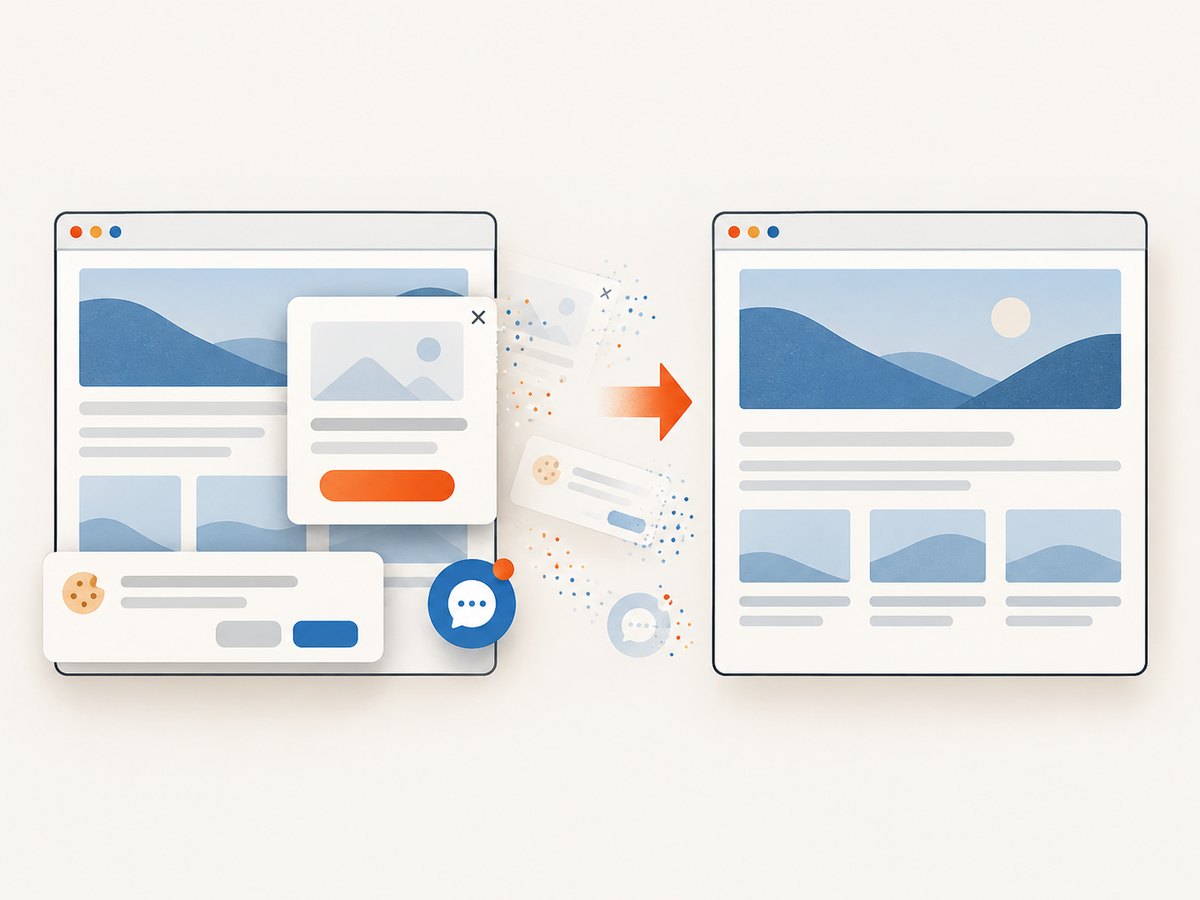
If you need a website screenshot file rather than a live, user-selected screen stream, ScreenshotNeo is a website screenshot API and MCP server. One GET request captures a URL as PNG, JPEG, WebP, or PDF. It accepts cookie banners and removes more than 60 known consent platforms, newsletter popups, and chat widgets before capture; each cleanup step can be turned off. Bot checks, blank pages, timeouts, failed loads, and cache hits are not billed, and response headers report the page verdict and billing status. Its MCP server gives AI agents tools for screenshots, page information, and PDF capture. The free plan includes 1,000 shots per month with no card; paid plans start at $5 for 3,000.
cURL:
curl -G "https://api.screenshotneo.com/v1/shot" -d access_key=YOUR_API_KEY --data-urlencode url=https://stripe.com -o shot.webpPython:
import requests

r = requests.get(
    "https://api.screenshotneo.com/v1/shot",
    params={"access_key": "YOUR_API_KEY", "url": "https://stripe.com"},
    timeout=90,
)
open("shot.webp", "wb").write(r.content)
Node.js:
const q = new URLSearchParams({ access_key: 'YOUR_API_KEY', url: 'https://stripe.com' });
const res = await fetch(`https://api.screenshotneo.com/v1/shot?${q}`);
if (!res.ok) throw new Error(`Screenshot request failed: ${res.status}`);
await Bun.write('shot.webp', res); // Bun example; in Node, write the response bytes with node:fs.
For the full parameter list and configuration, see the ScreenshotNeo API documentation. Cookie banners, popups, and chat widgets are removed before the shot; bot checks, blank pages, and failed loads are never billed; an MCP server lets AI agents take screenshots; and 1,000 screenshots a month are free with no card, with paid plans starting at $5 for 3,000. Sign up for the free plan.
11. FAQ
Can a site capture a screen without the user noticing?
No. The browser requires a fresh user choice for each getDisplayMedia() request, and the site cannot silently reuse a stored screen-capture grant.
Can I capture only a DOM element with the standard picker?
The standard flow selects a display surface. Element and Region Capture are separate capabilities for restricting tab capture in supported environments; check their current browser support and behavior.
Should I use a screenshot API or MediaStream?
Use MediaStream when the user must choose a live screen to preview, record, or transmit. Use a screenshot API when your application needs a server-produced image of a URL without asking a visitor to share their screen.
Does requesting audio guarantee that the stream includes it?
No. Audio depends on browser support and the selected surface. Check the returned tracks.


