How to Capture a Browser-Style Screenshot of a Rendered Webpage with JavaScript
Use Playwright or Puppeteer to wait for JavaScript-rendered content, then capture a viewport, element, or full-page screenshot reliably.
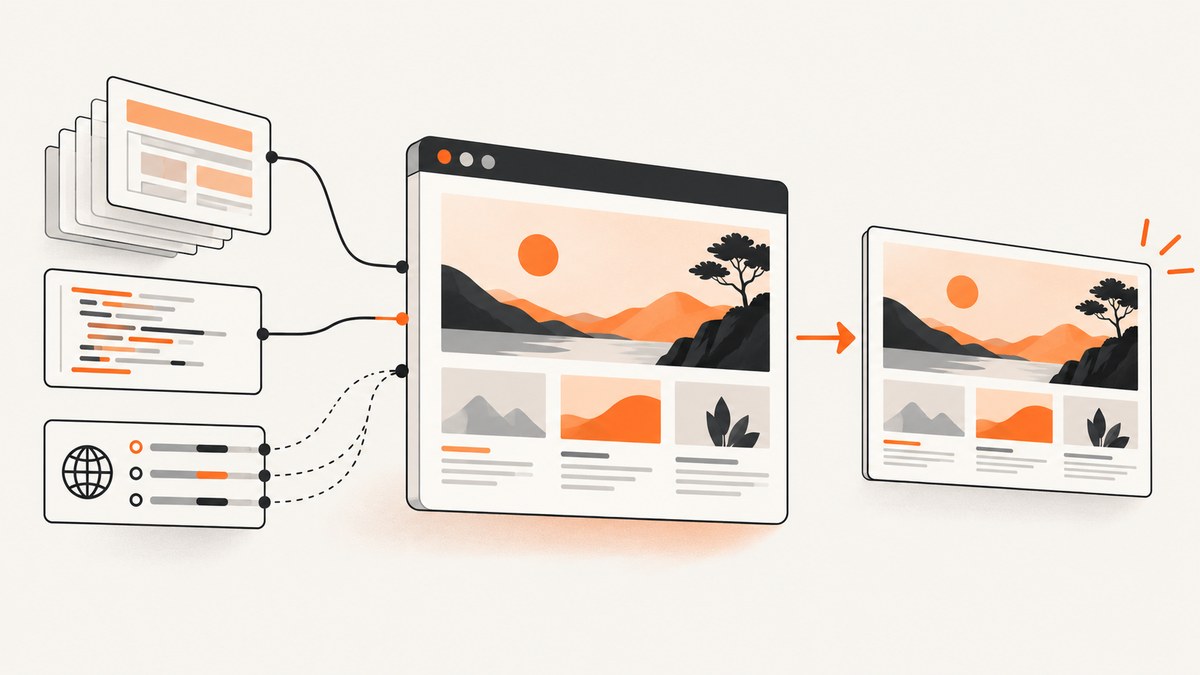
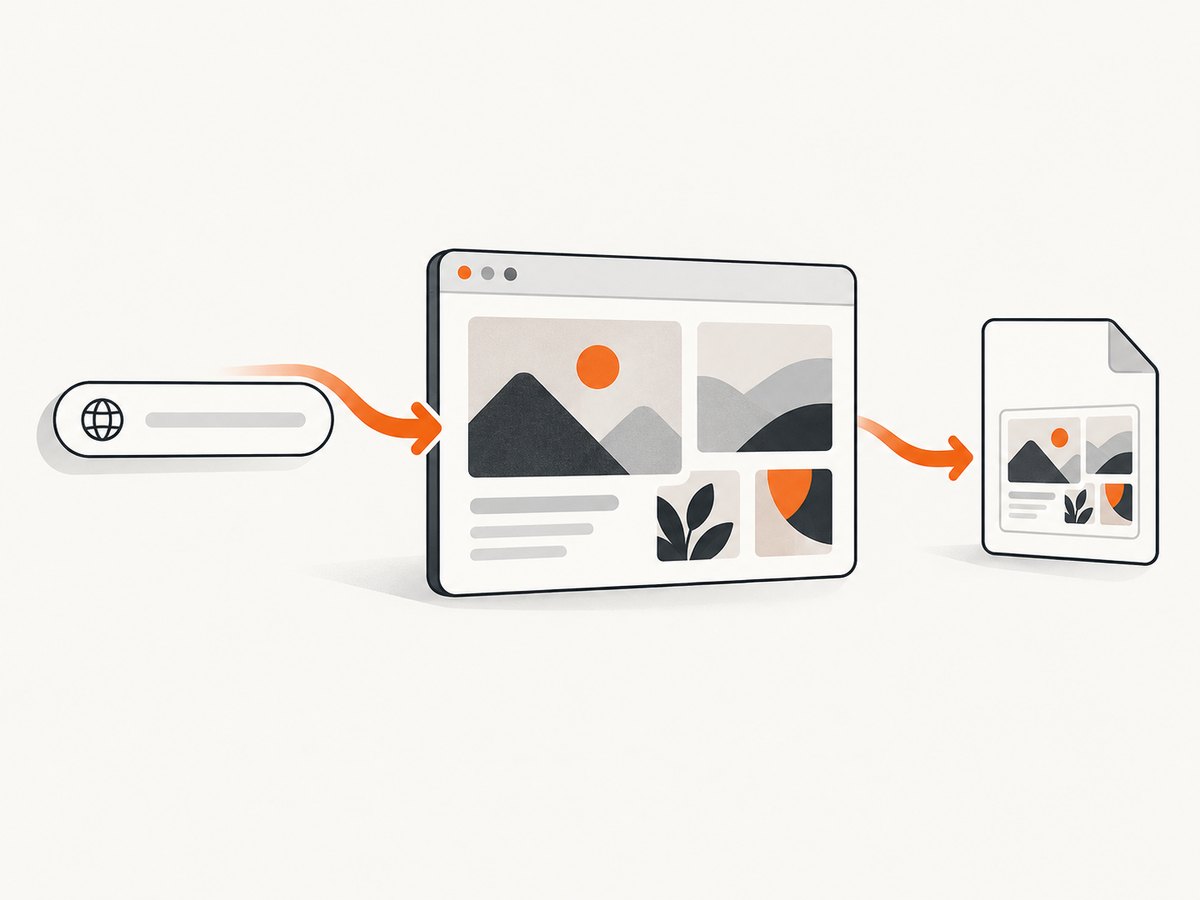
Direct answer: run a real browser with Playwright or Puppeteer. Navigate to the page, wait for a deterministic signal that the content you need is rendered, then call the screenshot API. Use a viewport capture for the visible browser window, an element or clip for a component, and fullPage for the complete scrollable document.
Fetching HTML with fetch() or an HTTP client does not execute client-side JavaScript. A browser runtime is required for React, Vue, Angular, hydration, client-side data fetching, lazy images and other rendered states.
Choose the capture type
| Capture | Use it when | Key option |
|---|---|---|
| Viewport | You need exactly what a visitor sees in the current window. | Set viewport; omit fullPage. |
| Full page | You need the entire scrollable document. | Playwright/Puppeteer fullPage: true. |
| Element | You need one rendered card, chart, or component. | Locate it, then call the locator or element screenshot method. |
| Clip | You need a rectangular region. | Provide x, y, width and height. |
Playwright: a reliable JavaScript implementation
Install Playwright and its browser binaries:
npm install playwright
npx playwright install chromium
This script sets the viewport before navigation, waits for a page-specific ready element, confirms an image has loaded, disables motion, and writes a full-page PNG:
const { chromium } = require('playwright');

(async () => {
  const browser = await chromium.launch();
  const page = await browser.newPage({
    viewport: { width: 1440, height: 900 },
    deviceScaleFactor: 1,
    colorScheme: 'light',
    locale: 'en-US'
  });

  try {
    await page.goto('https://example.com/dashboard', {
      waitUntil: 'domcontentloaded',
      timeout: 60000
    });

    // Replace this with a selector that means your page is ready.
    await page.locator('[data-page-ready="true"]').waitFor({ timeout: 30000 });

    // Make screenshots deterministic when the page contains animations.
    await page.addStyleTag({
      content: `*, *::before, *::after {
        animation: none !important;
        transition: none !important;
        caret-color: transparent !important;
      }`
    });

    // Trigger lazy loading by scrolling through the document.
    await page.evaluate(async () => {
      await new Promise(resolve => {
        let y = 0;
        const step = 700;
        const timer = setInterval(() => {
          window.scrollBy(0, step);
          y += step;
          if (y >= document.documentElement.scrollHeight) {
            clearInterval(timer);
            window.scrollTo(0, 0);
            resolve();
          }
        }, 50);
      });
    });

    await page.waitForFunction(() => [...document.images].every(img => img.complete));
    await page.screenshot({ path: 'rendered-page.png', fullPage: true, type: 'png' });
  } finally {
    await browser.close();
  }
})();
Playwright supports commit, domcontentloaded, load and networkidle navigation states. Its documentation labels networkidle as discouraged for testing because it waits for 500 ms without network connections. Analytics, polling, advertisements and open connections can make that state slow or unreachable. Prefer a selector, a framework-ready flag, or an assertion about the content you need.
Viewport, element and clipped screenshots in Playwright
// Visible viewport
await page.screenshot({ path: 'viewport.webp', type: 'webp', quality: 85 });

// One rendered component
await page.locator('.invoice-card').screenshot({ path: 'invoice.png' });

// A fixed rectangle in CSS pixels
await page.screenshot({
  path: 'chart.png',
  clip: { x: 120, y: 240, width: 900, height: 500 }
});

// Transparent background when supported by the page
await page.screenshot({ path: 'transparent.png', omitBackground: true });
PNG preserves lossless detail. JPEG and WebP usually produce smaller files; JPEG requires a quality value in the supported range. Device scale affects output density and file size, so set deviceScaleFactor deliberately.
Puppeteer: equivalent browser capture
Install Puppeteer:
npm install puppeteerconst puppeteer = require('puppeteer');
(async () => {
const browser = await puppeteer.launch();
const page = await browser.newPage();
await page.setViewport({ width: 1440, height: 900, deviceScaleFactor: 1 });
try {
await page.goto('https://example.com/dashboard', {
waitUntil: 'domcontentloaded',
timeout: 60000
});
await page.waitForSelector('[data-page-ready="true"]', { timeout: 30000 });
await page.evaluate(() => {
document.querySelectorAll('*').forEach(el => {
el.style.animation = 'none';
el.style.transition = 'none';
});
});
// ElementHandle.screenshot scrolls a hidden element into view.
const card = await page.waitForSelector('.invoice-card');
await card.screenshot({ path: 'invoice.png' });
await page.screenshot({ path: 'page.png', fullPage: true, type: 'png' });
} finally {
await browser.close();
}
})();Puppeteer’s screenshot guide states: “For capturing screenshots use Page.screenshot().” Its options include type, quality, path, clip, omitBackground, captureBeyondViewport and fullPage.
Wait for rendered content instead of guessing
- Set environment first. Configure viewport, device scale, locale, timezone, color scheme and any authentication context before navigation.
- Choose a navigation state. Start with
domcontentloadedorload; usenetworkidleonly when the site’s connection behavior makes it safe. - Wait for the actual state. A stable selector such as
[data-page-ready], a framework flag, or an assertion that expected text exists is stronger than a fixed sleep. - Handle lazy loading. Scroll through the page or call the site’s own loading mechanism, then wait for required images to report
completeand have non-zero dimensions. - Freeze motion. Disable CSS animations, transitions and blinking carets when pixel stability matters.
- Capture and validate. Check that the output exists and has a plausible size. Treat missing selectors, failed navigation and blank images as errors.
Authentication, headers and browser context
Protected pages need the same session a human visitor would have. In Playwright, create a context with a locale, timezone and user agent, then add cookies or headers before opening the page:
const context = await browser.newContext({
  viewport: { width: 1280, height: 800 },
  locale: 'en-GB',
  timezoneId: 'Europe/London',
  userAgent: 'ScreenshotWorker/1.0'
});
await context.setExtraHTTPHeaders({ Authorization: `Bearer ${process.env.TOKEN}` });
await context.addCookies([{ name: 'session', value: process.env.SESSION, domain: 'example.com', path: '/' }]);
const page = await context.newPage();
Keep secrets outside source code. For geolocation, grant the relevant permission and provide coordinates. Be aware that changing locale, timezone, user agent or viewport can change layout and therefore pixel output.
Common failures and fixes
| Symptom | Likely cause | Fix |
|---|---|---|
| Blank or almost blank image | Capture ran before client rendering finished, or navigation failed. | Log navigation errors, wait for a page-specific ready selector, and assert expected text before capture. |
| Missing images below the fold | Lazy loading was never triggered. | Scroll the document, wait for image completion and verify dimensions. |
Timeout at networkidle |
Polling, analytics, ads or WebSockets keep connections open. | Use domcontentloaded or load, then wait for a deterministic selector. |
| Cookie banner, popup or chat widget covers content | The page displays visitor overlays. | Accept or dismiss the banner in automation, hide known selectors with CSS, or use ScreenshotNeo’s cleanup pipeline below. |
| Element selector not found | Selector is wrong, inside an iframe, or rendered only after an interaction. | Inspect the DOM, wait for the parent state, switch to the frame, or perform the required click first. |
| Different pixels between runs | Animations, fonts, ads, timestamps or random data changed. | Disable motion, load stable fonts, freeze time/data where possible and block nonessential requests. |
| Full-page capture is huge or slow | Very tall documents and high device scale consume memory. | Capture an element or clips, lower scale, split the page, or increase worker memory. |
| Bot-check or CAPTCHA page | The destination detected automation. | Do not attempt to bypass a CAPTCHA. Use an authorized session or a service that reports the failed verdict clearly. |
Performance, reliability and cost
- Reuse a browser process for multiple pages, but create isolated contexts so cookies and storage do not leak between jobs.
- Limit concurrency according to available CPU and memory. Full-page images and high device scale increase memory pressure.
- Block advertising, tracking and unnecessary resource types only when doing so does not change the page state you intend to document.
- Set explicit navigation and selector timeouts. Record URL, viewport, wait condition, browser version and failure reason with each artifact.
- Retry transient navigation failures with a bounded policy and a fresh context. Do not retry indefinitely or treat a bot check as a transient error.
- Cache stable pages when appropriate. A cache key should include URL and every rendering input that affects pixels, such as viewport, locale, theme and authentication.
- For scheduled or high-volume work, account for browser startup, rendering time, storage and egress. A managed screenshot API can move those operational costs out of your application.
Or skip the browser setup
ScreenshotNeo provides a browser-style screenshot API. One GET request renders the URL and returns PNG, JPEG, WebP or PDF. It accepts a cookie or consent banner like a visitor and removes more than 60 known consent platforms, newsletter popups and chat widgets before capture; each cleanup step can be turned off. Bot checks, blank pages, timeouts, failed loads and cache hits are not billed, and response headers identify the page verdict and whether the request was billed.

See the complete option list in the ScreenshotNeo documentation. The basic calls are:
curl -G "https://api.screenshotneo.com/v1/shot" -d access_key=YOUR_API_KEY --data-urlencode url=https://stripe.com -o shot.webpimport requests
r = requests.get("https://api.screenshotneo.com/v1/shot", params={"access_key": "YOUR_API_KEY", "url": "https://stripe.com"}, timeout=90)
open("shot.webp", "wb").write(r.content)const q = new URLSearchParams({ access_key: 'YOUR_API_KEY', url: 'https://stripe.com' });
const res = await fetch(`https://api.screenshotneo.com/v1/shot?${q}`);
const data = Buffer.from(await res.arrayBuffer());
require('fs').writeFileSync('shot.webp', data);Options include full-page capture with lazy images loaded, CSS element capture, dark mode, device presets or custom viewports, retina scale, PDF paper and margin settings, custom CSS and JavaScript, clicks, selector waits, delays, network-idle waits, request blocking, headers, cookies, user agents, authorization, timezone, geolocation, transparent backgrounds, resizing, selectable-TTL caching, signed image links, asynchronous jobs with signed webhooks, bulk capture of up to 100 URLs per call, a usage API and an OpenAPI specification. Common parameter names from other screenshot APIs also work, which simplifies migration.
An MCP server supplies take_screenshot, get_page_info and capture_pdf tools for Claude, Cursor and other MCP clients. Plans include 1,000 shots per month free with no card; paid plans start at $5 for 3,000 shots, and every feature is on every plan. Create a free ScreenshotNeo account.
Short FAQ
Does JavaScript have to run in a browser?
For client-rendered pages, yes. A browser executes scripts, applies styles and performs layout before the screenshot.
Should I always wait for network idle?
No. Sites with polling, analytics or persistent connections may never become idle. A page-specific ready condition is usually more reliable.
What is the difference between full-page and viewport output?
Viewport output is the current browser window. Full-page output includes the document’s complete scrollable height.
How do I capture one component?
Wait for its locator or selector and call the element screenshot method. This avoids producing a large image when only one component matters.
Why does a screenshot include a consent dialog?
The dialog is part of the rendered page until you accept, dismiss or hide it. ScreenshotNeo can perform consent cleanup before capture.


