How to Create JavaScript Screenshots of R Plots Without Shiny
Render an R plot to an image, display it in plain HTML, and capture it with JavaScript Playwright—without running Shiny.
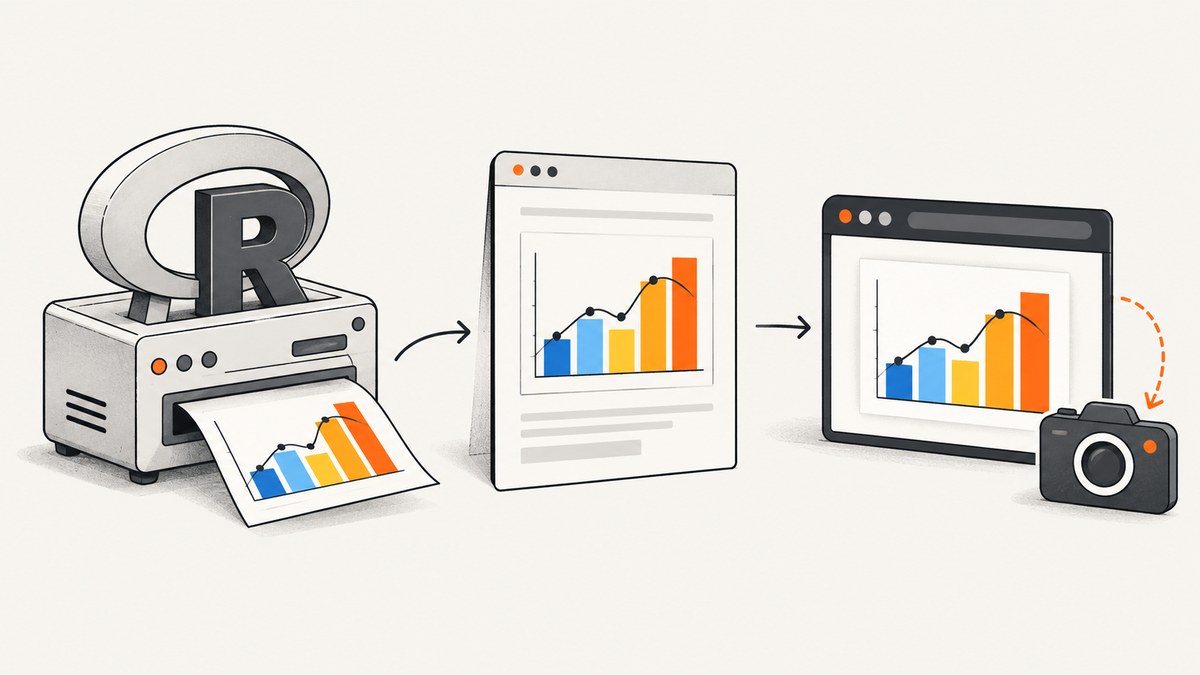
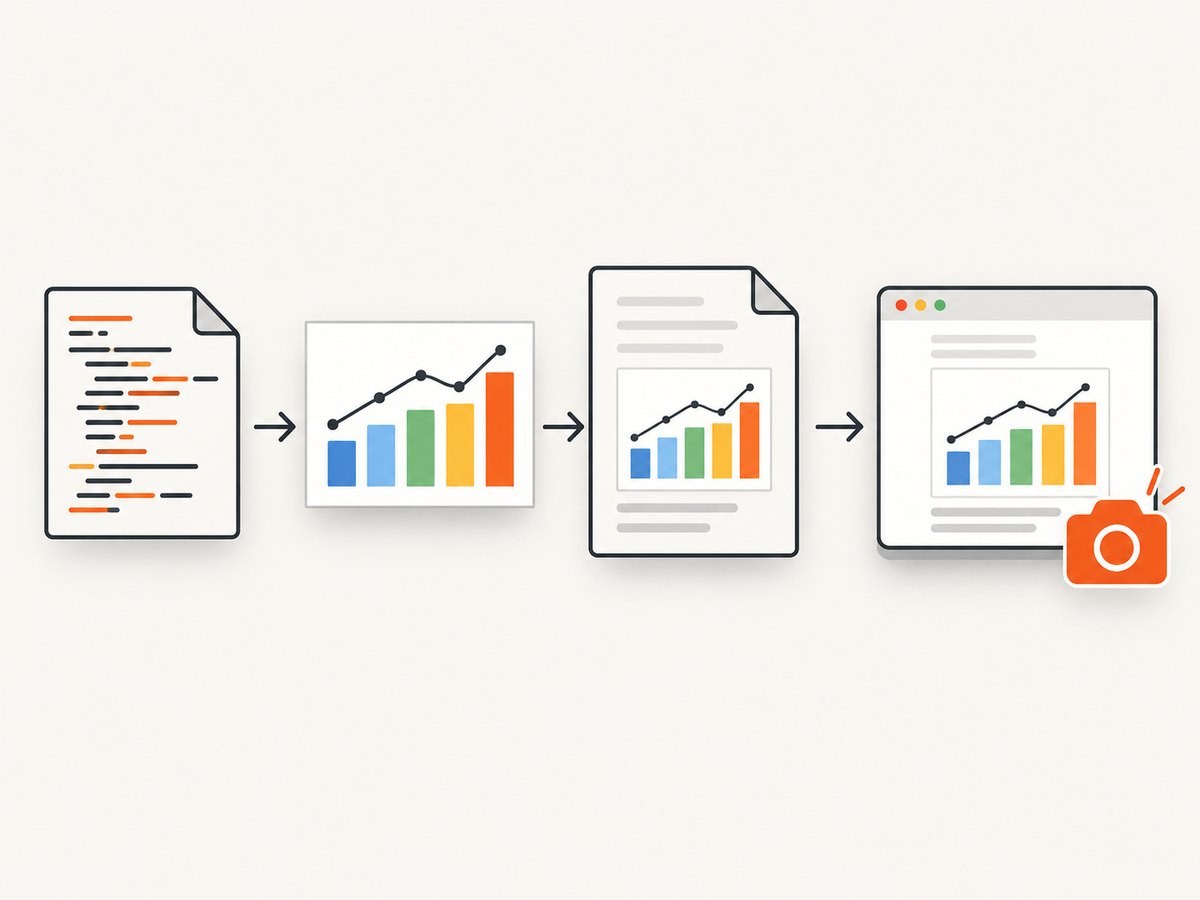
Yes, you can create JavaScript screenshots of R plots without Shiny. Render the plot in R to PNG (or another image format), place that file in a normal HTML page, and use a JavaScript browser tool such as Playwright to capture either the plot element, the viewport, or the full page. The browser does not need to run R or Shiny when the plot is already a static image.
This separation keeps responsibilities clear: R creates the graphic, ordinary HTML serves it, and JavaScript controls the browser screenshot. If you need an R-driven workflow, webshot2 performs a similar job through headless Chrome and Chromote.
1. Choose the right architecture
| Requirement | Recommended route | What to consider |
|---|---|---|
| Capture a completed R plot | R image file → HTML <img> → Playwright |
Simple, portable, and easy to debug. |
| Run screenshots from an R script | webshot2::webshot() |
Requires Chrome or a compatible Chromium browser. |
| Expose a browser-facing R graphics device | httpgd | Useful for network-accessible graphics; deployment is a separate concern. |
| Capture a knitr or R Markdown document | knitr screenshot support with webshot2/Chrome | Backend availability, viewport, and delay settings affect output. |
For a static chart, the first route is usually the easiest. Shiny is an application framework; it is not a prerequisite for taking a screenshot of an R-generated image.
2. Render the R plot to a file
Use an R graphics device to write the plot. This example creates a deterministic PNG with explicit dimensions and resolution:
# render_plot.R
png("plot.png", width = 1200, height = 800, res = 144)
par(mar = c(4, 4, 1, 1))
x <- seq(0, 2 * pi, length.out = 500)
y <- sin(x)
plot(x, y, type = "l", lwd = 3, col = "steelblue",
     xlab = "x", ylab = "sin(x)", main = "A plot rendered by R")
grid()
dev.off()
Use the graphics-device arguments supported by the R version installed in your build environment. For publication output, choose dimensions and resolution based on the final screenshot size rather than relying on defaults.
3. Put the image in a plain HTML page
Create an HTML file beside plot.png. Give the image a stable selector and explicit dimensions so the browser has a predictable layout:
<!doctype html>
<html lang="en">
<head>
  <meta charset="utf-8">
  <meta name="viewport" content="width=device-width, initial-scale=1">
  <title>R plot</title>
  <style>
    body { margin: 0; padding: 24px; background: #fff; }
    #plot { display: block; width: 1200px; height: 800px; }
  </style>
</head>
<body>
  <img id="plot" src="plot.png" width="1200" height="800" alt="R line plot">
</body>
</html>
Serve the directory over HTTP when possible. A local server avoids differences in file URL behavior:
python3 -m http.server 8000 --directory .The page is then available at http://127.0.0.1:8000/plot.html.
4. Capture the plot with JavaScript and Playwright
Install Playwright and its browser once in the project:

npm install -D playwright
npx playwright install chromium
Playwright’s official screenshot API supports an element screenshot, viewport screenshot, full-page capture, image format, and scale. See the Playwright screenshot documentation.
Capture only the R plot element
// capture-plot.mjs
import { chromium } from 'playwright';

const browser = await chromium.launch();
const page = await browser.newPage({
  viewport: { width: 1280, height: 900 },
  deviceScaleFactor: 1
});

await page.goto('http://127.0.0.1:8000/plot.html', { waitUntil: 'load' });
const plot = page.locator('#plot');
await plot.waitFor({ state: 'visible' });
await plot.screenshot({ path: 'plot-element.png', type: 'png' });

await browser.close();
Capture the viewport or the complete page
// viewport screenshot
await page.screenshot({ path: 'viewport.webp', type: 'webp', quality: 90 });

// all scrollable content
await page.screenshot({ path: 'full-page.png', fullPage: true });
Element capture is generally the most precise choice for a chart. Use fullPage when surrounding headings, notes, or multiple plots belong in the artifact.
5. Make rendering deterministic
- Wait for an observable condition. Wait for the image to be visible, or for a page-specific ready marker, instead of guessing with a long timeout.
- Control viewport and scale. Set
viewportanddeviceScaleFactorexplicitly. Higher scale produces more pixels and larger files. - Use stable fonts. Install the same fonts in CI and local environments; font fallback changes text metrics.
- Pin the browser. Keep the Playwright version and browser channel consistent when visual diffs matter.
- Use explicit image dimensions. This prevents layout shifts while the image loads.
Wait for a custom ready signal
await page.goto('http://127.0.0.1:8000/plot.html', { waitUntil: 'domcontentloaded' });
await page.waitForFunction(() => document.querySelector('#plot')?.complete);
await page.locator('#plot').screenshot({ path: 'ready.png' });
For a page that builds the plot or image asynchronously, set window.plotReady = true after the final update and wait for that value.
6. Capture from R with webshot2
webshot2 uses headless Chrome through Chromote and supports ordinary URLs, Shiny applications, and R Markdown documents. A non-Shiny page uses webshot():
install.packages("webshot2")
webshot2::webshot(
  "http://127.0.0.1:8000/plot.html",
  file = "plot-from-r.png",
  vwidth = 1280,
  vheight = 900,
  delay = 0.2
)
Chrome, Chromium, Edge, Brave, Vivaldi, or another compatible Chromium browser must be available. The exact browser executable and graphics-device arguments can vary by operating system, so verify them in the package documentation and your installed R version.
7. Optional browser-facing graphics with httpgd
httpgd is a network-accessible R graphics device. It is a different architecture from exporting a PNG: the browser communicates with a graphics device that can expose current R output. Choose it when you need a live or network-oriented graphics workflow; for a one-time screenshot of a finished chart, a static file is simpler.
8. Or skip the browser setup
ScreenshotNeo accepts one GET request and returns a PNG, JPEG, WebP, or PDF. Give it a publicly reachable HTML page containing the R plot:
curl -G "https://api.screenshotneo.com/v1/shot" \
  -d access_key=YOUR_API_KEY \
  --data-urlencode url=https://your-domain.example/r-plot.html \
  -o shot.webp
import requests
r = requests.get(
"https://api.screenshotneo.com/v1/shot",
params={"access_key": "YOUR_API_KEY", "url": "https://your-domain.example/r-plot.html"},
timeout=90,
)
r.raise_for_status()
open("shot.webp", "wb").write(r.content)const q = new URLSearchParams({
access_key: 'YOUR_API_KEY',
url: 'https://your-domain.example/r-plot.html'
});
const res = await fetch(`https://api.screenshotneo.com/v1/shot?${q}`);
if (!res.ok) throw new Error(`Screenshot failed: ${res.status}`);
const bytes = await res.arrayBuffer();
// write bytes with your runtime's file APISee the ScreenshotNeo API documentation for request options. Cookie and consent banners, newsletter popups, and chat widgets are removed before capture. Bot checks, blank pages, failed loads, timeouts, and cache hits are not billed, and response headers report the page verdict and billing result. ScreenshotNeo also provides an MCP server for AI agents, including take_screenshot, get_page_info, and capture_pdf. The free plan includes 1,000 screenshots per month without a card; paid plans start at $5 for 3,000 screenshots. Create a free ScreenshotNeo account.
9. Troubleshooting
| Symptom | Likely cause | Fix |
|---|---|---|
| Screenshot is blank | Image URL is wrong, server is unavailable, or capture ran before loading. | Open the page in the same browser URL, check the network response, and wait for img.complete or a ready marker. |
| Only part of the plot appears | Viewport capture was used for a larger page. | Capture #plot or set fullPage: true. |
| Text wraps differently | Viewport, fonts, device scale, or browser versions differ. | Pin those values and install the required fonts. |
Executable doesn't exist |
Playwright browser binaries or Chrome are missing. | Run npx playwright install chromium, or configure webshot2 for an installed Chromium browser. |
| Local image works manually but not in CI | The CI browser cannot access the local path or server. | Start the HTTP server in the job and use its reachable address; avoid relying on file://. |
| Screenshotneo returns an error | The target URL is private, redirects unexpectedly, or requires authentication. | Expose the page, then use ScreenshotNeo headers, cookies, custom authorization, or a signed request as appropriate. |
10. Performance, reliability, and cost
- Reuse one Playwright browser process for multiple pages; launching a browser for every plot adds startup overhead.
- Capture the plot element instead of a full page when possible to reduce pixels and output size.
- Prefer PNG for lossless chart text and line work; use WebP or JPEG when smaller files are more important.
- Cache generated R images when the source data has not changed. Keep a content hash in the filename to avoid stale browser caches.
- For repeatable visual comparisons, fix the operating system, browser version, viewport, scale, fonts, and plot dimensions.
- With ScreenshotNeo, choose a cache TTL when repeated captures are acceptable. Failed loads and cache hits are identified in response headers and are not billed.
11. FAQ
Do I need Shiny to screenshot an R plot?
No. A PNG rendered by R and displayed in ordinary HTML is enough for Playwright or webshot2.
Can Playwright run R code?
Playwright controls the browser. Run R before navigation, or serve a page whose image was generated by an R process.
When should I use httpgd?
Use it when a browser-facing, network-accessible graphics device is useful. Use a static image for a finished plot and a straightforward capture pipeline.
Which capture scope should I choose?
Use a locator for the chart itself, the viewport for what a user sees initially, and full-page capture for all scrollable content.
Can a screenshot service capture a private localhost page?
No. A hosted capture service needs a URL it can reach. Publish the page or use local Playwright/webshot2 for private development pages.


