How to Convert JavaScript-Rendered Pages and SPAs to Markdown
Render JavaScript pages, extract the content you need, and convert it to Markdown with a reliable static-first or browser-based workflow.
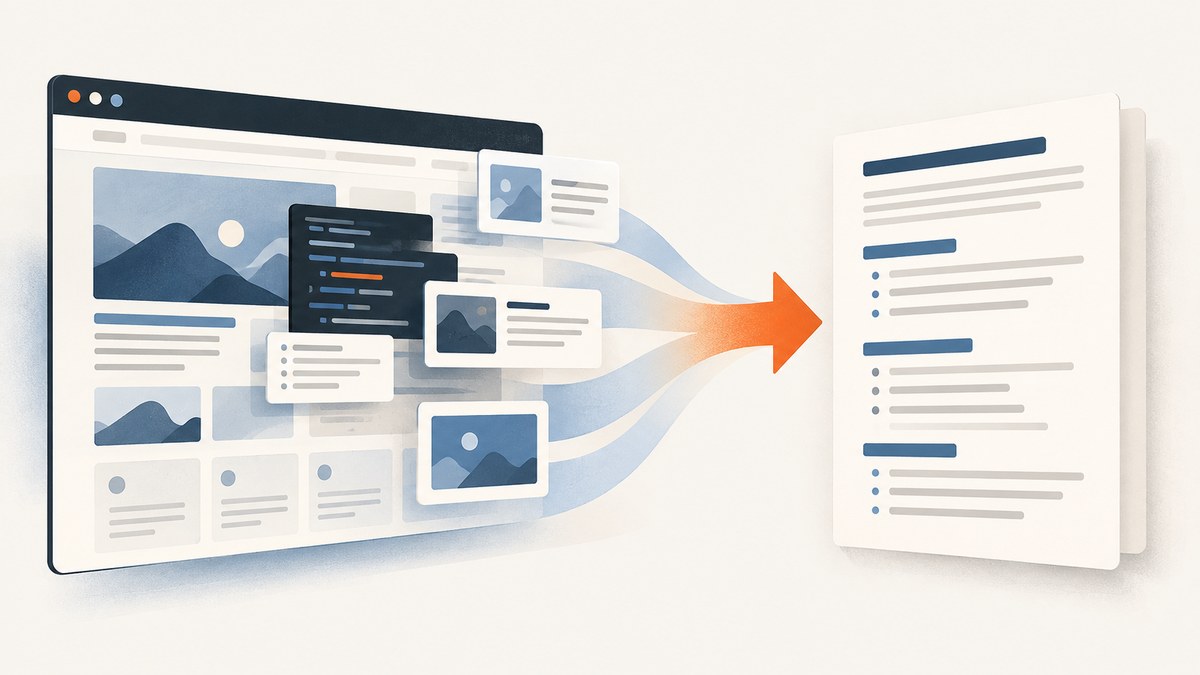
To convert a JavaScript-rendered page or single-page application (SPA) to Markdown, first make sure the page’s client-side content has rendered, then extract the useful content region, then convert its HTML to Markdown. A static HTTP fetch is enough only when the response already contains the content you need. If it returns an app shell, render the page in a browser before converting it. Turndown handles the HTML-to-Markdown step; it does not run the page’s application JavaScript.
The practical pipeline is fetch or render → wait → extract → convert → inspect. The code below uses a static-first check and a Playwright fallback, then converts the selected content with Turndown.
1. Decide whether you need a browser
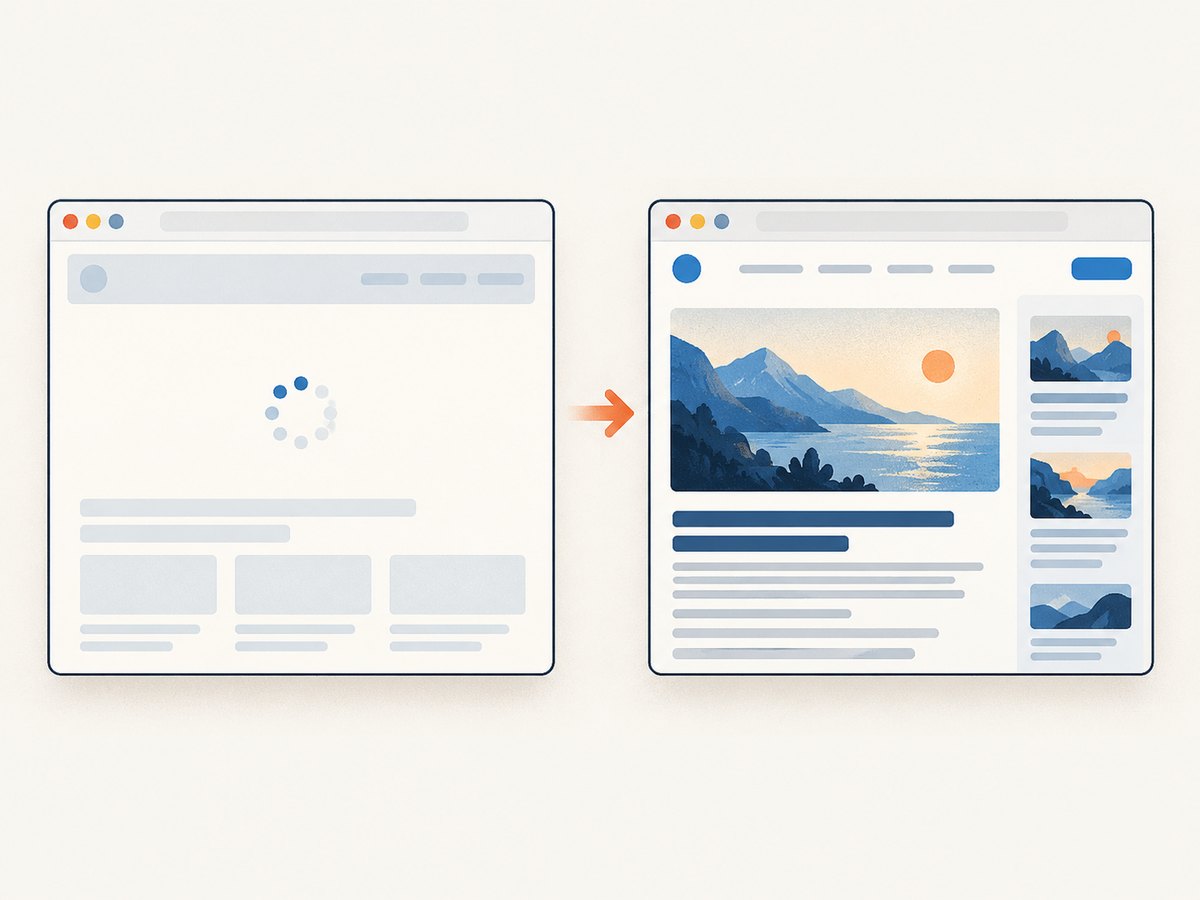
A page can return HTTP 200 and still be useless to a static converter. Some SPAs send a small HTML shell and fill it with content after JavaScript runs. The initial response and the browser’s later DOM can therefore differ. Browsers process HTML, CSS, and JavaScript, and scripts can change the DOM; a normal fetch does not execute that application code.
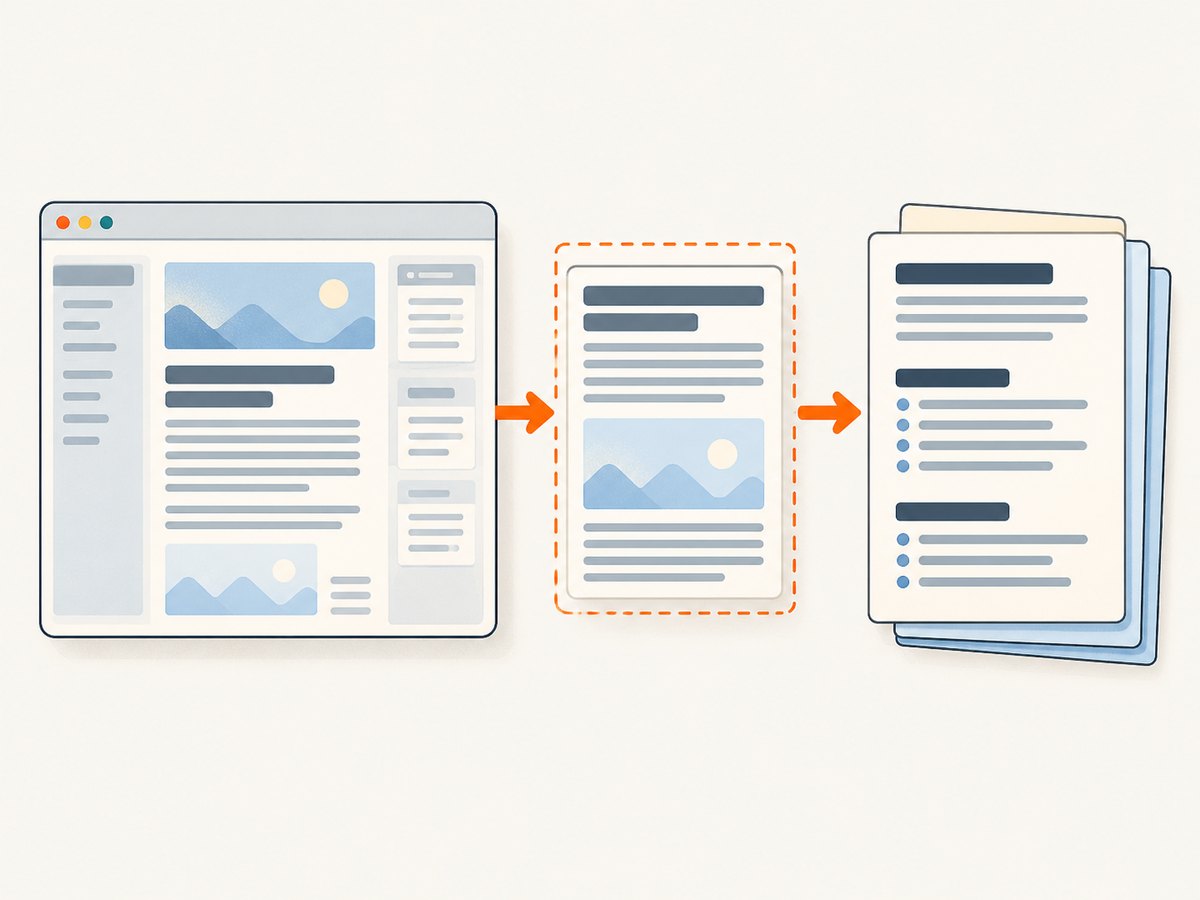
Start by fetching the page and checking for a specific sentence, heading, or content selector you expect. Do not treat a successful status code or a non-empty response as proof that the article content is present.
- Static response contains the target text: convert that response and avoid launching a browser.
- Response contains an app shell or misses the target: load the route in a browser automation context such as Playwright.
- Content appears only after a scroll or interaction: perform the required action before extracting. Scrolling can trigger lazy content, but it is not a guarantee that every page has loaded everything.
Rendering and conversion are separate jobs. Playwright gives you a browser page to navigate and inspect; an extractor chooses the content; Turndown serializes HTML as Markdown. Turndown accepts HTML strings and DOM nodes, but it is not a browser renderer or a main-content classifier.
2. Set up a static-first Node.js converter
This runnable example uses Node.js, Playwright, and Turndown. It first checks the fetched HTML for an expected marker. If missing, it opens the page in Chromium, waits for a page-specific selector, extracts the chosen region, and converts it. Replace the URL, selector, and marker for your target.
npm init -y
npm install playwright turndown
npx playwright install chromium
Save this as convert.mjs and run node convert.mjs:
import { writeFile } from 'node:fs/promises';
import { chromium } from 'playwright';
import TurndownService from 'turndown';

const url = process.env.TARGET_URL ?? 'https://example.com/article';
const contentSelector = process.env.CONTENT_SELECTOR ?? 'main';
const expectedText = process.env.EXPECTED_TEXT ?? 'Expected article heading';

const turndown = new TurndownService({
  headingStyle: 'atx',
  codeBlockStyle: 'fenced',
  bulletListMarker: '-',
});

let html = '';
let source = 'static';

try {
  const response = await fetch(url, {
    headers: { 'user-agent': 'MarkdownConverter/1.0' },
    signal: AbortSignal.timeout(15000),
  });
  if (!response.ok) throw new Error(`Static fetch returned HTTP ${response.status}`);
  html = await response.text();
} catch (error) {
  console.error(`Static fetch unavailable: ${error.message}`);
}

// A static response can be valid but still lack the client-rendered content.
if (!html.includes(expectedText)) {
  source = 'browser';
  const browser = await chromium.launch({ headless: true });
  try {
    const page = await browser.newPage();
    await page.goto(url, { waitUntil: 'domcontentloaded', timeout: 30000 });
    await page.locator(contentSelector).waitFor({ state: 'visible', timeout: 15000 });
    html = await page.locator(contentSelector).evaluate(node => node.innerHTML);
  } finally {
    await browser.close();
  }
} else {
  // Parse the static HTML and select the same content region when available.
  const { JSDOM } = await import('jsdom');
  const doc = new JSDOM(html, { url }).window.document;
  html = doc.querySelector(contentSelector)?.innerHTML ?? doc.body.innerHTML;
}

if (!html.trim()) throw new Error('No content was extracted; check the URL and selector.');
const markdown = turndown.turndown(html);
if (!markdown.trim()) throw new Error('Conversion produced empty Markdown.');
await writeFile('page.md', markdown + '\n', 'utf8');
console.log(`Wrote page.md using ${source} content.`);
The static branch above needs a DOM parser. Install it with npm install jsdom. For production, consider making parsing and selector errors explicit rather than silently falling back to the entire body: a broad fallback can convert navigation, cookie notices, and footer links instead of the article.
3. Install and run the Python browser workflow
Python’s standard library can fetch HTML, but it does not execute JavaScript. For an SPA, use a browser automation library to obtain the rendered DOM, then a converter such as html2text. Install:
python -m pip install playwright html2text requests
python -m playwright install chromium
Save as convert.py. Set TARGET_URL and CONTENT_SELECTOR in the environment, or edit the defaults.
import os
from pathlib import Path
from playwright.sync_api import sync_playwright
import html2text

url = os.getenv('TARGET_URL', 'https://example.com/article')
selector = os.getenv('CONTENT_SELECTOR', 'main')

with sync_playwright() as p:
    browser = p.chromium.launch(headless=True)
    page = browser.new_page()
    page.goto(url, wait_until='domcontentloaded', timeout=30_000)
    page.locator(selector).wait_for(state='visible', timeout=15_000)
    content_html = page.locator(selector).inner_html()
    browser.close()

converter = html2text.HTML2Text()
converter.body_width = 0
converter.ignore_images = False
markdown = converter.handle(content_html)
if not markdown.strip():
    raise RuntimeError(f'No Markdown produced; verify selector {selector!r}')
Path('page.md').write_text(markdown, encoding='utf-8')
print(f'Wrote {len(markdown)} characters to page.md')
For a static page, use requests.get(url, timeout=15) and pass its response text to an HTML-to-Markdown converter. Check the response status and confirm the expected content is present first. A Python converter does not make a static response behave like a browser.
4. cURL and Node.js options
cURL can retrieve the server’s HTML, but it cannot execute the page’s JavaScript. It is useful for inspecting the initial response or feeding a static page into a separate conversion step.
curl -L --fail --max-time 20 \
  -H 'User-Agent: MarkdownConverter/1.0' \
  'https://example.com/article' \
  -o response.html
Search response.html for an expected heading or body sentence. If the content is absent, use the browser workflow above. A browser automation step cannot be replaced by adding a different cURL flag; cURL downloads the response and does not run client-side JavaScript.
If the static HTML is already complete, Node’s built-in fetch can retrieve it without Playwright:
const response = await fetch('https://example.com/article', {
  signal: AbortSignal.timeout(15000),
});
if (!response.ok) throw new Error(`HTTP ${response.status}`);
const html = await response.text();
// Pass html to an HTML-to-Markdown converter such as Turndown.
Use browser rendering only for pages that need it. That keeps the simple case fast and reduces browser setup in batch jobs.
5. Choose readiness, extraction, and conversion settings
Wait for the content you need
There is no universal readiness condition. A navigation event can complete before an SPA fetches its data, while waiting for every network connection to become idle can be unreliable on pages with analytics or long polling. Prefer a selector or expected text tied to the content you intend to preserve, with a timeout. The examples wait for a visible content selector; change it to a stable article selector for the site.
If the page fills the selected container after it becomes visible, wait for the specific heading or text as well. Use a short explicit delay only when the page has a known delayed update and no better readiness signal; fixed sleeps add time and can still be too short.
Extract before converting
Choose an article, documentation, or main-content element rather than converting the entire page. If the site has no useful semantic container, target a stable class or identifier. Inspect the HTML when extraction fails. A selector that matches a wrapper with navigation, repeated cards, or an empty placeholder can produce technically valid but poor Markdown.
For deferred content, scroll the relevant container or page and wait for newly loaded items before extracting. Some tools offer render-and-scroll modes, but behavior is page-specific. Also consider whether the target needs a click, an expanded section, or an authenticated session; browser rendering alone does not guarantee that hidden or protected content is available.
Preserve structure intentionally
Turndown options such as ATX headings and fenced code blocks make common Markdown conventions explicit. The Python example disables automatic line wrapping by setting body_width to zero. Conversion libraries may handle tables, nested lists, images, and unusual markup differently, so inspect representative output from your target pages. Add custom conversion rules only for structures that matter to your consumer.
Relative links may remain relative, and an image reference may point to a remote asset. If the Markdown will be moved away from the source site, resolve relative URLs against the page URL and decide whether assets should remain linked, be downloaded, or be omitted. Check tables, code blocks, heading nesting, and list indentation in the final file.
6. Inspect and validate the Markdown
- Confirm the output contains the expected page title and at least one known body phrase.
- Check that navigation, cookie banners, footers, and repeated site chrome did not overwhelm the content.
- Review heading levels, links, lists, tables, code blocks, and image references.
- Compare a few sections against the rendered page, especially text revealed after interaction or scrolling.
- Keep the source URL and capture timestamp with the Markdown if you need to trace or refresh derived content later.
Extraction quality is site-dependent. Hosted tools advertise content cleanup, but claims about a vendor’s extraction quality are not a substitute for checking the pages and structures in your own workload. Compare candidate workflows on JavaScript support, readiness controls, content selection, structure preservation, interaction and authentication needs, deployment effort, and access to raw HTML for debugging.
7. Troubleshooting
| Symptom | Likely cause | What to check or change |
|---|---|---|
| Markdown is empty or only contains a title | The initial response is an SPA shell, the selector is wrong, or extraction ran before data loaded. | Inspect the raw response, then use a browser. Wait for a page-specific content selector and verify it contains text before converting. |
| Navigation succeeds but the article is missing | The route updates asynchronously after navigation. | Wait for the article heading or expected text. Do not rely on navigation completion alone. |
| Output contains menus and footer links | The extractor selected the whole body or a broad wrapper. | Inspect the DOM and choose the narrowest stable article/content selector. |
| Only the first set of cards or images appears | Content is lazy-loaded or added on scroll. | Scroll the page or relevant container, wait for the next items, then extract. Verify the expected final item rather than assuming one scroll is enough. |
| Browser wait times out | The selector does not exist on this route, appears only after interaction, or the page is blocked. | Check the selector in browser devtools, confirm the route and access requirements, and distinguish a blocked page from a slow page. Keep a finite timeout. |
| Markdown loses a table or code formatting | The source markup is unusual or the converter’s defaults differ from your desired Markdown dialect. | Inspect the extracted HTML and converter behavior; add a targeted rule or post-process the specific structure. |
| Links or images break after moving the file | References were relative to the original page. | Resolve URLs against the source URL or retain the source context alongside the Markdown. |
| Static fetch returns 403 or different content | The site varies responses by headers, session, or bot controls. | Check whether access is permitted and whether the site requires a browser session or authentication. Do not treat a browser as a way to bypass access controls. |
8. Performance, reliability, and cost
A static fetch is usually the simpler path when it returns the needed content: it avoids browser startup and page execution. Browser rendering adds process and resource overhead, and the page’s own scripts, fonts, media, and network dependencies can affect completion time. Use bounded navigation and selector timeouts, close browser contexts reliably, and avoid launching a new browser process for every URL when processing a batch; reuse a browser while isolating pages or contexts as appropriate.
For reliability, record whether each result came from static HTML or a rendered DOM, the source URL, selected content region, and any timeout or selector failure. Retry transient network failures selectively, with a limit and backoff; retries will not fix a wrong selector or a page that consistently requires an interaction. Keep failures visible rather than writing an empty Markdown file as if conversion succeeded.
Self-hosted cost includes the compute and maintenance needed for browser execution, plus time spent adapting selectors as sites change. A hosted scraping service can combine rendering and Markdown output, reducing infrastructure to assemble, but its coverage, extraction quality, limits, and current price should be checked for your use case. The research sources do not establish independent service benchmarks or universal pricing comparisons.
Or skip the browser setup
ScreenshotNeo is a website screenshot API and MCP server. It returns an image or PDF from a URL; use it when a visual capture is the needed output. A screenshot is not Markdown or extracted HTML, so keep the DIY rendering-and-conversion pipeline above when Markdown is the deliverable. The API’s parameters include options other screenshot APIs use, which can make switching straightforward. See the ScreenshotNeo API documentation.
curl -G "https://api.screenshotneo.com/v1/shot" -d access_key=YOUR_API_KEY --data-urlencode url=https://stripe.com -o shot.webpimport requests
r = requests.get("https://api.screenshotneo.com/v1/shot", params={"access_key": "YOUR_API_KEY", "url": "https://stripe.com"}, timeout=90)
open("shot.webp", "wb").write(r.content)const q = new URLSearchParams({ access_key: 'YOUR_API_KEY', url: 'https://stripe.com' });
const res = await fetch(`https://api.screenshotneo.com/v1/shot?${q}`);ScreenshotNeo accepts cookie and consent banners before capture and removes more than 60 known consent platforms, newsletter popups, and chat widgets; each step can be turned off. Bot checks, blank pages, failed loads, timeouts, and cache hits are not billed, and response headers report the page verdict and billing status. Its MCP server provides take_screenshot, get_page_info, and capture_pdf for Claude, Cursor, and other MCP clients. The free plan includes 1,000 screenshots a month with no card; paid plans start at $5 for 3,000 screenshots. Those captures can help with visual review, but they do not replace extracting and converting page content to Markdown.
Sign up for ScreenshotNeo’s free plan: 1,000 screenshots a month, no card required.
9. Frequently asked questions
Can I convert an SPA directly from its URL without a browser?
Only if its HTTP response already includes the content you want. Test the response body for a known phrase or selector. If it is just an app shell, render it in a browser first.
Does Turndown scrape or execute a JavaScript application?
No. Turndown converts supplied HTML or DOM content into Markdown. Obtain the rendered page and select the content separately.
Should I wait for network idle?
It can be useful for some pages, but there is no universal readiness rule. Pages with persistent network activity may never become idle, and other pages may be ready before then. A page-specific content condition is generally a clearer signal.
Will conversion preserve every page feature?
No. Markdown cannot represent every interactive or visual feature, and converters can differ on complex structures. Inspect the output for the structures your downstream use depends on.
Sources
- Playwright Page documentation — browser page navigation and interaction.
- Turndown — HTML-to-Markdown conversion.
- MDN: How browsers work — browser processing and DOM updates.
- Firecrawl — hosted browser and Markdown workflow as described by its project.


