How to Take a Screenshot of a User’s Web Page in JavaScript
Learn the right JavaScript screenshot method for elements, tabs, full pages, and URLs—with runnable browser, extension, Playwright, and API examples.
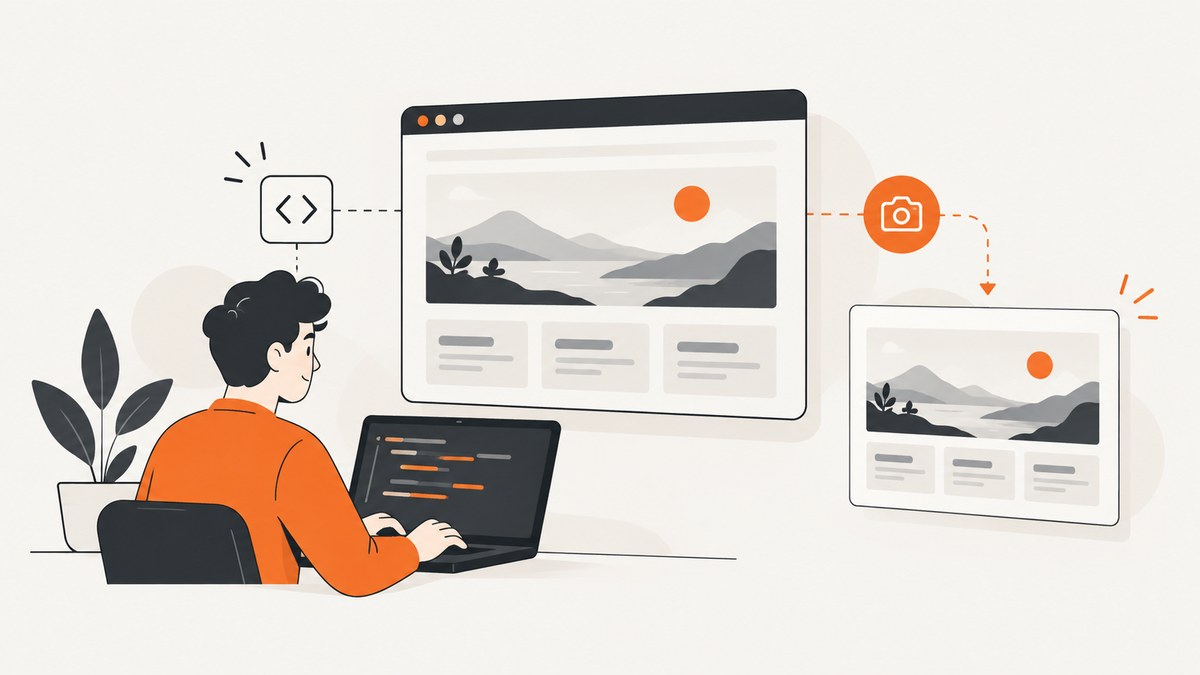
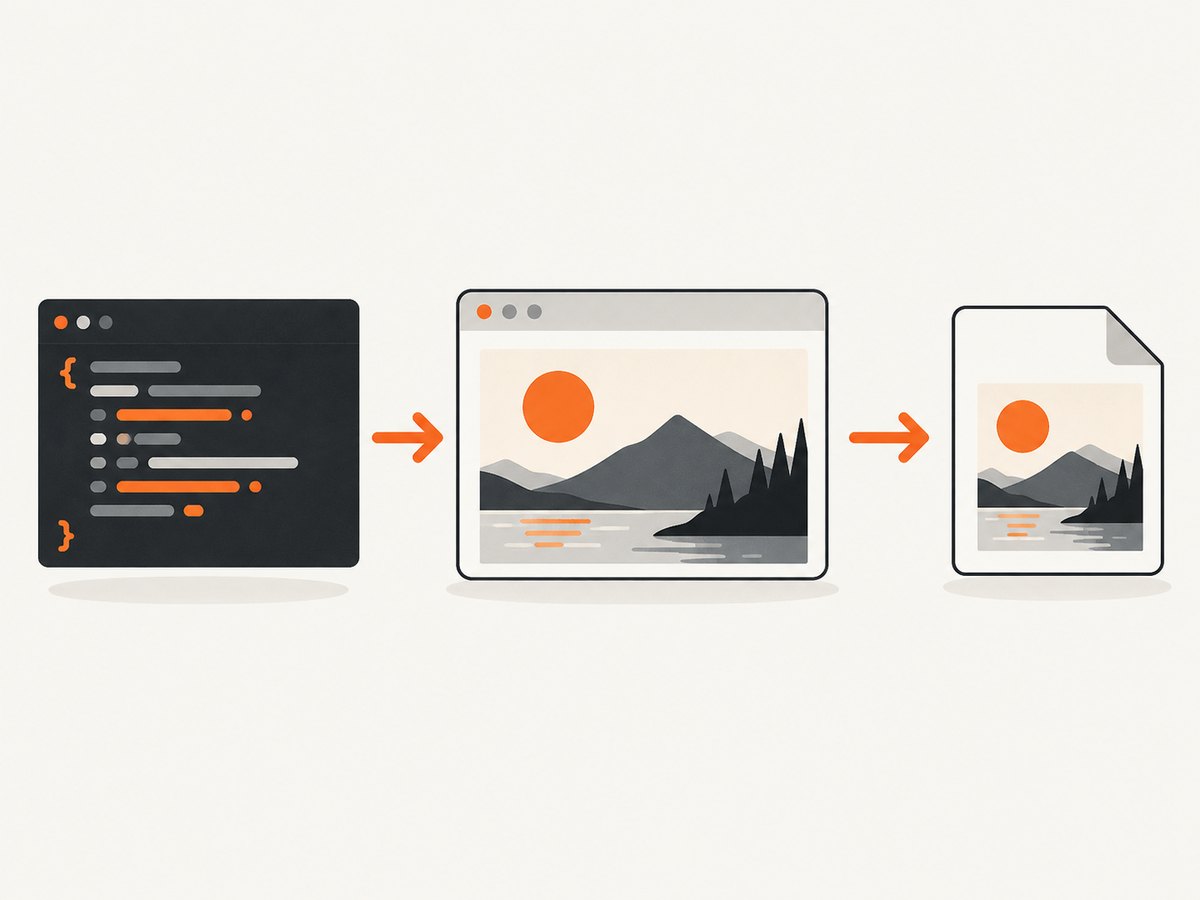
How you take a screenshot in JavaScript depends on where the page exists and what “screenshot” means. For an element already in the current page, use html2canvas. For a browser extension that must capture the actual tab pixels, use the browser’s capture API. For a user-selected screen, use getDisplayMedia(). For a URL rendered on a server, use Playwright, Puppeteer, or a screenshot API.
This distinction matters: html2canvas reconstructs an image from DOM and style information. It does not copy the browser’s native pixels, and unsupported CSS, cross-origin resources, iframes, and very tall pages can change the result.
1. Pick the right JavaScript screenshot method
| Use case | Recommended method | Runs in | Main limitation |
|---|---|---|---|
| Capture an element in your current page | html2canvas | Normal page JavaScript | DOM reconstruction is not pixel-perfect |
| Capture the visible browser tab | Extension capture API | Browser extension | Requires extension permissions and context |
| Let a user choose a tab, window, or screen | Screen Capture API | Browser page | User permission and interaction are required |
| Capture a URL from a server | Playwright or Puppeteer | Node.js server or worker | Requires a browser runtime |
| Capture URLs without managing browsers | ScreenshotNeo | HTTP API or MCP client | Requires an API key |
2. Capture an element with html2canvas
Install the package in a browser application:
npm install html2canvasThen select the element and await the returned canvas:
import html2canvas from "html2canvas";

const element = document.querySelector("main");
if (!element) throw new Error("Could not find main");

const canvas = await html2canvas(element);
document.body.appendChild(canvas);
The documented call is html2canvas(element, options?), and it returns a Promise resolving to a canvas. You can display that canvas, convert it to a data URL, or download it.
Download a PNG
const canvas = await html2canvas(document.querySelector("main"));
const link = document.createElement("a");
link.download = "main.png";
link.href = canvas.toDataURL("image/png");
link.click();
Use a JPEG or WebP
const canvas = await html2canvas(document.querySelector("main"));
const jpeg = canvas.toDataURL("image/jpeg", 0.9);
const webp = canvas.toDataURL("image/webp", 0.9);

console.log(jpeg, webp);
JPEG quality is normally a number between 0 and 1. PNG is lossless and supports transparency. WebP support depends on the browser.
Useful html2canvas options
const canvas = await html2canvas(document.querySelector(".invoice"), {
  backgroundColor: "#ffffff",
  scale: window.devicePixelRatio,
  useCORS: true,
  logging: false,
  imageTimeout: 15000,
  windowWidth: document.documentElement.scrollWidth,
  windowHeight: document.documentElement.scrollHeight
});backgroundColorsets the canvas background. Usenullwhen you need transparency and the page supports it.scalecontrols output resolution. A larger value produces sharper images and uses more memory.useCORSallows images that opt into cross-origin loading with the correct server headers.imageTimeoutlimits how long html2canvas waits for an image.windowWidthandwindowHeightcontrol the virtual rendering window used for the capture.loggingcan help diagnose missing resources during development.
Capture after fonts and images are ready
await document.fonts.ready;

await Promise.all(
  [...document.images]
    .filter((img) => !img.complete)
    .map((img) => new Promise((resolve) => {
      img.addEventListener("load", resolve, { once: true });
      img.addEventListener("error", resolve, { once: true });
    }))
);

const canvas = await html2canvas(document.querySelector("main"));
Waiting prevents a screenshot from being taken while web fonts are still swapping or images are still loading. It does not bypass browser security rules.
3. Cross-origin images, iframes, and CSS limits
Browser content policy still applies. html2canvas cannot read arbitrary pixels from another origin. An image server must send an appropriate Access-Control-Allow-Origin header for useCORS: true to work. Otherwise, the image may be omitted or the canvas may become tainted when you try to export it. A proxy that fetches the resource and serves it from your application’s origin is another documented approach, provided you control that proxy and follow the resource’s access rules.
Cross-origin iframes are different documents. html2canvas cannot read their contentDocument and render them recursively. Sandboxed frames without allow-same-origin have the same problem. You need cooperation from the framed application, a same-origin deployment, or a native browser capture path.
html2canvas also supports only part of CSS. Complex filters, blend modes, video, canvas content, and browser-specific rendering details can differ from what the user sees. It rebuilds the scene from DOM and computed styles; it is not a camera pointed at the compositor.
4. Capture a visible tab in a browser extension
Normal page JavaScript does not gain extension privileges by importing html2canvas. In a Chrome, Edge, or Opera extension, use chrome.tabs.captureVisibleTab(). Firefox exposes the equivalent browser.tabs.captureVisibleTab(). Your extension needs the appropriate permissions and must run in an extension context.
chrome.tabs.captureVisibleTab(
  undefined,
  { format: "png" },
  (dataUrl) => {
    if (chrome.runtime.lastError) {
      console.error(chrome.runtime.lastError.message);
      return;
    }

    const image = document.createElement("img");
    image.src = dataUrl;
    document.body.appendChild(image);
  }
);
This captures the visible tab as the browser renders it, including content that a DOM reconstruction may not reproduce. It captures the viewport, not an unlimited full-page document. A full-page extension workflow usually scrolls and stitches multiple captures, which introduces sticky-header, lazy-loading, and timing issues.
5. Let a user choose a tab, window, or screen
The Screen Capture API uses navigator.mediaDevices.getDisplayMedia(). The browser prompts the user to select a display surface, and the user must approve it. Call it from a user gesture such as a button click.
const button = document.querySelector("#share-screen");
button.addEventListener("click", async () => {
  const stream = await navigator.mediaDevices.getDisplayMedia({
    video: true,
    audio: false
  });

  const video = document.createElement("video");
  video.srcObject = stream;
  await video.play();

  const track = stream.getVideoTracks()[0];
  const settings = track.getSettings();
  const canvas = document.createElement("canvas");
  canvas.width = settings.width;
  canvas.height = settings.height;
  canvas.getContext("2d").drawImage(video, 0, 0);

  const link = document.createElement("a");
  link.download = "screen.png";
  link.href = canvas.toDataURL("image/png");
  link.click();

  stream.getTracks().forEach((track) => track.stop());
});
Handle cancellation explicitly: a user closing the picker rejects the promise. Also stop every track after the capture so the browser stops showing the sharing indicator.
6. Capture a URL on the server with Playwright
For a URL that is not already open in the user’s page, use a real browser runtime. Playwright documents viewport, element, and full-scrollable-page screenshots. Install it in a Node.js project:
npm install playwright
npx playwright install chromium
import { chromium } from "playwright";
const browser = await chromium.launch();
const page = await browser.newPage({
viewport: { width: 1440, height: 900 },
deviceScaleFactor: 1
});
await page.goto("https://example.com", { waitUntil: "networkidle" });
await page.screenshot({ path: "page.png", fullPage: true });
await browser.close();Capture one element instead:
const card = page.locator(".pricing-card");
await card.screenshot({ path: "pricing-card.png" });
For authenticated pages, set cookies or headers before navigation. For dynamic applications, wait for a selector that proves the content is ready rather than relying only on a fixed delay:
await page.goto("https://example.com/dashboard");
await page.locator("[data-ready='true']").waitFor();
await page.screenshot({ path: "dashboard.png", fullPage: true });
Playwright gives you control over viewport, device scale, browser context, routes, cookies, and JavaScript. The trade-off is operational: browsers consume memory, cold starts take time, and you must manage concurrency, timeouts, retries, and isolation.
7. Or skip the browser setup
ScreenshotNeo provides a website screenshot API and MCP server. One GET request returns a PNG, JPEG, WebP, or PDF. See the ScreenshotNeo API documentation for the complete parameter list.
cURL
curl -G "https://api.screenshotneo.com/v1/shot" -d access_key=YOUR_API_KEY --data-urlencode url=https://stripe.com -o shot.webpPython
import requests
r = requests.get("https://api.screenshotneo.com/v1/shot", params={"access_key": "YOUR_API_KEY", "url": "https://stripe.com"}, timeout=90)
open("shot.webp", "wb").write(r.content)
Node.js
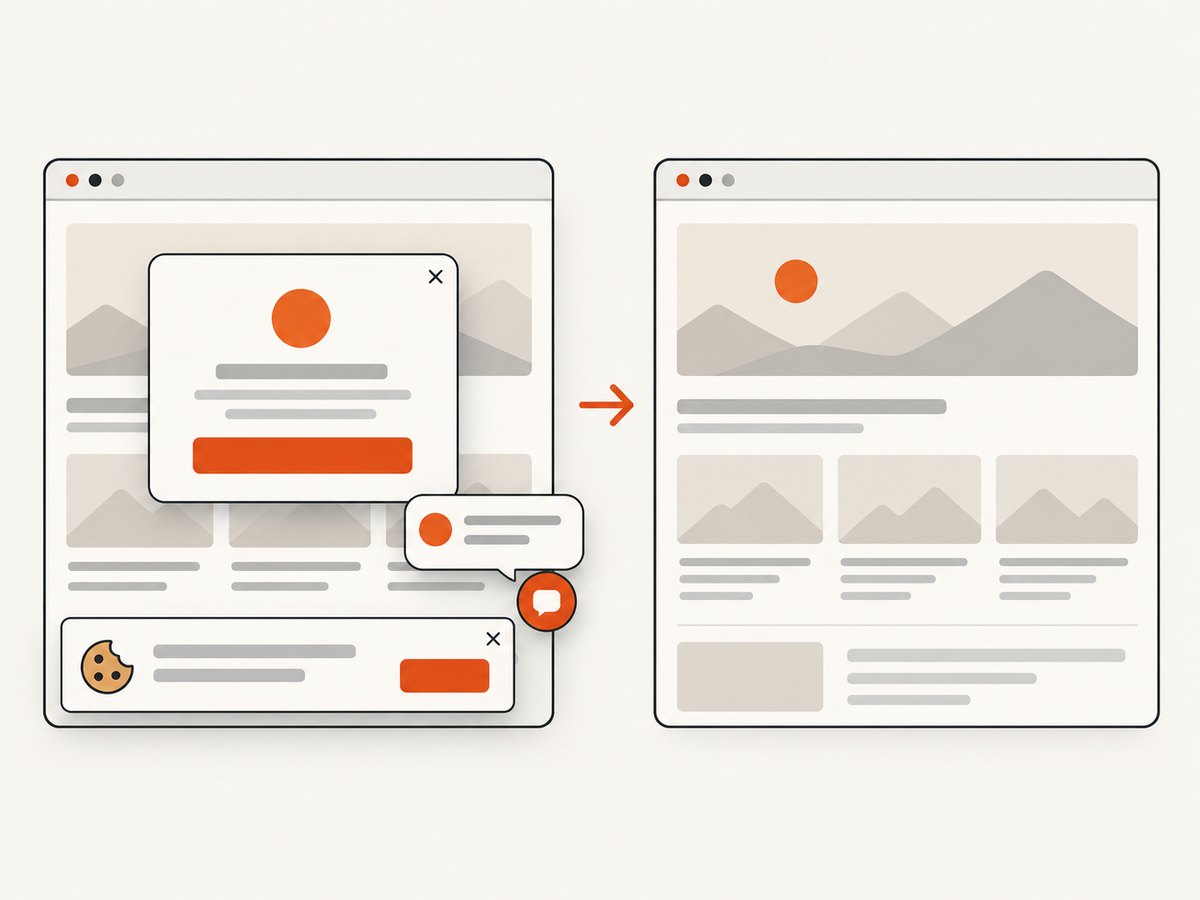
const q = new URLSearchParams({ access_key: 'YOUR_API_KEY', url: 'https://stripe.com' }); const res = await fetch(`https://api.screenshotneo.com/v1/shot?${q}`);ScreenshotNeo removes cookie and consent banners, newsletter popups, and chat widgets before capture. Bot checks, blank pages, failed loads, timeouts, and cache hits are not billed, and each response identifies the result with X-Page-Verdict and X-Billed headers. Its MCP server exposes take_screenshot, get_page_info, and capture_pdf for Claude, Cursor, and other MCP clients.
Options cover full-page screenshots with lazy images, CSS element selection, dark mode, 12 device presets or custom viewports, retina scale, PDF paper and margins, custom CSS and JavaScript, clicks, selector or network-idle waits, request blocking, headers, cookies, user agents, Authorization, timezone, geolocation, transparent backgrounds, resizing, TTL caching, signed image links, asynchronous jobs with signed webhooks, bulk capture of up to 100 URLs per call, usage reporting, and an OpenAPI specification. The parameter names used by other screenshot APIs also work, which can simplify migration.
The Free plan includes 1,000 screenshots per month with no card. Paid plans start at $5 for 3,000 shots; yearly billing gives two months free, and every feature is available on every plan. Create a free ScreenshotNeo account.
8. Full-page capture and tall-page edge cases
A browser viewport and a document’s full scroll height are different things. html2canvas can be asked to render a larger virtual window, but canvas dimensions and total area limits vary by browser, operating system, and device. Oversized canvases may be blank or partially rendered without a clear error. Test the actual page heights and target devices.
Playwright’s fullPage: true handles scrolling and stitching inside the browser automation runtime, but lazy images may load only after they enter the viewport. Scroll deliberately or wait for image completion when completeness matters. Fixed headers can appear repeatedly in stitched output; hide them with CSS during capture if necessary.
9. Troubleshooting checklist
| Symptom | Likely cause | Fix |
|---|---|---|
| Images are missing | Cross-origin policy or image not loaded | Use CORS headers, a controlled proxy, and wait for image completion. |
| Export throws a tainted-canvas error | A resource was drawn without permitted CORS | Configure Access-Control-Allow-Origin or remove that resource. |
| Iframe content is blank | The frame is cross-origin or sandboxed | Capture within the frame’s origin or use native browser capture. |
| Output differs from the screen | Unsupported CSS or DOM reconstruction | Use extension capture or Playwright for pixel fidelity. |
| Screen picker does not open | No user gesture, denied permission, or insecure context | Call from a click handler and serve over HTTPS. |
| Playwright times out | Slow resources or an app that never becomes idle | Wait for a specific ready selector and set a bounded timeout. |
| Full-page image is blank or clipped | Canvas or browser surface limits | Capture sections, reduce scale, or use Playwright/API capture. |
| Extension API is undefined | Code is running as ordinary page JavaScript | Move it to the extension context and configure permissions. |
10. Performance, reliability, and cost
- Reduce work before capture. Capture only the required element, lower
scale, and avoid waiting for analytics or advertising requests. - Make readiness explicit. Prefer a ready selector, completed fonts, and loaded images over arbitrary sleeps.
- Control concurrency. Server browsers are memory-heavy. Use a bounded worker pool and close pages and contexts after each job.
- Retry selectively. Retry transient navigation failures, but do not blindly repeat deterministic errors such as invalid URLs or denied permissions.
- Cache stable pages. A cache avoids repeated browser work when the source has not changed. ScreenshotNeo lets you choose a cache TTL.
- Budget by successful output. With ScreenshotNeo, failed loads, bot checks, blank pages, timeouts, and cache hits are not billed, and response headers tell you the verdict and billing status.
11. FAQ
Can JavaScript screenshot the user’s entire monitor without asking?
No. Screen Capture requires the user to choose and approve a surface. An extension’s capture API also runs under extension permissions.
Is html2canvas a real screenshot?
It is a DOM and style reconstruction that produces a canvas. It can be useful for application elements, but it may differ from native rendered pixels.
Can html2canvas run in Node.js?
No. It depends on browser APIs such as window and document. Use Playwright, Puppeteer, or an HTTP screenshot service on a server.
How do I capture a page that requires login?
With Playwright, create an authenticated browser context and set cookies or headers before navigation. With an API, use its documented cookie and Authorization options and keep credentials server-side.
Which method should I use for automated URL screenshots?
Use Playwright when you need full browser control. Use ScreenshotNeo when you want a single API call, cleaned pages, billing only for clean shots, and an MCP path for AI agents.


