How JavaScript Affects Website Screenshots
JavaScript can change a page after it first appears, leaving screenshots incomplete or inconsistent. Learn when to capture, how to wait for the right state, and how to control visual changes.
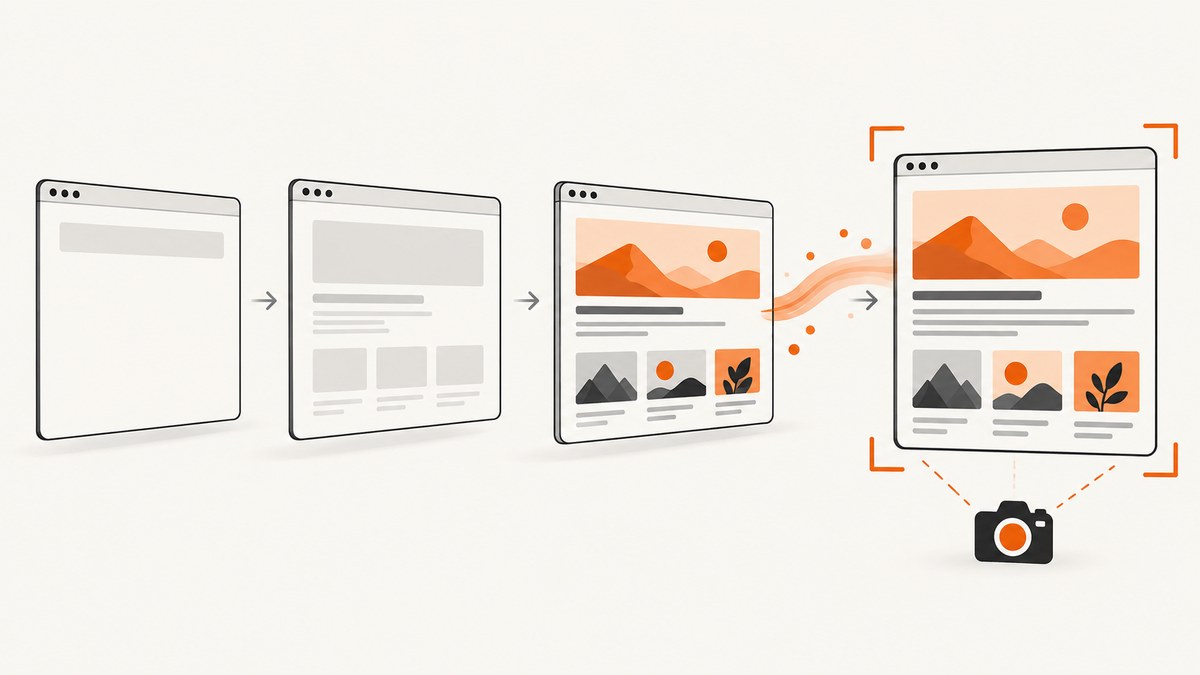
JavaScript can change a page after its initial HTML appears. It may fetch data, fill in interface elements, attach behavior to controls, or load scripts and images after the browser fires its load event. A screenshot taken too early can therefore show a blank chart, an empty results list, a loading placeholder, or controls that look ready but do not yet work.
For reliable screenshots, wait for the specific visual state you need, then control animations, changing interface areas, pointer position, viewport, and browser environment. There is no universal delay or browser lifecycle event that proves every page is visually complete. This guide explains why, with runnable Playwright code and practical ways to make captures repeatable.
1. What JavaScript changes before a screenshot
A browser can render HTML and CSS before the page’s client-side JavaScript has finished. Scripts may then update text, render a chart, request account-specific data, replace a skeleton with content, or add event handlers to buttons. These are separate milestones: a page can be visible before it is fully populated, and it can look populated before its controls are initialized.
Hydration is one example. A server can send markup that already looks like a working interface. Client JavaScript then attaches event listeners and makes those controls interactive. A screenshot may capture the visible markup during this interval. That might be adequate for a static image, but it is not evidence that a click, menu, or form is ready for an interaction-driven capture.
JavaScript also affects pixels through motion and time-dependent content. A carousel can advance, a number can tick, an animation can be halfway through, or a hover style can appear because the pointer is over an element. If the page calls an external service, the result may vary between captures even when your code does not change.
2. Why the load event can be too early
The browser’s load event means that the page’s load event has fired; it does not promise that the page has stopped changing. Playwright’s navigation guide explains that modern pages may fetch data lazily, populate the interface, and load expensive resources, scripts, and styles after load. The same guide notes that there is no single way to determine when a page is loaded because readiness depends on the page and framework. See the [Playwright navigation guide](https://playwright.dev/docs/next/navigations).
This matters especially for single-page applications, client-rendered search results, maps, dashboards, and pages that load images only when they approach the viewport. Navigating successfully is not the same as seeing the content your screenshot needs.
Network silence is not a universal replacement for a page-specific check. Playwright defines networkidle as at least 500 ms with no network connections, but its Page API discourages using that condition for tests and recommends web assertions to assess readiness. A quiet connection does not prove that the desired content is present. Conversely, analytics, polling, or a long-lived connection may keep activity going even though the visible content is ready. See [Playwright’s Page API](https://playwright.dev/docs/api/class-page).
3. A practical readiness workflow
- Choose the visible result that matters. Identify a heading, chart, result row, image, or other element that proves the target state appeared.
- Navigate with a suitable lifecycle milestone. Use navigation to reach the page, then treat that milestone as a starting point for readiness checks rather than proof of visual completion.
- Wait for the content and, where needed, its populated state. An element merely existing may not be enough if it first appears as an empty shell. Assert on meaningful text, a non-empty result, or another page-specific condition.
- Complete any required interaction. If a menu or control must be operated, verify the page has initialized and the resulting state appears before capture.
- Stabilize the pixels. Disable or normalize animation, hide known volatile regions when appropriate, move the pointer off hover-sensitive elements, and keep the capture environment consistent.
- For full-page shots, check below the fold. Scroll or otherwise trigger lazy content as needed and confirm the images and sections you require have loaded.
The right assertion depends on the page. For a product page it might be the product title and price. For a chart, it could be a visible chart canvas plus a populated legend. For a search page, wait for the expected result text rather than merely for the results container to exist.
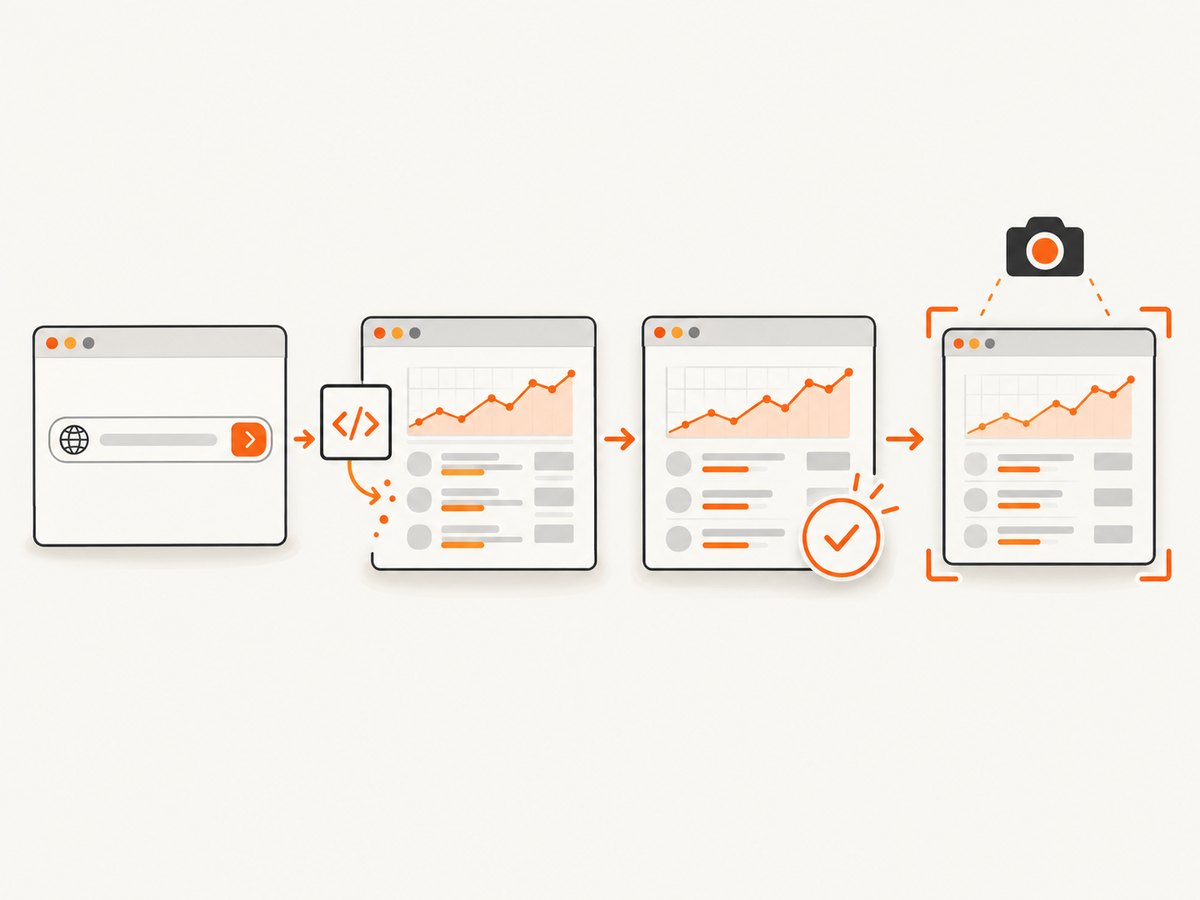
4. Runnable Playwright example in JavaScript
The following example uses Node.js and Playwright Test. It navigates to a page, waits for meaningful content, and uses toHaveScreenshot() for a visual assertion. Replace the example URL, selector, expected text, and screenshot name with values for your page.
import { test, expect } from '@playwright/test';

test('captures the populated page', async ({ page }) => {
  await page.setViewportSize({ width: 1440, height: 1000 });
  await page.goto('https://example.com/products', {
    waitUntil: 'domcontentloaded',
  });

  const title = page.getByRole('heading', { name: 'Products' });
  await expect(title).toBeVisible();

  // Replace this with an element and condition that prove your
  // page-specific data has finished rendering.
  const results = page.locator('[data-testid="product-results"]');
  await expect(results).toBeVisible();
  await expect(results).not.toBeEmpty();

  // Keep the pointer away from hover-sensitive content.
  await page.mouse.move(0, 0);

  await expect(page).toHaveScreenshot('products.png', {
    fullPage: true,
    animations: 'disabled',
  });
});
Install the test runner and browser with the commands below, then save the example as a test file such as tests/products.spec.js and run it with Playwright Test.
npm init playwright@latest
npx playwright test tests/products.spec.js
toHaveScreenshot() is a Playwright Test assertion. It waits until two consecutive screenshots match before comparing with the expected result. This improves repeatability for visual assertions; it does not guarantee that every delayed update, external service, or user-specific state has appeared. A standalone screenshot call does not automatically gain that assertion’s stability behavior.
The example uses domcontentloaded only to get navigation underway. The content assertions define readiness. You can use a different navigation milestone when your page requires it, but do not substitute a generic milestone for the state check. Playwright’s screenshot options include controls such as full-page capture and animation handling; check the documentation for the exact options supported by the version you install.
5. Make screenshots visually repeatable
Disable or normalize animation
Animation changes pixels with time. Playwright screenshot assertions disable animations by default; the example also makes this intent visible in its options. For a custom capture, consult the screenshot API for your installed Playwright version. You can also apply a capture-only stylesheet that disables transitions and animations, but check that the stylesheet does not hide content or alter the state you intend to verify.
Handle genuinely volatile content
Clock readouts, rotating promotions, live counters, and personalized recommendations can make a useful page look different on every run. If a region is irrelevant to the comparison, hide it or mask it with screenshot styling. If the region matters, control its inputs or wait for a defined state rather than concealing the change.
Move the pointer to a neutral location
Hover effects are part of the rendered image. Playwright’s visual comparison guidance notes that the current pointer position can affect the screenshot. Move the pointer away before capture, or deliberately position it when the hover state is what you want to document.
Keep the browser environment consistent
Rendering can vary with the operating system, browser version, settings, hardware, power source, and headless mode. Keep the baseline and later captures in the same environment where practical. Also keep the viewport, device scale, fonts, locale, and other relevant browser settings stable. A mismatch may be environmental rather than a change in the page.
6. Full-page screenshots and lazy-loaded content
A full-page option describes the capture area; it does not mean every below-the-fold resource has loaded. Pages often defer work until content nears the viewport. If a lazy image or section matters, make it enter the viewport or use the page’s own readiness signal, then confirm the content is visible before capturing.
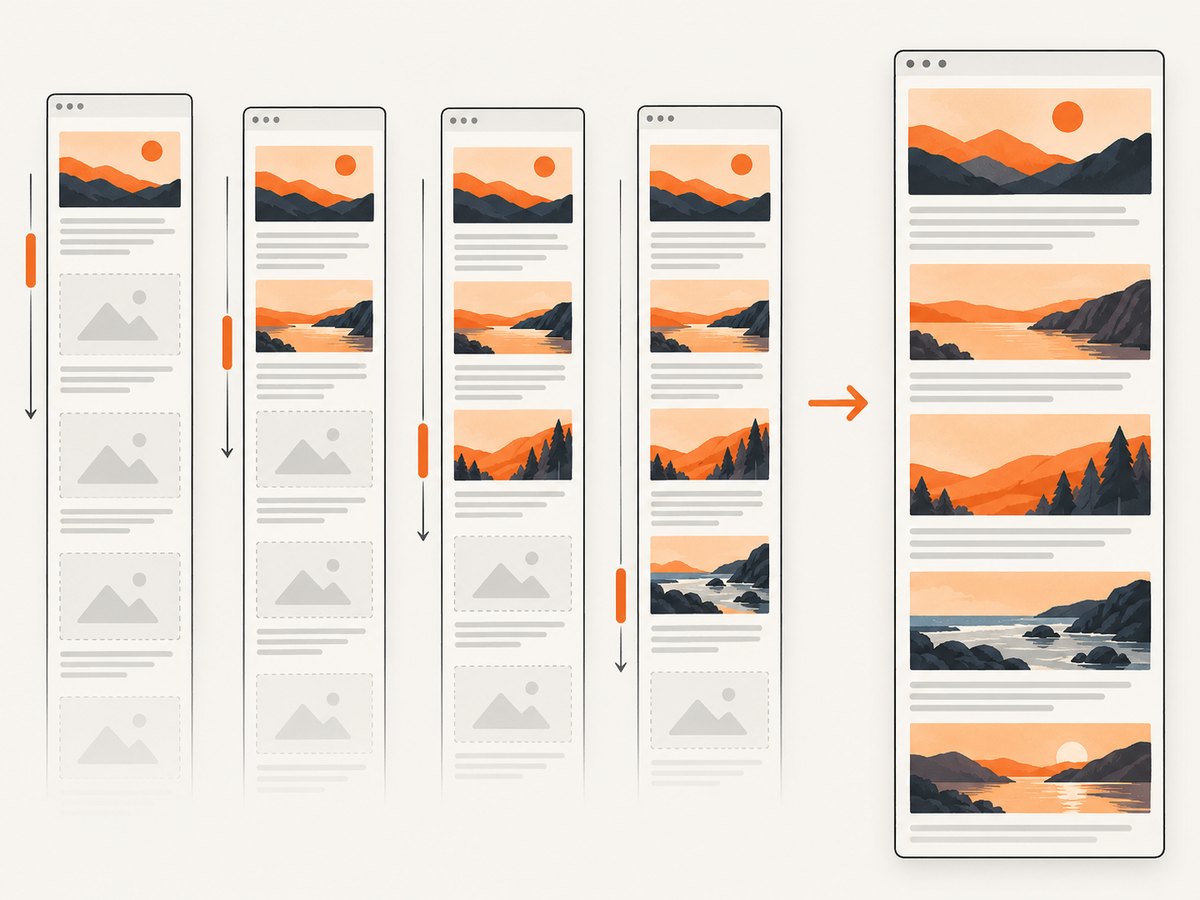
Do not assume that one scroll is enough for every site. A page may append additional results as you scroll, use an infinite list, or update sticky elements based on scroll position. Decide whether the target is the initial viewport, the entire finite document, or a representative state of an infinite page. For the latter, define the stopping point in your capture logic.
When capturing a single element, wait for that element and its content specifically. A page-level ready signal can fire while the target element is still loading. Conversely, waiting for unrelated page content can make captures slower without improving the result.
7. Troubleshooting common screenshot problems
| Symptom | Likely cause | Fix |
|---|---|---|
| Screenshot has a skeleton or empty chart | Capture happened before client data or rendering completed. | Assert on populated content or a page-specific ready state, not just navigation completion. |
| Heading appears but clicking the control has no effect | Visible server-rendered markup appeared before client hydration completed. | Wait for the interaction’s resulting state, or verify the control works before taking an interaction-based capture. |
| Images below the fold are blank | Lazy loading has not been triggered or completed. | Scroll the relevant sections into view and wait for the images or content to become visible. |
| Visual test fails intermittently | Animation, live content, hover state, timing, or environment differs between runs. | Disable animation, normalize volatile areas, move the pointer, and use the same browser and host configuration. |
Waiting for networkidle times out |
Polling, analytics, streaming, or another ongoing request prevents network silence. | Wait for the desired content with an assertion. Network silence is neither required nor proof of visual readiness. |
| Capture succeeds but shows the wrong account or locale | Authentication, cookies, locale, or other browser state differs from the intended scenario. | Set up the expected test state explicitly and keep it consistent between baseline and capture. |
| Screenshot differs only on another machine | Fonts, browser version, OS rendering, scale, headless mode, or hardware differs. | Run both captures in a controlled, consistent browser environment and compare those settings. |
| Screenshot is cut off or includes unexpected content | Viewport and full-page behavior do not match the desired capture, or sticky elements react to scrolling. | Set the viewport intentionally, inspect the full-page result, and choose a defined scroll and stopping strategy. |
8. Performance, reliability, and cost considerations
Waiting for the actual state usually gives a better speed and reliability tradeoff than adding a large fixed sleep to every capture. A fixed delay can waste time on fast runs and still be too short on slow ones. An assertion can finish as soon as the condition is met, subject to its timeout. Set a timeout appropriate to your page and report a useful failure when the condition does not appear.
Waiting on every network request can also add latency or hang on pages with persistent connections. Prefer the smallest meaningful set of readiness checks. For full-page images, verify only the sections and resources the output needs. In visual regression workflows, keep capture hardware and browser configuration stable so that environmental noise does not create unnecessary re-runs and reviews.
Reliability is a chain: the intended URL and session must be correct, the target content must become available, the capture must run in the expected environment, and the saved image must correspond to that state. Log the URL, viewport, browser version, and readiness condition when diagnosing intermittent results. A stable pair of screenshots establishes that the observed captures matched under that setup; it does not prove that every possible delayed or personalized state was represented.
9. Or skip the browser setup
If you need a screenshot without building and maintaining browser automation, ScreenshotNeo provides a website screenshot API and MCP server. One GET request returns an image or PDF. Its capture can wait for a selector, delay, or network idle, and supports full-page captures with lazy images loaded, CSS selectors, custom CSS and JavaScript, device and viewport settings, and other capture options. Read the ScreenshotNeo API documentation for request parameters.
curl -G "https://api.screenshotneo.com/v1/shot" -d access_key=YOUR_API_KEY --data-urlencode url=https://stripe.com -o shot.webpimport requests
r = requests.get(
"https://api.screenshotneo.com/v1/shot",
params={"access_key": "YOUR_API_KEY", "url": "https://stripe.com"},
timeout=90,
)
open("shot.webp", "wb").write(r.content)const q = new URLSearchParams({ access_key: 'YOUR_API_KEY', url: 'https://stripe.com' });
const res = await fetch(`https://api.screenshotneo.com/v1/shot?${q}`);
if (!res.ok) throw new Error(`Screenshot request failed: ${res.status}`);
await Bun.write('shot.webp', res);ScreenshotNeo accepts cookie and consent banners like a visitor and removes more than 60 known consent platforms, newsletter popups, and chat widgets before the shot; each of those steps can be turned off. Bot checks and CAPTCHAs, blank pages, timeouts, failed loads, and cache hits are not billed, and response headers identify the page verdict and billing status. Its MCP server provides take_screenshot, get_page_info, and capture_pdf for Claude, Cursor, and other MCP clients. The Free plan includes 1,000 shots per month with no card; paid plans start at $5 for 3,000 shots.
Sign up for 1,000 free screenshots a month with no card.
10. Frequently asked questions
Does JavaScript always need to finish before I take a screenshot?
No. Wait for the visual state your image requires. Some pages have unrelated scripts that continue after the relevant content is ready; others need client code to render the target at all.
Is a screenshot taken after load wrong?
Not necessarily. It is simply not guaranteed to contain content that the page loads or changes afterward. Check the actual target element and state.
Does matching consecutive screenshots prove the page is complete?
No. It shows that consecutive observed captures matched under the current setup. A later update or different user state can still produce another image.
Should I use a fixed sleep?
Use one only when a known time-based transition is part of the intended state and no better signal exists. For ordinary content, wait for a meaningful page-specific condition.
Why does a screenshot change when I move it to CI?
Browser, operating system, fonts, settings, hardware, power state, and headless configuration can affect rendering. Keep the environments aligned or establish the visual baseline in the same CI environment.


