How to Take Website Screenshots With JavaScript Without ActiveX
ActiveX is unnecessary for JavaScript screenshots. Use Playwright or Puppeteer for rendered pages, html2canvas for in-page DOM images, or ScreenshotNeo for an API.
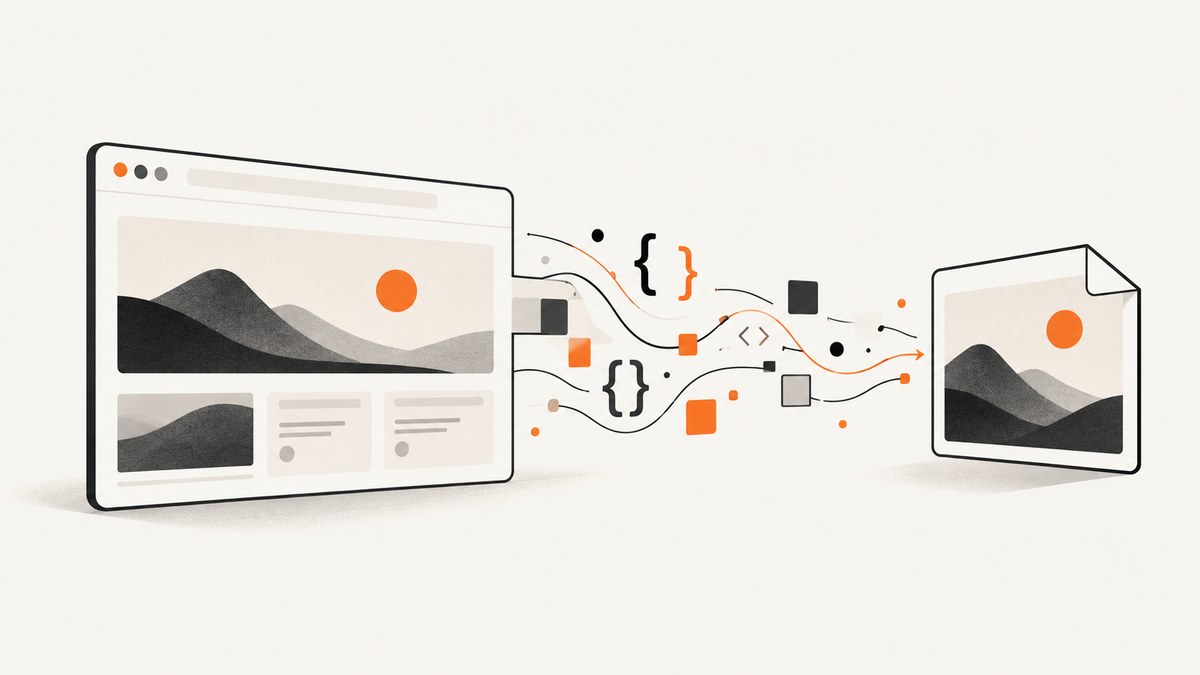
ActiveX is not required. The correct JavaScript method depends on where your code runs and what you mean by a screenshot:
- For an arbitrary URL rendered by a real browser, run JavaScript in Node.js with Playwright or Puppeteer.
- For a feature inside an existing page that turns selected DOM content into an image, use html2canvas. It reconstructs an image from DOM information; it is not a pixel screenshot.
- For a user-selected screen, window or tab, use the browser Screen Capture API. The user must approve the source.
If you need repeatable URL-to-image capture in an application, browser automation is usually the practical replacement for old ActiveX controls.
1. Choose the right JavaScript approach
| Requirement | Use | Main limitation |
|---|---|---|
| Capture any URL as a browser-rendered page | Playwright or Puppeteer in Node.js | Requires a server or local browser runtime |
| Capture an element already displayed in your page | html2canvas | Reconstructs from DOM data and has cross-origin limits |
| Let a person choose a screen, window or tab | Screen Capture API | User selection and permission are required |
| Capture URLs without maintaining browsers | ScreenshotNeo | Requires an API key and usage plan |
2. Capture a rendered website with Playwright
Playwright opens the URL in Chromium, Firefox or WebKit and exposes screenshot methods for the viewport, the full page or a selected element. Its Page API documents navigation and page.screenshot(); its screenshot guidance covers full-page and element captures.
Install
mkdir js-screenshot
cd js-screenshot
npm init -y
npm install playwright
npx playwright install chromium
Complete Node.js example
const { chromium } = require('playwright');

(async () => {
  const browser = await chromium.launch();
  try {
    const page = await browser.newPage({
      viewport: { width: 1280, height: 800 },
      deviceScaleFactor: 1
    });

    await page.goto('https://example.com', {
      waitUntil: 'domcontentloaded',
      timeout: 30_000
    });

    // Prefer a page-specific readiness condition when possible.
    await page.waitForLoadState('networkidle');
    await page.screenshot({
      path: 'example-full.png',
      fullPage: true,
      type: 'png'
    });
  } finally {
    await browser.close();
  }
})();
Run it with node screenshot.js. A successful navigation does not guarantee that fonts, lazy images, animations or embedded content are ready. Replace networkidle with a selector or application-specific condition when the page has long-running requests.
Viewport, full-page and element screenshots
// Viewport only
await page.screenshot({ path: 'viewport.png' });

// Entire scrollable page
await page.screenshot({ path: 'full-page.png', fullPage: true });

// A single element
const card = page.locator('.pricing-card');
await card.screenshot({ path: 'pricing-card.png' });
Use a fixed viewport when comparing captures. A different operating system, browser version, installed font or device scale can change pixels even when your code is identical.
Waiting for lazy content
await page.goto('https://example.com/blog', { waitUntil: 'domcontentloaded' });
await page.waitForSelector('main article', { state: 'visible' });
await page.evaluate(async () => {
  window.scrollTo(0, document.body.scrollHeight);
  await new Promise(resolve => setTimeout(resolve, 500));
  window.scrollTo(0, 0);
});
await page.screenshot({ path: 'article.png', fullPage: true });
Scrolling can trigger lazy-loaded images. For deterministic output, also wait for a known image or application-ready marker.
Useful Playwright options
path: output filename.fullPage: capture the full scrollable page.type: PNG or JPEG; JPEG supportsquality.omitBackground: transparent background where supported.clip: capture a rectangular region.animations: disable or fast-forward animations when supported by the current Playwright version.caret: hide or show the text caret.
3. Capture with Puppeteer
Puppeteer is another Node.js browser automation option. Chrome for Developers describes it as a high-level API for automating Chrome and Firefox, including screenshots.
npm install puppeteerconst puppeteer = require('puppeteer');
(async () => {
const browser = await puppeteer.launch();
try {
const page = await browser.newPage();
await page.setViewport({ width: 1280, height: 800, deviceScaleFactor: 1 });
await page.goto('https://example.com', {
waitUntil: 'networkidle2',
timeout: 30_000
});
await page.screenshot({ path: 'example.png', fullPage: true });
} finally {
await browser.close();
}
})();Use the current Puppeteer documentation for launch flags and version-specific options.
4. Capture DOM content in the page with html2canvas
html2canvas traverses DOM information and builds a canvas representation. Its documentation explicitly says the result is not an actual screenshot and may not match the page’s real appearance. It only supports CSS properties it understands.
<button id="save">Save card</button>
<section id="capture">
  <h1>Report</h1>
  <p>This section will become a PNG.</p>
</section>
<script src="https://cdn.jsdelivr.net/npm/html2canvas@1.4.1/dist/html2canvas.min.js"></script>
<script>
document.querySelector('#save').addEventListener('click', async () => {
  const canvas = await html2canvas(document.querySelector('#capture'));
  const link = document.createElement('a');
  link.download = 'report.png';
  link.href = canvas.toDataURL('image/png');
  link.click();
});
</script>
html2canvas constraints
- Images generally must be same-origin or served with suitable proxy assistance.
- A cross-origin image can taint the canvas, preventing
toDataURL(). - Cross-origin iframes cannot be read because of browser security rules.
- Unsupported CSS, browser controls, plugins and some embedded content will not be reproduced exactly.
- A client-side library cannot bypass origin security or access controls.
Use this approach for downloadable previews, invoices or cards that your own page controls. Use Playwright or Puppeteer when the output must represent a complete rendered URL.
5. Use the Screen Capture API for user-selected sources
The Screen Capture API is consent-driven. The browser shows a picker and the user selects a screen, window or tab; it is not a silent way to capture an arbitrary URL.
<button id="start">Choose a tab or window</button>
<video id="preview" autoplay muted></video>
<script>
document.querySelector('#start').addEventListener('click', async () => {
  const stream = await navigator.mediaDevices.getDisplayMedia({
    video: true,
    audio: false
  });
  const video = document.querySelector('#preview');
  video.srcObject = stream;
  await new Promise(resolve => video.addEventListener('loadedmetadata', resolve, { once: true }));
  const canvas = document.createElement('canvas');
  canvas.width = video.videoWidth;
  canvas.height = video.videoHeight;
  canvas.getContext('2d').drawImage(video, 0, 0);
  canvas.toBlob(blob => {
    const link = document.createElement('a');
    link.download = 'screen.png';
    link.href = URL.createObjectURL(blob);
    link.click();
    stream.getTracks().forEach(track => track.stop());
  }, 'image/png');
});
</script>
See MDN’s Screen Capture API guide for permission and browser behavior.
6. Or skip the browser setup
ScreenshotNeo provides a website screenshot API and MCP server. One GET request returns a PNG, JPEG, WebP or PDF. It accepts the cookie or consent banner like a visitor and removes more than 60 known consent platforms, newsletter popups and chat widgets before capture; each step can be turned off. Bot checks or CAPTCHAs, blank pages, timeouts, failed loads and cache hits are not billed, and the response identifies the result with X-Page-Verdict and X-Billed headers.
Read the ScreenshotNeo API documentation for all options.
cURL
curl -G "https://api.screenshotneo.com/v1/shot" \
  -d access_key=YOUR_API_KEY \
  --data-urlencode url=https://stripe.com \
  -o shot.webp
Python
import requests

r = requests.get(
    "https://api.screenshotneo.com/v1/shot",
    params={"access_key": "YOUR_API_KEY", "url": "https://stripe.com"},
    timeout=90,
)
r.raise_for_status()
open("shot.webp", "wb").write(r.content)
Node.js
const q = new URLSearchParams({ access_key: 'YOUR_API_KEY', url: 'https://stripe.com' });
const res = await fetch(`https://api.screenshotneo.com/v1/shot?${q}`);
if (!res.ok) throw new Error(`Screenshot failed: ${res.status}`);
const fs = require('node:fs/promises');
await fs.writeFile('shot.webp', Buffer.from(await res.arrayBuffer()));
ScreenshotNeo also supports full-page capture with lazy images loaded, CSS-selector element capture, dark mode, 12 device presets and custom viewports, retina scale, PDF paper sizes and page ranges, custom CSS and JavaScript, clicks, selector or delay waits, network-idle waits, request and resource blocking, headers, cookies, user agents, Authorization, timezone, geolocation, transparent backgrounds, resizing, configurable caching, signed links, asynchronous jobs with signed webhooks, bulk capture of up to 100 URLs per call, a usage API and an OpenAPI specification. Common parameter names used by other screenshot APIs work too.
An MCP server exposes take_screenshot, get_page_info and capture_pdf for Claude, Cursor and other MCP clients. Plans include 1,000 shots per month free with no card; paid plans start at $5 for 3,000 shots. Yearly billing gives two months free, and every feature is on every plan. Create a free ScreenshotNeo account.
7. Troubleshooting
| Symptom | Likely cause | Fix |
|---|---|---|
| Browser executable not found | Playwright browser binaries were not installed | Run npx playwright install chromium, or configure the executable path for your environment. |
| Screenshot is blank | Capture happened before content rendered, or the page rejected automation | Wait for a visible selector, inspect response status, and check for bot checks or authentication requirements. |
| Lazy images are missing | Images load only after scrolling or interaction | Scroll through the page, wait for image completion, then capture. |
| Network idle never finishes | Analytics, WebSockets or polling keep requests open | Use domcontentloaded plus a specific readiness selector or bounded delay. |
| html2canvas throws a security error | A cross-origin image tainted the canvas | Serve the asset from the same origin or configure permitted CORS/proxy handling on the asset server. |
| An iframe is missing | The iframe is cross-origin | Capture it from the owning origin or use browser automation where you are authorized to access it. |
| Fonts or layout differ between runs | Different browser, OS, fonts, viewport or device scale | Pin the browser version and viewport, install the same fonts and set a fixed device scale. |
| Screen Capture permission fails | User cancelled the picker or the context is not allowed | Call it from a user gesture, handle rejection, and explain that the user must choose a source. |
8. Performance, reliability and cost
- Startup: launching a browser for every request is expensive. Reuse a browser process and create isolated pages or contexts for batches.
- Concurrency: limit concurrent pages to the CPU and memory available; too many browsers cause contention and timeouts.
- Capture size: full-page and high device-scale screenshots consume more memory and produce larger files. Use JPEG or WebP when lossless PNG is unnecessary.
- Readiness: a fixed selector is generally more reliable than an arbitrary sleep. Add a bounded timeout so one broken page cannot block a queue.
- Retries: retry transient navigation failures with backoff, but do not blindly retry authentication failures, bot checks or invalid URLs.
- Security: only automate pages you are authorized to access. Keep cookies, Authorization headers and API keys out of logs.
- Repeatability: pin browser versions, viewport, locale, timezone and fonts when screenshots are used in visual tests.
- Managed cost: with ScreenshotNeo, only clean shots are billed; failed loads, bot checks, blank pages, timeouts and cache hits are free. The free tier includes 1,000 shots monthly with no card.
9. Checklist
- Decide whether you need a rendered URL, a DOM reconstruction or a user-selected screen.
- For URL capture, use Playwright or Puppeteer outside the page.
- Set a fixed viewport and device scale for repeatable results.
- Wait for an application-specific readiness signal and load lazy content.
- Use html2canvas only when its DOM and cross-origin limits are acceptable.
- Handle navigation, permission and canvas errors explicitly.
- For production URL capture without browser maintenance, evaluate ScreenshotNeo.
10. FAQ
Can JavaScript capture any website from a normal web page?
No. A page is restricted by browser origin and permission rules. Use a server-side browser such as Playwright for authorized URL capture.
Is html2canvas a real screenshot?
No. It builds a canvas from DOM information, so the output can differ from the browser’s actual pixels.
Can I capture a cross-origin iframe with html2canvas?
Not directly. Cross-origin iframe contents are protected by browser security boundaries.
Which tool should I use for automated full-page captures?
Use Playwright or Puppeteer when you control the runtime. Use ScreenshotNeo when you want an API and MCP server without managing browser installation and capture workers.
Does ActiveX work in modern browsers?
It is not needed for these workflows. Modern JavaScript APIs and browser automation frameworks provide the required capture paths.


