How to Configure Jenkins with Selenium WebDriver and ChromeDriver
Configure Jenkins agents for reliable Selenium tests with ChromeDriver, headless Chrome, version pinning, troubleshooting, and CI pipeline examples.
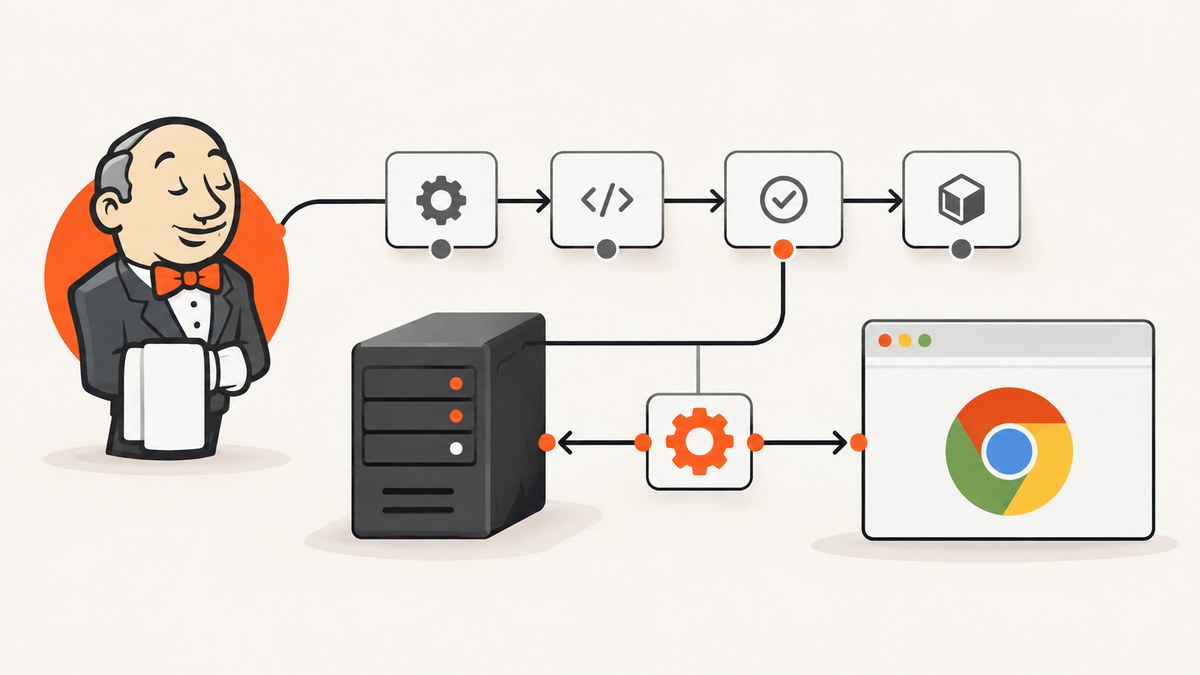
Direct answer: run Selenium on a Jenkins agent that has your project runtime, Chrome, and a compatible ChromeDriver strategy. Keep the pipeline in a source-controlled Jenkinsfile, configure Chrome headless mode when the agent has no display, and keep Chrome and ChromeDriver on the same major version. With Selenium 4.6 or later, Selenium Manager can discover and download a suitable driver when you do not provide one, provided the agent can reach the required vendor metadata and download endpoints.
The Jenkins controller is not automatically the machine that runs your browser test. The agent selected by the Pipeline owns the workspace, operating system, installed browser, libraries, network access, and test process. Configure Chrome and driver availability on that agent.
1. Choose where the browser test runs
Jenkins Pipeline allocates an executor and workspace through an agent. Start by identifying the label, container image, virtual machine, or Kubernetes pod that will execute Selenium. Inspect that environment instead of assuming the controller has Chrome installed.
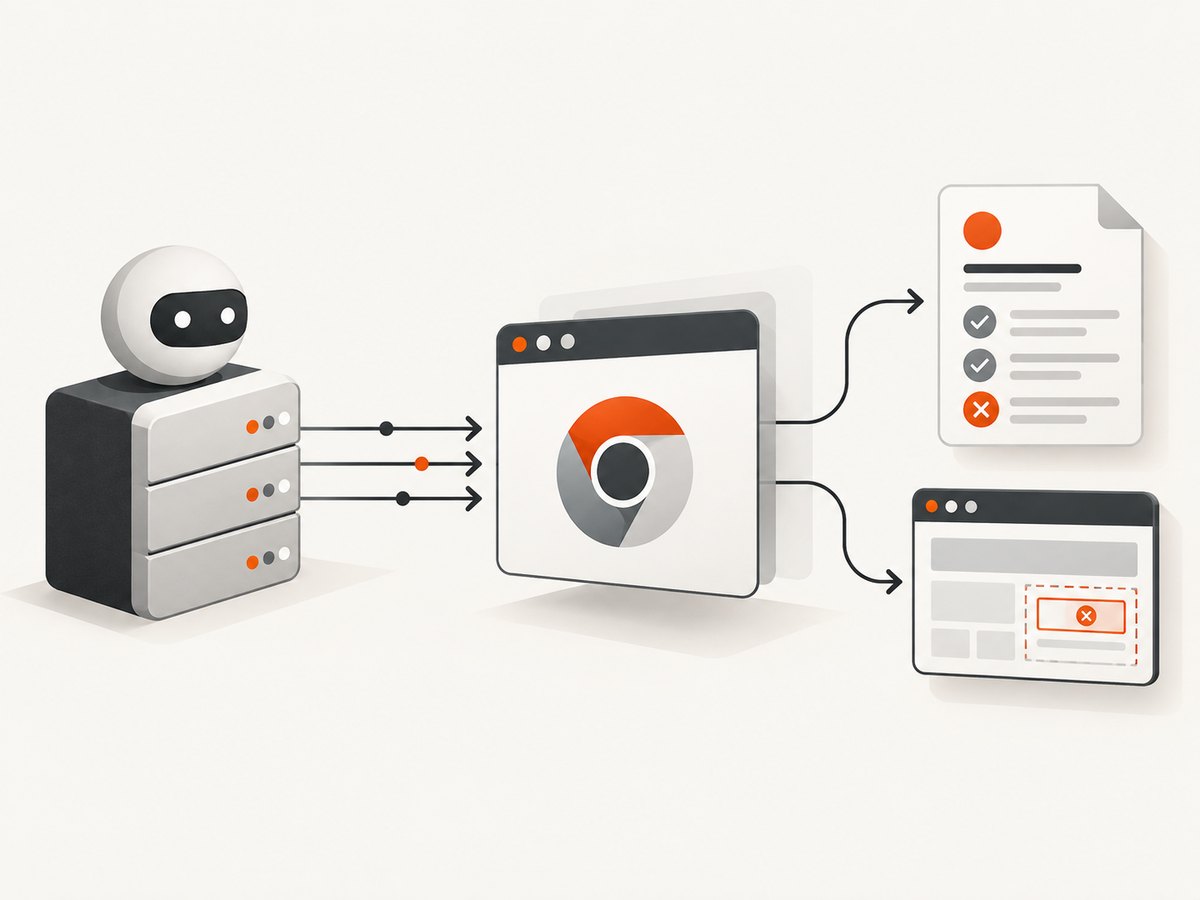
- Use a dedicated label such as
browser-testsfor agents with Chrome and the required shared libraries. - Use a version-pinned container or machine image when repeatability matters.
- Make sure the agent has the language runtime, package manager, test dependencies, and report-generation tools used by the project.
- Confirm outbound network access if Selenium Manager must download metadata or a driver.
- For Windows agents, use Windows Pipeline steps such as
batorpowershell; theshexamples below are Unix-oriented.
Jenkins recommends keeping the Jenkinsfile with the project in source control. See the Jenkins Pipeline documentation and agent and node documentation.
2. Install and verify Chrome on the Jenkins agent
Chrome must be installed on the machine that executes the test. The package name, binary path, and shared-library requirements vary by operating system and image, so make browser provisioning part of the agent image or setup process rather than an assumption in the job.
Before running Selenium, print enough information to diagnose the environment:
google-chrome --version || google-chrome-stable --version || true
which google-chrome || which google-chrome-stable || true
uname -a
If Chrome is installed at a nonstandard path, configure that path through your Selenium binding’s Chrome options. Do not rely on a browser installed on the Jenkins controller unless the controller is explicitly the test agent.
3. Select a ChromeDriver strategy
Option A: Selenium Manager
Selenium Manager is included with Selenium releases beginning with Selenium 4.6. When your code creates a Chrome driver without supplying a driver executable, the binding can invoke Selenium Manager as a fallback. It can discover the browser version and resolve or download a matching driver using vendor metadata. This reduces manual driver downloads, but the agent may need outbound network access and a supported architecture or package layout. Read the official Selenium Manager documentation for current constraints.
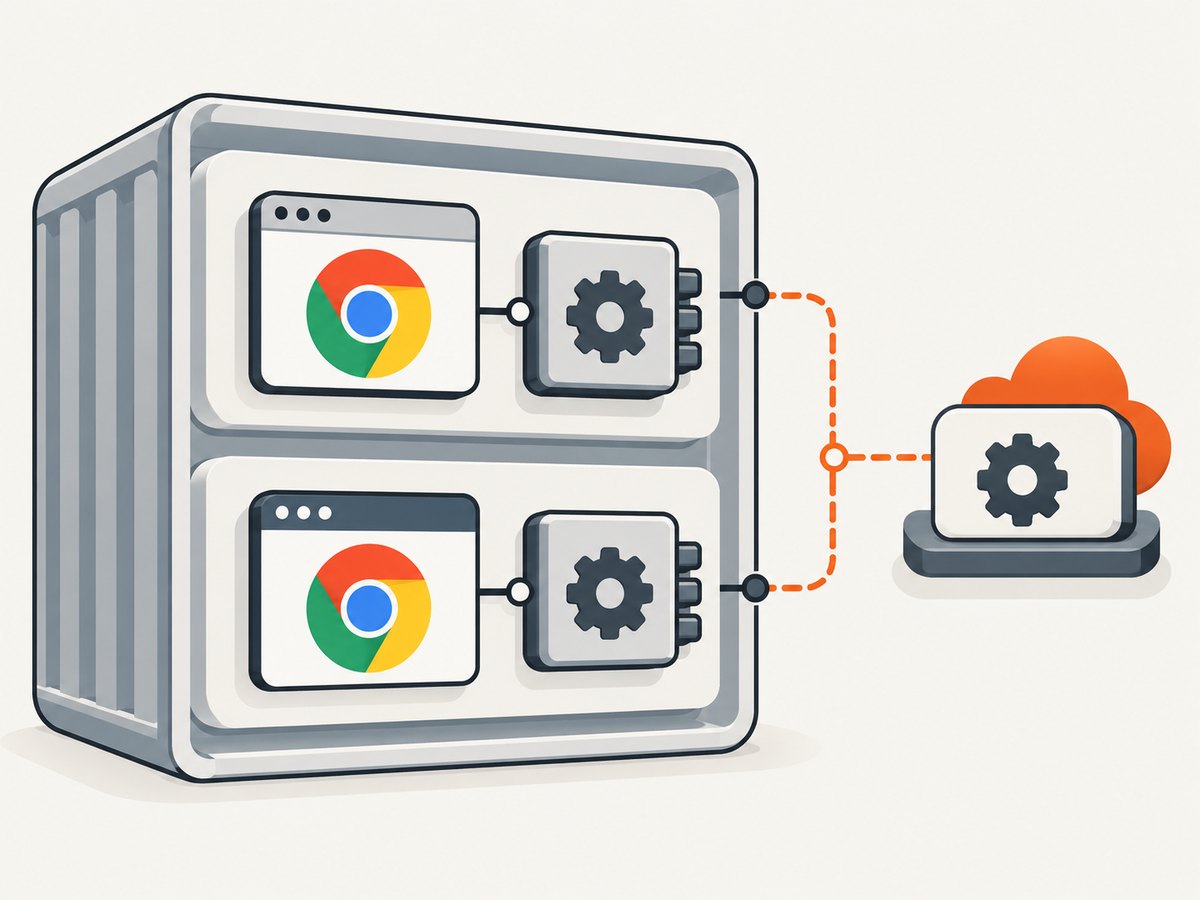
Use this option when agents can reach the required endpoints and you accept resolution at runtime. Log the browser and Selenium versions so a failed build has enough context to reproduce the problem.
Option B: Pre-provision a pinned browser and driver
For restricted networks, regulated builds, or highly repeatable releases, install Chrome and ChromeDriver together in a versioned image. Chrome and ChromeDriver should have the same major version. Since Chrome 115, Google publishes Chrome and ChromeDriver through Chrome for Testing release channels and metadata. Pin both components rather than allowing the browser to update independently.
| Consideration | Selenium Manager | Pinned image |
|---|---|---|
| Setup effort | Less manual driver configuration. | Requires image and version maintenance. |
| Network | May need vendor metadata and download access. | Can run without build-time downloads when assets are already present. |
| Repeatability | Resolved versions can change unless constrained. | Strong control when browser and driver are versioned together. |
| Unusual environments | Subject to documented architecture and layout limits. | Explicit paths and a tailored image can address some layouts. |
Do not mix an automatically updated Chrome with an old, cached driver. That is a common cause of session not created errors.
4. Configure headless Chrome in Selenium
A typical Jenkins agent has no graphical desktop. Configure headless mode through Chrome options. Selenium’s current Chrome documentation lists --headless=new as a commonly used option. Other flags depend on the image and its security model; add them only when the agent requires them and verify their effect.
Python example
from selenium import webdriver
from selenium.webdriver.chrome.options import Options

options = Options()
options.add_argument("--headless=new")
options.add_argument("--window-size=1440,900")

# If Chrome is not on PATH, set the binary explicitly:
# options.binary_location = "/opt/google/chrome/google-chrome"

driver = webdriver.Chrome(options=options)
try:
    driver.get("https://example.com")
    print(driver.title)
finally:
    driver.quit()
Java example
import org.openqa.selenium.WebDriver;
import org.openqa.selenium.chrome.ChromeDriver;
import org.openqa.selenium.chrome.ChromeOptions;

ChromeOptions options = new ChromeOptions();
options.addArguments("--headless=new");
options.addArguments("--window-size=1440,900");

WebDriver driver = new ChromeDriver(options);
try {
    driver.get("https://example.com");
    System.out.println(driver.getTitle());
} finally {
    driver.quit();
}
JavaScript example
const { Builder } = require('selenium-webdriver');
const chrome = require('selenium-webdriver/chrome');

(async () => {
  const options = new chrome.Options()
    .addArguments('--headless=new', '--window-size=1440,900');
  const driver = await new Builder()
    .forBrowser('chrome')
    .setChromeOptions(options)
    .build();
  try {
    await driver.get('https://example.com');
    console.log(await driver.getTitle());
  } finally {
    await driver.quit();
  }
})();
Use the standard WebDriver API for your language. If you do not pass a driver path, Selenium Manager may supply one. If you need deterministic behavior, install a known driver and configure the binding’s service or driver-path mechanism for that language.
5. Create a Jenkins Pipeline
The following Declarative Pipeline is a structure to adapt. Replace the label, dependency-install command, test command, and report path with those used by your project.
pipeline {
  agent { label 'browser-tests' }

  options {
    timestamps()
    skipDefaultCheckout(false)
  }

  stages {
    stage('Inspect browser environment') {
      steps {
        sh '''
          set -eux
          google-chrome --version || google-chrome-stable --version || true
          which google-chrome || which google-chrome-stable || true
          python --version || true
          java -version || true
          node --version || true
        '''
      }
    }

    stage('Install dependencies') {
      steps {
        sh './install-dependencies.sh'
      }
    }

    stage('Selenium tests') {
      steps {
        sh './run-your-test-command'
      }
    }
  }

  post {
    always {
      // Replace with the report step required by your test framework.
      archiveArtifacts artifacts: 'screenshots/**', allowEmptyArchive: true
    }
  }
}
For a Python project, the install stage might run python -m pip install -r requirements.txt and the test stage might run your existing pytest command. A Java project could use Maven or Gradle. A Node.js project could use npm ci followed by its established test script. Keep the test command identical to local or non-Jenkins CI execution where possible.
6. Publish useful test evidence
When a browser test fails, preserve the evidence produced by the test framework: screenshots, HTML dumps, console logs, and JUnit-compatible XML reports. Use the Jenkins test-report step appropriate for your framework and archive diagnostic files in the post { always { ... } } section. The exact report path cannot be prescribed without knowing whether the project uses pytest, JUnit, TestNG, Jest, Mocha, or another runner.
Always call quit() in a finally block or equivalent teardown hook. Otherwise orphaned Chrome processes can consume memory and file descriptors on a long-lived agent.
7. Troubleshooting Jenkins Selenium failures
| Error or symptom | Likely cause | Fix |
|---|---|---|
session not created or “only supports Chrome version …” |
Chrome and ChromeDriver major versions differ. | Print both versions, then pin a compatible pair or let Selenium Manager resolve the driver. Avoid independent browser auto-updates. |
| Driver download or metadata lookup fails | The agent cannot reach Selenium Manager’s vendor endpoints, or a proxy blocks the request. | Allow the required network access, configure the environment’s proxy, or pre-provision the browser and driver in the agent image. |
| “No such file or directory” for Chrome | Chrome is absent or installed outside PATH. | Install it on the selected agent and set the binary location through Chrome options when necessary. |
| “DevToolsActivePort file doesn’t exist” | Chrome exited during startup, often because of an incompatible image, permissions, or unsuitable flags. | Run the same command on the agent, inspect Chrome logs, verify shared libraries and writable temporary directories, and use only flags required by that image. |
| Browser starts locally but fails in Jenkins | The Jenkins agent has a different user, filesystem, display, network policy, or environment. | Log environment details from the Pipeline and configure headless mode. Confirm the test is running on the intended label. |
| Timeout while loading a page | The target is slow, inaccessible from the agent, or waiting on an external resource. | Check agent connectivity and DNS, set an appropriate page or explicit wait timeout, and capture diagnostics before retrying. |
| Missing shared-library errors on Linux | The image lacks libraries required by Chrome. | Use an image designed for headless Chrome or install the required libraries in the agent image; inspect the Chrome startup error rather than adding random flags. |
| Tests pass once and then hang | Drivers are not closed, processes remain, or the workspace contains stale state. | Guarantee teardown, isolate temporary data, and inspect process and memory usage on the agent. |
| Selenium plugin suggestions appear in Jenkins | Legacy plugins are being considered as a shortcut. | Ordinary WebDriver tests do not inherently require a Jenkins plugin. The old ChromeDriver plugin is marked up for adoption, and the Selenium plugin describes Selenium 3 Grid integration and warns of an unresolved security vulnerability. Verify current maintenance and security before using either. |
8. Reliability, performance and cost decisions
Reliability
- Version the agent image or record the browser and driver versions in every build.
- Keep the browser test agent separate from unrelated workloads when resource contention affects timing.
- Use explicit waits for application conditions instead of fixed sleeps wherever the test framework permits.
- Save screenshots and page source on failure so a transient failure can be investigated.
- Retry only failures that are known to be transient. Blind retries can hide real compatibility or application defects.
Performance
Headless Chrome avoids the need for a desktop session, but it still consumes CPU and memory. Parallel tests need enough executors and isolated profiles or temporary directories. Reusing a driver can reduce startup overhead for related steps, while creating a fresh driver per test improves isolation; choose according to the test framework’s fixture model.
Cost
Jenkins itself does not remove the infrastructure cost of browser execution. Agents consume compute, storage, and network resources. Selenium Manager may download a driver during a build, while a pinned image shifts that work to image maintenance. Measure queue time and agent utilization before increasing parallelism.
9. When Selenium is the wrong capture mechanism
Selenium is appropriate when you need interaction, assertions, authentication flows, or browser behavior as part of a test. If the job only needs a clean image or PDF of a URL, maintaining Chrome, ChromeDriver, agents, and headless configuration is unnecessary overhead.
Or skip the browser setup
ScreenshotNeo provides a website screenshot API and MCP server. One request returns a PNG, JPEG, WebP, or PDF. It accepts cookie and consent banners before capture and removes more than 60 known consent platforms, newsletter popups, and chat widgets; each step can be turned off. Bot checks and CAPTCHAs, blank pages, timeouts, failed loads, and cache hits are not billed, and the response identifies the result with X-Page-Verdict and X-Billed headers.
See the ScreenshotNeo API documentation for the complete option list. It supports full-page captures with lazy images loaded, CSS-element capture, dark mode, device presets and custom viewports, retina scale, PDF paper sizes and page ranges, custom CSS and JavaScript, clicks, selector waits, delays, network-idle waits, request blocking, headers, cookies, user agents, authorization, timezone, geolocation, transparent backgrounds, resizing, configurable caching, signed links, asynchronous jobs with signed webhooks, bulk capture for up to 100 URLs per call, a usage API, and an OpenAPI specification.
cURL
curl -G "https://api.screenshotneo.com/v1/shot" \
  -d access_key=YOUR_API_KEY \
  --data-urlencode url=https://stripe.com \
  -o shot.webp
Python
import requests

r = requests.get(
    "https://api.screenshotneo.com/v1/shot",
    params={"access_key": "YOUR_API_KEY", "url": "https://stripe.com"},
    timeout=90,
)
r.raise_for_status()
open("shot.webp", "wb").write(r.content)
Node.js
const q = new URLSearchParams({
  access_key: 'YOUR_API_KEY',
  url: 'https://stripe.com'
});
const res = await fetch(`https://api.screenshotneo.com/v1/shot?${q}`);
if (!res.ok) throw new Error(`Screenshot failed: ${res.status}`);
const image = Buffer.from(await res.arrayBuffer());
require('fs').writeFileSync('shot.webp', image);
ScreenshotNeo includes an MCP server with take_screenshot, get_page_info, and capture_pdf tools for Claude, Cursor, and other MCP clients. The Free plan includes 1,000 screenshots per month with no card; paid plans start at $5 for 3,000 shots. Create a free ScreenshotNeo account.
FAQ
Do I need a Jenkins Selenium plugin?
No. A normal Selenium test runs as a process in the Pipeline workspace. Plugins may support specialized integrations, but they are not required for ordinary WebDriver calls.
Should ChromeDriver be installed on the controller?
No. Install Chrome and make the driver available on the agent that executes the test.
Can Selenium Manager work in an air-gapped build?
Runtime resolution may require network access. In an air-gapped environment, pre-provision a compatible browser and driver in the agent image.
Why does headless mode work locally but not in Jenkins?
The Jenkins agent may have different permissions, libraries, paths, environment variables, or network access. Print those values from the Pipeline and configure the agent’s Chrome options explicitly.
How should browser versions be updated?
Update Chrome and ChromeDriver as a tested pair, then publish a new agent image or controlled installation. Do not let one update independently in a stable CI job.


