How to Use jsPDF and html2canvas with ES6
Convert HTML to PDF with ES6, jsPDF, and html2canvas. Learn imports, images, long pages, pagination, troubleshooting, and a hosted API option.

To convert an HTML element to a PDF with ES6, render the element into a canvas with html2canvas, then place that canvas in a jsPDF document and save it. The complete browser example is:
import { jsPDF } from 'jspdf';
import html2canvas from '@html2canvas/html2canvas';

const element = document.querySelector('#capture');

const canvas = await html2canvas(element, {
  scale: window.devicePixelRatio,
  useCORS: true,
  backgroundColor: '#ffffff',
  windowWidth: element.scrollWidth,
  windowHeight: element.scrollHeight
});

const pdf = new jsPDF({
  orientation: 'portrait',
  unit: 'pt',
  format: 'a4'
});

const pageWidth = pdf.internal.pageSize.getWidth();
const pageHeight = pdf.internal.pageSize.getHeight();
const imageHeight = canvas.height * pageWidth / canvas.width;

pdf.addImage(canvas, 'PNG', 0, 0, pageWidth, imageHeight);
pdf.save('capture.pdf');
This is a client-side workflow. It requires a modern browser, a DOM element, and images that the browser is allowed to read. html2canvas rebuilds a representation from the DOM; it does not capture the browser’s pixels as a native screenshot. Its documentation therefore warns that the result may differ from the real rendered representation and that CSS support is not complete. See the html2canvas documentation and jsPDF project documentation.
1. Install jsPDF and html2canvas
Install both packages in the application that owns the page you want to export:
npm install jspdf @html2canvas/html2canvasThe html2canvas package is published as @html2canvas/html2canvas. jsPDF provides ES-module exports, including the jsPDF class. With a bundler such as Vite, webpack, Rollup, or another modern tool, the imports in the opening example work directly.
Minimal HTML page
<main id="capture" class="invoice">
  <h1>Invoice 1042</h1>
  <p>Prepared for Example Ltd.</p>
  <img src="/images/logo.png" alt="Company logo">
  <table>
    <tr><th>Description</th><th>Amount</th></tr>
    <tr><td>Design work</td><td>$800</td></tr>
  </table>
  <button data-html2canvas-ignore>Edit invoice</button>
</main>
<button id="download" type="button">Download PDF</button>
<script type="module" src="/src/export-pdf.js"></script>
import { jsPDF } from 'jspdf';
import html2canvas from '@html2canvas/html2canvas';
const download = document.querySelector('#download');
const element = document.querySelector('#capture');
download.addEventListener('click', async () => {
download.disabled = true;
try {
const canvas = await html2canvas(element, {
scale: window.devicePixelRatio,
useCORS: true,
backgroundColor: '#ffffff'
});
const pdf = new jsPDF({ format: 'a4', unit: 'pt' });
const width = pdf.internal.pageSize.getWidth();
const height = canvas.height * width / canvas.width;
pdf.addImage(canvas, 'PNG', 0, 0, width, height);
pdf.save('invoice-1042.pdf');
} finally {
download.disabled = false;
}
});html2canvas(element) returns a Promise that resolves to a canvas. Waiting for that Promise before calling addImage prevents an empty or incomplete document.
2. Understand the rendering pipeline
The conversion has four stages:
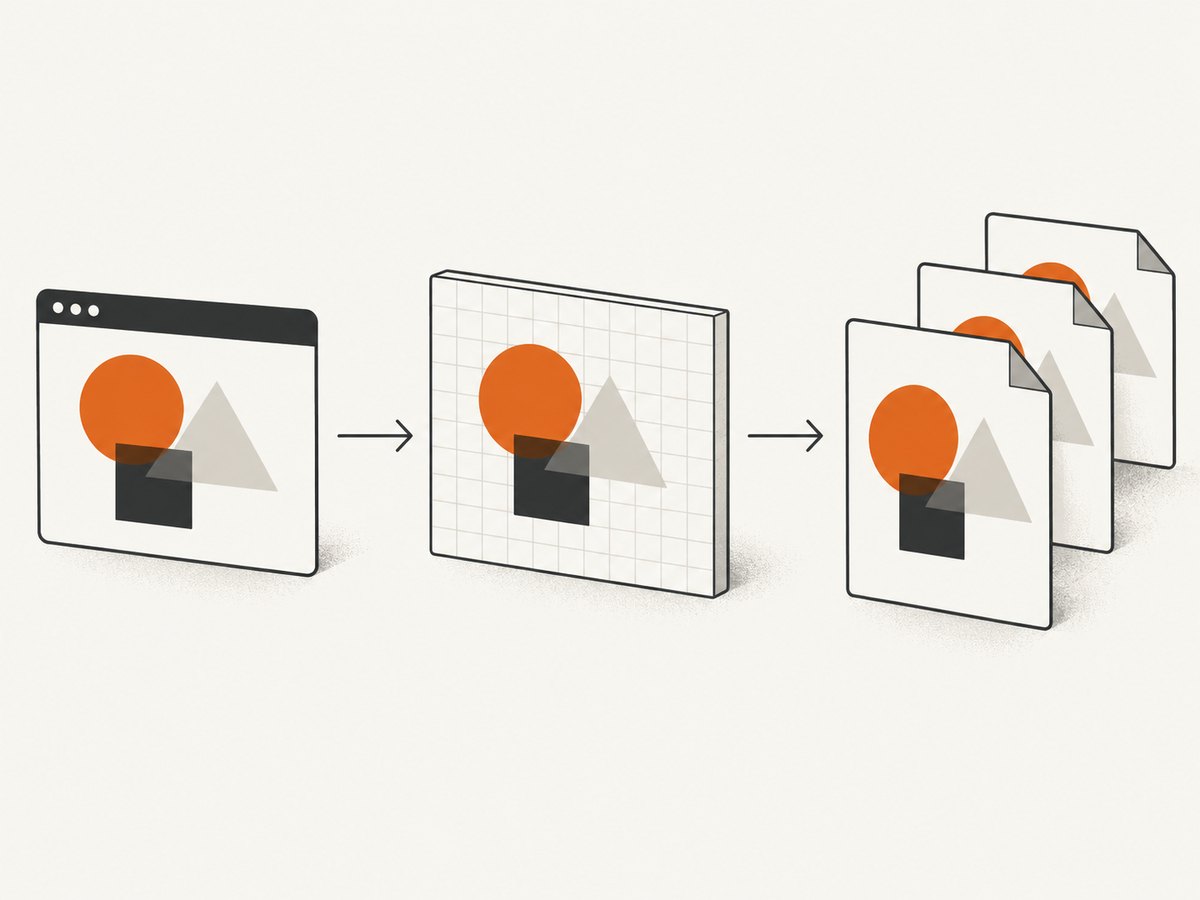
- The browser lays out the selected DOM element using its current styles and viewport.
- html2canvas walks that DOM and paints supported elements into a canvas.
- jsPDF encodes the canvas as an image and places it at explicit coordinates and dimensions.
- The browser downloads the resulting PDF.
Because the output is a canvas image inside a PDF, text may not remain selectable as ordinary PDF text. CSS features that html2canvas does not implement can be absent or visually different. If you need a true browser screenshot, a browser automation service or screenshot API is a better fit than a DOM reconstruction library.
3. Configure the html2canvas capture
The following options solve most export requirements.
| Option | Use | Notes |
|---|---|---|
scale |
Increase or reduce canvas resolution. | window.devicePixelRatio produces sharper output on high-density screens but consumes more memory. |
useCORS |
Request cross-origin images with CORS. | The image server must return a suitable Access-Control-Allow-Origin header. |
backgroundColor |
Set a solid background. | Use null when transparent canvas output is required and the PDF workflow supports it. |
windowWidth, windowHeight |
Give html2canvas the layout dimensions. | For a scrollable element, use its scrollWidth and scrollHeight. |
ignoreElements |
Exclude elements programmatically. | Return true for controls, loading indicators, or private fields. |
data-html2canvas-ignore |
Exclude marked elements in HTML. | Useful for buttons that should never appear in exports. |
onclone |
Adjust the cloned document before painting. | Use it to remove animations or change export-only styles. |
const canvas = await html2canvas(element, {
  scale: 2,
  useCORS: true,
  backgroundColor: '#ffffff',
  windowWidth: element.scrollWidth,
  windowHeight: element.scrollHeight,
  ignoreElements: (node) => node.matches('.no-print, video, canvas.live-chart'),
  onclone: (clonedDocument) => {
    clonedDocument.querySelectorAll('*').forEach((node) => {
      node.style.animation = 'none';
      node.style.transition = 'none';
    });
  }
});
Capture after asynchronous content is ready. If a chart, image, or font is still loading, await its loading event or add an application-level readiness check before invoking html2canvas.
4. Fit an element to an A4 page
The simple example scales the complete canvas to the PDF width. That works for short content. A tall canvas can extend past the first page, create a huge image, or hit browser canvas limits. For predictable output, slice the canvas into page-sized sections.
import { jsPDF } from 'jspdf';
import html2canvas from '@html2canvas/html2canvas';

export async function elementToPdf(element, filename = 'capture.pdf') {
  const canvas = await html2canvas(element, {
    scale: 2,
    useCORS: true,
    backgroundColor: '#ffffff',
    windowWidth: element.scrollWidth,
    windowHeight: element.scrollHeight
  });

  const pdf = new jsPDF({ orientation: 'portrait', unit: 'pt', format: 'a4' });
  const pageWidth = pdf.internal.pageSize.getWidth();
  const pageHeight = pdf.internal.pageSize.getHeight();
  const margin = 24;
  const contentWidth = pageWidth - margin * 2;
  const scaledHeight = canvas.height * contentWidth / canvas.width;
  const pageContentHeight = pageHeight - margin * 2;
  const sourcePageHeight = Math.floor(pageContentHeight * canvas.width / contentWidth);

  let sourceY = 0;
  let page = 0;

  while (sourceY < canvas.height) {
    const sliceHeight = Math.min(sourcePageHeight, canvas.height - sourceY);
    const pageCanvas = document.createElement('canvas');
    pageCanvas.width = canvas.width;
    pageCanvas.height = sliceHeight;

    const context = pageCanvas.getContext('2d');
    context.drawImage(
      canvas,
      0, sourceY, canvas.width, sliceHeight,
      0, 0, canvas.width, sliceHeight
    );

    if (page > 0) pdf.addPage();
    const outputHeight = sliceHeight * contentWidth / canvas.width;
    pdf.addImage(pageCanvas, 'PNG', margin, margin, contentWidth, outputHeight);

    sourceY += sliceHeight;
    page += 1;
  }

  pdf.save(filename);
}
This method gives you control over margins, page breaks, and scaling. It can still split a table row or card in the middle. If boundaries matter, add CSS page-break markers and capture separate sections, or render each logical section into its own canvas.
Prevent blurry or oversized output
- Start with
scale: 1or2; larger values multiply memory use. - Use the element’s actual scroll dimensions instead of an arbitrarily large viewport.
- Split very long documents before canvas creation when possible.
- Keep image files at a useful resolution, but avoid embedding unnecessary original-sized photographs.
- Run the export from a user action so the browser does not block a background download.
5. Images, fonts, and cross-origin content
Missing images are usually caused by browser origin rules. A canvas becomes tainted when it includes an image that the browser loaded without permission for canvas access. Setting useCORS: true only works when the image host sends an appropriate CORS response header. It cannot override another server’s policy.
Use one of these fixes:
- Serve the image from the same origin as the page.
- Configure the image server to allow the requesting origin.
- Proxy the image through your own server and add the required response headers.
- Replace remote images with data URLs generated by a trusted server.
Do not use a permissive proxy without controlling access to it. It can become an unwanted open proxy and can expose internal resources.
Fonts should be loaded before capture. Wait for document.fonts.ready when the browser supports the Font Loading API:
await document.fonts.ready;
const canvas = await html2canvas(document.querySelector('#capture'));
Same-origin iframes can be rendered when their document is accessible. Cross-origin iframes cannot be read because browser security prevents access to their contents. You must capture the iframe from its own origin or replace it with an image or server-rendered representation.
6. The jsPDF HTML API
jsPDF also exposes an html method:
import { jsPDF } from 'jspdf';

const pdf = new jsPDF({ format: 'a4', unit: 'pt' });
await pdf.html(document.querySelector('#capture'), {
  margin: [24, 24, 24, 24],
  autoPaging: 'text',
  html2canvas: {
    scale: 2,
    useCORS: true
  },
  callback: (document) => document.save('capture.pdf')
});
In ES-module builds, the HTML plugin dynamically imports html2canvas. String HTML may also require DOMPurify. The API is convenient for basic documents, but the same browser rendering and cross-origin constraints remain. The manual canvas approach is preferable when you need exact image dimensions, custom page slicing, or separate processing for each page.
Choose manual html2canvas plus addImage when… |
Choose jsPDF.html when… |
|---|---|
| You need custom pagination, canvas inspection, or per-page headers. | You need a short implementation for a straightforward DOM export. |
| You need to control image quality and output coordinates. | You prefer a higher-level workflow with automatic paging. |
| Your layout contains sections that must be split deliberately. | The content is simple and browser-like pagination is acceptable. |
7. Troubleshooting
PDF is blank
Cause: The selector returned null, the capture ran before content loaded, or a canvas limit was exceeded.
Fix: Check the element, await data and fonts, log canvas.width and canvas.height, and capture smaller sections. Ensure the code runs in a browser rather than Node.js.
Images are missing or the canvas is tainted
Cause: Remote images do not provide CORS permission.
Fix: Use same-origin assets, configure Access-Control-Allow-Origin, or proxy the images through a server you control. useCORS: true is necessary in the allowed case but does not bypass policy.
CSS looks different
Cause: html2canvas implements CSS properties manually and does not provide full CSS support.
Fix: Inspect unsupported effects, simplify export styles, disable animations, and use onclone to apply a print-specific class. Complex filters, blend modes, and browser-native controls may require a different renderer.
Long pages are cut off
Cause: The canvas was created at viewport dimensions or was placed on one PDF page without pagination.
Fix: Set windowWidth and windowHeight to scroll dimensions, then slice the canvas as shown above. Very large canvases can exceed browser limits and should be split before rendering.
Cross-origin iframe content is absent
Cause: Same-origin policy blocks access to the iframe document.
Fix: Capture the iframe from its own origin, ask its application for an export, or replace it with an accessible representation.
Export uses stale data
Cause: The export began while a request, image, chart, or font was still loading.
Fix: Track an explicit “ready to export” state and await all required resources before calling html2canvas.
8. Performance, reliability, and cost
Client-side conversion uses the user’s CPU and memory. Resolution is the largest variable: doubling scale roughly doubles each canvas dimension and can multiply the number of pixels several times. Large photos and long pages have the same effect. Measure memory behavior on the browsers and devices your users actually use, and provide a progress state for exports that take noticeable time.
Reliability improves when you:
- capture a dedicated export container with stable dimensions;
- disable transitions and animations;
- wait for fonts, images, charts, and API data;
- use deterministic background and text colors;
- split long documents into bounded sections;
- handle rejected Promises and restore the download button in a
finallyblock.
jsPDF and html2canvas have no per-request service charge when bundled into your application. You pay with browser resources and engineering time. A server-side or hosted renderer may be preferable when PDFs must be generated consistently without a user’s browser, when pages contain cross-origin content you cannot configure, or when you need a true browser render rather than DOM reconstruction.
9. Or skip the browser setup
ScreenshotNeo provides a website screenshot API and MCP server. One GET request returns a PNG, JPEG, WebP, or PDF, with options for full-page capture, element selectors, custom CSS and JavaScript, waiting rules, device presets, PDF paper size and margins, cookies, headers, geolocation, and more. It accepts the common parameter names used by other screenshot APIs, which makes switching straightforward. See the ScreenshotNeo documentation.

curl -G "https://api.screenshotneo.com/v1/shot" \
  -d access_key=YOUR_API_KEY \
  --data-urlencode url=https://stripe.com \
  -o shot.webp
import requests
r = requests.get(
"https://api.screenshotneo.com/v1/shot",
params={"access_key": "YOUR_API_KEY", "url": "https://stripe.com"},
timeout=90
)
r.raise_for_status()
open("shot.webp", "wb").write(r.content)const q = new URLSearchParams({
access_key: 'YOUR_API_KEY',
url: 'https://stripe.com'
});
const res = await fetch(`https://api.screenshotneo.com/v1/shot?${q}`);
if (!res.ok) throw new Error(`HTTP ${res.status}`);
const bytes = await res.arrayBuffer();
// Save bytes with your runtime's file API.Cookie and consent banners, newsletter popups, and chat widgets are removed before the shot. Bot checks, blank pages, failed loads, timeouts, and cache hits are not billed, and response headers identify the page verdict and billing status. An MCP server lets Claude, Cursor, and other MCP clients call take_screenshot, get_page_info, and capture_pdf. The Free plan includes 1,000 screenshots each month with no card; paid plans start at $5 for 3,000 shots. Create a free ScreenshotNeo account.
10. FAQ
Can html2canvas run in Node.js?
No. It depends on browser APIs such as window and document. Use it in a browser or use a browser automation or hosted capture service for server-side work.
Does the result contain selectable text?
The canvas is inserted as an image, so text is generally image content rather than normal selectable PDF text.
Should I use PNG or JPEG?
PNG preserves sharp text and flat colors. JPEG can reduce file size for photographic content but introduces lossy compression.
How do I hide a button from the PDF?
Add data-html2canvas-ignore to the element or return true for it from the ignoreElements option.
Why does a fixed header repeat unexpectedly?
html2canvas paints the DOM representation, while your PDF pagination is separate. Capture and position headers per page when using manual slicing, or create separate header and content sections.
Can I export an entire website with this code?
The code captures an element in the current page. For a remote URL, authentication, consent handling, full-page browser rendering, or repeatable server-side jobs, use a browser-based capture service such as ScreenshotNeo.


