How to Set Image Sizes in jsPDF When Converting HTML to PDF
Set jsPDF image dimensions correctly, preserve aspect ratios, fit pages, control html() width, and fix clipping, distortion, CORS, and blurry output.
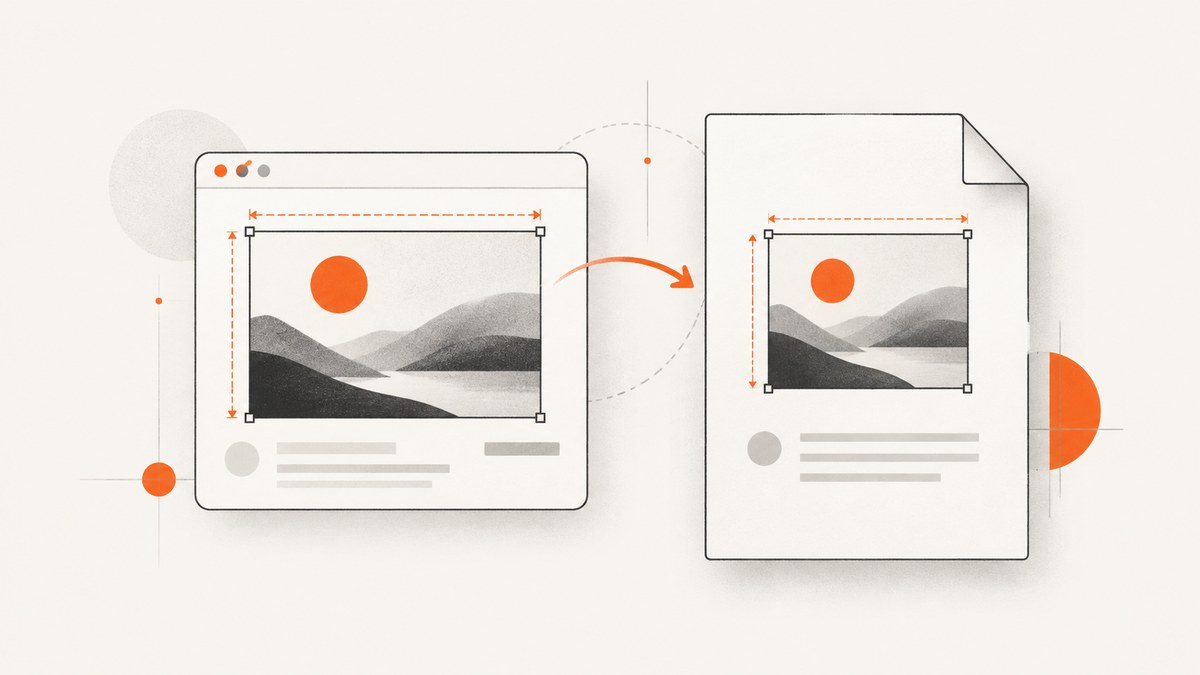
Direct answer: with jsPDF, image size is controlled in PDF document units. For a direct image insertion, call doc.addImage(imageData, format, x, y, width, height); x and y set the position from the page’s left and top edges, while width and height use the unit configured when you created the document. For HTML conversion with doc.html(), the target width, x, and y are also jsPDF units, but the documented result depends on how html2canvas.scale and windowWidth are configured.
Set the page format and unit first, measure the available content area, preserve the source aspect ratio, and check the resulting height against the remaining page space. Canvas dimensions are pixels; PDF placement dimensions are millimeters, points, inches, or another unit you selected. They are separate coordinate systems.
1. Choose the PDF page and units
Create the document with the page format, orientation, and unit you intend to use. jsPDF documents A4 portrait with millimeters as the default and supports other orientations, units, and custom formats. See the jsPDF usage documentation.
import { jsPDF } from 'jspdf';

// A4 portrait, millimeters
const doc = new jsPDF({
  orientation: 'portrait',
  unit: 'mm',
  format: 'a4'
});

// Other examples:
// new jsPDF({ orientation: 'landscape', unit: 'pt', format: 'letter' });
// new jsPDF({ unit: 'in', format: [8.5, 11] });
Every subsequent x, y, width, and height value passed to addImage is interpreted in this unit system.
2. Size a direct image with addImage()
The addImage API accepts image data, a format, a position, and dimensions. It can use a data URL and image, canvas, or buffer sources supported by your environment.
import { jsPDF } from 'jspdf';

const doc = new jsPDF({ unit: 'mm', format: 'a4' });
const imageData = 'data:image/png;base64,iVBORw0KGgoAAAANSUhEUgAA...';

const x = 20;
const y = 30;
const width = 170;
const height = 95;

doc.addImage(imageData, 'PNG', x, y, width, height);
doc.save('sized-image.pdf');
The API description is concise: “Adds an Image to the PDF.” The important detail is that both dimensions are explicit. If you supply a height that does not match the source ratio, the image is stretched or squashed.
3. Preserve the image’s aspect ratio
Read the intrinsic image dimensions, choose one target dimension, then calculate the other:
import { jsPDF } from 'jspdf';

const doc = new jsPDF({ unit: 'mm', format: 'a4' });
const imageData = 'data:image/png;base64,iVBORw0KGgoAAAANSUhEUgAA...';

const props = doc.getImageProperties(imageData);
const leftMargin = 20;
const rightMargin = 20;
const top = 25;
const targetWidth = doc.internal.pageSize.getWidth() - leftMargin - rightMargin;
const targetHeight = (props.height * targetWidth) / props.width;

doc.addImage(imageData, 'PNG', leftMargin, top, targetWidth, targetHeight);
doc.save('proportional-image.pdf');
The formula is targetHeight = intrinsicHeight × targetWidth / intrinsicWidth. You can reverse it when height is the limiting dimension:
const targetHeight = 80;
const targetWidth = (props.width * targetHeight) / props.height;
This proportional calculation is a standard implementation pattern illustrated in a jsPDF community issue discussion; it is not a separate automatic sizing mode.
4. Fit an image inside the printable page area
Calculate both the available width and the remaining height before placing the image. An image added with addImage() does not automatically flow across pages.
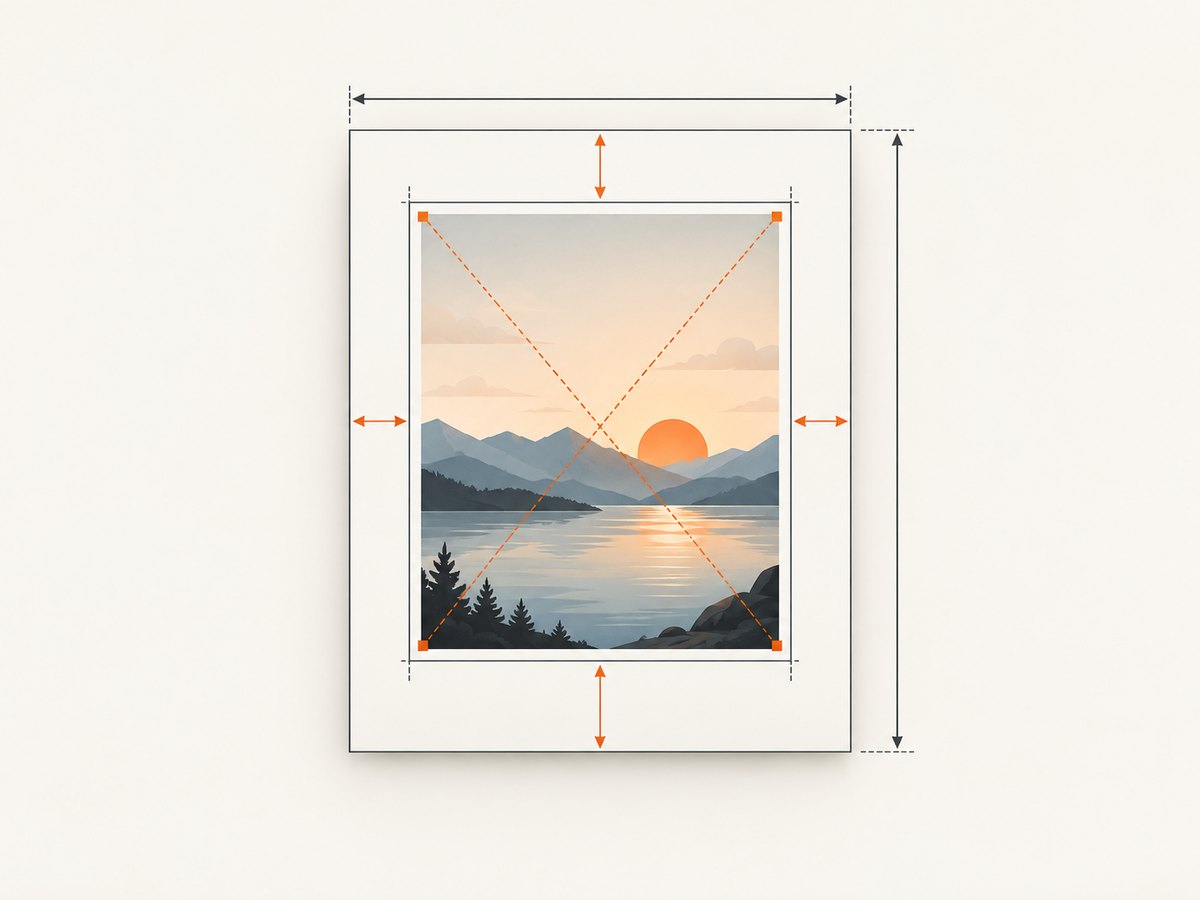
const pageWidth = doc.internal.pageSize.getWidth();
const pageHeight = doc.internal.pageSize.getHeight();
const margin = 20;
const top = 25;
const bottom = 20;

const maxWidth = pageWidth - margin * 2;
const maxHeight = pageHeight - top - bottom;
const props = doc.getImageProperties(imageData);

let width = maxWidth;
let height = (props.height * width) / props.width;

// If the proportional image is taller than the available area,
// scale both dimensions down to fit.
if (height > maxHeight) {
  height = maxHeight;
  width = (props.width * height) / props.height;
}

const x = (pageWidth - width) / 2;
doc.addImage(imageData, 'PNG', x, top, width, height);
If the image is taller than one page, choose a strategy deliberately: resize it to fit, crop it, split it into separate images, or create a pagination routine. A single addImage() call will not make one image flow through multiple pages.
5. Convert a DOM element with doc.html()
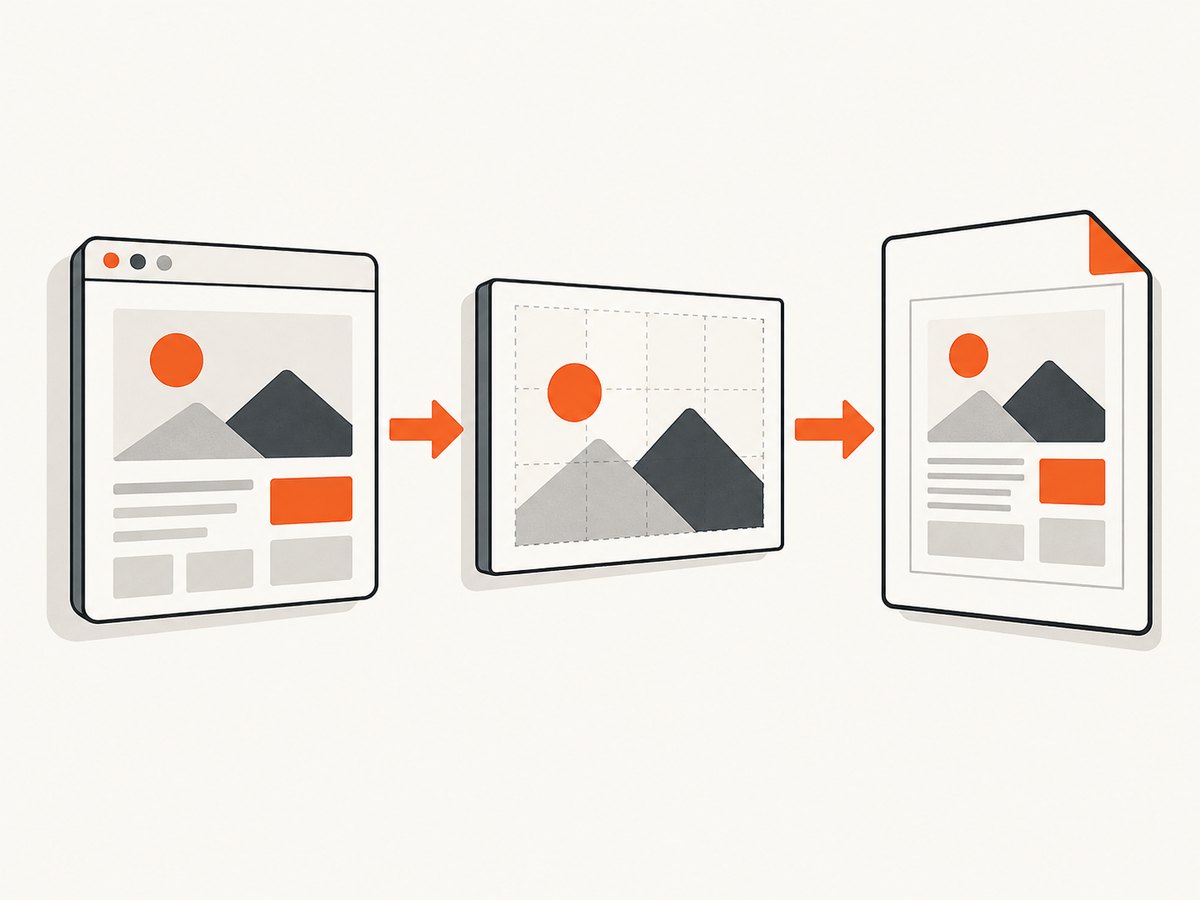
Use doc.html(element, options) when you want jsPDF to render an HTML element and its layout. The html() documentation exposes x, y, a target width, autoPaging, and html2canvas-related options.
import { jsPDF } from 'jspdf';
import html2canvas from 'html2canvas';

const element = document.querySelector('#report');
const doc = new jsPDF({ unit: 'mm', format: 'a4' });

doc.html(element, {
  x: 15,
  y: 15,
  width: 180,
  windowWidth: element.scrollWidth,
  html2canvas: {
    scale: 2,
    useCORS: true
  },
  autoPaging: 'text',
  callback: (pdf) => pdf.save('report.pdf')
});
Do not treat width as a CSS pixel width. It is a target width in jsPDF units. The documentation warns that this width has no effect when html2canvas.scale is specified or when windowWidth is not specified. Keep these settings together and verify the output with the jsPDF version installed in your project.
When to use each path
| Path | Best for | Size control | Trade-off |
|---|---|---|---|
addImage() |
An image is the content you need to place | Explicit x, y, width, and height |
You manage aspect ratio and pagination |
html() |
A DOM element whose rendered layout should be captured | Target width plus html2canvas settings | Browser rendering, cross-origin images, and scale affect the result |
6. Pixels, CSS dimensions, and PDF units
These values describe different stages:
- CSS pixels: the browser layout dimensions.
- Canvas pixels: the raster produced by html2canvas. Its type declarations describe canvas width and height in pixels.
- PDF units: the placement coordinates and dimensions used by jsPDF, such as millimeters, points, or inches.
A 1200-pixel-wide canvas is not automatically a 1200-unit-wide PDF image. Decide the PDF width first, then derive the matching height from the intrinsic ratio.
7. Quality, scale, and file size
Rendering scale affects detail and resource use. A larger html2canvas scale can produce more pixels, while image encoding affects output characteristics. The html2pdf.js project documents JPEG, PNG, and WebP choices and quality controls, but those wrapper-specific notes should not be treated as guarantees for every jsPDF-only configuration.
- Use the smallest target dimensions that meet your print or viewing requirement.
- Increase rendering scale only when the source looks soft at the intended PDF size.
- Prefer an appropriate image format for the source: photographic content usually compresses differently from flat graphics.
- Watch browser memory when converting large, long pages or high-scale canvases.
8. Troubleshooting
Image is too large or too small
Cause: pixel dimensions were passed as if they were millimeters, points, or inches.
Fix: confirm the document’s unit, compute a target width in that unit, and derive height from doc.getImageProperties().
html() width appears ignored
Cause: the documented interaction between target width, html2canvas.scale, and windowWidth.
Fix: remove an explicit scale while diagnosing, or provide both windowWidth and a deliberate scale, then verify the installed version’s output.
Image is distorted
Cause: width and height were chosen independently.
Fix: calculate one dimension from the other using the intrinsic ratio.
Image is blank or missing
Cause: the browser could not render the source image, often because of cross-origin restrictions or an unavailable resource.
Fix: confirm the image loads in the browser, configure html2canvas’s useCORS or proxy options where appropriate, and ensure the image server permits the required access. The exact result depends on the source server and browser environment.
Image is clipped or crosses a page boundary
Cause: the calculated dimensions exceed the available content area, or a single direct image was expected to paginate.
Fix: compare the final dimensions with page size and margins. Resize, crop, split, or implement pagination explicitly.
Output is blurry or unexpectedly large
Cause: rendering scale and encoding choices change pixel count and compression.
Fix: inspect the rendered canvas dimensions, reduce unnecessary scale, and select an encoding and quality appropriate for the content.
9. A complete browser example
import { jsPDF } from 'jspdf';

async function exportReport() {
  const element = document.querySelector('#report');
  if (!element) throw new Error('Missing #report element');

  const doc = new jsPDF({
    orientation: 'portrait',
    unit: 'mm',
    format: 'a4'
  });

  await doc.html(element, {
    x: 15,
    y: 15,
    width: 180,
    windowWidth: element.scrollWidth,
    html2canvas: {
      useCORS: true,
      scale: 1.5
    },
    autoPaging: 'text'
  });

  doc.save('report.pdf');
}

exportReport().catch(console.error);
For a known image rather than a DOM tree, use the direct addImage() pattern and calculate the dimensions yourself. That gives the most predictable placement.
10. Or skip the browser setup
If your source is a web page and you need a PDF capture rather than a hand-built browser pipeline, ScreenshotNeo provides a GET API and PDF capture tools. Its browser handles the page capture; you specify the URL and options documented at the ScreenshotNeo docs.
curl -G "https://api.screenshotneo.com/v1/shot" -d access_key=YOUR_API_KEY --data-urlencode url=https://stripe.com -o shot.webpimport requests
r = requests.get(
"https://api.screenshotneo.com/v1/shot",
params={"access_key": "YOUR_API_KEY", "url": "https://stripe.com"},
timeout=90
)
r.raise_for_status()
open("shot.webp", "wb").write(r.content)const q = new URLSearchParams({ access_key: 'YOUR_API_KEY', url: 'https://stripe.com' });
const res = await fetch(`https://api.screenshotneo.com/v1/shot?${q}`);
if (!res.ok) throw new Error(`HTTP ${res.status}`);
const bytes = new Uint8Array(await res.arrayBuffer());Cookie banners, newsletter popups, and chat widgets are removed before the shot. Bot checks, blank pages, failed loads, timeouts, and cache hits are not billed, and response headers identify the page verdict and billing result. An MCP server lets AI agents use take_screenshot, get_page_info, and capture_pdf. The Free plan includes 1,000 screenshots a month with no card; paid plans start at $5 for 3,000 shots. Create a free ScreenshotNeo account.
11. Performance, reliability, and cost considerations
- Performance: large DOM trees, long pages, high canvas scale, and many remote images increase browser work and memory use.
- Reliability: wait for images and fonts to finish loading before calling
html(); for cross-origin resources, verify server headers and use the documented CORS or proxy settings. - Pagination: direct images require your own page-fitting or splitting logic. Wrapper projects may add page-break modes, but html2pdf.js documents that it rasterizes content and has canvas-size limitations.
- Cost: jsPDF itself does not define a hosted rendering price; your cost depends on the browser or infrastructure running it. ScreenshotNeo reports whether a response was billed and charges only clean shots under its stated plans.
12. FAQ
What unit does addImage() use?
The unit selected when constructing jsPDF, such as millimeters, points, or inches.
Can jsPDF preserve an image ratio automatically?
Calculate one dimension from the intrinsic dimensions yourself. The API receives both width and height.
Why is an HTML image’s CSS width different from its PDF width?
CSS and canvas use browser pixels, while the html() target width uses jsPDF units and is affected by html2canvas configuration.
Will addImage() split a tall image across pages?
No. Resize, crop, split, or paginate it explicitly.
Should I use html() or addImage()?
Use html() for a DOM layout and addImage() when you need exact image placement.


