Why jsPDF Exports Incomplete Pages at Browser Zoom Levels and How to Fix It
Diagnose incomplete jsPDF exports by separating zoom, layout, canvas limits, scaling, and PDF pagination with practical fixes and runnable code.
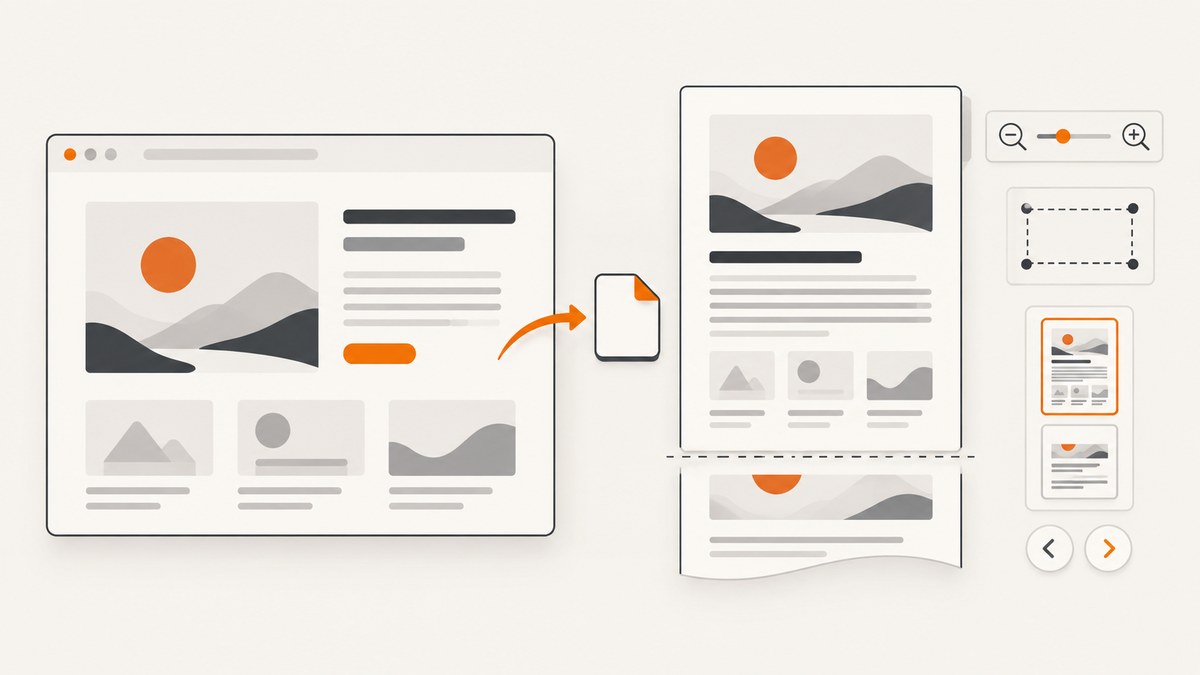
Short answer: browser zoom is usually a symptom rather than a standalone jsPDF bug. In an html2canvas-to-jsPDF workflow, zoom can change the effective layout, viewport, device-pixel ratio, or capture dimensions. Diagnose the pipeline in order: inspect the rendered element, verify html2canvas dimensions and scale, check browser canvas limits, then tune jsPDF page sizing and page breaks.
This guide shows a reproducible debugging method, complete browser code, the relevant html2canvas and jsPDF options, failure modes, and a production alternative using ScreenshotNeo.
What browser zoom changes
Browser zoom changes how CSS pixels map to physical pixels. That can coincide with a different viewport width, a different window.devicePixelRatio, altered responsive breakpoints, and a different number of pixels requested from html2canvas. A report that “works at 100% but clips at 125%” therefore does not prove that zoom alone is the root cause.
Record these values at both the failing and baseline zoom levels:
- Browser and operating system.
- Viewport width and height:
window.innerWidthandwindow.innerHeight. window.devicePixelRatio.- Target element
scrollWidth,scrollHeight,clientWidth, andclientHeight. - html2canvas output
canvas.widthandcanvas.height. - Exact jsPDF and html2canvas versions.
const target = document.querySelector('#report');
console.table({
  innerWidth: window.innerWidth,
  innerHeight: window.innerHeight,
  devicePixelRatio: window.devicePixelRatio,
  scrollWidth: target.scrollWidth,
  scrollHeight: target.scrollHeight,
  clientWidth: target.clientWidth,
  clientHeight: target.clientHeight
});
Build a minimal, inspectable export
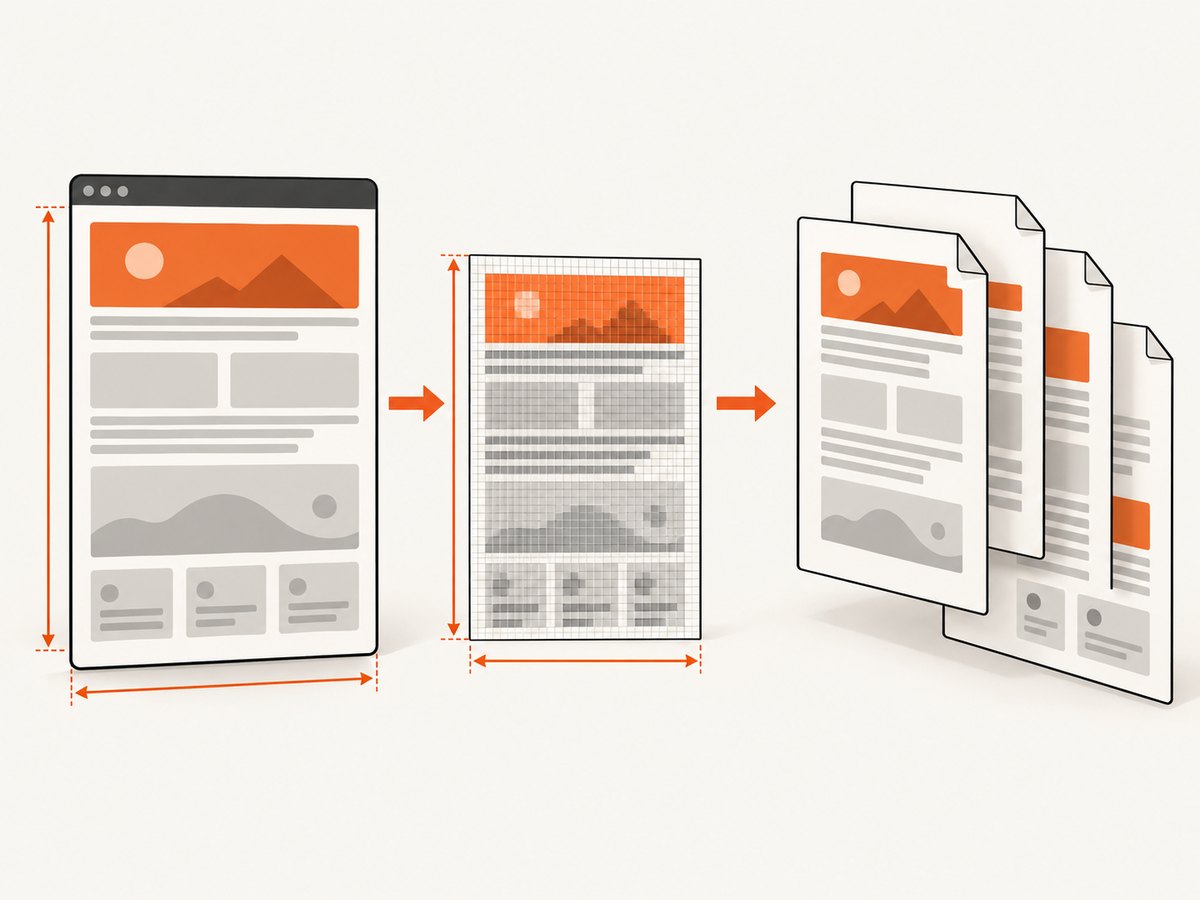
Start by capturing a canvas and inspecting it before creating a PDF. This separates clipping during rasterization from incorrect PDF placement.
import html2canvas from 'html2canvas';
import { jsPDF } from 'jspdf';

async function exportReport() {
  const element = document.querySelector('#report');
  if (!element) throw new Error('Missing #report');

  const canvas = await html2canvas(element, {
    backgroundColor: '#ffffff',
    useCORS: true,
    logging: true,
    // Keep the baseline first. Change one variable at a time.
    scale: window.devicePixelRatio
  });

  console.table({
    cssWidth: element.scrollWidth,
    cssHeight: element.scrollHeight,
    canvasWidth: canvas.width,
    canvasHeight: canvas.height
  });
  document.body.appendChild(canvas); // temporary diagnostic preview

  const pdf = new jsPDF({
    orientation: 'portrait',
    unit: 'mm',
    format: 'a4'
  });
  const pageWidth = pdf.internal.pageSize.getWidth();
  const pageHeight = pdf.internal.pageSize.getHeight();
  const margin = 10;
  const usableWidth = pageWidth - margin * 2;
  const renderedHeight = canvas.height * usableWidth / canvas.width;

  let remaining = renderedHeight;
  let offset = 0;
  while (remaining > 0) {
    pdf.addImage(canvas, 'PNG', margin, margin - offset, usableWidth, renderedHeight);
    remaining -= pageHeight - margin * 2;
    offset += pageHeight - margin * 2;
    if (remaining > 0) pdf.addPage();
  }
  pdf.save('report.pdf');
}

exportReport();
If the appended canvas is already incomplete, jsPDF is not the first place to look. If the canvas is complete but the PDF is clipped, investigate the image dimensions, page offset, units, and page loop.
html2canvas dimensions, viewport, and scale
Match the virtual window to a long element
For a scrollable or full-page target, html2canvas documents using the element’s scroll dimensions as windowWidth and windowHeight when appropriate:
const element = document.querySelector('#report');
const canvas = await html2canvas(element, {
  windowWidth: element.scrollWidth,
  windowHeight: element.scrollHeight,
  width: element.scrollWidth,
  height: element.scrollHeight,
  x: 0,
  y: 0,
  scrollX: 0,
  scrollY: 0,
  backgroundColor: '#fff'
});
This is a diagnostic and configuration choice, not a guarantee that every responsive layout will render identically. A wider virtual window can activate a different CSS breakpoint, so compare the computed styles at the failing and baseline configurations.
Understand scale
html2canvas’s default scale is window.devicePixelRatio. A higher scale improves raster sharpness but multiplies the pixel dimensions and memory required by the canvas. At scale 2, both width and height double, so the pixel area becomes roughly four times larger.
const dpr = window.devicePixelRatio || 1;
const canvas = await html2canvas(element, {
  scale: Math.min(dpr, 2),
  // Use 1 while diagnosing size pressure.
});
Try scale: 1 first. If the export becomes complete, the original output was likely approaching a canvas or memory limit. Increase scale gradually and measure the resulting dimensions.
Canvas limits can produce silent partial output
The html2canvas FAQ gives rough guidance of about 32,767 pixels for a maximum canvas dimension in Chrome/Chromium, Firefox, and desktop Safari. It also lists approximate maximum areas of 268 megapixels for Chrome/Chromium and 472 megapixels for Firefox. These are platform-dependent estimates, not guarantees. When a canvas exceeds a browser limit, the browser may return blank or partially rendered output without throwing an error. See the html2canvas FAQ.
Estimate the output before capture:
const cssWidth = element.scrollWidth;
const cssHeight = element.scrollHeight;
const scale = 2;
const pixels = cssWidth * scale * cssHeight * scale;
console.log({
  outputWidth: cssWidth * scale,
  outputHeight: cssHeight * scale,
  megapixels: pixels / 1e6
});
If dimensions are excessive, capture logical sections or pages separately and add each image to jsPDF. This uses less memory and makes page boundaries explicit.
jsPDF sizing and pagination
jsPDF has a separate coordinate system and page format. A canvas measured in pixels must be mapped to the PDF’s units, such as millimeters, points, or inches. Keep one conversion calculation and use it consistently.
Manual canvas-to-PDF pagination
function addCanvasAcrossPages(pdf, canvas, margin = 10) {
  const pageWidth = pdf.internal.pageSize.getWidth();
  const pageHeight = pdf.internal.pageSize.getHeight();
  const width = pageWidth - margin * 2;
  const height = canvas.height * width / canvas.width;
  const sliceHeight = pageHeight - margin * 2;

  let y = 0;
  while (y < height) {
    pdf.addImage(canvas, 'PNG', margin, margin - y, width, height);
    y += sliceHeight;
    if (y < height) pdf.addPage();
  }
}

const pdf = new jsPDF({ unit: 'mm', format: 'a4' });
addCanvasAcrossPages(pdf, canvas);
pdf.save('report.pdf');
This approach is simple but still stores one large canvas. For very long documents, render sections independently. It also does not understand semantic page breaks inside the HTML.
Use jsPDF.html() when you need HTML-aware options
jsPDF’s HTML API has its own renderer, sizing, and page-break controls. Review the version-matched jsPDF HTML API documentation and test with a fixed page format.
import { jsPDF } from 'jspdf';

const pdf = new jsPDF({ unit: 'mm', format: 'a4', orientation: 'portrait' });
pdf.html(document.querySelector('#report'), {
  margin: [10, 10, 10, 10],
  autoPaging: 'text',
  html2canvas: {
    scale: 1,
    windowWidth: document.querySelector('#report').scrollWidth
  },
  callback: (doc) => doc.save('report.pdf')
});
Compare this path with your existing html2canvas-to-image path for text selection, searchability, CSS fidelity, pagination control, and memory use. The available documentation does not establish a universal winner.
A controlled troubleshooting sequence
- Reproduce consistently. Use the same URL or fixture, browser, OS, viewport, content, and library versions. Test the affected zoom and a baseline zoom.
- Inspect layout dimensions. Check scroll dimensions, overflow, fixed-position elements, transforms, and responsive breakpoints.
- Capture at scale 1. Record canvas width and height. If it is partial, focus on html2canvas and browser limits.
- Set virtual dimensions deliberately. Try
windowWidthandwindowHeightequal to the target’s scroll dimensions for long content. - Inspect the intermediate canvas. Save it as PNG or append it temporarily to the page.
- Validate PDF geometry. Confirm page units, margins, image aspect ratio, offsets, and page-break logic.
- Change one variable at a time. Record the result for scale, virtual window, target size, and jsPDF options.
Common errors and fixes
| Symptom | Likely cause | Fix |
|---|---|---|
| Bottom of a long page is blank | Canvas height or area limit | Reduce scale, capture sections, or reduce the target region; verify on the target browser. |
| Right side is clipped only at some zooms | Responsive breakpoint or virtual viewport mismatch | Log inner width and computed styles; set an intentional windowWidth and inspect overflow. |
| Canvas is complete, PDF is clipped | Incorrect unit conversion or page offset | Log PDF page dimensions and image dimensions; use one aspect-ratio calculation. |
| Blank canvas with no exception | Browser canvas limit | Check output pixel dimensions and split the capture. |
| Images missing or tainted | Cross-origin image restrictions | Serve images with suitable CORS headers and use useCORS: true; otherwise proxy them under your control. |
| Fonts or shadows differ | Unsupported or partially supported CSS | Check html2canvas’s supported CSS behavior and simplify or replace unsupported styles. |
| Content shifts between runs | Fonts, animations, lazy loading, or late network requests | Wait for fonts and images, disable animations, and capture after the layout stabilizes. |
Changing units to pt does not help |
The problem is elsewhere in capture or width handling | Treat unit changes as a diagnostic, not a proven fix; inspect the canvas first. |
Reliability and performance practices
- Freeze animations and transitions during capture.
- Await
document.fonts.readyand image completion before rendering. - Use a bounded capture region instead of an entire dashboard when only one report section is needed.
- Keep scale as low as the output quality permits.
- Split very tall documents into sections and release intermediate canvases when possible.
- Test Chromium, Firefox, and Safari separately because canvas limits and rendering details vary.
- Include the browser, zoom, viewport, DPR, element dimensions, canvas dimensions, and library versions in bug reports.
await document.fonts.ready;
for (const image of document.images) {
  if (!image.complete) await new Promise(resolve => {
    image.addEventListener('load', resolve, { once: true });
    image.addEventListener('error', resolve, { once: true });
  });
}
Or skip the browser setup
For server-side screenshots and PDFs, ScreenshotNeo provides one GET request and handles the browser capture. Its clean-shot pipeline accepts cookie and consent banners as a visitor, then removes more than 60 known consent platforms, newsletter popups, and chat widgets; each step can be turned off. Bot checks, CAPTCHAs, blank pages, timeouts, failed loads, and cache hits cost nothing, and response headers identify the page verdict and whether it was billed. It also provides an MCP server for Claude, Cursor, and other MCP clients, with take_screenshot, get_page_info, and capture_pdf tools.

See the ScreenshotNeo API documentation for all options. Basic calls:
curl -G "https://api.screenshotneo.com/v1/shot" \
  -d access_key=YOUR_API_KEY \
  --data-urlencode url=https://stripe.com \
  -o shot.webp
import requests
r = requests.get(
"https://api.screenshotneo.com/v1/shot",
params={"access_key": "YOUR_API_KEY", "url": "https://stripe.com"},
timeout=90,
)
r.raise_for_status()
open("shot.webp", "wb").write(r.content)const q = new URLSearchParams({
access_key: 'YOUR_API_KEY',
url: 'https://stripe.com'
});
const res = await fetch(`https://api.screenshotneo.com/v1/shot?${q}`);
if (!res.ok) throw new Error(`HTTP ${res.status}`);
const bytes = Buffer.from(await res.arrayBuffer());
require('fs').writeFileSync('shot.webp', bytes);Relevant capture options include full-page screenshots with lazy images loaded, CSS-selector element capture, dark mode, 12 device presets or custom viewports, retina scale, PDF paper size, margins, landscape mode and page ranges, custom CSS and JavaScript, pre-capture clicks, hidden selectors, selector or delay or network-idle waits, request and resource blocking, custom headers, cookies, user agents and Authorization, timezone and geolocation, transparent backgrounds, resizing, configurable-TTL caching, signed links, asynchronous jobs with signed webhooks, bulk capture for up to 100 URLs per call, a usage API, and an OpenAPI specification. Common parameter names used by other screenshot APIs also work.
The Free plan includes 1,000 screenshots each month with no card. Paid plans start at $5 for 3,000 shots; yearly billing gives two months free, and every feature is available on every plan. Create a free ScreenshotNeo account.
FAQ
Is browser zoom itself a jsPDF bug?
No single cause is established. Zoom can expose layout, viewport, DPR, canvas, or pagination assumptions. Reproduce and measure each stage.
Should I always use scale: 1?
No. Use it to diagnose size pressure, then choose the lowest scale that meets your sharpness requirements.
Does switching jsPDF units to points fix clipping?
It can help identify a scale-factor mismatch, but it is not a confirmed general fix. Inspect the canvas and PDF geometry first.
Why does the browser show no error for a huge capture?
Browsers can silently return blank or partial canvases when platform limits are exceeded.
When should I render sections instead of one canvas?
Use sections when the document approaches canvas dimension or memory limits, or when you need explicit page boundaries.


