How to Set Top Margins on Every PDF Page With jsPDF
Set a consistent top margin in jsPDF by resetting one cursor after every page break, including AutoTable-generated pages.

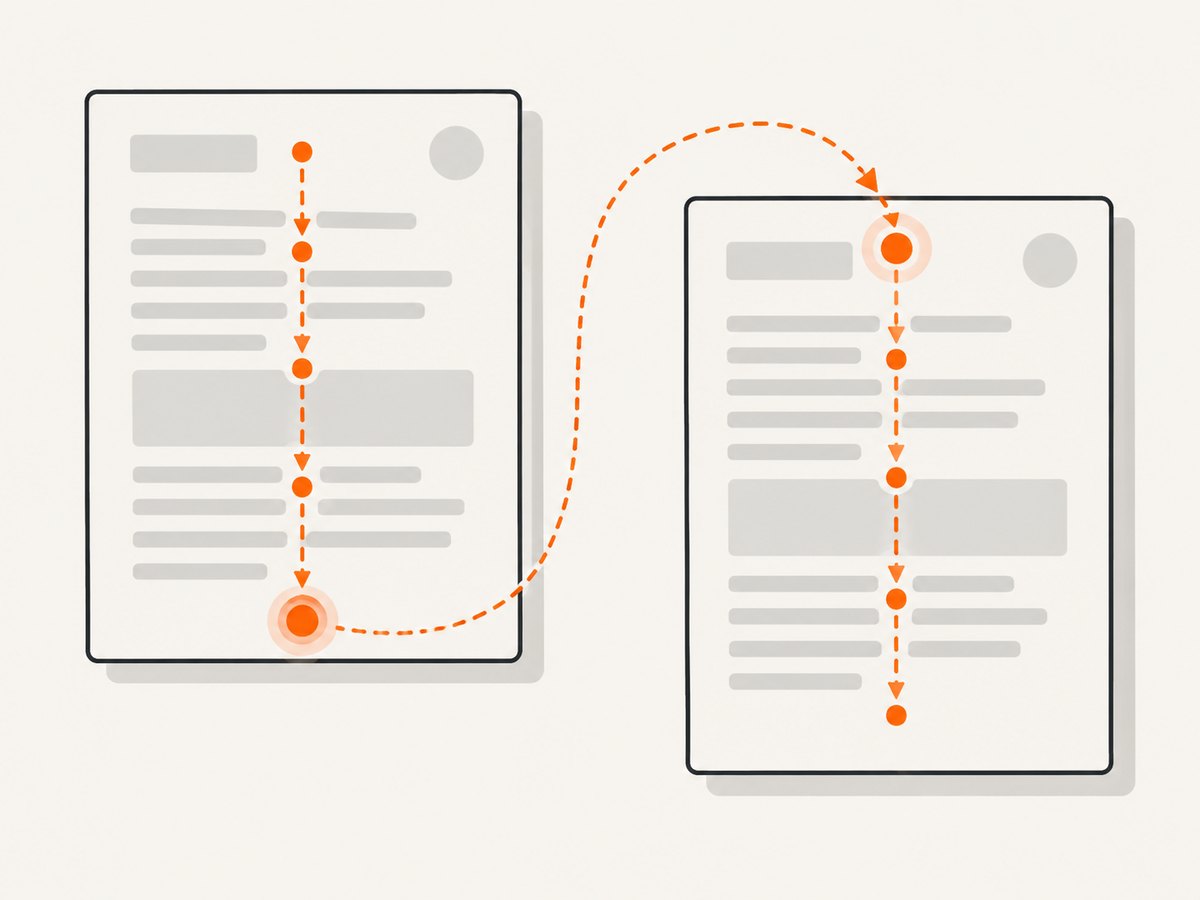
Use one top-margin constant and reset your y cursor after every addPage(). jsPDF drawing methods use explicit coordinates: x starts at the left edge and y starts at the top edge. Calling addPage() creates and switches to a new page, but it does not apply a layout margin for you.
Keep all coordinates in the unit selected when creating the document. The example below uses millimeters.
1. Set the same top margin after every page break
import { jsPDF } from 'jspdf';

const TOP_MARGIN = 20;
const LEFT_MARGIN = 20;
const RIGHT_MARGIN = 20;
const BOTTOM_MARGIN = 20;

const doc = new jsPDF({
  unit: 'mm',
  format: 'a4'
});

function startPage() {
  return TOP_MARGIN;
}

let y = startPage();
doc.text('Content on page 1', LEFT_MARGIN, y);

doc.addPage();
y = startPage();
doc.text('Content on page 2', LEFT_MARGIN, y);

doc.save('margins.pdf');
The important operation is y = startPage() immediately after every addPage(). Treat the margin as part of your layout code rather than as a global CSS-like setting; jsPDF does not provide a universal margin that automatically moves arbitrary drawing commands.
2. Add flowing text and paginate safely
For paragraphs or other variable-height blocks, maintain a cursor. Before drawing the next block, compare its required height with the page height minus the bottom margin. If it will not fit, add a page and reset the cursor to TOP_MARGIN.
import { jsPDF } from 'jspdf';

const TOP_MARGIN = 20;
const LEFT_MARGIN = 20;
const RIGHT_MARGIN = 20;
const BOTTOM_MARGIN = 20;
const LINE_HEIGHT = 6;
const BLOCK_GAP = 4;

const doc = new jsPDF({ unit: 'mm', format: 'a4' });
const pageHeight = doc.internal.pageSize.getHeight();
const pageWidth = doc.internal.pageSize.getWidth();
const maxWidth = pageWidth - LEFT_MARGIN - RIGHT_MARGIN;

function newPage() {
  doc.addPage();
  return TOP_MARGIN;
}

function ensureSpace(y, requiredHeight) {
  if (y + requiredHeight > pageHeight - BOTTOM_MARGIN) {
    return newPage();
  }
  return y;
}

function writeParagraph(text, y) {
  const lines = doc.splitTextToSize(text, maxWidth);
  const height = lines.length * LINE_HEIGHT;
  y = ensureSpace(y, height);
  doc.text(lines, LEFT_MARGIN, y);
  return y + height + BLOCK_GAP;
}

let y = TOP_MARGIN;
y = writeParagraph('This paragraph begins inside the top margin on page one.', y);
y = writeParagraph('Longer content should be measured before it is drawn. When it would cross the bottom margin, the cursor moves to a new page and starts again at the same top margin.', y);

doc.save('flowing-content.pdf');
splitTextToSize wraps text to a width, while the pagination function decides whether the resulting block fits. If a single block is taller than the usable page area, split it into smaller blocks before calling ensureSpace.
3. Keep units consistent
The number 20 means 20 of the document’s configured units. With unit: 'mm', it is 20 millimeters; with unit: 'pt', it is 20 points. Do not change units halfway through layout calculations without converting every margin, line height and position.
| Configuration | Meaning of TOP_MARGIN = 20 |
|---|---|
unit: 'mm' |
20 millimeters |
unit: 'pt' |
20 points |
unit: 'in' |
20 inches |
Choose the unit once in the constructor, then use that unit for every coordinate and size.
4. Use AutoTable margins on every generated page
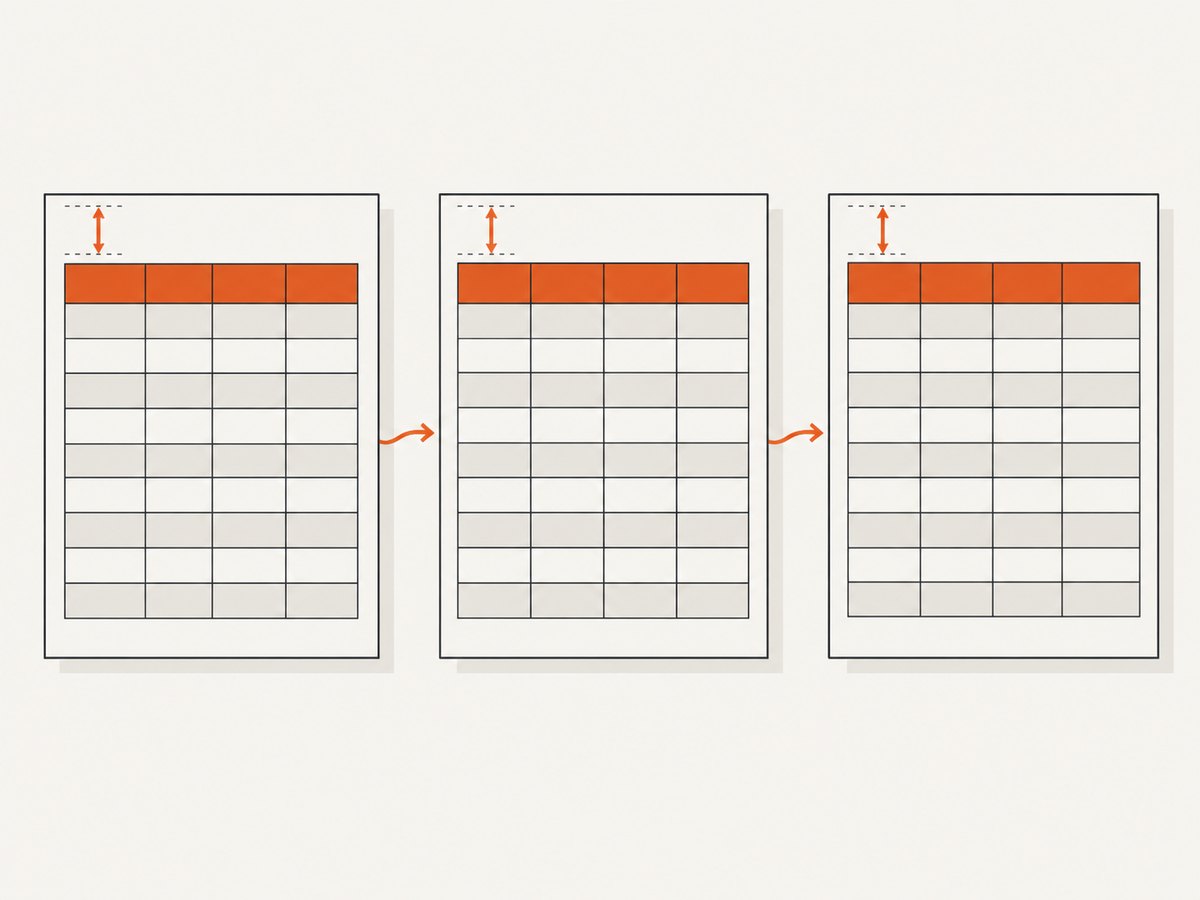
jsPDF-AutoTable owns row pagination. Its margin option sets spacing around the table on each page and accepts a number, an array such as [top, right, bottom, left], or an object. Use startY when the first page has a heading or other content above the table.
import { jsPDF } from 'jspdf';
import autoTable from 'jspdf-autotable';

const TOP_MARGIN = 20;
const LEFT_MARGIN = 20;

const doc = new jsPDF({ unit: 'mm', format: 'a4' });

doc.setFontSize(18);
doc.text('Sales report', LEFT_MARGIN, TOP_MARGIN);

const rows = [
  ['Basic plan', '120'],
  ['Team plan', '85'],
  ['Enterprise plan', '24']
];

autoTable(doc, {
  head: [['Plan', 'Subscriptions']],
  body: rows,
  startY: TOP_MARGIN + 12,
  margin: {
    top: TOP_MARGIN,
    right: 15,
    bottom: 15,
    left: LEFT_MARGIN
  },
  showHead: 'everyPage'
});

doc.save('table.pdf');
startY changes where the table starts on the first page. The margin.top value applies to table pages as AutoTable creates them. showHead: 'everyPage' repeats the table header whenever rows continue onto another page.
Array and object margin forms
// Same margin on all sides
autoTable(doc, { body: rows, margin: 20 });

// [top, right, bottom, left]
autoTable(doc, { body: rows, margin: [20, 15, 15, 20] });

// Named sides
autoTable(doc, {
  body: rows,
  margin: { top: 20, right: 15, bottom: 15, left: 20 }
});
5. Headers, footers and tables together
Reserve space for repeating headers and footers in your margin calculations. For free-form content, draw the header after each addPage(), then set the content cursor below it. For AutoTable, keep the table’s top margin large enough that rows do not overlap a header.
function beginPage(doc) {
  doc.addPage();
  doc.setFontSize(9);
  doc.text('Quarterly report', LEFT_MARGIN, 10);
  return TOP_MARGIN;
}

let y = TOP_MARGIN;
doc.text('Page one content', LEFT_MARGIN, y);
y = beginPage(doc);
doc.text('Page two content', LEFT_MARGIN, y);
6. Common errors and fixes
| Symptom | Cause | Fix |
|---|---|---|
| Page two starts at the very top | addPage() was called without resetting the cursor. |
Assign y = TOP_MARGIN immediately after every page break. |
| AutoTable ignores the first-page heading | startY was omitted. |
Set startY below the heading; keep margin.top for later table pages. |
| Rows overlap a footer | The bottom margin is too small or not configured. | Increase margin.bottom and reserve footer space in free-form pagination. |
| Margins look different after changing units | Numbers were reused without conversion. | Convert every coordinate and size to the constructor’s unit. |
| Table headings disappear on page two | Header repetition is disabled or not configured. | Set showHead: 'everyPage'. |
| Text is clipped at the bottom | The next block was drawn without checking available height. | Measure the block, compare against page height minus bottom margin, then add a page. |
| A very tall paragraph still crosses the margin | One indivisible block is taller than the usable page. | Wrap or split it into smaller blocks before pagination. |
7. A reusable layout helper
import { jsPDF } from 'jspdf';

export function createLayoutDocument() {
  const margins = { top: 20, right: 20, bottom: 20, left: 20 };
  const doc = new jsPDF({ unit: 'mm', format: 'a4' });
  const pageHeight = doc.internal.pageSize.getHeight();
  const pageWidth = doc.internal.pageSize.getWidth();

  let y = margins.top;

  function pageStart() {
    y = margins.top;
    return y;
  }

  function addPage() {
    doc.addPage();
    pageStart();
  }

  function canFit(height) {
    return y + height <= pageHeight - margins.bottom;
  }

  function ensure(height) {
    if (!canFit(height)) addPage();
  }

  return { doc, margins, pageHeight, pageWidth, get y() { return y; }, set y(value) { y = value; }, pageStart, addPage, canFit, ensure };
}

const layout = createLayoutDocument();
layout.doc.text('First page', layout.margins.left, layout.y);
layout.addPage();
layout.doc.text('Second page', layout.margins.left, layout.y);
layout.doc.save('layout-helper.pdf');
8. Browser setup versus a screenshot API
If your goal is to generate a PDF from HTML, the do-it-yourself browser route usually means managing a browser process, page loading, cookies, consent dialogs, popups, fonts and print settings. For a website screenshot or PDF capture, ScreenshotNeo handles that request through one API call.
Or skip the browser setup
ScreenshotNeo accepts a URL and returns a PNG, JPEG, WebP or PDF. See the ScreenshotNeo API documentation for the available options.
curl -G "https://api.screenshotneo.com/v1/shot" -d access_key=YOUR_API_KEY --data-urlencode url=https://stripe.com -o shot.webpimport requests
r = requests.get(
"https://api.screenshotneo.com/v1/shot",
params={"access_key": "YOUR_API_KEY", "url": "https://stripe.com"},
timeout=90
)
open("shot.webp", "wb").write(r.content)const q = new URLSearchParams({ access_key: 'YOUR_API_KEY', url: 'https://stripe.com' });
const res = await fetch(`https://api.screenshotneo.com/v1/shot?${q}`);Before capture, cookie and consent banners are accepted and more than 60 known consent platforms, newsletter popups and chat widgets are removed. Bot checks, blank pages, timeouts, failed loads and cache hits are not billed; the response identifies the result with X-Page-Verdict and X-Billed headers. ScreenshotNeo also provides an MCP server for Claude, Cursor and other MCP clients, with take_screenshot, get_page_info and capture_pdf tools. The Free plan includes 1,000 screenshots per month with no card, and paid plans start at $5 for 3,000 shots.
Create a free ScreenshotNeo account to get started.
9. Performance, reliability and cost notes
- Keep one margin configuration object so page breaks, tables and headers use the same values.
- Measure text before drawing it; repeated trial-and-error drawing can create clipped content and makes pagination harder to reason about.
- AutoTable handles row pagination, while free-form drawing requires your own cursor and page checks.
- Client-side jsPDF generation avoids a per-page rendering service cost, but the browser must have enough memory for large documents.
- For remote web pages, account for network delays, consent dialogs, failed loads and bot checks when choosing between local PDF generation and an API capture service.
10. FAQ
Does jsPDF have a global margin setting?
No. Margins for arbitrary drawing commands are a layout convention implemented with coordinates. Reset the cursor yourself after each page.
Should I use startY or margin.top in AutoTable?
Use startY for the first-page offset when content appears above the table. Use margin.top for spacing on each table page.
How do I repeat a table heading?
Set showHead: 'everyPage' in the AutoTable options.
Why did changing unit change the physical margin?
The numeric margin is interpreted in the configured unit. Convert the value when switching between millimeters, points or inches.
Can the same pattern work for landscape pages?
Yes. Keep the same cursor reset pattern and define margins in the document's configured unit; the page dimensions change with the selected format and orientation.


