Jumbo Images: Render Up to 80,000 Pixels Without Quality Loss
Learn how tiled jumbo rendering creates large webpage screenshots, how to set its 80,000-pixel and 400-million-pixel limits, and when it helps.
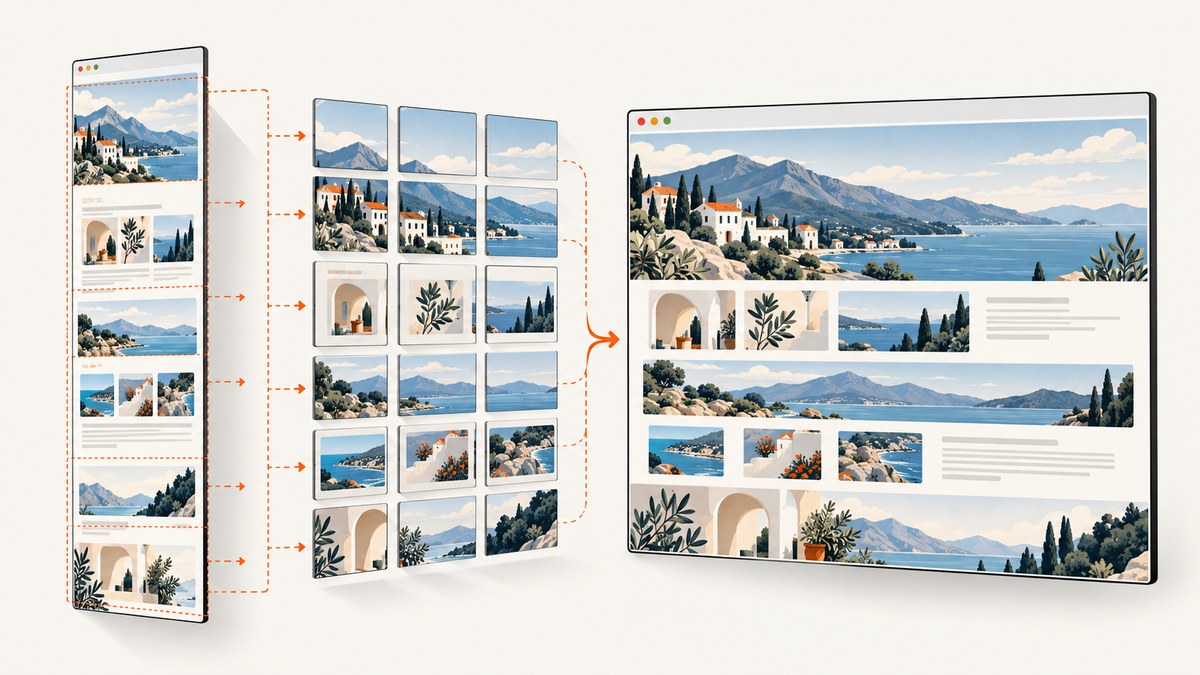
HTML/CSS to Image’s Jumbo Images mode captures very large HTML pages and webpages by rendering them as tiles and stitching those tiles into one image. Each output dimension can be as large as 80,000 pixels, subject to a combined area limit of 400,000,000 pixels. The service requires both maximum-dimension parameters, and at least one must exceed 8,000 pixels. These are limits, not guaranteed output dimensions: the result can be smaller when the page content is smaller.
The phrase “without quality loss” describes the vendor’s tiled-rendering approach: it says each tile is rendered in Chrome and stitched while retaining the requested device scale. This is useful for large webpage captures; it does not enlarge arbitrary existing raster images without loss. See the HTML/CSS to Image Jumbo Images guide and API documentation for current service details.
1. What Jumbo Images does
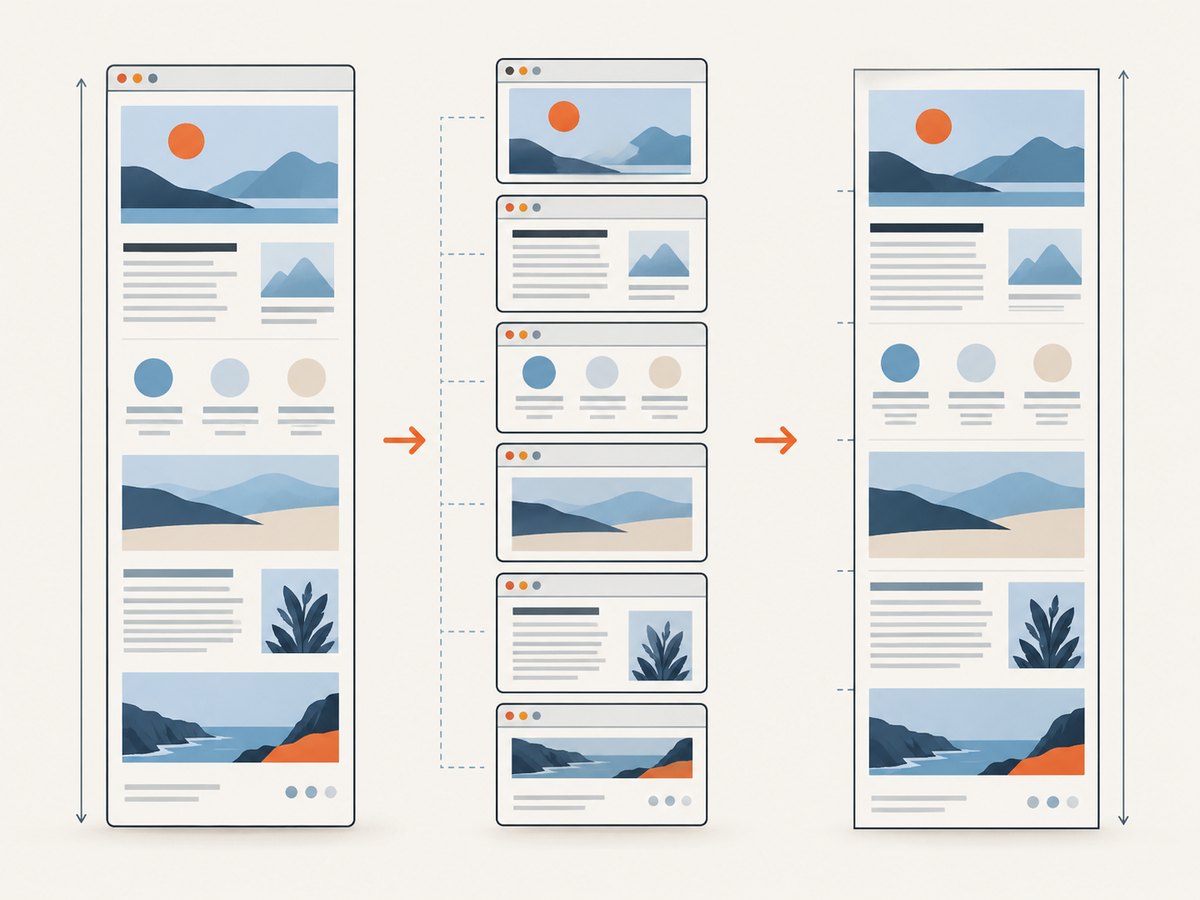
A normal browser screenshot is limited by the browser’s practical rendering bounds. When a page is very tall or wide, a standard capture may be scaled down to fit, making small text and thin lines soft. Jumbo Images divides the requested output into tiles, renders them separately in Chrome, then joins the tiles into a single image. The guide describes tiles of 8,000 × 8,000 pixels.
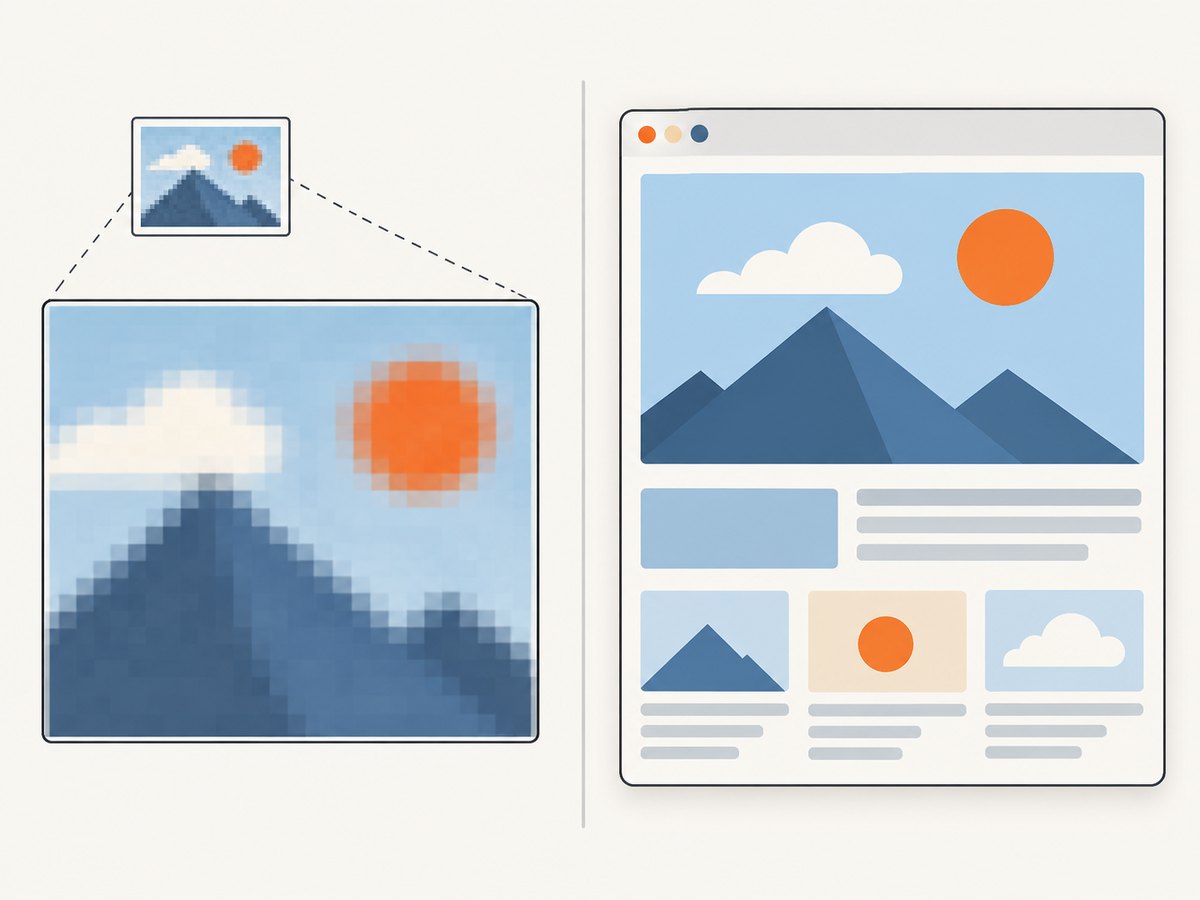
This is a way to render web content at a large final size. It is not an image upscaler. If you start with a small raster image and enlarge it, the new pixels must be estimated or filled in; the original detail does not magically reappear. For example, Brightspot explains that enlarging a 100 × 100 raster image to 300 × 300 requires 80,000 additional pixels. Jumbo rendering differs because the browser renders the page content into tiles at the requested scale.
2. Limits and parameter rules
| Rule | What to set or expect |
|---|---|
| Maximum width | 80,000 pixels |
| Maximum height | 80,000 pixels |
| Maximum total area | 400,000,000 pixels (width × height) |
| Minimum dimension | 1 pixel per dimension |
| Required parameters | Set both jumbo_max_width and jumbo_max_height |
| Jumbo activation | At least one maximum must be greater than 8,000 pixels |
| Output | Image only: PNG, JPG, or WebP; cannot be combined with pdf_options |
The maximum dimensions describe a bounding box, not a forced canvas size. If the page’s natural rendered content is smaller, the output is smaller. If it is larger than the requested box, the service scales it down proportionally to fit. It does not stretch the page to fill unused width or height.
The area limit matters as much as either dimension. The guide gives examples at the 400-million-pixel cap: 80,000 × 5,000, 40,000 × 10,000, 20,000 × 20,000, and 12,500 × 32,000. A request for 80,000 × 80,000 exceeds the area limit by a wide margin even though both dimensions are individually within 80,000.
3. Choose dimensions and device scale
- Estimate the page’s natural CSS-pixel dimensions at the viewport and page state you intend to capture.
- Choose a maximum width and height large enough for the desired final output, while keeping each at or below 80,000.
- Multiply the target final dimensions by
device_scalewhen calculating the jumbo maxima. The guide says device scale is applied before jumbo dimensions are measured. - Check that width × height is no greater than 400,000,000.
- Set both jumbo parameters, and make sure at least one exceeds 8,000.
- Capture in an image format. Use a separate PDF workflow if you need document pagination or PDF-specific settings.
For example, to target a final image of 5,000 × 2,000 at 2× device scale, the guide recommends maxima of at least 10,000 × 4,000. That box has a 40-million-pixel area, so it fits the area cap. Consider the actual page output too: content that naturally renders smaller will still produce a smaller image.
Size planning examples
| Use case | Example maxima | Area | Notes |
|---|---|---|---|
| Long article or marketing page | 12,000 × 4,000 | 48 million | Allows a tall capture while keeping a moderate area. |
| Wide timeline | 24,000 × 3,000 | 72 million | Useful when horizontal detail matters more than height. |
| Large dashboard | 20,000 × 20,000 | 400 million | At the maximum total area; avoid adding scale without recalculating. |
| Very wide page | 80,000 × 5,000 | 400 million | At the maximum width and area. |
These examples are arithmetic illustrations of the documented limits, not recommended defaults. Request only the bounds you need, especially at a high device scale.
4. Code and request construction
The exact request shape depends on the HTML/CSS to Image endpoint and authentication method used by your account. Add jumbo_max_width and jumbo_max_height to the service’s documented image request alongside your HTML or target URL. The examples below show the parameter validation and URL-encoding pattern; replace the endpoint and authentication fields with those from the official documentation for your account. Do not send credentials in client-side code.
cURL
curl -G "$HCTI_ENDPOINT" \
  -H "Authorization: Bearer $HCTI_API_KEY" \
  --data-urlencode "url=https://example.com/long-page" \
  --data-urlencode "jumbo_max_width=16000" \
  --data-urlencode "jumbo_max_height=8000" \
  --data-urlencode "device_scale=1" \
  --data-urlencode "format=png" \
  -o jumbo.png
Set HCTI_ENDPOINT and HCTI_API_KEY according to the vendor’s current API instructions. The chosen 16,000 × 8,000 box is 128 million pixels and complies with the dimension and area rules.
Python
import os
import requests

endpoint = os.environ["HCTI_ENDPOINT"]
api_key = os.environ["HCTI_API_KEY"]
params = {
    "url": "https://example.com/long-page",
    "jumbo_max_width": 16000,
    "jumbo_max_height": 8000,
    "device_scale": 1,
    "format": "png",
}

response = requests.get(
    endpoint,
    params=params,
    headers={"Authorization": f"Bearer {api_key}"},
    timeout=180,
)
response.raise_for_status()
content_type = response.headers.get("Content-Type", "")
if "image/" not in content_type:
    raise RuntimeError(f"Expected an image response, received {content_type!r}")
with open("jumbo.png", "wb") as image_file:
    image_file.write(response.content)
print(f"Saved {len(response.content)} bytes")
Node.js
const endpoint = process.env.HCTI_ENDPOINT;
const apiKey = process.env.HCTI_API_KEY;
if (!endpoint || !apiKey) throw new Error("Set HCTI_ENDPOINT and HCTI_API_KEY");

const params = new URLSearchParams({
  url: "https://example.com/long-page",
  jumbo_max_width: "16000",
  jumbo_max_height: "8000",
  device_scale: "1",
  format: "png",
});
const response = await fetch(`${endpoint}?${params}`, {
  headers: { Authorization: `Bearer ${apiKey}` },
  signal: AbortSignal.timeout(180_000),
});
if (!response.ok) throw new Error(`Capture failed: HTTP ${response.status}`);
const type = response.headers.get("content-type") ?? "";
if (!type.includes("image/")) throw new Error(`Expected image, received ${type}`);
const bytes = Buffer.from(await response.arrayBuffer());
await import("node:fs/promises").then(fs => fs.writeFile("jumbo.png", bytes));
console.log(`Saved ${bytes.length} bytes`);
These are illustrative client patterns, not a guarantee that every account uses a bearer header or the same endpoint. Follow the official API reference for required credentials, parameter names, and response behavior. The research dossier verifies the jumbo parameter names and format support, but not an endpoint URL or authentication scheme for HTML/CSS to Image.
5. When to use jumbo versus standard rendering
| Situation | Better starting point | Reason |
|---|---|---|
| Both natural dimensions fit within roughly one 8,000-pixel tile | Standard rendering | The guide describes standard output as cheaper and faster in this case. |
| A long page, wide infographic, timeline, chart, or table crosses roughly 8,000 pixels | Jumbo Images | Tiling can retain the requested device scale in the large image. |
| You need PDF paper size, margins, landscape, or page ranges | PDF capture | Jumbo output is image-only and cannot be combined with pdf_options. |
| You need to enlarge a supplied PNG or JPEG | An image-resizing or upscaling workflow | Jumbo renders browser content; it does not reconstruct source raster detail. |
Typical candidates include long marketing pages, full-site captures, scrollable dashboards, print-resolution graphics, wide infographics, timelines, charts, and tables. The deciding question is whether a standard screenshot would have to shrink content beyond roughly 8,000 pixels and whether fine detail at the chosen scale matters.
6. Quality, output size, and practical limits
The vendor attributes the quality result to native tiled rendering and retaining device_scale, rather than shrinking one oversized render after capture. That explains how the method is intended to preserve text and line detail at large dimensions. It is the vendor’s description; the research found no independent benchmark or outside quality test. Rendering cannot add detail that the browser itself does not have: low-resolution source images, fonts that have not loaded, or content hidden behind an interaction remain limitations.
Large images also have substantial raw pixel data. A 20,000 × 20,000 output contains 400 million pixels before compression. PNG, JPG, and WebP have different compression and visual characteristics, so choose based on the intended use and inspect the resulting file in the target workflow. A compressed file’s byte size depends on page content and encoding; the available research does not establish a fixed file-size or rendering-time guarantee.
7. Cost and performance planning
Jumbo requests consume additional image credits because the vendor says they take more resources to render, stitch, and store. The guide gives a render-count formula based on maximum output dimensions: 1 + ceil(width / 8000) × ceil(height / 8000), plus any cost associated with ms_delay. Check the vendor’s current billing documentation before estimating monetary cost; this research did not verify a price.
For efficiency, keep the requested maxima close to the required output, avoid unnecessary device scale, and use standard rendering if both dimensions stay within one tile. If a capture is part of a recurring job, record requested dimensions, selected format, response status, and actual output dimensions so you can identify oversized or unexpectedly small results. Apply retries only to transient failures and avoid repeatedly submitting a large render when the page itself is consistently failing.
8. Troubleshooting
| Symptom | Likely cause | What to check or change |
|---|---|---|
| Request rejected when jumbo is enabled | One maximum is missing, neither exceeds 8,000, a value is outside 1–80,000, or the area exceeds 400 million. | Send both parameters, verify bounds, and calculate width × height before submitting. |
| Image is smaller than the requested maxima | The maxima are limits; the natural page output is smaller. | Inspect the page’s actual rendered dimensions and content. Increase bounds only if the page naturally has more content to capture. |
| Image is scaled down | The natural output exceeds the requested box, or device scale was omitted from the dimension calculation. | Recalculate using final target size × device scale, while observing both the per-dimension and total-area caps. |
| Long standard screenshot looks blurry | A standard render exceeded roughly 8,000 pixels and was scaled to fit the browser limit. | Use jumbo parameters when the page needs larger output; retain a suitable device scale and stay within the caps. |
| PDF options conflict with the request | Jumbo output is image-only. | Remove jumbo parameters for PDF capture and use the service’s PDF options in a separate request. |
| Capture is slower or uses more credits than expected | Many tiles, a large scale, delay time, and stitching increase work. | Reduce bounds or scale to what the use case needs, and review the documented render-count formula and delay charges. |
| Image has missing fonts or incomplete content | Assets may not have loaded or the page may render content after interaction. | Check the page in a browser, ensure required assets and content state are available, and consult the API’s documented wait controls if offered. |
| Downloaded response is not an image | Authentication, request validation, or capture failed and the endpoint returned an error response. | Check HTTP status and response headers before saving the body as an image; inspect the vendor’s error response and correct the request. |
9. Or skip the browser setup
If the goal is a clean webpage screenshot rather than controlling a tiled browser render, ScreenshotNeo provides a one-call website screenshot API. It returns PNG, JPEG, WebP, or PDF, with options for full-page capture and custom rendering controls. For ScreenshotNeo API details, see the documentation.
curl -G "https://api.screenshotneo.com/v1/shot" -d access_key=YOUR_API_KEY --data-urlencode url=https://stripe.com -o shot.webpScreenshotNeo accepts cookie and consent banners like a visitor and removes 60+ known consent platforms, newsletter popups, and chat widgets before the shot; each step can be turned off. Bot checks, blank pages, failed loads, timeouts, and cache hits are not billed, and response headers say which outcome occurred. Its MCP server provides take_screenshot, get_page_info, and capture_pdf for Claude, Cursor, and any MCP client. The free plan includes 1,000 screenshots per month with no card; paid plans start at $5 for 3,000 shots. ScreenshotNeo is for webpage captures and does not claim this Jumbo Images 80,000-pixel tiled output mode.
Sign up for 1,000 free screenshots a month, with no card required.
10. FAQ
Can I request an 80,000 × 80,000 image?
No. That would exceed the 400-million-pixel area cap. The 80,000 figure applies to either dimension individually.
Does “without quality loss” mean every page looks perfectly sharp?
No. It describes the vendor’s tiled rendering and device-scale handling. It cannot compensate for low-resolution source assets, missing fonts, or content that never rendered.
Can I use Jumbo Images for a PDF?
No. The guide says jumbo output is image-only and incompatible with pdf_options.
Is a larger maximum always better?
No. It can increase rendering work and credit use. Set bounds for the actual target and calculate the area before capture.


