How to Take Screenshots with Katalon and Chrome Headless
Run Katalon WebUI in Chrome Headless, capture viewport, full-page, element, and area screenshots, and troubleshoot CI-ready image output.
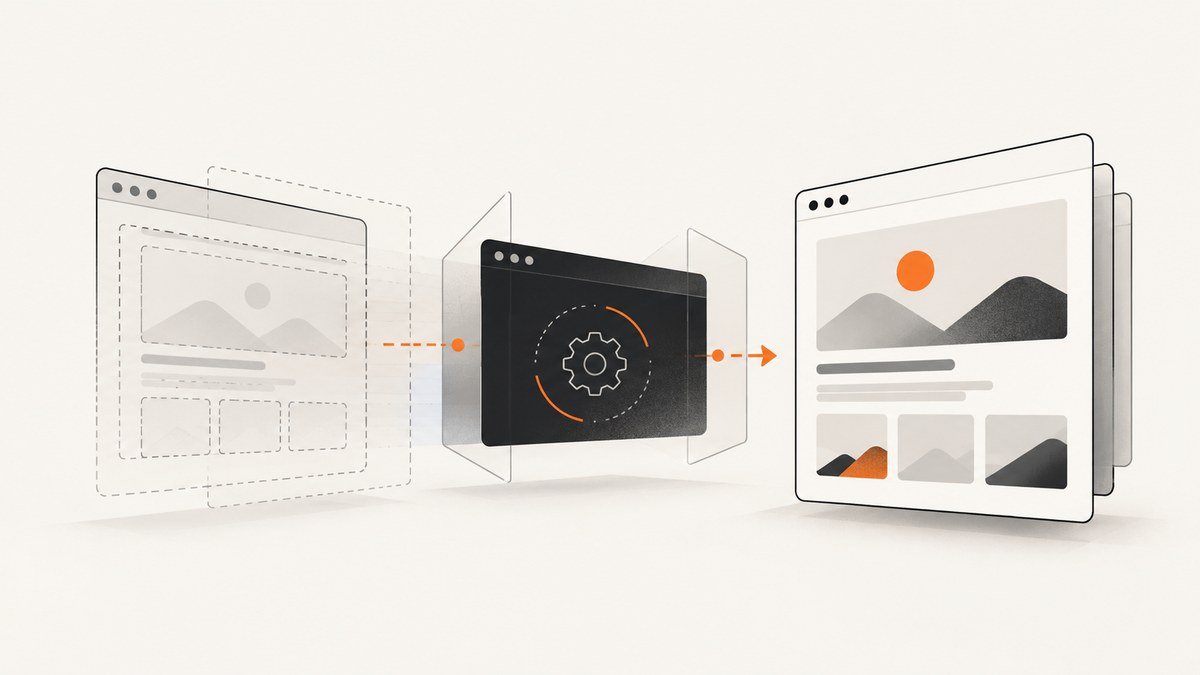
Direct answer: In Katalon Studio, choose Chrome (Headless) as the WebUI execution browser, perform the actions that create the page state you need, then call WebUI.takeScreenshot('path/to/screenshot.png'). Close the browser after the capture. Use the other screenshot keywords when you need the entire page, a rectangle, an element, or a TestOps Vision checkpoint.
import com.kms.katalon.core.webui.keyword.WebUiBuiltInKeywords as WebUI

WebUI.openBrowser('https://example.com')
// Perform navigation, login, clicks, and readiness checks here.
WebUI.takeScreenshot('Screenshots/current-page.png')
WebUI.closeBrowser()
The filename can be an absolute or relative path. If you omit it, Katalon uses its default report location. Save to a directory your CI runner collects as an artifact. The example URL and comment are illustrative; capture only after the asynchronous content and interactions relevant to your test are ready. See Katalon’s WebUI screenshot documentation for the current keyword signature.
1. Configure Katalon to run Chrome Headless
In Katalon Studio, open Project > Settings > Desired Capabilities > WebUI, then configure the Chrome (headless) profile. Desired-capability keys are case-sensitive. Katalon stores the headless Chrome settings in the project’s settings/internal directory, in a file named com.kms.katalon.core.webui.chrome (headless).properties. Labels and locations can change between releases, so check the version of Katalon Studio installed by your team.
- Open the project settings and select the Chrome Headless capability profile.
- Set the viewport and any browser arguments required by your test environment.
- Make sure the Chrome and ChromeDriver major versions are compatible. Selenium’s current Chrome guidance lists
--headless=newamong common arguments; avoid treating an older headless flag as permanent advice. - Run a small WebUI test that opens a deterministic page and writes an image to a known artifact directory.
Chrome can also create a screenshot directly with its command line:
chrome --headless --screenshot --window-size=412,892 https://example.comThis writes screenshot.png in the current working directory. For a Katalon test, prefer WebUI.takeScreenshot because it captures the browser session Katalon already controls, including its current cookies, navigation state, and viewport.
2. Capture the current viewport
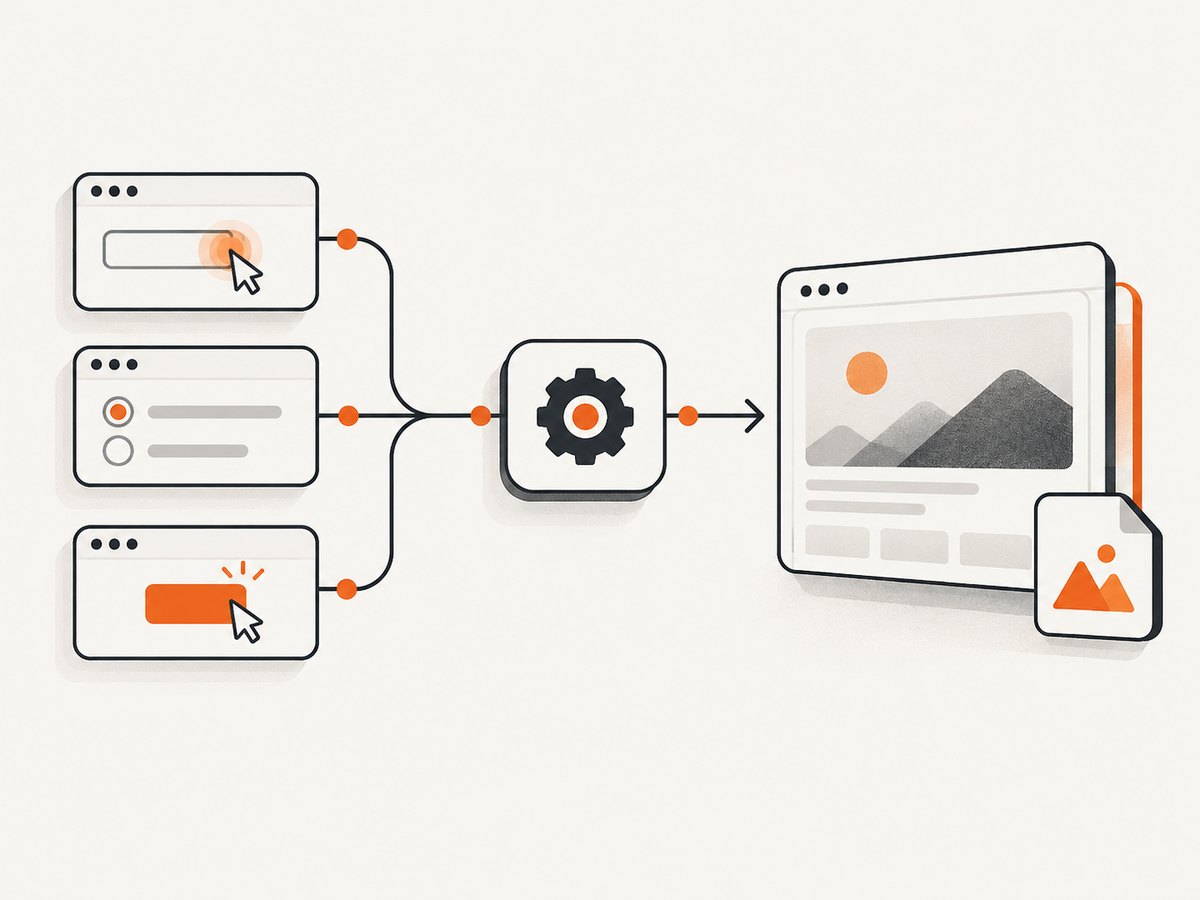
WebUI.takeScreenshot(fileName) captures what is visible in the browser viewport at that moment. It is the right choice for a post-login state, a modal, a validation message, or a viewport-specific visual artifact.
import com.kms.katalon.core.webui.keyword.WebUiBuiltInKeywords as WebUI

WebUI.openBrowser('https://example.com/login')
WebUI.setText(findTestObject('Login/input_username'), 'user@example.com')
WebUI.setEncryptedText(findTestObject('Login/input_password'), 'encrypted-value')
WebUI.click(findTestObject('Login/button_sign_in'))
WebUI.waitForElementVisible(findTestObject('Dashboard/header'), 20)
WebUI.takeScreenshot('artifacts/dashboard-viewport.png')
WebUI.closeBrowser()
A screenshot records the state it sees. It does not wait automatically for every network request, animation, font, or client-side component. Add a readiness condition that matches the application: wait for a key element, wait for a known loading indicator to disappear, or use a deliberate delay when the page has no reliable state marker.
3. Choose the right screenshot scope
| Requirement | Katalon keyword | Notes |
|---|---|---|
| Visible browser screen | WebUI.takeScreenshot(fileName) |
Current viewport; path may be absolute or relative. |
| Entire page, including overflow | WebUI.takeFullPageScreenshot(fileName) |
Scrolls, captures multiple images, and merges them. |
| Rectangle inside viewport | WebUI.takeAreaScreenshot(fileName, rect) |
The rectangle must fit inside the viewport; output is PNG. |
| One test object or element | WebUI.takeElementScreenshot(fileName, to) |
Pass a Katalon TestObject for the target. |
| Viewport TestOps Vision checkpoint | WebUI.takeScreenshotAsCheckpoint(name) |
Uses a checkpoint name, not an ordinary file path. |
| Full-page TestOps Vision checkpoint | WebUI.takeFullPageScreenshotAsCheckpoint(name) |
Scrolls and merges before creating the checkpoint. |
Full-page capture
WebUI.openBrowser('https://example.com/article')
WebUI.waitForElementVisible(findTestObject('Article/title'), 20)
WebUI.takeFullPageScreenshot('artifacts/article-full-page.png')
WebUI.closeBrowser()
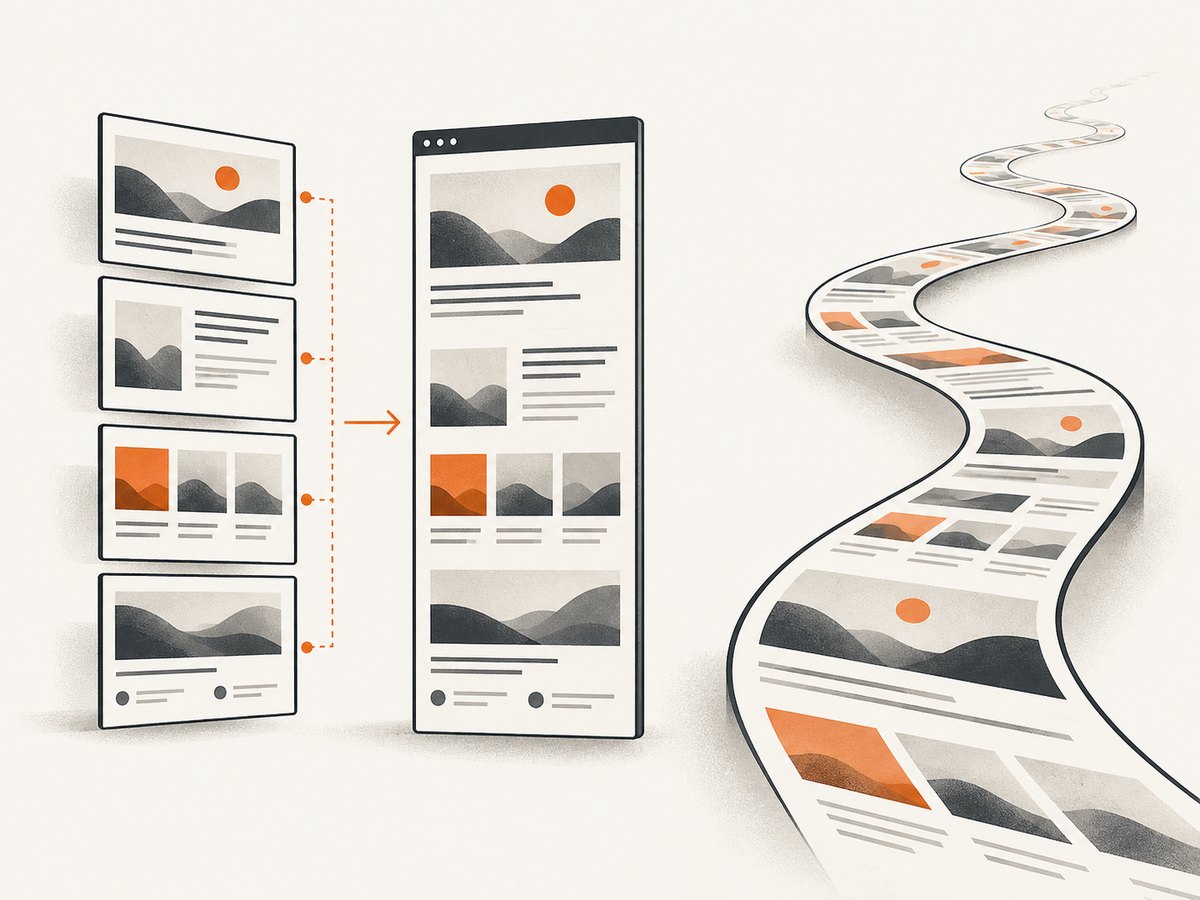
Katalon simulates scrolling and combines the resulting images. Do not use this method on an infinite-scroll page: scrolling can continually load more content, so there may be no stable end. For long but finite pages, wait until lazy-loaded sections are visible or otherwise loaded before capturing.
Area capture
import java.awt.Rectangle

Rectangle area = new Rectangle(40, 120, 900, 500)
WebUI.takeAreaScreenshot('artifacts/hero-area.png', area)
The coordinates describe a rectangle in the viewport. If the rectangle extends beyond the current viewport, move or resize it first. Area screenshots are useful for a chart or a bounded panel when a full viewport image contains unrelated content.
Element capture
def card = findTestObject('Dashboard/revenue_card')
WebUI.waitForElementVisible(card, 20)
WebUI.takeElementScreenshot('artifacts/revenue-card.png', card)
Element capture depends on the test object resolving to the intended element. If a component is rendered more than once, use a stable selector or a parent object that uniquely identifies the target.
4. Make screenshots reproducible in CI
- Use a stable output directory. Relative paths are relative to the execution context, which can differ between a workstation and a CI runner. Save directly into the directory your pipeline archives.
- Keep viewport settings fixed. Resolution changes can create visual differences even when the application is unchanged.
- Control dynamic content. Dates, rotating banners, advertisements, live counters, and random data can change between runs. Hide or stub them where possible.
- Wait for a meaningful state. Prefer a visible element or completed loading state over a guessed sleep duration.
- Make scrollable content visible. A screenshot cannot show content that has not been rendered or is outside the capture scope.
- Check artifact permissions. The account running Katalon must be able to create the directory and write the image.
Katalon notes that resolution differences and dynamic or scrollable content are common causes of visual mismatches. Headless runners can also behave differently from a local desktop when viewport sizing is applied, so verify the actual dimensions in the execution environment.
5. Screenshots versus visual checkpoints
An ordinary screenshot is an image file for debugging, evidence, or an external comparison process. A TestOps Vision checkpoint is part of Katalon’s visual-testing workflow and is named rather than saved with a normal output-path argument. Use takeScreenshotAsCheckpoint for the current viewport and takeFullPageScreenshotAsCheckpoint for a finite page.
Keep capture and comparison separate in your test design. Katalon documents WebUI.verifyImagePresent as unsupported in headless browser mode, so do not rely on that keyword as a headless image-comparison check.
6. Automatic failure screenshots
Katalon can automatically take a screenshot when execution fails. This setting is separate from explicit calls in your test code. You can manage it under Project Settings > Execution. Leave it enabled when failure evidence is useful, or disable it if your pipeline has a different artifact policy. Automatic failure capture does not replace a deliberate screenshot at an important intermediate state.
7. Troubleshooting common failures
The image is blank or captures the loading screen
Cause: The capture runs before the application finishes rendering. Fix: wait for a stable element, wait for a spinner to disappear, and make sure the URL navigation itself has completed. A fixed delay can help with an animation, but a state-based wait is easier to maintain.
The file is missing in CI
Cause: The relative path resolves somewhere other than the artifact directory, or the runner cannot write there. Fix: use an absolute path supplied by the CI job, create the directory before the test, and archive that exact directory. Print the resolved path in the test log when diagnosing a runner-specific issue.
Chrome will not start headless
Cause: Chrome and ChromeDriver major versions do not match, or the runner lacks the required browser dependencies. Fix: inspect both versions, follow the current Selenium and Katalon compatibility guidance, and use the headless argument supported by the installed release. Do not copy a flag from an older environment without checking its version.
The full-page image never stabilizes
Cause: The page uses infinite scrolling or loads more records whenever the viewport reaches the bottom. Fix: use a viewport, area, or element screenshot; configure the application to show a finite fixture; or capture a known set of sections individually.
The screenshot differs between local and CI
Cause: Different viewport dimensions, fonts, device scale, browser versions, time zones, or dynamic content. Fix: pin the browser environment, set the viewport explicitly, use deterministic test data, and compare images only after the page reaches the same state.
An element screenshot captures the wrong object
Cause: A selector matches multiple elements or the object resolves before the component is mounted. Fix: make the selector unique, wait for visibility, and confirm that the object’s parent and index are correct.
8. Performance, reliability, and cost considerations
Viewport and element captures generally involve less work than a full-page capture because full-page mode scrolls and merges multiple images. Keep full-page screenshots for cases that need them, especially on pages with large images or many lazy-loaded sections. Capturing only the relevant element also reduces artifact size and makes review faster.
Reliability improves when the test controls its inputs: use stable fixtures, wait on application state, keep browser versions aligned, and write to a predictable directory. Treat screenshots as artifacts with a retention policy; large full-page images can accumulate quickly in CI storage even when the browser test itself is inexpensive.
Or skip the browser setup
If you need a clean screenshot from a URL rather than evidence from an existing Katalon session, ScreenshotNeo provides a single GET request that returns PNG, JPEG, WebP, or PDF. Read the complete option reference in the ScreenshotNeo API documentation.
curl -G "https://api.screenshotneo.com/v1/shot" -d access_key=YOUR_API_KEY --data-urlencode url=https://stripe.com -o shot.webpimport requests
r = requests.get("https://api.screenshotneo.com/v1/shot", params={"access_key": "YOUR_API_KEY", "url": "https://stripe.com"}, timeout=90)
open("shot.webp", "wb").write(r.content)const q = new URLSearchParams({ access_key: 'YOUR_API_KEY', url: 'https://stripe.com' });
const res = await fetch(`https://api.screenshotneo.com/v1/shot?${q}`);ScreenshotNeo accepts cookie and consent banners before capture and removes more than 60 known consent platforms, newsletter popups, and chat widgets. Bot checks, blank pages, timeouts, failed loads, and cache hits cost nothing, and response headers identify the page verdict and whether the request was billed. It also includes an MCP server with take_screenshot, get_page_info, and capture_pdf tools for Claude, Cursor, and other MCP clients.
The Free plan includes 1,000 screenshots each month with no card. Paid plans start at $5 for 3,000 screenshots; every feature is available on every plan. Create a free ScreenshotNeo account.
9. Katalon headless screenshot checklist
- Select Chrome (Headless) in the WebUI execution settings.
- Confirm Chrome and ChromeDriver compatibility.
- Set a fixed viewport and deterministic test data.
- Navigate and perform the actions that create the state to capture.
- Wait for a meaningful readiness condition.
- Choose viewport, full-page, area, element, or checkpoint scope.
- Write to a CI artifact directory.
- Close the browser after the capture.
- For visual testing, use TestOps checkpoint keywords instead of treating a file capture as a checkpoint.
- Do not use
verifyImagePresentas a headless image comparison.
FAQ
Can I save a Katalon screenshot as JPEG?
The documented Katalon screenshot keywords save PNG output. Convert the file in a later pipeline step if another format is required.
Does headless mode change the screenshot keyword?
No. Configure the browser as Chrome (Headless), then use the same WebUI screenshot keywords in the test.
Should I use Chrome’s --screenshot flag in Katalon?
Usually no. The command-line flag is useful for a standalone browser check, while Katalon’s keyword captures the session already controlled by the WebUI test.
When should I choose a full-page screenshot?
Choose it for a finite page whose overflow matters. Use a viewport or element capture for infinite-scroll pages and interactive states.
Can ScreenshotNeo capture a Katalon-only state?
No. ScreenshotNeo captures a URL request. Use Katalon when the screenshot depends on actions and session state already created inside the test; use ScreenshotNeo when a clean URL-based capture is sufficient.


