How to Keep Cookie Banners from Covering Automated Screenshots
Choose whether to test consent, returning visitors, or a clean visual capture. Then use scoped Playwright CSS and controlled page state to get the screenshot you actually need.

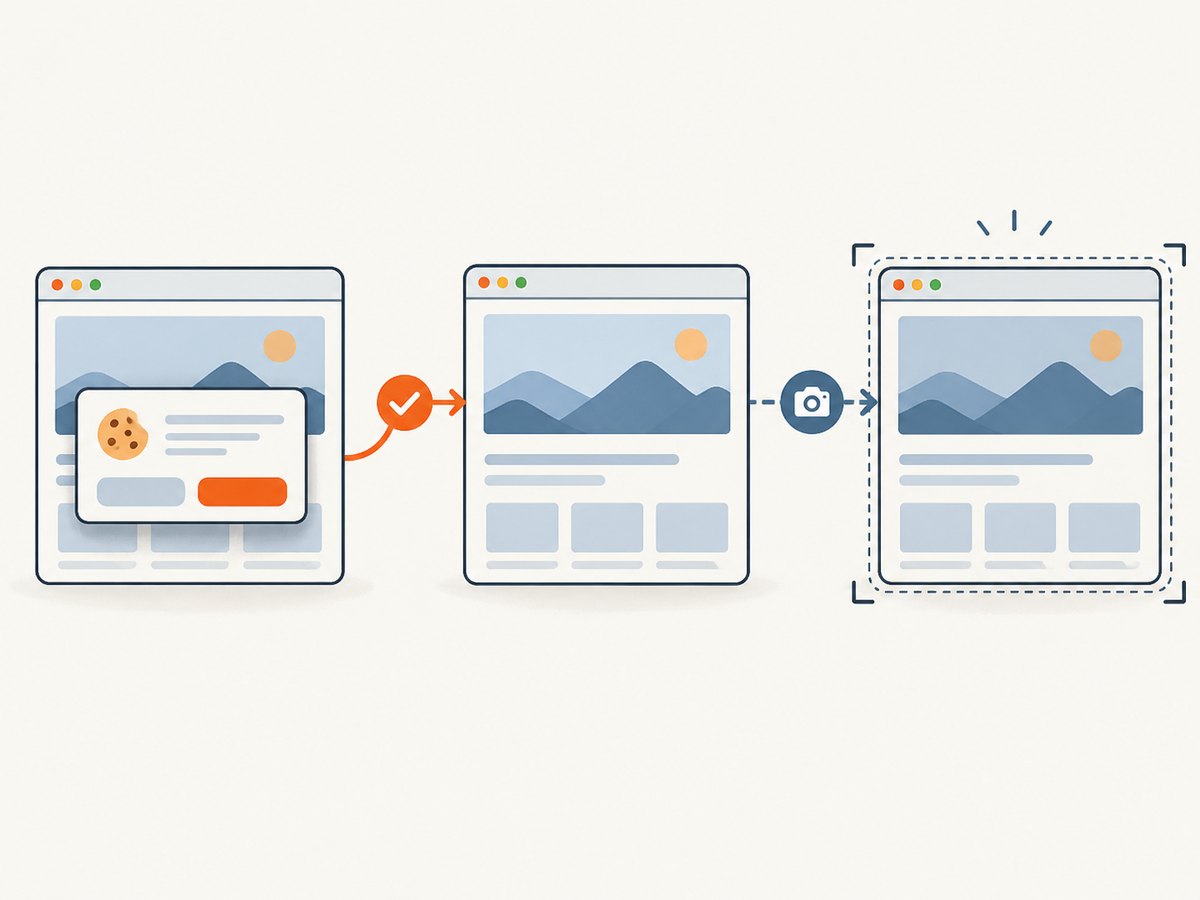
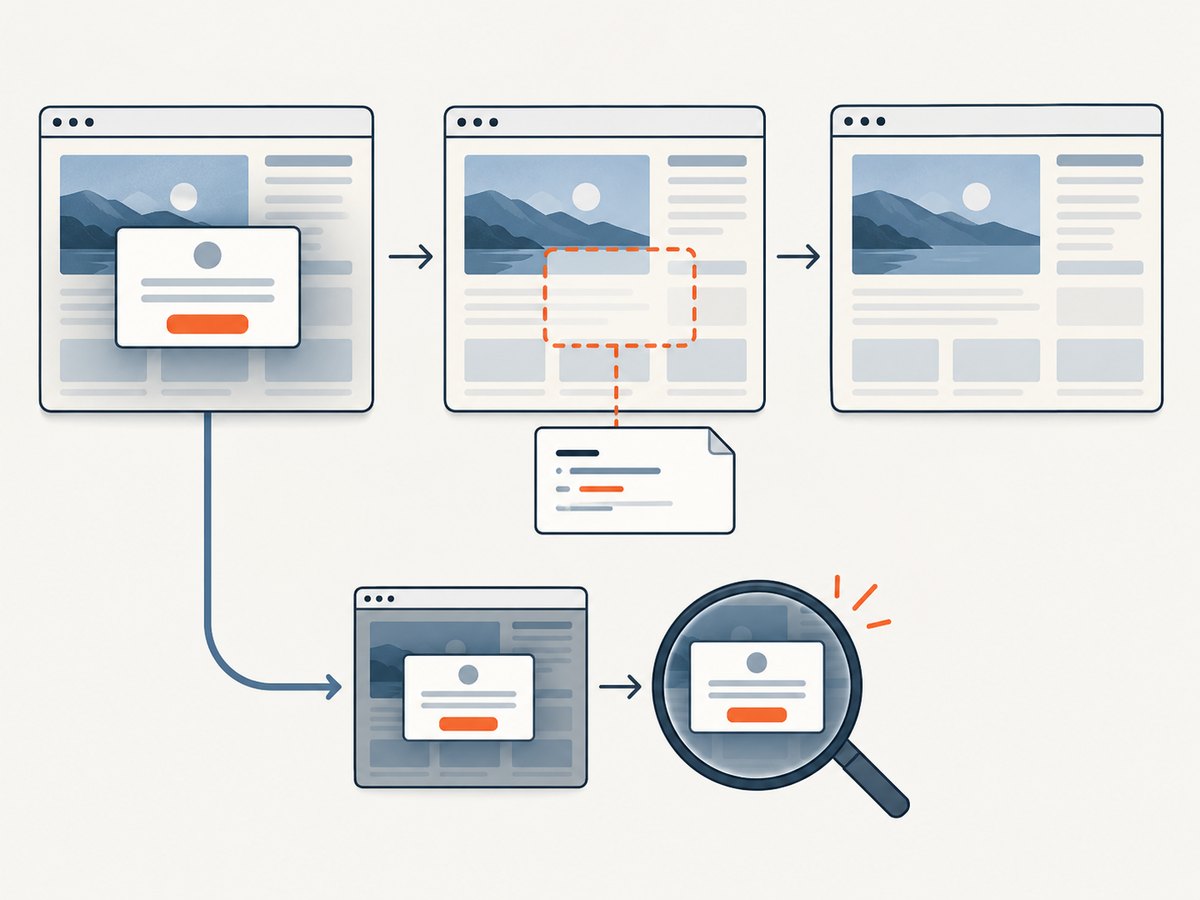
A cookie banner covering an automated screenshot is not always a bug. First decide what the image is meant to prove: the first-visit consent experience, a returning visitor’s consent state, or the page’s visual content without an overlay. For a visual-only capture, use narrowly scoped CSS at screenshot time. For a returning visitor test, exercise or establish the intended consent state and verify the page afterward. Keep the banner visible when testing the consent interface itself.
In Playwright, pass the screenshot option style with CSS that targets the site’s specific consent component. This affects the screenshot pixels only; it does not accept cookies or prove that consent was given. The Playwright Page API documents screenshot styles for hiding dynamic elements and says the stylesheet pierces Shadow DOM and inner frames.
1. Choose the behavior the screenshot should represent
Before changing the page, write down the scenario. The right fix depends on whether the banner is part of the expected result.
| Screenshot goal | What to do | What to assert |
|---|---|---|
| First visit or consent UI test | Leave the banner in place. Use a clean first-visit context or fixture. | The banner and its controls are visible and usable. |
| Returning visitor | Use the intended consent flow or a controlled fixture representing the approved state. | The application reached the expected state after that setup. |
| Visual capture of page content | Apply screenshot-only CSS to the known banner selector. | The intended content is captured; document that the banner was visually omitted. |
| Visual comparison with a changing overlay | Mask its location only if a visibly marked region is acceptable. | The mask does not hide a page change you need to detect. |
These cases are not interchangeable. Hiding an element in an image is not consent. Clicking “accept” may alter storage, cookies, or application behavior, so it is appropriate only when the returning-state scenario requires that interaction. The official references do not define a universal consent selector or state recipe; consent managers and site integrations differ.
2. Hide a known banner for one Playwright screenshot
Use a stable selector supplied by your application or consent integration. The example assumes the page has an element marked data-testid="consent-banner". Replace it with the selector that actually identifies your component.
import { test, expect } from '@playwright/test';

test('captures the article without the consent overlay', async ({ page }) => {
  await page.setViewportSize({ width: 1440, height: 900 });
  await page.goto('https://example.com/article', { waitUntil: 'domcontentloaded' });
  await page.locator('main').waitFor({ state: 'visible' });

  await page.screenshot({
    path: 'article.png',
    fullPage: true,
    animations: 'disabled',
    style: '[data-testid="consent-banner"] { display: none !important; }',
  });
});
The style rule applies during the screenshot. It is useful for transient visual cleanup because the page does not need to be permanently changed. Keep the selector narrow: a generic rule matching every class containing “cookie” may also hide article content, preference controls, or unrelated components. If the consent UI is rendered inside Shadow DOM or a frame, Playwright’s documented capture style can reach those contexts; still confirm that your selector identifies only the intended element.
If the site has no stable test identifier, inspect its rendered DOM and choose a specific element or an accessible/test hook you can maintain. Avoid relying on a generated class name when the application can provide a stable attribute. Treat selector maintenance as part of the test: consent manager markup can change over time.
Run it
With Playwright Test installed and configured in the project, save the example as a test file and run:
npx playwright testThe test produces article.png. For a first-visit test, write a separate test without the screenshot style and assert that the consent banner is visible. That preserves coverage of the interface while allowing a clean visual capture for another purpose.
3. Preserve consent state when testing a returning visitor
When the scenario is “a visitor has made a choice,” use the consent interface or a controlled test fixture that establishes the application’s documented state. Then verify the result by checking the page behavior or UI that represents that state. Do not remove the banner with CSS and label the result an accepted-consent screenshot.
A reliable test separates setup from observation:
- Start from a known browser context so prior runs do not silently carry over state.
- For an interaction test, locate the actual consent control by role and accessible name, perform the user action, and wait for the resulting UI or page state.
- For a fixture-based returning state, use the application’s own supported test setup rather than inventing a generic cookie name or value.
- Capture the screenshot only after the expected state is visible, and assert that state independently.
For example, the interaction step should use the actual accessible name in your application:
await page.getByRole('button', { name: 'Accept all' }).click();
await expect(page.getByTestId('consent-banner')).toBeHidden();
await expect(page.getByTestId('privacy-status')).toHaveText('Preferences saved');
await page.screenshot({ path: 'returning-state.png' });
The labels and test IDs above are examples; use the ones your site exposes. Some interfaces close the banner without showing a status element, so assert the meaningful application state available to your test. Do not assume that a hidden banner alone proves that preferences were saved.
4. Masking is different from removing the banner
Playwright’s screenshot masking option covers matching locator bounding boxes with a mask color. This can help with dynamic values in a visual comparison when you want to mark the unstable area. It does not make the banner disappear transparently, and the underlying page content may be covered too. See the Page API screenshot options for the documented behavior.
await page.screenshot({
  path: 'masked.png',
  mask: [page.getByTestId('consent-banner')],
  maskColor: '#FF00FF',
});
Use masking when the marked region is acceptable to reviewers and the contents underneath are irrelevant. Use capture-time CSS when the goal is to see page content without that overlay. Use actual consent setup when the state itself matters.
5. Puppeteer and other capture workflows
Puppeteer supports page screenshots and element screenshots. Its screenshots guide documents those capture modes and notes that ElementHandle.screenshot() attempts to scroll a hidden element into view. The cited guide does not document a cookie-banner-specific hide option. For a Puppeteer workflow, establish the intended site state or apply a narrowly scoped DOM/style change for the capture, then verify that the result matches the scenario.
import puppeteer from 'puppeteer';

const browser = await puppeteer.launch({ headless: true });
try {
  const page = await browser.newPage({ viewport: { width: 1440, height: 900 } });
  await page.goto('https://example.com/article', { waitUntil: 'domcontentloaded' });
  await page.addStyleTag({
    content: '[data-testid="consent-banner"] { display: none !important; }',
  });
  await page.screenshot({ path: 'article.png', fullPage: true });
} finally {
  await browser.close();
}
This example adds CSS to the page before capture, so it changes the page rendering in that browser session. If you need to test consent behavior, do not apply that rule; exercise the intended flow instead. Verify how the specific component is rendered, especially if it uses a frame or shadow root, before depending on a page-level style injection.
6. Make screenshots repeatable
Banner handling is only one part of screenshot stability. Fix the viewport, control the relevant page state, wait for the content you need, and decide how to handle animation and changing data. Playwright Test documents screenshot capture and assertions, full-page options, and reduced-motion emulation in its TestOptions API.
- Viewport: set width and height explicitly. A responsive consent banner may change shape or cover a different region at another size.
- Readiness: wait for a meaningful selector or page condition.
domcontentloadedonly establishes a document lifecycle milestone; it does not guarantee that application data, fonts, or images are ready. - Animations: disable or reduce motion for visual assertions when movement is irrelevant. Keep motion enabled when animation is the subject of the test.
- Full page versus viewport: full-page capture can include content below the fold, while a fixed consent overlay is often positioned relative to the viewport. Check the resulting image at the chosen mode.
- Dynamic content: freeze test data or mask intentionally variable regions. Avoid hiding large areas that might contain regressions.
- Browser context: use a known context and explicit state setup so a prior run does not change whether the banner appears.
A useful pattern is to make the expected state explicit, wait for it, and then capture. Avoid using a long fixed sleep as a substitute for a readiness condition: it makes the test slower while still failing when load time varies beyond the chosen delay.
7. Troubleshooting common failures
| Symptom | Likely cause | Fix |
|---|---|---|
| The banner still appears | The selector does not match the rendered element, or the banner is inserted after the screenshot rule’s relevant state. | Inspect the live DOM, use a stable component selector, and wait for the component or intended page readiness before capture. |
| Unrelated content disappears | The CSS selector is too broad. | Target the banner root with a specific test hook or stable component identifier; remove rules based on generic class fragments. |
| The screenshot is clean, but the test claims consent | Capture-only CSS was mistaken for an interaction. | Use the consent flow or a controlled application fixture and assert the resulting state separately. |
| The mask hides page content | The banner occupies the same pixels as the content beneath it. | Use capture-time styling if omission is intended, or preserve the mask if reviewers should see the excluded region. |
| The banner appears only on some runs | Browser state is carrying over, or the test starts from inconsistent storage/context state. | Use a fresh, controlled context or explicit application-supported state setup for each scenario. |
| Visual diffs change despite the same banner rule | Viewport, motion, fonts, images, or dynamic page content differs. | Control viewport and readiness, stabilize test data, and configure motion behavior to match the assertion. |
| The style has no effect inside an embedded consent UI | The component may live in an isolated frame or use rendering behavior the chosen injection does not reach. | Inspect its structure. Playwright screenshot style documents support for inner frames and Shadow DOM; for other workflows, verify the mechanism against the page before relying on it. |
8. Performance, reliability, and cost
A capture-time CSS rule is a small addition to an existing Playwright screenshot and avoids a separate consent click when the scenario is strictly visual. The bigger reliability costs usually come from uncontrolled state, waiting for the wrong readiness signal, unstable content, or brittle selectors. Keep the first-visit interface test and the clean visual capture separate so each has a clear purpose.
For CI, make failures diagnosable: retain the screenshot and relevant test output, keep selector names stable, and assert the expected banner or post-consent state before capture. Do not broaden request blocking as a shortcut for consent handling; blocking resources can change page behavior and does not establish a consent state.
Browser automation has an infrastructure cost: the browser, dependencies, and execution time run in your environment. If you need hosted captures rather than browser setup, account for volume and failure handling. ScreenshotNeo’s stated billing rule is that clean shots are billed; bot checks/CAPTCHAs, blank pages, timeouts, failed loads, and cache hits cost nothing, and responses identify the outcome in X-Page-Verdict and X-Billed headers. Its plans are Free: 1,000 shots/month; Starter: $5 for 3,000; Growth: $15 for 15,000; Pro: $39 for 60,000; Scale: $99 for 250,000; Business: $249 for 1,000,000. Yearly billing gives two months free. Every feature is on every plan. Treat the API as a visual-capture option, not as a replacement for tests that must prove a user’s consent interaction.
9. Or skip the browser setup
ScreenshotNeo is a website screenshot API and MCP server for developers. Send one GET request with a URL to get a PNG, JPEG, WebP, or PDF. For a clean visual shot, it accepts the cookie or consent banner like a visitor and removes 60+ known consent platforms, newsletter popups, and chat widgets before capture; each step can be turned off. It also supports full-page capture, custom CSS and JavaScript, selector capture, device and viewport options, waits, and more. See the ScreenshotNeo API documentation for request options.
curl -G "https://api.screenshotneo.com/v1/shot" -d access_key=YOUR_API_KEY --data-urlencode url=https://stripe.com -o shot.webpimport requests
r = requests.get(
"https://api.screenshotneo.com/v1/shot",
params={"access_key": "YOUR_API_KEY", "url": "https://stripe.com"},
timeout=90,
)
open("shot.webp", "wb").write(r.content)const q = new URLSearchParams({ access_key: 'YOUR_API_KEY', url: 'https://stripe.com' });
const res = await fetch(`https://api.screenshotneo.com/v1/shot?${q}`);
if (!res.ok) throw new Error(`Screenshot request failed: ${res.status}`);
await Bun.write('shot.webp', res);Cookie banners, popups, and chat widgets are removed before the shot. Bot checks, blank pages, and failed loads are never billed. An MCP server lets AI agents take screenshots with Claude, Cursor, or any MCP client. The free plan includes 1,000 screenshots a month with no card; paid plans start at $5 for 3,000. Try ScreenshotNeo by creating a free account.
10. FAQ
Should I click accept before taking the screenshot?
Only if the test is meant to represent a visitor accepting consent. For first-visit coverage, leave the banner visible and assert its controls.
Can I hide every element with “cookie” in its class?
A broad selector can hide unrelated content. Identify the consent component specifically and keep the rule scoped to its root.
Does a clean screenshot prove consent was stored?
No. Capture styling changes the image. Verify consent through the intended interaction or a controlled state and assert the resulting application behavior.
Can I use a full-page screenshot?
Yes. Playwright supports full-page capture. Check the output at the selected viewport and capture mode because fixed overlays and responsive layouts may behave differently.


