How to Keep iText HTML-to-PDF Content Within the Document Page
Fix iText HTML-to-PDF overflow by choosing the right page size, wrapping long content, and scaling pages safely when dimensions are fixed.

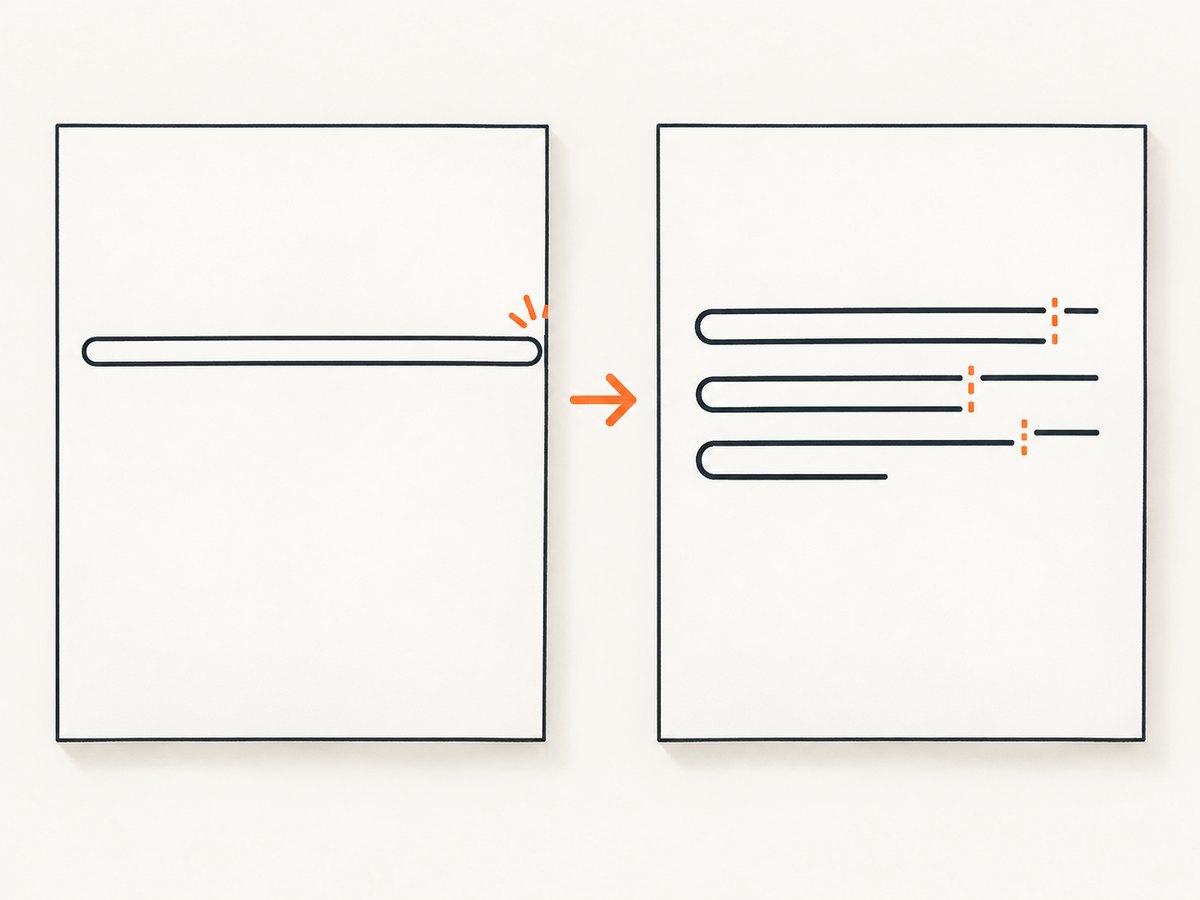
Direct answer: first determine whether the entire rendered layout is larger than the PDF page or whether one element is escaping its own box. If the whole layout is too large, iText’s documented solution is to render onto a sufficiently large intermediate page, copy each page as a form XObject, scale it, and place it on the required page size. If only text runs overflow, use supported wrapping rules such as overflow-wrap or word-break. Do not expect CSS overflow to automatically solve pagination: pdfHTML support is partial and version-specific.
1. Identify the kind of overflow
| Symptom | Likely cause | First action |
|---|---|---|
| Everything is clipped or extends beyond the right/bottom edge | HTML layout is larger than the selected PDF page | Change page geometry, or use the scale-and-place workflow |
| One long URL, identifier, or word crosses a box | No legal break opportunity in the text | Test overflow-wrap or word-break |
| Images or tables escape their container | Intrinsic width, fixed dimensions, or unsupported CSS | Constrain dimensions and verify pdfHTML support |
| Unexpected page breaks or a layout loop | Pagination rules or a version-specific defect | Reduce the case and compare your pdfHTML version with release notes |
The iText Knowledge Base describes the page-size failure as content overlapping or rendering off the page: scaling large HTML content onto smaller PDF page sizes.
2. Use a page size that fits when you can
Changing the PDF page size is the simplest documented option when the output format permits it. Set the desired size with CSS:
<style>
  @page { size: A3 landscape; margin: 12mm; }
  html, body { margin: 0; }
  img, table { max-width: 100%; }
</style>
You can also use a custom size in millimetres. Leave enough space for margins, headers, and footers; the usable content box is smaller than the physical page.
3. Scale an oversized layout onto a fixed page
When the final page must be A4 (or another fixed size), render the HTML on a larger intermediate page and then place each intermediate page onto the final document. The scale factor and offsets depend on the actual content bounds and margins. The values in iText’s example, such as a coefficient of 0.4 and offsets of 6, 350, are example parameters, not universal settings.

Complete Java example
import com.itextpdf.html2pdf.HtmlConverter;
import com.itextpdf.html2pdf.ConverterProperties;
import com.itextpdf.kernel.geom.PageSize;
import com.itextpdf.kernel.pdf.PdfDocument;
import com.itextpdf.kernel.pdf.PdfReader;
import com.itextpdf.kernel.pdf.PdfWriter;
import com.itextpdf.kernel.pdf.PdfPage;
import com.itextpdf.kernel.pdf.xobject.PdfFormXObject;
import com.itextpdf.kernel.pdf.canvas.PdfCanvas;

import java.io.FileInputStream;
import java.io.FileOutputStream;

public class FitHtmlToPage {
    public static void main(String[] args) throws Exception {
        String html = "input.html";
        String intermediate = "intermediate-a3.pdf";
        String output = "output-a4.pdf";

        // 1. Render on a page large enough for the intended layout.
        try (PdfWriter writer = new PdfWriter(intermediate);
             PdfDocument largePdf = new PdfDocument(writer)) {
            largePdf.setDefaultPageSize(PageSize.A3);
            ConverterProperties properties = new ConverterProperties();
            HtmlConverter.convertToDocument(new FileInputStream(html), largePdf, properties).close();
        }

        // 2. Copy and scale every intermediate page onto the fixed target page.
        float scale = 0.70f; // Calculate from your content and target dimensions.
        float translateX = 20f;
        float translateY = 20f;

        try (PdfDocument source = new PdfDocument(new PdfReader(intermediate));
             PdfDocument target = new PdfDocument(new PdfWriter(output))) {
            for (int pageNumber = 1; pageNumber <= source.getNumberOfPages(); pageNumber++) {
                PdfPage sourcePage = source.getPage(pageNumber);
                PdfFormXObject form = sourcePage.copyAsFormXObject(target);
                PdfPage targetPage = target.addNewPage(PageSize.A4);
                PdfCanvas canvas = new PdfCanvas(targetPage);
                canvas.addXObjectWithTransformationMatrix(
                    form, scale, 0, 0, scale, translateX, translateY
                );
            }
        }
    }
}
Use the same iText Core and pdfHTML versions in your build. If the scaled result is too small, increase the target page size, reduce margins in the HTML, or split the source into intentional sections instead of applying an aggressive scale.
Computing a scale factor
If the intermediate content width is Wc and the usable target width is Wt, start with scale = Wt / Wc. Do the same for height when the content must fit vertically, then use the smaller value:
scale = min(Wt / Wc, Ht / Hc)Measure the content bounds after conversion when possible. Do not assume the CSS viewport width equals the PDF content width; margins, borders, and generated boxes affect the result.
4. Make long text break safely
iText documents overflow-wrap and word-break as the controls for breaking long text. With normal, natural word boundaries are preserved and an unbroken word may overflow. Values such as break-word or anywhere allow breaks inside long tokens.
.untrusted-text,
.url,
.hash,
.identifier {
  overflow-wrap: anywhere;
  word-break: break-word;
}

/* Keep normal prose readable. */
p { overflow-wrap: normal; }
Choose the least aggressive rule that handles your data. Breaking every word can make invoices, code listings, and addresses harder to read.
5. Constrain images, tables, and positioned elements
img, svg, video {
  max-width: 100%;
  height: auto;
}

table {
  width: 100%;
  table-layout: fixed;
  border-collapse: collapse;
}

td, th {
  overflow-wrap: anywhere;
  vertical-align: top;
}

/* Prefer normal flow over coordinates that can leave the page. */
.card { position: static; }
For a table that is genuinely wider than the page, choose a wider page, rotate to landscape, split the table, or scale the page. A CSS declaration cannot create readable space that does not exist.
6. Pagination rules and version support
The pdfHTML feature matrix is version-specific; its stated baseline is pdfHTML 6.3.3 with iText Core 9.7.0. It lists @page sizing and the legacy page-break-before, page-break-after, and page-break-inside properties. It marks overflow as only partially supported and lists newer break-before, break-after, and break-inside as unsupported in that matrix. Check the current iText documentation and feature matrix for the exact dependency you deploy.
.chapter { page-break-before: always; }
.keep-together { page-break-inside: avoid; }
Do not assume browser CSS behavior carries over unchanged to pdfHTML. Build a small reproduction using your installed version.
7. Recommended troubleshooting sequence
- Record geometry. Write down the target page width, height, orientation, and margins.
- Classify the boundary. Decide whether the whole page is too small or one element is escaping its box.
- Try a matching page size. If the format allows it, this is the simplest fix.
- Apply wrapping for text. Test
overflow-wrapandword-breakon the specific selector. - Use scale-and-place for a fixed page. Render large, copy as form XObjects, scale, and place.
- Check supported CSS. Compare your version with the feature matrix before relying on
overflowor modern fragmentation properties. - Reduce the reproduction. Remove external assets, scripts, and sections until the offending element is isolated.
- Inspect the PDF output. Check page boxes and rendered pages, not just the source HTML.
| Error or symptom | Cause | Fix |
|---|---|---|
| Right edge clipped | Content width exceeds usable page width | Reduce margins, widen the page, constrain children, or scale the page |
| Bottom content missing | Fixed-height container or page-size mismatch | Remove fixed heights, allow pagination, or use intermediate-page scaling |
| Long URL overflows | No break opportunity | Apply overflow-wrap: anywhere or a suitable word-break value |
overflow: hidden has no effect |
Partial pdfHTML support or wrong boundary | Use page geometry, wrapping, or scaling; verify the version matrix |
| Table will not stay together | Pagination behavior depends on version and table structure | Test page-break-inside: avoid, simplify the table, and check release notes |
| Infinite layout loop | Known pagination edge case in some versions | Upgrade or compare with the pdfHTML 6.3.1 release note, then test a reduced case |
| Scaled output is unreadably small | Intermediate content is much larger than the target page | Use a larger final page, split content, or redesign the layout |
pdfHTML 6.3.1 release notes record fixes for inconsistent page-break-inside: avoid handling in HTML tables and an infinite keep-together/list loop reported around 960–970px. Treat that range as a description of the reported case, not a general product limit.
8. Performance, reliability, and cost considerations
- Performance: scale-and-place performs two PDF stages and uses additional I/O. Keep the intermediate file on fast local storage and remove it after success.
- Memory: very large pages, high-resolution images, and many embedded fonts increase memory use. Downsample source images before conversion when print resolution allows.
- Reliability: pin iText Core and pdfHTML versions, keep a reduced regression HTML file, and compare output after upgrades.
- Determinism: external fonts, remote images, JavaScript, and network resources can change layout. Bundle required assets or control their availability.
- Cost: the conversion itself has no universal cost figure in the cited sources. Your infrastructure cost is driven by CPU, memory, storage, and any commercial iText licensing terms that apply to your deployment.
9. Validate before shipping
- Open the PDF and verify every page’s media box and crop box.
- Check the widest table, longest token, largest image, header, footer, and generated page number.
- Test portrait and landscape if either is supported.
- Test with real multilingual text and unbroken identifiers.
- Compare a normal case, an oversized case, and a failure case in automated regression output.
Or skip the browser setup
If you need a clean visual capture of the HTML page or a PDF without maintaining browser automation, ScreenshotNeo provides a single GET request. See the ScreenshotNeo API documentation.
curl -G "https://api.screenshotneo.com/v1/shot" -d access_key=YOUR_API_KEY --data-urlencode url=https://stripe.com -o shot.webpimport requests
r = requests.get("https://api.screenshotneo.com/v1/shot", params={"access_key": "YOUR_API_KEY", "url": "https://stripe.com"}, timeout=90)
open("shot.webp", "wb").write(r.content)const q = new URLSearchParams({ access_key: 'YOUR_API_KEY', url: 'https://stripe.com' });
const res = await fetch(`https://api.screenshotneo.com/v1/shot?${q}`);Cookie banners, newsletter popups, and chat widgets are removed before the shot. Bot checks, blank pages, timeouts, failed loads, and cache hits are not billed, and response headers report the page verdict and billing result. An MCP server lets AI agents use take_screenshot, get_page_info, and capture_pdf. The Free plan includes 1,000 screenshots each month with no card; paid plans start at $5 for 3,000 shots. Create a free ScreenshotNeo account.
FAQ
Should I always scale the PDF?
No. If the output format can change, matching the page size to the HTML is simpler and usually more readable. Scale only when the final page dimensions are fixed or when a controlled thumbnail-like result is acceptable.
Can CSS overflow: auto create a scrollable PDF area?
No. A PDF page has no browser scroll viewport. pdfHTML lists overflow support as partial, so use page geometry, wrapping, or explicit scaling.
Why does a browser preview fit while the PDF does not?
Browser layout and pdfHTML support different CSS features and pagination rules. Compare the exact pdfHTML version and avoid relying on unsupported fragmentation behavior.
How do I handle a single enormous token?
Apply a targeted overflow-wrap or word-break rule, then test the language and typography you need. Breaking only the affected field preserves normal prose.
Where should I start when a table disappears?
Check its computed width, fixed heights, nested content, and page-break-inside behavior. Reduce it to one table and compare your dependency version with the relevant release notes.


