How to Add Page Breaks in PDFs Generated with KnpSnappy
Add reliable page breaks to KnpSnappy PDFs with CSS, fix ignored rules, keep content together, and troubleshoot wkhtmltopdf layouts.
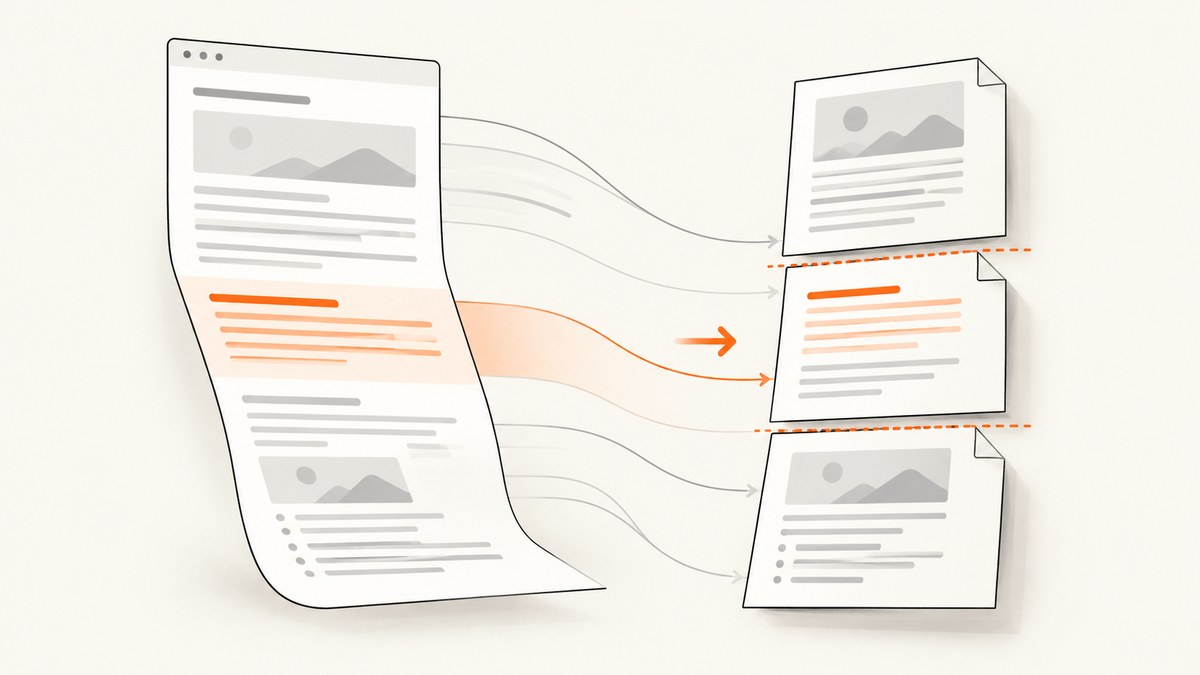
Direct answer: KnpSnappy sends your HTML to wkhtmltopdf. To start selected content on a new PDF page, put page-break-before: always on a block-level element in normal document flow, or put page-break-after: always on the preceding block. A reusable class is usually easiest to maintain:
<div class="page-break"></div>
<section class="invoice-section">
  <h2>Payment details</h2>
  <p>This section starts on a new page.</p>
</section>
@media print {
.page-break {
page-break-before: always;
}
}The same rule can be placed directly on .invoice-section. If the break appears to be ignored, check that the element is not inside a floated layout, that print CSS is present in the generated HTML, and that you are inspecting the PDF rather than the browser preview.
How KnpSnappy page breaks work
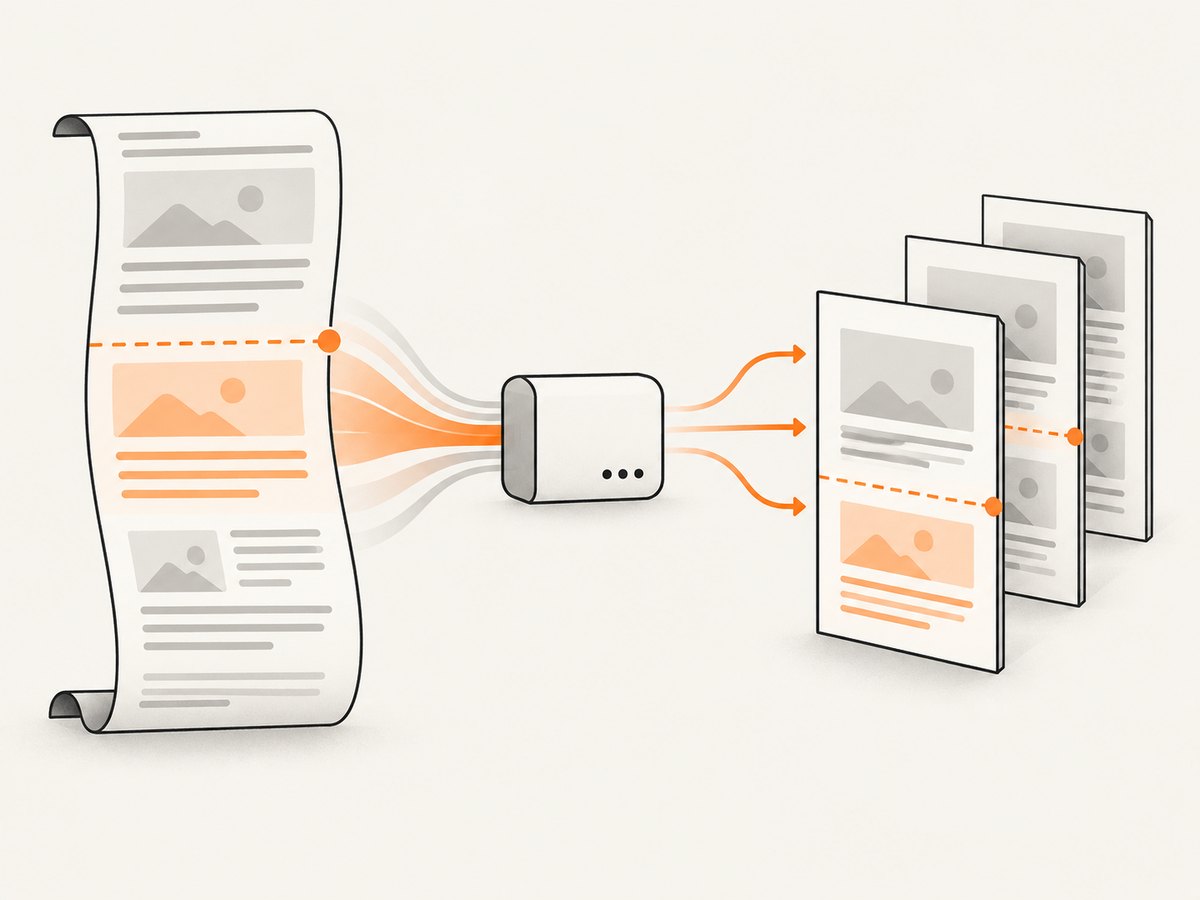
KnpSnappy is a PHP wrapper around wkhtmltopdf. wkhtmltopdf converts an HTML document into a paged PDF and exposes options for paper size, margins and orientation in its usage documentation. CSS paged-media rules determine where the content can split. The CSS 2.2 specification defines always as a forced break and avoid as a request to avoid a break at a location. See the W3C CSS 2.2 paged-media rules and wkhtmltopdf usage options.
A forced break only has an effect where the renderer can create a page boundary. It should be attached to a block box that participates in normal flow. Inline elements, absolutely positioned elements and complex table layouts can produce results that differ from what you see in a browser.
Three reliable ways to force a new page
1. Break before the next section
@media print {
  .start-new-page {
    page-break-before: always;
  }
}
<section class="start-new-page">
  <h2>Terms and conditions</h2>
  ...
</section>
This makes the intent obvious: the section following the class begins on a new page. It is useful when sections are generated in a loop and each item decides whether it needs a break.
2. Break after the preceding section
@media print {
  .finish-page {
    page-break-after: always;
  }
}
<section class="finish-page">
  <h2>Summary</h2>
  ...
</section>
<section>
  <h2>Appendix</h2>
  ...
</section>
This is convenient when the preceding component owns the pagination decision. Do not apply both before and after to adjacent elements unless you have a specific reason; it makes the layout harder to reason about.
3. Use a dedicated break element
@media print {
  .page-break {
    display: block;
    page-break-before: always;
  }
}
<div class="page-break" aria-hidden="true"></div>A dedicated element is easy to insert between records, invoices or chapters. Keep it in normal flow. Avoid putting it inside a floated wrapper or an absolutely positioned container.
A complete KnpSnappy example
The following example renders a PHP template and writes a PDF. Adjust the wkhtmltopdf binary path for your deployment and verify the API for the KnpSnappy version installed in your project.
<?php

require __DIR__ . '/vendor/autoload.php';

use Knp\Snappy\Pdf;

$snappy = new Pdf('/usr/local/bin/wkhtmltopdf');

$html = <<<'HTML'
<!doctype html>
<html>
<head>
  <meta charset="utf-8">
  <style>
    @page {
      size: A4;
      margin: 18mm 16mm 20mm;
    }

    body {
      font-family: Arial, sans-serif;
      font-size: 11pt;
      line-height: 1.45;
      color: #222;
    }

    h1, h2 { margin: 0 0 8mm; }
    .section { margin-bottom: 12mm; }

    @media print {
      .start-new-page { page-break-before: always; }
      .keep-together { page-break-inside: avoid; }
      table { page-break-inside: auto; }
      tr { page-break-inside: avoid; page-break-after: auto; }
    }
  </style>
</head>
<body>
  <section class="section">
    <h1>Project report</h1>
    <p>The introduction stays on the first page.</p>
  </section>

  <section class="section start-new-page">
    <h2>Detailed findings</h2>
    <p>This heading starts a new PDF page.</p>
  </section>

  <section class="section keep-together">
    <h2>Conclusion</h2>
    <p>Keep this short block together when enough space remains.</p>
  </section>
</body>
</html>
HTML;

$snappy->generateFromHtml($html, __DIR__ . '/report.pdf');
For a real application, pass escaped user data into the template, set an explicit character set, and make sure assets use URLs that the server can reach. If you use local images or stylesheets, configure the relevant wkhtmltopdf local-file access option according to your deployment policy.
Keeping a heading or block with its content
Use page-break-inside: avoid on a block that should remain intact and consider page-break-after: avoid on a heading that should stay with the following paragraph:
@media print {
  .keep-together {
    page-break-inside: avoid;
  }

  h2, h3 {
    page-break-after: avoid;
  }
}
These are constraints, not mathematical guarantees. CSS allows a renderer to relax an avoid request when honoring every constraint would overflow the page. A block taller than one page cannot remain intact. Tables, nested containers and long unbroken strings can also force a split.
Page size, margins and orientation
Pagination changes when the printable area changes. Set the paper size and margins explicitly so a break tested on a laptop matches production:
$snappy->setOption('page-size', 'A4');
$snappy->setOption('margin-top', '18mm');
$snappy->setOption('margin-right', '16mm');
$snappy->setOption('margin-bottom', '20mm');
$snappy->setOption('margin-left', '16mm');
$snappy->setOption('orientation', 'Portrait');
Use landscape for wide tables, but expect fewer vertical lines per page. Keep CSS @page declarations and command options consistent; conflicting values make debugging harder.
Conditional breaks in generated templates
When generating multiple records, add a class only where a new page is required:
<?php foreach ($chapters as $index => $chapter): ?>
  <section class="chapter<?= $index > 0 && $chapter['new_page'] ? ' start-new-page' : '' ?>">
    <h2><?= htmlspecialchars($chapter['title'], ENT_QUOTES, 'UTF-8') ?></h2>
    <p><?= nl2br(htmlspecialchars($chapter['body'], ENT_QUOTES, 'UTF-8')) ?></p>
  </section>
<?php endforeach; ?>
Insert the class on the section itself rather than relying on an empty element whose position may change when a template condition is omitted.
Why page-break-before is ignored
- The element is not a block in normal flow. Apply the rule to a section, div, paragraph or other block, and remove absolute positioning from the break target.
- A parent is floated. A historical wkhtmltopdf issue report documented ignored breaks when an outer parent had
float: left. A reported workaround was to disable the float for PDF output:
@media print {
  .report-column,
  .report-column * {
    float: none;
  }
}
Treat this as a case-specific workaround, then verify the generated PDF. Do not assume every float causes the same failure.
- Your print stylesheet is missing. Confirm that the HTML passed to KnpSnappy contains the
@media printrule. A browser’s screen rendering does not prove that the PDF received the CSS. - An ancestor prevents a usable break. Inspect
page-break-inside: avoid, fixed heights, overflow settings and nested tables. Temporarily remove these constraints to identify which one wins. - The binary differs between environments. Record the path and version of the wkhtmltopdf executable used by local development, workers and production. The official downloads page lists 0.12.6 as the stable series and the project repository is archived, so the deployed binary matters: wkhtmltopdf downloads.
- You are checking the wrong output. Save the PDF, open it in a PDF viewer and inspect the actual page boundary. Browser developer tools show screen layout, not wkhtmltopdf pagination.
Tables, images and long content
Tables
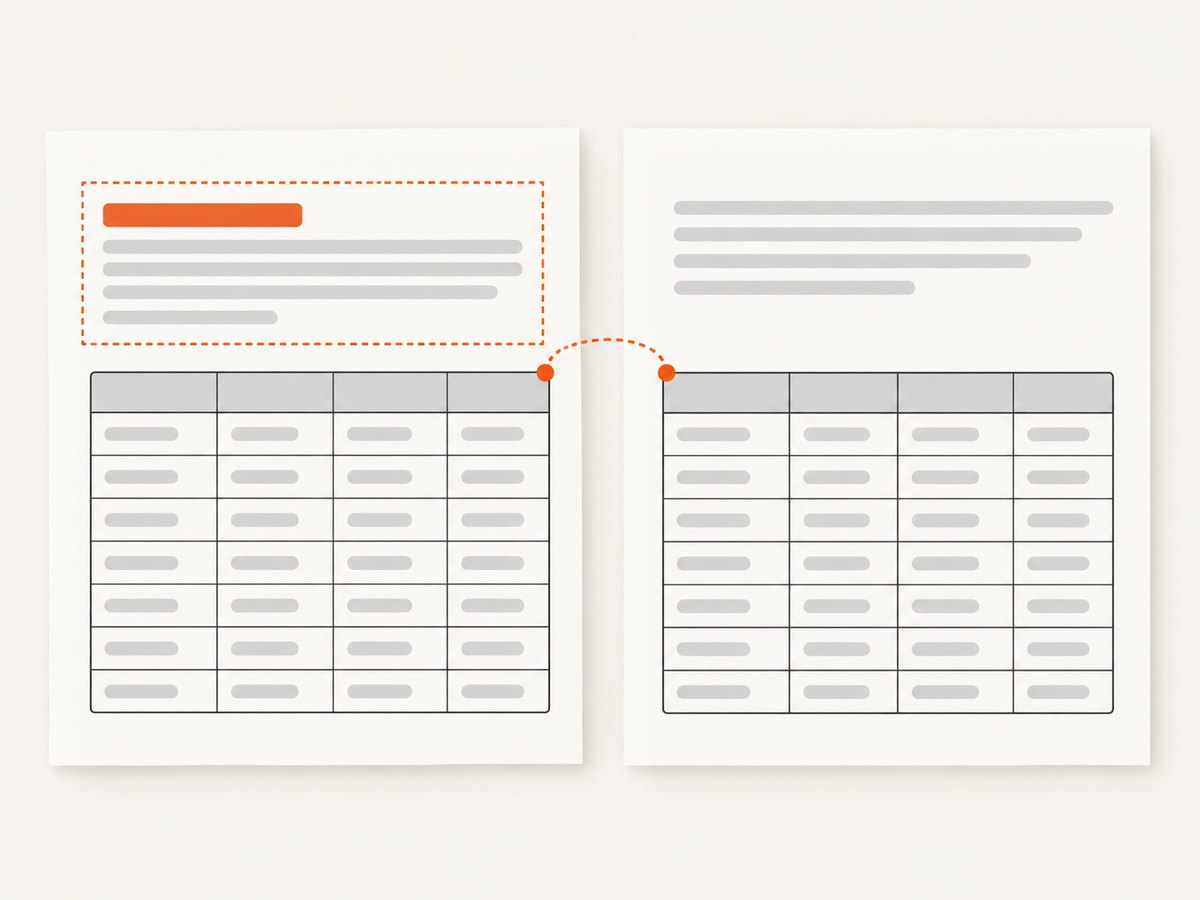
Large tables are difficult because rows may be repeated or split according to renderer behavior. Use a real table structure with thead and tbody, avoid putting the entire table inside page-break-inside: avoid, and keep individual rows reasonably small:
@media print {
  thead { display: table-header-group; }
  tfoot { display: table-footer-group; }
  tr { page-break-inside: avoid; }
}
A very tall row cannot be guaranteed to stay on one page. If a row contains long prose, consider splitting that content into separate rows or blocks.
Images
Give images intrinsic dimensions or CSS dimensions so layout is known before pagination. A late-loading image can move every later break. Ensure the renderer can access the image URL and wait for the page to finish loading before conversion.
Long words and code
Unbroken URLs, hashes and code lines can overflow the printable width. Add controlled wrapping, for example overflow-wrap: anywhere, and test the result because wrapping changes vertical height and therefore page boundaries.
Debugging checklist
- Print the exact HTML string sent to KnpSnappy.
- Confirm the PDF-specific stylesheet is included.
- Add a temporary border or background to the break target.
- Apply the break to a block-level element in normal flow.
- Inspect floated, positioned and fixed-height ancestors.
- Temporarily remove
page-break-inside: avoidto isolate constraints. - Set paper size, orientation and margins explicitly.
- Log the wkhtmltopdf binary path and version in each environment.
- Compare a minimal HTML reproduction with the full template.
- Inspect the produced PDF after every change.
Performance, reliability and cost considerations
PDF generation cost is mostly renderer work: document size, image decoding, JavaScript execution and network access all affect runtime. Reduce unnecessary assets, use appropriately sized images, and avoid waiting for external resources that are not needed in the PDF. Generate large documents asynchronously when a web request would exceed your application timeout.
For reliable output, pin the renderer installation used by your deployment, keep templates deterministic, and test representative documents: short sections, a section near the bottom of a page, a long table, a large image and a block taller than one page. A forced break can expose an otherwise hidden overflow problem, so test with the production paper size and margins.
Or skip the browser setup
If your goal is a rendered capture or PDF rather than maintaining wkhtmltopdf, ScreenshotNeo provides a website screenshot API. It accepts one GET request and can return PNG, JPEG, WebP or PDF. The API can wait for a selector, delay or network idle; set paper size, margins, orientation and page ranges for PDFs; and run custom CSS or JavaScript before capture. See the ScreenshotNeo documentation for the PDF parameters.
curl -G "https://api.screenshotneo.com/v1/shot" \
  -d access_key=YOUR_API_KEY \
  --data-urlencode url=https://stripe.com \
  -o shot.webp
import requests
r = requests.get(
"https://api.screenshotneo.com/v1/shot",
params={"access_key": "YOUR_API_KEY", "url": "https://stripe.com"},
timeout=90,
)
r.raise_for_status()
open("shot.webp", "wb").write(r.content)const q = new URLSearchParams({ access_key: 'YOUR_API_KEY', url: 'https://stripe.com' });
const res = await fetch(`https://api.screenshotneo.com/v1/shot?${q}`);
if (!res.ok) throw new Error(`HTTP ${res.status}`);
const body = Buffer.from(await res.arrayBuffer());
require('fs').writeFileSync('shot.webp', body);Cookie and consent banners, newsletter popups and chat widgets are removed before the shot. Bot checks, blank pages, failed loads and cache hits are not billed, and response headers identify the page verdict and billing status. An MCP server provides take_screenshot, get_page_info and capture_pdf tools for Claude, Cursor and other MCP clients. The free plan includes 1,000 screenshots per month with no card; paid plans start at $5 for 3,000. Create a free ScreenshotNeo account.
FAQ
Should I use page-break-before or page-break-after?
Use the one that matches component ownership. Put before on the section that must start a page, or after on the section that must finish the previous page.
Can I guarantee that a whole section stays on one page?
Only when it fits in the printable area. page-break-inside: avoid is a preference that may be relaxed for overflow.
Why does it work in Chrome but not in my PDF?
KnpSnappy uses the deployed wkhtmltopdf binary, whose layout engine and version may differ from Chrome. Reproduce the issue with the actual production binary and inspect the PDF.
Do margins affect where a forced break occurs?
Yes. Margins reduce the printable area and change how much content fits before the break. Set them explicitly in your KnpSnappy options or CSS.
Can a break be placed inside a table?
It is less predictable. Prefer breaking between table blocks, keep rows small, and use table header groups for repeated headings.


