How to Capture Screenshots with Krypton and Selenium in Java
Capture Selenium screenshots in Java, handle Krypton’s error capture setting, diagnose failures, and automate reliable test artifacts.
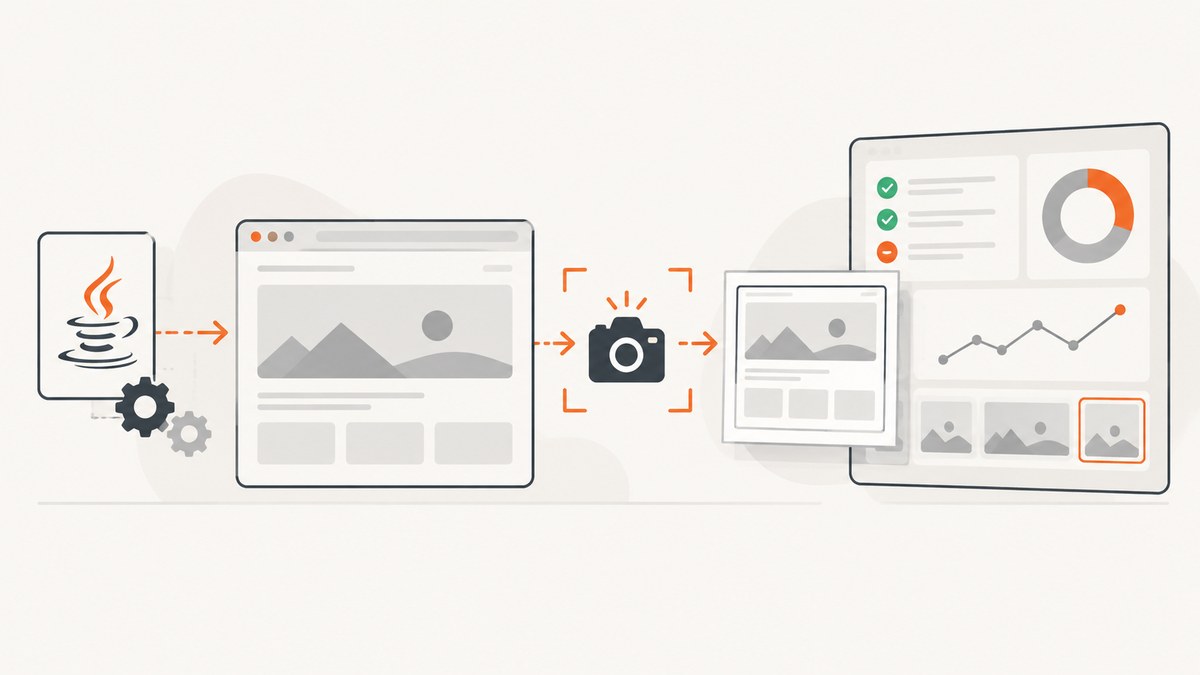
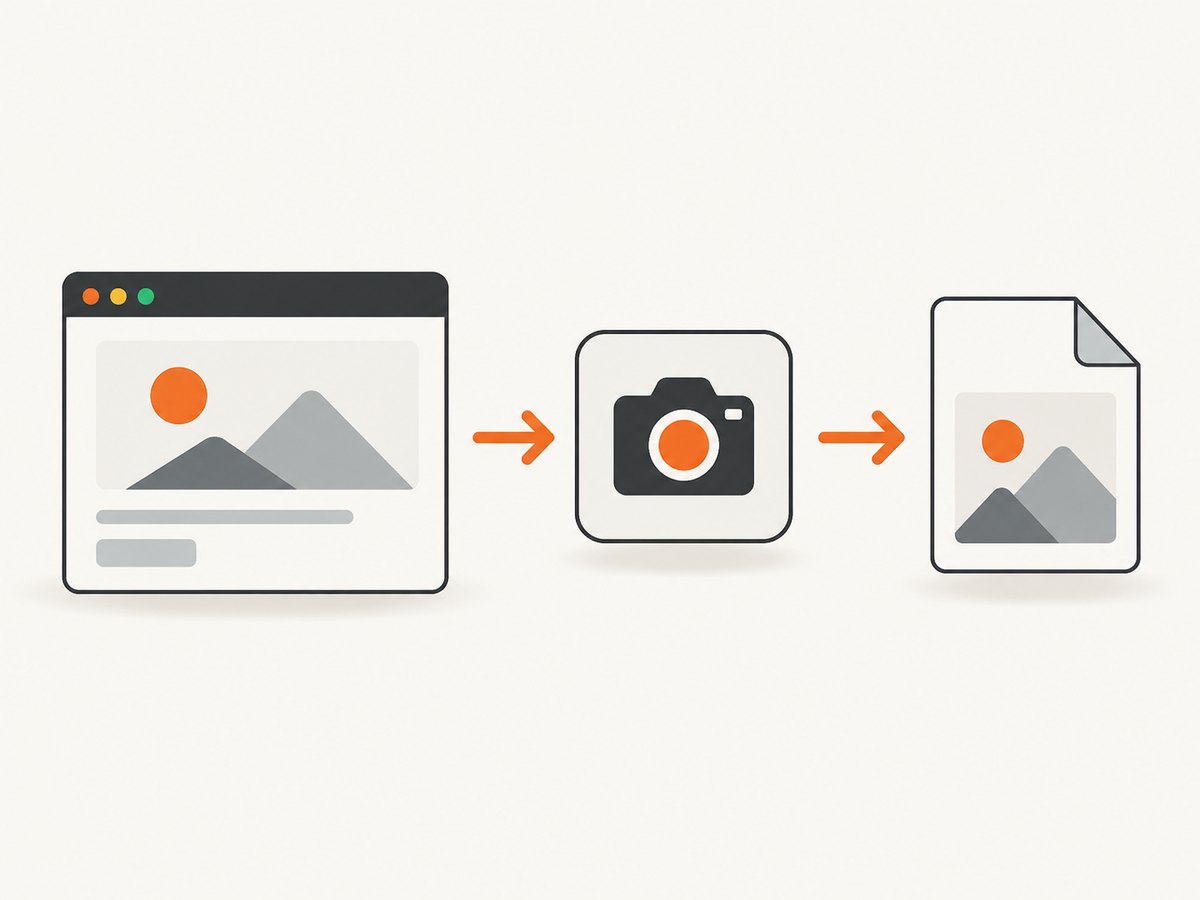
Direct answer: In Java Selenium, capture a screenshot through the TakesScreenshot interface. Request a file with getScreenshotAs(OutputType.FILE), then copy it to a stable artifact path. Krypton is a separate Windows automation framework: its manual documents Selenium integration and an ErrorCaptureAs setting for image or HTML capture, but it does not document a Java screenshot API. Treat Krypton’s error capture and Selenium’s Java API as separate layers unless your project has its own integration.
Selenium’s official API describes TakesScreenshot as an interface for drivers and HTML elements that can capture screenshots in different formats. The exact result depends on the browser driver’s support and WebDriver conformance. Read the Selenium API documentation.
1. Set up Selenium for Java
Add Selenium to your build, create a driver, navigate to a page, and save the image before quitting the browser.
Maven dependency
<dependency>
  <groupId>org.seleniumhq.selenium</groupId>
  <artifactId>selenium-java</artifactId>
  <version>4.XX.X</version>
</dependency>
Use the Selenium version already approved by your project. Keep the browser and driver versions compatible, and run the browser in the same environment as your test runner.
2. Capture a full browser screenshot
import org.openqa.selenium.OutputType;
import org.openqa.selenium.TakesScreenshot;
import org.openqa.selenium.WebDriver;
import org.openqa.selenium.chrome.ChromeDriver;

import java.io.File;
import java.io.IOException;
import java.nio.file.Files;
import java.nio.file.Path;
import java.nio.file.StandardCopyOption;

public class ScreenshotExample {
    static void saveScreenshot(WebDriver driver, Path destination) throws IOException {
        File screenshot = ((TakesScreenshot) driver)
                .getScreenshotAs(OutputType.FILE);

        Files.createDirectories(destination.getParent());
        Files.copy(
                screenshot.toPath(),
                destination,
                StandardCopyOption.REPLACE_EXISTING
        );
    }

    public static void main(String[] args) throws Exception {
        WebDriver driver = new ChromeDriver();
        try {
            driver.get("https://example.com");
            saveScreenshot(driver, Path.of("target", "screenshots", "example.png"));
        } finally {
            driver.quit();
        }
    }
}
OutputType.FILE returns a temporary file. Copy it to a destination you control because the temporary file is not your report artifact. Create the destination directory first, and decide whether an existing file should be replaced or given a unique name.
Return Base64 instead of writing a file
String base64 = ((TakesScreenshot) driver)
        .getScreenshotAs(OutputType.BASE64);
Base64 is useful when a test-report system accepts an embedded image or when you need to send the bytes to another service. It increases memory use compared with writing the file directly.
3. Capture a screenshot when a test fails
import org.openqa.selenium.WebDriver;
import java.nio.file.Path;

try {
    // test actions and assertions
} catch (Throwable failure) {
    saveScreenshot(driver, Path.of(
            "target", "screenshots", "failure-" + System.currentTimeMillis() + ".png"
    ));
    throw failure;
} finally {
    driver.quit();
}
Capture before quit(); after the browsing context closes, the driver can no longer take a screenshot. Catching Throwable is appropriate only when your test framework requires every failure type to produce an artifact. Otherwise catch the framework’s assertion and test exceptions.
JUnit 5 example
import org.junit.jupiter.api.AfterEach;
import org.junit.jupiter.api.BeforeEach;
import org.junit.jupiter.api.Test;
import org.openqa.selenium.WebDriver;
import org.openqa.selenium.chrome.ChromeDriver;

import java.nio.file.Path;

class LoginTest {
    private WebDriver driver;

    @BeforeEach
    void setUp() {
        driver = new ChromeDriver();
    }

    @Test
    void loginPageLoads() {
        driver.get("https://example.com/login");
        // assertions and interactions
    }

    @AfterEach
    void tearDown() throws Exception {
        if (driver != null) {
            try {
                saveScreenshot(driver, Path.of(
                        "target", "screenshots", "login-" + System.nanoTime() + ".png"
                ));
            } finally {
                driver.quit();
            }
        }
    }

    static void saveScreenshot(WebDriver driver, Path destination) throws Exception {
        var source = ((org.openqa.selenium.TakesScreenshot) driver)
                .getScreenshotAs(org.openqa.selenium.OutputType.FILE);
        java.nio.file.Files.createDirectories(destination.getParent());
        java.nio.file.Files.copy(
                source.toPath(), destination,
                java.nio.file.StandardCopyOption.REPLACE_EXISTING
        );
    }
}
If you only want screenshots for failed tests, check the test outcome through your framework’s extension or listener and call the helper conditionally. A screenshot in @AfterEach captures successful tests too.
4. Capture one element instead of the whole page
import org.openqa.selenium.By;
import org.openqa.selenium.OutputType;
import org.openqa.selenium.WebElement;

WebElement panel = driver.findElement(By.cssSelector(".checkout-summary"));
String panelBase64 = panel.getScreenshotAs(OutputType.BASE64);
Selenium documents screenshot support for both drivers and WebElement implementations. Element screenshots are useful for a component-level assertion, but browser and driver behavior can vary. Verify the output in the browser versions you support.
5. Krypton’s role in screenshot capture
The reviewed Krypton manual describes a Windows automation framework whose test driver integrates Selenium. It documents ErrorCaptureAs, which selects image or HTML capture for the page where an error occurred. The manual does not specify the image format, filename, Java hook, or how that setting interacts with current Selenium versions.
- Use Selenium’s
TakesScreenshotcode when your Java test owns the driver. - Use Krypton’s
ErrorCaptureAsonly through the configuration and execution path your Krypton project actually exposes. - Do not assume Krypton’s setting calls the Java API shown here.
- The manual lists older operating systems and browser versions; do not treat those statements as current compatibility guarantees.
6. Useful capture options and decisions
| Need | Choice | Trade-off |
|---|---|---|
| File for CI artifacts | OutputType.FILE |
Simple and low memory; copy it before the temporary file is removed. |
| Embed in a report | OutputType.BASE64 |
Convenient for HTML reports; larger in memory. |
| Whole viewport | Capture the driver | Shows the current browsing context and viewport. |
| Component evidence | Capture a WebElement |
Driver support and element boundaries can vary. |
| Failure diagnostics | Capture in a listener, extension, or teardown hook | Must run before the driver is closed. |
| Framework-managed capture | Selenide screenshots | Selenide documents automatic failure screenshots and report-folder configuration; it is a separate framework path, not a Krypton feature. |
The Selenium API documents a driver or element screenshot as a best-effort operation for non-conformant implementations. It can throw WebDriverException when capture fails and UnsupportedOperationException when the implementation does not support screenshots.
7. Wait for the page before capturing
import java.time.Duration;
import org.openqa.selenium.support.ui.WebDriverWait;
import static org.openqa.selenium.support.ui.ExpectedConditions.visibilityOfElementLocated;

WebDriverWait wait = new WebDriverWait(driver, Duration.ofSeconds(15));
driver.get("https://example.com/dashboard");
wait.until(visibilityOfElementLocated(By.cssSelector("main.dashboard")));
saveScreenshot(driver, Path.of("target", "screenshots", "dashboard.png"));
A screenshot records the current state. Waiting for a meaningful element is more reliable than using a fixed sleep alone. For animations, lazy images, or data loaded after the first render, wait for the specific condition your page exposes.
8. Troubleshooting
| Symptom | Likely cause | Fix |
|---|---|---|
ClassCastException when casting to TakesScreenshot |
The driver implementation does not implement the interface. | Use a supported browser driver or check driver instanceof TakesScreenshot and report an actionable failure. |
UnsupportedOperationException |
The underlying driver does not support screenshots. | Switch to a conformant, screenshot-capable driver and browser combination. |
WebDriverException |
Browser connection, session, or capture failure. | Check driver logs, browser startup, session lifetime, and resource limits; retry only when the failure is transient and the test is safe to repeat. |
| Screenshot is blank or stale | Capture occurred before navigation or asynchronous content finished. | Wait for a URL, selector, visibility, or application-ready state before capture. |
| File is missing from CI | The temporary file was never copied, or the workspace was cleaned. | Create the destination directory, copy immediately, and publish the target directory as a CI artifact. |
| Failure screenshot is not produced | The hook runs after driver.quit(), or teardown masks the original error. |
Capture first, preserve the original exception, then close the driver in finally. |
| Element image differs across browsers | Element screenshot support and clipping can vary by driver. | Use a driver screenshot when consistency matters, or validate each supported browser. |
| Krypton setting has no visible effect | ErrorCaptureAs is being configured outside Krypton’s execution path, or the project uses a custom integration. |
Confirm the setting name and scope in the project’s Krypton configuration and keep Selenium Java capture as an independent fallback. |
9. Performance, reliability, and cost
- Capture only when evidence is useful. A screenshot on every passing step adds disk I/O and artifact volume.
- Use unique names containing test, browser, and timestamp data when parallel workers share a directory.
- Keep screenshots near the failure log and publish them with the same build identifier.
- For parallel tests, give each worker an isolated output directory or use collision-resistant filenames.
- Large viewport images and Base64 strings consume more memory; prefer file output for bulk diagnostics.
- Retries can hide deterministic rendering bugs. Retry browser startup or known transient infrastructure failures, not assertion failures by default.
- Selenium screenshots run inside your browser session, so they consume the time and compute resources of that session. Krypton’s manual does not provide current performance or compatibility benchmarks.
10. Or skip the browser setup
If you need a screenshot of a URL rather than an interactive Selenium session, ScreenshotNeo returns an image or PDF from one GET request. Its capture options include full-page screenshots, element selectors, custom CSS and JavaScript, waits, device presets, dark mode, cookies, headers, geolocation, resource blocking, resizing, caching, signed links, asynchronous jobs, bulk capture, and PDF output. See the ScreenshotNeo API documentation.
curl -G "https://api.screenshotneo.com/v1/shot" -d access_key=YOUR_API_KEY --data-urlencode url=https://stripe.com -o shot.webpimport requests
r = requests.get("https://api.screenshotneo.com/v1/shot", params={"access_key": "YOUR_API_KEY", "url": "https://stripe.com"}, timeout=90)
open("shot.webp", "wb").write(r.content)const q = new URLSearchParams({ access_key: 'YOUR_API_KEY', url: 'https://stripe.com' });
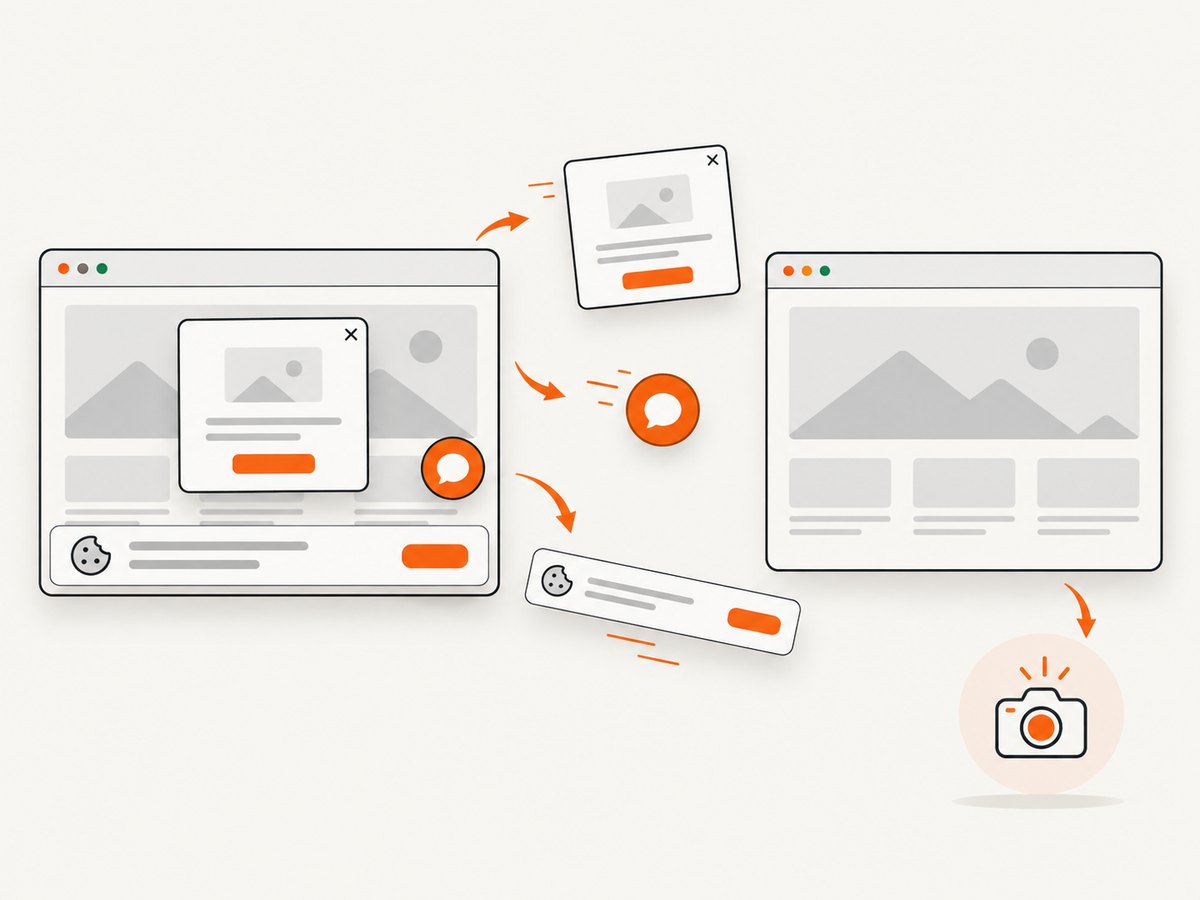
const res = await fetch(`https://api.screenshotneo.com/v1/shot?${q}`);- Cookie banners, newsletter popups, and chat widgets are removed before the shot; each cleanup step can be turned off.
- Bot checks, blank pages, failed loads, timeouts, and cache hits are not billed. Response headers report the page verdict and billing result.
- An MCP server provides
take_screenshot,get_page_info, andcapture_pdffor Claude, Cursor, and other MCP clients. - The Free plan includes 1,000 screenshots per month with no card. Paid plans start at $5 for 3,000 screenshots; every feature is available on every plan.
Create a free ScreenshotNeo account and start with 1,000 screenshots a month without a card.
11. FAQ
How do I take a screenshot in Selenium Java?
Cast the driver to TakesScreenshot and call getScreenshotAs(OutputType.FILE) or OutputType.BASE64.
Can Krypton replace Selenium’s screenshot code?
Krypton’s manual documents an ErrorCaptureAs configuration, but it does not document a Java method equivalent to Selenium’s API. Verify your project-specific integration.
Can I capture only an element?
Yes. Selenium documents screenshot support on screenshot-capable WebElement implementations; browser behavior can vary.
Why must capture happen before quit()?
After the driver closes, there is no active browsing context from which to obtain the screenshot.
Should I use Selenide?
Selenide is a separate Java framework that documents automatic screenshots on failures and direct screenshot calls. Use it when your test suite already uses Selenide; it is not evidence of Krypton integration.


