How to Get Large Facebook and Twitter Link Thumbnails
Add the right Open Graph and X Card tags, use a 1200×630 image, and refresh platform caches to get large, reliable link previews.
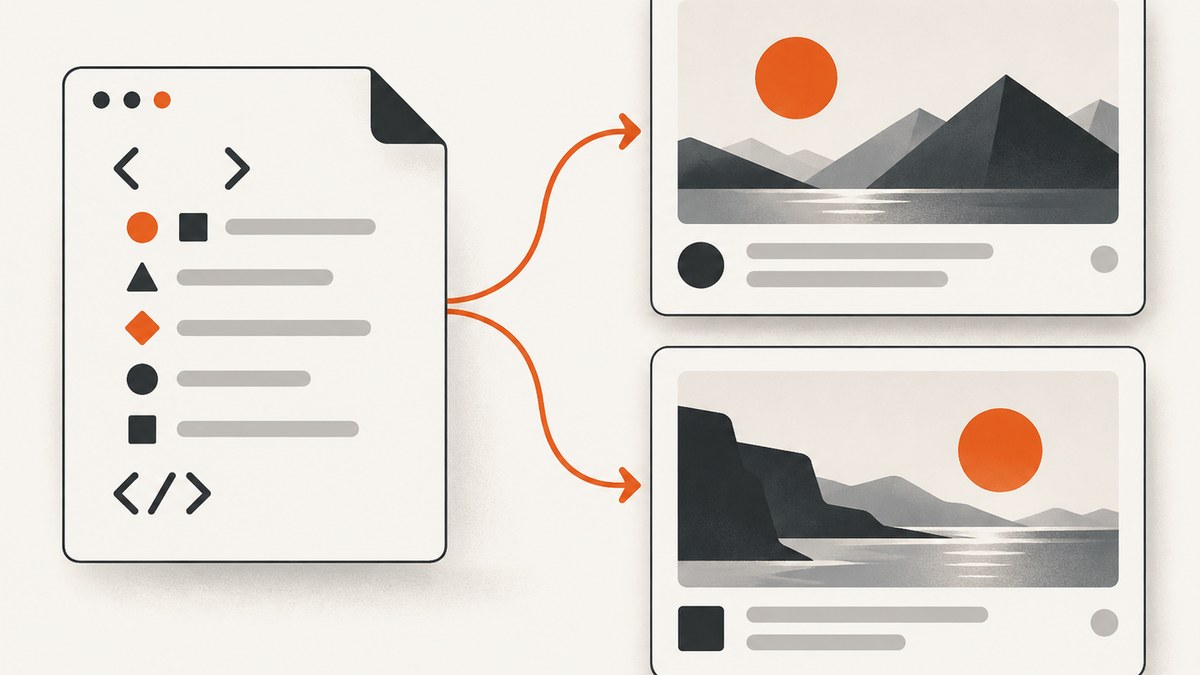
To get a large Facebook link preview and a large X (formerly Twitter) thumbnail, add Open Graph tags to the page head, use a publicly reachable landscape image, and set twitter:card to summary_large_image. A practical shared image is 1200×630 pixels. After publishing, refresh the URL in each platform’s sharing debugger because preview metadata is cached.
1. Add the required metadata first
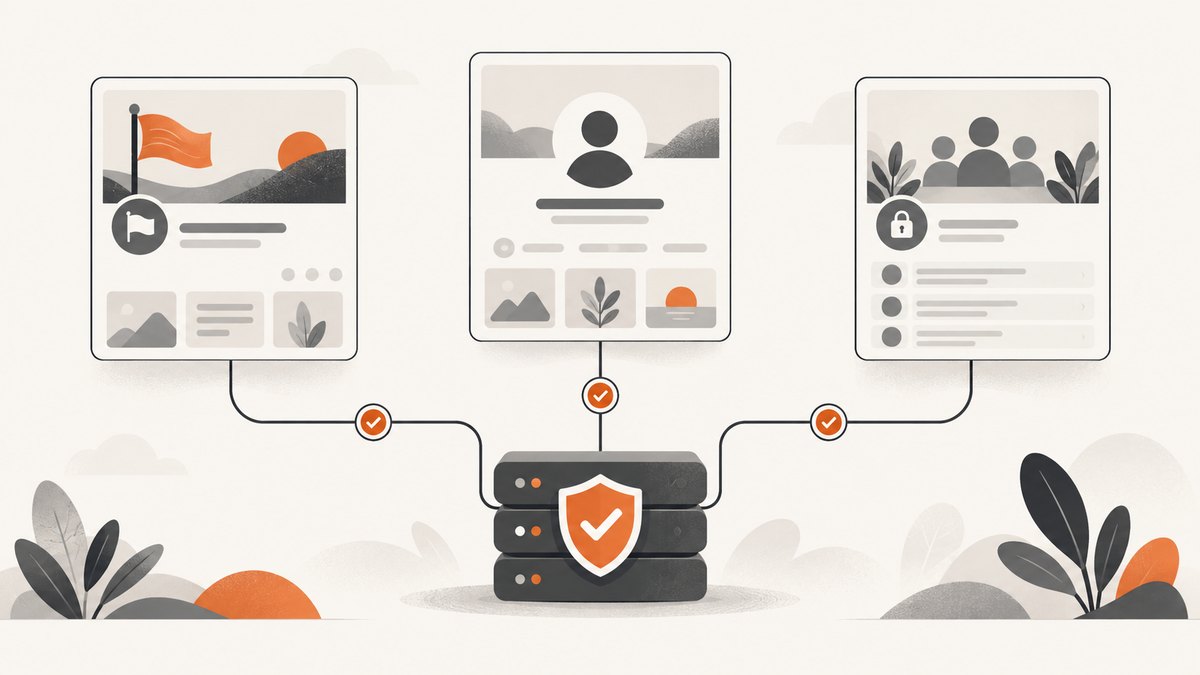
The Open Graph protocol defines four required properties: og:title, og:type, og:image, and og:url. og:description is recommended for a useful preview. See the Open Graph protocol specification.
<head>
  <meta property="og:title" content="How to Get Large Facebook and Twitter Link Thumbnails">
  <meta property="og:type" content="website">
  <meta property="og:url" content="https://example.com/page">
  <meta property="og:description" content="A concise description shown in link previews.">
  <meta property="og:image" content="https://example.com/images/social-card.jpg">
  <meta property="og:image:secure_url" content="https://example.com/images/social-card.jpg">
  <meta property="og:image:type" content="image/jpeg">
  <meta property="og:image:width" content="1200">
  <meta property="og:image:height" content="630">
  <meta property="og:image:alt" content="Description of the social card image">

  <meta name="twitter:card" content="summary_large_image">
  <meta name="twitter:title" content="How to Get Large Facebook and Twitter Link Thumbnails">
  <meta name="twitter:description" content="A concise description shown in link previews.">
  <meta name="twitter:image" content="https://example.com/images/social-card.jpg">
</head>
Use absolute HTTPS URLs for both the page and image. The first og:image is preferred when a page declares multiple images, so put the intended card first. The width, height, MIME type, secure URL, and alt properties give crawlers unambiguous information when those values are known.
2. Build an image that survives both layouts
Use one landscape source around 1200×630 pixels (an aspect ratio of about 1.91:1). This is practical cross-platform guidance rather than a size mandated by the Open Graph protocol. Keep important text, faces, and product details away from the edges because each platform may crop or scale the card differently. Export a normal JPEG or PNG and keep the file available without a login.
Image checklist
- Serve the image from a stable, publicly fetchable HTTPS URL.
- Return the correct content type, such as
image/jpegorimage/png. - Make the image URL return the image directly, without an HTML wrapper or expiring access token.
- Check that a firewall, robots rule, hotlink policy, or authentication layer does not block crawlers.
- Write descriptive
og:image:alttext for accessibility and fallback contexts.
3. Configure the Facebook preview
Facebook/Meta reads the Open Graph values, especially og:image, along with og:title, og:description, og:url, and og:type. There is no separate “large image” switch in Open Graph: supplying a suitable landscape image and valid metadata lets the platform choose its link-preview layout.
- Publish the page and confirm the tags are present in the initial HTML response.
- Open Meta’s sharing debugger and enter the exact canonical URL.
- Use the scrape or refresh action to request a new fetch after changing tags or the image.
- Inspect the selected image, title, description, and canonical URL in the debugger output.
If a page is rendered only after client-side JavaScript runs, the crawler may never see the tags. Put them in server-rendered HTML or your framework’s document head. Also make sure redirects end at the same canonical URL declared by og:url.
4. Configure the X (Twitter) large card
X selects its large layout with twitter:card=summary_large_image. Supply matching twitter:title, twitter:description, and twitter:image. X can fall back to Open Graph values, but explicit Twitter Card fields avoid surprises when templates, plugins, or page variants produce conflicting metadata. The platform’s card documentation describes the supported fields and preview behavior.
<meta name="twitter:card" content="summary_large_image">
<meta name="twitter:title" content="How to Get Large Facebook and Twitter Link Thumbnails">
<meta name="twitter:description" content="A concise description shown in link previews.">
<meta name="twitter:image" content="https://example.com/images/social-card.jpg">
summary produces the smaller thumbnail layout; it is the usual reason a card appears tiny even though an image exists. If Facebook and X show different images, inspect both sets of fields and remove stale plugin-generated tags.
5. CMS and framework implementations
WordPress
SEO and social plugins usually expose fields for the title, description, and social image. Set the 1200×630 asset per page when the default is unsuitable, then view the page source to verify that the final HTML contains one intended og:image first and an explicit twitter:card. Avoid enabling two plugins that both emit social metadata.
React, Next.js, and other server-rendered apps
Define metadata in the server-side document or route metadata API. Do not rely on a browser effect to insert tags. For dynamic routes, generate a unique absolute og:url and image URL for each canonical page, and ensure the crawler receives those values in the first response.
Static HTML
Paste the tags into the <head> of every page template. Use a page-specific title, description, canonical URL, and image rather than copying one card across the entire site.
6. Generate a consistent social image automatically
If your site creates cards from templates, render the final asset at 1200×630, upload it to durable HTTPS storage, and place its URL in both og:image and twitter:image. Keep the image URL stable when possible. If you replace the file at the same URL, a platform cache may continue showing the old pixels; changing the filename or query string can help your own cache, but you still need the platform debugger to request a recrawl.
7. Troubleshooting: small cards, wrong images, and stale previews
| Symptom | Likely cause | Fix |
|---|---|---|
| Facebook shows no image | Image URL is relative, private, blocked, or returns an error | Use an absolute HTTPS URL, fetch it without cookies, and check the response content type and status. |
| X thumbnail is tiny | twitter:card is missing or set to summary |
Set it exactly to summary_large_image and refresh the X preview. |
| Old title or image remains | Platform metadata cache | Run the relevant sharing debugger refresh after publishing the corrected HTML. |
| Wrong image is selected | Multiple og:image tags or plugin defaults |
Put the desired image first and remove conflicting tags. |
| Tags work in a browser but not in preview | Tags are injected after JavaScript executes | Render metadata in the initial server response and inspect “view source,” not only the live DOM. |
| Image is cropped unexpectedly | Important content touches the edges or source ratio differs | Use a 1200×630 landscape canvas and keep key content inside a safe central area. |
| Different cards appear for URL variants | Trailing slash, parameters, or redirects resolve to different URLs | Choose one canonical URL, set it in og:url, and share that exact URL. |
8. Validate before you share
- Fetch the page with a command-line client and confirm the metadata is in the returned HTML.
- Check every URL is absolute, HTTPS, and publicly reachable without a session.
- Open the image URL directly and verify its dimensions and MIME type.
- Search the HTML for duplicate Open Graph or Twitter tags generated by themes and plugins.
- Run each platform’s debugger after the final deployment.
curl -L https://example.com/page | grep -E 'og:|twitter:'9. Capture the card image with ScreenshotNeo
When you need a rendered screenshot of the finished page, ScreenshotNeo captures a URL through a single GET request. It can wait for a selector, delay, or network idle, load lazy images, set a viewport or device preset, use retina scale, inject CSS or JavaScript, hide selectors, and capture a specific element instead of the full page. Those options are useful for checking that a social-card generator renders correctly before publishing.

Or skip the browser setup
Use the ScreenshotNeo API instead of maintaining Playwright or Puppeteer infrastructure. The API removes cookie and consent banners, newsletter popups, and chat widgets before capture. Bot checks, blank pages, failed loads, timeouts, and cache hits are not billed, and the response reports the result in X-Page-Verdict and X-Billed headers. An MCP server provides take_screenshot, get_page_info, and capture_pdf tools for Claude, Cursor, and other MCP clients.
See the ScreenshotNeo documentation for all options and response details.
curl -G "https://api.screenshotneo.com/v1/shot" \
  -d access_key=YOUR_API_KEY \
  --data-urlencode url=https://example.com/page \
  -o social-preview.webp
import requests
r = requests.get(
"https://api.screenshotneo.com/v1/shot",
params={"access_key": "YOUR_API_KEY", "url": "https://example.com/page"},
timeout=90,
)
r.raise_for_status()
open("social-preview.webp", "wb").write(r.content)const q = new URLSearchParams({
access_key: 'YOUR_API_KEY',
url: 'https://example.com/page'
});
const res = await fetch(`https://api.screenshotneo.com/v1/shot?${q}`);
if (!res.ok) throw new Error(`Screenshot failed: ${res.status}`);
const bytes = Buffer.from(await res.arrayBuffer());
require('fs').writeFileSync('social-preview.webp', bytes);ScreenshotNeo supports PNG, JPEG, WebP, and PDF output, plus custom headers, cookies, user agents, authorization, timezone, geolocation, request blocking, caching with a chosen TTL, signed links, asynchronous jobs with signed webhooks, bulk capture of up to 100 URLs per call, a usage API, and an OpenAPI specification. Every feature is available on every plan. The Free plan includes 1,000 shots per month without a card; paid plans start at $5 for 3,000 shots. Create a free ScreenshotNeo account.
10. Performance, reliability, and cost notes
- Reduce capture time: wait on a meaningful selector or network idle instead of an unnecessarily long fixed delay. Block ads, trackers, or resource types that do not affect the card.
- Make dynamic pages deterministic: provide the same viewport, timezone, locale, cookies, and user agent for repeatable renders.
- Use caching deliberately: a TTL avoids repeated captures while a page is unchanged. Remember that cache hits are not billed by ScreenshotNeo.
- Handle failures: inspect HTTP status and the verdict headers; retry transient navigation failures with backoff, while treating bot checks and blank pages as content problems to fix.
- Control spend: Free includes 1,000 shots monthly. Starter is $5 for 3,000, Growth $15 for 15,000, Pro $39 for 60,000, Scale $99 for 250,000, and Business $249 for 1,000,000. Yearly billing provides two months free.
11. FAQ
Do I need separate images for Facebook and X?
No. One 1200×630 landscape image can be referenced by both tags. Separate images are useful only when you intentionally want different creative.
Is 1200×630 required by Open Graph?
No. It is practical cross-platform guidance. The protocol requires the metadata properties, not that exact pixel size.
Why does changing the HTML not update an existing post?
Platforms cache preview metadata. Refresh the URL in the relevant sharing debugger, then share the canonical URL again.
Can a social crawler access an image behind authentication?
It must be publicly fetchable. Move the asset to a public HTTPS location or provide a crawler-accessible image URL.
Should I put the tags in the body?
No. Put them in the document head of the initial HTML response so crawlers can read them without executing page scripts.


