How to Generate Large Puppeteer PDFs on AWS Without Errors
Generate large PDFs with Puppeteer on AWS by sizing Lambda for Chromium, packaging the browser deliberately, and moving long jobs to an asynchronous worker.
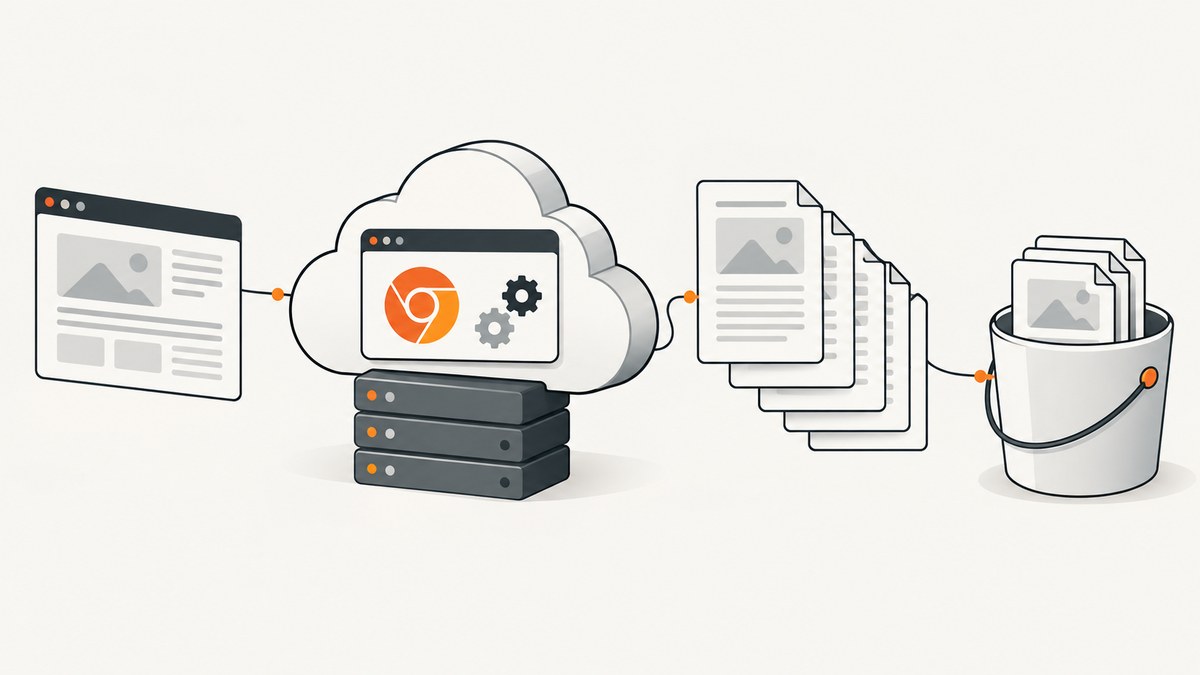
To generate a large PDF with Puppeteer on AWS, first decide whether the worst-case job fits comfortably inside a Lambda invocation. Package a Chromium build compatible with the Lambda runtime, give the function enough memory and timeout based on measured upper-bound runs, wait for the page and its assets to be ready, then await PDF generation and storage. Return a job ID or signed S3 URL for large output; Lambda’s synchronous response limit is 6 MB.
Lambda works well for bursty, bounded jobs. For PDFs that approach its 15-minute invocation limit, vary greatly in size, or need more isolation, use a queue-backed container worker such as ECS/Fargate. This guide covers both paths, including runnable Node.js examples, packaging, PDF options, operational limits, failure recovery, and when to move beyond Lambda.
1. Choose the right AWS execution model
Large PDF generation is a browser workload, not just a call to a PDF library. Chromium consumes memory and CPU while loading the page, decoding images and fonts, laying out print styles, and serializing the PDF. Network waits and uploading the result add to the invocation time.
| Factor | Lambda | Queue-backed ECS/Fargate worker |
|---|---|---|
| Best fit | Short, bursty jobs with predictable upper bounds | Long or highly variable jobs and repeatable batch work |
| Maximum job time | 900 seconds per standard invocation | Designed around a worker task’s lifecycle; no Lambda invocation deadline |
| Packaging | Deployment package or container image; Chromium compatibility and package limits matter | Container image can include Chromium and its system dependencies |
| Delivery | Usually store output in S3 and return a small response | Store output in S3 and expose job state or a signed URL |
| Operations | Less worker infrastructure for short jobs | Queue, worker scaling, retries, and job-state handling are explicit |
Published Lambda limits are 128 MB–10,240 MB memory, a 900-second maximum timeout, 50 MB zipped direct upload and 250 MB unzipped deployment package, 512 MB–10,240 MB of /tmp storage, and 6 MB for synchronous request and response payloads. Lambda provides the equivalent of one vCPU at 1,769 MB, with CPU increasing as memory is allocated. Check the [AWS Lambda quotas](https://docs.aws.amazon.com/lambda/latest/dg/gettingstarted-limits.html) for current limits and deployment details.
Do not size from an average PDF. Run the largest representative documents, including slow assets and the most complex pages, and record peak memory and duration. Leave headroom for browser startup, asset transfer, PDF serialization, S3 upload, and cleanup. AWS notes that after the configured timeout is reached, Lambda stops the invocation; a higher timeout cannot make a job fit if it still exceeds the 900-second ceiling. See [AWS configuration troubleshooting](https://docs.aws.amazon.com/en_en/lambda/latest/dg/troubleshooting-configuration.html).
2. Prepare the page and browser runtime
Make the rendered document deterministic before optimizing infrastructure. Serve HTML and assets from locations the runtime can reach. A function attached to a VPC may not have ordinary public egress, so verify access to external images, stylesheets, fonts, and APIs from the deployed network path. Package fonts when the document relies on them, and avoid depending on fonts installed only on a developer’s laptop.
For Lambda, use a Chromium distribution built for the selected Lambda runtime and architecture, or use a container image with compatible system libraries. Puppeteer’s troubleshooting guide discusses package-size challenges and compatible Chromium distributions. On Amazon Linux EC2, the documented Chromium setup involves EPEL and Chromium dependencies; an EC2 setup is not automatically portable to Lambda. Keep launch flags matched to the runtime and security model instead of copying a flag list blindly. See [Puppeteer troubleshooting](https://github.com/puppeteer/puppeteer/blob/main/docs/troubleshooting.md).
The following handler uses the Puppeteer API and an injected Chromium executable path. Supply puppeteer-core and a compatible Chromium package as part of your deployment, and set CHROMIUM_PATH to that package’s executable. The exact package import and launch flags depend on the distribution you select.
3. Generate the PDF in Lambda and upload it to S3
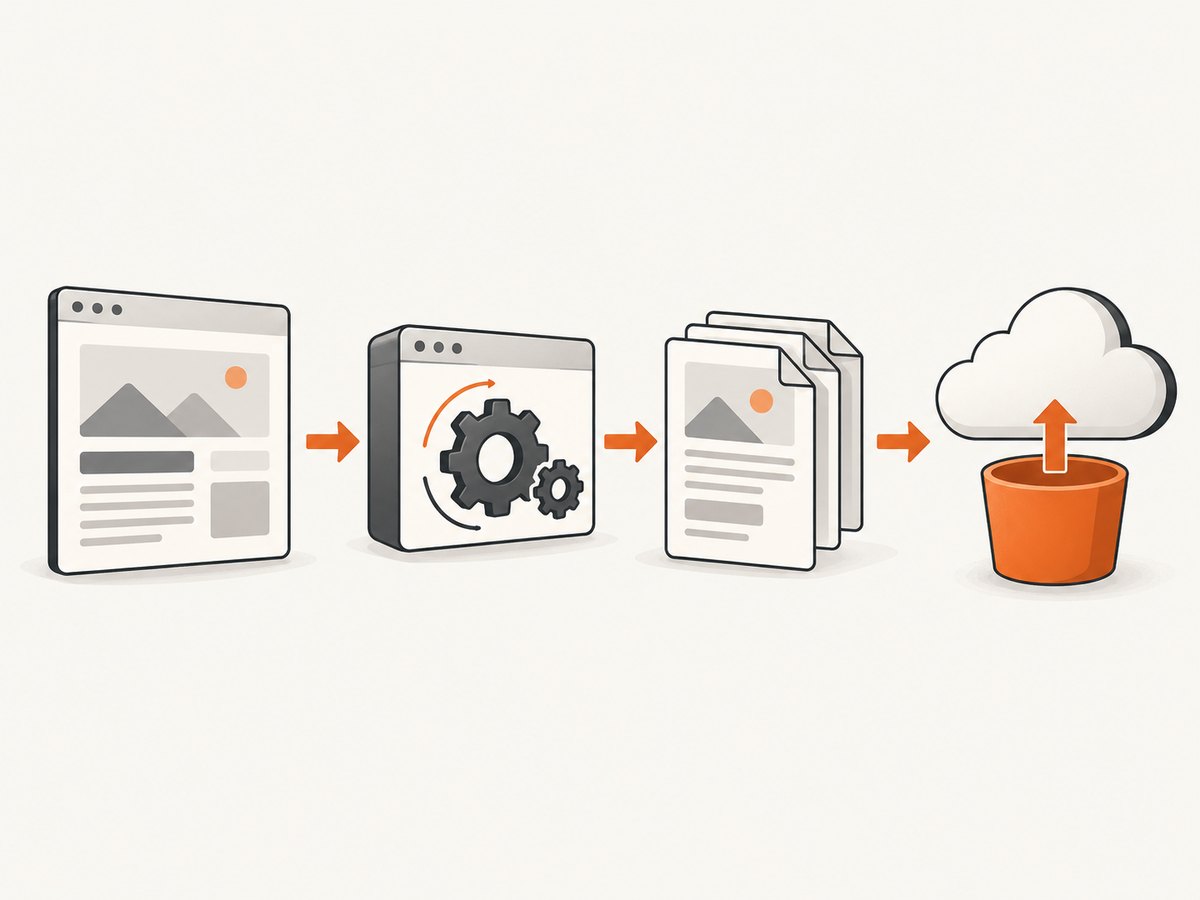
This example accepts a URL, waits for navigation and fonts, generates a PDF in memory, uploads it to S3, and returns a small JSON response. It deliberately does not return the PDF bytes through the synchronous Lambda response. For very large documents, consider writing to /tmp or using a streaming upload strategy supported by your chosen libraries to avoid retaining both the full PDF buffer and browser state in memory.
import puppeteer from 'puppeteer-core';
import { S3Client, PutObjectCommand } from '@aws-sdk/client-s3';

const s3 = new S3Client({});
const bucket = process.env.PDF_BUCKET;
const executablePath = process.env.CHROMIUM_PATH;

export const handler = async (event) => {
  let browser;
  let page;

  try {
    const url = event?.url;
    if (!url || !/^https?:\/\//i.test(url)) {
      return { statusCode: 400, body: JSON.stringify({ error: 'Provide an http(s) url' }) };
    }

    browser = await puppeteer.launch({
      executablePath,
      headless: true,
      args: ['--no-sandbox', '--disable-setuid-sandbox']
    });
    const context = await browser.createBrowserContext();
    page = await context.newPage();
    page.setDefaultNavigationTimeout(45_000);
    page.setDefaultTimeout(20_000);

    await page.goto(url, { waitUntil: 'networkidle0', timeout: 45_000 });
    await page.evaluate(async () => {
      if (document.fonts?.ready) await document.fonts.ready;
    });

    const pdf = await page.pdf({
      format: 'A4',
      printBackground: true,
      preferCSSPageSize: true,
      margin: { top: '12mm', right: '12mm', bottom: '12mm', left: '12mm' }
    });

    const key = `pdf/${Date.now()}.pdf`;
    await s3.send(new PutObjectCommand({
      Bucket: bucket,
      Key: key,
      Body: pdf,
      ContentType: 'application/pdf'
    }));

    return { statusCode: 200, body: JSON.stringify({ bucket, key }) };
  } finally {
    if (page) await page.close().catch(() => {});
    if (browser) await browser.close().catch(() => {});
  }
};
Deploy with an execution role that can write to the intended bucket, set PDF_BUCKET and CHROMIUM_PATH, and configure a memory and timeout budget based on measured upper-bound jobs. Validate and authorize input URLs in a real service: accepting arbitrary URLs can expose internal services or metadata endpoints. Restrict destinations and redirects to the resources your application intends to render.
networkidle0 means there are no more than zero network connections for a period. Some pages keep analytics, polling, or other connections open and never become idle. For such pages, wait for domcontentloaded or load, then wait for an application-specific readiness selector or signal. Avoid treating network idle as proof that every image and custom widget is ready.
4. Pick PDF settings that match the document
page.pdf() returns PDF bytes and uses print CSS by default. If the page’s stylesheet only produces the intended layout in screen media, call await page.emulateMediaType('screen') before creating the PDF. Review the [Puppeteer page.pdf() API](https://pptr.dev/api/puppeteer.page.pdf) for the available options and behavior.
| Option | Use it when | Watch for |
|---|---|---|
format |
You need a standard paper size such as A4 or Letter | It may conflict with explicit width and height |
preferCSSPageSize |
Your styles define @page dimensions |
Check that CSS page sizing is intentional |
printBackground |
Background colors or images are part of the design | Backgrounds are otherwise omitted |
margin |
The output requires a controlled printable area | CSS page margins and API margins can interact |
landscape |
A wide table or chart needs landscape orientation | Check page breaks and legibility |
pageRanges |
Only selected pages should be emitted | It cannot avoid rendering the source page first |
Use print-specific CSS such as @media print, @page, break-before, and break-inside to control pagination. Test representative largest documents, not just a one-page sample. A single oversized table row, image, or unbreakable block can produce unexpected white space or pagination even when the PDF call succeeds.
5. Make large jobs reliable
- Define readiness. Wait for the navigation state that suits the page, then wait for a selector or explicit application signal indicating content has loaded. Await
document.fonts.readywhen fonts matter. If image completion matters, check the expected images rather than assuming a generic delay is enough. - Bound waits. Set navigation and general page timeouts. A page that never finishes loading should become a controlled failure, not consume the entire invocation budget.
- Limit concurrency. Start with one page per browser for a large PDF job. Add parallel pages only after measuring peak memory and runtime under the intended concurrency.
- Await every operation. Await navigation, readiness checks, PDF generation, S3 upload, and cleanup. AWS warns that background callbacks finishing after the handler exits can cause confusing behavior; warm environments also preserve global state.
- Clean up in all outcomes. Close pages and browsers in
finally. If creating a context separately, close it too. Do not keep per-job buffers or page references in module-level state. - Store outputs durably. Put the PDF in S3, persist job status, and return a job ID or short-lived signed URL. A synchronous response can exceed Lambda’s 6 MB response quota even when rendering succeeds.
Use CloudWatch to track duration, timeout counts, error logs, and the Max Memory Used report. Raise memory if measurements show pressure or CPU-bound rendering; memory allocation also changes available CPU. Raise timeout only within the platform limit and only after determining that the page can finish inside it. AWS documents memory and timeout configuration issues in its [Lambda troubleshooting guide](https://docs.aws.amazon.com/en_en/lambda/latest/dg/troubleshooting-configuration.html).
6. Move jobs to a queue when Lambda is the wrong fit
A queue separates accepting a request from completing the render. The API stores a job record and enqueues its ID; a worker claims the job, renders the PDF in a container, uploads it to S3, and marks the record complete or failed. The client polls job status or receives a notification, then downloads through a signed URL.
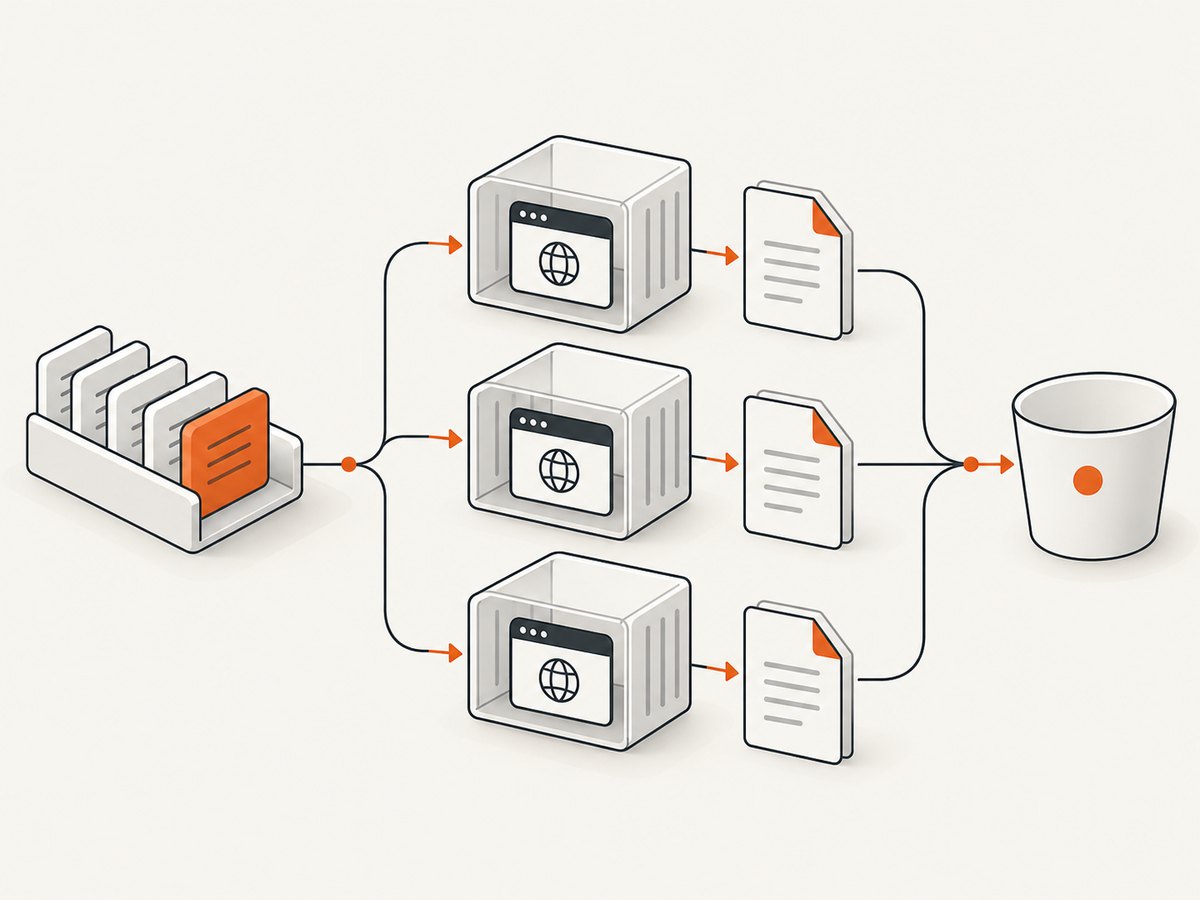
- Validate the requested document and save the job parameters and initial status.
- Send the job ID to a queue. Make processing idempotent so a retry does not create conflicting output.
- Run a containerized Chromium worker on ECS/Fargate with memory and CPU chosen from measured worst-case jobs.
- Set explicit limits for render time, asset wait time, retries, and concurrent jobs.
- Upload the completed PDF to S3, record its key and status, then acknowledge the queue message.
- Send persistent failures to a dead-letter path for inspection and controlled replay.
This workflow takes more operational setup, but it avoids forcing long or highly variable browser jobs into a short synchronous request. Compare expected document volume, startup latency needs, concurrency isolation, operational overhead, output delivery, and total AWS charges before choosing. Do not assume one model is universally cheaper: measure the actual render time, worker utilization, and storage and network costs for your workload.
7. Troubleshooting common failures
| Symptom | Likely cause | Fix |
|---|---|---|
| Browser fails to launch or reports missing libraries | Chromium does not match the runtime, architecture, or system libraries | Use a compatible Chromium distribution or container. On EC2, follow the Amazon Linux dependency guidance; do not reuse those assumptions for Lambda. |
Task timed out or Status: timeout |
Rendering or asset loading exceeded the configured duration | Inspect CloudWatch logs, reduce avoidable asset waits, increase memory for CPU-bound rendering, and raise timeout within the 900-second limit. Move jobs that still approach the limit to an asynchronous container worker. |
| Out of memory or browser disconnect | Large page, multiple concurrent pages, retained buffers, or a warm-environment leak | Increase memory, reduce concurrency, close contexts promptly, avoid retaining duplicate HTML/PDF buffers, and inspect global state across invocations. |
| PDF response truncated or API Gateway returns 5xx | Output exceeded a synchronous response or front-door payload limit | Upload to S3 and return a job ID or signed URL. Lambda’s synchronous response quota is 6 MB. |
| Fonts or images are missing | Assets are unreachable, fonts are not installed, or capture began before readiness | Check deployed network access, package required fonts, wait for the application’s readiness signal, and validate in the deployed runtime. |
| Colors or pagination differ from the browser | PDF uses print media, backgrounds are omitted, or page-size rules conflict | Use screen media only when required, set printBackground, inspect @page and margins, and test page breaks with the largest documents. |
| Function succeeds but upload is missing | Upload promise was not awaited, the role lacks permission, or the wrong bucket/key was used | Await the SDK call, check role permissions and environment variables, and log the job ID and S3 key without logging sensitive document contents. |
8. Cost, performance, and operational tradeoffs
Lambda cost depends on allocated memory and execution duration, alongside applicable request and ancillary service charges. More memory can increase CPU and shorten a CPU-bound render, so the smallest allocation is not always the lowest-cost configuration. Compare total cost per successfully generated PDF at several memory settings using representative large documents; include retries, S3 storage and requests, and queue or container capacity where applicable.
Performance work should target the slow stage. Measure browser startup, navigation, readiness wait, PDF serialization, and upload separately. Cache or bundle stable assets when appropriate, avoid loading irrelevant third-party resources, and use a bounded wait strategy. For repeatable jobs near Lambda limits, a queue-backed container worker offers more room to tune concurrency and isolate large renders. Keep the job asynchronous from the user’s perspective so a slow PDF does not hold a web request open.
9. Or skip the browser setup
If the job is capturing a web page as an image or PDF and you do not need custom Puppeteer logic, [ScreenshotNeo](https://screenshotneo.com) is a website screenshot API and MCP server. Its API accepts a URL in one GET request and returns a PNG, JPEG, WebP, or PDF. See the [API docs](https://screenshotneo.com/docs/) for request options.
curl -G "https://api.screenshotneo.com/v1/shot" -d access_key=YOUR_API_KEY --data-urlencode url=https://stripe.com -o shot.pdfCookie and consent banners, newsletter popups, and chat widgets are removed before capture; each cleanup step can be turned off. Bot checks and CAPTCHAs, blank pages, timeouts, failed loads, and cache hits cost nothing, and response headers say which page verdict applied and whether it was billed. An MCP server provides take_screenshot, get_page_info, and capture_pdf for Claude, Cursor, and other MCP clients. The free plan includes 1,000 shots a month with no card; paid plans start at $5 for 3,000, and every feature is on every plan. [Create a free account](https://screenshotneo.com/account/sign-up/) to try it.
10. FAQ
Can Lambda return a large PDF directly to the caller?
It can return bytes only when the response fits the synchronous payload quota and the calling path supports it. For large files, save the PDF to S3 and return a small status response or signed download URL.
Should I use networkidle0 for every page?
No. Persistent connections can prevent it from completing. Choose a navigation condition that fits the page and wait for a page-specific readiness signal.
Does adding memory always make the PDF render faster?
More memory gives Lambda more CPU, which can help CPU-bound rendering. It does not fix slow or unreachable assets by itself; measure the bottleneck first.
When should I choose Fargate?
Choose a queue-backed container worker when jobs are too long or variable for Lambda, or when you need more control over Chromium packaging and worker concurrency.
Does Puppeteer produce screen-style PDFs by default?
No. PDF generation uses print media by default. Emulate screen media before generating only when the desired document depends on screen styles.


