How to Run the Latest Chromium and Puppeteer on Firebase
Deploy Puppeteer with a compatible Chromium browser on Firebase Functions, avoid missing executable errors, and choose the right packaging strategy.
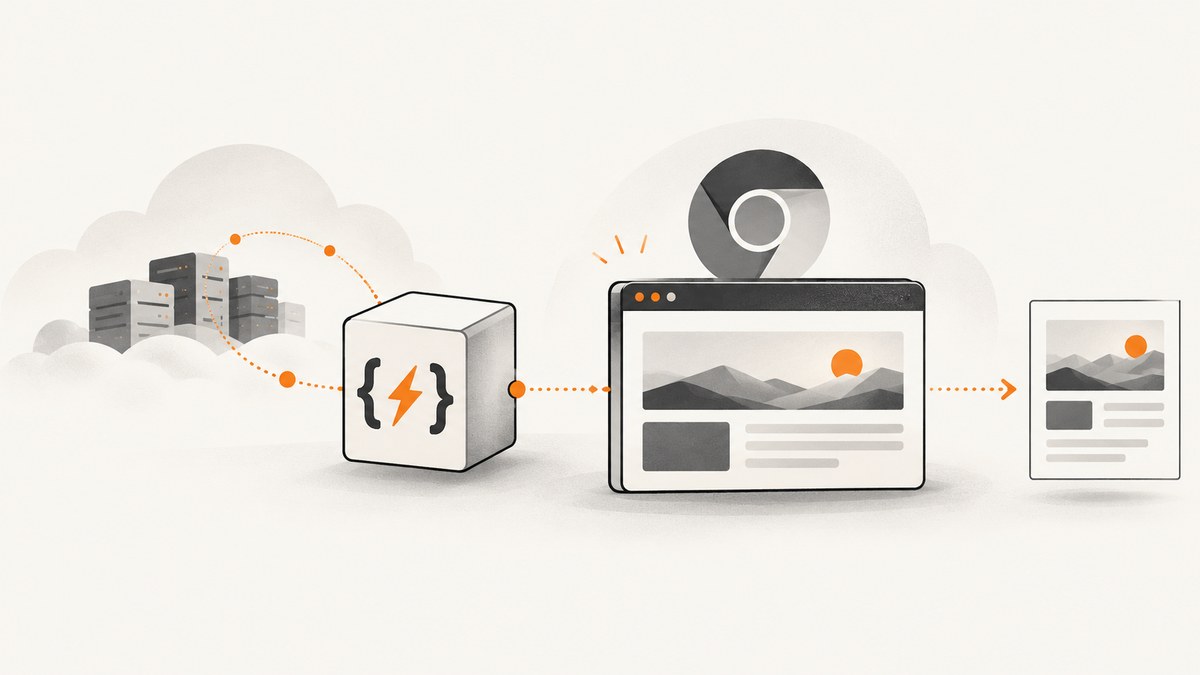
Short answer: install the standard puppeteer package in your Firebase Functions project, pin the dependency and lockfile, place Puppeteer’s browser cache under node_modules, and deploy with a supported Node.js runtime. Puppeteer normally downloads a compatible Chrome for Testing build (and, for applicable versions, chrome-headless-shell) during installation. In your function, launch with Puppeteer’s default executable, close the browser in a finally block, then verify the deployed artifact and logs. If you manage Chromium yourself, pass its explicit executablePath or a supported channel and validate that pairing.
This guide targets Node.js Firebase Cloud Functions. “Latest” changes continuously, so the reproducible goal is a current, pinned Puppeteer version with the browser build that Puppeteer documents as compatible with it.
1. Choose a supported Firebase Functions runtime
Firebase currently documents Node.js 22 and Node.js 20 as supported runtimes, while Node.js 18 is deprecated. Select the runtime in functions/package.json:
{
  "engines": {
    "node": "22"
  }
}
You can also set runtime in firebase.json. When both are present, the Firebase CLI gives the firebase.json setting precedence. Check Firebase’s runtime support documentation when publishing or updating this guide because supported versions change.
Firebase’s getting-started documentation states that your project must be on the Blaze pricing plan to deploy functions. Local emulator work does not replace checking this deployment requirement.
2. Create the project and install Puppeteer
Initialize Functions if you do not already have a Firebase project:
firebase login
firebase init functions
cd functions
npm install puppeteer
npm install --save-dev firebase-functions firebase-admin
Keep puppeteer in production dependencies and commit package-lock.json. The standard package runs an install step that downloads a recent Chrome for Testing build. Puppeteer’s installation documentation says the downloaded browser is guaranteed to work with the Puppeteer version that downloaded it. Some Puppeteer versions also download chrome-headless-shell.
Do not treat puppeteer-core as a drop-in replacement when you expect an automatic download. It does not manage the browser for you. Use it only when your project deliberately packages or provides Chromium separately.
Confirm that the browser download ran
Package managers and CI systems can disable lifecycle scripts. That can leave JavaScript installed while the browser executable is missing. After installation, inspect Puppeteer’s cache and run a small launch check locally:
node -e "const p=require('puppeteer'); p.launch({headless:true}).then(async b => { console.log('browser launched'); await b.close(); }).catch(e => { console.error(e); process.exit(1); });"A successful local check proves only that the local machine has a browser. It does not prove that Firebase’s deployed artifact contains the same files.
3. Put the Puppeteer cache inside node_modules
Google Cloud Functions dependency caching can skip Puppeteer’s postinstall step. Puppeteer’s troubleshooting guidance recommends placing its cache in a subdirectory of node_modules to mitigate missing executable errors caused by that situation.
Create a project-level configuration file in functions/.puppeteerrc.cjs:
const { join } = require('path');

/** @type {import('puppeteer').Configuration} */
module.exports = {
  cacheDirectory: join(__dirname, 'node_modules', '.cache', 'puppeteer'),
};
Reinstall after adding the file so the browser is placed there:
rm -rf node_modules
npm ci
Before deployment, inspect the resulting directory and confirm the expected browser files are included in the artifact that Firebase will upload. The exact directory names vary by Puppeteer version and browser product, so avoid hard-coding a path unless your chosen version requires it.
4. Implement a Firebase Function that captures a page
The following second-generation example uses the default Puppeteer-managed browser. It waits for the page to load, writes a screenshot to the temporary filesystem, and always closes the browser.
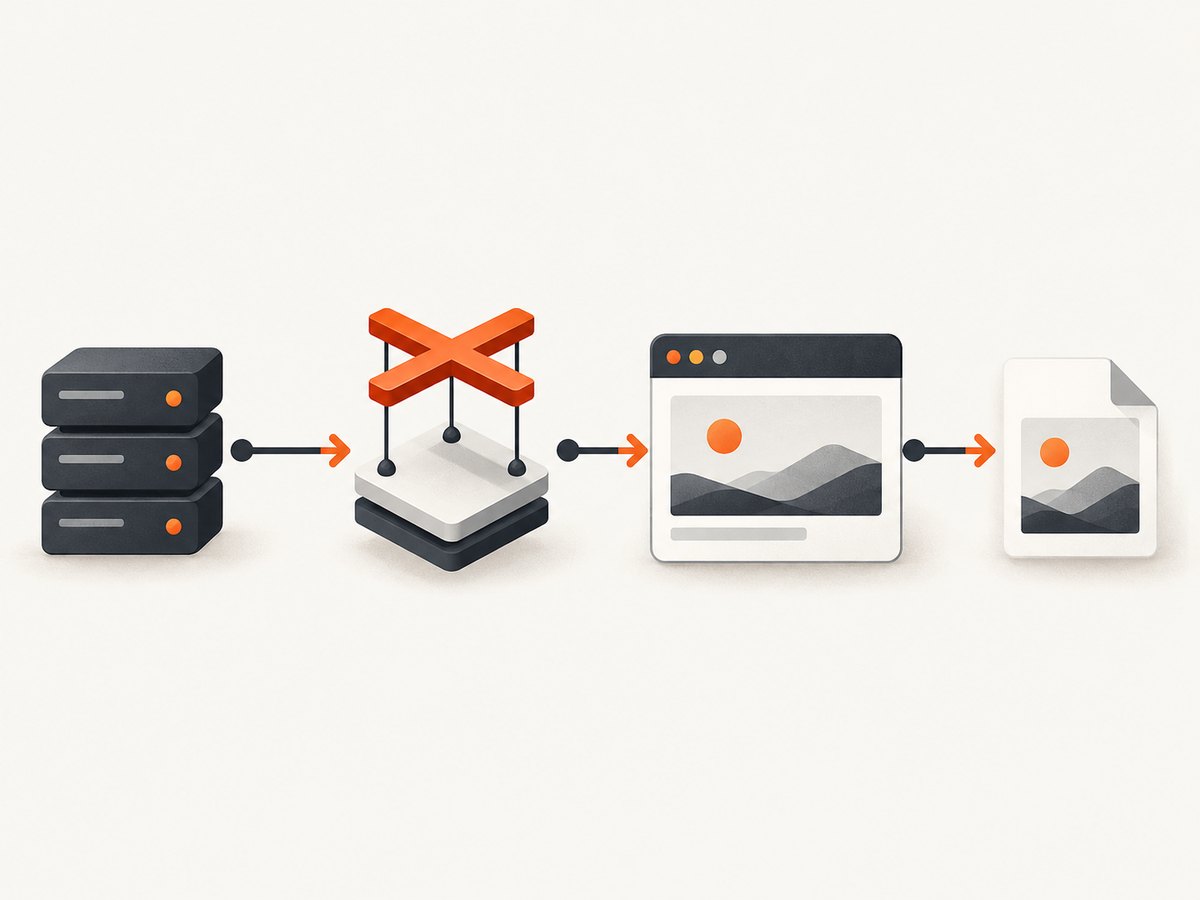
const { onRequest } = require('firebase-functions/v2/https');
const puppeteer = require('puppeteer');

exports.screenshot = onRequest(
  {
    region: 'us-central1',
    timeoutSeconds: 120,
    memory: '1GiB',
  },
  async (req, res) => {
    const target = typeof req.query.url === 'string'
      ? req.query.url
      : 'https://example.com';

    let browser;
    try {
      browser = await puppeteer.launch({
        headless: true,
        // Use args only when required by your deployment environment.
        args: [],
      });

      const page = await browser.newPage();
      await page.setViewport({ width: 1440, height: 900, deviceScaleFactor: 1 });
      await page.goto(target, {
        waitUntil: 'networkidle2',
        timeout: 90_000,
      });
      await page.screenshot({
        path: '/tmp/page.png',
        fullPage: true,
      });

      res.set('Content-Type', 'image/png');
      res.sendFile('/tmp/page.png');
    } catch (error) {
      console.error('Screenshot failed', error);
      res.status(500).json({ error: 'Screenshot failed' });
    } finally {
      if (browser) await browser.close();
    }
  },
);
Set memory and timeout from measurements of your workload. Full-page pages, large images, JavaScript-heavy applications and concurrent requests need more headroom than a small static page. There is no universal safe value.
First-generation functions
If your project still uses the first-generation API, the browser setup is the same; only the handler declaration differs:
const functions = require('firebase-functions');
const puppeteer = require('puppeteer');

exports.screenshot = functions.https.onRequest(async (req, res) => {
  let browser;
  try {
    browser = await puppeteer.launch({ headless: true });
    const page = await browser.newPage();
    await page.goto('https://example.com', { waitUntil: 'networkidle2' });
    const image = await page.screenshot({ type: 'png' });
    res.set('Content-Type', 'image/png').send(image);
  } finally {
    if (browser) await browser.close();
  }
});
5. Use a separately managed Chromium binary when you need control
A separately managed browser can make OS-level packaging or a specific Chromium build part of your release process. In that model, Puppeteer does not choose the executable. Supply an explicit path:
const browser = await puppeteer.launch({
  headless: true,
  executablePath: process.env.CHROME_EXECUTABLE_PATH,
});
Puppeteer also supports a channel option for supported locally installed channels. The Puppeteer configuration documentation describes both approaches. Keep the browser and Puppeteer versions paired, pin them, and validate the combination after every update.
Do not add --no-sandbox reflexively. Puppeteer documents it as an exceptional option when the content is trusted and a usable sandbox cannot be used. Removing the sandbox changes the security boundary of the browser process.
6. Test with the Emulator Suite, then deploy
Run the Functions emulator before deploying:
cd functions
npm run lint
cd ..
firebase emulators:start --only functions
The emulator’s default region may differ from production. A successful local launch confirms your source and local installation, but not Firebase’s runtime image, dependency cache, or uploaded browser files.
Deploy on Blaze with:
firebase deploy --only functions:screenshotAfter deployment, call the HTTPS endpoint with a known URL and inspect logs:
firebase functions:log --only screenshotLog the Puppeteer version, selected browser product and a sanitized executable path at startup. Do not log cookies, authorization headers or page contents.
7. “Latest Chromium” versus reproducible releases
The normal puppeteer install gives you a recent compatible Chrome for Testing build. That is the safest interpretation of “latest” when Puppeteer owns the browser. Floating versions in production make incident diagnosis harder, so commit the lockfile and update intentionally.
| Approach | Advantages | Responsibilities |
|---|---|---|
| Puppeteer-managed | Simple install; browser pairing is handled by Puppeteer | Allow install scripts; preserve the cache under node_modules; verify the artifact |
| Separately managed | Control over browser build and OS packaging | Package the binary, set executablePath or channel, and validate compatibility |
8. Troubleshooting common errors
“Could not find Chrome” or “Could not find browser executable”
Cause: the postinstall download did not run, the cache was outside the deployed dependency tree, or the browser files were excluded from the artifact.
Fix: enable lifecycle scripts, run npm ci, configure .puppeteerrc.cjs as shown, inspect node_modules/.cache/puppeteer, and redeploy. If you manage Chromium yourself, set executablePath to a path that exists in the deployed filesystem.
Install succeeds but deployment fails during packaging
Cause: an oversized or unexpected dependency tree, ignored files, or a browser download that occurred in a different directory.
Fix: deploy from the correct Functions directory, commit the lockfile, review ignore files, and verify that the cache is beneath node_modules. Do not assume a browser present on your workstation is uploaded.
Navigation timeout
Cause: slow servers, never-ending network requests, consent flows or pages that require interaction.
Fix: choose a wait condition that matches the page, set a measured timeout, wait for a specific selector when possible, and record the target URL and navigation phase in logs. Avoid retrying indefinitely.
Blank or incomplete screenshots
Cause: the page renders after the chosen wait condition, lazy content needs scrolling, or the viewport differs from production.
Fix: wait for a meaningful selector, add a bounded delay, scroll in controlled steps for lazy loading, and set the viewport explicitly.
Browser crashes or out-of-memory errors
Cause: large pages, many simultaneous tabs, oversized screenshots or insufficient function memory.
Fix: close every page and browser, limit concurrency, avoid keeping images in memory longer than needed, and increase memory only after measuring the workload.
Sandbox errors
Cause: the runtime cannot create the sandbox under the current process constraints.
Fix: first check the runtime and permissions. Use --no-sandbox only for trusted content when the sandbox genuinely cannot be used, following Puppeteer’s security guidance.
9. Performance, reliability and cost considerations
- Reuse carefully: launching one browser per request is simple but expensive; reusing a browser can reduce startup work but requires strict cleanup and concurrency controls.
- Bound work: set navigation and overall function timeouts, limit page count, and close pages in
finallyblocks. - Control traffic: block unnecessary resources only when your rendering requirements permit it. Record cache hits and retries in your own metrics.
- Pin updates: upgrade Puppeteer and Chromium deliberately, then exercise representative pages in the emulator and a deployed function.
- Choose the platform: Firebase Functions integrates with Firebase deployment and triggers. Cloud Run is the alternative when you need a custom container or OS-level control.
Puppeteer’s troubleshooting documentation says the default Cloud Run Node.js runtime lacks the system packages needed for Headless Chrome and requires a Dockerfile that supplies them. Cloud Run therefore changes the packaging task; it is not a drop-in way to avoid browser dependencies.
Or skip the browser setup
If your goal is reliable website screenshots rather than maintaining Chromium inside a function, ScreenshotNeo provides a GET-based screenshot API and an MCP server. See the API documentation.
curl -G "https://api.screenshotneo.com/v1/shot" -d access_key=YOUR_API_KEY --data-urlencode url=https://stripe.com -o shot.webpimport requests
r = requests.get("https://api.screenshotneo.com/v1/shot", params={"access_key": "YOUR_API_KEY", "url": "https://stripe.com"}, timeout=90)
open("shot.webp", "wb").write(r.content)const q = new URLSearchParams({ access_key: 'YOUR_API_KEY', url: 'https://stripe.com' });
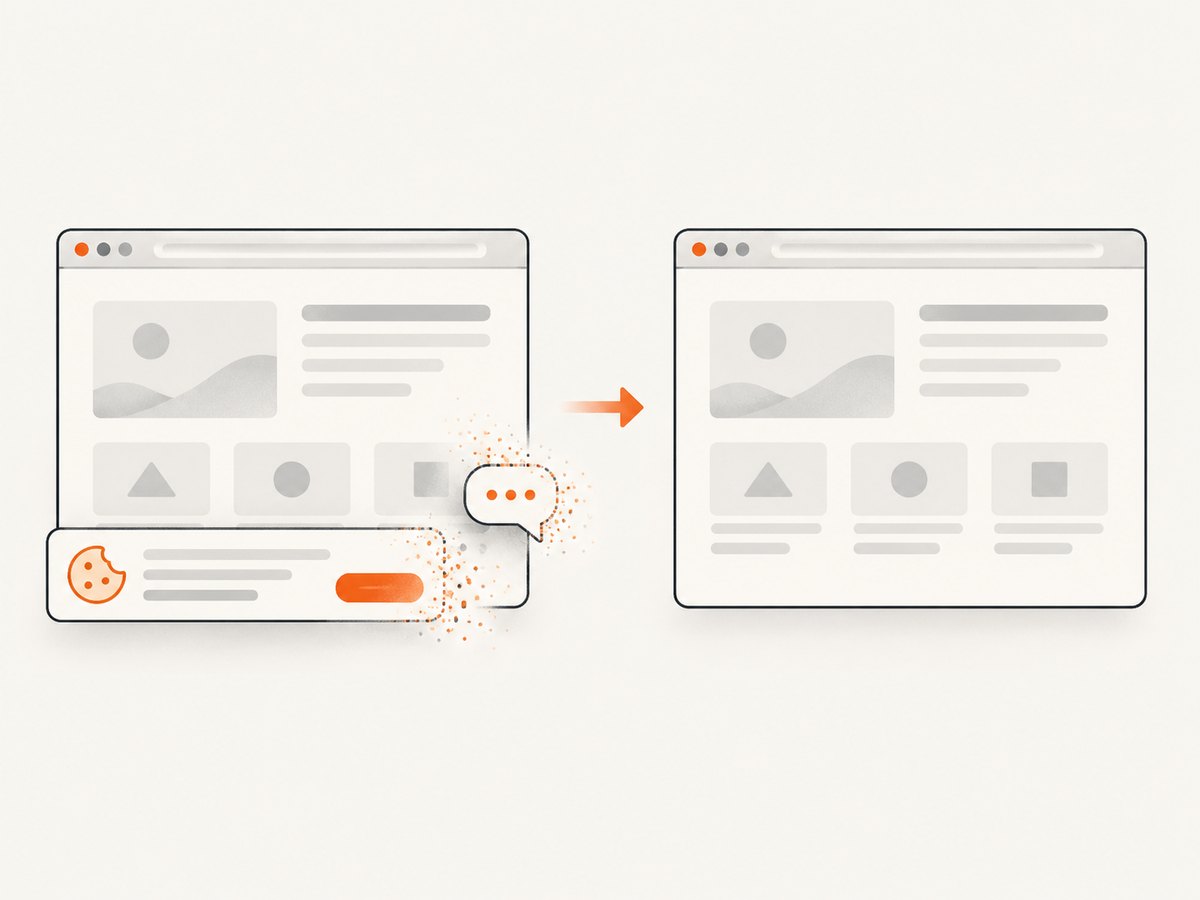
const res = await fetch(`https://api.screenshotneo.com/v1/shot?${q}`);ScreenshotNeo accepts cookie and consent banners before capture and removes more than 60 known consent platforms, newsletter popups and chat widgets. Each step can be turned off. Bot checks and CAPTCHAs, blank pages, timeouts, failed loads and cache hits cost nothing, and the response identifies the result with X-Page-Verdict and X-Billed headers. Its MCP server includes take_screenshot, get_page_info and capture_pdf tools for Claude, Cursor and other MCP clients.
You also get full-page capture with lazy images loaded, CSS-selector element capture, dark mode, device presets, custom viewports, retina scale, PDF controls, custom CSS and JavaScript, clicks, waits, request blocking, headers, cookies, user agents, authorization, timezone, geolocation, transparent backgrounds, resizing, configurable caching, signed links, asynchronous jobs, bulk capture for up to 100 URLs per call, a usage API and an OpenAPI specification. The free plan includes 1,000 screenshots per month with no card; paid plans start at $5 for 3,000 shots.
Create a free ScreenshotNeo account and start with 1,000 screenshots a month at no charge.
FAQ
Does Puppeteer always install the newest Chromium?
It downloads a recent compatible Chrome for Testing build for the Puppeteer version being installed. “Newest” is not an independent guarantee that any arbitrary Chromium build will work with a fixed Puppeteer version.
Should I use puppeteer-core on Firebase?
Only when you intentionally provide the browser separately. Otherwise use puppeteer so its install process manages the compatible browser download.
Can I deploy on Node.js 18?
Firebase currently lists Node.js 18 as deprecated and Node.js 20 and 22 as supported. Choose a supported runtime and re-check the runtime schedule before deployment.
When is Cloud Run a better fit?
Choose Cloud Run when you need a custom container, reproducible OS packages or direct control over browser packaging. Puppeteer’s documentation requires a Dockerfile with the system packages Headless Chrome needs.
Why did my local test pass while production failed?
Local success does not prove that Firebase’s dependency cache ran Puppeteer’s install script or that the browser files were included in the deployed artifact. Verify the cache location and inspect production logs.


