How to Launch Playwright Browsers in Azure Web Apps
Deploy Playwright reliably on Azure Web Apps with a pinned Linux container, matching browsers, OS dependencies, diagnostics, and production fixes.
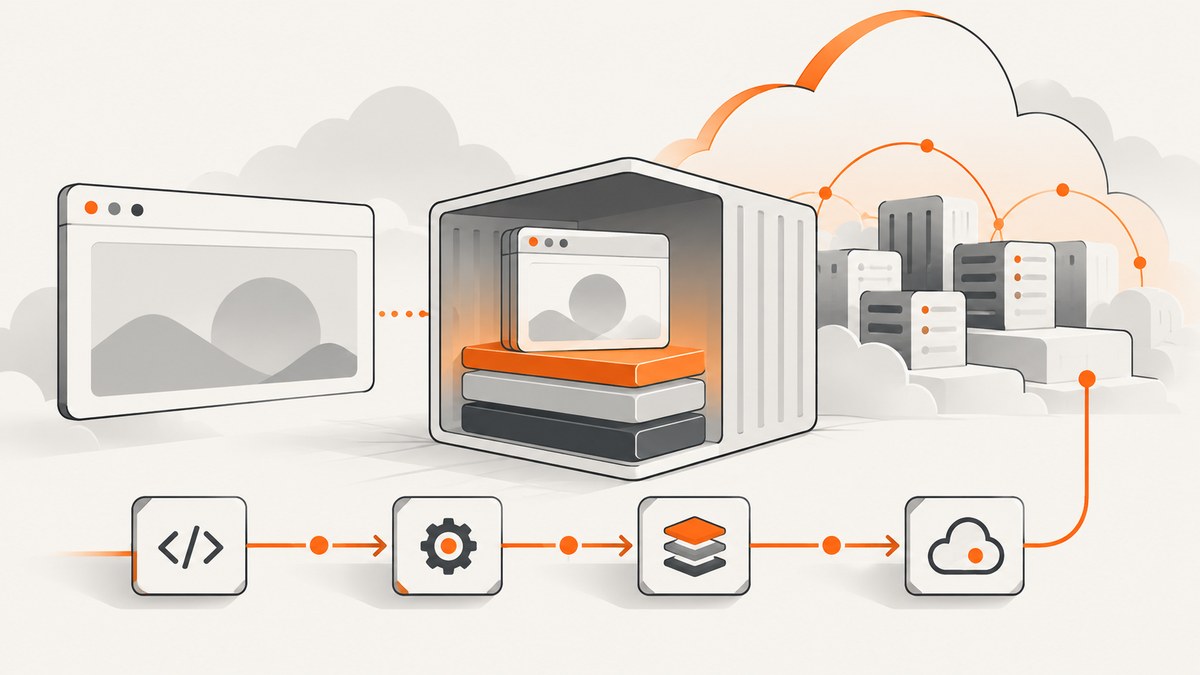
Direct answer: the most controllable way to run Playwright in an Azure Web App is a Linux custom container that pins your Playwright version, installs the matching browser binaries and operating-system dependencies during the image build, and starts your application in headless mode. A predefined App Service runtime may not contain the libraries Chromium needs. A custom image makes those dependencies part of the deployable artifact. This recommendation is an inference from the official Azure custom-container and Playwright installation documentation; there is no single Microsoft-supported recipe for every App Service configuration.
Playwright packages and browser binaries must match. Playwright states that each release needs specific browser versions, so installing the npm or Python package alone is not enough (Playwright browser documentation). Linux also needs shared libraries and other system packages. The deployment below builds those requirements into the image instead of downloading browsers during an app restart.
1. Choose the Azure deployment boundary
Azure App Service offers predefined Linux stacks and support for custom container images. Use a predefined stack only when it provides the runtime and libraries your application needs. When Chromium fails because a shared library is absent, or when you need deterministic browser versions, use a custom container. Microsoft documents this option for applications whose stack is not covered by a predefined runtime (Run a custom container on App Service).
| Decision | Predefined stack | Custom Linux container |
|---|---|---|
| Runtime control | Azure manages the base runtime | You choose the OS packages, Node or Python version, and Playwright version |
| Browser installation | May require startup downloads | Install the matching browser while building the image |
| Reproducibility | Depends on the managed image | Lockfile and image digest define the runtime |
| Storage | Depends on the App Service setup | Browser files can be embedded in the image; runtime files need explicit persistence |
| Headed execution | Requires display support | Still requires Xvfb on Linux |
Use a Debian or Ubuntu based image supported by your Playwright release. Do not use Alpine for this workload: Playwright documents musl-based distributions such as Alpine as unsupported (Playwright Docker documentation).
2. Build a self-contained Node.js image
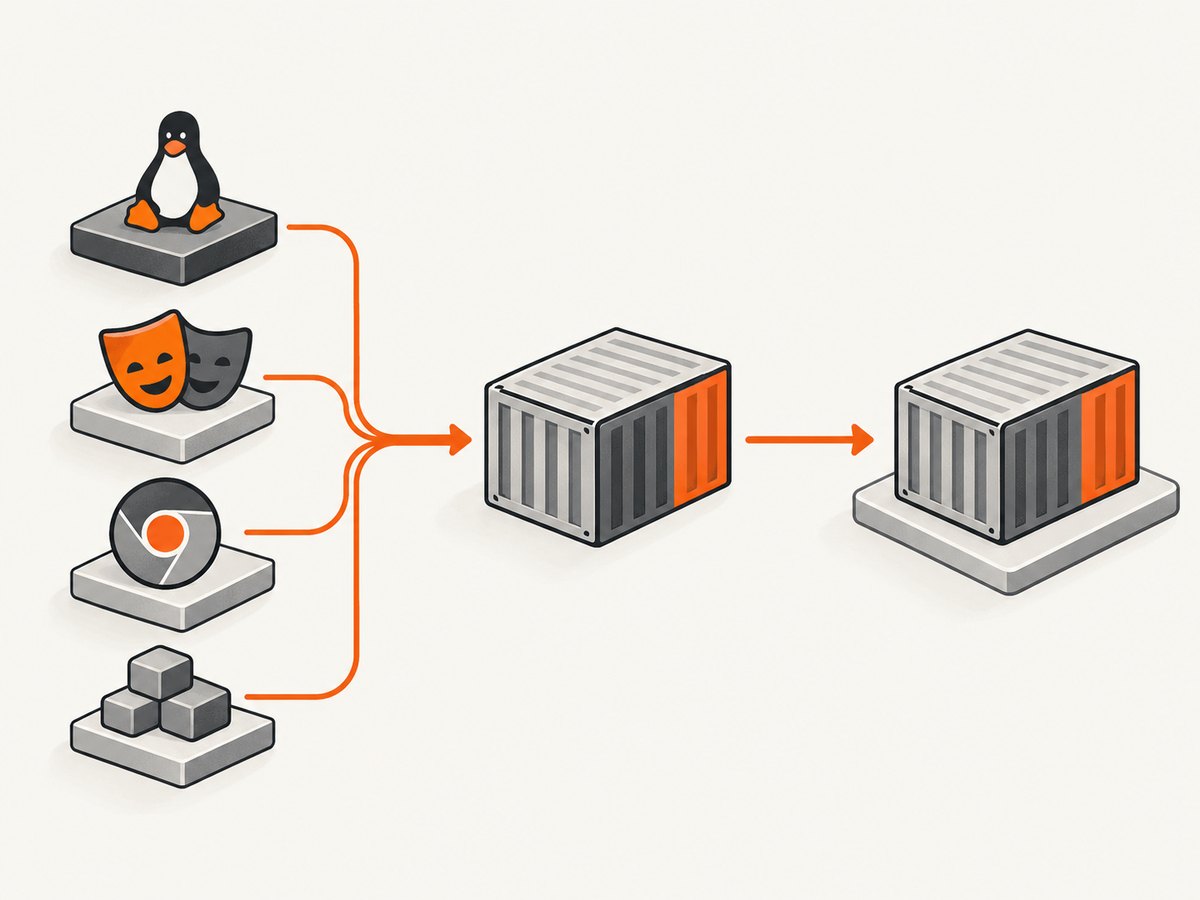
The following example uses Node.js and Chromium. Pin Playwright in package-lock.json, then install the browser and Linux dependencies in the Docker build. Adapt the start command and application files to your project.
FROM node:22-bookworm

WORKDIR /app

COPY package*.json ./
RUN npm ci
RUN npx playwright install --with-deps chromium

COPY . .
ENV NODE_ENV=production
ENV PORT=8080
EXPOSE 8080

CMD ["npm", "start"]
npx playwright install --with-deps chromium installs Chromium and the supported system dependencies in the build context. The build agent therefore needs permission to use the image’s package manager. If your CI environment cannot install operating-system packages, build this image on a compatible Linux runner or use a Playwright image whose tag you have verified against your package version. Do not assume an image tag remains compatible forever.
A minimal application can expose a health endpoint and launch a browser for each request:
import express from 'express';
import { chromium } from 'playwright';

const app = express();
const port = process.env.PORT || 8080;

app.get('/healthz', (_req, res) => res.send('ok'));

app.get('/title', async (req, res) => {
  const target = req.query.url;
  if (typeof target !== 'string' || !/^https?:\/\//i.test(target)) {
    return res.status(400).json({ error: 'url must be an http or https URL' });
  }

  const browser = await chromium.launch({ headless: true });
  try {
    const page = await browser.newPage();
    await page.goto(target, { waitUntil: 'domcontentloaded', timeout: 30000 });
    res.json({ title: await page.title() });
  } catch (error) {
    res.status(502).json({ error: String(error) });
  } finally {
    await browser.close();
  }
});

app.listen(port, '0.0.0.0', () => {
  console.log(`listening on ${port}`);
});
For production traffic, reuse a browser process and create isolated contexts or pages per request. Always close pages and contexts in a finally block. Limit concurrent pages so a burst cannot exhaust memory, file descriptors, or CPU. Set navigation and operation timeouts explicitly; an unbounded navigation can hold a worker indefinitely.
3. Install and run Playwright in Python
Python projects follow the same boundary: pin the package, install its browser during the image build, and run headless in the container.
FROM python:3.12-bookworm
WORKDIR /app
COPY requirements.txt ./
RUN pip install --no-cache-dir -r requirements.txt
RUN playwright install --with-deps chromium
COPY . .
ENV PORT=8080
CMD ["gunicorn", "--bind", "0.0.0.0:8080", "app:app"]
Example requirements.txt:
Flask==3.1.0
Gunicorn==23.0.0
playwright==1.51.0
Replace the versions with the versions you have selected and lock them in your dependency file. The important invariant is that the browser installation command runs after the package is installed and before the final image is published.
4. Configure the App Service container
- Build the image in CI and push it to a registry accessible by App Service.
- Create or update a Linux Web App to use that image. Microsoft’s custom-container guide covers registry settings, environment variables, diagnostics, and storage.
- Configure the container port to match the port your process binds to. The process must listen on
0.0.0.0, not only on localhost. - Set required application settings, such as registry credentials, target environment variables, and a production log level.
- Restart the app after changing the image or settings, then inspect container logs and request
/healthz.
Keep the browser binaries in the image whenever practical. Linux custom-container persistent storage is disabled by default. If your application writes runtime data that must survive a restart, Microsoft documents enabling App Service storage and using /home; that directory counts against the plan’s storage quota. Do not assume files written elsewhere survive a replacement instance.
5. Launch options that matter in Azure
- Headless: Playwright launches headless by default (Playwright Continuous Integration documentation). Keep
headless: truefor normal server-side work. - Headed mode: Linux headed execution needs a display server. Playwright’s CI guidance calls for Xvfb. Add it only when you have a concrete need to observe a browser window.
- Executable path: Prefer the browser bundled for your Playwright release. The BrowserType API warns that
executablePathshould be used with extreme caution because an arbitrary browser can be incompatible (BrowserType API). - Sandbox: Avoid adding launch flags blindly. If your container security model requires a special Chromium flag, document the reason and validate it in the exact deployed image.
- Context isolation: Use a new browser context for separate users or jobs so cookies, local storage, and permissions do not leak between requests.
- Timeouts: Set navigation, locator, and overall job deadlines. A page can remain network-active because of analytics or streaming requests even after its visible content is ready.
6. Capture code and request patterns
For a screenshot or PDF workflow, wait for a meaningful readiness condition instead of relying only on a fixed delay:
const browser = await chromium.launch({ headless: true });
const context = await browser.newContext({ viewport: { width: 1440, height: 900 } });
const page = await context.newPage();
await page.goto('https://example.com', { waitUntil: 'domcontentloaded', timeout: 30000 });
await page.locator('main').waitFor({ state: 'visible', timeout: 10000 });
await page.screenshot({ path: 'page.png', fullPage: true });
await context.close();
await browser.close();
For pages with lazy-loaded images, scroll deliberately or wait for the application’s own loaded marker. For authentication, pass credentials through environment variables or a secret store, never through source control. For untrusted URLs, apply an allowlist and network egress controls; a screenshot endpoint can otherwise become a server-side request forgery surface.
7. Diagnose failures systematically
| Symptom | Likely cause | Fix |
|---|---|---|
| Executable doesn’t exist | The browser was not installed, or the final image omitted it | Run the browser install step for the exact Playwright version and inspect the final image contents |
| Missing shared library | OS dependencies are absent | Use a supported Debian or Ubuntu base and run playwright install --with-deps chromium during the build |
| Works locally, fails in Azure | Local OS libraries differ from the deployed image | Reproduce inside the built image and compare package versions and logs |
| Browser exits immediately | Permission, sandbox, memory, or missing-library failure | Inspect container logs, reduce concurrency, and enable DEBUG=pw:browser while diagnosing |
| Headed launch fails | No X server is available | Use headless mode or provide Xvfb for intentional headed execution |
| Browser disappears after restart | It was downloaded at runtime into nonpersistent storage | Embed it in the image, or enable documented App Service persistence and store required files under /home |
| Alpine build or launch errors | Alpine uses musl and is unsupported for Playwright browsers | Switch to a supported glibc-based image |
| Requests hang | Network-idle never occurs, a resource is blocked, or the target is slow | Use a bounded timeout and a specific selector or application readiness signal |
Playwright’s CI documentation recommends DEBUG=pw:browser for launch debugging. Capture the image digest, Playwright version, browser version, base-image tag, and relevant environment settings with each failed deployment. This turns “works locally” into a reproducible comparison.
8. Performance, reliability, and cost considerations
- Startup: building browsers into the image avoids a download on every restart. Cold starts still depend on image size and App Service plan behavior.
- Concurrency: one browser per request is simple but expensive. A long-lived browser with bounded contexts usually reduces startup work; recycle it when it becomes unhealthy.
- Memory: full-page pages, PDFs, large images, and many simultaneous contexts increase memory pressure. Queue work or cap concurrency before the platform starts killing processes.
- Reliability: treat navigation timeouts, target-side bot checks, and transient DNS or HTTP failures as expected outcomes. Retry only idempotent work, with a limit and backoff.
- Storage: image-embedded browser files are reproducible. Runtime caches under persistent
/homeconsume quota and can become stale. - Azure cost: the research sources do not establish a price or benchmark for a particular App Service plan. Estimate from your chosen plan, instance count, execution duration, and storage usage rather than assuming a universal browser cost.
9. Or skip the browser setup
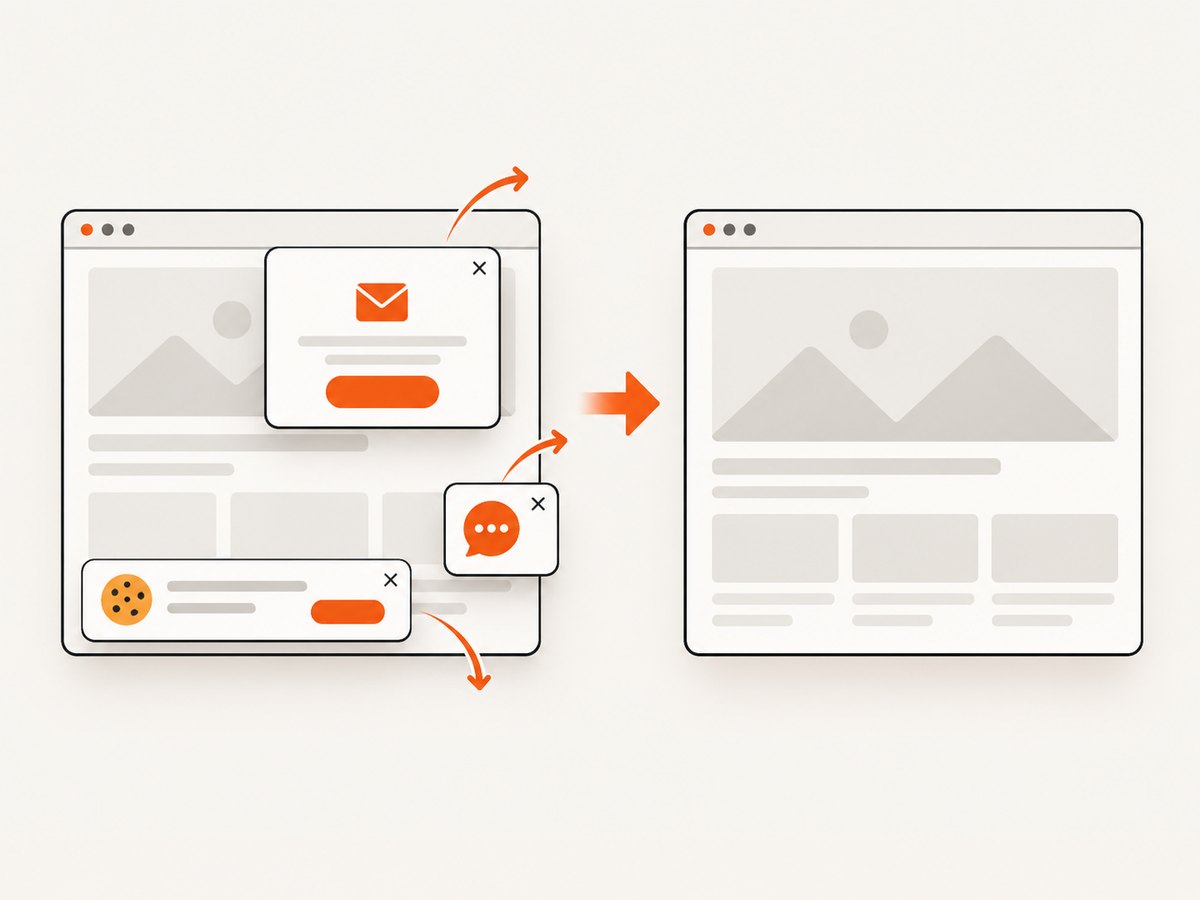
ScreenshotNeo provides a website screenshot API and MCP server when you need an image or PDF without maintaining a Playwright container. It accepts one GET request and returns PNG, JPEG, WebP, or PDF. Before capture it accepts consent banners and removes more than 60 known consent platforms, newsletter popups, and chat widgets; each step can be disabled. Bot checks, blank pages, timeouts, failed loads, and cache hits are not billed, and the response identifies the result with X-Page-Verdict and X-Billed headers.
See the ScreenshotNeo documentation for all options. A basic call is:
curl -G 'https://api.screenshotneo.com/v1/shot' \
  -d access_key=YOUR_API_KEY \
  --data-urlencode url=https://stripe.com \
  -o shot.webp
import requests
r = requests.get(
'https://api.screenshotneo.com/v1/shot',
params={'access_key': 'YOUR_API_KEY', 'url': 'https://stripe.com'},
timeout=90,
)
r.raise_for_status()
open('shot.webp', 'wb').write(r.content)const q = new URLSearchParams({ access_key: 'YOUR_API_KEY', url: 'https://stripe.com' });
const res = await fetch(`https://api.screenshotneo.com/v1/shot?${q}`);
if (!res.ok) throw new Error(`HTTP ${res.status}`);
const bytes = Buffer.from(await res.arrayBuffer());
require('fs').writeFileSync('shot.webp', bytes);Relevant controls include full-page capture with lazy images loaded, CSS-selector element capture, dark mode, 12 device presets or a custom viewport, retina scale, PDF paper size and margins, custom CSS and JavaScript, clicks, selector or network-idle waits, ad and tracker blocking, custom headers and cookies, timezone and geolocation, transparent backgrounds, resizing, chosen cache TTLs, signed public image links, asynchronous jobs with signed webhooks, bulk capture of up to 100 URLs per call, a usage API, and an OpenAPI specification. Parameter names used by other screenshot APIs also work, which simplifies migration.
An MCP server exposes take_screenshot, get_page_info, and capture_pdf to Claude, Cursor, and other MCP clients. Plans include 1,000 shots per month free with no card, then Starter at $5 for 3,000, Growth at $15 for 15,000, Pro at $39 for 60,000, Scale at $99 for 250,000, and Business at $249 for 1,000,000; yearly billing gives two months free, and every feature is on every plan. Create a free ScreenshotNeo account and start with 1,000 screenshots a month at no charge.
10. Deployment checklist
- Playwright is pinned in the lockfile.
- The matching Chromium build is installed during image construction.
- Linux dependencies are installed in the same build.
- The image uses a supported glibc-based distribution, not Alpine.
- The process binds to
0.0.0.0and the configured port. - Headless mode is enabled unless Xvfb is deliberately configured.
- Browser contexts, pages, and processes close on success and failure.
- Navigation and job timeouts are bounded.
- Concurrency and memory limits are explicit.
- Logs include the image and Playwright versions.
- Runtime persistence requirements are documented under
/homeif enabled. - Secrets are supplied through App Service settings or a secret manager.
FAQ
Can I install Playwright only when the Web App starts?
You can, but image-time installation is more reproducible and avoids depending on network access and writable persistent storage during startup.
Do I need a virtual display for screenshots?
No. Playwright is headless by default. Xvfb is needed when you intentionally launch a headed Linux browser.
Should I point Playwright at the system Chromium?
Usually no. Use the browser bundled for your pinned Playwright version; custom executable paths can introduce compatibility problems.
Why does a browser work in a local development machine but not in App Service?
The machines may have different shared libraries, permissions, CPU architecture, memory limits, and storage behavior. Rebuild and test the exact container image that App Service runs.
Can ScreenshotNeo replace an Azure-hosted Playwright worker?
For URL screenshots and PDFs, yes: the API handles browser setup and provides the capture controls described above. Keep a self-managed Playwright service when you need application-specific browser automation outside those operations.


