How to Make Lazy-Loaded Images Render in Headless Puppeteer
Make below-the-fold images appear reliably in Puppeteer screenshots by scrolling, checking image readiness, and handling common lazy-loading failures.

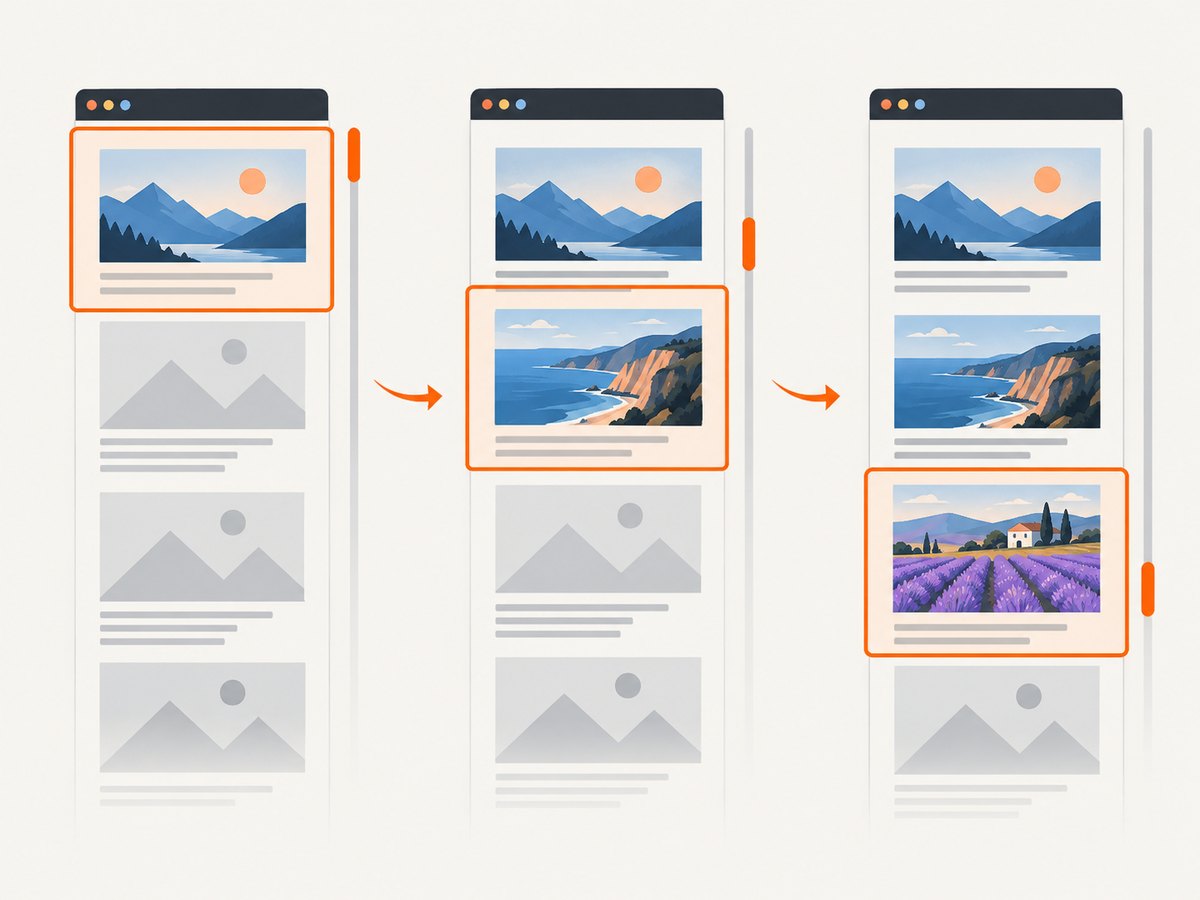
Headless Puppeteer can finish navigation before lazy-loaded images have downloaded. The browser may fire load, or reach a networkidle condition, while images below the fold are still deferred. The reliable solution is to bring images into or near the viewport, wait for the image elements to report successful loading, then capture the page.
This guide shows a complete workflow for screenshots, PDFs and visual tests. It covers native loading="lazy", JavaScript and Intersection Observer implementations, full-page scrolling, image readiness checks, timeouts, zero-sized elements, failed requests and headless-mode differences.
Why lazy-loaded images are missing in Puppeteer screenshots
Lazy loading is intentional. A browser postpones an image request until the image is close enough to the viewport to be useful. This reduces initial network and decoding work, especially on long pages. It is a browser loading behavior, not a Puppeteer option that can simply be switched on or off.
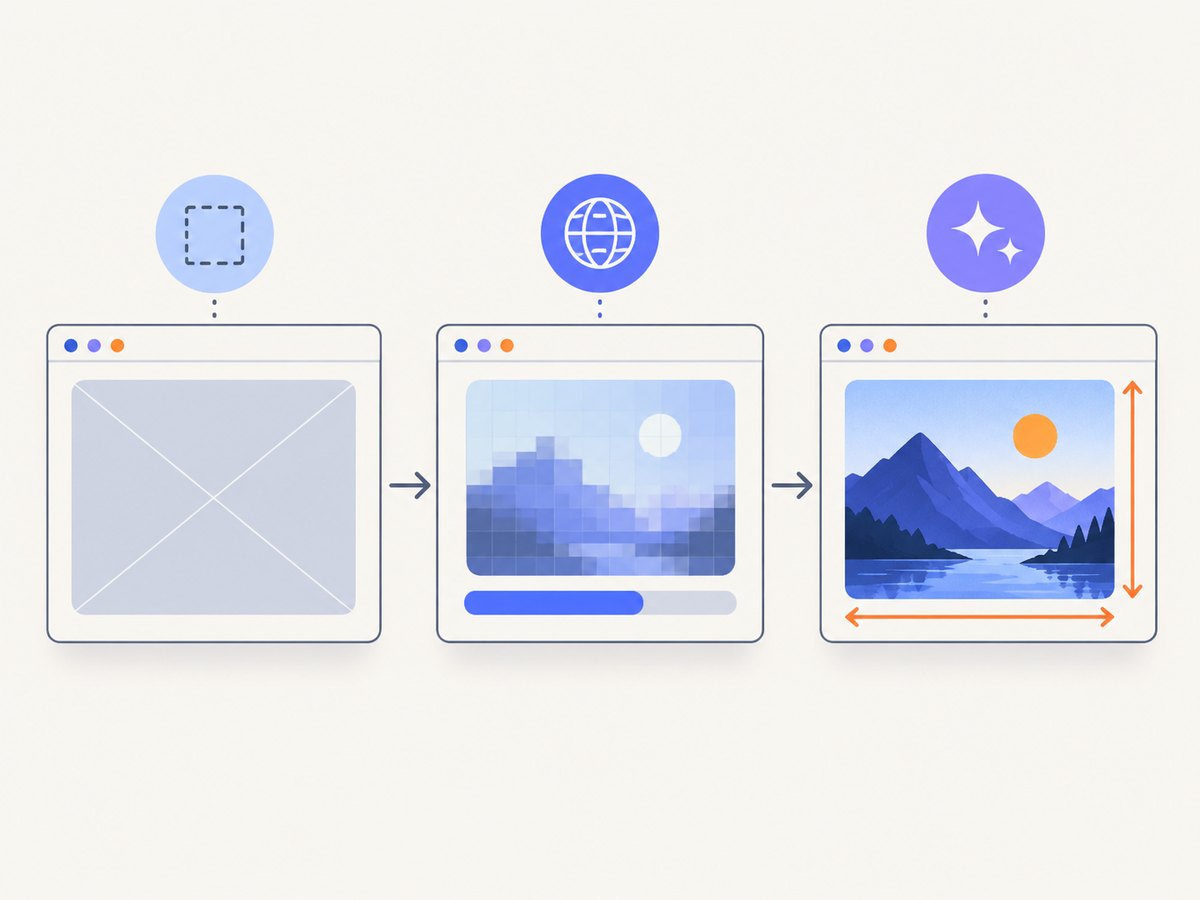
The window load event only represents resources that the browser needed to load at that point. MDN documents that lazy images in the visual viewport may still be unavailable when load fires. The image’s own state is a better signal: HTMLImageElement.complete indicates that loading has finished, while naturalWidth greater than zero confirms that an actual image decoded successfully. See MDN’s lazy-loading guide and the MDN <img> reference.
networkidle2 is useful as a navigation starting point, but it is not a page-independent guarantee. A page can have no more than two active connections while its scroll handler has not yet assigned a src, or while an image request is about to be triggered by the next viewport movement.
Reliable workflow: navigate, scroll, wait, capture
- Navigate with
domcontentloaded,loador a suitable network-idle condition. - Inspect the page to understand whether images use native lazy loading,
data-src,srcsetor an application-specific marker. - Scroll through the document in measured increments so every relevant section approaches the viewport.
- Wait for the required images to become complete and verify
naturalWidth > 0. - Capture only after the readiness condition succeeds, with a finite timeout and useful diagnostics.
Puppeteer’s locator interactions scroll targets into view using mouse-wheel-style input. That behavior fits pages whose loading code listens for real scroll or intersection events. For long documents, incrementing window.scrollY is usually faster and still triggers native lazy loading, but it may not satisfy a site that expects a particular event sequence.
Complete Puppeteer example
import puppeteer from 'puppeteer';

const url = 'https://example.com/article';
const browser = await puppeteer.launch({
  headless: true,
  // Use the installed Chrome/Chromium in your environment when needed:
  // executablePath: process.env.CHROME_PATH
});

try {
  const page = await browser.newPage();
  await page.setViewport({ width: 1440, height: 900, deviceScaleFactor: 1 });
  await page.goto(url, {
    waitUntil: 'domcontentloaded',
    timeout: 30000
  });

  // Give application code a short opportunity to attach scroll handlers.
  await page.waitForTimeout(250);

  // Scroll in viewport-sized steps. A small overlap prevents boundary misses.
  await page.evaluate(async () => {
    const step = Math.max(300, Math.floor(window.innerHeight * 0.8));
    const pause = 120;
    for (let y = 0; y < document.documentElement.scrollHeight; y += step) {
      window.scrollTo(0, y);
      await new Promise(resolve => setTimeout(resolve, pause));
    }
    window.scrollTo(0, document.documentElement.scrollHeight);
    await new Promise(resolve => setTimeout(resolve, pause));
  });

  // Wait for image elements, not merely for network activity.
  await page.waitForFunction(
    () => {
      const images = [...document.images];
      return images.length > 0 && images.every(img =>
        img.complete && img.naturalWidth > 0
      );
    },
    { timeout: 15000 }
  );

  await page.screenshot({ path: 'page.png', fullPage: true });
} finally {
  await browser.close();
}
The images.length > 0 check is appropriate when the target page is expected to contain images. If a valid page can contain none, remove that part of the predicate. For a page with optional or decorative images, create a selector for the images that matter instead of failing on an intentionally empty placeholder.
Wait for a specific image set
await page.waitForFunction(
  selectors => selectors.every(selector => {
    const img = document.querySelector(selector);
    return img && img.complete && img.naturalWidth > 0;
  }),
  { timeout: 15000 },
  ['main article img', '.hero-image', '[data-critical-image]']
);
Waiting for selected images is more reliable for pages that include tracking pixels, avatars, ads or intentionally broken decorative assets. Keep the selector list tied to what the screenshot actually needs.
Scrolling strategies for native and custom lazy loading
Incremental page scrolling
Incremental scrolling is a good default for full-page captures. It gives each section time to enter the browser’s loading threshold and gives scroll listeners a sequence of events. The pause does not need to be large; start around 100–200 milliseconds and increase it if the site performs heavy work after each scroll.
await page.evaluate(async () => {
  const maxY = document.documentElement.scrollHeight - window.innerHeight;
  const step = Math.floor(window.innerHeight * 0.75);
  for (let y = 0; y <= maxY; y += step) {
    window.scrollTo({ top: y, behavior: 'instant' });
    await new Promise(r => setTimeout(r, 150));
  }
});
Scrolling each image with a locator
When the site reacts only when a particular element is near the viewport, scroll the elements themselves. Puppeteer documents locator scrolling as a mouse-wheel interaction that ensures the target is in view. This can be slower than page scrolling, but it mirrors user-like interaction more closely.
const images = await page.locator('main img').all();
for (const image of images) {
  await image.scroll();
  await page.waitForTimeout(100);
}
Use this approach when a component’s code depends on intersection thresholds or a scroll event that a direct jump does not reproduce.
Custom data-src implementations
Some sites leave the real URL in data-src or data-srcset and copy it into src only after an observer callback. Do not overwrite those attributes blindly. First scroll and inspect the values before and after:
const state = await page.$$eval('img', imgs => imgs.map(img => ({
  loading: img.loading,
  src: img.getAttribute('src'),
  currentSrc: img.currentSrc,
  dataSrc: img.getAttribute('data-src'),
  complete: img.complete,
  naturalWidth: img.naturalWidth,
  rect: img.getBoundingClientRect().toJSON()
})));
console.table(state);
If data-src never becomes src, the problem is usually an application script, a missing observer trigger or a JavaScript error. Fix the page condition or trigger the required interaction rather than treating the screenshot timeout as the root cause.
Waiting correctly and handling timeouts
A wait must have a deadline. Without one, a single failed image can hang a worker indefinitely. When the wait expires, collect a diagnostic list so the failure identifies the image URL and state.
async function reportUnreadyImages(page) {
  return page.$$eval('img', imgs => imgs
    .filter(img => !(img.complete && img.naturalWidth > 0))
    .map(img => ({
      src: img.currentSrc || img.src || img.getAttribute('data-src'),
      complete: img.complete,
      naturalWidth: img.naturalWidth,
      loading: img.loading,
      width: img.getBoundingClientRect().width,
      height: img.getBoundingClientRect().height
    }))
  );
}

try {
  await page.waitForFunction(
    () => [...document.images].every(i => i.complete && i.naturalWidth > 0),
    { timeout: 15000 }
  );
} catch (error) {
  console.error('Images not ready:', await reportUnreadyImages(page));
  throw error;
}
Decide whether an unready image is fatal. For a product gallery, it usually is. For a page containing optional recommendations, you may log the failure and capture after the critical selectors are ready.
Why an image never loads: troubleshooting checklist
| Symptom | Likely cause | Fix |
|---|---|---|
load fires but below-fold images are blank |
Native lazy loading has not been triggered | Scroll incrementally, then wait on complete and naturalWidth. |
networkidle2 succeeds too early |
The request starts only after a later scroll or script callback | Use a scroll phase before the image-ready wait. |
An image remains complete: false |
Request is pending, blocked or the source was never assigned | Inspect currentSrc, data-src, console errors and failed requests. |
complete: true, naturalWidth: 0 |
Decode or network failure, invalid URL, CORS or an unavailable resource | Open the resolved URL, listen for request failures and correct the source or access policy. |
| Observer never requests the image | The element has zero width or height, or is hidden | Inspect its bounding rectangle; add dimensions or make the container visible. |
| Only a large jump fails | Application code expects incremental scroll events | Use smaller steps and short pauses, or scroll each target locator. |
| Headless differs from a visible browser | Different Chrome mode or browser build | Record Puppeteer and browser versions and compare regular headless with headful Chrome. |
| Screenshot is cut off or layout changes | Capture started while images were changing intrinsic dimensions | Wait for image readiness and, if needed, a short layout-stability period before capture. |
Zero-sized lazy images deserve special attention. MDN recommends explicit width and height attributes because a browser may not consider an element intersecting when it has no meaningful layout box. A missing box can prevent the observer from firing even though the element appears in the DOM.
Capture request failures and console errors
page.on('requestfailed', request => {
  console.warn('Request failed:', request.url(), request.failure()?.errorText);
});
page.on('console', message => {
  if (message.type() === 'error') console.warn('Page error:', message.text());
});
Also check whether a content security policy, authentication requirement, expired signed URL or anti-bot challenge prevents the image host from responding. These are different from lazy loading and require fixing access or request configuration.
Full-page screenshots, PDFs and visual test reliability
For a full-page screenshot, scroll first and then use fullPage: true. Puppeteer may stitch content beyond the current viewport, but stitching does not itself guarantee that every image was requested. The explicit scroll and readiness wait remain necessary.
await page.screenshot({
  path: 'article.webp',
  type: 'webp',
  quality: 85,
  fullPage: true
});
For PDFs, the same preparation applies before page.pdf(). Set the media type and page format before waiting if those settings alter layout or image visibility:
await page.emulateMediaType('screen');
await page.pdf({
  path: 'article.pdf',
  format: 'A4',
  printBackground: true,
  preferCSSPageSize: true
});
Visual tests should use deterministic inputs. Fix the viewport, device scale factor, timezone and locale where possible. Wait for the same selectors on every run, disable animations if they cause unstable pixels, and retain the diagnostic list when a test fails. Do not replace an image-ready condition with an arbitrary sleep; a sleep can be too short on a busy run and unnecessarily slow on a fast run.
Performance and cost considerations
Scrolling and decoding every image costs time and memory. If the output only needs a hero image and two cards, wait for those selectors instead of every img on the page. For a long document, use measured steps and a modest pause. Very small steps create more script work; very large jumps can skip application handlers.
Use request interception carefully. Blocking analytics, ads or video can improve capture speed, but blocking an image CDN, a stylesheet or a script that assigns data-src will make the page incomplete. If you block resources, verify that the lazy-loading code still runs.
Reuse a browser process for batches of pages, but create a fresh page and clear page-specific state between captures. Set navigation and image waits separately so a slow image does not consume an unlimited worker slot. For retries, retry transient network failures with a limit and record the resolved URL; do not repeatedly retry a permanently invalid source.
Or skip the browser setup
If your goal is a dependable website screenshot rather than maintaining Chromium code, ScreenshotNeo provides a GET endpoint that returns PNG, JPEG, WebP or PDF. Full-page capture loads lazy images before the shot, and you can also wait for a selector, delay or network idle, capture one CSS-selected element, run custom JavaScript, hide selectors, set a viewport or device preset, choose retina scale and block selected resource types.
Cookie banners, newsletter popups and chat widgets are removed before the shot. Bot checks, blank pages, timeouts, failed loads and cache hits are not billed, and response headers identify the page verdict and whether the shot was billed. The service also supports custom headers, cookies, user agents, authorization, timezone, geolocation, caching with a chosen TTL, signed image links, asynchronous jobs, signed webhooks, bulk capture for up to 100 URLs per call, usage reporting and an MCP server with take_screenshot, get_page_info and capture_pdf for AI clients.
See the ScreenshotNeo API documentation for all options.
curl -G "https://api.screenshotneo.com/v1/shot" -d access_key=YOUR_API_KEY --data-urlencode url=https://stripe.com -o shot.webpimport requests
r = requests.get("https://api.screenshotneo.com/v1/shot", params={"access_key": "YOUR_API_KEY", "url": "https://stripe.com"}, timeout=90)
open("shot.webp", "wb").write(r.content)const q = new URLSearchParams({ access_key: 'YOUR_API_KEY', url: 'https://stripe.com' });
const res = await fetch(`https://api.screenshotneo.com/v1/shot?${q}`);Every feature is available on every plan. The Free plan includes 1,000 screenshots per month without a card; paid plans start at $5 for 3,000 shots. An MCP server lets AI agents take screenshots directly. Create a free ScreenshotNeo account to start.
FAQ
Does waitUntil: 'networkidle2' load all lazy images?
No. It describes current network activity during navigation. Images triggered by later scrolling or callbacks can still be pending.
Should I set every image to loading="eager"?
Only when you control the page and accept the extra initial work. For third-party pages, trigger the existing lazy-loading behavior and wait for the resulting image state.
Why is complete true but the image still blank?
A failed image can be complete with naturalWidth === 0. Treat both properties as the success check.
Can I use this for one element instead of a full page?
Yes. Scroll the target element into view, wait for images inside that element, then call element.screenshot().
When should I compare headless and headful Chrome?
When the same URL and script behave differently only in headless mode. Record the browser and Puppeteer versions and test the regular Chrome headless mode as well as headful mode.


