How to Set Legal-Size PDF Pages with HTML2Canvas and jsPDF
Set jsPDF to legal paper, render html2canvas safely, and paginate tall HTML into sharp 8.5 × 14 inch PDF pages.

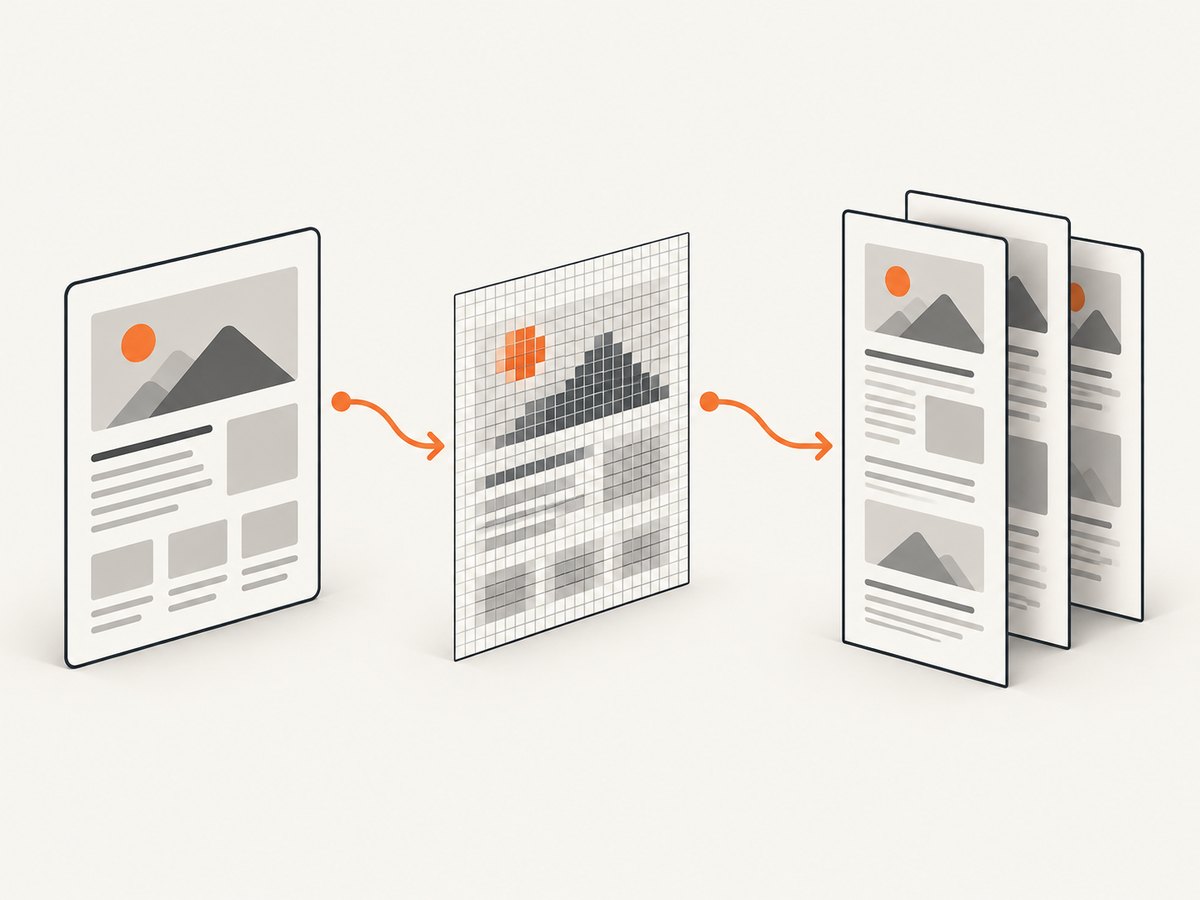
Use jsPDF’s built-in legal format, set the unit explicitly, render the element with html2canvas, then place the rendered pixels across legal-height pages. In portrait, legal paper is 8.5 × 14 inches (612 × 1008 points).
The complete flow is: make the document’s capture width and height deterministic, render at a controlled scale, convert the canvas dimensions to the PDF unit, and add one image per page. html2canvas reconstructs the DOM; it does not capture the browser compositor, so cross-origin images and unsupported CSS need special handling.
1. Install the libraries
npm install jspdf html2canvasIn a browser application, import the packages from your bundler. The APIs used below are documented in the jsPDF project and html2canvas configuration reference.
2. Minimal legal-size PDF
import { jsPDF } from 'jspdf';
import html2canvas from 'html2canvas';

const element = document.querySelector('#print-area');
if (!element) throw new Error('Missing #print-area');

const pdf = new jsPDF({
  orientation: 'portrait',
  unit: 'in',
  format: 'legal',
});

const canvas = await html2canvas(element, {
  scale: Math.min(window.devicePixelRatio || 1, 2),
  useCORS: true,
  backgroundColor: '#ffffff',
  windowWidth: element.scrollWidth,
  windowHeight: element.scrollHeight,
});

const pageWidth = pdf.internal.pageSize.getWidth();
const pageHeight = pdf.internal.pageSize.getHeight();
const margin = 0.5;
const imageWidth = pageWidth - margin * 2;
const imageHeight = canvas.height * imageWidth / canvas.width;

pdf.addImage(canvas, 'PNG', margin, margin, imageWidth, imageHeight);
pdf.save('legal-output.pdf');
This is suitable when the rendered content fits one legal page. A tall element must be paginated instead of being placed once beyond the page boundary.
3. Paginate a tall canvas
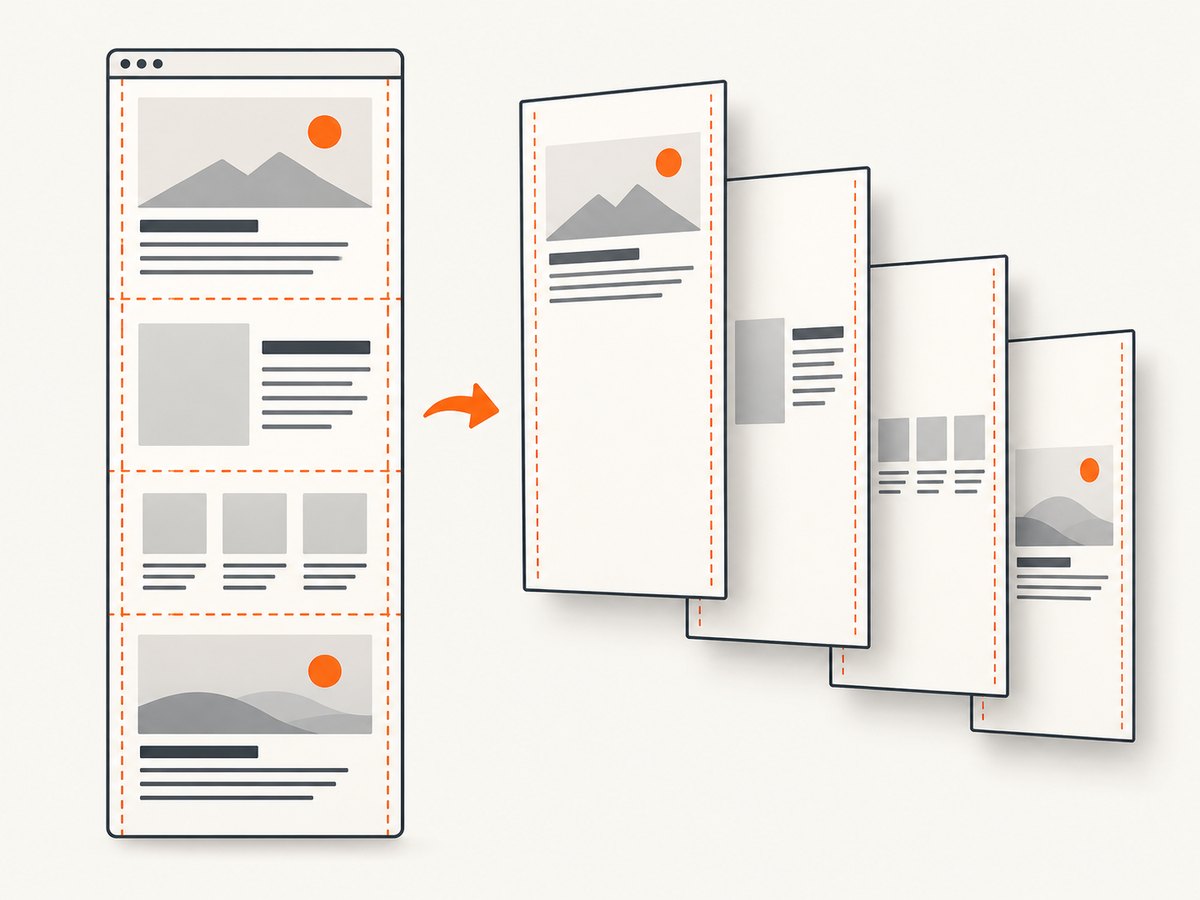
The following implementation renders one canvas, calculates its physical height, and repeats the image with a negative vertical offset for each page. The page is legal portrait, with a half-inch margin on every side.
import { jsPDF } from 'jspdf';
import html2canvas from 'html2canvas';

export async function downloadLegalPdf() {
  const element = document.querySelector('#print-area');
  if (!element) throw new Error('Missing #print-area');

  const pdf = new jsPDF({
    orientation: 'portrait',
    unit: 'in',
    format: 'legal',
    compress: true,
  });

  const canvas = await html2canvas(element, {
    scale: Math.min(window.devicePixelRatio || 1, 2),
    useCORS: true,
    backgroundColor: '#ffffff',
    windowWidth: element.scrollWidth,
    windowHeight: element.scrollHeight,
    scrollX: 0,
    scrollY: 0,
  });

  const pageWidth = pdf.internal.pageSize.getWidth();
  const pageHeight = pdf.internal.pageSize.getHeight();
  const margin = 0.5;
  const contentWidth = pageWidth - margin * 2;
  const contentHeight = pageHeight - margin * 2;
  const renderedHeight = canvas.height * contentWidth / canvas.width;
  let offset = 0;
  let page = 0;

  while (offset < renderedHeight) {
    if (page > 0) pdf.addPage('legal', 'portrait');
    pdf.addImage(
      canvas,
      'PNG',
      margin,
      margin - offset,
      contentWidth,
      renderedHeight,
      undefined,
      'FAST'
    );
    offset += contentHeight;
    page += 1;
  }

  pdf.save('legal-output.pdf');
}
The image is deliberately drawn at its full scaled height and shifted upward on later pages. For very tall documents, use section canvases (shown next) so the browser never has to allocate one enormous bitmap.
4. Render sections to avoid canvas limits
Browsers impose maximum canvas dimensions and memory limits. A huge canvas can be blank, truncated, or fail without a useful exception. Split the document into known sections and render each section separately.
import { jsPDF } from 'jspdf';
import html2canvas from 'html2canvas';

export async function sectionsToLegalPdf(sectionSelector = '[data-pdf-section]') {
  const sections = [...document.querySelectorAll(sectionSelector)];
  if (!sections.length) throw new Error('No PDF sections found');

  const pdf = new jsPDF({ orientation: 'portrait', unit: 'in', format: 'legal' });
  const margin = 0.5;
  const pageWidth = pdf.internal.pageSize.getWidth();
  const pageHeight = pdf.internal.pageSize.getHeight();
  const contentWidth = pageWidth - margin * 2;
  const contentHeight = pageHeight - margin * 2;
  let firstPage = true;

  for (const section of sections) {
    const canvas = await html2canvas(section, {
      scale: Math.min(window.devicePixelRatio || 1, 2),
      useCORS: true,
      backgroundColor: '#ffffff',
      windowWidth: section.scrollWidth,
      windowHeight: section.scrollHeight,
    });
    const imageHeight = canvas.height * contentWidth / canvas.width;
    let offset = 0;
    while (offset < imageHeight) {
      if (!firstPage) pdf.addPage('legal', 'portrait');
      firstPage = false;
      pdf.addImage(canvas, 'PNG', margin, margin - offset, contentWidth, imageHeight, undefined, 'FAST');
      offset += contentHeight;
    }
  }
  pdf.save('legal-sections.pdf');
}
Choose section boundaries where a heading and its following content should stay together. If one section is still taller than a page, it is sliced by the inner loop.
5. Legal size, units, orientation and custom dimensions
| Setting | Use |
|---|---|
format: 'legal' |
Built-in 8.5 × 14 inch page (612 × 1008 points). |
unit: 'in' |
Best when margins and paper measurements are in inches. |
unit: 'mm' |
Use 216 × 356 mm reasoning for metric layouts. |
unit: 'pt' |
Useful when matching PDF coordinates directly. |
orientation: 'landscape' |
Swaps the axes to 14 × 8.5 inches. |
format: [width, height] |
Custom page size in the selected unit. |
If you choose unit: 'px', enable jsPDF's px_scaling hotfix so pixel coordinates map correctly. Deliberately converting canvas pixels to inches, millimetres or points (as the examples do) is usually easier to reason about.
const pdf = new jsPDF({
  orientation: 'portrait',
  unit: 'px',
  format: 'legal',
  hotfixes: ['px_scaling'],
});
6. html2canvas options that affect fidelity
scale: More source pixels usually produce sharper output, but increase memory and rendering time. A bounded value such as 1–2 is safer for large pages than an unrestricted device pixel ratio.windowWidthandwindowHeight: Set them to the element's scroll dimensions when content extends beyond the viewport.backgroundColor: Set a colour for a predictable PDF background; usenullonly when you need transparency.useCORS: Allows images that opt in with appropriate CORS headers. It cannot bypass a server that omits those headers.allowTaint: Avoid enabling this as a workaround; tainted canvases cannot be exported safely.ignoreElementsordata-html2canvas-ignore: Exclude controls, video, ads or other content that should not appear in the PDF.onclone: Modify the cloned document before rendering, for example to expand collapsed content or remove sticky positioning.
const canvas = await html2canvas(element, {
  scale: 2,
  useCORS: true,
  backgroundColor: '#fff',
  windowWidth: element.scrollWidth,
  windowHeight: element.scrollHeight,
  ignoreElements: node => node.matches('.no-print, video'),
  onclone: clonedDocument => {
    clonedDocument.querySelectorAll('.sticky').forEach(node => {
      node.style.position = 'static';
    });
  },
});
7. Cross-origin assets and CSS limitations
html2canvas builds a representation from DOM properties rather than taking a compositor screenshot. Fonts, images, shadows, filters, blend modes and other CSS can therefore differ from what the user sees. Cross-origin images need a CORS response header; otherwise proxy them through your own origin. html2canvas cannot read the document inside a cross-origin iframe.
Wait for web fonts and images before rendering. A practical pattern is to call document.fonts.ready, then render after images report complete or finish loading. Avoid capturing while a layout transition, lazy image load or virtualized list is still changing.
await document.fonts.ready;
await Promise.all([...document.images].map(image =>
  image.complete ? Promise.resolve() : new Promise(resolve => {
    image.addEventListener('load', resolve, { once: true });
    image.addEventListener('error', resolve, { once: true });
  })
));
8. Page breaks, quality and searchable text
Canvas output is a raster image, so text in the resulting PDF is not selectable or searchable. The image-slicing method gives predictable placement but can cut a paragraph or table row at a page boundary. Section rendering, explicit break markers, or a layout-aware PDF renderer are better when semantic page breaks and selectable text matter.
Keep the capture width stable, remove fixed-position overlays, and set print-specific styles in the cloned document. Use PNG for crisp text and transparency; JPEG can reduce file size for photographic pages but introduces compression artifacts. compress: true helps PDF stream compression, while the dominant memory cost remains the canvas.
9. Troubleshooting
| Symptom | Likely cause | Fix |
|---|---|---|
| Only the top of the page appears | The canvas is taller than one page and was added once. | Use the pagination loop or section rendering. |
| Pages are blank or truncated | Canvas dimensions or memory exceeded browser limits. | Lower scale, reduce capture width, and render smaller sections. |
| Images are missing | Cross-origin response lacks CORS headers, or images were not loaded. | Serve images with CORS, proxy them, wait for image load, and set useCORS: true. |
| Layout differs from the screen | DOM reconstruction does not implement every CSS property; viewport values differ. | Set windowWidth/windowHeight, use onclone, and simplify unsupported CSS. |
| Content is clipped horizontally | Capture width equals the viewport instead of the element's scroll width. | Use windowWidth: element.scrollWidth and check overflow styles. |
| Text is blurry | Capture scale is too low or the image is enlarged in the PDF. | Increase scale within memory limits and avoid enlarging beyond the intended physical size. |
| Legal page is the wrong size | Unit conversion or custom dimensions were mixed. | Use format: 'legal' and one deliberate unit; inspect getWidth()/getHeight(). |
| Fixed header repeats unexpectedly | Positioned elements are reconstructed in each slice. | Change them to static in onclone or render header and body separately. |
| PDF generation freezes the tab | A high-DPI, very tall canvas monopolizes memory and the main thread. | Lower scale, paginate sections, show progress, and move server-side for batch jobs. |
10. Performance, reliability and cost notes
- Rendering cost grows with pixel area. Doubling both width and height creates roughly four times as many pixels.
- Bound
scale; devicePixelRatio values above 2 often add memory faster than visible sharpness. - Release references to canvases after each section so garbage collection can reclaim memory.
- For deterministic output, pin fonts, wait for assets, freeze dynamic data, and disable animations in the clone.
- Client-side generation has no service charge, but it uses the user's CPU, memory and browser limits. A server renderer is more predictable for large batches and repeatable archives.
- There is no independent benchmark in this guide; measure your own representative pages if latency or file size is a requirement.
11. Or skip the browser setup:
ScreenshotNeo is a website screenshot API and MCP server. It can return a PNG, JPEG, WebP or PDF from one GET request, including full-page captures and PDF options such as paper size, margins, landscape and page ranges. See the ScreenshotNeo API documentation for all parameters.
curl -G "https://api.screenshotneo.com/v1/shot" -d access_key=YOUR_API_KEY --data-urlencode url=https://stripe.com -o shot.webpimport requests
r = requests.get("https://api.screenshotneo.com/v1/shot", params={"access_key": "YOUR_API_KEY", "url": "https://stripe.com"}, timeout=90)
open("shot.webp", "wb").write(r.content)const q = new URLSearchParams({ access_key: 'YOUR_API_KEY', url: 'https://stripe.com' });
const res = await fetch(`https://api.screenshotneo.com/v1/shot?${q}`);Before capture, ScreenshotNeo accepts cookie or consent banners and removes more than 60 known consent platforms, newsletter popups and chat widgets; each cleanup step can be turned off. Only clean shots are billed: bot checks or CAPTCHAs, blank pages, timeouts, failed loads and cache hits are not billed, and response headers report the page verdict and billing result. Its MCP server exposes take_screenshot, get_page_info and capture_pdf to Claude, Cursor and other MCP clients. The Free plan includes 1,000 shots per month without a card; paid plans start at $5 for 3,000 shots, with every feature on every plan. Create a free ScreenshotNeo account.
12. FAQ
Does format: 'legal' work in landscape?
Yes. Set orientation: 'landscape'; the legal axes swap to 14 × 8.5 inches.
Why does a long element get cut off?
A PDF page has a finite height and a browser canvas has finite dimensions. Capture the full scroll area, then slice it across pages or render smaller sections.
Can html2canvas preserve selectable text?
No. It produces pixels. Use a text/layout PDF renderer when searchable, selectable text is required.
Should I always use devicePixelRatio?
Use it as a starting point, then cap it for large documents. Higher scale improves sharpness while increasing memory and rendering time.


