How to Limit Screenshot Height in Selenium Python
Set Selenium’s browser window height before capturing, or screenshot a specific element when you need a bounded region.
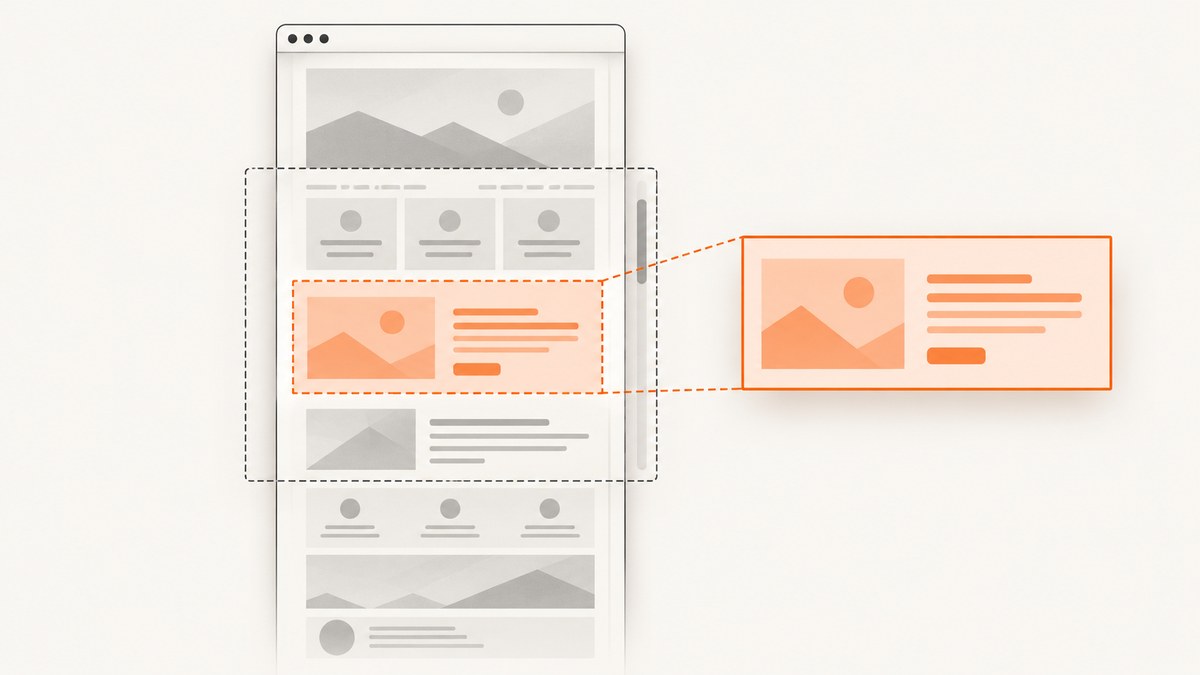
To limit the screenshot height in Selenium Python, set the browser window dimensions before taking the screenshot: driver.set_window_size(width, height). Then call driver.save_screenshot(path). For a screenshot of one bounded page component, locate it and use element.screenshot(path). Selenium’s ordinary WebDriver screenshot method captures the current window; it does not take a separate screenshot-height argument. [WebDriver API]
Resizing changes the browser window and can affect how the page lays out. It is not a crop instruction and does not promise a full-page image or identical output dimensions across browsers and operating systems. If you need a specific viewport, choose and verify the browser, driver, and runtime environment used for the capture. [Selenium window and tab guide]
1. Set a window height and capture the current window
Pass the requested width and height in pixels to set_window_size. The second argument is the requested height. Navigate to the page after setting the size so that the page can lay out at the intended dimensions, then save the screenshot.
from selenium import webdriver

with webdriver.Chrome() as driver:
    driver.set_window_size(1024, 600)
    driver.get("https://example.com")
    driver.save_screenshot("screenshot.png")
This uses Selenium’s documented window sizing and screenshot APIs. The example uses Chrome; configure the driver for the browser you actually run. The official API also provides get_screenshot_as_file, which saves the current window to a file, and methods to retrieve screenshot data as PNG bytes or Base64. [Selenium Python WebDriver API]
Run it as a script
- Install Selenium in the Python environment used for the script with
python -m pip install selenium. - Save the example as
capture.py. - Run
python capture.pyand check forscreenshot.pngin the current working directory. - Open the output and confirm that both its pixel dimensions and the page layout meet your requirement. Window sizing can affect responsive rendering, so inspect the actual image rather than assuming the requested height guarantees a particular crop.
The context-manager form closes the driver when the block ends. If your Selenium version or driver setup does not support your chosen browser configuration, initialize the driver according to that environment’s setup and ensure you still quit it when finished.
2. Understand what the height setting controls
| Approach | What it controls | Use it when |
|---|---|---|
set_window_size(width, height), then driver screenshot |
The browser window dimensions and the page layout that results | You want to define the browser’s viewing area before capturing. |
element.screenshot(path) |
A screenshot associated with a located element | You need a specific bounded component, such as a card or chart. |
| Browser or driver specific full-page method | Behavior that depends on the selected browser and driver | You need the complete page, after checking the relevant browser and driver documentation. |
These choices solve different problems. Resizing the window sets the environment in which the page renders. Element screenshots target a located element. Neither should be treated as a universal full-page capture feature. The Selenium sources cited here do not establish common full-page behavior across browsers and drivers. [Selenium window guide]
Window height is not always the image height
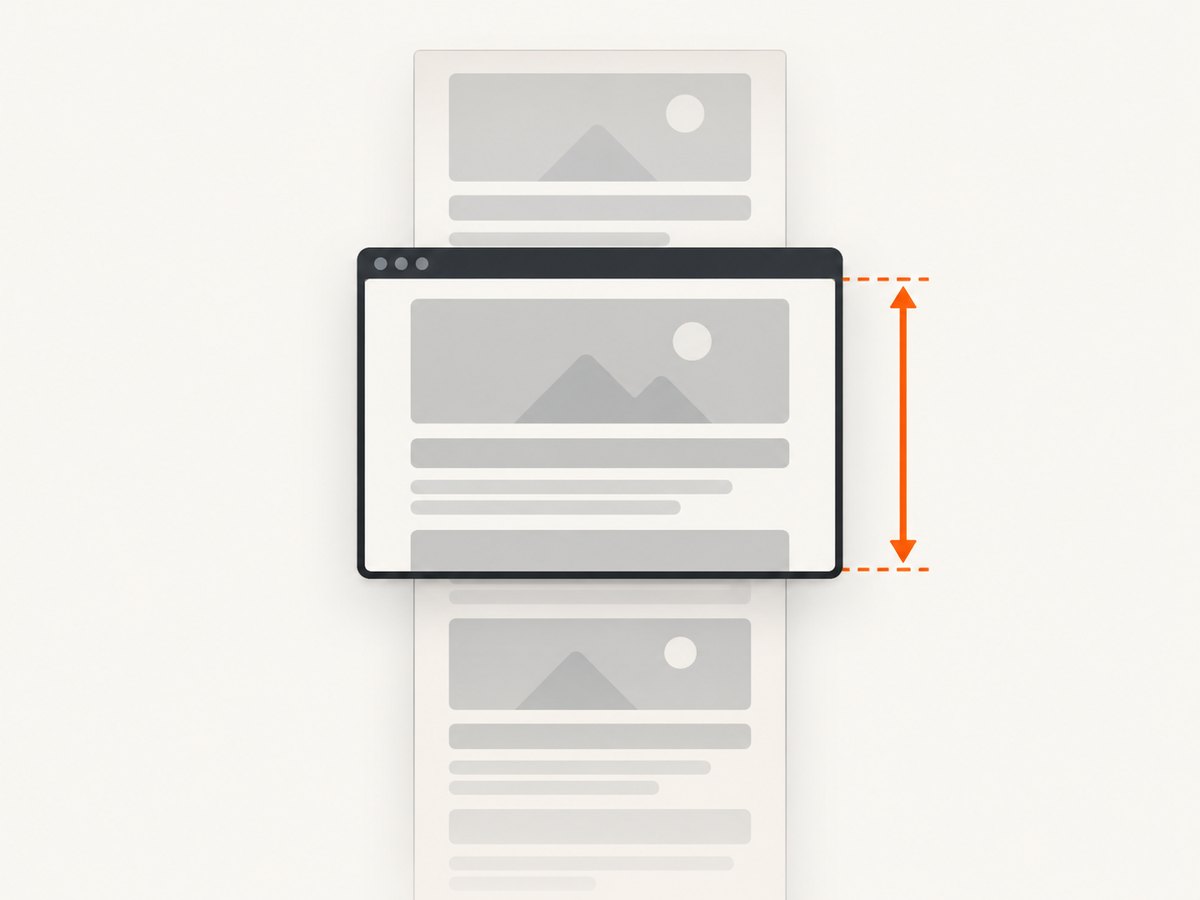
The API accepts requested window dimensions in pixels, but the screenshot method is described as capturing the current window. Selenium’s documentation notes that screen resolution can affect web application rendering. Browser chrome, operating-system window management, headless configuration, and driver behavior can make the resulting content area or saved image differ from an assumed viewport measurement. Validate the produced file in the runtime where the automation will run. [Selenium window guide]
If exact output dimensions are a hard requirement, inspect the resulting image dimensions and adjust your browser and environment configuration. Do not infer that asking for a 600-pixel window height necessarily yields a 600-pixel-high image.
3. Capture only one element
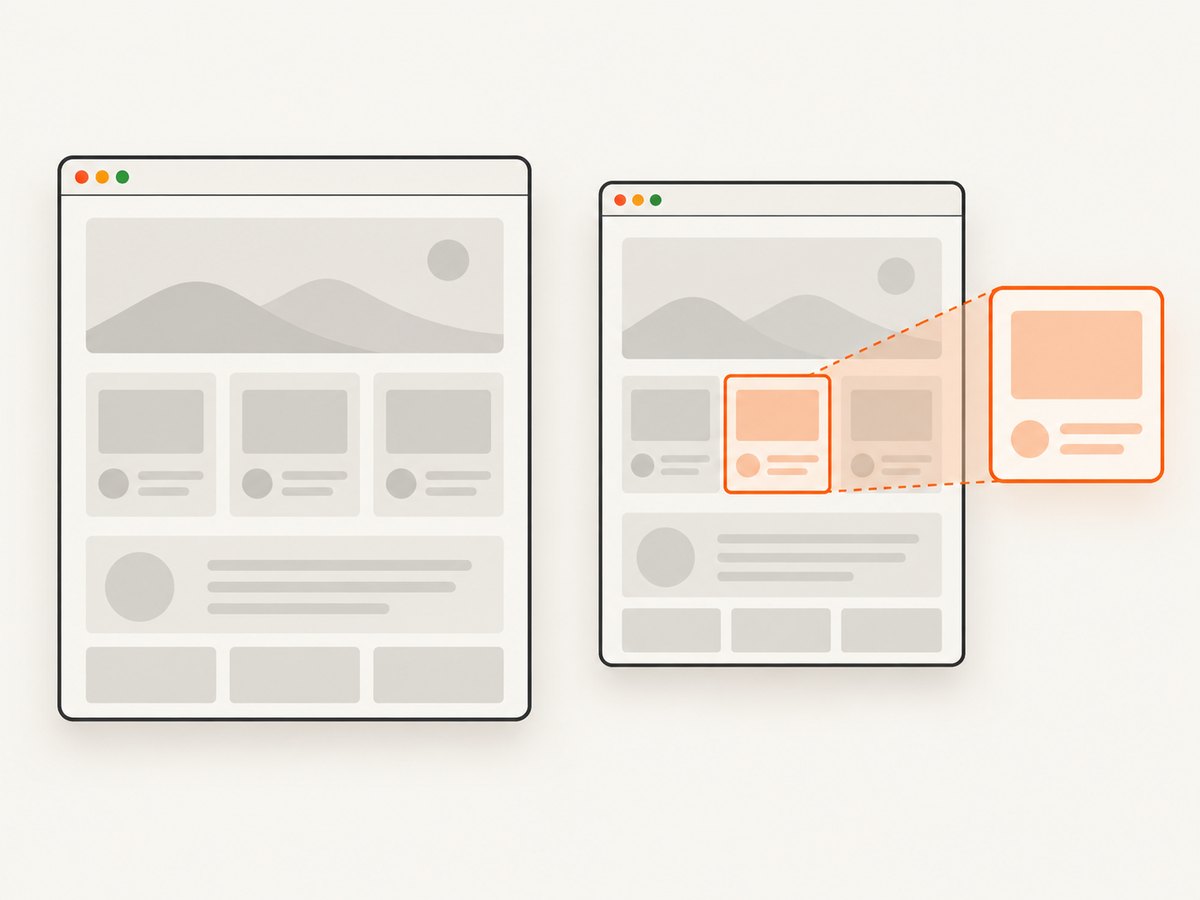
When the goal is to bound the image to one component, use Selenium’s element screenshot API instead of shrinking the whole window in the hope of cropping the page. Selenium documents locating an element and calling its screenshot method. [Selenium window and tab guide]
from selenium import webdriver
from selenium.webdriver.common.by import By

with webdriver.Chrome() as driver:
    driver.set_window_size(1280, 800)
    driver.get("https://example.com")

    card = driver.find_element(By.CSS_SELECTOR, "main article")
    card.screenshot("article.png")
Replace main article with a selector that identifies the element on the target page. The selector must match an element that exists after navigation. If the page builds the component asynchronously, wait for it to appear before locating it; otherwise, the element lookup can fail or occur before the desired content is ready.
An element screenshot is a useful fit for a bounded target, but it is not a substitute for a full-page screenshot. Consider the element’s own size and the page’s state when reviewing the result.
4. Make capture timing and output predictable
For repeatable captures, treat browser setup, navigation, readiness, and capture as separate steps:
- Set the requested browser window size.
- Navigate to the target URL.
- Wait for the page or target element your workflow needs.
- Capture the window or the selected element.
- Check the file exists and inspect its dimensions and content.
Page load completion does not necessarily mean that every application has finished rendering its content. A component may be added after the initial document load. When that matters, use Selenium’s explicit wait tools for a condition appropriate to the page, such as the presence of the element you plan to capture. Avoid relying on an arbitrary delay when a condition can express what the script is waiting for.
Saving to a known path
A relative path such as screenshot.png is written relative to the process’s current working directory, which may differ between a local terminal, an IDE, and a scheduled job. Use an explicit output path when another process expects the file in a particular location. Selenium’s file-saving call returns whether it saved successfully; check that result if your workflow should stop when capture fails.
5. Common problems and fixes
| Symptom | Likely cause | What to do |
|---|---|---|
| The screenshot is taller or shorter than expected. | The requested window size is not the same as the resulting viewport or file dimensions in that runtime. | Inspect the saved image dimensions and the browser environment. Adjust the requested size and verify again in the target browser and operating system. |
| The page layout changes when you set the height. | Window dimensions can affect rendering, including responsive layout. | Choose dimensions that match the intended viewport and set them before navigation. Verify the page at that size. |
| The screenshot shows an incomplete page. | The application may render content after navigation completes. | Wait for a page-specific readiness condition or target element before capturing. |
NoSuchElementException occurs for an element screenshot. |
The selector did not match an element at lookup time, or the target has not appeared yet. | Check the selector against the rendered page and wait for the element before finding it. |
| The saved file cannot be found. | A relative path resolved from a different working directory, or the save operation failed. | Use a known absolute output path and check the return value from the save call. |
| The result differs between local and automated runs. | The browser, driver, operating system, display setup, or page timing differs. | Keep those inputs consistent where possible and validate the capture in the actual execution environment. |
| You expected the complete page but received only the current window. | The ordinary screenshot method captures the current window; a separate height value is not a full-page instruction. | Check the documentation for your selected browser and driver’s full-page behavior, or capture a specific element if that is the intended region. |
6. Reliability, performance, and cost considerations
A local Selenium capture runs a browser and WebDriver session, so your workflow depends on those components being available and configured in the execution environment. Reproducibility improves when you keep the browser and driver setup stable, use explicit dimensions and paths, wait for the content you need, and validate the produced image.
For a single current-window or element screenshot, the core API calls are direct. Overall capture time also depends on launching or reusing a browser, loading the page, and waiting for the needed content. If you automate many URLs, browser startup and page behavior become part of the workload; measure your own environment rather than relying on a generic timing claim.
There is no Selenium screenshot API charge described in the documentation cited for this guide. Your operational cost comes from the infrastructure and engineering needed to run the browser automation. A hosted screenshot service can avoid managing browser setup, but evaluate its behavior and pricing against your requirements.
7. Or skip the browser setup
ScreenshotNeo is a website screenshot API and MCP server for developers. A single GET request returns a screenshot or PDF. Its clean-shot flow accepts cookie and consent banners as a visitor and removes more than 60 known consent platforms, newsletter popups, and chat widgets before capture; each step can be turned off. Only clean shots are billed: bot checks, CAPTCHAs, blank pages, timeouts, failed loads, and cache hits cost nothing, and the response indicates the page verdict and billing status in headers. Its MCP server gives AI agents tools to take screenshots, get page information, and capture PDFs. [ScreenshotNeo documentation]
curl -G "https://api.screenshotneo.com/v1/shot" -d access_key=YOUR_API_KEY --data-urlencode url=https://example.com -o shot.webpSee the ScreenshotNeo API documentation for request parameters and options. Cookie banners, popups, and chat widgets are removed before the shot; bot checks, blank pages, and failed loads are never billed. An MCP server lets AI agents take screenshots. The free plan includes 1,000 screenshots a month with no card; paid plans start at $5 for 3,000 screenshots.
Sign up for 1,000 free screenshots a month, with no card.
8. FAQ
Can I pass a height directly to save_screenshot?
The documented method saves a screenshot of the current window and does not list a screenshot-specific height parameter. Set the window size separately with set_window_size. [Python WebDriver API]
Should I resize the window or use an element screenshot?
Resize the window when you want the page to render in a chosen browser window size. Use an element screenshot when the target is one bounded page component.
Does a smaller window produce a full-page screenshot?
No such cross-browser guarantee is established by the Selenium sources cited here. The ordinary screenshot method is documented as capturing the current window. Check your browser and driver documentation for full-page capture behavior.
Why does the captured page look different at another height?
Window dimensions can change page rendering, including responsive layout. Capture at the dimensions you intend to use and validate the output in the target environment.


