How to Link to a PPTX File in HTML
Add a reliable PPTX download link in HTML with accessible text, download behavior, permissions, troubleshooting, and hosted viewer options.
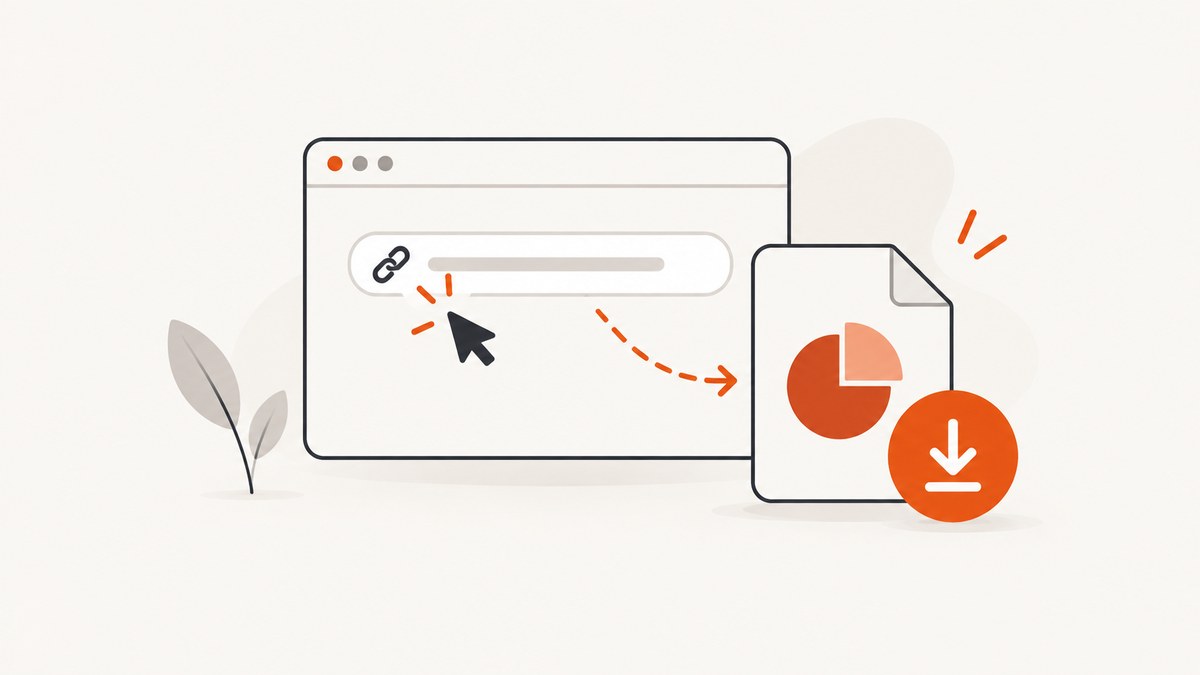
Use an anchor element whose href points to the presentation’s real, reachable URL:
<a href="/files/presentation.pptx">Download the presentation (PPTX)</a>Replace /files/presentation.pptx with the path or HTTPS URL where your file is actually served. A relative URL resolves from the current page; an absolute URL can point to another host. The link does not upload, publish, or grant permission to the file. Readers must be able to reach the target resource.
HTML anchors link to URLs, and browser download behavior depends on the browser, user preferences, and the server response. See the MDN anchor reference and the WHATWG HTML Standard.
1. Create the basic PPTX link
<!doctype html>
<html lang="en">
  <head>
    <meta charset="utf-8">
    <title>Presentation download</title>
  </head>
  <body>
    <p>
      <a href="/presentations/annual-report.pptx">
        Download the annual report presentation (PPTX)
      </a>
    </p>
  </body>
</html>
Put the file at the matching location in your site’s publicly served files. If the page is https://example.com/reports/index.html, a link such as files/report.pptx resolves relative to that page, while /files/report.pptx starts at the site root.

Use an absolute URL when the file is hosted elsewhere
<a href="https://cdn.example.com/decks/product-launch.pptx">
  Download the product launch deck (PPTX)
</a>
Check that the external host allows your intended audience to access the file. A correct URL cannot bypass storage permissions, authentication, or sharing restrictions.
2. Suggest downloading the file
<a href="/presentations/annual-report.pptx" download>
  Download the annual report presentation (PPTX)
</a>
The Boolean download attribute asks the browser to treat the target as a download where supported. MDN documents support for same-origin URLs and for blob: and data: URLs. It is not a universal cross-origin guarantee. Browser settings, browser behavior, and the server’s Content-Disposition response can change the result, so describe it as a request rather than a promise.
For a same-origin file, you can provide a suggested filename:
<a href="/files/slides.pptx" download="onboarding-slides.pptx">
  Download the onboarding slides (PPTX)
</a>
Verify the behavior on the browsers you support. If the file is cross-origin, use the hosting service’s documented download or sharing mechanism instead of assuming the attribute will force a download.
3. Choose between a file link and an online viewer
| Goal | Link to | What to verify |
|---|---|---|
| Let readers retrieve the original file | The direct .pptx URL |
The URL resolves and the intended audience has access |
| Let readers view slides online | A verified sharing or viewer page | That service supports PPTX viewing and the sharing permissions are correct |
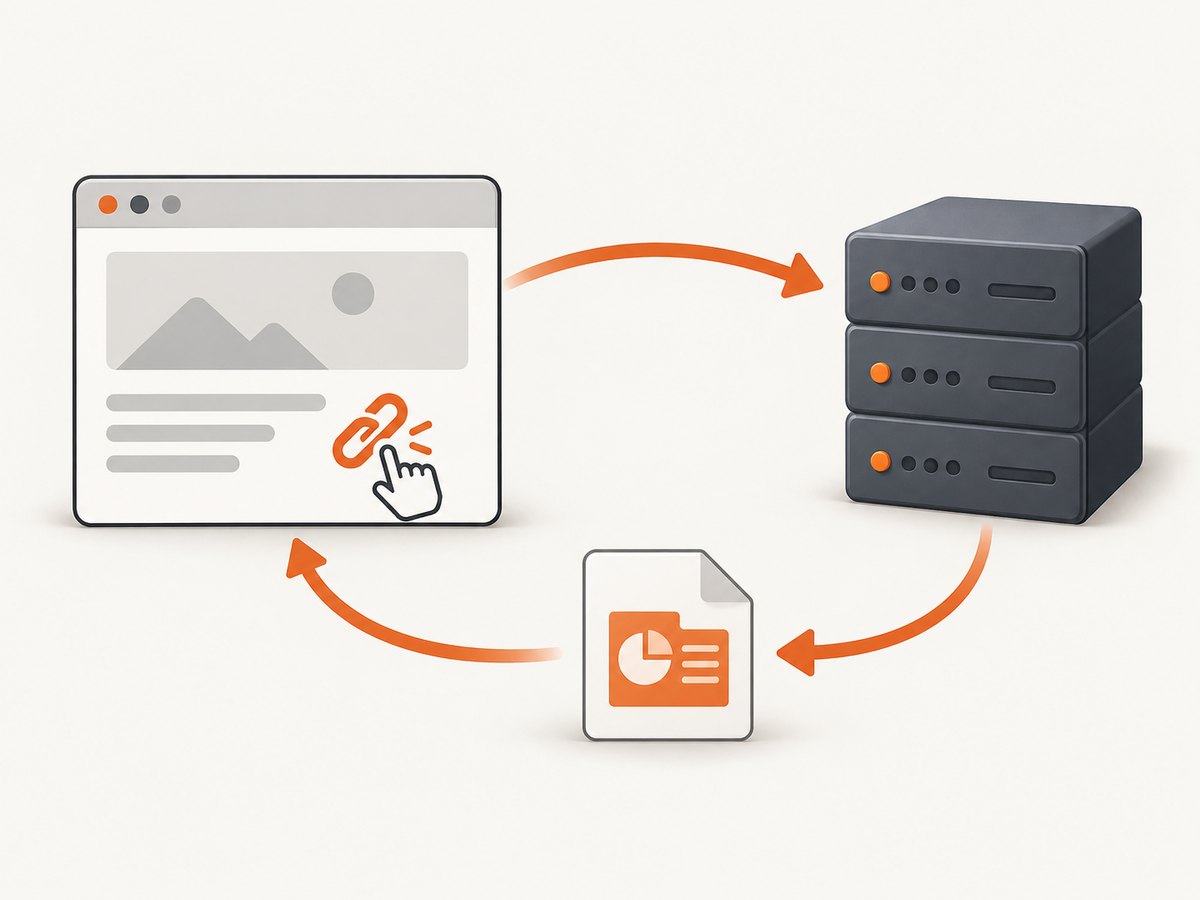
A raw PPTX URL is not a promise that every browser will display a slideshow inline. Microsoft documents viewing and editing PPTX in PowerPoint for the web; that is a Microsoft product capability, not a property of every browser or host. Link to a verified viewer or sharing page when online viewing is the intended experience.
4. Write accessible link text
Make the destination and action clear in the link itself. This helps people scanning links visually or with assistive technology and sets expectations about a download or context change.
- Good:
Download the quarterly results presentation (PPTX, 4 MB)when the size is known and useful. - Good:
View the presentation in PowerPoint for the webwhen the URL really opens that viewer. - Weak:
Click here, because the destination is unclear out of context.
Microsoft’s accessibility guidance recommends descriptive hyperlink text. MDN also advises indicating when a link downloads a file or opens a new tab or window.
5. Handle paths, filenames, and access correctly
- Confirm the deployed path. Visit the exact URL in a browser and check that it resolves from the same environment as your page.
- Encode special characters. Spaces and characters such as
#and?have URL meanings. Prefer simple filenames such asannual-report-2026.pptx, or URL-encode a generated link. - Preserve access controls. If the file is private, require the normal login or sharing permission. Do not expose a private presentation by placing it in a public directory.
- Keep the extension visible when useful. Including “(PPTX)” tells readers what they will receive before they activate the link.
- Update links when files move. A renamed or relocated file produces a broken link even when the HTML itself is valid.
6. Common errors and fixes
| Symptom | Likely cause | Fix |
|---|---|---|
| 404 or “file not found” | The href does not match the deployed path, or the file was not uploaded |
Open the exact URL, compare it with the deployed filename and directory, and correct the path |
| The link works on one page but not another | A relative URL resolves from a different directory | Use the correct relative path or a root-relative path beginning with / |
| Users see a login or forbidden response | The resource is access-controlled | Grant the intended audience access or link to the service’s authenticated sharing page |
| The file opens in an application instead of downloading | Browser preferences or the server response determine handling | Use download for a supported same-origin case, and configure the host’s documented response behavior |
download is ignored |
The target is cross-origin, or browser/server policy overrides the hint | Use a same-origin URL where appropriate, or use the provider’s download endpoint |
| A viewer page is blank or inaccessible | The viewer URL is not public, expired, or does not support the file | Test the sharing URL in a signed-out window and confirm the provider’s PPTX support |
| Filename looks wrong after download | The server or browser selected a different filename | Use a meaningful URL filename and the host’s documented filename/content-disposition controls |
7. Test the link before publishing
- Open the page from the same URL structure your readers use.
- Activate the link while signed out and while signed in, if access differs.
- Test the direct URL and the intended viewer URL separately.
- Check keyboard focus and ensure the visible text identifies the PPTX and action.
- Test a desktop browser and at least one mobile browser used by your audience.
- Confirm that a moved or replaced file has not left old links behind.
8. Performance and reliability considerations
The HTML anchor adds almost no client-side work; the file host controls transfer speed and availability. Keep presentations at a stable URL, avoid changing filenames without redirects or updated links, and use a hosting service appropriate for the file’s audience and size. If a presentation is large, state its size in the link text when known so readers can make an informed choice.
For a public download, a direct file URL is the simplest dependency. For private or frequently updated material, a managed sharing page may provide the permission and version controls you need. Whichever option you choose, monitor broken links and verify access after deployments.
9. Or skip the browser setup
If your workflow also needs screenshots of the page that contains the PPTX link, ScreenshotNeo provides a website screenshot API and MCP server. It accepts one GET request and returns a PNG, JPEG, WebP, or PDF. Cookie and consent banners, newsletter popups, and chat widgets are removed before capture; bot checks, blank pages, failed loads, timeouts, and cache hits are not billed. Responses identify the page verdict and billing result with X-Page-Verdict and X-Billed headers. Its MCP server includes take_screenshot, get_page_info, and capture_pdf tools for Claude, Cursor, and other MCP clients.
See the ScreenshotNeo documentation for all options. A direct call looks like this:
curl -G "https://api.screenshotneo.com/v1/shot" \
  -d access_key=YOUR_API_KEY \
  --data-urlencode url=https://example.com/reports/ \
  -o report-page.webp
import requests
r = requests.get(
"https://api.screenshotneo.com/v1/shot",
params={"access_key": "YOUR_API_KEY", "url": "https://example.com/reports/"},
timeout=90,
)
open("report-page.webp", "wb").write(r.content)const q = new URLSearchParams({
access_key: 'YOUR_API_KEY',
url: 'https://example.com/reports/'
});
const res = await fetch(`https://api.screenshotneo.com/v1/shot?${q}`);
const image = Buffer.from(await res.arrayBuffer());
await fs.promises.writeFile('report-page.webp', image);The Free plan includes 1,000 screenshots per month with no card. Paid plans start at $5 for 3,000 screenshots, and every feature is on every plan. Create a free ScreenshotNeo account.
10. FAQ
Does HTML upload the PPTX?
No. The href only points to a resource that must already be hosted at a reachable URL.
Can I force every browser to download the file?
No universal HTML guarantee exists. The download attribute is a browser hint with same-origin and scheme limitations, and server responses and user settings can affect the result.
Should I link to the PPTX or a viewer?
Link directly to the PPTX when retrieval is the goal. Use a verified sharing or viewer page when readers should view slides online.
Is “Click here” acceptable link text?
It is weak because it does not identify the destination. Name the presentation and say whether the action downloads or opens a viewer.


