LinkedIn Blog Image Size in 2026
LinkedIn recommends a 1920 × 1080 article cover in 2026. Learn the correct ratio, formats, cropping rules, and how it differs from Page images.

Use 1920 × 1080 pixels for a native LinkedIn article cover image in 2026. That is a 16:9 canvas, and LinkedIn Help says cover images are cropped to 16:9. Keep the subject and any essential visual details near the center so the crop does not remove them.
This specification applies to a native LinkedIn article cover. LinkedIn uses different dimensions for Page-post images and website link previews, so choosing 1200 × 627 pixels for an article cover can produce the wrong composition.
1. The correct LinkedIn article cover size
| Placement | Recommended size or ratio | What it is for |
|---|---|---|
| Native LinkedIn article cover | 1920 × 1080 px (16:9) | The image displayed at the top of an article published on LinkedIn |
| LinkedIn Page post with a URL | 1200 × 627 px (1.91:1) | A custom image attached to a Page post that shares a link |
| Website sharing preview | Minimum 1200 × 627 px; 1.91:1 recommended | The preview generated when a website URL is shared |
| Images inside an article | JPEG, JPG, PNG, WEBP, or GIF formats are supported | Media placed in the article body rather than the cover slot |
The 1920 × 1080 recommendation comes from LinkedIn Help’s article “Add and edit images or videos, cover images, and other rich media to your article.” LinkedIn states that the optimal cover image size is 1920 pixels wide by 1080 pixels high and that cover images are cropped to a 16:9 aspect ratio.
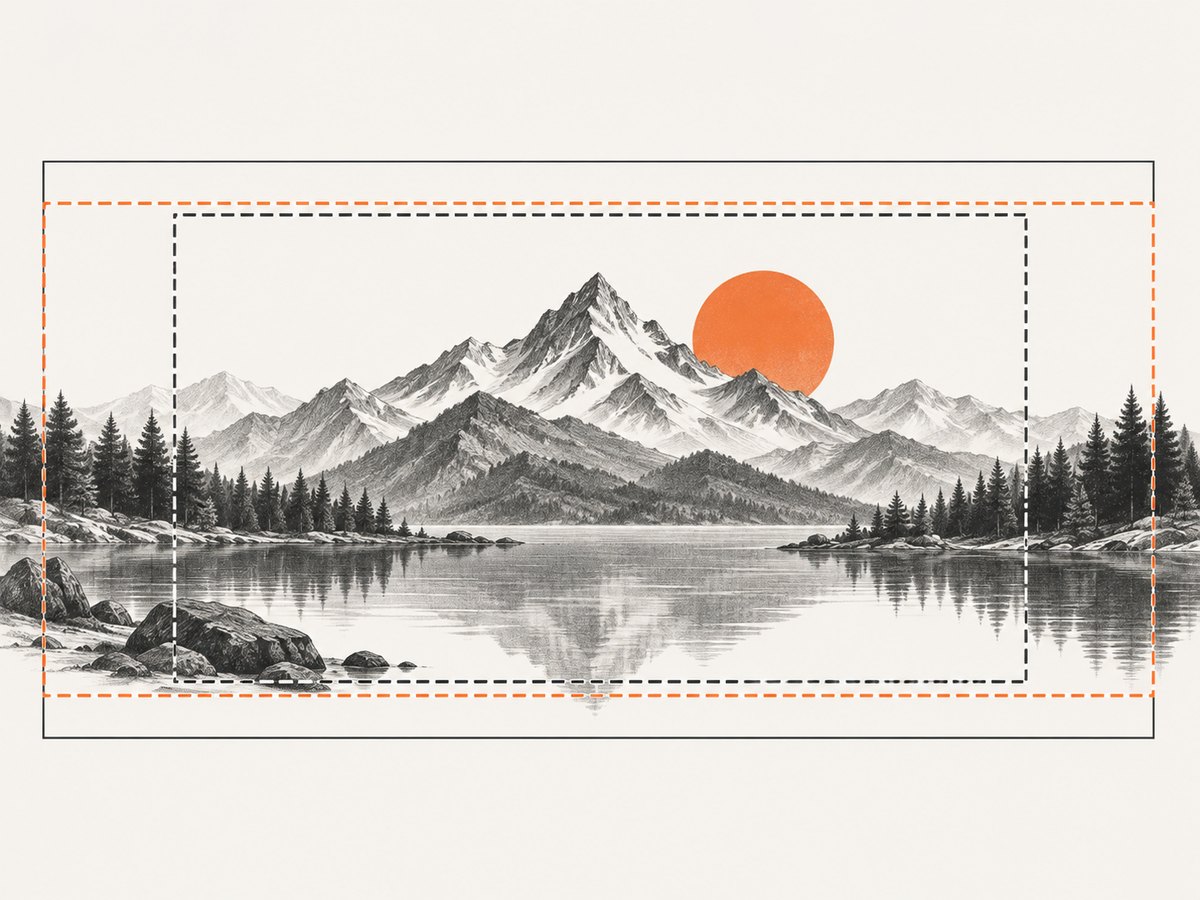
2. Why 16:9 and 1920 × 1080 matter
A 16:9 source image matches the crop LinkedIn applies to an article cover. Starting with the same ratio gives you control over the composition instead of relying on an editor or uploader to remove the edges.
- Use a 1920 × 1080 artboard when creating the image.
- Place faces, product screenshots, diagrams, and other important details inside the central area.
- Do not put small text, logos, or key objects against the extreme top, bottom, left, or right edges.
- Preview the crop after uploading before publishing.
- Export a sharp JPEG, JPG, PNG, or WEBP file.
The advice to keep important content away from the edges is a practical consequence of LinkedIn’s stated 16:9 crop. It is not a separate pixel specification published by LinkedIn.
3. Choosing a file format
| Format | Good choice when | Watch for |
|---|---|---|
| JPEG/JPG | Your cover is a photograph or contains gradients and many colors | Repeated exports can introduce compression artifacts |
| PNG | Your design has sharp graphics, screenshots, or transparency in the source workflow | Files can be larger than an equivalent JPEG |
| WEBP | Your editor exports it and you want a modern compressed format | Check the uploaded preview to confirm the platform accepts the file as expected |
LinkedIn lists JPEG, JPG, PNG, and WEBP for article cover images. It separately lists GIF, JPEG, JPG, PNG, and WEBP for images placed inside article body content. The retrieved LinkedIn Help material does not provide a numeric maximum file size for a still-image cover, so do not assume one.
4. A reliable workflow for creating the cover
- Create a 1920 × 1080 document. Set the canvas to 16:9 before adding artwork.
- Build a central composition. Keep the main subject and any necessary wording away from the outer edges.
- Export in a supported format. JPEG, JPG, PNG, or WEBP are the listed cover formats.
- Open LinkedIn on a desktop browser or tablet browser. LinkedIn’s Help instructions say article publishing is unavailable in the LinkedIn mobile app.
- Start or edit the article. Use the article editor’s cover-image upload control.
- Review the crop. Confirm that faces, diagrams, and other essential details remain visible in the 16:9 preview.
- Publish only after checking the preview. A correctly sized source still needs a final visual review.
5. Common mistakes and fixes
| Problem | Likely cause | Fix |
|---|---|---|
| The cover looks zoomed or cuts off the subject | The source image is not 16:9, or the subject is too close to an edge | Recompose on a 1920 × 1080 canvas and move essential content inward |
| You used 1200 × 627 because it is a LinkedIn size | That ratio belongs to Page URL posts and website previews | Use 1920 × 1080 for a native article cover |
| The upload option is missing in the phone app | LinkedIn article publishing is not available in the mobile app | Use LinkedIn’s desktop website or a tablet browser |
| The image is rejected | The file may be in an unsupported format or malformed | Export again as JPEG, JPG, PNG, or WEBP and retry |
| Small cover text is unreadable | Text was placed near the crop boundary or rendered too small | Increase the text size, simplify the design, and keep it in the central safe area |
| The image looks soft | The original asset is smaller than the recommended canvas or was heavily compressed | Work at 1920 × 1080 and export once at a high quality setting |
6. Article covers versus other LinkedIn images
Use the placement, not the phrase “LinkedIn image,” to choose dimensions. A native article cover is part of LinkedIn’s article editor and uses 16:9. A Page post that includes a URL uses the Page guidance of 1.91:1 (1200 × 627). A website sharing preview also uses a minimum of 1200 × 627 and a recommended 1.91:1 ratio. These figures describe different surfaces, so they are not competing answers.
7. Capturing a cover or reference image from a web page
If your cover concept depends on a live web page, you can capture a clean reference at the required ratio. A browser automation script gives you control over the viewport, but it also means maintaining a browser install, waits, cookie handling, and failure handling.

Or skip the browser setup
ScreenshotNeo returns a PNG, JPEG, WEBP, or PDF from one GET request. Its capture flow accepts consent banners and removes more than 60 known consent platforms, newsletter popups, and chat widgets before the shot. Bot checks, blank pages, timeouts, failed loads, and cache hits are not billed, and the response identifies the result with X-Page-Verdict and X-Billed headers. It also provides an MCP server for AI agents, including Claude, Cursor, and other MCP clients.
See the ScreenshotNeo API documentation for all options. Basic cURL:
curl -G "https://api.screenshotneo.com/v1/shot" -d access_key=YOUR_API_KEY --data-urlencode url=https://stripe.com -o shot.webpPython:
import requests
r = requests.get("https://api.screenshotneo.com/v1/shot", params={"access_key": "YOUR_API_KEY", "url": "https://stripe.com"}, timeout=90)
open("shot.webp", "wb").write(r.content)
Node.js:
const q = new URLSearchParams({ access_key: 'YOUR_API_KEY', url: 'https://stripe.com' });
const res = await fetch(`https://api.screenshotneo.com/v1/shot?${q}`);
For an article-cover workflow, request the target page, then resize or compose the resulting image onto a 1920 × 1080 canvas before uploading it to LinkedIn. ScreenshotNeo supports full-page capture, CSS-element capture, device presets, custom viewports, retina scale, custom CSS and JavaScript, waits, blocking rules, headers, cookies, user agents, timezone and geolocation, caching, signed links, asynchronous jobs, bulk capture, and PDF options.
Plans include 1,000 screenshots per month free with no card. Paid plans start at $5 for 3,000 shots; every feature is available on every plan. Create a free ScreenshotNeo account.
8. Practical quality checklist
- Canvas is exactly 1920 × 1080 pixels.
- Aspect ratio is 16:9.
- Main subject is inside the central safe area.
- File is JPEG, JPG, PNG, or WEBP.
- Important text remains readable at thumbnail size.
- Cover preview has been checked after upload.
- Article is being published from a desktop website or tablet browser.
9. FAQ
Is 1920 × 1080 still the right size in 2026?
Yes. LinkedIn Help recommends 1920 × 1080 pixels for a native article cover and specifies a 16:9 crop.
Can I use 1200 × 627 for an article cover?
That size is associated with LinkedIn Page URL posts and website sharing previews. Use 1920 × 1080 for a native article cover.
Does LinkedIn publish a maximum cover-file size?
The retrieved LinkedIn Help material does not state a numeric maximum for a still-image cover.
Can I publish a LinkedIn article from the mobile app?
LinkedIn’s Help instructions say article publishing is unavailable in the mobile app. Use the desktop site or a tablet browser.
Which format should I choose for a photograph?
JPEG is usually a practical choice for photographs; PNG is useful for sharp graphics and screenshots. Both are listed as supported cover formats.


