LinkedIn Post Screenshot Generator
Create a clearly labeled LinkedIn post mockup with editable profile, text, reactions and theme controls, then export it as an image.
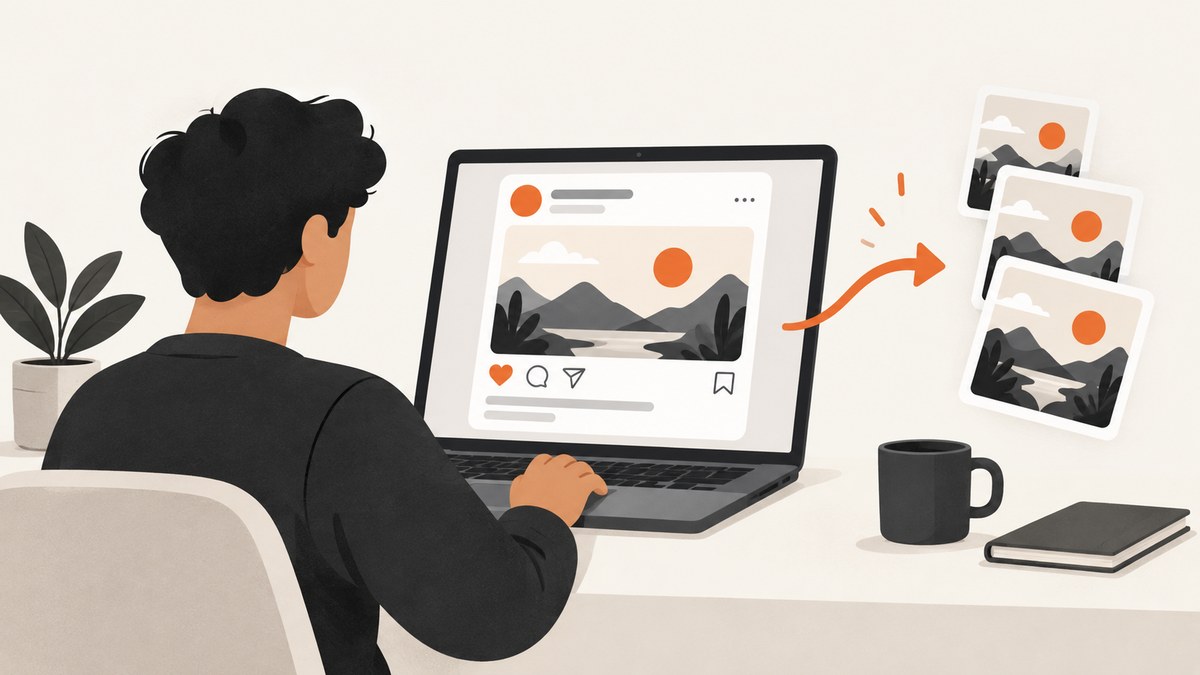
A LinkedIn post screenshot generator creates a static image that resembles a LinkedIn post. It does not publish anything to LinkedIn and it does not prove that the depicted person wrote the statement or received the shown engagement.
For a quick mockup, use a browser-based generator such as the Anarchy Labs example described in the research for this guide. Its page says you can edit profile details, post text, connection degree, reaction, comment and repost counts, and light or dark appearance, then download a PNG. The vendor also says the export is 2,400 pixels wide, runs in the browser and requires no signup. Those are vendor claims and should be checked on the live page before relying on them.
What a LinkedIn post screenshot generator does
- Builds one static image that looks like a LinkedIn post.
- Lets you control the visible profile, text, relationship label, engagement counts and theme, depending on the generator.
- Exports an image for a presentation, tutorial, design review, storyboard or clearly labeled illustration.
It does not create a real LinkedIn post, authenticate as a member, collect genuine reactions or establish that a real person endorsed the content. LinkedIn’s own posting help explains how members create an actual post through the LinkedIn interface; a generated image is a separate artifact.
How to create a LinkedIn post mockup
1. Decide whether you need a mockup or a real post
Use a generator when you need a visual example. Use LinkedIn itself when you need to publish, notify connections or collect real engagement. Do not use a generated image as evidence of publication, popularity, employment, endorsement or a quote from a real person.
2. Prepare authorized content
- Use your own name, photo and profile details, or details you have permission to display.
- Write the post text before opening the generator so you can check spelling, line breaks and attribution.
- Choose engagement numbers that are obviously illustrative when the image could be mistaken for a real post.
- Plan a label such as “Mockup”, “Illustration” or “Concept” if the context does not make the status obvious.
3. Enter the post fields
The researched Anarchy Labs page describes controls for profile details, post text, connection degree, reaction, comment and repost counts, plus light and dark appearance. Enter only information you are authorized to show. Keep invented metrics out of case studies and product evidence unless they are visibly marked as examples.
4. Choose the visual treatment
Light and dark themes can change contrast and the perceived age of a design. Check that avatar backgrounds, reaction icons and muted text remain readable in both. If the image will be resized, inspect the smallest size at which it will appear.
5. Export and inspect the PNG
Download the image, open it at 100% scale and check the post text, profile name, counts, cropping and any disclosure label. The vendor describes a 2,400-pixel-wide PNG export; confirm the current dimensions in the tool before promising a specific output size.
DIY method: build your own mockup with HTML and Playwright
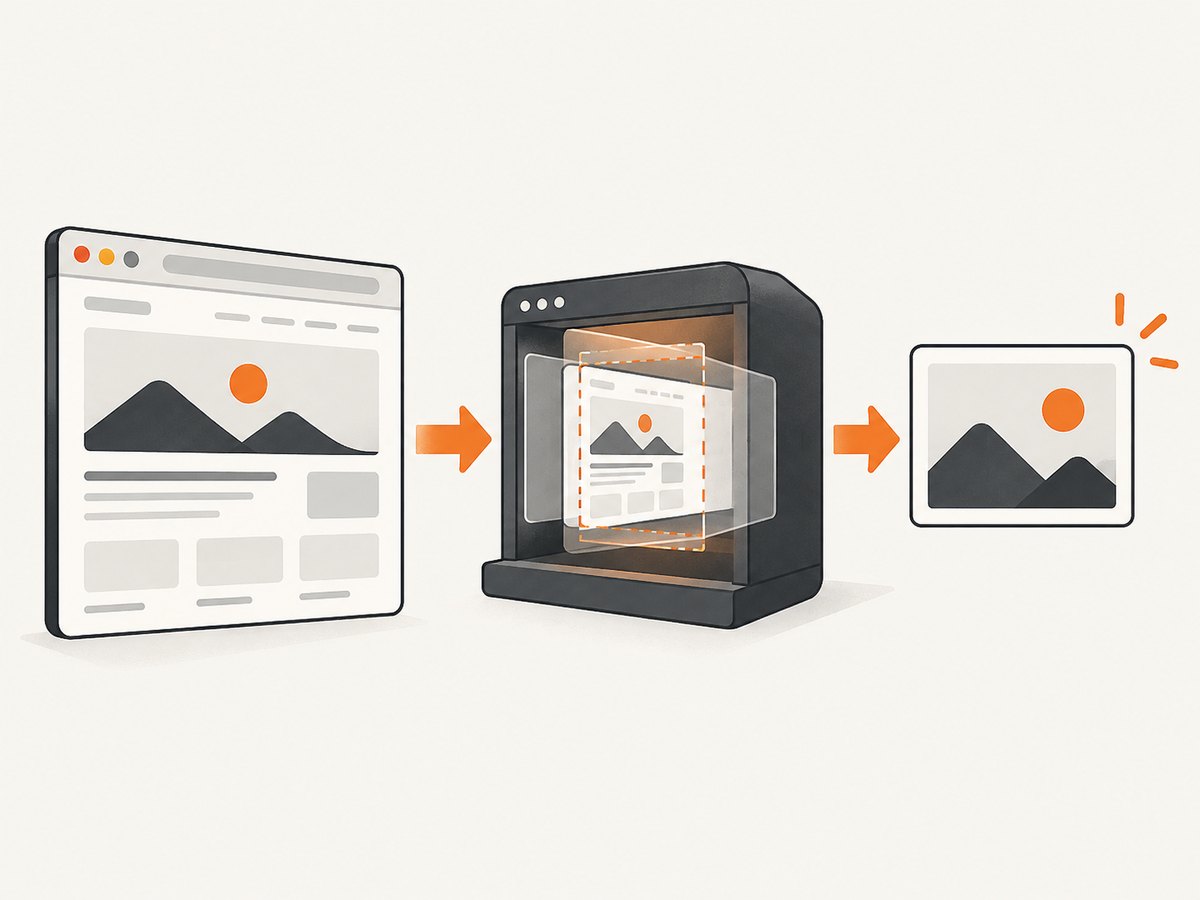
A local HTML template gives you repeatable output, version control and complete control over the disclosure label. It also avoids copying a real member’s personal information.
1. Create the project
mkdir linkedin-mockup
cd linkedin-mockup
npm init -y
npm install playwright
npx playwright install chromium
2. Save this as mockup.html
<!doctype html>
<html lang="en">
<head>
  <meta charset="utf-8">
  <meta name="viewport" content="width=device-width, initial-scale=1">
  <title>LinkedIn post mockup</title>
  <style>
    :root { color-scheme: light; font-family: Arial, sans-serif; }
    * { box-sizing: border-box; }
    body { margin: 0; background: #eef3f8; color: #1d2226; }
    .card { width: 900px; margin: 40px auto; background: #fff; border: 1px solid #d9e0e7; border-radius: 12px; overflow: hidden; }
    .disclosure { padding: 12px 24px; background: #fff8d9; color: #5f4b00; font-weight: 700; font-size: 20px; }
    .content { padding: 28px 32px 20px; }
    .person { display: flex; gap: 16px; align-items: center; }
    .avatar { width: 72px; height: 72px; border-radius: 50%; background: #8bb8d9; display: grid; place-items: center; color: #fff; font-size: 30px; font-weight: 700; }
    .name { font-size: 25px; font-weight: 700; }
    .meta { color: #5e6b75; margin-top: 4px; font-size: 18px; }
    .post { margin: 28px 0; font-size: 26px; line-height: 1.4; white-space: pre-wrap; }
    .stats { display: flex; justify-content: space-between; color: #5e6b75; border-bottom: 1px solid #d9e0e7; padding-bottom: 16px; font-size: 18px; }
    .actions { display: flex; justify-content: space-around; padding-top: 18px; color: #365b75; font-weight: 700; font-size: 19px; }
  </style>
</head>
<body>
  <article class="card" aria-label="Illustrative LinkedIn post mockup">
    <div class="disclosure">MOCKUP — ILLUSTRATIVE CONTENT</div>
    <div class="content">
      <div class="person">
        <div class="avatar" aria-hidden="true">A</div>
        <div>
          <div class="name">Alex Example</div>
          <div class="meta">Developer educator · 1st · 2h</div>
        </div>
      </div>
      <div class="post">A clear example post belongs here.

Use authorized details and label invented engagement.</div>
      <div class="stats">
        <span>👍 ❤️ 24 reactions</span>
        <span>8 comments · 3 reposts</span>
      </div>
      <div class="actions" aria-hidden="true">
        <span>Like</span><span>Comment</span><span>Repost</span><span>Send</span>
      </div>
    </div>
  </article>
</body>
</html>
3. Capture the HTML at a fixed size
Save this as capture.mjs. A fixed viewport makes exports consistent across machines.
import { chromium } from 'playwright';
import { fileURLToPath } from 'node:url';

const browser = await chromium.launch();
const page = await browser.newPage({ viewport: { width: 980, height: 900 }, deviceScaleFactor: 2 });
await page.goto(`file://${fileURLToPath(new URL('./mockup.html', import.meta.url))}`);
await page.locator('.card').screenshot({ path: 'linkedin-mockup.png' });
await browser.close();
node capture.mjsConfiguration checklist
| Decision | Recommended practice |
|---|---|
| Identity | Use your own details, fictional details, or written permission. |
| Engagement | Use clearly illustrative numbers; never imply they are measured results. |
| Theme | Check both light and dark variants for contrast and cropping. |
| Dimensions | Choose the final display size first, then export at sufficient pixel density. |
| Disclosure | Keep a visible “Mockup” or “Illustration” label when confusion is possible. |
| Carousel | A single-post generator makes one image. A carousel or document post requires multiple images assembled as a separate workflow. |
Privacy, brand and authenticity rules
LinkedIn’s brand guidance says screenshots of its homepage, company page or product pages may be used for instructive, educational or illustrative purposes, while its brand appearance should not be changed or covered with graphics, photos or ad copy. For images or personal information about other members, the guidance requires showing only the creator’s own personally identifiable information, blurring information so members cannot be identified, or obtaining written permission from all identified people. Apply that guidance carefully to generated imitations as well as actual screenshots.
LinkedIn’s User Agreement addresses framing, mirroring and simulated service appearance, and prohibits misleading or deceitful content such as manipulated media that falsely depicts someone saying or doing something. The exact application depends on context, so do not present a mockup as an authentic post or quote.
LinkedIn has also described limits on inauthentic activity, including automated comments. A static image generator does not itself publish, comment or create engagement, but extending a mockup workflow into automation creates a different set of platform and disclosure issues.
Or skip the browser setup
ScreenshotNeo captures a URL with one GET request and can return PNG, JPEG, WebP or PDF. It can capture a hosted mockup page, a full page or one element by CSS selector, with custom CSS, JavaScript, viewport, device preset, dark mode and retina scale. See the ScreenshotNeo API documentation for the complete option list.
cURL
curl -G "https://api.screenshotneo.com/v1/shot" -d access_key=YOUR_API_KEY --data-urlencode url=https://www.linkedin.com -o shot.webpPython
import requests
r = requests.get("https://api.screenshotneo.com/v1/shot", params={"access_key": "YOUR_API_KEY", "url": "https://www.linkedin.com"}, timeout=90)
open("shot.webp", "wb").write(r.content)
Node.js
const q = new URLSearchParams({ access_key: 'YOUR_API_KEY', url: 'https://www.linkedin.com' });
const res = await fetch(`https://api.screenshotneo.com/v1/shot?${q}`);
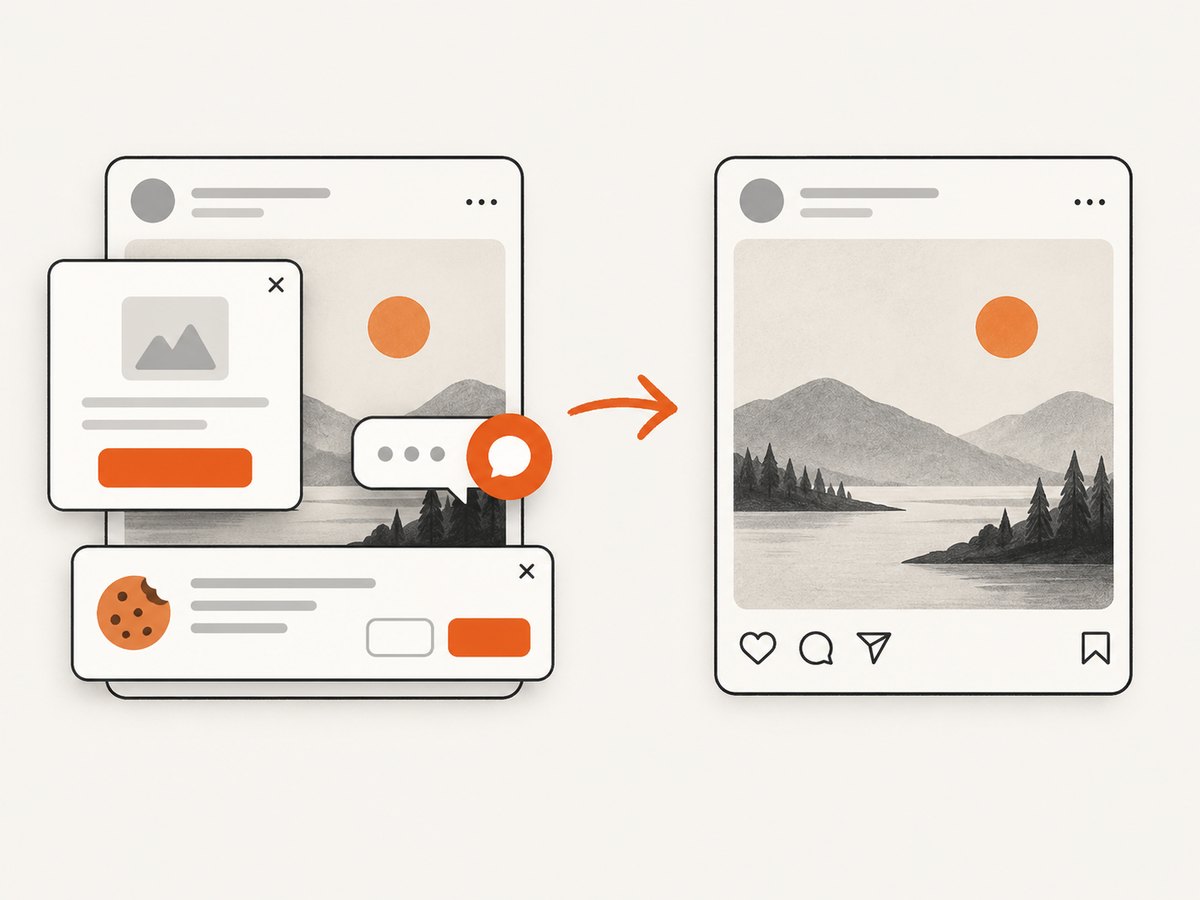
ScreenshotNeo accepts consent banners before capture and removes more than 60 known consent platforms, newsletter popups and chat widgets; each step can be turned off. Bot checks or CAPTCHAs, blank pages, timeouts, failed loads and cache hits are not billed, and response headers report the page verdict and whether the request was billed. It also offers an MCP server with take_screenshot, get_page_info and capture_pdf for Claude, Cursor and other MCP clients. One thousand screenshots per month are free with no card; paid plans start at $5 for 3,000. Start with the free ScreenshotNeo account.
Troubleshooting
The output looks like a real post
Cause: The disclosure is missing or too subtle. Fix: Add a prominent “Mockup” or “Illustration” label and explain the image in the surrounding copy.
Text is clipped
Cause: The card height or line wrapping changed. Fix: Use a fixed viewport, allow the post container to grow, and inspect the export at 100%.
Fonts differ between exports
Cause: The browser is using a fallback font. Fix: Bundle or explicitly load an available font and wait for document.fonts.ready before capture.
Personal information is exposed
Cause: A real member’s name, photo or identifier was copied without permission. Fix: Replace it with authorized or fictional data, blur identifying details, or obtain written permission.
Playwright cannot open the file
Cause: The file URL is malformed or the working directory is wrong. Fix: Use the fileURLToPath example above and run the command from the project directory.
The API response is not an image
Cause: The URL failed, required authentication, triggered a bot check or returned an error. Fix: Check the HTTP status and ScreenshotNeo’s X-Page-Verdict and X-Billed headers, then verify the target URL and access key.
Performance, reliability and cost
- For local Playwright captures, reuse one browser process when generating many images instead of launching Chromium for every file.
- Wait for fonts and important images before the screenshot; avoid arbitrary long delays when a selector or network-idle condition is available.
- Keep the viewport, device scale factor and CSS fixed so visual diffs remain meaningful.
- For hosted pages, caching can reduce repeated work. ScreenshotNeo lets you choose a cache TTL; cache hits are not billed.
- For many URLs, ScreenshotNeo supports bulk capture of up to 100 URLs per call and asynchronous jobs with signed webhooks.
- Use the usage API to monitor consumption. Every feature is available on every ScreenshotNeo plan: Free includes 1,000 shots per month, then Starter is $5 for 3,000, Growth $15 for 15,000, Pro $39 for 60,000, Scale $99 for 250,000 and Business $249 for 1,000,000. Yearly billing gives two months free.
FAQ
Does a screenshot generator publish to LinkedIn?
No. It creates an image file. Publishing requires LinkedIn’s own posting workflow.
Can I use a generated image as proof of engagement?
No. The reactions, comments and reposts are editable illustration fields unless they come from a separately verified real post.
Can one generator make a LinkedIn carousel?
The researched vendor describes a single-post mockup. A carousel requires multiple images assembled as a document post.
What is the safest profile data to use?
Your own data, fictional data, or data covered by written permission. Blur or remove identifying details when permission is unavailable.
Should I label every mockup?
Label it whenever a viewer could mistake it for a real post, quote or engagement record. A clear label reduces that ambiguity.


