What Size Should a LinkedIn Website Thumbnail Be?
Use a 1200 × 627 pixel image for a LinkedIn website link preview. Set Open Graph metadata, keep the image under 5 MB, and make it publicly retrievable.
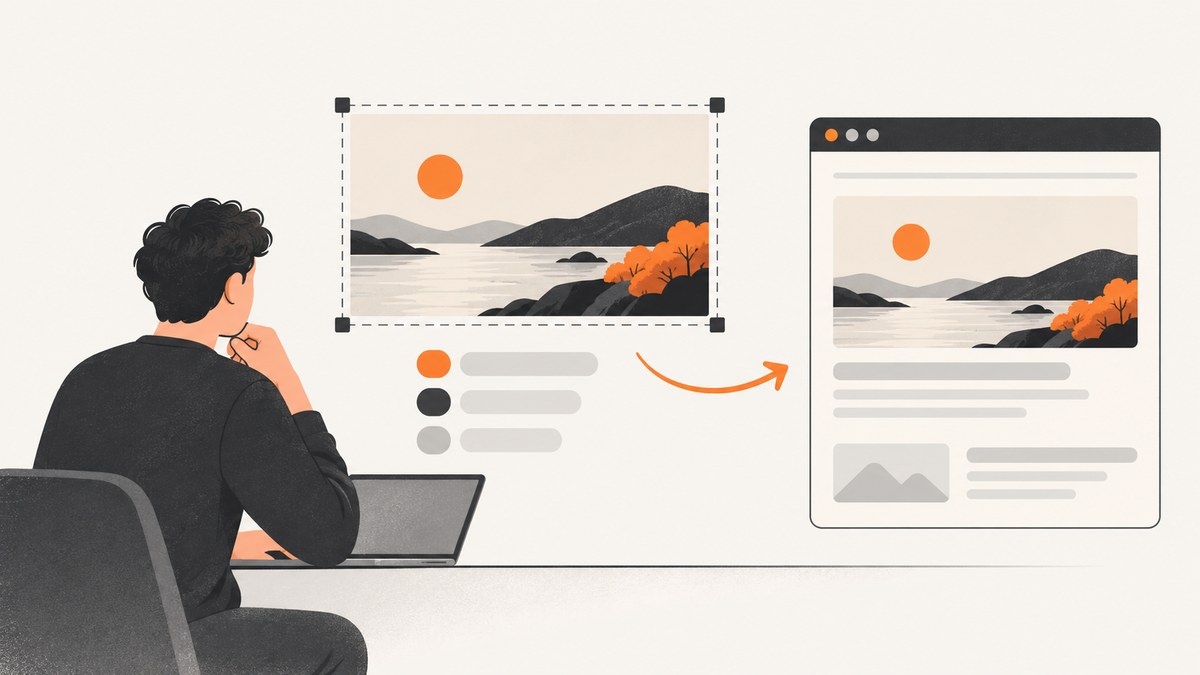
For a LinkedIn website link preview, use an image that is 1200 × 627 pixels, approximately 1.91:1, and no larger than 5 MB. Add Open Graph metadata to the page, including og:image, and make both the page and image accessible to LinkedIn’s crawler. These dimensions are for the image attached to a shared website URL, not every image asset on LinkedIn.
LinkedIn’s sharing guidance specifies a 1.91:1 preview frame at 1200 × 627 pixels. Its website-sharing requirements list 1200 × 627 as the minimum image dimensions and 5 MB as the maximum file size. Meeting those requirements helps LinkedIn retrieve and display the preview; it does not guarantee a preview if access to the page or image is blocked. LinkedIn website-sharing requirements · LinkedIn article and link sharing guidance
1. What image size should you use?
| Setting | Recommended value | What it applies to |
|---|---|---|
| Dimensions | 1200 × 627 pixels | Website URL preview image |
| Aspect ratio | About 1.91:1 | Landscape composition |
| Maximum file size | 5 MB | Website-sharing module |
| Metadata | og:title, og:image, og:description, og:url |
Information LinkedIn can read from your page |
The ratio is the width divided by the height: 1200 ÷ 627 ≈ 1.914. Use the exact 1200 × 627 canvas when you can. If your source artwork has another ratio, crop or pad it to this landscape shape before publishing. Keep key visual details away from the extreme edges so a preview remains legible at smaller display sizes.
Do not confuse a website thumbnail with other LinkedIn images
This specification is for an image LinkedIn pulls from a website URL or article shared in an organic post. Page covers, logos, Career Page images, and advertising creatives have separate requirements. For example, LinkedIn’s Page image documentation lists different dimensions for Page assets and separately repeats the 1.91:1, 1200 × 627 guidance for custom images added to a Page post with a URL. Use the specification for the asset’s actual placement, rather than reusing a cover or logo size. LinkedIn Page and Career Page image specifications
2. Prepare the image file
- Create or export the image at 1200 × 627 pixels.
- Save it in a web-friendly format supported by your publishing stack, such as JPEG or PNG.
- Check that the final file is 5 MB or smaller.
- Upload it to a public URL that LinkedIn can retrieve without a login, session cookie, or private-network access.
- Use that full image URL in the page’s
og:imagevalue.
The 5 MB limit is a ceiling, not a target. A smaller file generally transfers with less data, which can help page loading and crawler retrieval. Compress the image while preserving enough detail for its intended design. If the asset is blurry, inspect the original dimensions and export quality; making a small source image larger does not restore lost detail.
Before release, check the actual exported file dimensions and size rather than assuming the design canvas settings survived an export, CMS upload, or image optimization step. For repeatable builds, add those checks to the image pipeline. Keep a high-quality source file separately if you need to make future crops or revisions.
3. Add Open Graph metadata to the page
Put the preview metadata in the HTML document’s <head>. Replace the example title, description, canonical URL, and image URL with values for the page being shared. The image URL must point directly to the image asset and be publicly retrievable.
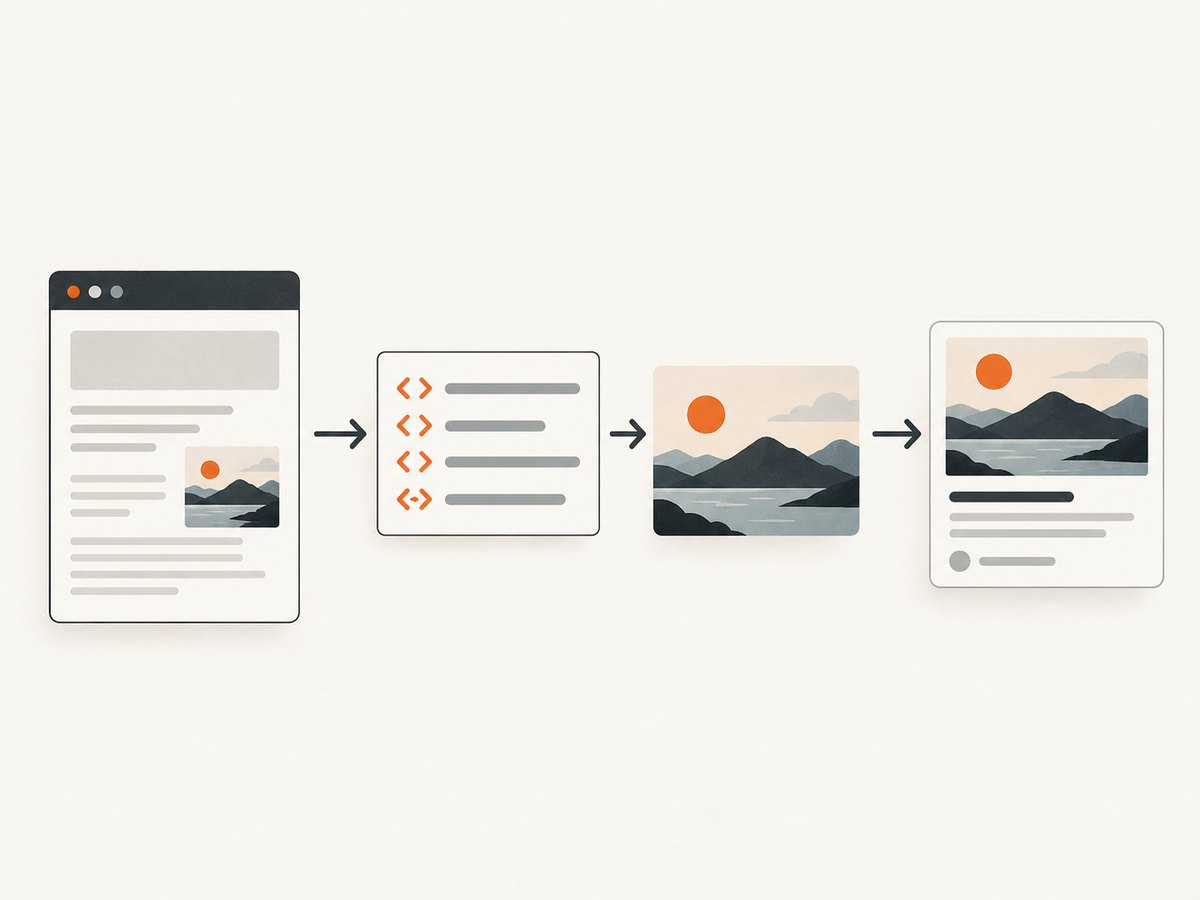
<!doctype html>
<html lang="en">
<head>
  <meta charset="utf-8">
  <meta name="viewport" content="width=device-width, initial-scale=1">
  <title>Example article title</title>
  <meta name="description" content="A short description of the article.">

  <meta property="og:title" content="Example article title">
  <meta property="og:description" content="A short description of the article.">
  <meta property="og:image" content="https://www.example.com/images/link-preview.jpg">
  <meta property="og:url" content="https://www.example.com/articles/example">
</head>
<body>
  <main>
    <h1>Example article title</h1>
    <p>Article content goes here.</p>
  </main>
</body>
</html>
Serve the tags in the initial HTML response where possible. A crawler may not behave like a full browser that runs your client-side JavaScript before reading metadata. Confirm that the rendered page source contains the values, and avoid duplicate or conflicting Open Graph tags injected by a theme, CMS plugin, or framework layout.
Framework and CMS checklist
- Set the Open Graph title and description for the specific page, not only for the site-wide home page.
- Use an absolute HTTPS URL for
og:imageandog:url. - Make sure the image URL is stable and does not expire or require a signed-in browser session.
- Check that a redirect does not lead to a login page, an error page, or a different image.
- Inspect the public HTML source after deploying; local development output does not prove the production page exposes the same tags.
4. Check the preview in LinkedIn
After deployment, paste the page URL into LinkedIn’s post composer and give the preview a few seconds to appear. LinkedIn says a link can still be shared even when it cannot retrieve a preview image. If you manage a LinkedIn Page, its admin workflow can let you customize the preview image and article title before publishing. Share articles or links · Customize a LinkedIn Page post preview
For Page posts with a URL, LinkedIn says images narrower than 200 pixels appear as a small thumbnail on the left instead of the larger image format. That is a display behavior for this Page-post workflow; it does not replace the website-sharing recommendation of 1200 × 627. LinkedIn also says mobile images are not cropped and other ratios display in full with subtle white padding. Design to the 1.91:1 recommendation for a predictable landscape preview, and inspect the actual composer result on the surfaces you use. Image specifications for LinkedIn Pages
5. Troubleshoot a missing or incorrect thumbnail
| Symptom | Likely cause | What to check |
|---|---|---|
| No preview image | Missing or unreadable og:image, or crawler access is blocked |
Inspect the public source and open the image URL without signing in |
| Old image appears | LinkedIn may have previously retrieved the page preview | Confirm the deployed metadata and image URL; allow the composer to retrieve the preview again |
| Wrong page image appears | Multiple tags, a site-wide default, or a redirect points elsewhere | Remove conflicting metadata and verify the final image URL |
| Preview has a blank or broken image | Image request fails, the path is protected, or the server returns an error | Check public access, response behavior, and any hotlink or bot restrictions |
| Small thumbnail at the left | In the Page-post custom-image workflow, the image width is under 200 pixels | Use a sufficiently wide image; LinkedIn recommends 1200 × 627 for this preview |
| Image looks soft | Source dimensions or export quality are too low | Export from a larger, clean source at the target dimensions |
| Composer reports missing information | The shared URL may not meet LinkedIn’s retrieval requirements | Check the page and image are public and that the page exposes the metadata |
LinkedIn specifically notes that a compliant image may still fail to appear if a site blocks LinkedIn from retrieving it or the image is in a protected directory. Check access from outside your authenticated browser. A successful image load for you is not proof that an unauthenticated crawler can fetch it. If the preview remains absent, verify the response at the exact og:image URL and review the page’s access controls, redirects, and metadata. LinkedIn: Make your website shareable
6. Performance, reliability, and cost considerations
A 1200 × 627 image contains about 752,000 pixels. The pixel count is fixed by the recommended dimensions, but encoded file size depends on image content and format. Photos, gradients, and flat-color graphics compress differently. Export and inspect the final asset, and keep it below the documented 5 MB cap.
For reliability, treat the metadata and image as part of the page’s production interface. Deploy them together, verify the page source and image URL after publishing, and avoid changing the image path without updating og:image. If your content system generates tags dynamically, validate a page from each relevant template. A working preview depends on retrieval as well as dimensions, so permissions and public routing matter.
LinkedIn’s cited documentation specifies image dimensions, ratio, file size, and some display behavior; it does not promise a fixed rendering time, universal identical appearance across devices, or that every compliant image will be shown. Use the composer preview as the practical check before posting.
Or skip the browser setup
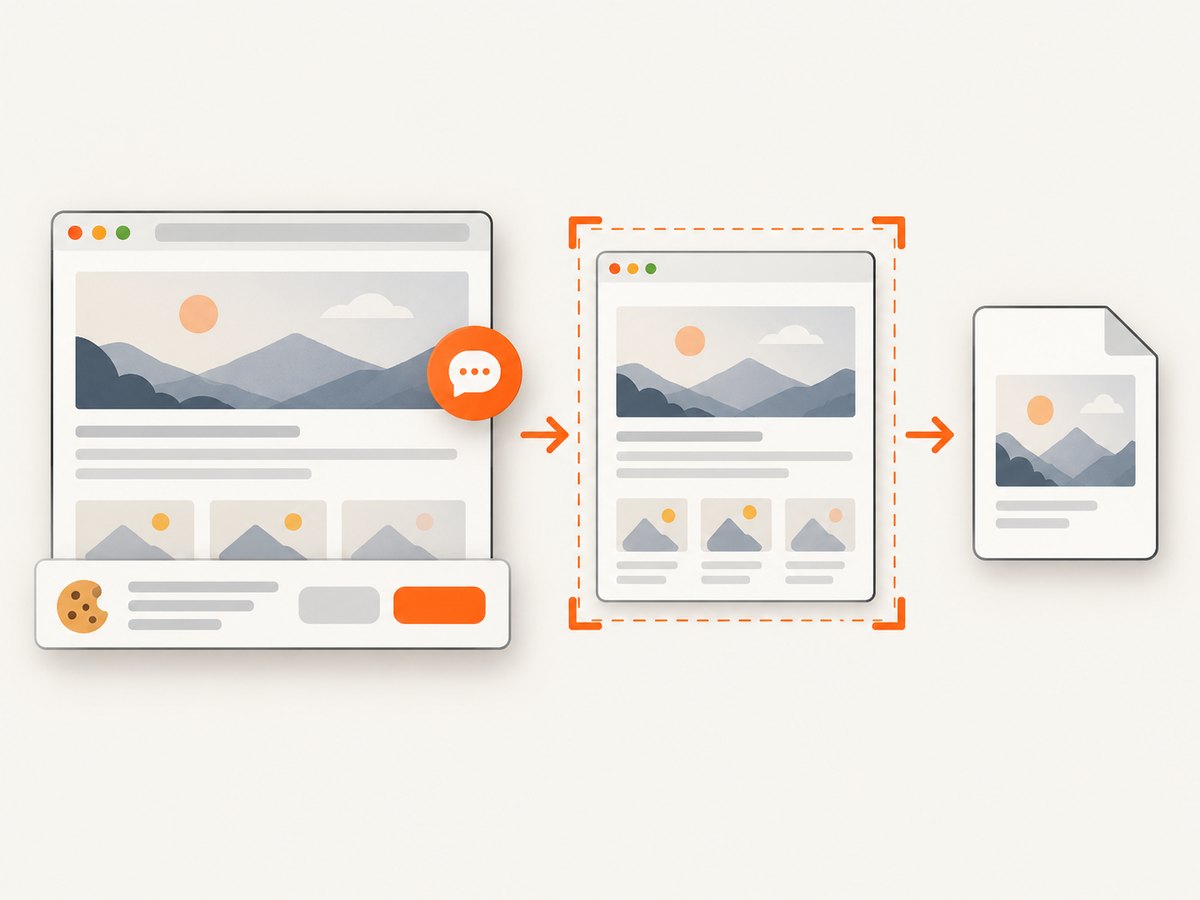
If your workflow needs a screenshot of a page to create or inspect a preview asset, ScreenshotNeo is a website screenshot API and MCP server. It can return a PNG, JPEG, WebP, or PDF from one request. It is not a replacement for setting the LinkedIn Open Graph metadata: your page still needs the correct public og:image URL.
ScreenshotNeo removes cookie banners, newsletter popups, and chat widgets before the screenshot. Bot checks, blank pages, and failed loads are never billed. Its MCP server lets AI agents use the take_screenshot, get_page_info, and capture_pdf tools. The free plan includes 1,000 screenshots per month with no card; paid plans start at $5 for 3,000. See the ScreenshotNeo documentation.
curl -G "https://api.screenshotneo.com/v1/shot" -d access_key=YOUR_API_KEY --data-urlencode url=https://stripe.com -o shot.webpimport requests
r = requests.get(
"https://api.screenshotneo.com/v1/shot",
params={"access_key": "YOUR_API_KEY", "url": "https://stripe.com"},
timeout=90,
)
r.raise_for_status()
open("shot.webp", "wb").write(r.content)const q = new URLSearchParams({ access_key: 'YOUR_API_KEY', url: 'https://stripe.com' });
const res = await fetch(`https://api.screenshotneo.com/v1/shot?${q}`);
if (!res.ok) throw new Error(`Screenshot request failed: ${res.status}`);
await import('node:fs/promises').then(({ writeFile }) => writeFile('shot.webp', Buffer.from(await res.arrayBuffer())));Create a free ScreenshotNeo account for 1,000 screenshots a month, with no card required.
7. FAQ
Is 1200 × 627 the exact same thing as 1.91:1?
It is approximately 1.91:1. The pixel dimensions are the concrete export target; the ratio describes the shape.
Can I share a link if LinkedIn has no image preview?
Yes. LinkedIn says you can still share the update as a link when it cannot retrieve a preview image.
Does this size apply to a LinkedIn Page cover photo?
No. A Page cover, logo, ad creative, and website link preview are separate asset types with separate specifications.
Can a Page admin change the preview after pasting the URL?
LinkedIn documents an admin workflow for editing the image and article title for a URL posted from a LinkedIn Page.


