How to Load CSS for Local HTML Files in Puppeteer
Load local stylesheets reliably in Puppeteer: navigate to a file URL, use setContent correctly, and diagnose missing CSS before taking screenshots.
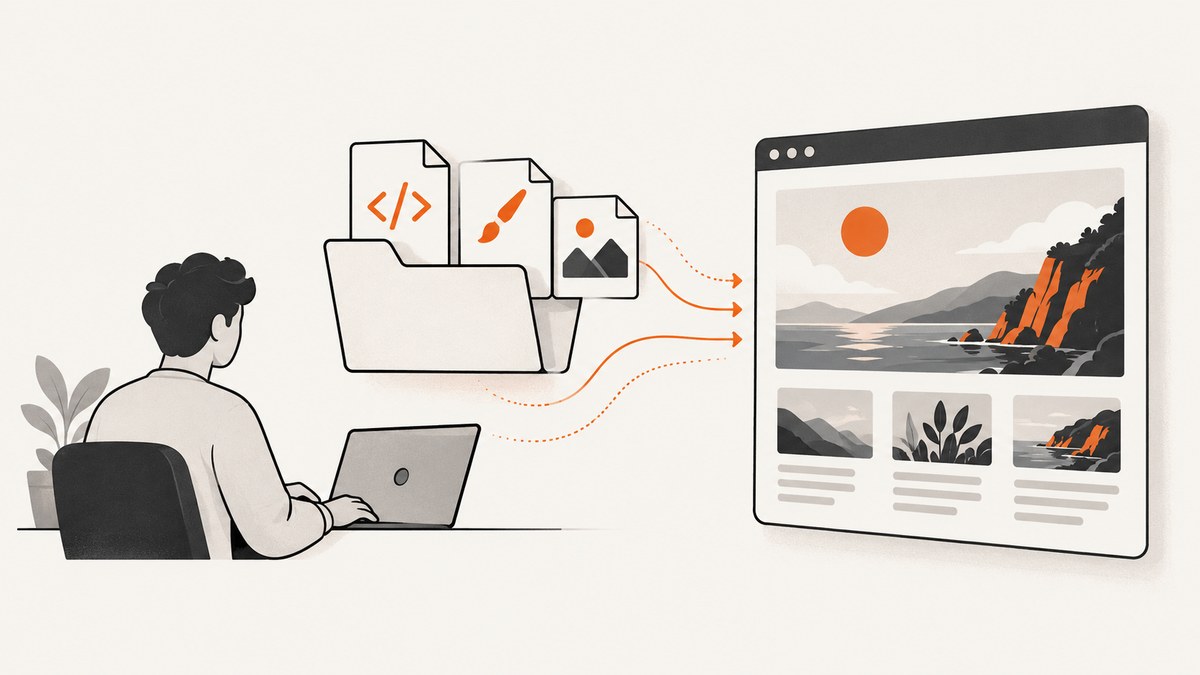
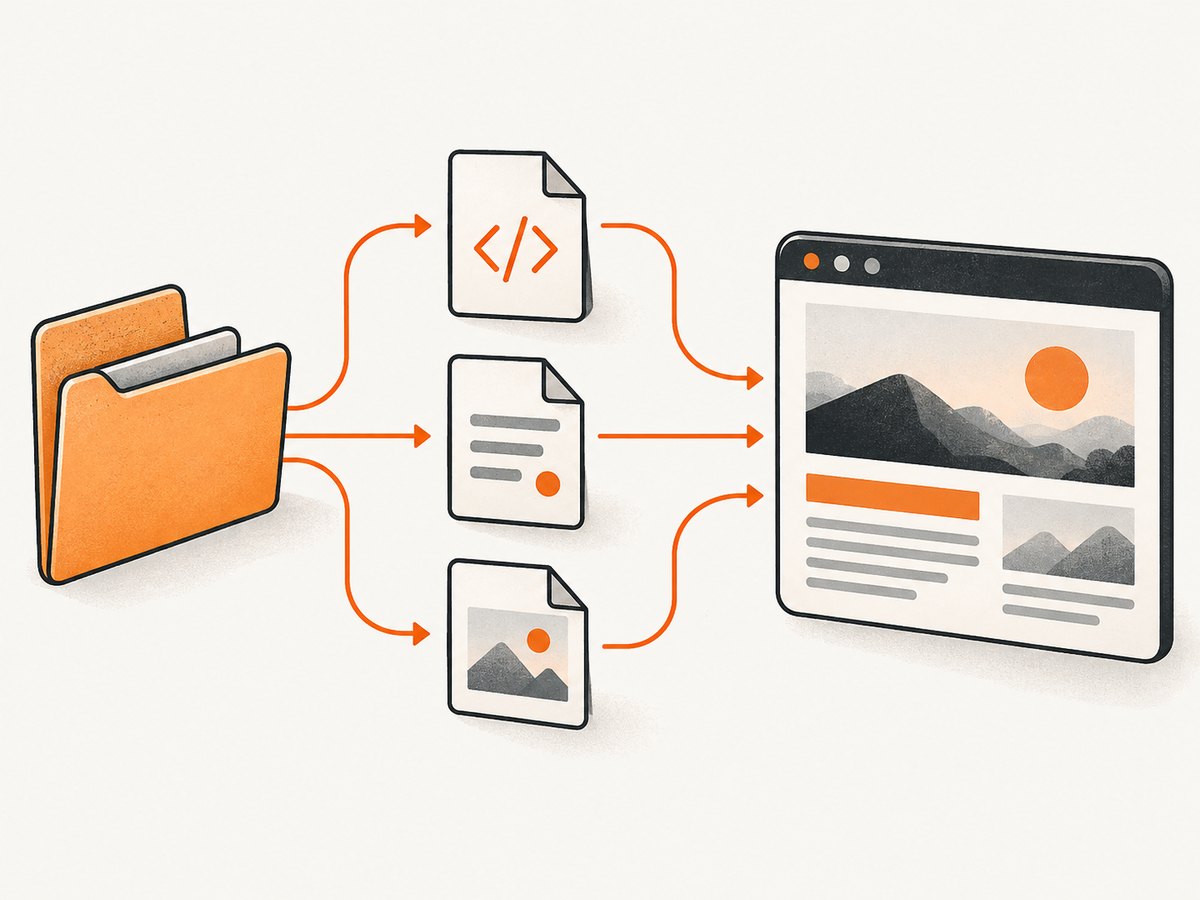
To load a stylesheet linked from a local HTML file, navigate Puppeteer to that file’s absolute file: URL. The browser then resolves relative paths such as ./styles.css from the HTML file’s directory. If you use page.setContent(), pass HTML markup—not a filesystem path—and add CSS inline or explicitly with page.addStyleTag().
This distinction fixes most “CSS not loading” problems. First identify whether your input is an existing file or an HTML string; then use the matching workflow below. Puppeteer’s browser screenshot alternative is covered after the do-it-yourself method.
1. Load an existing HTML file and its linked CSS
Suppose your files are arranged like this:
project/
  capture.mjs
  public/
    index.html
    styles.css
    images/
      logo.png
In public/index.html, use paths relative to that HTML document:
<!doctype html>
<html lang="en">
<head>
  <meta charset="utf-8">
  <meta name="viewport" content="width=device-width, initial-scale=1">
  <link rel="stylesheet" href="./styles.css">
  <title>Local page</title>
</head>
<body>
  <main><h1>Styled from disk</h1></main>
</body>
</html>
Install Puppeteer with npm install puppeteer. Save this as capture.mjs and run node capture.mjs from the project directory:
import { resolve } from 'node:path';
import { pathToFileURL } from 'node:url';
import puppeteer from 'puppeteer';

const htmlPath = resolve('public/index.html');
const browser = await puppeteer.launch();

try {
  const page = await browser.newPage();
  await page.goto(pathToFileURL(htmlPath).href, { waitUntil: 'load' });
  console.log('Loaded:', page.url());
  await page.screenshot({ path: 'page.png', fullPage: true });
} finally {
  await browser.close();
}
resolve() makes the path absolute based on the current working directory (the directory from which Node was started). pathToFileURL() safely converts it to a file URL, including when the path contains spaces or platform-specific characters. The browser loads the linked CSS, images, and other relative resources against the document URL. Puppeteer’s Page API documents navigation and stylesheet injection methods in its Page API.
Use the script directory when that is your intended base
A common surprise is that resolve('public/index.html') depends on the process working directory, not the location of the script. If you launch the script from another directory, construct the path from the module URL instead:
import { fileURLToPath } from 'node:url';
import { dirname, resolve } from 'node:path';

const here = dirname(fileURLToPath(import.meta.url));
const htmlPath = resolve(here, 'public/index.html');
Choose one base deliberately and log the final path when debugging. The stylesheet path itself remains relative to the HTML file: if the HTML is in public/, ./styles.css means public/styles.css, not a stylesheet beside capture.mjs.
2. Set generated HTML content and attach CSS
page.setContent(html) assigns markup to the current page; it does not open a file path. This will not read your file:

await page.setContent('./public/index.html'); // This is text, not file navigationFor a short self-contained document, put CSS in a <style> element:
const html = `<!doctype html>
<html><head><style>
  body { font: 16px sans-serif; margin: 2rem; }
  .ready { color: seagreen; }
</style></head>
<body><main class="ready">Hello from generated HTML</main></body></html>`;

await page.setContent(html, { waitUntil: 'load' });
await page.screenshot({ path: 'generated.png' });
When the markup and stylesheet are maintained separately, inject the local stylesheet by absolute path:
import { resolve } from 'node:path';

await page.setContent('<main class="ready">Hello</main>');
await page.addStyleTag({ path: resolve('public/styles.css') });
await page.screenshot({ path: 'generated-with-css.png' });
Puppeteer describes addStyleTag() as adding a stylesheet link or style element. Its method reference documents the supported forms. Inline styles or addStyleTag({content: '...'}) also work for CSS strings.
3. Choose the right approach for your input
| Input | Recommended approach | How relative assets resolve |
|---|---|---|
| Existing HTML file with sibling assets | page.goto(pathToFileURL(absolutePath).href) |
Relative to the HTML file URL |
| Small generated markup with simple styles | page.setContent() with a <style> block |
No filesystem base should be assumed; embed or explicitly load assets |
| Generated markup and separate local CSS | page.setContent(), then page.addStyleTag({path}) |
The CSS file is loaded from the supplied path; markup-relative assets still need a deliberate base |
| Page needs normal HTTP origin behavior | Serve the directory locally and navigate to its HTTP URL | Relative to the served document URL |
Prefer file navigation when the local document already has a coherent asset directory. Prefer setContent() for isolated markup or a fixture. Use a local server when the page relies on origin behavior such as fetch(), module loading, or application routing; file and HTTP documents have different origins and browser behavior can depend on the feature and launch environment.
4. Wait until the page is ready to capture
A successful navigation does not guarantee that every visual change has finished. External fonts, scripts, image decoding, client-side rendering, and CSS animations can alter the page after the initial load. Choose a readiness condition that matches the page rather than adding a long arbitrary sleep.
// Wait for a known element produced after your app has rendered.
await page.waitForSelector('[data-render-ready]', { timeout: 10000 });

// Or wait until a specific computed style is applied.
await page.waitForFunction(() => {
  const el = document.querySelector('h1');
  return el && getComputedStyle(el).fontFamily.includes('Arial');
}, { timeout: 10000 });

await page.screenshot({ path: 'ready.png', fullPage: true });
For file navigation, waitUntil: 'load' waits for the load event. Other navigation wait conditions include DOM readiness and network-idle conditions; consult the installed Puppeteer version’s navigation reference. Network idle is not always a good readiness test for pages that keep connections open. A known selector or a property meaningful to your page is often more reliable.
If content uses web fonts, wait for font readiness where supported by the page:
await page.evaluate(() => document.fonts.ready);
await page.screenshot({ path: 'fonts-ready.png' });
If images affect layout, wait for the relevant images to finish loading or decode before capture. A failed font or image may not prevent the screenshot, but can change wrapping, spacing, or the visible result.
5. Troubleshoot missing or unapplied CSS
| Symptom | Likely cause | Fix |
|---|---|---|
| Page displays the filename or path as text | A path was passed to setContent(). |
Navigate with page.goto(pathToFileURL(...).href), or read markup into a string before setting content. |
| HTML loads but looks unstyled | Wrong or misspelled stylesheet href, or incorrect relative directory. | Check the link and resolve its path from the HTML file’s directory. Try addStyleTag({path: absoluteCssPath}) to isolate the issue. |
| Works from one shell directory but fails from another | Relative Node paths are based on process.cwd(). |
Log resolve(...) or build the path from import.meta.url. |
| Styles apply but images or fonts do not | URLs inside CSS are relative to the stylesheet URL, or assets are missing. | Check each asset’s location and spelling. For a CSS file in a subdirectory, its url(...) paths are relative to that CSS file. |
Some resources fail only under file: |
Browser origin/security behavior or page code that expects HTTP. | Inspect the actual console or request error. If origin behavior is required, serve the files over a controlled local HTTP origin. |
| Screenshot is intermittently unstyled | Capture occurs before dynamic CSS, fonts, or content are ready. | Wait for a meaningful selector, computed style, or font readiness condition. |
| Navigation hangs after enabling interception | An intercepted request was left unresolved. | Continue, fulfill, or abort every intercepted request. Puppeteer notes that intercepted requests stall until handled or completed from cache in its network interception guide. |
| Inline style injection is blocked | The document has a Content Security Policy that restricts the relevant style source. | Inspect the policy and console errors. If bypass is justified for your controlled document, configure CSP bypass before navigation; it is not a fix for a wrong stylesheet URL. See Puppeteer’s CSP API. |
Use this diagnostic sequence:
- Print
page.url()and confirm it is the intended absolutefile:URL. - Print the resolved HTML and CSS paths from Node and verify that the files exist.
- Check the stylesheet link in the HTML and resolve it from the document’s directory.
- Log browser console messages and failed requests to see whether the browser attempted to load the resource.
- Try
addStyleTag({path: absoluteCssPath}). If that works, focus on the document URL and link path. - Only investigate CSP or origin restrictions when an actual error points there.
A basic listener helps reveal failures:
page.on('console', message => console.log('console:', message.type(), message.text()));
page.on('requestfailed', request => {
  console.log('request failed:', request.url(), request.failure()?.errorText);
});
6. Performance, reliability, and cost
For repeated captures, reuse a browser process and create a fresh page per job when practical; launching a browser for every screenshot adds startup work. Close pages and browsers in finally blocks so failed navigation does not leave Chrome processes behind. Keep work bounded with navigation and selector timeouts, and capture only the viewport unless a full-page image is needed: full-page output can consume more memory and produce large files.
Local assets avoid network variability, but they still need correct paths and can fail if the process runs in a different environment from the one that owns the files. A local HTTP server adds a process and origin configuration, but can make application behavior closer to a deployed site. There is no single wait strategy that is fastest and correct for every page; wait for the smallest condition that represents the output you need.
Puppeteer is an open-source browser automation library; its own cost depends on the compute environment and how much browser work you run. If the task is simply to capture a public website and you do not need local file access or custom browser logic, a screenshot API can remove browser installation and capture code from your application. Check the provider’s documented billing and failure behavior before estimating per-capture cost.
7. Or skip the browser setup
For public websites, ScreenshotNeo is a website screenshot API and MCP server from Yorker Media. A single GET request returns a PNG, JPEG, WebP, or PDF. It does not load your local HTML file; use Puppeteer above when the source exists only on your machine. For a public URL, here is a runnable cURL request:
curl -G "https://api.screenshotneo.com/v1/shot" -d access_key=YOUR_API_KEY --data-urlencode url=https://stripe.com -o shot.webpSee the ScreenshotNeo API documentation for the request parameters. The equivalent Python request is:
import requests

r = requests.get(
    "https://api.screenshotneo.com/v1/shot",
    params={"access_key": "YOUR_API_KEY", "url": "https://stripe.com"},
    timeout=90,
)
r.raise_for_status()
open("shot.webp", "wb").write(r.content)
And Node.js:
const q = new URLSearchParams({ access_key: 'YOUR_API_KEY', url: 'https://stripe.com' });
const res = await fetch(`https://api.screenshotneo.com/v1/shot?${q}`);
if (!res.ok) throw new Error(`Screenshot request failed: ${res.status}`);
await import('node:fs/promises').then(({ writeFile }) => writeFile('shot.webp', Buffer.from(await res.arrayBuffer())));
ScreenshotNeo accepts cookie and consent banners as a visitor and removes more than 60 known consent platforms, newsletter popups, and chat widgets before capture; each of those steps can be turned off. Bot checks and CAPTCHAs, blank pages, timeouts, failed loads, and cache hits cost nothing, and the response identifies the page verdict and billing status in X-Page-Verdict and X-Billed headers. Its MCP server exposes take_screenshot, get_page_info, and capture_pdf to Claude, Cursor, and other MCP clients.
The free plan includes 1,000 screenshots per month with no card. Paid plans start at $5 for 3,000 shots; Growth is $15 for 15,000, Pro $39 for 60,000, Scale $99 for 250,000, and Business $249 for 1,000,000. Yearly billing gives two months free, and every feature is on every plan. Sign up for 1,000 free screenshots a month, with no card required.
8. FAQ
Can Puppeteer load a local CSS file without navigating to HTML?
Yes. Set markup with page.setContent() and attach a stylesheet with page.addStyleTag({path: absolutePath}). If the HTML file already links its own CSS and assets, navigating to its file URL is usually simpler.
Does page.setContent() accept a filename?
No. It accepts HTML markup. Read a file’s contents if you need to set that markup, or navigate to the file URL to let the browser load the document.
Should I disable Chrome’s web security to make local CSS work?
Not as a first fix. Confirm the file URL, paths, and browser errors first. Broad security flags can change the behavior being tested; use a local server if the document needs HTTP origin behavior.
Why does my local CSS work in a browser tab but not in Puppeteer?
The Puppeteer process may resolve a different path, use a different browser environment, capture too early, or encounter a different origin or policy. Compare the absolute file URL and inspect console and failed-request output in the same environment where the script runs.


