How to Load CSS from a String When Generating PDFs in Node.js
Use Puppeteer’s addStyleTag to apply runtime CSS strings before PDF generation, with print media, page sizing, fonts, and troubleshooting covered.

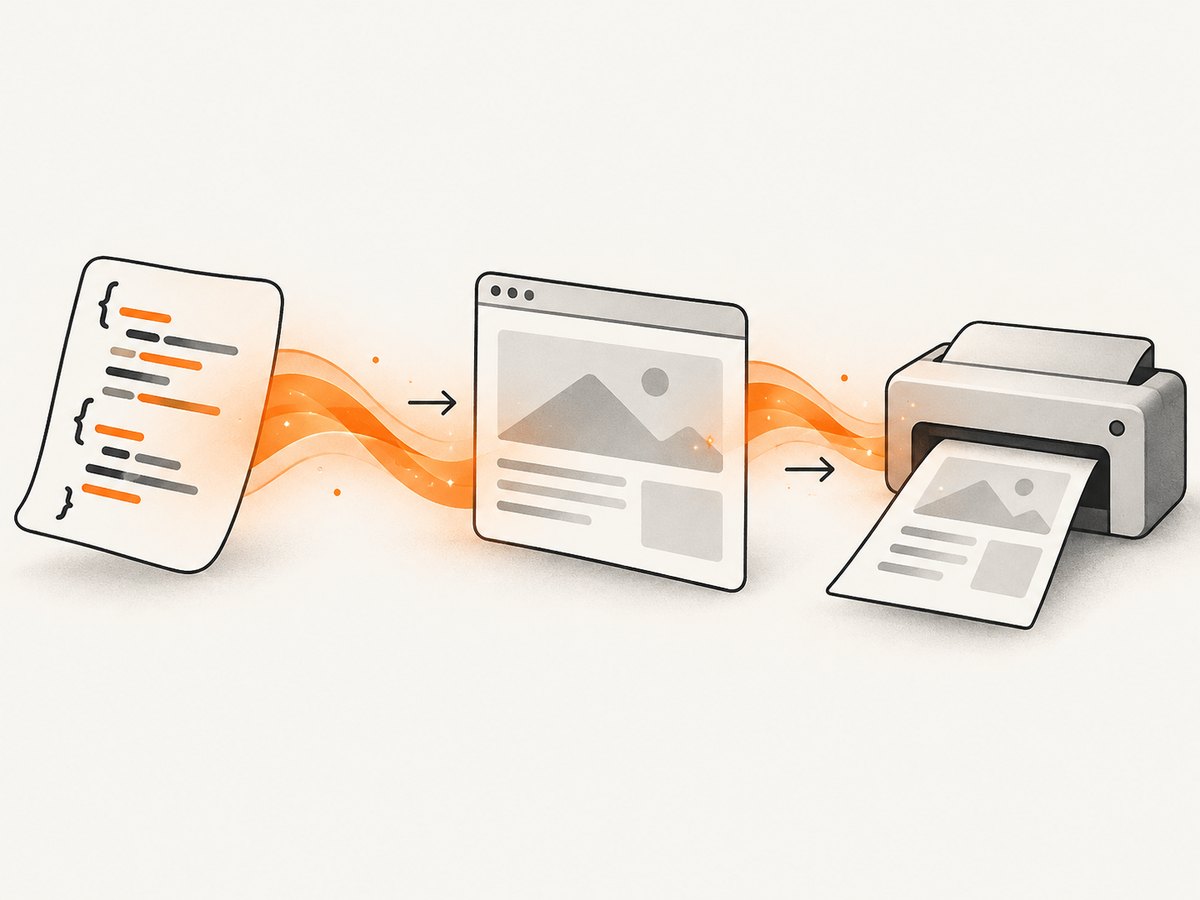
When CSS is stored in a JavaScript string, Puppeteer can apply it directly with page.addStyleTag({ content: cssString }). Add the style after loading the HTML and before calling page.pdf(). You do not need to write a temporary .css file.
This article uses Puppeteer because its API explicitly supports CSS content strings. Other Node.js PDF libraries expose different APIs, so do not assume this exact method works everywhere.
1. Complete working example
Install Puppeteer:
npm install puppeteerCreate generate-pdf.js:
const puppeteer = require('puppeteer');

(async () => {
  const browser = await puppeteer.launch();

  try {
    const page = await browser.newPage();

    const html = `<!doctype html>
<html>
  <head><meta charset="utf-8"></head>
  <body>
    <main class="invoice">
      <h1>Invoice #1042</h1>
      <p>Prepared for Acme Corporation</p>
      <table>
        <tr><th>Description</th><th>Amount</th></tr>
        <tr><td>Development work</td><td>$1,200</td></tr>
      </table>
    </main>
  </body>
</html>`;

    await page.setContent(html, { waitUntil: 'networkidle0' });

    const cssString = `
      @page {
        size: A4;
        margin: 18mm;
      }

      * {
        box-sizing: border-box;
      }

      body {
        margin: 0;
        font: 12pt Arial, sans-serif;
        color: #222;
      }

      h1 {
        color: #165d9c;
        margin-top: 0;
      }

      table {
        width: 100%;
        border-collapse: collapse;
        margin-top: 24px;
      }

      th, td {
        border-bottom: 1px solid #d9d9d9;
        padding: 8px;
        text-align: left;
      }

      th {
        background: #165d9c;
        color: white;
      }

      @media print {
        .invoice {
          break-inside: avoid;
        }
      }
    `;

    await page.addStyleTag({ content: cssString });

    await page.pdf({
      path: 'invoice.pdf',
      format: 'A4',
      printBackground: true,
      preferCSSPageSize: true,
      waitForFonts: true
    });
  } finally {
    await browser.close();
  }
})();
Run it with node generate-pdf.js. The CSS string is converted into a <style type="text/css"> element in the page, then the PDF renderer prints the styled document. Puppeteer documents addStyleTag for adding a style element from supplied content and Page.pdf() for generating the PDF. See the addStyleTag API and PDF API.
2. Two ways to provide runtime CSS
Use addStyleTag
Keep HTML and CSS in separate variables when templates, themes, or customer-specific rules are assembled at runtime:
const cssString = getCustomerStyles();
if (!cssString.trim()) {
  throw new Error('CSS string is empty');
}
await page.addStyleTag({ content: cssString });
await page.pdf({ path: 'output.pdf', printBackground: true });
This is usually the clearest approach when the markup comes from one system and the stylesheet from another.
Put the style in the HTML string
const html = `
  <!doctype html>
  <html>
    <head>
      <style>${cssString}</style>
    </head>
    <body>${bodyMarkup}</body>
  </html>`;

await page.setContent(html, { waitUntil: 'networkidle0' });
await page.pdf({ path: 'output.pdf', printBackground: true });
Both patterns produce inline CSS. Interpolate only CSS you trust; if untrusted input can enter the HTML template, validate it before rendering.
3. Print media, colors, and page sizing
Puppeteer generates PDFs with the print CSS media type by default. That means rules inside @media screen may not apply. If your design is intentionally screen-oriented, switch media before printing:
await page.emulateMediaType('screen');
await page.pdf({ path: 'screen-styled.pdf', printBackground: true });
The official documentation states that Page.pdf() generates a PDF with the print CSS media type. Plan your stylesheet around that behavior, or call emulateMediaType('screen') explicitly. See the media API.
Backgrounds
printBackground is false by default. Set it to true for colored table headers, cards, gradients, and background images:
await page.pdf({
  path: 'branded.pdf',
  printBackground: true
});
Printed colors can differ from screen colors because the browser adjusts them for printing. Add this rule when exact CSS colors are important:
html {
  -webkit-print-color-adjust: exact;
  print-color-adjust: exact;
}
This controls color adjustment; it cannot make an unavailable image or font load successfully.
Paper size, margins, and scaling
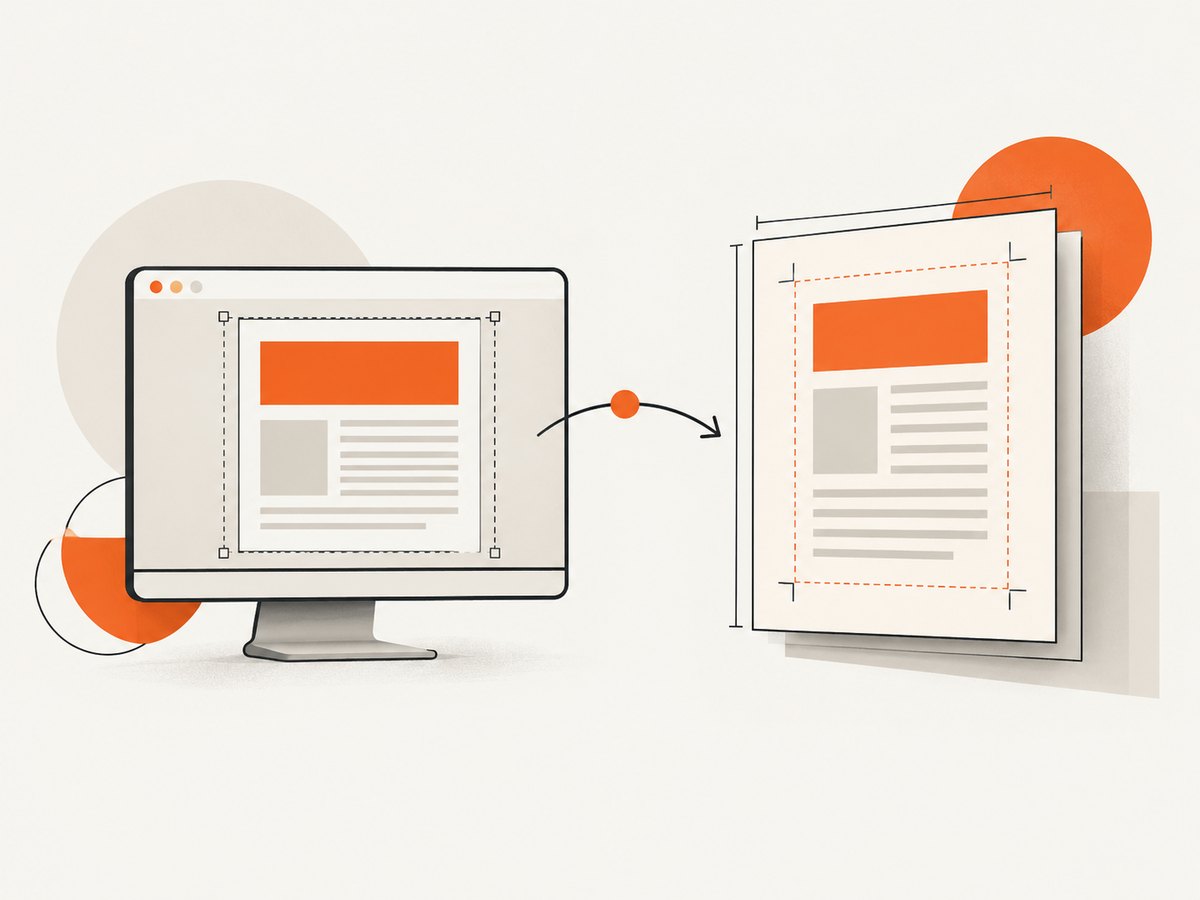
You can set paper dimensions through Puppeteer options or through CSS:
@page {
  size: A4;
  margin: 12mm 15mm;
}
await page.pdf({
path: 'report.pdf',
format: 'A4',
margin: {
top: '12mm',
right: '15mm',
bottom: '12mm',
left: '15mm'
},
printBackground: true
});preferCSSPageSize controls which source wins when CSS @page and PDF options disagree. Its documented default is false. Set it to true when the CSS page declaration is your source of truth:
await page.pdf({
  path: 'css-sized.pdf',
  format: 'A4',
  preferCSSPageSize: true
});
Choose one sizing strategy deliberately. Mixing a CSS page size, a format, custom width or height, and implicit margins can cause unexpected scaling or page breaks. Puppeteer documents Letter as the default format when no format or dimensions are supplied, and no margins when margins are unspecified. See the PDF options reference.
4. Fonts, images, and readiness
The PDF options document waitForFonts: true as the default. That waits for the document’s font loading state, but it does not prove that every remote image, stylesheet dependency, or font URL is available.
For local or remote web fonts, wait explicitly when your template needs a predictable face:
await page.setContent(html, { waitUntil: 'networkidle0' });
await page.evaluate(() => document.fonts.ready);
await page.addStyleTag({ content: cssString });
await page.pdf({ path: 'fonts.pdf', printBackground: true, waitForFonts: true });
For images, prefer absolute URLs or data URLs and check that the resource is loaded before printing:
await page.evaluate(async () => {
  const images = Array.from(document.images);
  await Promise.all(images.map(image => {
    if (image.complete) return Promise.resolve();
    return new Promise(resolve => {
      image.addEventListener('load', resolve, { once: true });
      image.addEventListener('error', resolve, { once: true });
    });
  }));
});
5. Pagination and layout controls
PDF output is paginated, so screen layouts need print-specific rules. Useful declarations include:
.avoid-split {
  break-inside: avoid;
}

.page-break-before {
  break-before: page;
}

.keep-heading {
  break-after: avoid;
}

table {
  page-break-inside: auto;
}
tr {
  page-break-inside: avoid;
  page-break-after: auto;
}
Large fixed-height containers, overflowing flex children, and absolutely positioned elements commonly produce clipped content. Test long text, empty fields, and the largest expected table rather than only a short happy-path document.
6. A reusable function with options
const puppeteer = require('puppeteer');

async function htmlToPdf({ html, cssString, outputPath, media = 'print' }) {
  const browser = await puppeteer.launch();
  try {
    const page = await browser.newPage();
    await page.setContent(html, { waitUntil: 'networkidle0' });

    if (media === 'screen') {
      await page.emulateMediaType('screen');
    }

    if (cssString && cssString.trim()) {
      await page.addStyleTag({ content: cssString });
    }

    await page.evaluate(() => document.fonts.ready);

    return await page.pdf({
      path: outputPath,
      format: 'A4',
      printBackground: true,
      preferCSSPageSize: true,
      waitForFonts: true
    });
  } finally {
    await browser.close();
  }
}

htmlToPdf({
  html: '<h1>Monthly report</h1>',
  cssString: 'h1 { color: #165d9c; }',
  outputPath: 'monthly-report.pdf'
}).catch(error => {
  console.error(error);
  process.exitCode = 1;
});
7. Troubleshooting checklist
| Symptom | Likely cause | Fix |
|---|---|---|
| CSS has no effect | The style was added after page.pdf(), the string is empty, or the selector does not match. |
Log the string length, call addStyleTag before PDF generation, and inspect the page HTML. |
| Screen colors or layout are missing | PDF rendering uses print media. | Move rules into normal or @media print CSS, or call emulateMediaType('screen'). |
| Colored backgrounds disappear | printBackground defaults to false. |
Set printBackground: true. |
| Output is scaled unexpectedly | @page, format, dimensions, or margins conflict. |
Set explicit margins and choose whether preferCSSPageSize should be true. |
| Fonts fall back | Font URLs fail, font loading is incomplete, or the family name is wrong. | Use reachable URLs or embedded fonts, await document.fonts.ready, and verify computed styles. |
| Images are blank | Relative URLs, failed requests, or printing before loading completes. | Use absolute or data URLs and wait for image load events. |
| Content is cut off | Fixed heights, overflow, or absolute positioning do not fit the page. | Remove restrictive heights, allow wrapping, and add print break rules. |
addStyleTag rejects |
The content value is not a string or contains an invalid runtime value. | Normalize with String(cssString), validate inputs, and catch the error. |
For diagnosis, first confirm the page contains the intended HTML, then confirm the CSS string is nonempty, then check media type, backgrounds, page sizing, and resource readiness in that order.
8. Performance, reliability, and cost
Launching a browser is usually more expensive than adding a style element. Reuse a browser process for batches of documents, create a fresh page per job, and always close pages and browsers in finally blocks. Avoid waiting for networkidle0 on pages that keep analytics or websocket connections open; use a controlled readiness selector or a bounded delay for those templates.
Keep CSS deterministic: generate one complete string, avoid repeated style injection, and remove unused rules for large batches. Set timeouts around navigation and external assets, record the HTML template version and CSS version, and retain the generated PDF or a diagnostic screenshot when a job fails. For untrusted HTML or CSS, isolate the browser and restrict outbound access according to your application’s security model.
9. Or skip the browser setup
ScreenshotNeo provides a website capture API and MCP server. Its PDF endpoint accepts the page URL and returns a PDF, with PDF options for paper size, margins, landscape mode, and page ranges. You can also send custom CSS and JavaScript when the page needs runtime changes. Read the ScreenshotNeo documentation for the complete option list.
cURL
curl -G "https://api.screenshotneo.com/v1/shot" \
  -d access_key=YOUR_API_KEY \
  --data-urlencode url=https://stripe.com \
  -o shot.webp
Python
import requests

r = requests.get(
    "https://api.screenshotneo.com/v1/shot",
    params={"access_key": "YOUR_API_KEY", "url": "https://stripe.com"},
    timeout=90,
)
r.raise_for_status()
open("shot.webp", "wb").write(r.content)
Node.js
const q = new URLSearchParams({
  access_key: 'YOUR_API_KEY',
  url: 'https://stripe.com'
});
const res = await fetch(`https://api.screenshotneo.com/v1/shot?${q}`);
if (!res.ok) throw new Error(`ScreenshotNeo request failed: ${res.status}`);
const buffer = Buffer.from(await res.arrayBuffer());
require('fs').writeFileSync('shot.webp', buffer);
ScreenshotNeo removes cookie and consent banners, newsletter popups, and chat widgets before capture. Bot checks, blank pages, timeouts, failed loads, and cache hits are not billed; each response identifies the page verdict and billing status with X-Page-Verdict and X-Billed headers. Its MCP server lets Claude, Cursor, and other MCP clients use take_screenshot, get_page_info, and capture_pdf.
The Free plan includes 1,000 screenshots per month with no card. Paid plans start at $5 for 3,000 shots, and every feature is available on every plan. Create a free ScreenshotNeo account.
10. FAQ
Can I load CSS without writing a file?
Yes. Pass the in-memory string to page.addStyleTag({ content: cssString }) before page.pdf(), or put it in a <style> element in the HTML string.
Does addStyleTag apply styles to PDF output?
Yes. It adds a style element to the page being printed. The rules still follow print media behavior and PDF options such as background printing.
Why does my @media screen rule not work?
Puppeteer uses print media for PDF generation by default. Call page.emulateMediaType('screen') when screen rules are the intended design.
Should I use format or @page size?
Either can define the paper. Set preferCSSPageSize: true when CSS should take priority, and specify margins explicitly.
Is this API universal across Node PDF libraries?
No. The method documented here is Puppeteer-specific. Check the renderer’s own API when using Playwright, PDFKit, or another library.


