How to Load External CSS, JavaScript, and Fonts in Website Screenshots
Make Playwright screenshots wait for external CSS, JavaScript, and web fonts so captures match the rendered page.

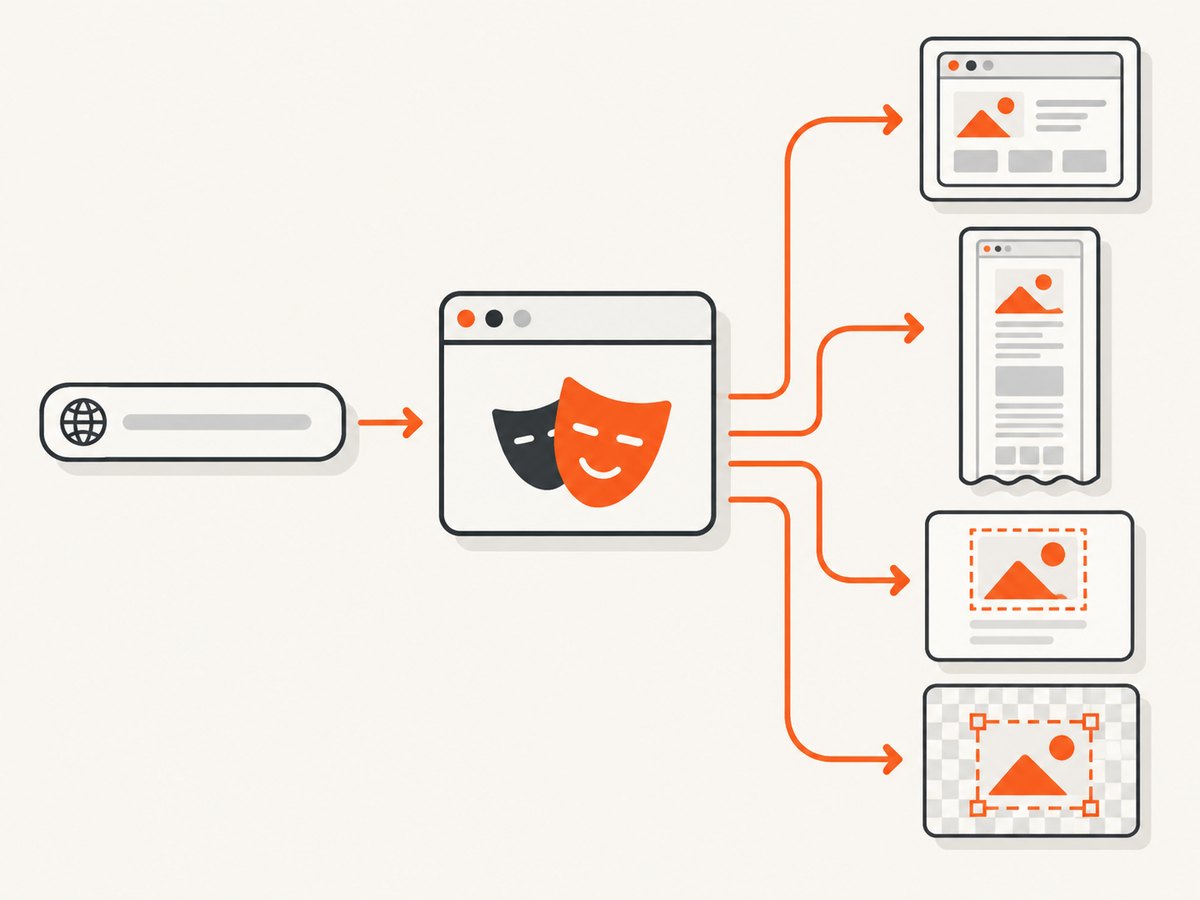
Short answer: Playwright’s page.goto() waits for the load event by default, and that event includes dependent resources such as linked stylesheets and scripts. It does not prove that a JavaScript application has finished fetching data or that the exact web fonts you need have been applied. Navigate, wait for a page-specific ready condition, await document.fonts.ready, then capture.
import { chromium } from 'playwright';

const browser = await chromium.launch();
const page = await browser.newPage({ viewport: { width: 1440, height: 900 } });

await page.goto('https://example.com', { waitUntil: 'load' });
await page.locator('[data-page-ready="true"]').waitFor(); // use a real condition from your app
await page.evaluate(() => document.fonts.ready);
await page.screenshot({ path: 'page.png', fullPage: true });

await browser.close();
The selector above is only an example. Replace it with a result container, loading-state removal, chart marker, or other signal that represents the content your screenshot must contain. A fixed delay can help diagnose a race, but it is a weak production contract. Playwright’s navigation documentation explains that modern pages continue work after load, while its Page API discourages using networkidle as a universal readiness assertion. Read the navigation guidance and the Page API reference.
What each loading signal actually means
| Signal | What it covers | What it does not guarantee | Best use |
|---|---|---|---|
domcontentloaded |
HTML has been parsed. | Stylesheets, images, fonts, and app data may still be loading. | Very early DOM work. |
load |
Dependent resources, including stylesheets, scripts, frames, and images, have loaded according to navigation lifecycle rules. | Post-load fetches, hydration, lazy content, or a font that has not been used yet. | Normal starting point for a screenshot. |
networkidle |
No network connections for at least 500 ms. | It can occur before the UI is semantically ready, and long-polling or analytics can prevent it. | Occasional diagnostic wait, not a universal readiness rule. |
| Application assertion | A known element or state says the required UI is rendered. | It only covers what your assertion checks. | Primary production readiness condition. |
document.fonts.ready |
Font loading and layout operations for fonts used by the document have settled. | Every declared font was downloaded or used; optional fonts may be skipped. | Typography-sensitive captures. |
Step 1: Navigate with the right lifecycle event
Use waitUntil: 'load' when you want the normal browser lifecycle. It is Playwright’s default, so this is equivalent:
await page.goto(url);Being explicit makes intent clearer in shared helpers:
await page.goto(url, { waitUntil: 'load', timeout: 45_000 });Choose domcontentloaded only when you deliberately plan to wait for all required assets and UI states yourself. It is faster, but it is not evidence that external CSS or scripts are ready.
Do not assume that a successful navigation means a successful application render. A single-page app can return HTML, load its JavaScript bundle, and then make an API request that populates the table you want to capture.
Step 2: Wait for JavaScript-rendered content
Identify a stable, user-visible condition. Good choices include:
- A results list has at least one item.
- A loading spinner is hidden and an error panel is absent.
- A chart’s SVG or canvas exists and has non-zero dimensions.
- A page-specific completion marker is set by the application.
await page.goto('https://app.example.com/report', { waitUntil: 'load' });

await page.locator('[data-testid="report-results"]').waitFor({ state: 'visible' });
await page.locator('[data-testid="report-loading"]').waitFor({ state: 'hidden' });

const rowCount = await page.locator('[data-testid="report-row"]').count();
if (rowCount === 0) {
  throw new Error('Report rendered without any rows');
}

await page.screenshot({ path: 'report.png', fullPage: true });
If you control the application, expose a deterministic marker after the last required render step:
// application code
await loadData();
renderDashboard();
document.documentElement.dataset.pageReady = 'true';
// capture code
await page.locator('html[data-page-ready="true"]').waitFor();Keep the marker tied to the screenshot’s actual requirements. A generic marker set after the first API response can still race with images, charts, or secondary panels.
Step 3: Wait for external CSS and verify the styles applied
The load event normally includes linked stylesheets. If a page still looks unstyled, investigate the request and CSS itself instead of adding an arbitrary sleep.
page.on('response', response => {
  const type = response.request().resourceType();
  if (type === 'stylesheet') {
    console.log(response.status(), response.url());
  }
});

await page.goto(url, { waitUntil: 'load' });
await page.locator('[data-page-ready="true"]').waitFor();

const bodyBackground = await page.locator('body').evaluate(el => getComputedStyle(el).backgroundColor);
console.log({ bodyBackground });
Check these common CSS causes:
- Wrong origin or certificate: the browser rejects the stylesheet request. Inspect response status and browser console messages.
- Content Security Policy: the page may disallow the stylesheet origin.
- Relative URL base: a stylesheet or imported asset resolves differently under the capture URL.
- Media queries: your viewport does not match the CSS media condition.
- CSS arrives but loses the cascade: a later rule, missing class, or unsupported feature overrides it.
- Cross-origin fonts inside CSS: the stylesheet works, but its font files fail separately.
For debugging, log console messages and failed requests:
page.on('console', message => console.log('console:', message.type(), message.text()));
page.on('requestfailed', request => {
  console.log('failed:', request.url(), request.failure()?.errorText);
});
Step 4: Load web fonts before capturing
External font loading commonly has two network stages: the browser fetches a font stylesheet, then downloads a suitable font file described by that stylesheet. Google Fonts documents this sequence in its getting-started guide. A screenshot can therefore have correct CSS and still show fallback typography.
await page.goto(url, { waitUntil: 'load' });
await page.locator('[data-page-ready="true"]').waitFor();
await page.evaluate(() => document.fonts.ready);
await page.screenshot({ path: 'with-fonts.png' });
document.fonts.ready resolves after loading and layout operations for fonts used by the document settle. It does not force every font declared in CSS to download: optional faces or unused weights may never be selected.
To verify a particular face is available, use the Font Loading API:
const available = await page.evaluate(async () => {
  await document.fonts.ready;
  return document.fonts.check('600 32px "Inter"');
});
if (!available) throw new Error('Required Inter weight is unavailable');
Match the requested weight and style to the CSS. Asking for 600 when only a 400 file is hosted can trigger synthetic bolding or fallback behavior. For deterministic output, self-host known font files, declare only the weights you use, and keep the same browser, viewport, device scale factor, and font-loading policy across runs.
Step 5: Capture at a consistent size and scale
External resources are only part of screenshot consistency. A responsive layout, device pixel ratio, and screenshot scale can change wrapping and image dimensions.
const context = await browser.newContext({
  viewport: { width: 1440, height: 900 },
  deviceScaleFactor: 1,
  colorScheme: 'light'
});
const page = await context.newPage();
Keep these values fixed when comparing screenshots. Playwright can emit CSS-pixel or device-pixel-sized images depending on its screenshot scale option; choose one policy and document it for downstream image tests. Set fullPage: true only after lazy content has been triggered or loaded.
For long pages, scroll through the document before capture so intersection-observer lazy images run:
await page.evaluate(async () => {
  await new Promise(resolve => {
    let last = 0;
    const timer = setInterval(() => {
      window.scrollBy(0, 800);
      const current = window.scrollY;
      if (current === last || current + innerHeight >= document.body.scrollHeight) {
        clearInterval(timer);
        resolve();
      }
      last = current;
    }, 100);
  });
  window.scrollTo(0, 0);
});
await page.evaluate(() => document.fonts.ready);
await page.screenshot({ path: 'full.png', fullPage: true });
A complete reusable Playwright helper
import { chromium } from 'playwright';

export async function capture(url, outputPath) {
  const browser = await chromium.launch();
  const context = await browser.newContext({
    viewport: { width: 1440, height: 900 },
    deviceScaleFactor: 1
  });
  const page = await context.newPage();

  page.on('requestfailed', request => {
    console.warn('request failed', request.url(), request.failure()?.errorText);
  });

  try {
    await page.goto(url, { waitUntil: 'load', timeout: 45_000 });
    await page.locator('[data-page-ready="true"]').waitFor({ timeout: 30_000 });
    await page.evaluate(() => document.fonts.ready);
    await page.screenshot({ path: outputPath, fullPage: true });
  } finally {
    await browser.close();
  }
}

await capture('https://example.com', 'page.png');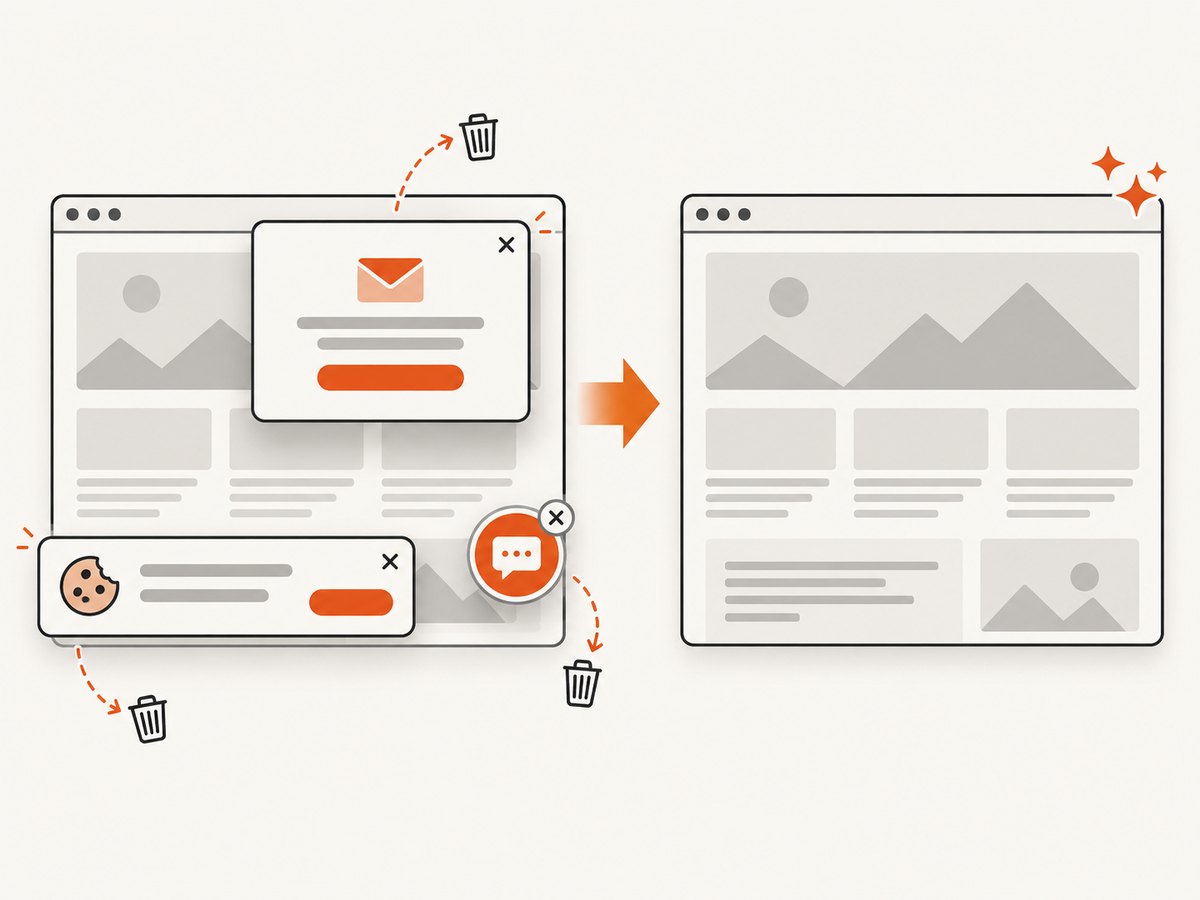
Or skip the browser setup
ScreenshotNeo provides a website screenshot API when you need a rendered image without maintaining a Playwright worker. Its capture options include waits for a selector, delay, or network idle; custom CSS and JavaScript; full-page capture with lazy images; custom headers, cookies, user agent, timezone, geolocation, and resource blocking. See the ScreenshotNeo API documentation for the complete option list.
curl -G "https://api.screenshotneo.com/v1/shot" -d access_key=YOUR_API_KEY --data-urlencode url=https://stripe.com -o shot.webpimport requests
r = requests.get("https://api.screenshotneo.com/v1/shot", params={"access_key": "YOUR_API_KEY", "url": "https://stripe.com"}, timeout=90)
open("shot.webp", "wb").write(r.content)const q = new URLSearchParams({ access_key: 'YOUR_API_KEY', url: 'https://stripe.com' });
const res = await fetch(`https://api.screenshotneo.com/v1/shot?${q}`);Cookie banners, newsletter popups, and chat widgets are removed before the shot. Bot checks, blank pages, timeouts, failed loads, and cache hits are never billed, and response headers report the page verdict and billing result. An MCP server lets Claude, Cursor, and other MCP clients take screenshots with take_screenshot, inspect pages with get_page_info, and create PDFs with capture_pdf. The free plan includes 1,000 screenshots a month with no card; paid plans start at $5 for 3,000.
Create a free ScreenshotNeo account and try the API with no card.
Troubleshooting checklist
| Symptom | Likely cause | Fix |
|---|---|---|
| Unstyled page | Stylesheet failed, was blocked, or was captured before navigation completed. | Use load, inspect stylesheet responses, CSP, certificates, and media conditions. |
| Fallback font | Font file failed, wrong weight was requested, or capture preceded font layout. | Await document.fonts.ready, check document.fonts.check(), and inspect font requests. |
| Missing table or chart | Data fetch and rendering happened after load. |
Wait for the actual result selector or completion marker. |
networkidle timeout |
Analytics, polling, sockets, or third-party embeds keep connections open. | Use a page-specific assertion; block irrelevant requests if appropriate. |
| Lazy images are blank | They load only after entering the viewport. | Scroll through the page or use the capture service’s full-page lazy-image handling. |
| Different wrapping between runs | Viewport, device scale, font availability, or responsive breakpoint changed. | Pin viewport, scale, browser version, color scheme, and font assets. |
| Navigation timeout | Slow origin, blocked request, redirect loop, or page never reaches lifecycle completion. | Set a bounded timeout, log failed requests, and capture a deliberate error state when applicable. |
Performance, reliability, and cost notes
- Use the narrowest wait: a specific selector usually finishes sooner and is more meaningful than a long fixed delay.
- Bound every wait: navigation, selectors, and font checks need timeouts so one broken origin does not exhaust a worker.
- Reuse browsers: keeping one Chromium process and creating isolated contexts per job reduces launch overhead while preserving cookies and viewport isolation.
- Cache intentionally: browser caching speeds repeated captures but can hide changed CSS or fonts. Clear or partition context data when freshness matters.
- Control third parties: blocking ads, trackers, and unrelated media can improve repeatability, but do not block a stylesheet, font, API, or image required by the page.
- Retry selectively: retry transient network failures with backoff; do not blindly retry deterministic 4xx responses or an application that consistently renders an error.
- Measure readiness: record navigation time, application-ready time, font-ready time, and screenshot time separately to find the real bottleneck.
- Service cost: with ScreenshotNeo, only clean shots are billed. Bot checks, blank pages, timeouts, failed loads, and cache hits cost nothing; inspect
X-Page-VerdictandX-Billedin responses.
FAQ
Does page.goto() wait for external CSS?
With its default load wait, Playwright waits for navigation dependencies such as linked stylesheets. A stylesheet can still fail, be blocked, or be overridden, so inspect requests when the result is unstyled.
Should I always use networkidle?
No. It is a 500 ms quiet-network heuristic and Playwright discourages it as a testing readiness assertion. Prefer a condition tied to the content your screenshot needs.
Why does document.fonts.ready not fix every font?
It covers fonts used by the document after loading and layout settle. Unused or optional faces may not download, and a missing requested weight can still produce fallback or synthetic styling.
Can a screenshot include JavaScript-generated content after load?
Yes, but only if you wait for the application state that creates it. The lifecycle event alone does not describe every post-load fetch or render.
How do I make visual diffs reproducible?
Pin the browser version, viewport, device scale factor, color scheme, locale, timezone, network policy, font files, and application data. Capture only after the same readiness and font conditions pass.
Key takeaway
Start with load for external CSS and scripts, add an application-specific assertion for asynchronous JavaScript, and await document.fonts.ready when typography matters. Keep the environment deterministic, diagnose failed resource requests directly, and use bounded waits. If maintaining that browser pipeline is unnecessary, ScreenshotNeo supplies a one-call capture API with configurable waits and clean, non-billed failure handling.