How to Load Google Translate Scripts Reliably with Puppeteer
Use Puppeteer’s supported script and wait APIs, semantic completion checks, bounded timeouts, and safer alternatives for reliable translation automation.
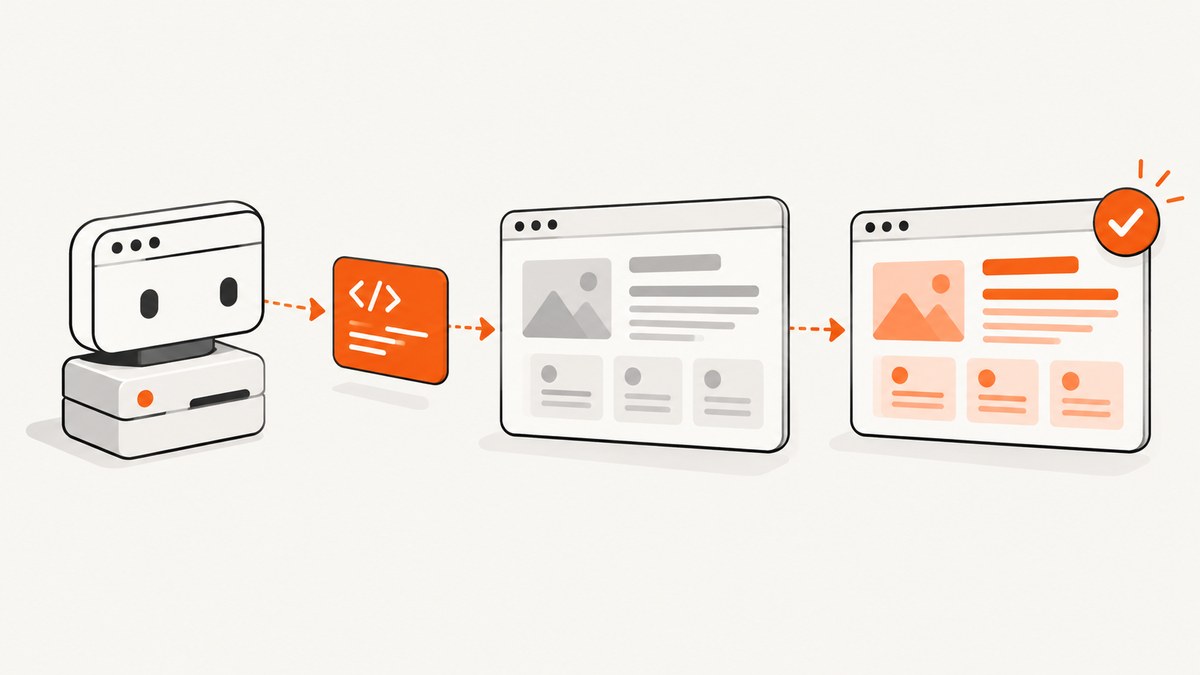
Short answer: Puppeteer can insert a script with page.addScriptTag(), but insertion only proves that a script element was added or fetched. Reliable automation also waits for a page condition that represents the result you need, such as an application-owned translated-state marker, with page.waitForFunction() and an explicit timeout. page.waitForNetworkIdle() can provide supporting evidence that requests have quieted, but network idle alone does not prove that translation finished.
This distinction matters for “How to load Google Translate scripts reliably with Puppeteer.” Google’s published material does not provide a general-purpose, supported recipe for injecting an undocumented website-translation script from Puppeteer. You should treat any discovered script URL, internal global, or browser implementation detail as unstable unless Google documents it for your integration. The supported choices are the documented Puppeteer Page API for scripts you are authorized to load, Google’s user-facing Websites flow, or Cloud Translation when translation belongs in your application.
What Puppeteer actually guarantees
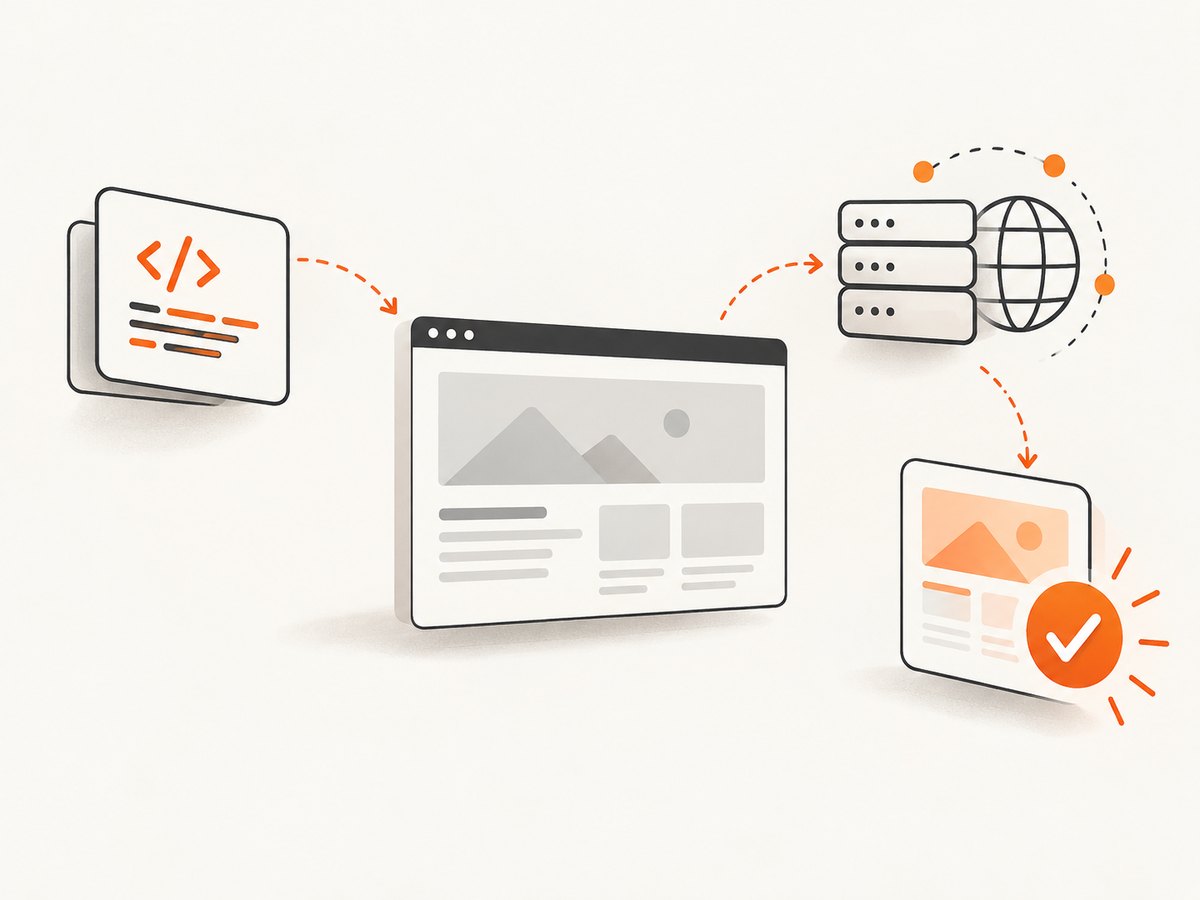
Puppeteer’s Page API exposes addScriptTag with a URL or inline content. The method handles script insertion; it does not know whether the script later changes the DOM, finishes an asynchronous translation job, or reaches your desired application state. A separate waitForFunction call evaluates a predicate in the page until it becomes truthy. That predicate is the reliable completion contract.
Think of the workflow as four separate events:
- The target page navigates.
- A script element is inserted and, for a URL, downloaded.
- The script performs asynchronous work and may issue more requests.
- Your page reaches a meaningful state, such as a translated marker or changed text.
Only the fourth event answers “is the translation ready?” Keep the first three observable and fail them independently.
A reliable Puppeteer pattern
The following Node.js example is intentionally provider-neutral. Replace AUTHORIZED_SCRIPT_URL with a script URL that your application is permitted to load, or use the content form for code you control. The completion predicate is an application-owned signal; it is not an undocumented Google Translate global.
import puppeteer from 'puppeteer';

const browser = await puppeteer.launch({headless: true});
const page = await browser.newPage();

try {
  await page.goto('https://example.com', {
    waitUntil: 'domcontentloaded',
    timeout: 30_000
  });

  await page.addScriptTag({
    url: 'https://your-authorized-host.example/translation.js',
    type: 'text/javascript'
  });

  // Optional supporting signal. This is not the success condition.
  await page.waitForNetworkIdle({
    idleTime: 500,
    timeout: 10_000
  }).catch(() => {
    // Continue to the semantic check. Some pages keep long-lived connections.
  });

  // The page must set this marker when its translation work is complete.
  await page.waitForFunction(
    () => document.documentElement.dataset.translationState === 'complete',
    {timeout: 30_000}
  );

  const html = await page.content();
  console.log(html);
} catch (error) {
  console.error('Translation did not reach the required state:', error);
  process.exitCode = 1;
} finally {
  await browser.close();
}
For a page you own, set the marker from your integration after the actual operation succeeds:
document.documentElement.dataset.translationState = 'complete';If the operation can fail, expose a failure state as well and wait for either outcome. This prevents a timeout from hiding a known error.
await page.waitForFunction(() => {
  const state = document.documentElement.dataset.translationState;
  return state === 'complete' || state === 'error';
}, {timeout: 30_000});

const state = await page.evaluate(
  () => document.documentElement.dataset.translationState
);
if (state === 'error') {
  throw new Error('The page reported a translation failure');
}
Choosing the completion condition
A good predicate is specific, observable, and tied to the output your caller needs. Possible signals include:
| Signal | When to use it | Limit |
|---|---|---|
| Application data attribute | Your code controls the page and can set a state such as data-translation-state="complete". |
Requires a small integration hook. |
| Known translated element | A stable element receives a language attribute or expected text change. | Text-based checks can break when copy changes. |
| Event recorded in the page | Your script dispatches a custom event after finishing. | The event listener must be installed before the event can fire. |
| Network idle | You need a supporting observation that requests have quieted. | Long polling, analytics, fonts, and open sockets can prevent idle; quiet traffic does not prove semantic completion. |
Prefer a state marker or event over a fixed sleep. A delay such as await new Promise(r => setTimeout(r, 5000)) may be too short on a slow run and wasteful on a fast run. If you must use a delay because the integration offers no signal, combine it with a bounded timeout and a postcondition check.
Loading by URL versus inline content
addScriptTag({url}) is appropriate when the browser should fetch a script from an authorized origin. The page must be able to reach that origin, and the origin’s policy must allow the request. addScriptTag({content}) is useful for a small bootstrap that you own.
// URL form
await page.addScriptTag({url: 'https://static.example.com/app-translation.js'});

// Content form
await page.addScriptTag({content: `
  window.startTranslation = function () {
    // Call your supported translation integration here.
  };
`});
When a Content Security Policy blocks inline scripts, use an allowed external URL or adjust the policy on a page you control. Do not disable security controls merely to make an undocumented script load.
Google-specific boundaries and supported routes
Google’s Help documentation describes the Websites flow for ordinary users. It also says that academic institutions and government, nonprofit, or non-commercial websites may be eligible for a Website Translator shortcut. Eligibility is conditional, so do not promise that shortcut for every site.
For application-owned translation, assess Google Cloud Translation instead of automating a browser widget. Google documents Basic and Advanced editions as programmatic services. Applications using the Cloud Translation API must identify Google Translate in the application description and help documentation and link to the Cloud Translation site, as stated in the official attribution requirements.
Chromium’s translation design document is useful architectural context: browser-controlled translation obtains and injects implementation scripts and polls for success or failure. That document describes browser internals, not a current Puppeteer contract or a stable public script URL. Build against published APIs and your own completion signal.
Step-by-step production checklist
- Define ownership. Confirm that you are authorized to load the script and modify the target page.
- Navigate with a bounded timeout. Use
domcontentloadedor another deliberate navigation milestone rather than waiting forever for every resource. - Install listeners first. Register page errors, console diagnostics, or application event listeners before inserting the script.
- Insert with
addScriptTag. Choose URL or content and record which form you used. - Wait for the semantic result. Use
waitForFunctionwith a predicate that means translation is complete. - Use network idle only as evidence. It can help with diagnosis, but it is not your definition of success.
- Capture diagnostics on failure. Save the URL, elapsed time, console messages, page errors, and the observed state.
- Close the browser in a
finallyblock. This prevents leaked Chromium processes when a timeout occurs.
Common errors and fixes
| Error or symptom | Likely cause | Fix |
|---|---|---|
addScriptTag rejects |
The URL is unreachable, blocked, malformed, or the page’s policy rejects it. | Check the URL from the same runtime, inspect console and page errors, and use an authorized origin. For CSP, use an allowed external script on a page you control. |
| Script loads but nothing changes | Insertion completed, but initialization needs configuration or a later trigger. | Verify the documented integration contract and add an application-level completion marker. Do not infer success from the presence of a script element. |
waitForNetworkIdle times out |
Analytics, polling, WebSockets, or advertisements keep traffic open. | Use a shorter supporting idle window or skip it. Wait on a semantic predicate instead. |
waitForFunction times out |
The marker was never set, the translation failed, or the selector/state is wrong. | Log the observed state, inspect the DOM, add an explicit error state, and verify that the predicate runs in the page context. |
| Works locally but fails in CI | Different browser version, missing dependencies, blocked outbound access, or timing. | Pin a compatible Puppeteer/browser setup, verify network access, and keep timeouts explicit. Avoid relying on undocumented browser internals. |
| Translated text is inconsistent | Some content is rendered after the initial check or is inside frames/shadow roots. | Wait for the component’s own ready signal and inspect each frame or component boundary deliberately. |
Diagnostics you can add without guessing
page.on('console', message => {
  console.log(`[console:${message.type()}] ${message.text()}`);
});
page.on('pageerror', error => {
  console.error('[pageerror]', error.message);
});

const started = Date.now();
try {
  await page.waitForFunction(
    () => document.documentElement.dataset.translationState === 'complete',
    {timeout: 30_000}
  );
} catch (error) {
  const state = await page.evaluate(
    () => document.documentElement.dataset.translationState || 'unset'
  );
  console.error({elapsedMs: Date.now() - started, state});
  await page.screenshot({path: 'translation-timeout.png', fullPage: true});
  throw error;
}
Keep diagnostics separate from success logic. A screenshot or console line helps explain a failure; it should not turn an unknown state into success.
Performance, reliability, and cost considerations
- Reuse a browser process. Launching Chromium for every URL adds startup overhead. Reuse the browser and create isolated pages when your workload permits.
- Bound every wait. Navigation, script insertion, network observations, and semantic completion should all have finite limits.
- Avoid unnecessary full-page work. If your consumer needs one translated element, query that element rather than serializing the entire document.
- Control concurrency. Too many pages at once can exhaust CPU, memory, sockets, or the target site’s capacity. Use a queue and backoff for transient failures.
- Make retries safe. Retry navigation or a failed job only when repeating the operation is acceptable. Record whether the page reached a partial state.
- Measure the right milestones. Record navigation time, script insertion time, semantic completion time, and failure reason separately.
- Budget for the translation service. Browser automation has compute and bandwidth costs; Cloud Translation has its own service terms and pricing. This dossier does not establish current prices, latency, language coverage, or quality, so verify those on the relevant official pages before making a design choice.
Or skip the browser setup
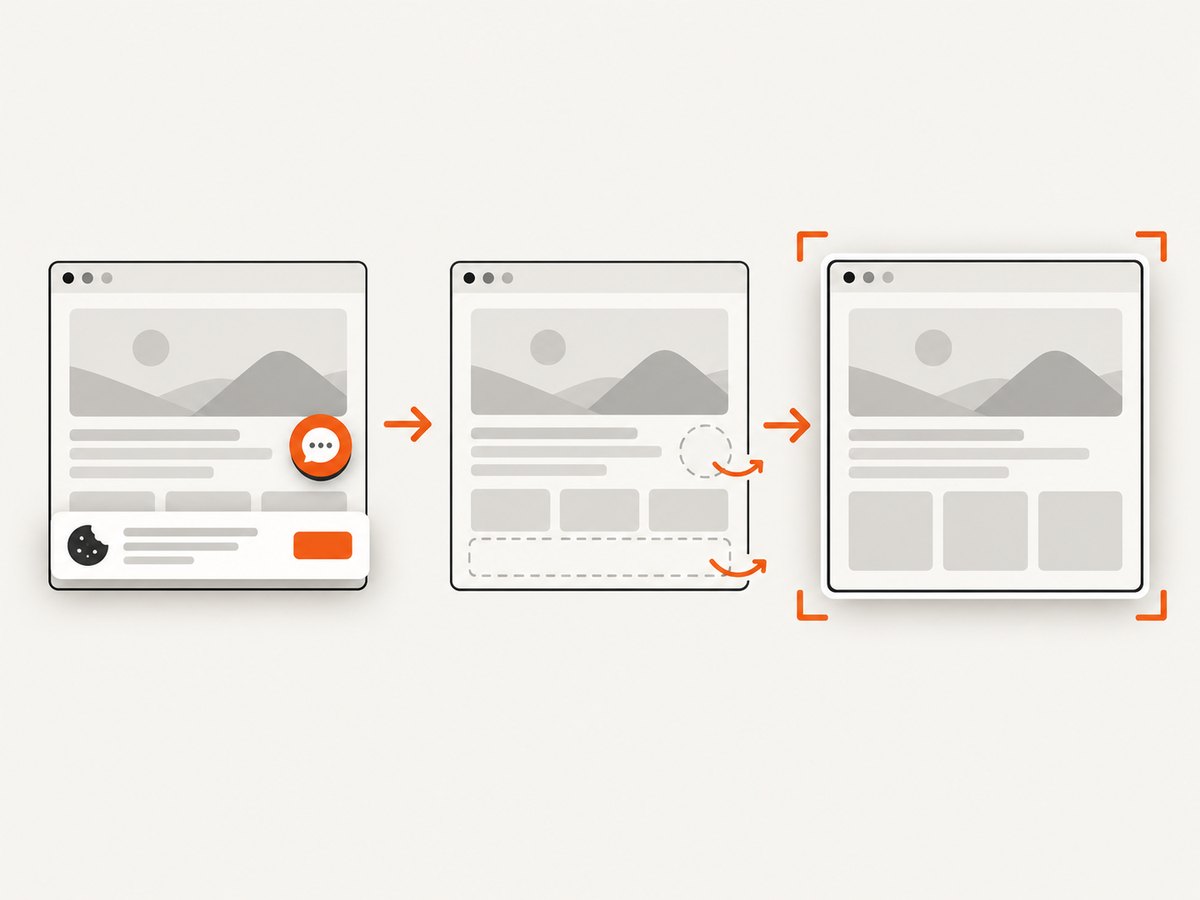
If your actual goal is a clean image or PDF of a translated page, ScreenshotNeo provides a single screenshot API request instead of requiring you to maintain Chromium orchestration. It removes cookie banners, newsletter popups, and chat widgets before capture. Bot checks, blank pages, failed loads, timeouts, and cache hits are not billed, and the response identifies the page verdict and billing status in headers. Its MCP server exposes take_screenshot, get_page_info, and capture_pdf for Claude, Cursor, and other MCP clients.
See the ScreenshotNeo API documentation for all options. A minimal request is:
curl -G "https://api.screenshotneo.com/v1/shot" \
  -d access_key=YOUR_API_KEY \
  --data-urlencode url=https://stripe.com \
  -o shot.webp
import requests
r = requests.get(
"https://api.screenshotneo.com/v1/shot",
params={"access_key": "YOUR_API_KEY", "url": "https://stripe.com"},
timeout=90,
)
r.raise_for_status()
open("shot.webp", "wb").write(r.content)const q = new URLSearchParams({
access_key: 'YOUR_API_KEY',
url: 'https://stripe.com'
});
const res = await fetch(`https://api.screenshotneo.com/v1/shot?${q}`);
if (!res.ok) throw new Error(`HTTP ${res.status}`);
const image = await res.arrayBuffer();ScreenshotNeo supports full-page and element captures, device presets or custom viewports, dark mode, retina scale, custom CSS and JavaScript, waits for selectors, delays or network idle, request blocking, headers, cookies, user agents, authorization, timezone, geolocation, transparent backgrounds, resizing, caching with a chosen TTL, signed links, asynchronous jobs with signed webhooks, bulk capture for up to 100 URLs per call, usage reporting, PDFs, and HTML/CSS-to-image. Every feature is available on every plan. The Free plan includes 1,000 screenshots each month with no card; paid plans start at $5 for 3,000 shots.
Create a free ScreenshotNeo account and get 1,000 screenshots a month with no card.
FAQ
Does adding a script tag mean Google Translate finished?
No. It means the script element was inserted and, for a URL, that loading reached Puppeteer’s insertion step. Wait for a meaningful page-level result.
Is networkidle enough?
No. It describes network activity. A page can be quiet before translation applies, or remain busy after translation is complete.
Can Puppeteer use Chrome’s built-in translation?
Puppeteer can automate browser actions, but Chromium’s translation implementation is browser-controlled and should not be treated as a supported public script-loading interface.
When should I use Cloud Translation?
Use it when translation is an application capability rather than a browser page effect. Follow Google’s attribution requirements for applications using the API.
How should I handle a page with no completion hook?
Define the strongest observable postcondition available, such as a stable language attribute or expected DOM change, combine it with a timeout, and report uncertainty as a failure instead of silently accepting a partial result.


