Load JavaScript from a String for HTML-to-PDF in Python
Inject JavaScript into in-memory HTML with Playwright, wait for rendering, and create a reliable PDF in Python.
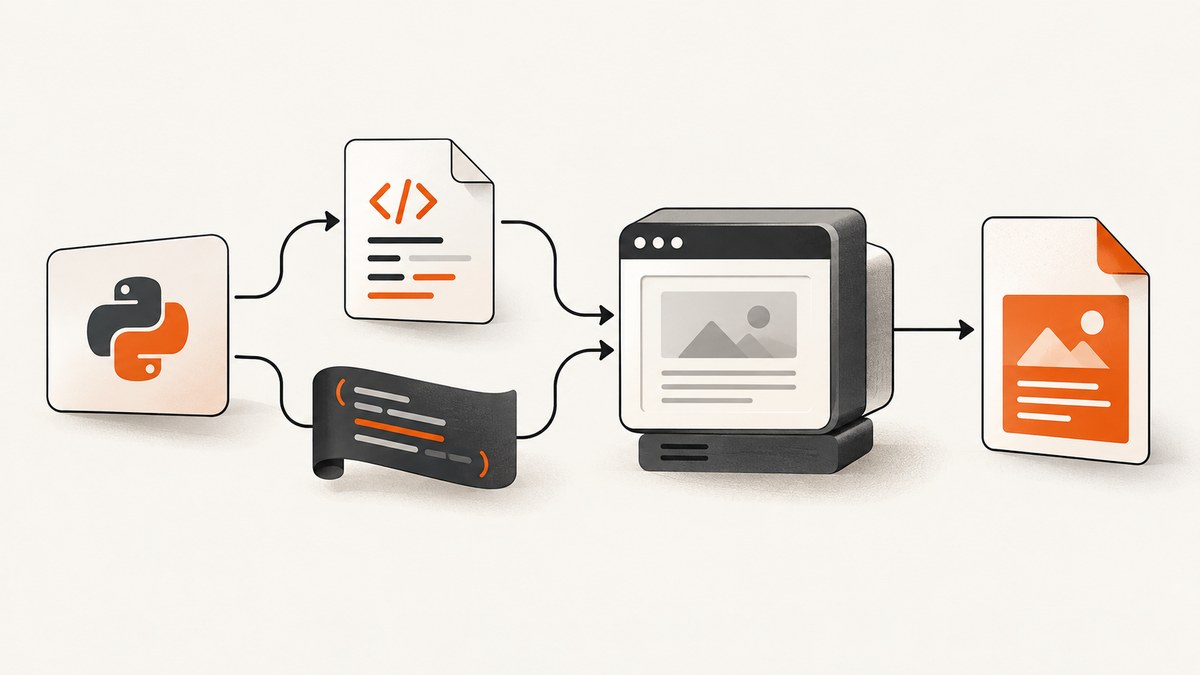
Use a real browser when your HTML depends on JavaScript. In Python, Playwright lets you load an HTML string with page.set_content(), inject inline JavaScript with page.add_script_tag(content=js), wait until your application reports that rendering is complete, and then call page.pdf().
This approach runs the same DOM and browser APIs that interactive pages use. A PDF library that only parses HTML and CSS cannot execute code that depends on document, window, timers, browser storage, or fetch().
Runnable Playwright example
Install Playwright and its Chromium browser:

python -m pip install playwright
python -m playwright install chromium
The following complete script keeps both the HTML and JavaScript in Python strings. The script changes the DOM before PDF generation.
from playwright.sync_api import sync_playwright

html = """<!doctype html>
<html>
  <head>
    <meta charset="utf-8">
    <title>Invoice</title>
    <style>
      body { font-family: sans-serif; margin: 32px; }
      .total { font-size: 22px; font-weight: 700; }
    </style>
  </head>
  <body>
    <h1>Invoice</h1>
    <div id="app"></div>
  </body>
</html>"""

js = """
const amount = 125;
const tax = amount * 0.2;
document.querySelector('#app').innerHTML = `
  <p>Subtotal: $${amount.toFixed(2)}</p>
  <p>Tax: $${tax.toFixed(2)}</p>
  <p class="total">Total: $${(amount + tax).toFixed(2)}</p>
`;
document.body.dataset.rendered = 'true';
"""

with sync_playwright() as p:
    browser = p.chromium.launch()
    page = browser.new_page()
    page.set_content(html, wait_until="load")
    page.add_script_tag(content=js)
    page.wait_for_function("document.body.dataset.rendered === 'true'")
    page.pdf(
        path="invoice.pdf",
        format="A4",
        print_background=True,
        margin={"top": "18mm", "right": "18mm", "bottom": "18mm", "left": "18mm"},
    )
    browser.close()
Playwright documents add_script_tag as adding a script tag with a URL or content; its content argument is raw JavaScript injected into the frame. See the Playwright Python API and the ScreenshotNeo documentation for API details.
How the injection sequence works
- Create the source document. Put a complete document in
html, including a meaningful<head>when you need styles, fonts, or metadata. - Open a browser page.
browser.new_page()creates the DOM and browser environment required by JavaScript. - Load the string.
page.set_content(html)parses the string into the page. There is no web server involved. - Inject the code.
page.add_script_tag(content=js)executes inline code in the page context. - Wait for application readiness. A marker, promise, or selector is more reliable than an arbitrary sleep.
- Generate the PDF.
page.pdf()writes the browser’s rendered document.
Do not call page.pdf() immediately after injecting code when that code performs asynchronous work. The PDF operation can otherwise capture an empty container or an unfinished chart.
Waiting for asynchronous JavaScript
Expose a readiness signal after the final DOM update. This example fetches JSON, renders it, and sets a data attribute that Python waits for:
js = """
(async () => {
  const response = await fetch('https://example.com/data.json');
  const data = await response.json();
  document.querySelector('#app').textContent = data.title;
  document.body.dataset.rendered = 'true';
})().catch(error => {
  document.body.dataset.renderError = String(error);
});
"""

page.add_script_tag(content=js)
page.wait_for_function("""
    document.body.dataset.rendered === 'true' ||
    document.body.dataset.renderError
""")

if page.get_attribute('body', 'data-render-error'):
    raise RuntimeError(page.get_attribute('body', 'data-render-error'))

page.pdf(path="output.pdf", format="A4")
page.evaluate() is useful when Python needs to call a function or inspect a value directly. Playwright awaits an asynchronous result or Promise returned by the evaluated expression:
page.set_content(html)
page.evaluate("""async () => {
  await new Promise(resolve => setTimeout(resolve, 250));
  document.querySelector('#app').textContent = 'Ready';
  return true;
}""")
page.pdf(path="output.pdf", format="A4")
For production jobs, prefer a deterministic marker such as data-rendered="true". A fixed delay only guesses how long the page will take.
Modules, arguments, and safe data transfer
Loading an ES module
Pass type="module" when the string uses import or other ES module behavior:
page.add_script_tag(content="""
import { render } from 'https://cdn.example.com/report.js';
render(document.querySelector('#app'));
document.body.dataset.rendered = 'true';
""", type="module")
Remote module imports require network access from the browser process. For repeatable builds, serve or bundle dependencies from a controlled location.
Passing Python data
Serialize data as JSON and assign it through an evaluated expression rather than interpolating untrusted strings into JavaScript source:
import json

payload = {"name": "Ada", "items": ["A", "B"]}
page.set_content(html)
page.evaluate("(value) => { window.reportData = value }", payload)
page.add_script_tag(content="""
  document.querySelector('#app').textContent =
    `${window.reportData.name}: ${window.reportData.items.join(', ')}`;
  document.body.dataset.rendered = 'true';
""")
page.wait_for_function("document.body.dataset.rendered === 'true'")
PDF options that affect the result
| Option | Use it when |
|---|---|
format="A4", "Letter" |
You want a standard paper size. |
print_background=True |
Background colors, gradients, or images are part of the design. |
margin={...} |
You need predictable printable boundaries. |
landscape=True |
The document contains wide tables or dashboards. |
page.pdf() with page ranges |
You need only selected pages from a longer document. |
Playwright PDF generation uses print CSS media by default. If your layout is designed for screens, call page.emulate_media(media="screen") before creating the PDF:
page.emulate_media(media="screen")
page.pdf(path="screen-styled.pdf", format="A4", print_background=True)
Use print-specific CSS when possible:
@media print {
  .screen-only { display: none; }
  .page-break { break-before: page; }
}
Relative images, fonts, and stylesheets
An in-memory document has no natural URL. Relative references such as styles/report.css or images/logo.png therefore need a resolvable browser base URL. Use absolute URLs, serve the assets from a reachable origin, or provide a meaningful page URL in the browser workflow. Also wait for important resources before capture.
If the HTML is static and does not require JavaScript, WeasyPrint is a simpler alternative. Its API accepts HTML(string=html); when the source is a string, pass base_url so relative assets resolve. write_pdf() can return PDF bytes when no output target is provided:
from weasyprint import HTML

pdf_bytes = HTML(
    string=html,
    base_url="/srv/app/templates",
).write_pdf()

with open("output.pdf", "wb") as file:
    file.write(pdf_bytes)
Choose Playwright for browser JavaScript, DOM APIs, or client-side rendering. Choose WeasyPrint for already-rendered or JavaScript-free HTML and CSS.
Common failures and fixes
| Symptom | Likely cause | Fix |
|---|---|---|
| The PDF contains an empty app container | PDF capture happened before JavaScript finished. | Set a readiness marker and use wait_for_function(). |
document is undefined |
The code ran in Python rather than the browser page. | Inject with add_script_tag() or run it with page.evaluate(). |
| Charts or widgets are missing | A library or data request failed, or the page was captured too early. | Check browser console and network errors; wait for the component’s finished state. |
| Relative CSS or images disappear | The HTML string has no usable base URL. | Use absolute asset URLs or serve the document and its assets from a reachable origin. |
| Colors differ from the browser preview | PDF output uses print media. | Use print CSS or call emulate_media(media="screen"). |
add_script_tag rejects module code |
The script is treated as a classic script. | Pass type="module". |
| Browser launch fails in CI | Chromium is not installed or required system dependencies are absent. | Run playwright install chromium in the build image and follow that environment’s dependency instructions. |
| Fonts are inconsistent | The requested font is unavailable or still loading. | Install or serve the font, then wait for document.fonts.ready before capture. |
For diagnosis, enable Playwright tracing or log page console and request failures. Keep the browser open until the PDF promise completes, and close it in a finally block in long-running services.
Performance, reliability, and cost
- Reuse browser processes carefully. Starting Chromium is expensive. A service can keep one browser process and create isolated pages per job; always close each page.
- Reduce work before capture. Avoid unnecessary third-party scripts, large images, and animations. Disable animation in print CSS when it cannot contribute to the document.
- Make readiness explicit. A marker tied to the final render prevents both premature PDFs and needlessly long fixed sleeps.
- Control timeouts. Set bounded navigation and resource waits, then return a useful error instead of holding a worker forever.
- Make output reproducible. Pin browser and dependency versions, use deterministic data, and provide stable asset URLs.
- Watch memory. Large pages, many concurrent tabs, and high-resolution images increase Chromium memory use. Limit concurrency and recycle workers when appropriate.
- Separate retries. Retry transient network failures, but do not blindly retry deterministic JavaScript exceptions or invalid HTML.
Or skip the browser setup
ScreenshotNeo provides a website capture API that can return a PDF from one GET request. Cookie banners, newsletter popups, and chat widgets are removed before the shot. Bot checks, blank pages, timeouts, failed loads, and cache hits are not billed, and response headers identify the page verdict and billing result. An MCP server lets Claude, Cursor, and other MCP clients use take_screenshot, get_page_info, and capture_pdf.

For a direct capture, see the ScreenshotNeo API documentation:
curl -G "https://api.screenshotneo.com/v1/shot" \
  -d access_key=YOUR_API_KEY \
  --data-urlencode url=https://stripe.com \
  -o shot.webp
import requests
r = requests.get(
"https://api.screenshotneo.com/v1/shot",
params={"access_key": "YOUR_API_KEY", "url": "https://stripe.com"},
timeout=90,
)
r.raise_for_status()
open("shot.webp", "wb").write(r.content)const q = new URLSearchParams({
access_key: 'YOUR_API_KEY',
url: 'https://stripe.com'
});
const res = await fetch(`https://api.screenshotneo.com/v1/shot?${q}`);The service also supports full-page capture, element selectors, custom CSS and JavaScript, waiting rules, device presets, PDF paper and margin settings, headers and cookies, caching, asynchronous jobs, bulk capture, signed links, and a usage API. Free accounts include 1,000 screenshots per month with no card; paid plans start at $5 for 3,000 shots. Create a free ScreenshotNeo account.
FAQ
Can I inject JavaScript without writing an HTML file?
Yes. page.set_content() accepts the HTML string directly, and add_script_tag(content=...) injects the JavaScript string.
Why does a normal PDF library ignore my script?
Many HTML-to-PDF libraries render markup and CSS without a browser JavaScript runtime. Use Playwright when the document must execute code.
Should I use a delay instead of a readiness check?
A readiness signal is more reliable. Delays can be too short on a busy machine and waste time when rendering finishes quickly.
How do I make screen styles appear in the PDF?
Use page.emulate_media(media="screen") before page.pdf(), or create dedicated print styles.
Can the same pattern render charts?
Yes, provided the chart library and its data load in the browser. Wait for the chart’s completed DOM or canvas state before generating the PDF.


