Load JavaScript from a URL for HTML-to-PDF in Python
Use Playwright for Python to load external JavaScript, wait for rendered content, and export a PDF with the right print styling.
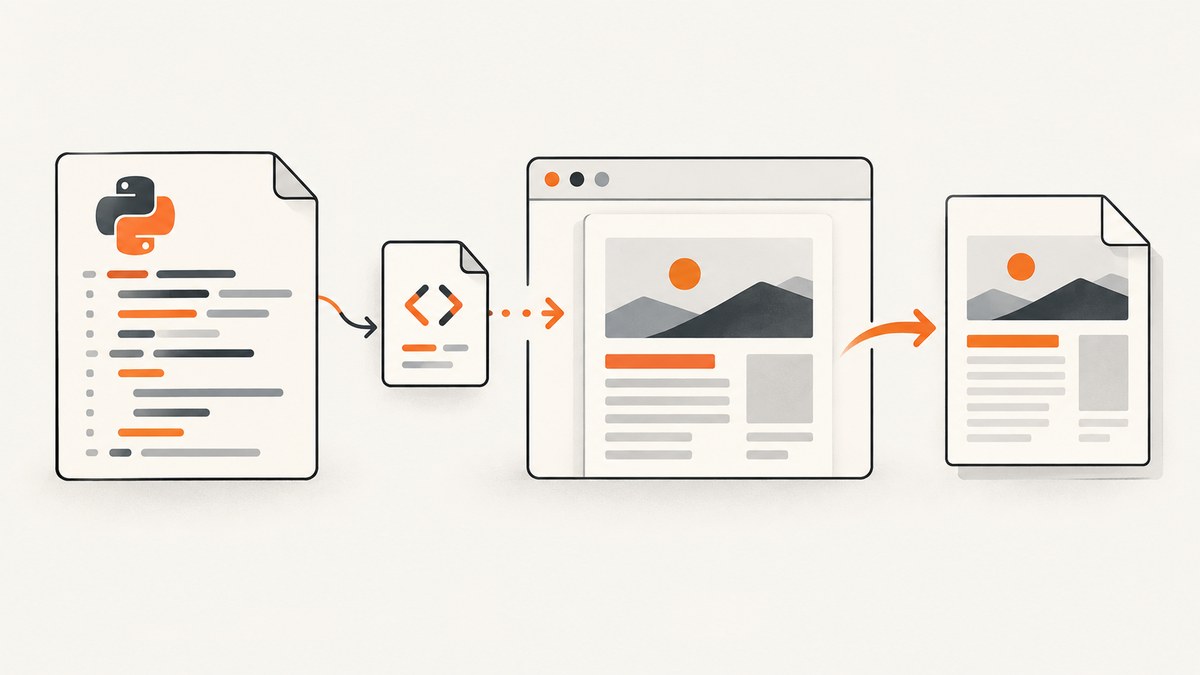
To include content created by JavaScript in a PDF, render the page in a real browser. Playwright for Python can navigate to an existing page or load your own HTML, add a script from a URL, wait for the page’s content to render, and export it with page.pdf(). A navigation’s load event is a useful starting point, but single-page applications may fetch data and update the page afterward. For reliable output, wait for a selector or other application-specific ready signal that represents the content you intend to print. Playwright Page API · Playwright navigation guide.
1. Install Playwright and its browser
Install the Python package, then install Chromium. Playwright manages its browser binaries separately from the Python package, so run both commands in the environment that will generate the PDF.
python -m pip install playwright
python -m playwright install chromium
On Linux servers, Playwright also documents installing browser system dependencies with python -m playwright install --with-deps chromium. In a container or deployment environment, include the required browser files and system libraries in the runtime image; having the Python package installed alone is not enough to launch a browser.
2. Open a page that already loads JavaScript
When the target is an existing URL, use page.goto(). The site’s HTML normally references its own JavaScript files, which the browser loads as part of rendering. Use wait_until="load" for a straightforward baseline, then wait for a page-specific element if data or UI is populated asynchronously.
from pathlib import Path
from playwright.sync_api import sync_playwright

URL = "https://example.com/report"
OUTPUT = Path("report.pdf")

with sync_playwright() as p:
    browser = p.chromium.launch()
    page = browser.new_page()
    page.goto(URL, wait_until="load", timeout=60_000)

    # Replace this with an element that appears when the report is ready.
    page.locator("#report-ready").wait_for(state="visible", timeout=30_000)

    page.pdf(path=str(OUTPUT), format="A4", print_background=True)
    browser.close()
Replace #report-ready with a selector that actually exists on the target page. If the document is already complete at navigation time, remove the locator wait. If the page exposes a reliable JavaScript state, you can instead wait for it with page.wait_for_function(); define the condition in terms of the specific application, not a generic guess that all network activity has stopped.
3. Load your own HTML and add a script by URL
When the HTML is under your control and the JavaScript is a separate file, create a page, set its content, add the external script with page.add_script_tag(url=...), and wait for the rendering result before printing. The URL passed to add_script_tag is a JavaScript resource, not the page URL.

from playwright.sync_api import sync_playwright

HTML = """<!doctype html>
<html>
  <head><meta charset="utf-8"><title>Report</title></head>
  <body>
    <main id="report"><p>Preparing report…</p></main>
  </body>
</html>"""
SCRIPT_URL = "https://example.com/assets/render-report.js"

with sync_playwright() as p:
    browser = p.chromium.launch()
    page = browser.new_page()
    page.set_content(HTML, wait_until="load")
    page.add_script_tag(url=SCRIPT_URL)

    # The script should render a stable marker when its work is done.
    page.locator("#report[data-ready='true']").wait_for(
        state="attached", timeout=30_000
    )
    page.pdf(path="report.pdf", format="A4", print_background=True)
    browser.close()
This sample assumes the external script writes data-ready="true" after its content is ready. If you cannot change the script, wait for a visible output element or use a page-specific condition such as a known global variable. The API call adds the script element; it cannot make an inaccessible, blocked, or incompatible script work. See the Playwright Page API for add_script_tag and PDF options.
4. Choose the right readiness signal
Browser navigation milestones describe resource loading stages. The load event waits for dependent resources such as scripts, stylesheets, images, and frames. Modern applications often continue after that point: they request data, hydrate components, or reveal content only after another operation. Playwright cautions that a page can keep doing work after navigation has completed. Wait for what matters to the PDF: the report heading, a completed table, a chart canvas, or an explicit application-ready marker. Playwright navigation guide.
| Signal | Use it when | Limitation |
|---|---|---|
wait_until="load" |
You need normal page resources loaded before inspecting or printing. | Does not prove later app data or rendering has finished. |
| Selector wait | A known element appears or becomes visible when print content is ready. | Choose a selector tied to final content; a permanent shell element may appear too soon. |
wait_for_function() |
The app exposes a state or condition that marks completion. | Condition must match the app and avoid resolving before rendering stabilizes. |
| Fixed delay | A legacy page offers no usable readiness marker and needs a bounded settling pause. | Can be unnecessarily slow or still too short under load; prefer an explicit signal. |
Do not treat “network idle” or an arbitrary sleep as a universal guarantee. Pages with analytics, polling, streaming, or long-lived connections can remain active, while a quiet network does not necessarily mean a chart or application state is ready. A selector or app-specific signal is usually the clearest condition.
5. Control PDF layout and print appearance
page.pdf() uses print CSS media by default. That means rules inside @media print can hide navigation, change widths, or break pages differently from the browser’s screen view. Use print styles deliberately and inspect the resulting PDF. If the desired output should follow screen styles, call page.emulate_media(media="screen") before export; use this only when screen media is actually the desired result.

page.pdf(
    path="report.pdf",
    format="A4",
    print_background=True,
    landscape=False,
    margin={"top": "12mm", "right": "12mm", "bottom": "15mm", "left": "12mm"},
    prefer_css_page_size=True,
)
For exact color reproduction, Playwright notes that printed colors are adjusted by default. Add CSS such as -webkit-print-color-adjust: exact where preserving designed colors matters, and keep in mind that printer-oriented output may intentionally alter colors. Review the page API for the supported PDF options and defaults before relying on a setting in a production flow: Playwright Page API.
@media print {
  nav, .screen-only { display: none !important; }
  .page-break { break-before: page; }
  body { -webkit-print-color-adjust: exact; }
}
For paged documents, define page size and margins in CSS with @page or set corresponding PDF options, and test which source should take precedence. Large tables and long sections may split awkwardly; print-specific break rules can help, but inspect output for clipping, blank pages, and content that spills beyond the printable area.
6. Complete runnable example with cleanup
This example demonstrates the custom-HTML case, waits for a marker, sets a timeout, and closes the browser even if a wait or PDF operation fails. The external script must create the marker as described in the comment.
from playwright.sync_api import sync_playwright

HTML = """<!doctype html>
<html>
<head>
  <meta charset="utf-8">
  <style>
    @media print { .no-print { display: none; } }
  </style>
</head>
<body>
  <main id="report"></main>
</body>
</html>"""
SCRIPT_URL = "https://example.com/assets/report.js"

with sync_playwright() as p:
    browser = p.chromium.launch()
    try:
        page = browser.new_page()
        page.set_content(HTML, wait_until="load", timeout=30_000)
        page.add_script_tag(url=SCRIPT_URL, timeout=30_000)
        # report.js should set this after rendering the printable content.
        page.locator("#report[data-ready='true']").wait_for(
            state="attached", timeout=30_000
        )
        page.pdf(
            path="report.pdf",
            format="A4",
            print_background=True,
            prefer_css_page_size=True,
        )
    finally:
        browser.close()
For remote URLs, a similar try/finally around browser usage prevents a failed navigation from skipping browser cleanup. In a service that handles many requests, consider reusing a browser process while creating a fresh browser context or page for each job. Keep user-specific cookies and state isolated between jobs.
7. Authentication, external assets, and edge cases
- Protected page: Authenticate through the site’s supported flow or set the required cookies or headers in the browser context. Do not put secrets into a URL that may appear in logs.
- Cross-origin script: The browser must be able to reach the script URL. Check redirects, access controls, and browser console/network errors if it fails to load.
- Relative resources: HTML set directly as page content may not have the base URL you expect. Use absolute resource URLs or provide an appropriate base URL in the document.
- Canvas and charts: Wait for the chart’s own ready signal or rendered canvas state, not just its container element.
- Fonts and images: Confirm they have loaded before printing if they affect layout. A document can render with fallback fonts or missing images when a resource is blocked.
- Very large documents: Browser memory use grows with page complexity and image size. Reduce unnecessary content and avoid generating many pages concurrently in a memory-constrained worker.
- Untrusted HTML: A browser rendering arbitrary content can make requests to external resources. Restrict what URLs and content your service accepts and isolate the browser environment appropriately.
8. Renderer choices: JavaScript or static HTML
Use Playwright when JavaScript creates content that belongs in the PDF, or when you need a browser’s rendering behavior. If the source is static HTML and CSS with no JavaScript-generated content, WeasyPrint may be a suitable HTML-to-PDF renderer. It can accept URL input and fetch HTTP resources, but its project documentation says it does not execute JavaScript or perform live rendering. Its default HTTP client also does not handle cookies or authentication; custom URL fetching can address some resource-loading requirements. WeasyPrint first steps · WeasyPrint scope.
If maintaining an existing wkhtmltopdf integration, its CLI documents JavaScript controls, delay, and window-status options. However, its upstream repository was archived in January 2023. Assess compatibility against the actual page and maintenance requirements before choosing it for a new implementation. wkhtmltopdf usage documentation · wkhtmltopdf repository.
| Need | Direction | Check |
|---|---|---|
| JavaScript-generated page content | Playwright with Chromium | Readiness condition, print CSS, browser runtime. |
| Static HTML and CSS | Consider WeasyPrint | Resource access, authentication needs, and JS absence. |
| Existing wkhtmltopdf workflow | Evaluate the current target carefully | Modern page compatibility and archived upstream status. |
The cited sources do not provide a like-for-like performance benchmark for this workflow, so choose based on rendering needs and validate with representative documents rather than assuming a speed ranking.
9. Troubleshooting common failures
| Symptom | Likely cause | Fix |
|---|---|---|
| PDF omits content added by JavaScript | Printed before asynchronous app rendering completed. | Wait for a final content selector or app-specific ready condition. |
add_script_tag times out or errors |
Script URL is unavailable, redirected unexpectedly, blocked, or invalid. | Open the URL from the browser environment; inspect the response and page console. |
| PDF looks unlike the screen page | Print media is active by default. | Adjust print CSS, or emulate screen media when appropriate. |
| Backgrounds or colors are missing | PDF options or print color behavior omit or adjust them. | Set print_background=True and use print color CSS when exact colors matter. |
| Browser launch fails in deployment | Chromium binary or required system libraries are missing. | Install Playwright’s Chromium and required OS dependencies in the deployment image. |
| Wait times out even though the page seems ready | The selector does not match, is hidden, or the app never sets the expected marker. | Verify the selector and state in the browser; choose a marker the app reliably updates. |
| Blank pages or missing images | Resources are inaccessible, relative URLs resolve incorrectly, or the page has not stabilized. | Use valid absolute URLs where needed and check resource requests and readiness. |
| Output varies between runs | Data, fonts, remote resources, or app timing varies. | Wait on meaningful state, control input data where possible, and pin rendering dependencies. |
10. Performance, reliability, and cost
Browser-based PDF generation has more runtime requirements than converting static markup: Chromium must launch or remain available, scripts and assets must load, and the page needs enough time and memory to render. The actual cost depends on your infrastructure and workload; the cited documentation does not establish a universal per-document cost or rendering speed. Measure your own representative pages, including large documents and slow-resource cases.
- Reuse a browser process for a worker when appropriate, but isolate each job’s page or context to avoid leaking cookies, state, or storage across users.
- Set bounded navigation, script-load, readiness, and job timeouts. Record which stage failed so retries target transient network problems rather than repeating permanently broken input.
- Use a meaningful ready marker and make retries idempotent. A fixed delay can extend every job and still miss a slow render.
- Pin Playwright versions and the corresponding browser deployment, then inspect representative PDFs after upgrades. Rendering behavior can shift with browser or dependency changes.
- Do not run unbounded concurrent renders. Start with a concurrency limit that fits available CPU and memory, then adjust from observed workload behavior.
Or skip the browser setup
If you need a screenshot or PDF from a public page without managing Chromium, ScreenshotNeo provides a website screenshot API and MCP server. See the API documentation. This one-call example requests a PDF:
curl -G "https://api.screenshotneo.com/v1/shot" \
  -d access_key=YOUR_API_KEY \
  --data-urlencode url=https://stripe.com \
  -d format=pdf \
  -o page.pdf
ScreenshotNeo removes cookie banners, popups, and chat widgets before the shot. Bot checks, blank pages, and failed loads are never billed. Its MCP server lets AI agents take screenshots. The free plan includes 1,000 screenshots a month with no card; paid plans start at $5 for 3,000.
Create a free ScreenshotNeo account to get 1,000 screenshots a month with no card.
Frequently asked questions
Can I add JavaScript from a URL after loading HTML?
Yes. With Playwright, call page.add_script_tag(url="...") on the page, then wait for the script’s result before exporting. The script URL is distinct from a URL opened with page.goto().
Will WeasyPrint run the JavaScript in my page?
No. WeasyPrint is appropriate for static HTML and CSS or already-rendered content; it does not execute JavaScript. Use a browser renderer when the PDF depends on client-side code.
Why is my PDF styled differently from the browser?
Playwright uses print CSS media for PDF output by default. Review @media print rules and switch to screen media only when screen styling is desired.
Is there a universal wait time before calling page.pdf()?
No. Rendering and data-fetch timing depends on the page. Wait for a page-specific signal that proves the content you need is ready.


