How to Load JavaScript from a URL When Converting HTML to PDF in Ruby
Load a remote JavaScript file into a Ruby PDF renderer, resolve its URL, and wait until its work is complete before generating the PDF.

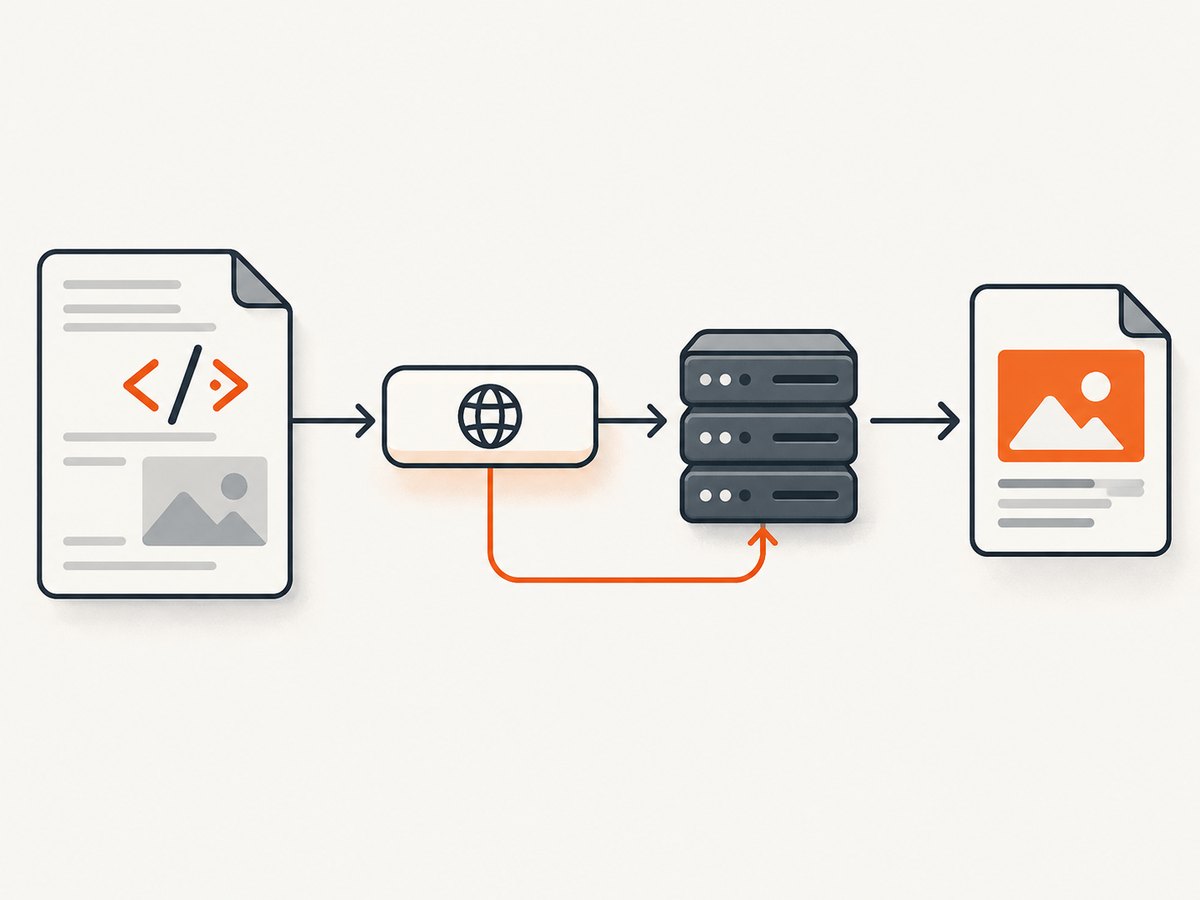
To load JavaScript from a URL when converting HTML to PDF in Ruby, put a reachable script URL in the HTML, then make sure your PDF renderer can fetch it and wait until the page has finished the work that affects the PDF. In Rails, use javascript_include_tag; in raw HTML, use a normal <script src="https://…">. A script tag only creates a reference: it does not guarantee that the renderer can reach the URL, that the script ran, or that data loaded by the script is ready.
The renderer matters. Grover and FerrumPdf use Chromium; PDFKit and Wicked PDF call wkhtmltopdf. Choose based on the JavaScript your page requires, URL access, readiness controls, and deployment setup. See the projects’ documentation for [Grover](https://github.com/Studiosity/grover), [PDFKit](https://github.com/pdfkit/pdfkit), [Wicked PDF](https://github.com/mileszs/wicked_pdf), and [FerrumPdf](https://github.com/yob/ferrum).
1. Pick a renderer that can run your page’s JavaScript
Before adjusting script tags, check the engine underneath the Ruby gem. A browser engine that runs modern page JavaScript is a better fit when your document depends on client-side rendering, charts, or a frontend application. Grover uses Puppeteer and Chromium; FerrumPdf documents Chromium rendering. PDFKit and Wicked PDF use wkhtmltopdf. They are different engines, so don’t assume a page that works in one will behave the same in another.
| Ruby interface | Rendering engine | Useful considerations |
|---|---|---|
| Grover | Puppeteer / Chromium | URL or HTML input, display URL, script execution and page-wait options, and request failure reporting. |
| FerrumPdf | Chromium | URL or HTML input, display URL and wait-for-idle settings. |
| PDFKit | wkhtmltopdf | Relative-resource resolution through root_url and protocol; check its callback behavior in development. |
| Wicked PDF | wkhtmltopdf | Rails helpers for PDF assets and deployment guidance for precompiling them. |
Confirm the installed gem, renderer binary, browser version, and deployment environment before relying on a particular option. These tools’ behavior and compatibility depend on versions and configuration.
2. Include the JavaScript URL in Rails or raw HTML
Rails-managed asset or remote URL
Rails’ javascript_include_tag emits a script tag. It accepts an asset name or a URL. A remote script can be included like this:
<%= javascript_include_tag "https://assets.example.test/pdf/chart.js" %>For a script managed by the Rails asset pipeline, use its logical asset name:
<%= javascript_include_tag "pdf_chart" %>That name must resolve in the application’s asset setup, and the resulting file must be available in the environment where the PDF is rendered. In production, include PDF-specific assets in the deployment’s asset build or precompile setup. Wicked PDF also provides wicked_pdf_javascript_include_tag for PDF templates; use its documented asset helpers when your app’s asset-pipeline setup requires them. Rails helper details are in the [Action View asset tag API](https://api.rubyonrails.org/v7.1.0/classes/ActionView/Helpers/AssetTagHelper.html), and the [Rails asset pipeline guide](https://edgeguides.rubyonrails.org/asset_pipeline.html) describes asset inclusion.
Raw HTML
If you pass HTML directly to a renderer, the markup can contain a regular script tag:
html = <<~HTML
  <!doctype html>
  <html>
    <head>
      <meta charset="utf-8">
      <script src="https://assets.example.test/pdf/chart.js"></script>
    </head>
    <body>
      <div id="chart"></div>
      <script>
        window.chartReady = false;
        renderChart(document.querySelector("#chart"));
      </script>
    </body>
  </html>
HTML
Replace the example domain with a real script host your renderer can reach. The script may load additional files or call an API; those requests also need to succeed. If the page uses a relative path such as /assets/chart.js, its meaning depends on the document’s base URL. Supplying the correct base URL or converting the resource reference to an absolute URL avoids ambiguity.
3. Give the renderer a resolvable base URL
When converting a live page by URL, relative assets usually resolve against that page’s address. With standalone HTML, provide the renderer a display or root URL, or write complete URLs into the HTML. The renderer runs in its own process or browser context; it may not share the Rails request’s URL, cookies, network access, or filesystem assumptions.
PDFKit and Wicked PDF
PDFKit documents root_url and protocol for resolving relative URLs in supplied HTML. A basic setup looks like this:
require "pdfkit"

html = "<html><head><script src='/assets/pdf_chart.js'></script></head><body>Report</body></html>"
kit = PDFKit.new(html, root_url: "https://app.example.test", protocol: "https")
File.binwrite("report.pdf", kit.to_pdf)
Check the option names against the version you have installed. In a Rails app, ensure that the host serving those assets is reachable from the converter. Wicked PDF’s documentation recommends precompiling assets used in PDF views and describes its JavaScript helper and CDN references. See the [Wicked PDF asset guidance](https://github.com/mileszs/wicked_pdf#asset-pipeline-usage).
Grover and FerrumPdf
For raw HTML with Grover, set display_url to a meaningful origin so relative resources resolve as intended. Grover documents that raw HTML otherwise uses http://example.com as its default display URL. FerrumPdf likewise exposes a display_url setting for relative resources in HTML input. When converting an actual page URL, pass that URL directly and verify any authentication the page requires.
require "grover"

pdf = Grover.new(
  "<html><head><script src='/assets/pdf_chart.js'></script></head><body>Report</body></html>",
  display_url: "https://app.example.test"
).to_pdf
File.binwrite("report.pdf", pdf)
Consult the installed gem’s current README for exact initialization and options. In particular, don’t treat the display_url value as a way to grant network access: DNS, TLS, outbound firewall rules, authentication, and the target server still determine whether the request works.
4. Wait for JavaScript-driven content before PDF capture
A browser can fetch and execute a script while that script is still waiting for an API response or rendering a chart. A fixed delay can hide a race on a fast machine and still fail under load. Prefer a page-specific readiness condition that becomes true after the content needed in the PDF is present.

For example, make the page set a marker after its asynchronous work completes:
<script>
  window.pdfReady = false;
  fetch("/report-data.json")
    .then(response => response.json())
    .then(data => {
      renderReport(data);
      window.pdfReady = true;
    });
</script>
Grover documents waiting for a selector, waiting for a function, waiting for a timeout, and reporting request failures or JavaScript errors. Use a condition that reflects your own page’s success state:
require "grover"

pdf = Grover.new(
  "https://app.example.test/reports/42",
  wait_for_function: "window.pdfReady === true",
  raise_on_request_failure: true,
  raise_on_js_error: true
).to_pdf
File.binwrite("report-42.pdf", pdf)
Option names and accepted wait settings can vary with the gem version; confirm them in the [Grover README](https://github.com/Studiosity/grover). A selector wait can work when the application inserts a clear element only after the report is populated. A timeout is a fallback, not proof that the page is ready.
The Puppeteer PDF guide shows navigation with networkidle2 before generating a PDF, and notes that PDF generation waits for fonts by default. Network quiet is useful for pages whose requests eventually settle, but can be unreliable with polling, analytics, streaming, or long-lived connections. Font readiness and script/data readiness are separate concerns. See the [Puppeteer PDF guide](https://pptr.dev/guides/pdf-generation).
5. A practical implementation checklist
- Identify the engine. Record the Ruby gem and the actual wkhtmltopdf or Chromium/Puppeteer version in the deployed environment.
- Inspect the HTML. Confirm the output contains the intended
script src, and that the URL or base URL is correct. - Check reachability from the renderer. Test DNS, TLS, response status, authentication, and egress rules from the same host, container, or network where PDF conversion runs.
- Choose a meaningful readiness signal. Wait for a chart, report, or application marker to indicate completion; enable renderer error reporting where available.
- Check production assets. Verify that the script is built and precompiled, and that cache-busted asset paths resolve after deployment.
- Generate and inspect the PDF. Confirm the rendered content, not just a successful conversion response. Repeat with slow or failed data requests to check your failure behavior.
6. cURL, Python, and Node.js when the source is a URL
These examples fetch or inspect the source page from outside the Ruby renderer. They do not replace the Ruby PDF engine: including a remote script and waiting for it to finish still needs to be handled by the page and renderer. Use them to check that the page URL responds from a client with the appropriate access.
cURL
curl -L --fail --show-error \
  "https://app.example.test/reports/42" \
  -o report-page.html
This saves the returned HTML, not a PDF and not necessarily the fully rendered browser DOM. A server-rendered HTML response may contain the script tag while the script’s eventual content appears only after browser execution.
Python
import requests

url = "https://app.example.test/reports/42"
response = requests.get(url, timeout=30)
response.raise_for_status()
print(response.url)
print(response.headers.get("content-type"))
print(response.text[:1000])
For an authenticated page, supply credentials using the mechanism your application expects. Do not place long-lived secrets in a URL that may be logged.
Node.js
const url = 'https://app.example.test/reports/42';
const res = await fetch(url, { signal: AbortSignal.timeout(30000) });
if (!res.ok) throw new Error(`HTTP ${res.status}`);
const html = await res.text();
console.log(res.url, res.headers.get('content-type'));
console.log(html.slice(0, 1000));
7. Troubleshooting common failures
| Symptom | Likely cause | What to check or change |
|---|---|---|
| Script tag is missing in the PDF HTML | Wrong template/layout or helper output. | Inspect the final rendered HTML before conversion; ensure the PDF template includes the helper. |
| Script tag exists but script has no effect | Request failed, JavaScript disabled, incompatible engine behavior, or uncaught error. | Check the URL from the renderer’s environment; inspect browser/renderer logs; enable Grover’s request-failure and JS-error options where supported. |
| 404 for an asset in production | Asset was not built, precompiled, or addressed with the deployed fingerprint. | Confirm the file exists in the deployed asset output and use the Rails/Wicked PDF asset helper appropriate to the app. |
| Relative asset points to the wrong host | Raw HTML has no useful base URL. | Use absolute URLs or configure PDFKit’s root URL/protocol or the renderer’s display URL. |
| Content is blank or incomplete intermittently | PDF capture began before asynchronous rendering finished. | Wait for a page-specific function or selector; make failed data requests visible instead of only increasing a sleep. |
| Request hangs in development | The PDF process calls back to the same single-thread development server for assets, which can deadlock. | PDFKit documents this callback pattern. Serve assets independently, use adequate server concurrency, or inline suitable small assets. |
| Remote script fails only in production | Container egress, DNS, TLS trust, authentication, or security policy differs from development. | Check connectivity from the production worker/container and verify the remote host permits that request. |
| Renderer rejects local or file URLs | Browser security restrictions block file or localhost access. | Prefer a reachable HTTP(S) asset host. Grover documents file access restrictions and newer Chromium localhost protections; review its security guidance before changing access settings. |
8. Performance, reliability, and cost
Every external dependency adds a fetch that can delay or fail conversion. Keeping PDF-critical scripts small, serving them from a reliable host near the renderer, and avoiding unnecessary third-party scripts reduces the number of things that must succeed. Inlining a small script can remove a network request, but increases the HTML payload; Wicked PDF documents base64 inlining as an option for small assets. It is usually a poor fit for large scripts.
Set sensible conversion and request timeouts in the application and renderer, and make failure visible in logs. A timeout should result in a clear failed or incomplete job rather than silently producing a PDF that appears valid but omits the report. If you cache PDFs, ensure the cache key changes when the underlying report data or script version changes. Concurrency also matters: a browser process consumes resources, and a callback to an undersized app server can tie up workers.
There is no single performance figure that applies across these engines and deployments. Measure your own URL, asset host, data size, concurrency, and browser configuration. The appropriate choice depends on whether the page needs current Chromium behavior, how much control you have over assets and readiness, and the operational cost of managing the renderer.
Or skip the browser setup
If the goal is capturing a public webpage rather than rendering your own Rails report template, [ScreenshotNeo](https://screenshotneo.com) is a website screenshot API and MCP server. One GET request accepts a URL and returns a clean screenshot or PDF. Its consent-banner cleanup removes cookies/consent banners, newsletter popups, and chat widgets before capture; you can turn individual cleanup steps off. Bot checks, blank pages, failed loads, timeouts, and cache hits are not billed, and response headers identify the page verdict and billing status. Its MCP server provides take_screenshot, get_page_info, and capture_pdf tools for AI agents.
See the [ScreenshotNeo API documentation](https://screenshotneo.com/docs/) for its request options. This cURL example captures a URL:
curl -G "https://api.screenshotneo.com/v1/shot" \
  -d access_key=YOUR_API_KEY \
  --data-urlencode url=https://stripe.com \
  -o shot.webp
Python:
import requests

r = requests.get(
    "https://api.screenshotneo.com/v1/shot",
    params={"access_key": "YOUR_API_KEY", "url": "https://stripe.com"},
    timeout=90,
)
open("shot.webp", "wb").write(r.content)
Node.js:
const q = new URLSearchParams({
  access_key: 'YOUR_API_KEY',
  url: 'https://stripe.com'
});
const res = await fetch(`https://api.screenshotneo.com/v1/shot?${q}`);
Use the product’s documented options when you need PDF output or other capture settings. The free plan includes 1,000 screenshots per month with no card; paid plans start at $5 for 3,000. Every feature is on every plan. [Create a free ScreenshotNeo account](https://screenshotneo.com/account/sign-up/).
FAQ
Does adding a script tag make JavaScript part of the PDF?
No. It tells the renderer where to request the script. The renderer must fetch and execute it, and any asynchronous work must finish before PDF capture.
Should I use a fixed sleep to wait for a chart?
Use a page-specific readiness condition when possible. A fixed delay can waste time on fast runs and still be too short during slow runs.
Can I use the same script URL in development and production?
Yes, if it resolves correctly and is reachable from the renderer in both environments. Asset fingerprints, hostnames, TLS, authentication, and network policy can differ between environments.
Which Ruby PDF gem is best?
There is no universal choice. Match the engine to the JavaScript and CSS your page uses, then validate URL access, readiness controls, and deployment behavior with your actual document.


