Load JavaScript from a URL for HTML-to-PDF in PHP
Remote resources and browser JavaScript are different things. Here’s how to load a URL script in a PHP-controlled browser, wait for it, and print the finished page to PDF.
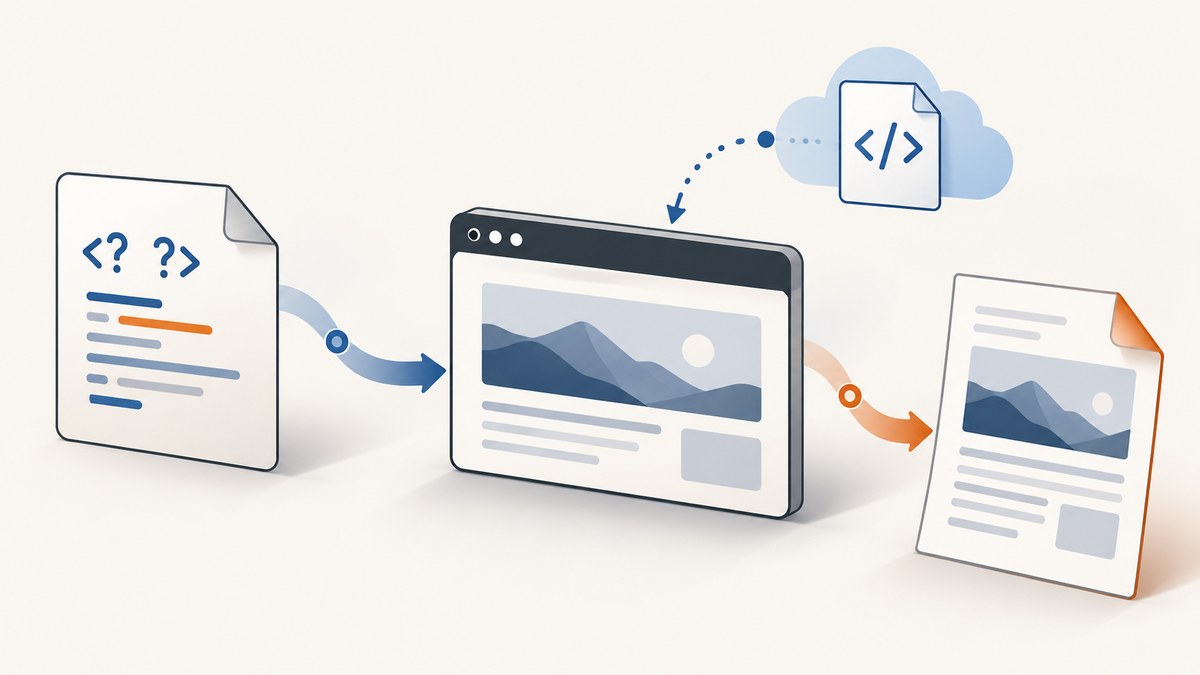
Direct answer: to run JavaScript from a URL before creating an HTML-to-PDF document in PHP, use a real browser engine such as Chrome or Chromium, controlled from PHP. A PHP PDF renderer’s setting for remote resources usually allows it to fetch assets such as images or stylesheets; it does not make the renderer execute page JavaScript. For a Chrome-based workflow, the chrome-php/chrome project documents adding a remote script tag and generating a PDF. See its current README and API documentation for setup and version-specific details.
If the page does not actually depend on JavaScript, prepare the final HTML first and use a PHP HTML-to-PDF renderer. That is often simpler to deploy. The rest of this guide shows both paths, explains the trade-offs, and covers waiting, remote access, security, and common failures.
1. Decide whether JavaScript must run in a browser
First identify what the script does. Does it insert data into the page, build a chart, or change the layout? If so, the PDF must be generated after the script has run. If the output can instead be assembled as static HTML in PHP, there may be no need to execute JavaScript at all.
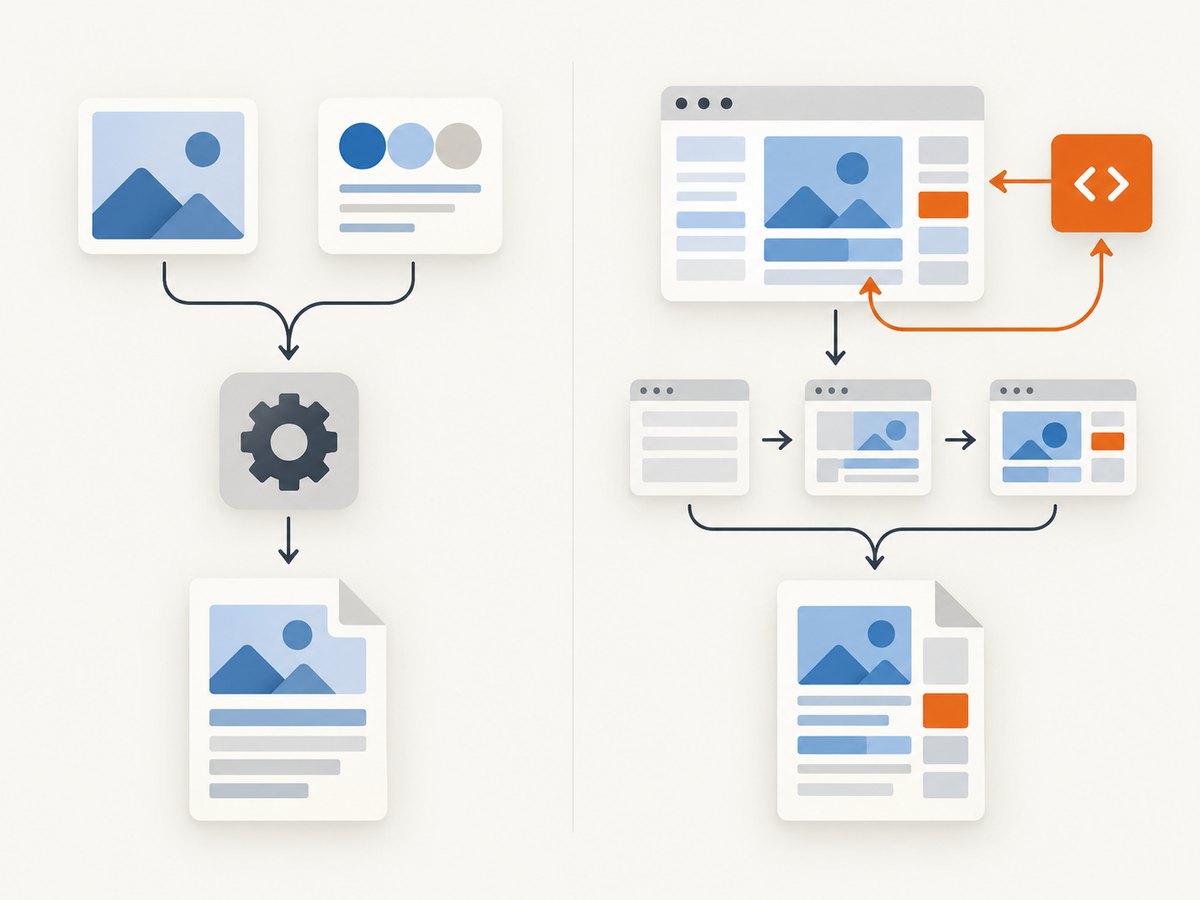
This distinction matters with Dompdf. Its isRemoteEnabled option and PHP’s cURL or allow_url_fopen setting concern fetching remote resources. Dompdf’s isJavascriptEnabled option concerns JavaScript embedded in the resulting PDF for the PDF viewer; it does not execute page scripts as a browser would. The Dompdf Options source explicitly distinguishes PDF-viewer JavaScript from browser-executed JavaScript. See also its resource requirements and limitations.
| What the page needs | Suitable path | Why |
|---|---|---|
| Static HTML/CSS; remote images or stylesheets | A PHP renderer such as Dompdf | Render the prepared markup; enable remote fetching only if needed. |
| Script-generated content or browser-dependent layout | Chrome/Chromium controlled from PHP | The browser runs page JavaScript before printing. |
| Exact PDF drawing, forms, or document features | A PDF library chosen for those requirements | HTML conversion may not be the right document-generation model. |
The mPDF manual also recommends headless Chrome when the requirement is modern CSS support or mirroring existing HTML pages to PDF. That is a renderer choice, not a claim that every page will print identically in every deployment; test the actual page and browser version. mPDF manual
2. Install and run Chrome from PHP
The example uses chrome-php/chrome. You need Composer, the package, and a Chrome or Chromium executable available to the PHP process. The package README documents Chrome/Chromium as a runtime requirement. Install it with:
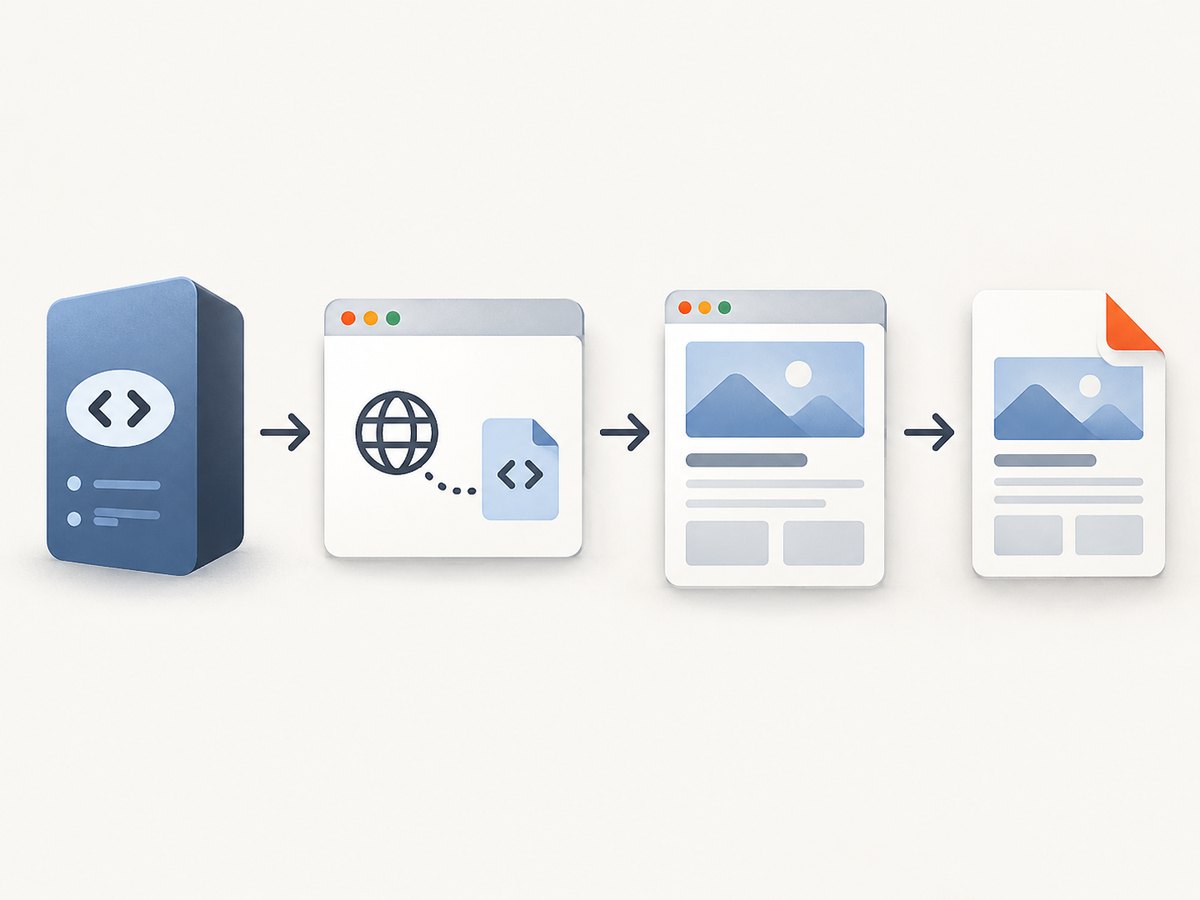
composer require chrome-php/chromeThen create a page, navigate to the HTML page, insert the external script, wait for the script request to complete, and save the PDF. This example assumes the page can be loaded without authentication and that the remote script permits loading from the page’s origin.
<?php
require __DIR__ . '/vendor/autoload.php';

use HeadlessChromium\BrowserFactory;

$browserFactory = new BrowserFactory();
$browser = $browserFactory->createBrowser([
    'headless' => true,
]);

try {
    $page = $browser->createPage();
    $page->navigate('https://example.com/report')->waitForNavigation();

    // Add a script from a URL to the current document.
    $page->addScriptTag([
        'url' => 'https://cdn.example.net/report-data.js',
    ])->waitForResponse();

    // Save a PDF after the script resource has loaded.
    $page->pdf()->saveToFile(__DIR__ . '/report.pdf');
} finally {
    $browser-> close();
}
Correct the spacing in the cleanup call if copying: it should be $browser->close();. The complete final line is shown here:
$browser->close();The package’s documented remote-script pattern is addScriptTag(['url' => '…'])->waitForResponse(); its README also covers browser creation, page navigation, page evaluation, and PDF output. This illustrates the API shape, but check the project’s current README for the surrounding methods and configuration supported by the installed version. chrome-php/chrome README
Make the output wait for the content, not just the script file
Waiting for the script request to finish only tells you the browser received and loaded the script. The script may start another asynchronous request, wait for a framework to render, or update the page later. If it exposes a completion signal, wait for that condition before printing. For example, the page could set a global flag when its report is ready:
// In the page's own JavaScript, after rendering is complete:
window.reportReady = true;
Then wait for the flag using the page-evaluation or wait-for-function API supported by your installed package version. The exact call varies by package version, so consult its README rather than assuming a method signature. Alternatively, wait for a specific element that appears only when the content is ready. A fixed delay is easy to add but less reliable: slow responses can exceed it, while fast pages waste time.
The package documents load, interactive, and network-idle wait events. Its network-idle guidance uses a period with no network activity (at least 500 ms), but that condition is not proof that every application has finished. Analytics, polling, long-lived connections, and delayed rendering can make network activity a poor proxy for page readiness. Prefer an application-specific signal when you control the page.
3. Use Dompdf only when browser JavaScript is unnecessary
For static markup, Dompdf is a PHP renderer that avoids running a browser process. The following example enables remote resource fetching for an external stylesheet or image. It does not load and execute a remote JavaScript file in the HTML page:
<?php
require __DIR__ . '/vendor/autoload.php';

use Dompdf\Dompdf;
use Dompdf\Options;

$options = new Options();
$options->set('isRemoteEnabled', true);

$dompdf = new Dompdf($options);
$html = '<!doctype html>
<html><head>
  <link rel="stylesheet" href="https://example.com/report.css">
</head><body>
  <h1>Report</h1>
  <p>This content is already final HTML.</p>
</body></html>';

$dompdf->loadHtml($html, 'UTF-8');
$dompdf->setPaper('A4', 'portrait');
$dompdf->render();
file_put_contents(__DIR__ . '/report.pdf', $dompdf->output());
Dompdf requires remote access to be enabled and PHP to have cURL or allow_url_fopen available for web resources. Its local-file access is separately constrained by chroot. These are resource-access controls, not a JavaScript runtime. Dompdf project documentation
4. Configure the browser workflow for real pages
JavaScript-enabled pages bring browser behavior with them. Before generating production PDFs, check the following items against the target application:
- Script URL: use an absolute HTTPS URL that the runtime can reach. Check redirects, DNS, TLS certificates, and any authentication requirement.
- Cross-origin policy: adding a script tag is different from fetching and reading its source in PHP. A script can be loaded as a browser resource, but its own requests and access to data remain subject to browser security rules.
- Content Security Policy: the page’s policy may block injected scripts or their remote origin. Use an approved script origin or change the application policy intentionally; do not disable browser security to conceal the issue.
- Readiness condition: wait for the element or application state that must appear in the PDF. Do not treat the document’s initial load event as proof that client-rendered content is complete.
- Print styling: use print CSS and check page breaks, backgrounds, fonts, image loading, and viewport-dependent layout. A browser’s PDF output follows print behavior, which can differ from a screenshot.
- Browser setup: ensure the PHP process can launch the installed Chrome/Chromium binary with its required libraries and permissions. In containers, include and patch the browser runtime as part of deployment.
Keep browser, PHP, and package versions controlled in your deployment. A browser update can change rendering, so compare representative PDFs when updating. For repeatable output, record the browser version and page inputs alongside the generated file.
5. Security, reliability, performance, and cost
Security
Rendering a URL means your server or browser process makes network requests. Do not let a public user submit arbitrary URLs to a renderer with access to private network addresses or local files. Validate the allowed schemes and hosts, restrict outbound access at the network layer, and avoid passing untrusted HTML into privileged rendering contexts. Be especially careful with renderer settings that enable remote resources or embedded PHP. Dompdf warns that enabling PHP in supplied HTML can execute code with the renderer’s system access; mPDF’s manual similarly cautions against accepting outside-user HTML/CSS without strong validation. Dompdf documentation · mPDF manual
Reliability
Remote scripts, data APIs, images, and fonts can fail independently. Add bounded timeouts, log the target URL and failure phase, and retry only transient failures. Retrying a non-idempotent page action could change state, so make sure the rendered page does not submit forms or trigger purchases. For important PDFs, verify the output exists, is non-empty, and contains expected content before making it available to users.
Performance and cost
A browser process uses more runtime resources than rendering prepared markup in PHP, and startup, page scripts, and network dependencies add latency. Reuse a browser process where the package and application lifecycle allow it, but use a fresh page per job and close pages promptly. Bound concurrency to the memory and CPU capacity of the host; do not assume each conversion has identical resource use. No benchmark is implied here: measure representative pages in your own deployment.
A local PHP renderer avoids operating Chrome but may require simpler HTML/CSS and static content. Browser rendering trades runtime setup and resource use for executing page JavaScript and using a browser’s layout engine. Budget for the browser binary, updates, monitoring, and failure handling. An external screenshot or rendering service shifts browser operations out of your application, but adds a network dependency and service pricing; check the provider’s options and billing model before moving sensitive pages.
6. Troubleshooting common failures
| Symptom | Likely cause | What to check or change |
|---|---|---|
| JavaScript changes never appear in Dompdf | Dompdf is not a browser JavaScript engine. | Run the page in Chrome/Chromium, or produce the final HTML in PHP before conversion. |
| Remote CSS or images are missing in Dompdf | Remote access is disabled or PHP lacks cURL/URL fopen support. | Enable isRemoteEnabled, confirm the PHP capability, and inspect resource URLs and TLS errors. |
| The PDF is blank or missing data | Printing started before client-side rendering finished, or a page request failed. | Wait on a page-specific ready flag or selector; inspect browser console and network errors. |
| The script cannot be loaded | Bad URL, DNS/TLS failure, access restriction, redirect issue, or content security policy. | Open the URL from the renderer’s network environment, inspect the response, and confirm the page policy permits the script origin. |
| The browser cannot start | Chrome/Chromium is absent, inaccessible, or missing runtime dependencies. | Install the required browser runtime and check executable path, process permissions, and container libraries. |
| The job hangs at network idle | The page keeps making requests or holds a long-lived connection. | Wait for a specific page condition or use a bounded delay appropriate to the page, with a hard timeout. |
| Local files cannot be read | Renderer path restrictions or permissions block access. | Use a permitted directory and configure a narrow chroot; do not grant arbitrary filesystem access. |
| Layout differs from the browser tab | Print CSS, paper size, fonts, viewport, or browser version changes the result. | Set print styles and paper options deliberately; test the exact deployed browser and assets. |
7. Or skip the browser setup
If you need a screenshot or PDF of a page and would rather not install and operate Chrome in your PHP environment, ScreenshotNeo is a website screenshot API and MCP server. One GET request takes a URL and returns an image or PDF. See the ScreenshotNeo API documentation for request options.
curl -G "https://api.screenshotneo.com/v1/shot" -d access_key=YOUR_API_KEY --data-urlencode url=https://example.com -o shot.webpCookie banners, newsletter popups, and chat widgets are removed before the shot. Bot checks, blank pages, and failed loads are never billed, and response headers identify the page verdict and billing status. An MCP server lets AI agents use screenshots through Claude, Cursor, or another MCP client. The free plan includes 1,000 screenshots a month with no card; paid plans start at $5 for 3,000.
Sign up free for 1,000 screenshots a month, with no card required.
8. FAQ
Can I just add a script URL to my HTML string in PHP?
You can add a <script src="…"> element to HTML, but a PHP renderer must implement browser execution for that to run. Dompdf does not execute page JavaScript. Use a browser engine if the script must change the rendered document.
Does isRemoteEnabled run JavaScript?
No. It allows Dompdf to fetch remote resources such as CSS or images when the required PHP network support is present.
Can I use a local JavaScript file instead of a URL?
Yes, a browser automation package can add script content or a URL; the chrome-php/chrome README documents both patterns. For static PDF output, it may be simpler to run the JavaScript during a separate build step and pass the completed HTML to your renderer.
Should I choose Dompdf, mPDF, or headless Chrome?
Choose based on what the document needs: prepared HTML and supported layout in a PHP renderer, or JavaScript and browser rendering in Chrome/Chromium. Confirm required CSS, fonts, security boundaries, and deployment requirements with a representative page before committing.


