How to Load JavaScript from a URL When Generating a PDF in Ruby
Use Grover and Chromium to load remote JavaScript, wait for rendering to finish, and generate reliable JavaScript-powered PDFs in Ruby.
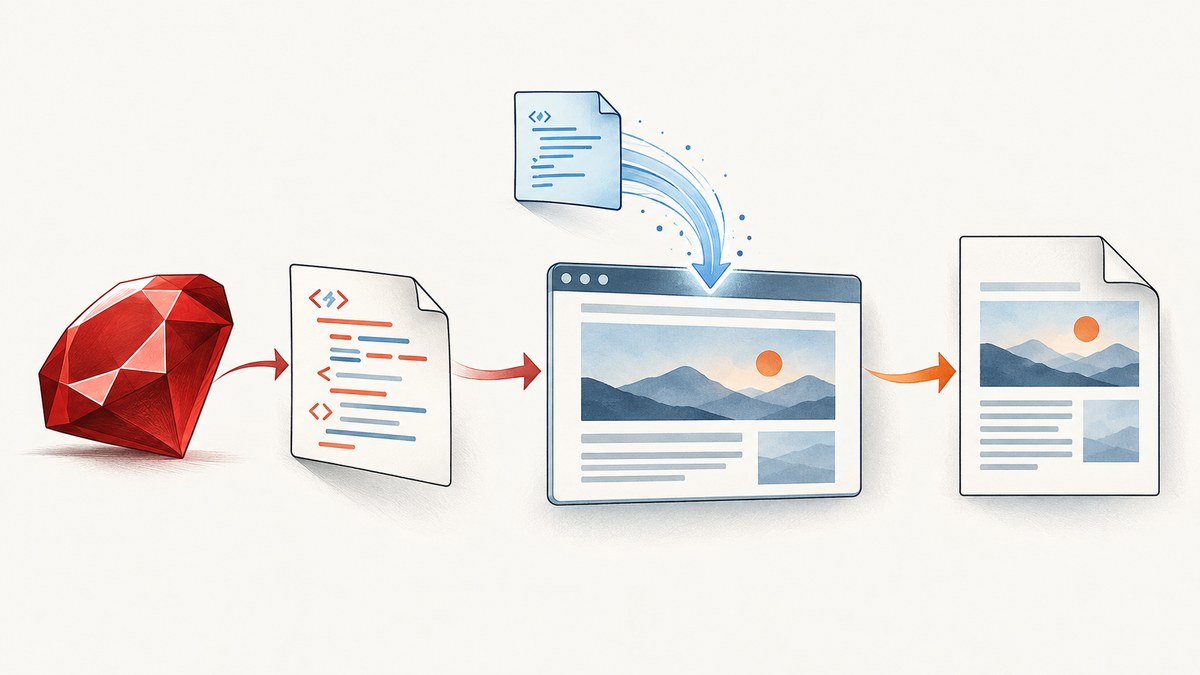
Direct answer: JavaScript must run in a browser-capable renderer before Ruby converts the page to PDF. A practical Ruby setup is Grover with Puppeteer and Chromium. Put the remote script in a normal <script src="https://…"> tag, wait for the page’s asynchronous work to finish, then call to_pdf. If the dependency must be injected into a page you cannot edit, use the browser’s script-tag API or an early-document hook; a post-render script is too late for code that the page needed during initialization.
1. How the rendering pipeline works
A PDF generator that only parses HTML and CSS will not execute application JavaScript. The reliable sequence is:
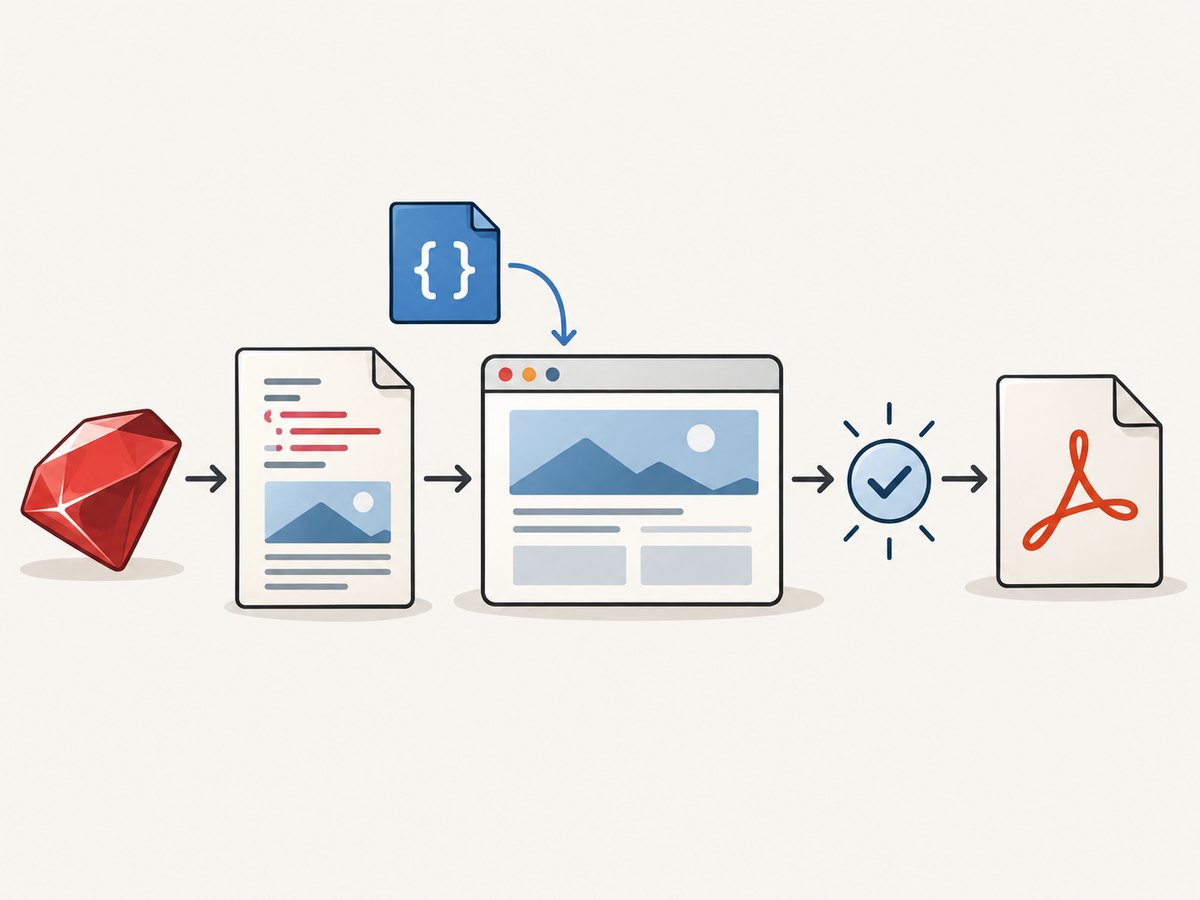
- Start a Chromium-based browser process.
- Navigate to a URL or load an HTML document.
- Resolve the remote JavaScript URL and execute it in the page.
- Let your application build charts, tables, totals, or other dynamic content.
- Wait for an application-specific readiness signal.
- Print the page to PDF using the browser’s print engine.
Puppeteer uses print media by default for PDF generation. Grover exposes this browser workflow through Ruby. Its README documents URL and HTML input, script-related options, and several waiting hooks; option names can change, so confirm the exact syntax in the Grover version installed in your application.
2. Add the remote script to your HTML
The simplest and most predictable method is a regular script element. Use an absolute HTTPS URL so the browser does not have to guess how to resolve a relative path.
<!doctype html>
<html>
  <head>
    <meta charset="utf-8">
    <title>Monthly report</title>
    <script src="https://cdn.example.test/report-library.js"></script>
    <style>
      body { font-family: sans-serif; margin: 32px; }
      .total { font-size: 24px; }
    </style>
  </head>
  <body>
    <h1>Monthly report</h1>
    <div id="report"></div>
    <p class="total" id="total"></p>
    <script>
      async function renderReport() {
        const data = await window.ReportLibrary.load({ month: "2026-09" });
        document.querySelector("#report").textContent = data.label;
        document.querySelector("#total").textContent = data.total;
        // This is the signal the PDF worker will wait for.
        document.documentElement.dataset.pdfReady = "true";
      }

      renderReport().catch((error) => {
        document.documentElement.dataset.pdfError = error.message;
      });
    </script>
  </body>
</html>
Place the dependency before code that calls it. If the library is loaded with async, its execution order is no longer guaranteed; use a deliberate initialization sequence instead. A script with defer generally runs after parsing and in document order, which is useful when the page has several dependent files.
3. Generate the PDF with Grover in Ruby
Install the renderer
bundle add grover
# Install a Chromium/Puppeteer runtime according to your deployment image.
Grover launches Puppeteer, so the production environment must contain a compatible browser and the shared libraries Chromium needs. A container image that works on a developer laptop may still fail in a minimal Linux runtime if those libraries are missing.
Render a URL
require "grover"

url = "https://example.test/reports/monthly"
options = {
  # Use the exact waiting option supported by your installed Grover version.
  wait_for_selector: "html[data-pdf-ready='true']",
  emulate_media: "print",
  format: "A4",
  print_background: true
}

pdf_bytes = Grover.new(url, options).to_pdf
File.binwrite("monthly-report.pdf", pdf_bytes)
The readiness selector is more reliable than sleeping for a fixed number of seconds. Your application should set it only after the remote library has loaded and every asynchronous operation that changes the PDF is complete. If your Grover release expects keyword arguments rather than an options hash, use the equivalent form documented in its README.
Render an HTML string
require "grover"

html = File.read("report.html")
options = {
  format: "A4",
  print_background: true,
  wait_for_selector: "html[data-pdf-ready='true']"
}

pdf_bytes = Grover.new(html, options).to_pdf
File.binwrite("report.pdf", pdf_bytes)
When you render an HTML string, relative URLs may not resolve as expected. Prefer absolute URLs for scripts, stylesheets, fonts, and images, or configure a base/root URL in the renderer. A browser can only load a remote dependency if the host has outbound network access and DNS, TLS, redirects, and authentication all work from the rendering environment.
4. Choose the right script-injection timing
Normal script tag
Use a normal script src when you control the document and the page’s own code should use the library during ordinary loading. This keeps dependency order visible in the HTML and is easiest to debug.
Browser script-tag injection
Puppeteer provides a page API for adding a script tag by URL or by content. This is useful when the target HTML cannot be changed. Inject the dependency before code that needs it, and wait for the returned promise and the application’s readiness condition. Check the current Puppeteer Page API for the exact method signature used by your Grover release.
Early-document initialization
Grover documents evaluate_on_new_document for code that must run before the page’s scripts. This is appropriate for setting a small global, a stub, or an initialization hook before navigation. It is different from a post-render edit.
Post-render execution
Grover documents execute_script as supplementary JavaScript after rendering and before conversion. It can hide an element, add a final label, or normalize a value. It cannot provide a dependency that earlier page code already tried to call. Treat it as a final transformation, not a general replacement for a script tag.
5. Wait for real readiness
Dynamic pages commonly finish network loading before their visible content is ready. Use one of these signals:
- Selector: set
html[data-pdf-ready="true"]or render a dedicated#pdf-readyelement. - Function or predicate: wait until a value such as
window.reportComplete === trueis true, if your Grover version supports that hook. - Network idle: useful for pages whose final work is represented by requests, but less precise when long polling or analytics keep the network busy.
- Fixed delay: a last resort for third-party widgets with no completion signal. Keep it short and document why it exists.
Fail visibly when rendering fails. For example, set data-pdf-error and have the worker reject the job rather than producing a PDF containing an empty chart.
6. PDF options that affect JavaScript output
| Option | Why it matters |
|---|---|
| Paper format or width/height | Controls pagination and can change responsive breakpoints. |
| Print background | Includes CSS backgrounds and colored chart regions. |
| Margins | Prevents headers, footers, and content from being clipped. |
| Landscape | Useful for wide tables and charts. |
| Page ranges | Exports selected pages after layout has completed. |
| Print media emulation | Uses @media print; verify that your chart styles exist in print CSS. |
Responsive JavaScript may choose a layout based on viewport width. Set a deliberate viewport and device scale factor when your report must be reproducible. Also ensure fonts are installed or reachable; a fallback font can change line wrapping and pagination.
7. Complete Ruby example with an application endpoint
require "grover"

class ReportPdf
  def self.call(report_url, output_path)
    options = {
      format: "A4",
      landscape: false,
      print_background: true,
      margin: {
        top: "18mm",
        right: "14mm",
        bottom: "18mm",
        left: "14mm"
      },
      wait_for_selector: "#pdf-ready"
    }

    pdf = Grover.new(report_url, options).to_pdf
    File.binwrite(output_path, pdf)
  end
end

ReportPdf.call(
  "https://example.test/reports/monthly?month=2026-09",
  "monthly-report.pdf"
)
Protect the report endpoint with a short-lived authorization mechanism rather than embedding a permanent credential in the URL. If the page requires cookies or custom headers, configure them through the browser options supported by your Grover version and avoid logging sensitive values.
8. When PDFKit or Wicked PDF is enough
PDFKit and Wicked PDF wrap wkhtmltopdf. They can load URLs and HTML, and their documentation covers external assets, absolute paths, and root URL or protocol configuration. They may be suitable for pages whose JavaScript and CSS are compatible with the wkhtmltopdf build you deploy. Compare candidates on actual JavaScript support, execution timing, URL resolution, remote-host access, and the operational cost of the browser process. Do not assume that a page working in modern Chromium will behave identically in wkhtmltopdf.
PDFKit also documents a development failure mode: a single-threaded server can deadlock when PDF rendering calls back to that same server to fetch assets. Embed assets where practical or run enough server workers to handle the render and the asset requests independently.
9. Troubleshooting
| Symptom | Likely cause | Fix |
|---|---|---|
| PDF contains the initial empty shell | Conversion happened before asynchronous rendering completed. | Add a selector or predicate readiness signal and wait for it. |
ReportLibrary is undefined |
The remote script failed, loaded after dependent code, or was injected too late. | Check browser logs and network access; move the script before dependent code or use an early injection hook. |
| Script works locally but not in production | Outbound traffic, DNS, TLS, proxy, or Chromium dependencies differ. | Make a request from the production worker and inspect redirects, certificates, and container libraries. |
| Styles, fonts, or images are missing | Relative URLs cannot be resolved from an HTML string, or the asset host is blocked. | Use absolute URLs or configure a base/root URL; verify requests from the renderer. |
| PDF hangs indefinitely | Network-idle never occurs because of polling, or the page waits on an unreachable request. | Prefer an application selector, set a bounded timeout, and remove unnecessary long-lived requests. |
| Layout differs between runs | Viewport, fonts, timezone, data, or external resources vary. | Pin viewport and locale settings, install fonts, and make the report data deterministic. |
| Content is clipped | Print CSS, paper size, or margins do not match the rendered layout. | Inspect with print media, adjust margins and page breaks, and test wide tables in landscape. |
| Self-hosted endpoint deadlocks | A single development worker is handling both PDF generation and asset requests. | Use embedded assets or a multi-worker server, as documented by PDFKit. |
10. Security and reliability checklist
- Allow only the script and asset hosts your application needs.
- Validate user-supplied URLs to avoid turning the renderer into an unrestricted network proxy.
- Keep browser processes isolated and apply resource and time limits.
- Treat remote HTML and JavaScript as executable content. Grover’s documentation warns, in the context of its relevant option, “Do not enable if rendering content from outside entities (user uploads, external URLs, etc).”
- Record the page URL, renderer version, readiness result, and failure reason without recording secrets.
- Retry transient navigation failures with a bounded policy; do not retry deterministic JavaScript errors indefinitely.
11. Performance and cost considerations
Launching Chromium is more expensive than converting static HTML. Reuse a controlled browser process where your deployment model permits it, limit concurrency to the memory available, and avoid loading analytics, advertisements, and unrelated third-party assets. Cache stable remote libraries and report data where correctness allows it. A readiness selector generally reduces wasted time compared with a conservative multi-second sleep, while a network-idle wait can be slower on pages with persistent connections.
Measure the complete job: browser startup, navigation, remote script download, JavaScript execution, layout, and PDF serialization. The biggest reliability gains usually come from deterministic data, pinned fonts, explicit viewport settings, and a clear completion signal.
12. Or skip the browser setup
If you need a rendered capture or PDF without maintaining Chromium workers, ScreenshotNeo provides a single screenshot API request and an MCP server for AI clients. It accepts cookie and consent banners as a visitor and removes more than 60 known consent platforms, newsletter popups, and chat widgets before capture; each step can be disabled. Bot checks, blank pages, timeouts, failed loads, and cache hits are not billed, and the response identifies the result with X-Page-Verdict and X-Billed headers. Its MCP tools include take_screenshot, get_page_info, and capture_pdf.

curl -G "https://api.screenshotneo.com/v1/shot" \
  -d access_key=YOUR_API_KEY \
  --data-urlencode url=https://example.test/reports/monthly \
  -o report.webp
require "net/http"
require "uri"
uri = URI("https://api.screenshotneo.com/v1/shot")
uri.query = URI.encode_www_form(
access_key: ENV.fetch("SCREENSHOTNEO_API_KEY"),
url: "https://example.test/reports/monthly"
)
response = Net::HTTP.get_response(uri)
raise "Screenshot failed: #{response.code}" unless response.is_a?(Net::HTTPSuccess)
File.binwrite("report.webp", response.body)import requests
r = requests.get(
"https://api.screenshotneo.com/v1/shot",
params={"access_key": "YOUR_API_KEY", "url": "https://example.test/reports/monthly"},
timeout=90,
)
r.raise_for_status()
open("report.webp", "wb").write(r.content)const q = new URLSearchParams({ access_key: 'YOUR_API_KEY', url: 'https://example.test/reports/monthly' });
const res = await fetch(`https://api.screenshotneo.com/v1/shot?${q}`);
if (!res.ok) throw new Error(`Screenshot failed: ${res.status}`);
require('fs').writeFileSync('report.webp', Buffer.from(await res.arrayBuffer()));See the ScreenshotNeo API documentation for PDF parameters and the other capture options. You can choose full-page capture with lazy images loaded, an element by CSS selector, custom JavaScript and CSS, waits, headers, cookies, user agents, timezone and geolocation, blocked resource types, caching TTLs, signed links, asynchronous jobs with signed webhooks, bulk capture for up to 100 URLs, and usage reporting. One thousand screenshots each month are free with no card; paid plans start at $5 for 3,000 shots. Create a free ScreenshotNeo account.
13. FAQ
Can I use a remote script with a static PDF library?
Only if that library embeds a browser engine or another JavaScript runtime that executes the page. Otherwise the script tag may appear in the HTML while its output never exists in the PDF.
Should I wait for load?
The load event confirms that initial resources finished loading, not that application rendering finished. A page-owned selector or predicate is usually a better contract.
Why does a script injected after rendering fail?
Post-render execution occurs after the page’s normal code has already run. Use a regular script tag or an early-document injection method when initialization order matters.
How do I make PDFs reproducible?
Pin the browser and fonts, set viewport and print options explicitly, use deterministic input data, and avoid uncontrolled third-party requests.
Can the renderer fetch a private script URL?
Yes, if the browser receives the required authentication through supported headers, cookies, or a controlled page. Do not expose credentials in a public URL or logs.


