How to Load Linked CSS When Generating PDFs from Handlebars Templates
Handlebars builds the HTML; your PDF renderer must resolve and load its stylesheet. Here’s how to set the base URL, wait for CSS, and diagnose missing styles.
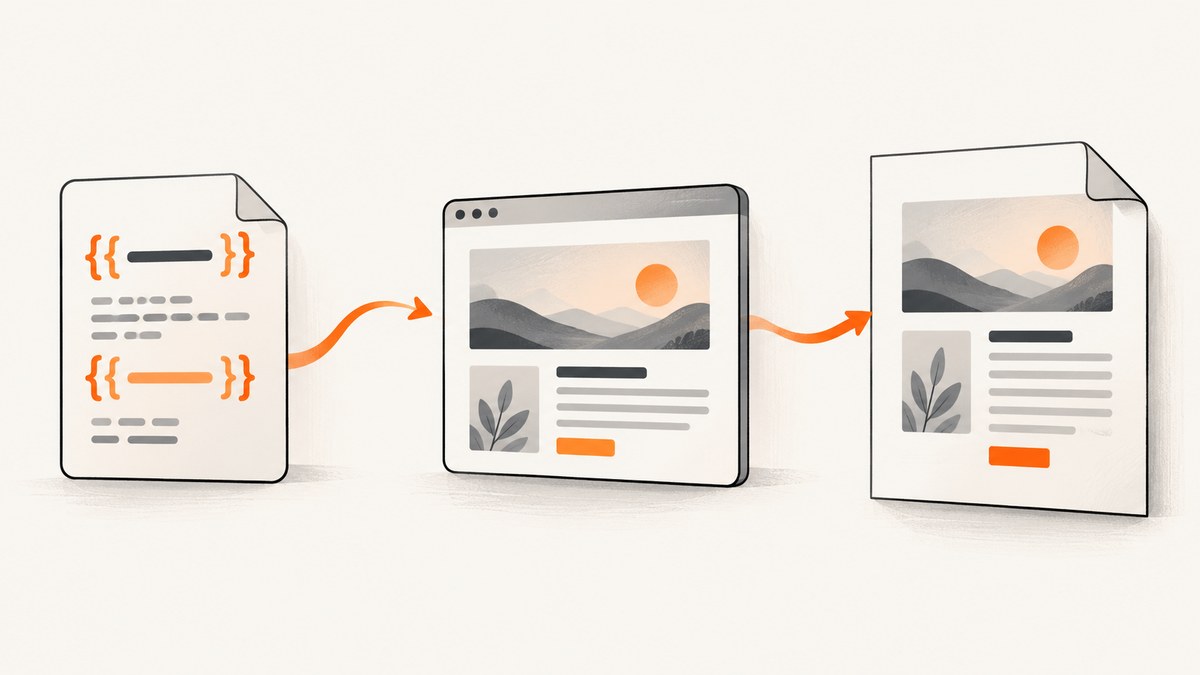
To load linked CSS in a PDF generated from a Handlebars template, compile the template into HTML, give the renderer a resolvable stylesheet URL, and wait for that stylesheet and its dependent resources to load before generating the PDF. Handlebars creates the HTML; the PDF renderer fetches CSS and prints the page. A link that works in your own browser may still fail in a server-side renderer if it has no usable base URL, cannot reach the resource, or lacks authentication.
This guide uses Puppeteer with Node.js for a browser-based PDF pipeline and includes a WeasyPrint pattern for Python. The same checks apply whichever renderer you choose: confirm the generated markup, resolve relative URLs, verify resource access from the rendering process, and account for print styles. For a quick comparison or visual check of how a website renders, [ScreenshotNeo](https://screenshotneo.com) is a website screenshot API and MCP server; its screenshot call is included after the do-it-yourself PDF workflows.
1. Understand which part loads the CSS
Handlebars compiles a template and evaluates it with data to produce HTML. It does not fetch a linked stylesheet or create a PDF. The renderer receives that HTML, resolves resources such as stylesheets and fonts, applies the relevant CSS, and produces the PDF. [Handlebars documents the compile-then-evaluate process](https://handlebarsjs.com/guide/), while [Puppeteer’s PDF API](https://pptr.dev/api/puppeteer.page.pdf) generates a PDF from a page.
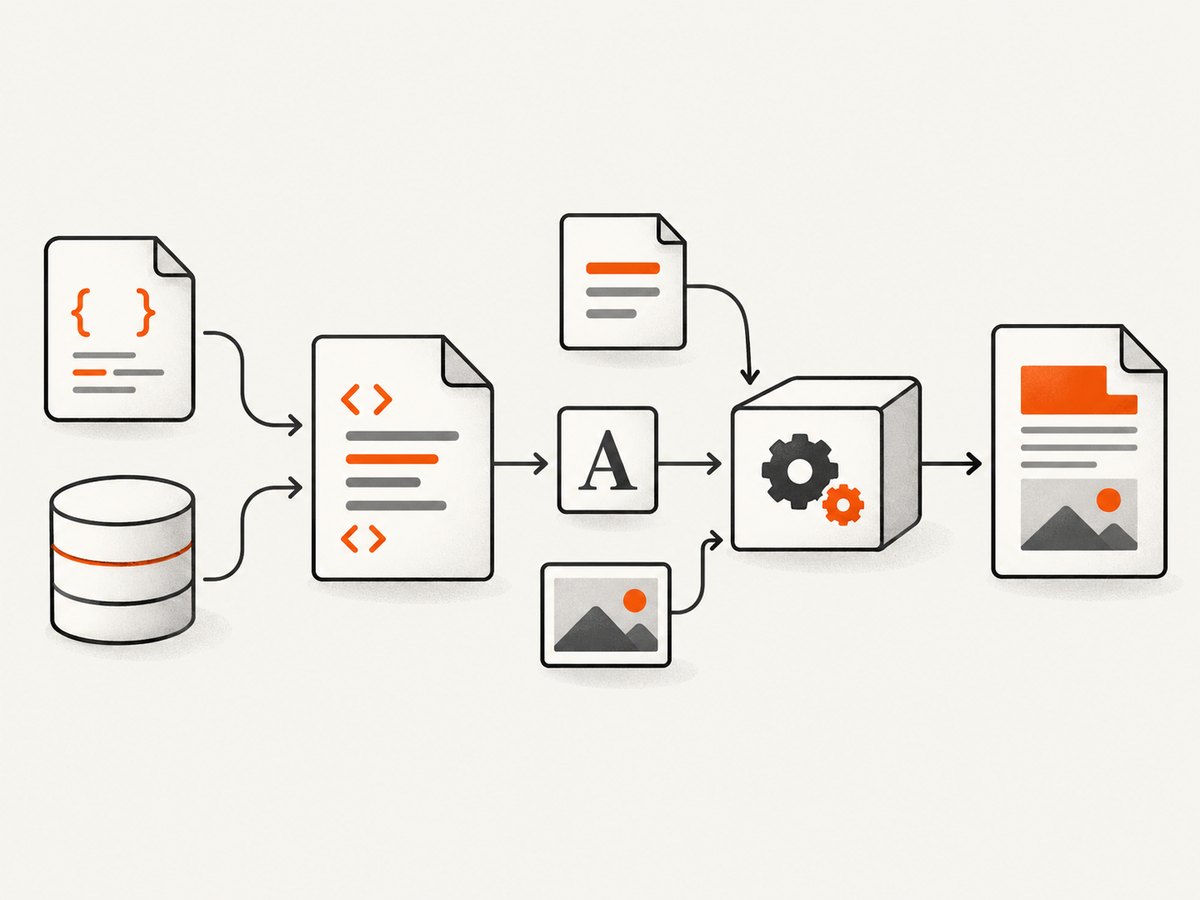
That separation helps narrow down a missing-style problem. First inspect the HTML that Handlebars produced. If its <link> is absent or malformed, fix the template or data. If the markup is correct, investigate the renderer’s URL base, network access, resource loading, and print-media behavior.
A linked stylesheet typically looks like this:
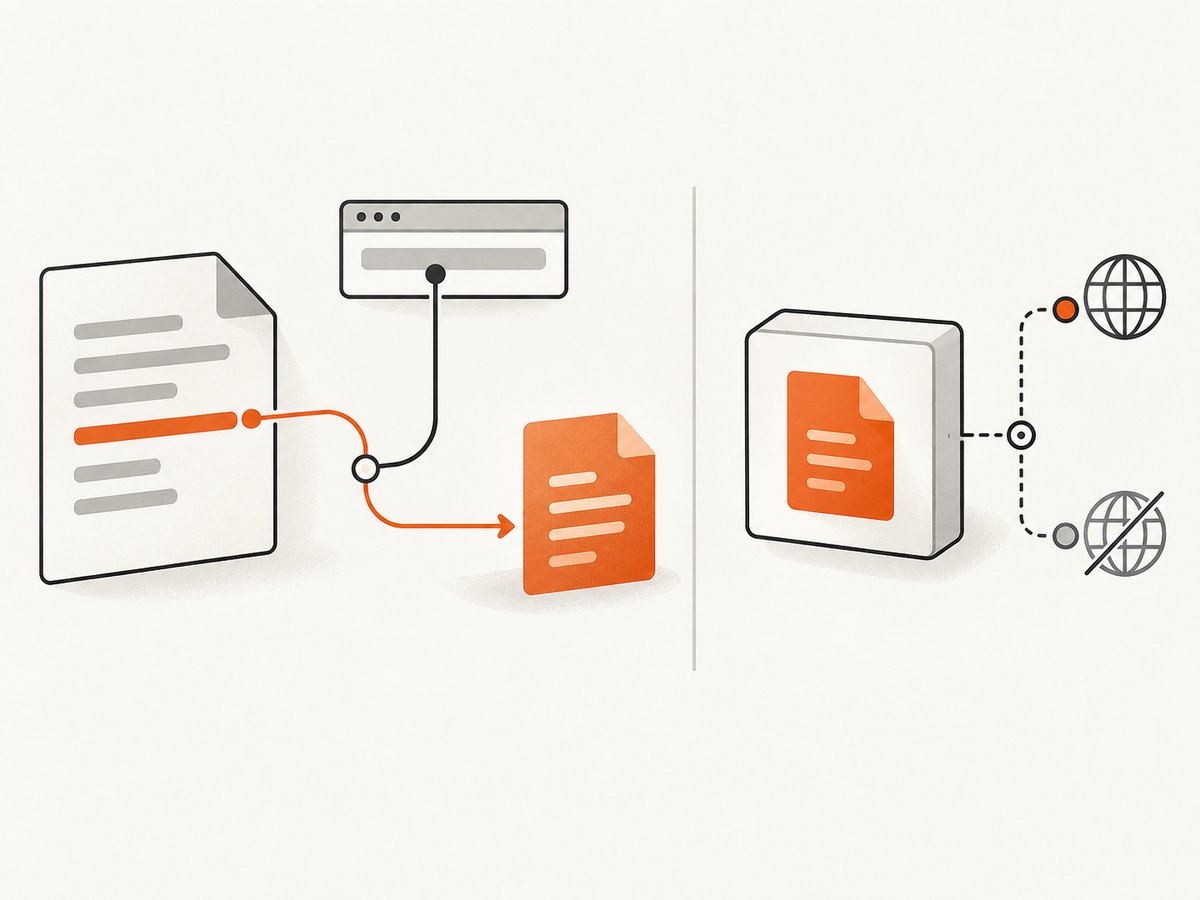
<link rel="stylesheet" href="https://example.test/assets/print.css">An absolute URL avoids ambiguity about where a relative URL should start. With a relative URL such as /assets/print.css or ../assets/print.css, the document needs a meaningful base URL. In HTML, a <base> element can supply that base. [WeasyPrint’s documentation explains base URLs and its resource fetching](https://doc.courtbouillon.org/weasyprint/stable/api_reference.html).
2. Build the Handlebars HTML and link the stylesheet
Keep the template responsible for document structure and stylesheet references. Pass ordinary content as data, then compile and evaluate the template. The example below writes the rendered HTML so it can be inspected independently of PDF generation.
import Handlebars from 'handlebars';
import { writeFile } from 'node:fs/promises';

const source = `<!doctype html>
<html>
  <head>
    <meta charset="utf-8">
    <meta name="viewport" content="width=device-width, initial-scale=1">
    <link rel="stylesheet" href="https://example.test/assets/print.css">
    <title>{{title}}</title>
  </head>
  <body>
    <main class="report">
      <h1>{{title}}</h1>
      <p>{{summary}}</p>
    </main>
  </body>
</html>`;

const template = Handlebars.compile(source);
const html = template({
  title: 'Quarterly report',
  summary: 'A short summary of the report.'
});

await writeFile('rendered.html', html, 'utf8');
Install the project dependencies in your application with npm install handlebars puppeteer. Replace the example stylesheet URL and report fields with values appropriate to your application. When you inspect rendered.html, verify that the stylesheet link is present, its URL is correct, and the HTML contains the expected content.
Choose the right URL form
| Resource reference | What must be true | Useful when |
|---|---|---|
| Absolute HTTP(S) URL | The renderer can reach the host and any required authorization is available. | The document has no stable public origin or renders in a separate service. |
| Relative URL | The renderer has a meaningful document URL or base URL. | The HTML is served from an application route with a stable origin. |
| Local file URL or path | The rendering process can read the file and the renderer allows that resource. | Assets are deployed alongside the PDF worker. |
CSS can reference more resources, including fonts and background images. Those references also need a resolvable base and access from the renderer. A stylesheet that loads while its font files do not can produce a document that looks only partly styled.
3. Generate the PDF with Puppeteer
When you use Puppeteer, load the generated document in a page and wait for navigation resources before calling page.pdf(). The official guide demonstrates navigation with waitUntil: 'networkidle2' before PDF generation. [Puppeteer’s PDF API uses print CSS by default](https://pptr.dev/api/puppeteer.page.pdf), so check your print rules as well as stylesheet loading.
import Handlebars from 'handlebars';
import puppeteer from 'puppeteer';

const source = `<!doctype html>
<html>
  <head>
    <meta charset="utf-8">
    <link rel="stylesheet" href="https://example.test/assets/print.css">
    <title>{{title}}</title>
  </head>
  <body>
    <main class="report">
      <h1>{{title}}</h1>
      <p>{{summary}}</p>
    </main>
  </body>
</html>`;

const html = Handlebars.compile(source)({
  title: 'Quarterly report',
  summary: 'A short summary of the report.'
});

const browser = await puppeteer.launch();
try {
  const page = await browser.newPage();
  await page.setContent(html, { waitUntil: 'networkidle2' });
  await page.pdf({
    path: 'output.pdf',
    format: 'A4',
    printBackground: true
  });
} finally {
  await browser.close();
}
This minimal pattern assumes the absolute stylesheet URL can be fetched without credentials and that the document’s other resources are reachable. Confirm those conditions in your deployment environment. networkidle2 is a navigation wait condition, not proof that every application-specific task has finished; if your page performs custom asynchronous work, wait for the selector or condition that signals your document is ready before producing the PDF.
Give relative links a stable origin
page.setContent() sets page markup, but if your document has relative references, explicitly arrange a usable base rather than assuming the renderer knows your application’s origin. One approach is a <base> element in the generated HTML:
<head>
  <base href="https://example.test/reports/">
  <link rel="stylesheet" href="../assets/print.css">
</head>
Alternatively, use absolute resource URLs. A base URL changes how relative links resolve throughout the document, so choose it deliberately and verify links for stylesheets, images, and fonts.
Add a stylesheet after page markup is loaded
If the page content is already present in a Puppeteer page and you want to add CSS at that point, use page.addStyleTag(). It accepts a URL or CSS text, as described in the [Puppeteer API documentation](https://pptr.dev/api/puppeteer.page.addstyletag).
await page.addStyleTag({ url: 'https://example.test/assets/print.css' });
// Or supply CSS content:
await page.addStyleTag({ content: '.report { font-family: sans-serif; }' });
Use a URL when you want the page to load a maintained stylesheet. Use content for small, generated overrides. If the stylesheet depends on relative font or image paths, make sure those paths have a valid base. Do not treat injection as a fix for a resource that the rendering process cannot access.
4. Set PDF options and print behavior
PDF output can differ from a normal browser view even when the CSS loaded correctly. Puppeteer’s Page.pdf() uses the print media type by default. Rules inside @media print, print-specific visibility, page breaks, and print color adjustment can all affect the result. Inspect the print rules before diagnosing the output as a network failure.
| Concern | What to check |
|---|---|
| Print styles | Review @media print rules and selectors. PDF generation uses print media by default. |
| Backgrounds | Puppeteer’s printBackground defaults to false. Set it to true if CSS backgrounds are part of the design. |
| Page size | Choose a format or dimensions that match the report and its CSS page rules. |
| Fonts | Puppeteer’s PDF options wait for document.fonts.ready by default. If your app has extra font-loading logic, confirm that it completes before printing. |
These defaults and options are described in the [Puppeteer PDF API reference](https://pptr.dev/api/puppeteer.pdfoptions). In particular, turning on background printing affects visual output, not whether the stylesheet is reachable.
5. Use WeasyPrint from Python
WeasyPrint is another HTML-to-PDF option. It fetches external resources such as stylesheets through its URL-fetching mechanism. For relative resources, supply a document or base URL so the renderer can resolve paths. The following Python example expects the HTML and stylesheet to be served at the shown origin; adapt the URLs to your deployment.
from weasyprint import HTML

html = """<!doctype html>
<html>
  <head>
    <meta charset="utf-8">
    <link rel="stylesheet" href="/assets/print.css">
    <title>Quarterly report</title>
  </head>
  <body>
    <main class="report">
      <h1>Quarterly report</h1>
      <p>A short summary of the report.</p>
    </main>
  </body>
</html>"""

HTML(string=html, base_url="https://example.test/reports/").write_pdf("output.pdf")
The absolute base in this example makes the leading-slash stylesheet resolve from the origin. Check that the worker running WeasyPrint can reach the host. The documentation notes that cookies and authentication are not supported by default for resource fetching; if your CSS requires access controls, plan the fetch mechanism and credentials for your environment rather than assuming the browser session will carry over. A custom URL fetcher may be appropriate for advanced resource handling.
6. Troubleshoot missing or partial styles
| Symptom | Likely cause | Fix |
|---|---|---|
| The entire document is unstyled | The link did not render, the URL is invalid, or the renderer cannot fetch it. | Inspect the final HTML, request the stylesheet from the rendering environment, and use an absolute URL or a valid base. |
| It works locally but fails in production | The PDF worker has different network access, filesystem permissions, DNS, or authentication. | Check resource reachability and permissions from the worker’s environment. Confirm whether the URL needs credentials. |
| Some CSS works but fonts or images do not | Dependent assets have unresolved relative URLs or cannot be fetched. | Set a stable base URL and check every asset reference in the stylesheet as well as the HTML. |
| The PDF differs from the browser preview | Print media rules apply during PDF generation. | Inspect @media print and print-only selectors. Compare the page using print media before changing resource loading. |
| Background color or artwork is missing | Puppeteer’s printBackground is false by default. |
Set printBackground: true when backgrounds are required. |
| A custom font falls back | The font resource is unreachable or custom page logic has not finished loading it. | Verify its URL and access, then wait for the application’s font readiness condition. Puppeteer’s PDF options wait for document.fonts.ready by default. |
| A protected stylesheet returns an access error | The PDF renderer does not have the browser user’s cookies or authentication. | Provide an approved accessible resource path or configure an appropriate fetching mechanism. WeasyPrint does not provide cookies and authentication by default. |
| Unexpected URL or resource is requested | Template data controls a URL, or a relative path resolves against an unintended base. | Validate allowed schemes and hosts, inspect the final URL, and constrain resource access. |
Debug in a fixed order
- Inspect the rendered HTML. Confirm the
<link rel="stylesheet">exists and itshrefcontains the expected value. - Resolve the URL. Determine the final absolute URL for each relative stylesheet, font, and image reference.
- Check from the PDF worker. Verify network reachability, permissions, and any access requirements from the process that creates the PDF.
- Check renderer timing. Wait for the stylesheet and document-specific asynchronous work before calling the PDF method.
- Check print output settings. Review print media rules, page size, and background printing.
This sequence separates a bad template from a URL resolution problem, a fetch failure, a timing issue, and a print-layout difference. It also makes the first failure easier to identify than changing CSS and renderer settings at the same time.
7. Security, performance, and reliability
Validate template-controlled resource URLs
Handlebars’ HTML escaping does not validate a URL or make arbitrary CSS and JavaScript input safe. Its [security guidance](https://handlebarsjs.com/guide/#html-escaping) specifically warns that escaping does not make untrusted data safe in URLs, CSS, JavaScript, or event-handler attributes, and that escaping alone does not prevent a javascript: URL in an href from executing. If template data supplies a stylesheet URL, validate its scheme and allowed host before inserting it. Apply your application’s resource access controls to the renderer as well.
Keep resource loading predictable
Use stable asset URLs and make dependencies explicit. A PDF worker may have different network and filesystem access from a developer’s browser, so verify resources in the deployed environment. For reliability, make the PDF job wait for a meaningful ready condition rather than relying only on an arbitrary short delay. If a resource is unavailable or a page is still changing, the resulting document may be incomplete even though PDF generation itself succeeds.
Consider render time and repeated work
The renderer must fetch the HTML’s linked assets and any resources they reference. Large or slow resources add work to a render, while unnecessary dependencies make the output harder to diagnose. Keep the stylesheet and asset set focused, and use a shared, stable stylesheet where that fits your application. No universal render-time figure applies: the actual time depends on the page, resource availability, renderer, and deployment environment.
Plan cost around your own pipeline
For a self-hosted Puppeteer or WeasyPrint workflow, account for the compute and operational resources used by your application and PDF workers. The supplied renderer documentation does not establish a general per-PDF price or performance benchmark; measure your own workload in its target environment. If you choose a hosted service, check its documented access controls, resource-fetch behavior, and pricing before moving protected documents to it.
8. Or skip the browser setup
If you need a screenshot of a website rather than a PDF from your Handlebars-generated report, ScreenshotNeo can capture a URL with one GET request. See the [ScreenshotNeo API documentation](https://screenshotneo.com/docs/) for the API details.
curl -G "https://api.screenshotneo.com/v1/shot" -d access_key=YOUR_API_KEY --data-urlencode url=https://stripe.com -o shot.webpimport requests
r = requests.get("https://api.screenshotneo.com/v1/shot", params={"access_key": "YOUR_API_KEY", "url": "https://stripe.com"}, timeout=90)
open("shot.webp", "wb").write(r.content)const q = new URLSearchParams({ access_key: 'YOUR_API_KEY', url: 'https://stripe.com' });
const res = await fetch(`https://api.screenshotneo.com/v1/shot?${q}`);ScreenshotNeo removes cookie banners, newsletter popups, and chat widgets before the shot. Bot checks, blank pages, and failed loads are never billed. Its MCP server gives AI agents tools to take screenshots, get page information, and capture PDFs. The free plan includes 1,000 screenshots a month with no card; paid plans start at $5 for 3,000. These website screenshot calls do not replace a pipeline that needs to render your private Handlebars report. [Create a free ScreenshotNeo account](https://screenshotneo.com/account/sign-up/) to try 1,000 screenshots a month with no card.
9. Frequently asked questions
Does Handlebars load a linked stylesheet?
No. Handlebars produces HTML from a template and context. The PDF renderer loads the linked stylesheet and generates the PDF.
Can I use a local stylesheet?
Yes, if the PDF process can read it and the renderer can resolve the file URL or path. Confirm the behavior in the worker environment where PDF generation runs.
Why does the CSS look different in the PDF than on screen?
Puppeteer PDF generation uses print CSS by default. A print media rule can change layout or hide content without indicating that the linked stylesheet failed to load.
Should I inline all the CSS?
Inlining can remove a separate stylesheet fetch, but it does not solve every resource issue: CSS may still reference fonts and images. Choose inline or linked CSS based on your application’s deployment and resource needs.
Can I use ScreenshotNeo to create a PDF from my Handlebars HTML?
ScreenshotNeo accepts a website URL and can return a screenshot or PDF. The supplied product details do not describe submitting arbitrary Handlebars HTML to the API, so use your own renderer when the input is a generated report that is not available as a website URL.


