How to Load Lazy Content on LinkedIn Search Pages with Selenium
For authorized Selenium tests, scroll the correct results container and wait for DOM changes—not just page load. Learn a bounded pattern and when UI automation is allowed.
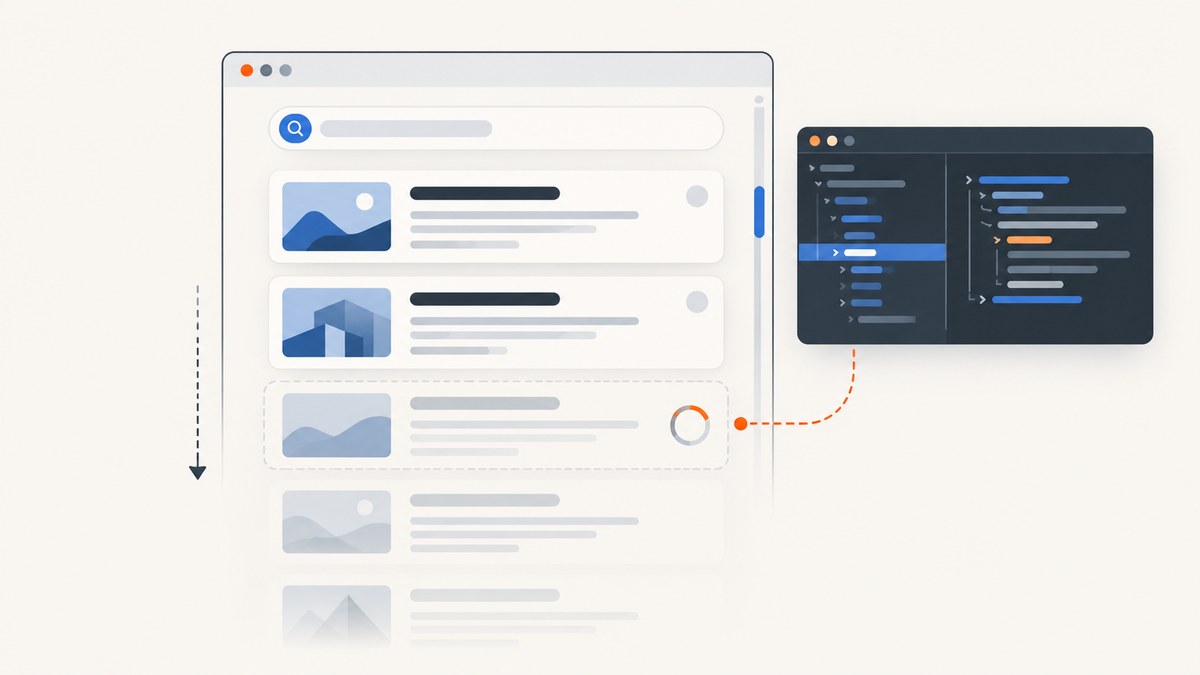
To load lazy content in an authorized Selenium test, wait until the first result card appears, scroll the element that actually contains the results, and wait for a measurable change such as more cards or a taller scroll area. Repeat with a maximum iteration count and stop after repeated checks show no progress. A completed browser ready state alone does not mean a JavaScript application has finished rendering.
Important: LinkedIn prohibits unauthorized scraping and automated activity. Use the examples below only on pages you own, authorized test environments, or activity covered by written LinkedIn permission. For legitimate data access, prefer approved APIs, exports, or partner interfaces.
1. Check authorization before automating
LinkedIn’s help guidance says third-party software or browser extensions that scrape, modify, or automate activity are not allowed and may violate its User Agreement or privacy legislation. Its User Agreement, effective November 3, 2025, prohibits scripts or robots that scrape or copy its services, bypass access controls or use limits, and unauthorized automated methods. LinkedIn’s crawling terms state that automated crawling and indexing without express permission is strictly prohibited. Review the current terms and obtain written permission where required before running automation.
This guide is about synchronizing an authorized browser test, not bypassing a login, CAPTCHA, rate limit, access control, or other restriction. If an integration needs LinkedIn data, check whether an approved API, export, or partner interface supports the intended use. UI automation is more fragile and must be kept within the scope of authorization.
2. Why results are missing after Selenium says the page loaded
Selenium navigation waits for a document readiness state, but a page can keep rendering data after that state is reached. Selenium’s documentation specifically cautions that document.readyState == complete does not necessarily mean a JavaScript application has finished loading content.
Lazy loading defers noncritical or non-visible content. Infinite scroll commonly requests more items as the user approaches the end of a list. Those behaviors make a fixed delay unreliable: a short pause may finish before the next request, while a long pause wastes time when content is already ready. Synchronize on an observable condition in the page instead.
There are two separate questions to answer:
- What should trigger more content? Scrolling the viewport or an inner results panel.
- How will the test know it worked? A larger result count, increased scroll height, or a loading indicator disappearing.
LinkedIn’s markup and selectors can change. The selector examples here are placeholders. Discover selectors only in an authorized page or test environment; do not treat a selector found today as a stable interface.
3. A bounded Python Selenium pattern
This example shows the synchronization pattern. Replace the URL and card selector with values appropriate to the authorized page. It assumes the page scrolls at the window level; the next section covers inner scroll panels.
from selenium import webdriver
from selenium.webdriver.common.by import By
from selenium.webdriver.support.ui import WebDriverWait
from selenium.webdriver.support import expected_conditions as EC
from selenium.common.exceptions import TimeoutException

SEARCH_URL = "https://example.test/authorized-search"
CARD_SELECTOR = "[data-result-card]"  # Placeholder: inspect your authorized page
MAX_RESULTS = 100
MAX_ITERATIONS = 20
MAX_STALLED_CHECKS = 2
WAIT_SECONDS = 15

driver = webdriver.Chrome()
wait = WebDriverWait(driver, WAIT_SECONDS)

try:
    driver.get(SEARCH_URL)
    card_locator = (By.CSS_SELECTOR, CARD_SELECTOR)
    wait.until(EC.presence_of_element_located(card_locator))

    stalled = 0
    for iteration in range(MAX_ITERATIONS):
        cards = driver.find_elements(*card_locator)
        count_before = len(cards)
        if count_before >= MAX_RESULTS:
            break

        height_before = driver.execute_script(
            "return document.documentElement.scrollHeight"
        )
        driver.execute_script(
            "window.scrollTo(0, document.documentElement.scrollHeight)"
        )

        try:
            wait.until(lambda d: (
                len(d.find_elements(*card_locator)) > count_before
                or d.execute_script(
                    "return document.documentElement.scrollHeight"
                ) > height_before
            ))
            stalled = 0
        except TimeoutException:
            stalled += 1
            if stalled >= MAX_STALLED_CHECKS:
                break

    final_cards = driver.find_elements(*card_locator)
    print(f"Found {len(final_cards)} result cards")
finally:
    driver.quit()
The first explicit wait ensures that the page has reached a meaningful starting point. Each loop records the current card count and document height, scrolls, then waits for card growth or a taller document. The loop is bounded by both MAX_ITERATIONS and MAX_RESULTS; consecutive timeouts provide a no-growth stop rule.
For a production test, add a condition for the page’s known end-of-results state if one exists. A loading indicator disappearing can be more meaningful than document height when the page uses a fixed-size virtualized list. Keep the condition tied to behavior your authorized test can observe.
4. Find and scroll the actual results container
Do not assume the window is the scroll target. Search interfaces often put results inside a panel whose own scrollTop changes while the document height stays constant. In an authorized environment, inspect the page and identify the panel that has a scrollable height.

For an inner panel, substitute a discovered selector and scroll that element near its bottom. Measure the panel’s scrollHeight and scroll position rather than the document’s:
RESULTS_PANEL = "[data-results-panel]"  # Placeholder
panel = wait.until(
    EC.presence_of_element_located((By.CSS_SELECTOR, RESULTS_PANEL))
)

height_before = driver.execute_script(
    "return arguments[0].scrollHeight", panel
)
driver.execute_script(
    "arguments[0].scrollTop = arguments[0].scrollHeight", panel
)

# In the loop, wait for card growth or panel scrollHeight growth.
wait.until(lambda d: (
    len(d.find_elements(By.CSS_SELECTOR, CARD_SELECTOR)) > count_before
    or d.execute_script(
        "return arguments[0].scrollHeight", panel
    ) > height_before
))
If the panel is replaced during rendering, the saved Selenium element can become stale. Locate it again inside the wait condition, or handle a stale-element exception by finding the panel anew. Avoid repeatedly scrolling both the panel and window without evidence; that can make the test harder to reason about.
5. Implement the pattern in JavaScript Selenium
For a Node.js Selenium WebDriver test, the same rules apply: wait for the initial card, capture a progress measure, scroll, and wait for a condition with a timeout. This example uses Selenium’s JavaScript bindings and a viewport scroll.
const { Builder, By, until } = require('selenium-webdriver');

const SEARCH_URL = 'https://example.test/authorized-search';
const CARD_SELECTOR = '[data-result-card]'; // Placeholder
const MAX_RESULTS = 100;
const MAX_ITERATIONS = 20;
const MAX_STALLED_CHECKS = 2;

(async () => {
  const driver = await new Builder().forBrowser('chrome').build();
  try {
    await driver.get(SEARCH_URL);
    const cards = By.css(CARD_SELECTOR);
    await driver.wait(until.elementLocated(cards), 15000);

    let stalled = 0;
    for (let i = 0; i < MAX_ITERATIONS; i++) {
      const before = await driver.findElements(cards);
      const countBefore = before.length;
      if (countBefore >= MAX_RESULTS) break;

      const heightBefore = await driver.executeScript(
        'return document.documentElement.scrollHeight'
      );
      await driver.executeScript(
        'window.scrollTo(0, document.documentElement.scrollHeight)'
      );

      try {
        await driver.wait(async () => {
          const now = await driver.findElements(cards);
          const heightNow = await driver.executeScript(
            'return document.documentElement.scrollHeight'
          );
          return now.length > countBefore || heightNow > heightBefore;
        }, 15000);
        stalled = 0;
      } catch (err) {
        if (err.name !== 'TimeoutError') throw err;
        stalled++;
        if (stalled >= MAX_STALLED_CHECKS) break;
      }
    }

    console.log(`Found ${(await driver.findElements(cards)).length} cards`);
  } finally {
    await driver.quit();
  }
})();
Use the inner-panel version of the progress check if the authorized page scrolls a nested element. For a test suite, move the URL, selectors, limits, and wait duration into configuration so a test can be tuned without changing the synchronization logic.
6. Configure limits, waits, and progress carefully
| Setting or signal | Purpose | Practical guidance |
|---|---|---|
| Initial card wait | Waits for the page to show a meaningful starting result. | Use an explicit wait for a real element or state, not only navigation completion. |
| Wait timeout | Caps the time spent waiting for each progress event. | Choose a bound appropriate for the authorized test environment and its expected response time. There is no universal delay. |
| Scroll target | Triggers lazy loading. | Use the viewport or the identified inner panel based on observed page behavior. |
| Progress signal | Shows that the page changed after scrolling. | Prefer card count, a relevant loading state, or the target container’s height. A global height can miss virtualized content. |
| Maximum iterations | Prevents an endless loop. | Set a ceiling based on the test’s purpose and resource budget. |
| Maximum result count | Limits how much the test collects or inspects. | Set it to the authorized test scope. Do not use it to evade service limits. |
| No-growth threshold | Ends repeated attempts that produce no measurable progress. | Require more than one check if transient rendering delays are expected, but keep the overall loop bounded. |
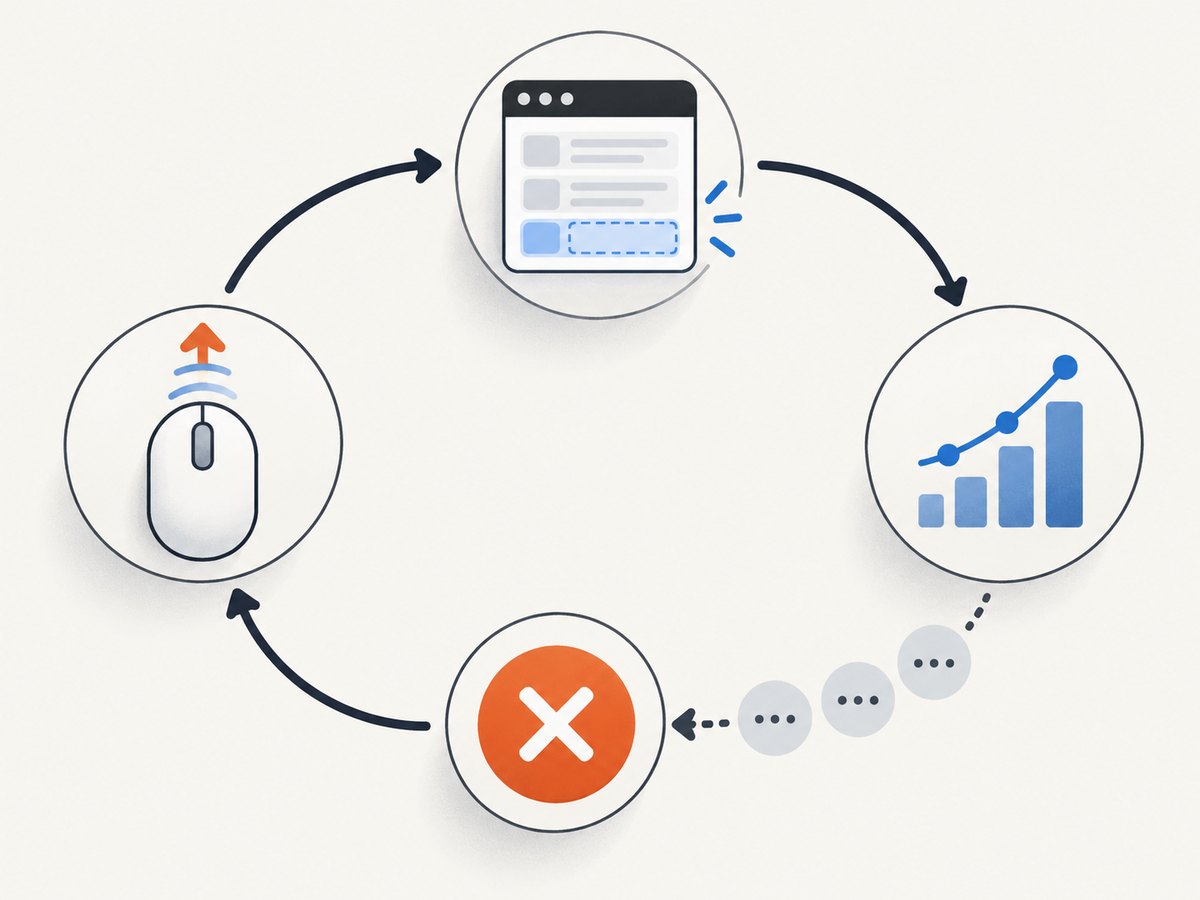
Some interfaces virtualize their lists: only visible cards exist in the DOM, and scrolling may replace old cards instead of increasing their count. In that case, count growth is the wrong signal. Use a stable item identifier or a loading/end state that your authorized test is allowed to inspect. If the task is to validate rendering rather than collect every item, assert that the expected next item becomes visible instead of trying to accumulate the whole result set.
7. Deduplication and data minimization
When authorized work requires tracking items across scrolls, deduplicate using a stable identifier available in the permitted DOM, such as a test fixture ID. Avoid relying on display text, position, or card order when those can change. Save only fields required by the authorized test or integration, and follow the authorization’s retention and privacy limits.
Do not assume every loaded card is a new result: rerendering, retries, and virtualized lists can make a card appear more than once. Keep a set of permitted stable IDs and record only new IDs. If there is no stable identifier, consider whether the page offers an approved export or data interface instead of scraping presentation markup.
8. Troubleshooting
| Symptom | Likely cause | Fix |
|---|---|---|
| The first wait times out. | The placeholder card selector is wrong, the page did not reach the expected state, or access is unavailable. | In an authorized environment, inspect the rendered DOM and confirm the expected test state. Do not work around access controls. |
| The page loads once, then no more cards appear. | The viewport was scrolled while an inner panel owns scrolling, or the page has reached its end. | Identify the actual scroll target and observe its height, loading indicator, or end state. |
| The wait succeeds but the number of cards stays the same. | Height may have changed, a virtualized list may replace nodes, or the selector may match a fixed set. | Choose a progress condition that matches the page: a new stable ID, next-item visibility, or a relevant loading state. |
| The test runs through every iteration. | The no-growth condition is missing, reset incorrectly, or never observes the correct container. | Increment a stall counter only after a bounded wait expires; stop after a configured threshold and log the last progress measures. |
| Cards are duplicated in saved output. | Rerendering, retries, or virtualization returned the same logical item again. | Deduplicate on a stable, permitted identifier and store only the fields required. |
| The test becomes flaky with fixed sleeps. | Rendering time varies and a fixed pause is not tied to content readiness. | Replace sleeps with explicit waits for observable DOM conditions. Keep a timeout as a safety bound. |
| An element becomes stale after scrolling. | The application replaced a panel or card node during rerendering. | Re-find the element in the wait condition and handle stale references by locating the current node again. |
9. Performance, reliability, and cost
Each extra scroll and wait adds browser work and elapsed time. Bound iterations and result counts to the test’s actual objective. A condition-based wait can continue as soon as progress occurs, while a fixed sleep always waits its full duration; both still need a timeout for a page that never advances.
Reliability depends on using a valid authorization, the correct scroll target, selectors that match the current test page, and progress conditions that fit its rendering model. Keep selectors in one place, log iteration number and progress measures, and make the test fail clearly when its initial condition never appears. No selector or page structure should be assumed stable without an explicit contract.
Browser automation has infrastructure costs: browser processes, machines or CI workers, and maintenance when page markup changes. The research dossier provides no authoritative benchmark or cost figure for this LinkedIn workflow, so estimate from your own authorized test environment rather than relying on invented timings. For legitimate data workflows, compare approved APIs or exports by authorization, stability, rate limits, and maintenance burden.
10. Or skip the browser setup
If your goal is a screenshot of a page you are authorized to capture, ScreenshotNeo provides a website screenshot API and MCP server. It is not a method for collecting LinkedIn search results or bypassing LinkedIn’s restrictions. For API options and setup, see the ScreenshotNeo docs.
curl -G "https://api.screenshotneo.com/v1/shot" -d access_key=YOUR_API_KEY --data-urlencode url=https://stripe.com -o shot.webpScreenshotNeo accepts cookie or consent banners like a visitor and removes more than 60 known consent platforms, newsletter popups, and chat widgets before the capture; each step can be turned off. Bot checks or CAPTCHAs, blank pages, timeouts, failed loads, and cache hits cost nothing, and response headers indicate the page verdict and billing status. Its MCP server offers take_screenshot, get_page_info, and capture_pdf for AI agents and MCP clients. The free plan includes 1,000 screenshots a month with no card; paid plans start at $5 for 3,000. Every feature is on every plan.
Sign up for ScreenshotNeo’s free plan: 1,000 screenshots a month, no card required.
11. Frequently asked questions
Does Selenium’s page-load wait include lazy content?
Not necessarily. A JavaScript application can render more content after the document reaches its ready state, so wait for the specific result state your test needs.
Can I use the LinkedIn examples on any search page?
No. LinkedIn restricts unauthorized scraping and automation. Use UI automation only where you have authorization, and use approved interfaces for legitimate data access.
What if the result list never grows?
Check that the test scrolls the correct container and observes the right signal. It may have reached the end, use virtualization, or be waiting on an incorrect placeholder selector. Keep the loop bounded and report the final observed state.
Should I use a longer sleep to make the test reliable?
A longer sleep can hide a synchronization problem and still fail when rendering takes longer. Wait for a concrete condition with a timeout instead.


