How to Load Local Files in Playwright
Learn the correct Playwright workflow for uploading fixtures, handling dynamic file choosers, saving downloads, and rendering supplied HTML.
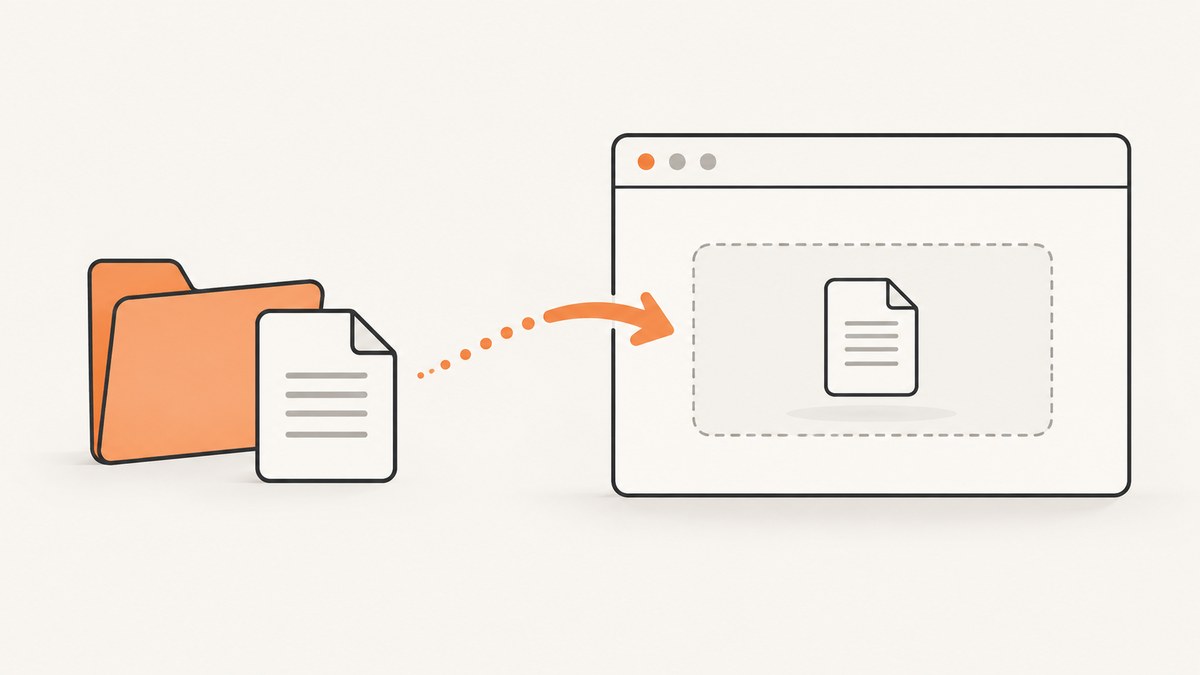
In Playwright, “load a local file” usually means one of four different tasks: upload a fixture through <input type="file">, provide files to a dynamically created file chooser, save a browser download, or render supplied HTML. The correct API depends on which task you mean.
For a visible file input, use a locator and setInputFiles(). For an input created after a click, wait for the filechooser event before clicking, then call setFiles(). For downloads, wait for the download event and call saveAs() before closing the browser context. If you only have an HTML string, use setContent(); that is a different workflow from uploading a local file.
Choose the local-file workflow
| What you need | Playwright API | Typical input |
|---|---|---|
| Upload through an existing file input | locator.setInputFiles() |
Path, multiple paths, or an in-memory payload |
| Upload through an input created by an action | page.waitForEvent('filechooser') and fileChooser.setFiles() |
Path, paths, or payload |
| Keep a downloaded attachment | page.waitForEvent('download') and download.saveAs() |
Destination path |
| Render supplied markup | page.setContent(html) |
HTML string |
Relative paths are resolved from the current working directory. Test-runner working directories can differ from the directory containing your test file, so use an explicit path strategy and make the assumption obvious.
Upload a fixture with an existing file input
When the page already contains <input type="file">, target it with a locator. A label is often the most stable selector because it follows the page’s accessible name.
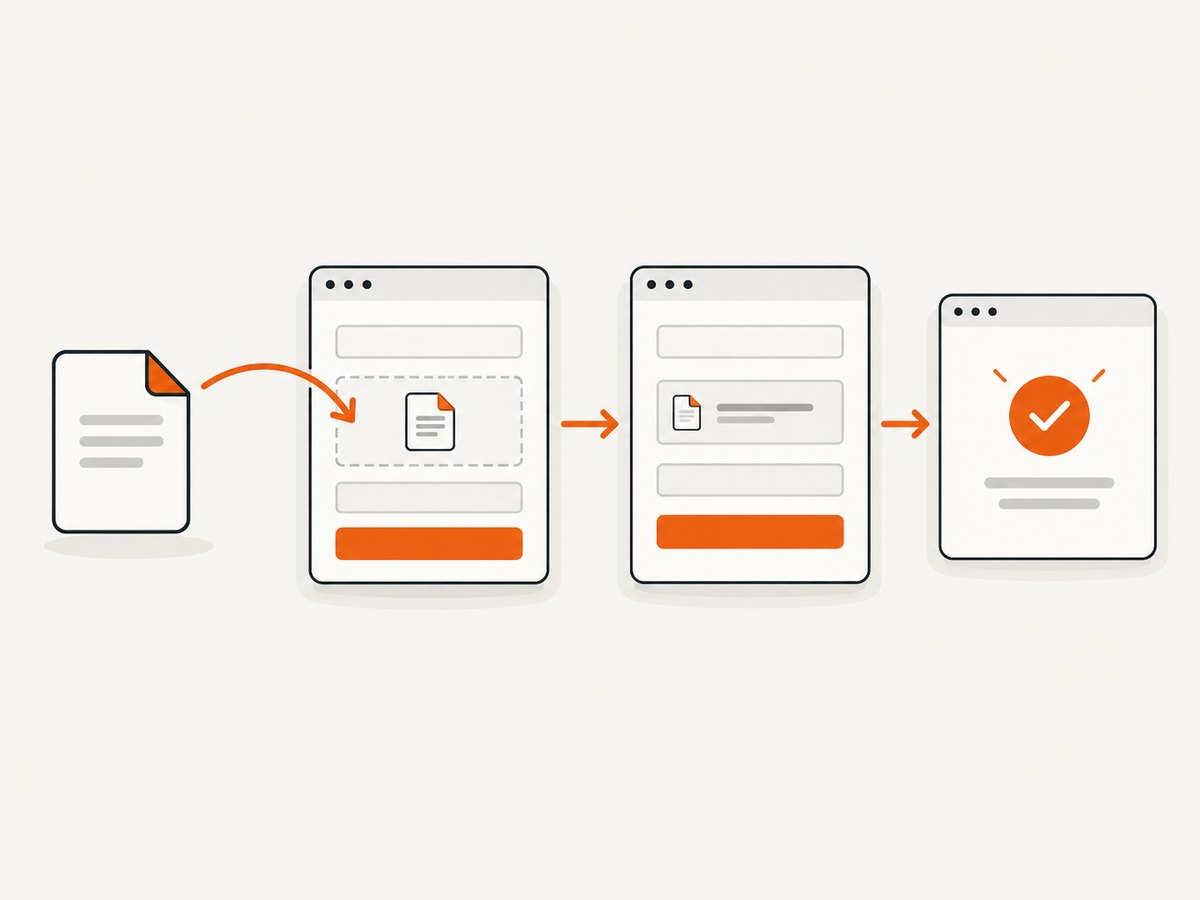
JavaScript or TypeScript
import path from 'node:path';

const fixture = path.join(process.cwd(), 'fixtures', 'document.pdf');
await page.getByLabel('Upload file').setInputFiles(fixture);

await page.getByRole('button', { name: 'Submit' }).click();
await expect(page.getByText('document.pdf')).toBeVisible();
The official Playwright input guide documents setInputFiles() for file paths and for file payload objects. The locator must resolve to a file input, either directly or through its associated label. See the Playwright upload files guide.
Python
from pathlib import Path
from playwright.sync_api import sync_playwright, expect

with sync_playwright() as p:
    browser = p.chromium.launch()
    page = browser.new_page()
    page.goto('https://example.test/upload')

    fixture = Path.cwd() / 'fixtures' / 'document.pdf'
    page.get_by_label('Upload file').set_input_files(str(fixture))
    page.get_by_role('button', name='Submit').click()
    expect(page.get_by_text('document.pdf')).to_be_visible()

    browser.close()
The asynchronous Python API has the same operation as set_input_files(). Confirm the exact signature against the Playwright version installed in your project.
Use paths, multiple files, or generated file data
setInputFiles() accepts one path or an array of paths. Use an array when the input has a multiple attribute. Pass an empty array to clear the current selection.
await page.locator('input[type="file"]').setInputFiles([
  'fixtures/first.csv',
  'fixtures/second.csv'
]);

// Clear the selection.
await page.locator('input[type="file"]').setInputFiles([]);
You can also avoid creating a fixture on disk by supplying a named, typed buffer. This is useful for deterministic data generated inside a test.
await page.locator('input[type="file"]').setInputFiles({
  name: 'generated.txt',
  mimeType: 'text/plain',
  buffer: Buffer.from('row-1\nrow-2\n')
});
The payload needs a file name, MIME type, and in-memory contents. In Python, pass the corresponding file payload supported by your installed Playwright release:
page.locator('input[type="file"]').set_input_files({
    'name': 'generated.txt',
    'mimeType': 'text/plain',
    'buffer': b'row-1\nrow-2\n',
})
For directory-selection inputs, use the directory-selection form documented for your language and version. Do not assume a directory upload behaves like a single file upload: the page may inspect relative paths or expect multiple entries.
Handle a dynamically created file chooser
Some applications do not keep a file input in the DOM. A button or label creates it only after a user action. Establish the event wait before clicking; otherwise the chooser can open and the test can miss the event.
JavaScript or TypeScript
const chooserPromise = page.waitForEvent('filechooser');
await page.getByRole('button', { name: 'Choose document' }).click();
const chooser = await chooserPromise;
await chooser.setFiles('/absolute/path/to/document.pdf');
You can pass an array or the same in-memory payload object to setFiles(). The sequencing is the important part: create the promise, perform the action, await the chooser, then assign files.
Python
with page.expect_file_chooser() as chooser_info:
    page.get_by_role('button', name='Choose document').click()
chooser = chooser_info.value
chooser.set_files('/absolute/path/to/document.pdf')
The Python context manager expresses the same ordering as waitForEvent('filechooser'). If the click is asynchronous in your test style, use the asynchronous Playwright API consistently.
Save a browser download
Uploading sends a local file to the page. Downloading does the reverse: the browser produces a temporary download. Wait for the download event before triggering the action, then save it while the browser context is still open.
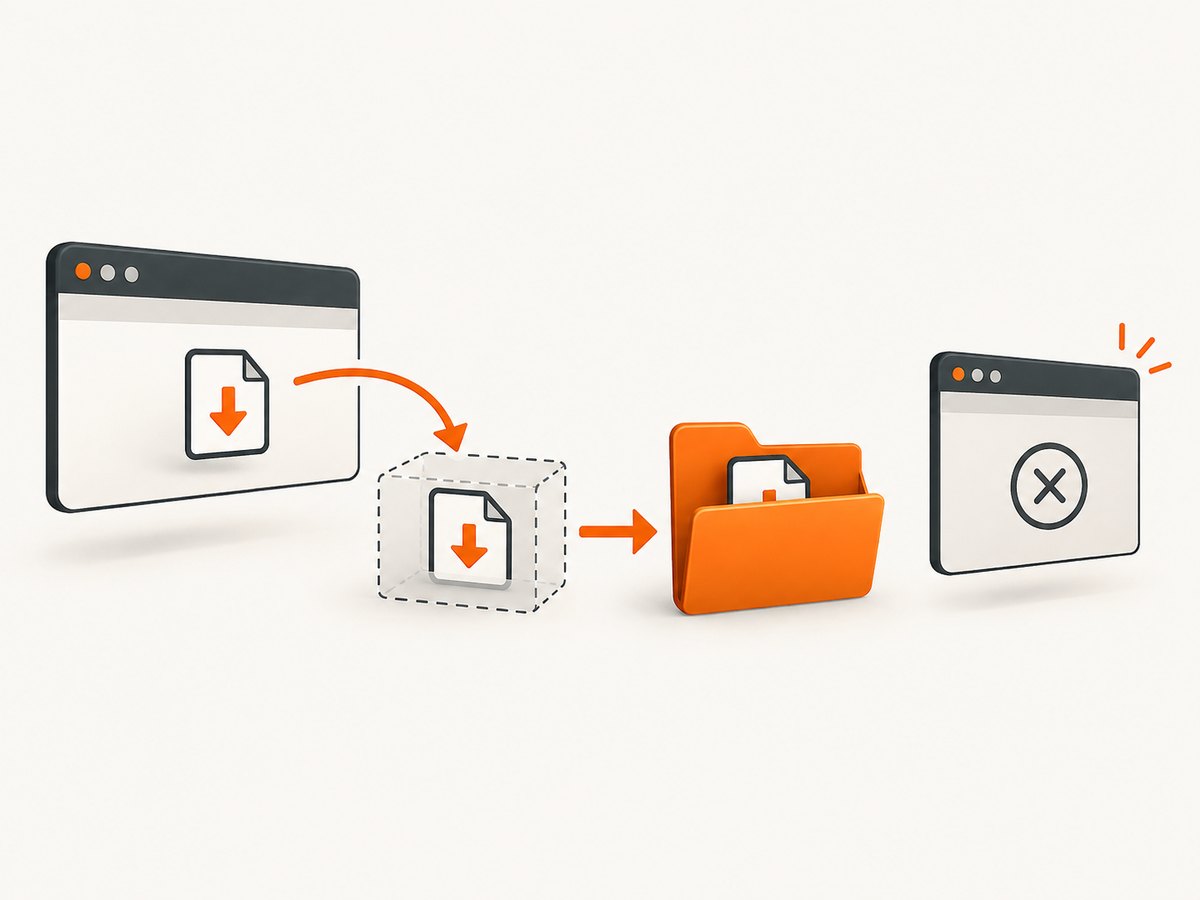
const downloadPromise = page.waitForEvent('download');
await page.getByRole('link', { name: 'Download file' }).click();
const download = await downloadPromise;
await download.saveAs('artifacts/' + download.suggestedFilename());
Playwright documents that downloads are stored in a temporary location and are deleted when the context that created them closes. Call saveAs() when the file must survive the test. Create the destination directory before saving if your test environment does not already provide it.
Render HTML with setContent()
If “load” means “put this HTML string into a page,” use setContent():
const html = `
Fixture page
Generated in the test.
`;
await page.setContent(html);The Frame API states that this method internally calls document.write(), so it inherits the characteristics of that browser operation. This assigns markup to a frame; it does not select a local file for an upload input.
A local HTML file URL is a separate question. Direct file:// navigation, relative assets, module loading, and browser security behavior can vary by runtime and browser. The documented upload and setContent() APIs do not establish one universal recipe for serving an entire local project. If the page depends on scripts, stylesheets, images, or fetch requests, use the project’s supported local server and navigate to its HTTP URL, or verify the exact browser and Playwright behavior you need.
Make fixture paths reliable
- Keep fixtures in a known directory. A layout such as
tests/fixtures/makes paths discoverable. - Resolve paths deliberately. In Node.js, use
path.join()withprocess.cwd()or the test file location. In Python, usepathlib.Path. - Check the runner’s working directory. A path that works from an IDE may fail when the command runs from the repository root or a CI checkout.
- Use absolute paths for dynamic chooser debugging. Once the test passes, you can decide whether a repository-relative path is clearer.
- Keep generated artifacts separate. Store downloaded files in an artifact directory and clean it between runs.
Common errors and fixes
| Error or symptom | Likely cause | Fix |
|---|---|---|
| “Element is not an input element” | The locator targets a button, wrapper, or label rather than the file input. | Target the associated input or use the label locator that resolves to it. For a button-created input, use the file chooser API. |
| File not found | The relative path is resolved from a different working directory. | Print the resolved path, use Path.cwd() or process.cwd(), and verify the fixture exists in CI. |
| Chooser event times out | The event wait was installed after the click, or the action does not create a chooser. | Create the wait before clicking. Inspect the page behavior and confirm that the control really creates a file input. |
| Only one file is accepted | The input does not have the HTML multiple attribute or the application validates one file. |
Pass one path, or change the page contract if multiple selection is required. |
| Upload appears to do nothing | The page processes the file asynchronously or waits for a separate submit action. | Wait for the application’s visible result, network response, or status element instead of assuming selection means submission. |
| Downloaded file disappears | The browser context closed before the temporary download was persisted. | Await the download and call saveAs() before closing the context. |
| HTML renders without CSS or images | The markup references relative local assets that are not available to the document. | Use suitable absolute URLs, a local HTTP server, or a self-contained HTML string. Treat this separately from file upload. |
| Payload has the wrong type | The application relies on the file name or MIME type. | Provide an explicit name and mimeType in the in-memory payload. |
Performance, reliability, and security notes
Performance
- Reuse a browser and context where your test isolation model permits it; launching a browser for every upload adds startup cost.
- Use generated buffers for small deterministic files to avoid unnecessary disk setup.
- Use a fixture path for large files instead of repeatedly allocating large in-memory buffers.
- Wait for the application’s completion signal, not an arbitrary long delay. A selector or response tied to the upload is easier to diagnose.
- Save downloads directly into the artifact location when the test needs them, then avoid reading the same file repeatedly.
Reliability
- Prefer accessible labels and roles over CSS tied to layout.
- Install event listeners before the action that emits the event.
- Make fixture creation part of setup and fail early if required files are missing.
- Keep upload, processing, and download assertions separate so a failure identifies the stage that broke.
- Confirm behavior on the Playwright version used by CI; the official documentation is version-sensitive.
Security
Only expose fixture paths that the test is intended to upload. Avoid constructing paths from untrusted page data. Treat downloaded files as untrusted input: save them in an isolated artifact directory and do not execute them during a test.
Or skip the browser setup
If your goal is to obtain a clean image or PDF of a web page rather than exercise a file-upload control, ScreenshotNeo provides a direct screenshot API. It accepts a URL and returns PNG, JPEG, WebP, or PDF without you managing a browser process.
Use the same one-call pattern from the ScreenshotNeo documentation:
curl -G "https://api.screenshotneo.com/v1/shot" -d access_key=YOUR_API_KEY --data-urlencode url=https://stripe.com -o shot.webpimport requests
r = requests.get("https://api.screenshotneo.com/v1/shot", params={"access_key": "YOUR_API_KEY", "url": "https://stripe.com"}, timeout=90)
open("shot.webp", "wb").write(r.content)const q = new URLSearchParams({ access_key: 'YOUR_API_KEY', url: 'https://stripe.com' });
const res = await fetch(`https://api.screenshotneo.com/v1/shot?${q}`);ScreenshotNeo accepts cookie and consent banners as a visitor, then removes more than 60 known consent platforms, newsletter popups, and chat widgets before capture. Each step can be turned off. Bot checks, CAPTCHAs, blank pages, timeouts, failed loads, and cache hits are not billed; the response reports the result through X-Page-Verdict and X-Billed headers. An MCP server provides take_screenshot, get_page_info, and capture_pdf tools for Claude, Cursor, and other MCP clients.
The Free plan includes 1,000 screenshots per month with no card. Paid plans start at $5 for 3,000 shots, and every feature is available on every plan. If that matches your use case, create a free ScreenshotNeo account.
FAQ
Can Playwright upload a file that does not exist on disk?
Yes. Use the in-memory file payload with a name, MIME type, and buffer. This is useful for generated test data.
Should I use setInputFiles() or setFiles()?
Use setInputFiles() when you can locate an existing file input. Use setFiles() on a FileChooser obtained after waiting for the chooser event.
How do I clear a selected file?
Pass an empty array to setInputFiles([]).
Why does my download vanish after the test?
Downloads are temporary by default and are removed when their browser context closes. Persist the file with saveAs().
Does setContent() load a local HTML file?
It renders an HTML string in the frame. It is not the same as selecting a local file or establishing universal file:// navigation behavior.


