How to Load Local Fonts in Puppeteer
Load local WOFF2 fonts reliably in Puppeteer using a reachable URL or Base64 data URL, then wait for fonts before capturing.

To load a local font in Puppeteer, make it available to Chromium as a URL or embed it in a Base64 data URL, declare it with @font-face, apply the family, and wait for the font before capturing. A path such as ./fonts/Brand.woff2 on your Node.js machine is not automatically a URL the browser can read. For screenshots, explicitly await document.fonts.ready; for PDFs, Puppeteer currently waits for fonts by default.
The two reproducible options are serving the font from the page’s origin or embedding the file. CSS local() can be useful as a fallback, but it depends on fonts installed in the Chromium environment. For consistent output across machines and containers, bundle the font file.
1. Choose how Chromium will access the font
| Method | Best for | Tradeoff |
|---|---|---|
| Serve WOFF2 over HTTP(S) | A site or local app with an asset server | Requires a reachable URL and correct access policy |
| Base64 data URL | Self-contained HTML, especially with page.setContent() |
Increases HTML size and embeds font bytes in memory |
CSS local() |
Fallback when the runtime may already have the font | Output varies with installed fonts |
Puppeteer’s page.addStyleTag() can inject CSS content or link a stylesheet into the page. A real page origin also gives relative font URLs a base to resolve against.
2. Serve the font over HTTP
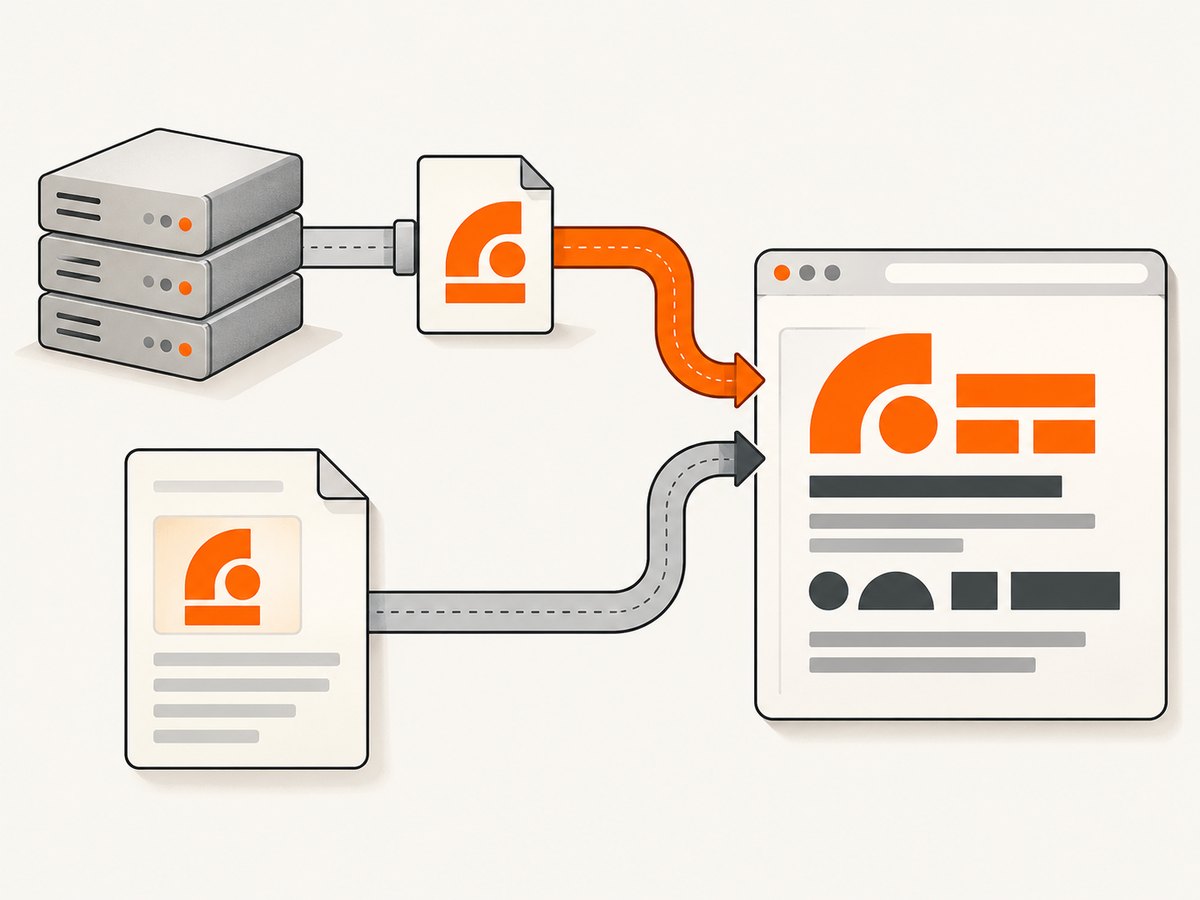
When the page is already served, the least surprising setup is to put the font in a public asset directory and refer to it with a URL that the page can fetch. This complete Node.js example launches Chromium, visits a local page, adds the font rule, waits for the face, captures a screenshot, and closes the browser.
import puppeteer from 'puppeteer';

const browser = await puppeteer.launch();
try {
  const page = await browser.newPage();
  await page.goto('http://127.0.0.1:3000/report.html', {
    waitUntil: 'load',
  });

  await page.addStyleTag({ content: `
    @font-face {
      font-family: 'BrandFont';
      src: url('/fonts/BrandFont.woff2') format('woff2');
      font-weight: 400;
      font-style: normal;
      font-display: block;
    }
    body { font-family: 'BrandFont', sans-serif; }
  ` });

  await page.evaluate(() => document.fonts.ready);
  const loaded = await page.evaluate(() =>
    document.fonts.check('400 16px BrandFont')
  );
  if (!loaded) throw new Error('BrandFont did not load');

  await page.screenshot({ path: 'report.png', fullPage: true });
} finally {
  await browser.close();
}
Replace the page URL and font path with routes your server actually exposes. The @font-face rule must describe the actual file: use a weight and style matching the font file, and add separate rules for separate weights or italic faces. If your site serves the font from another origin, verify the request succeeds from Chromium and that the origin permits the page to use it.
Serve the font from your own app
For a typical frontend project, place the WOFF2 file in the static/public assets directory and verify the resulting URL directly in a browser. For example, a file at public/fonts/BrandFont.woff2 might be served by the development server at http://127.0.0.1:3000/fonts/BrandFont.woff2. The URL is determined by your server configuration; a disk path does not guarantee that route.
You can also put the @font-face rule in a CSS file and inject that stylesheet by URL using page.addStyleTag({url: ...}). Ensure the stylesheet URL and its relative font URL resolve from the expected base.
3. Embed a local WOFF2 file as Base64
When rendering markup with page.setContent(), there is no project-directory base for a relative path such as ../fonts/BrandFont.woff2. Encode the file and construct a data URL instead. This example is self-contained apart from the local font file and writes a PDF.
import puppeteer from 'puppeteer';
import { readFileSync } from 'node:fs';

const fontBase64 = readFileSync('./fonts/BrandFont.woff2').toString('base64');
const html = `
  <!doctype html>
  <html>
    <head>
      <meta charset="utf-8">
      <style>
        @font-face {
          font-family: 'BrandFont';
          src: url(data:font/woff2;base64,${fontBase64}) format('woff2');
          font-weight: 400;
          font-style: normal;
        }
        body { font-family: 'BrandFont', sans-serif; }
      </style>
    </head>
    <body><p>Rendered with BrandFont</p></body>
  </html>`;

const browser = await puppeteer.launch();
try {
  const page = await browser.newPage();
  await page.setContent(html, { waitUntil: 'load' });
  await page.evaluate(() => document.fonts.ready);
  await page.pdf({ path: 'report.pdf', waitForFonts: true });
} finally {
  await browser.close();
}
Use the MIME type that matches the file format: font/woff2 for WOFF2 and font/woff for WOFF. Embedding is convenient for a single document or an isolated render worker. For many pages, a served file can avoid repeatedly placing the encoded font into every HTML string.
4. Wait for fonts before capture
A page lifecycle event such as load does not mean every font you intend to use has completed loading. The browser’s document.fonts.ready promise resolves after font loading and associated layout work finish. It concerns used fonts: a face declared in CSS but never applied to visible text may not be fetched.

For screenshots
await page.evaluate(() => document.fonts.ready);
await page.screenshot({ path: 'report.png' });
For pages that reveal or update content after initial navigation, first wait for the relevant selector or application state, then wait for fonts, then capture. Avoid relying on a fixed sleep as the only readiness check; a delay may be too short on a slow run and waste time on a fast one.
For PDFs
Puppeteer’s PDF generation guide states that Page.pdf() waits for fonts by default. The current PDFOptions reference lists waitForFonts: true as the default and describes it as waiting for document.fonts.ready. Set it explicitly when you want the behavior to be obvious in the code:
await page.pdf({
  path: 'report.pdf',
  format: 'A4',
  printBackground: true,
  waitForFonts: true,
});
If the page is in the background and font readiness appears stuck, the PDF options reference notes that activating the page with page.bringToFront() may be required.
5. Use local() only when environment dependence is acceptable
CSS local() asks the browser to use an installed face with a matching local name before trying the following source. It is not a way to point at a file on your Node.js disk.
@font-face {
  font-family: 'BrandFont';
  src: local('Brand Font'), url('/fonts/BrandFont.woff2') format('woff2');
  font-weight: 400;
  font-style: normal;
}
If the named face exists in one developer’s operating system but not in a Linux container, the page may look different between environments. Use a bundled WOFF2 as the primary source when render consistency matters. Google’s font guidance also describes local() as an installed-face source and discusses selecting browser-compatible font formats.
Do not confuse CSS local() with the Local Font Access API. window.queryLocalFonts() is a separate, permission-gated API for enumerating installed fonts in desktop Chromium. Ordinary CSS font loading from a bundled WOFF2 does not require enumerating system fonts.
6. Match the face to the text you render
A valid font request can still leave some text in a fallback face when the CSS family, weight, style, or glyph coverage does not match. Declare the actual face attributes and apply the family to the content being captured.
@font-face {
  font-family: 'BrandFont';
  src: url('/fonts/BrandFont-Regular.woff2') format('woff2');
  font-weight: 400;
  font-style: normal;
}

@font-face {
  font-family: 'BrandFont';
  src: url('/fonts/BrandFont-Bold.woff2') format('woff2');
  font-weight: 700;
  font-style: normal;
}

body { font-family: 'BrandFont', sans-serif; }
strong { font-weight: 700; }
For variable fonts, declare the supported weight range only if that file is a variable font. For language-specific content, ensure the font contains the needed glyphs; a browser can legitimately use fallback for characters absent from the chosen font.
7. Troubleshooting font fallback
| Symptom | Likely cause | What to check or change |
|---|---|---|
| Screenshot uses Arial or another fallback | Capture happened before font readiness, URL failed, or family rule did not apply | Await document.fonts.ready; inspect the font request and computed style |
| PDF ignores custom font | Wrong face declaration, font unavailable, or page is not ready | Set waitForFonts: true, confirm the exact face is used, and inspect request errors |
Font works with goto() but not setContent() |
Relative URL has no useful page origin | Use an absolute HTTP(S) URL or embed the font as a data URL |
| Only bold or italic text falls back | No matching weight/style face was declared | Add a matching @font-face source and verify its file |
| Some symbols or non-Latin text differ | The selected file lacks those glyphs | Use a font file with the required character coverage or an intentional fallback stack |
| Remote font fails although URL opens elsewhere | Request blocked by CSP, CORS, authentication, or an origin/network issue | Inspect Chromium console and network logs; test from the page’s origin |
Check whether the browser considers the requested face available:
const diagnostics = await page.evaluate(() => ({
  ready: document.fonts.status,
  faceAvailable: document.fonts.check('400 16px BrandFont'),
  family: getComputedStyle(document.body).fontFamily,
}));
console.log(diagnostics);
document.fonts.check() is a useful diagnostic, but also inspect the actual network request and visual output. A declared-but-unused face may not load, and fallback for unsupported glyphs can be expected even when the primary face loaded successfully.
Local paths supplied to page.setContent() have been reported as a source of custom-font failures in Puppeteer issue reports. Treat issue reports as debugging clues rather than guarantees for every Puppeteer and Chromium version. The robust remedies are a real served origin, an absolute URL Chromium can fetch, or embedded font data.
8. Performance, reliability, and output costs
- Prefer WOFF2 when available. It is a compact web font format and reduces transfer compared with larger alternatives in many cases.
- Reuse the browser process for batches. Launching Chromium for every single render adds setup work. Keep page state isolated per task and close pages when finished.
- Do not wait for all network traffic blindly. Analytics or long polling can prevent network-idle conditions. Wait for the page content your capture needs and then for font readiness.
- Use explicit timeouts and diagnostics. Font requests can fail or stall due to server and network behavior. Log console errors and failed requests so that fallback is observable.
- Base64 trades requests for payload size. Embedding avoids a separate font fetch, but the encoded bytes enlarge the HTML string. For repeated captures, a served font may be simpler to cache.
- PDF layout is print rendering. Page size, margins, scale, background printing, and CSS print rules affect the result independently of whether the font loaded. Puppeteer exposes options such as
format,margin,printBackground,pageRanges, andpreferCSSPageSize.
There is no benchmark in the research for a universal fastest loading method. Measure with your font file, page, and deployment environment. Reliability comes from making the font reachable, matching the face declaration, and synchronizing capture on font readiness.
Or skip the browser setup
If you need a screenshot of a public page without maintaining Puppeteer, ScreenshotNeo returns an image or PDF from one GET request. Its API captures websites; it does not load a private local font file from your machine. See the ScreenshotNeo API documentation for its request options.
curl -G "https://api.screenshotneo.com/v1/shot" \
  -d access_key=YOUR_API_KEY \
  --data-urlencode url=https://stripe.com \
  -o shot.webp
ScreenshotNeo removes cookie banners, popups, and chat widgets before the shot; bot checks, blank pages, and failed loads are never billed. An MCP server lets AI agents take screenshots. The free plan includes 1,000 screenshots a month with no card, and paid plans start at $5 for 3,000. Sign up for 1,000 free screenshots a month, no card required.
FAQ
How do I load a local .woff2 file in Puppeteer?
Serve it from a URL Chromium can reach or read it in Node.js and put its Base64 bytes in a data:font/woff2 URL. Declare the source with @font-face, apply that family, and await font readiness before a screenshot.
Does page.pdf() wait for custom fonts?
Yes. Current Puppeteer documentation says PDF generation waits for fonts by default; the PDF option is waitForFonts, whose default is true.
Can I use a filesystem path directly in CSS?
Not as a dependable browser URL. A Node.js path and a URL resolved by Chromium are different things. Serve the file, use a valid absolute URL, or embed it.
Do I need Local Font Access to use a bundled font?
No. That API enumerates installed fonts and is separate from normal CSS @font-face loading.


